
How to Build Your Ghost Theme Visually (Step-by-Step Guide, No Code)
Build a complete Ghost theme without touching code: start from a theme, edit text and pictures in place, add sections from a library of 270, set colours and fonts, design every page, and publish to Ghost in one click. Step by step, with screenshots.

Michal Wlosik
· 9 min read
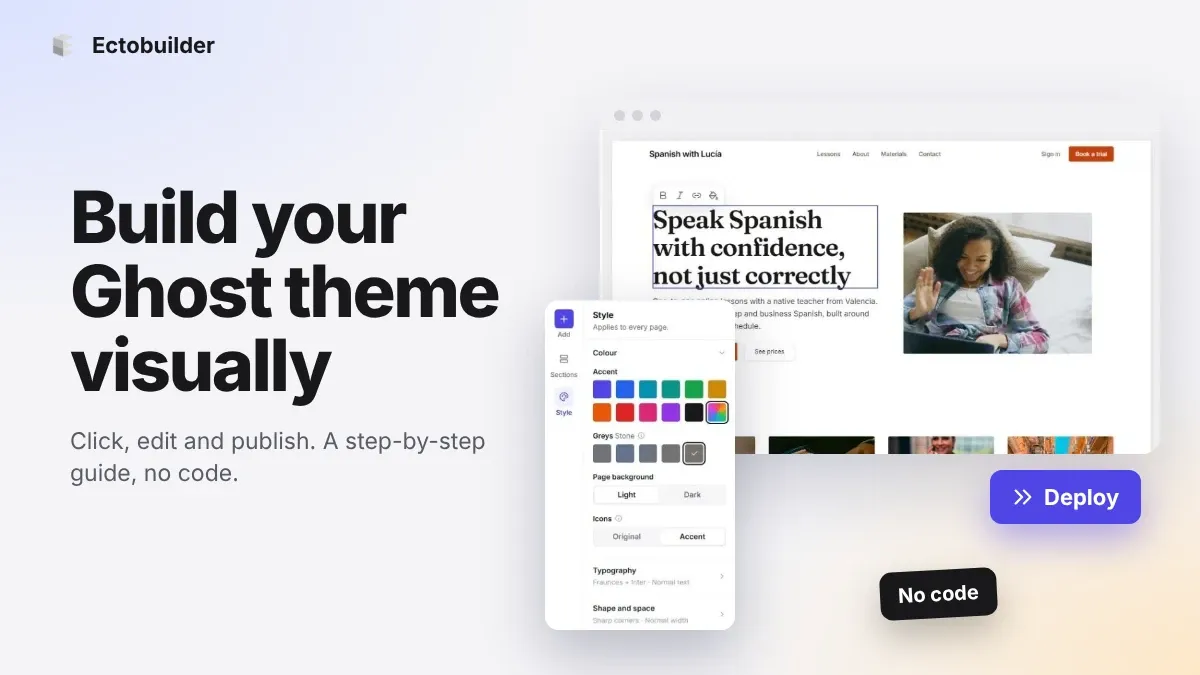
A Ghost theme is a folder of Handlebars templates, CSS and JavaScript. Changing one usually means editing code, zipping the folder and uploading it again, then checking what broke. That's fine if you're a developer. If you're a writer, a coach or a small business, it means the design of your site is the one thing you can't touch.
This guide shows the other way: building a complete Ghost theme visually in Ectobuilder. You click on what you want to change, pick sections from a library, set your colours and fonts, and publish the finished theme to your Ghost site. No Handlebars, no zip files. We'll build a real site step by step, a language tutor's homepage, and every screenshot comes from the editor.
What you need
- A free Ectobuilder account. You can design, preview and download themes without paying anything.
- A Ghost site, if you want to publish with one click. Ghost(Pro), a managed host or your own server all work. No site yet? See Ghost(Pro) vs other Ghost hosting or our guide to cheap Ghost hosting.
- About an hour for your first theme. Most of it is choosing pictures and writing copy.
Step 1: Start from a theme or a blank page
Sign in and open the Gallery. It holds finished themes for magazines, newsletters, portfolios, local businesses, tutors and more. Each one has a Preview button and a Use this theme button. Use this theme makes your own copy, so you can change anything without affecting the original.
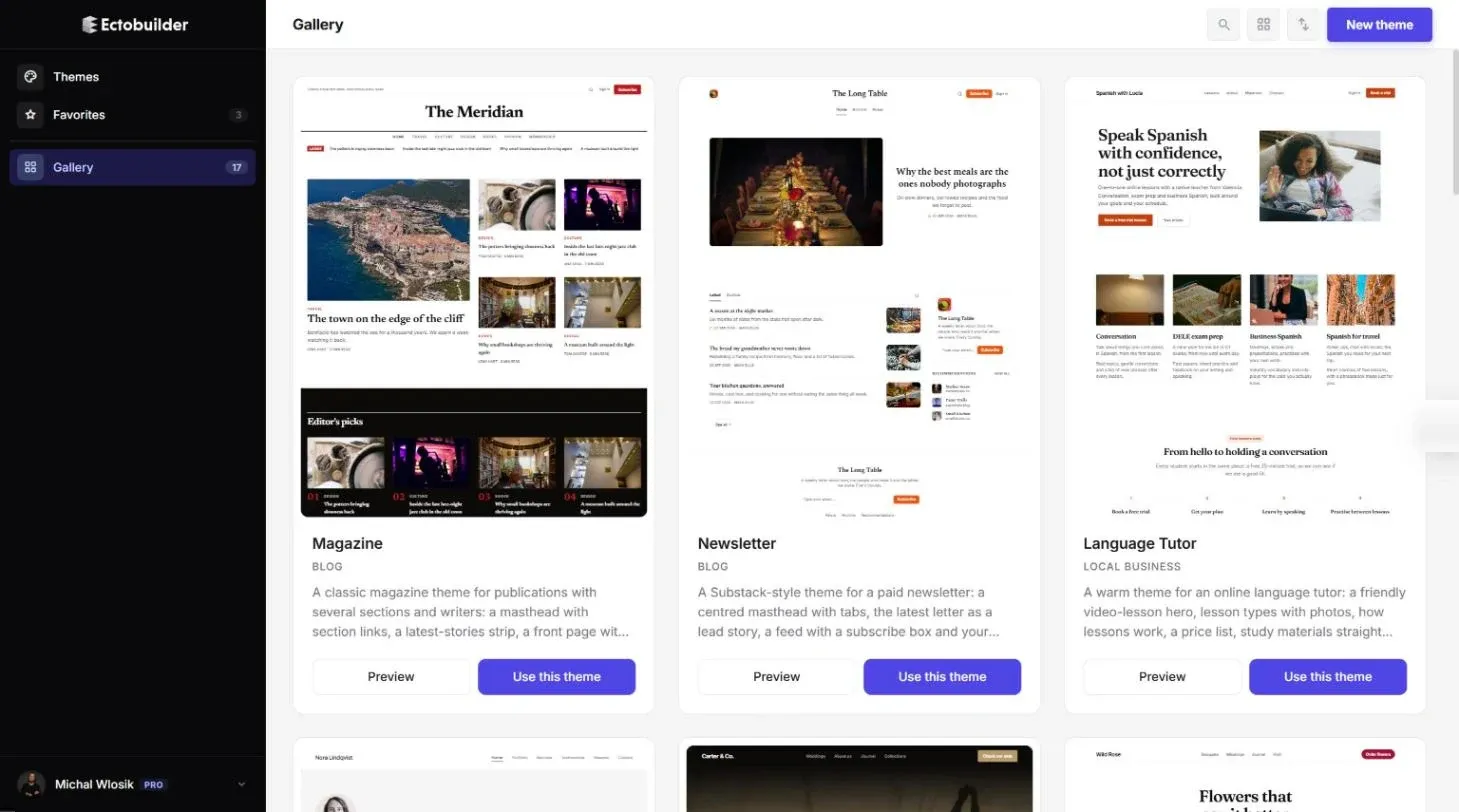
Starting from a gallery theme is the fastest route: the pages, post lists, header and footer are already wired up to Ghost. You can also start from scratch with New theme and add sections one by one. For this guide we'll take the Language Tutor theme and make it our own.
Step 2: Find your way around the editor
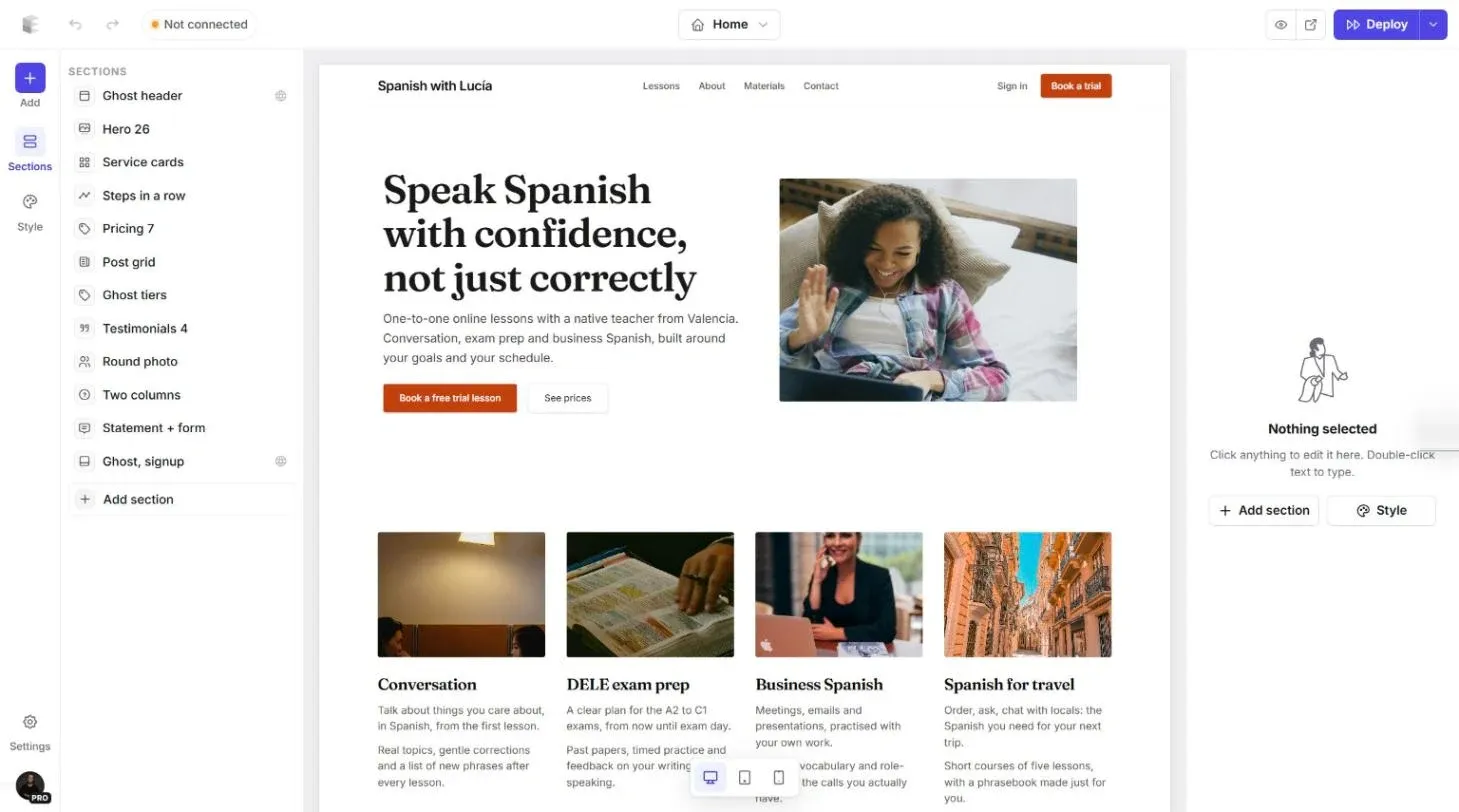
The editor has three columns:
- Left: Sections. Every section on the current page, top to bottom. Click one to select it, drag to reorder. The Add button opens the section library, and Style opens your theme's colours and fonts.
- Centre: the canvas. Your page as visitors will see it, with real pictures and sample posts. This is where you click to edit.
- Right: the inspector. Settings for whatever you've selected. With nothing selected, it offers shortcuts to add a section or open Style.
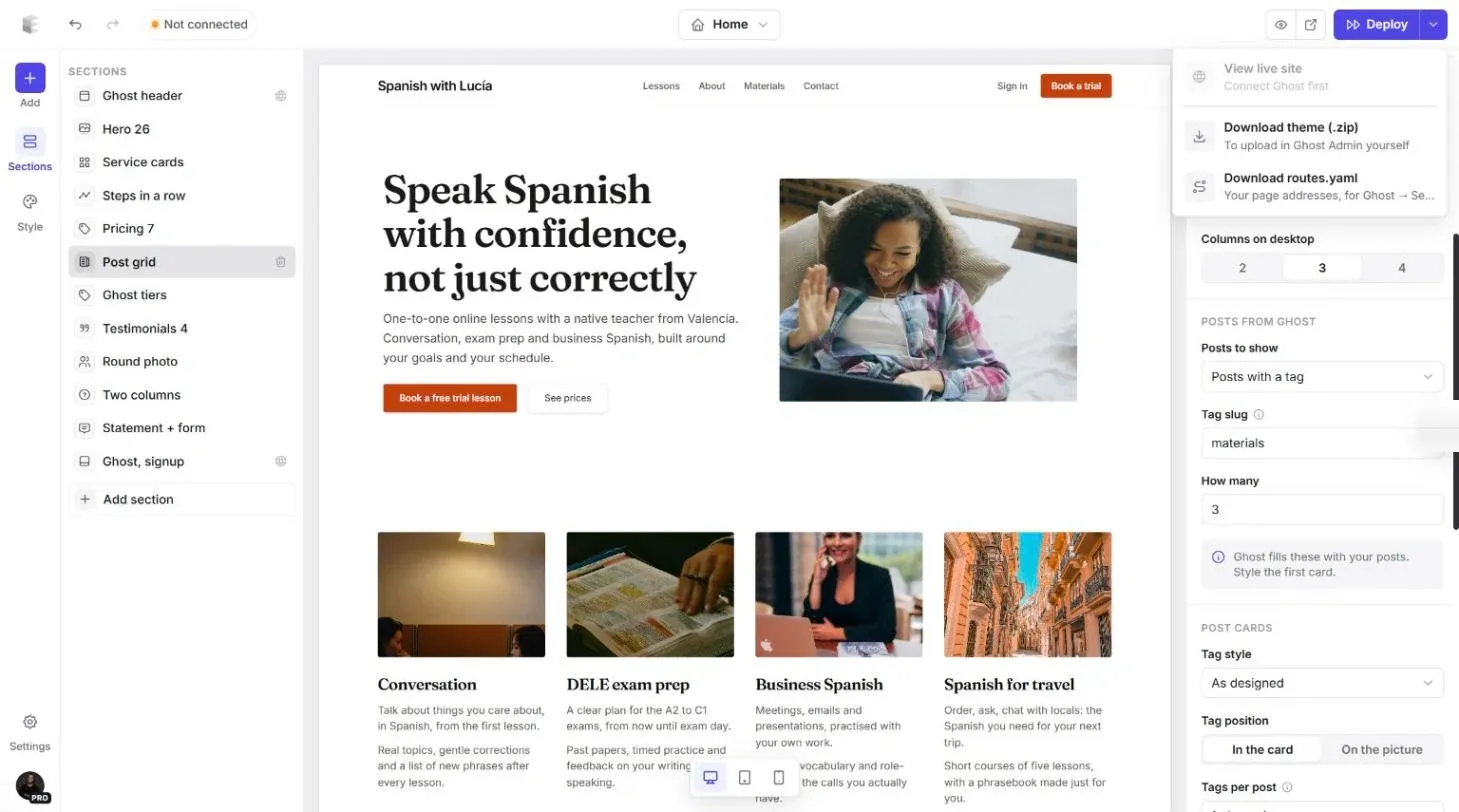
Along the top: undo and redo, the page switcher in the middle, and on the right preview, open in a new tab, and Deploy.
Step 3: Edit text in place
Click any heading, paragraph or button on the canvas. A blue outline shows what's selected, and a small toolbar names it ("Heading") with buttons to move, duplicate or delete it. The inspector switches to that element's settings: alignment, how it animates into view, which screen sizes show it.
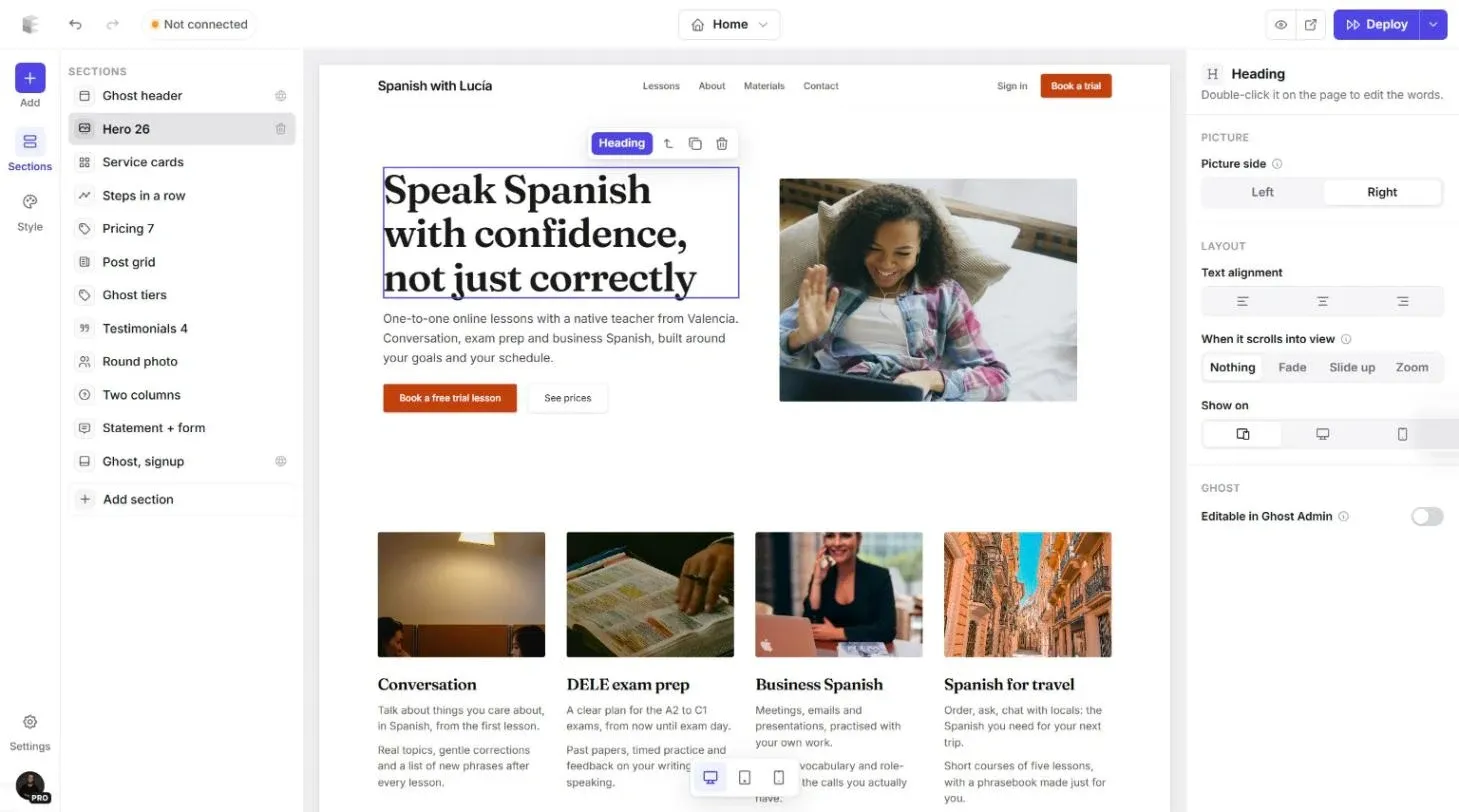
Double-click to type. The text becomes editable right where it sits, with a format bar for bold, italic, links and lists. Write your real copy here, not in a separate document: you see straight away whether a headline fits on two lines or wraps awkwardly.
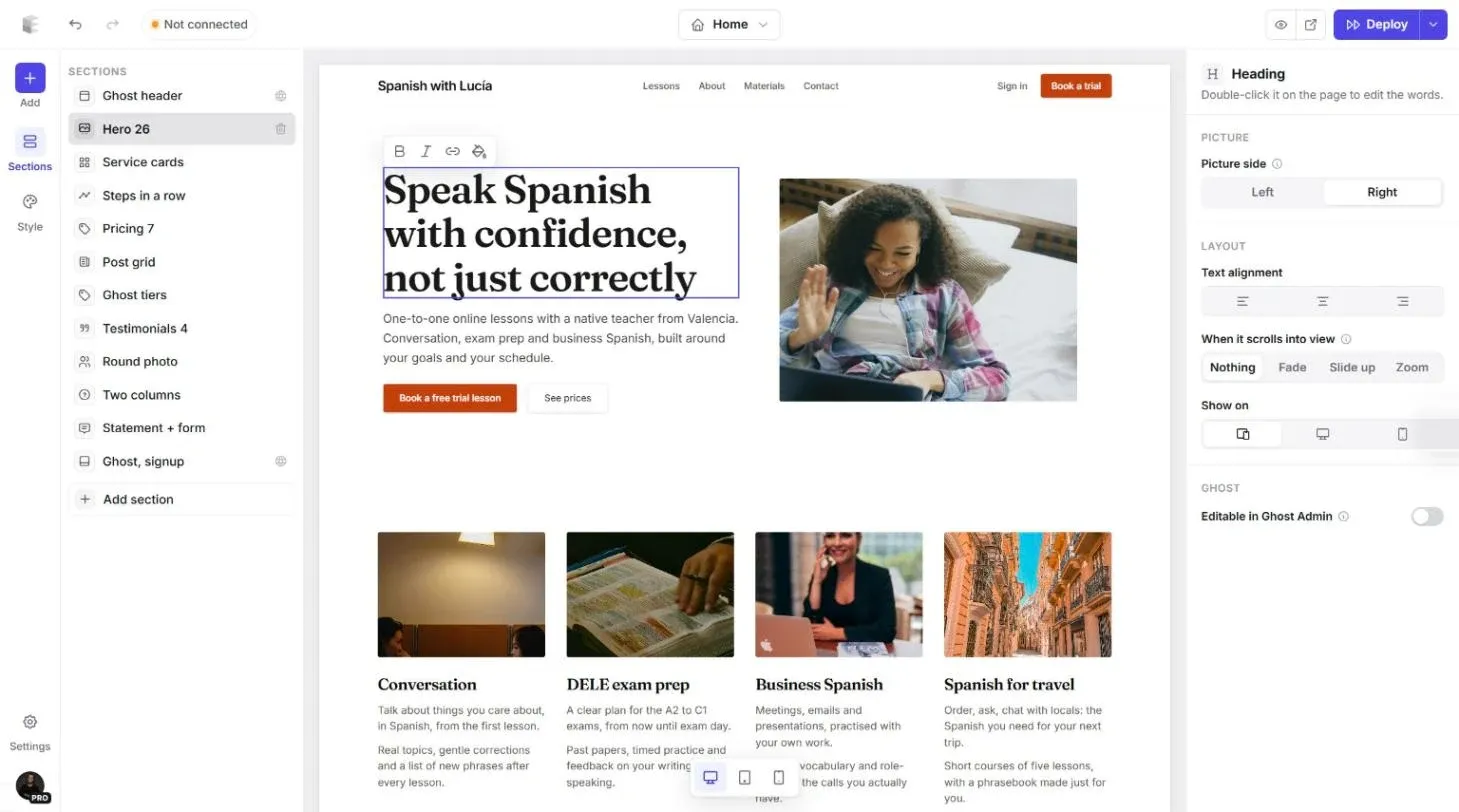
Tip: if you want to change a piece of text later from Ghost Admin without opening the editor, turn on Editable in Ghost Admin for it. It then appears in Ghost's own theme settings.
Step 4: Replace the pictures
Click a picture to select it. The inspector shows everything about it: the description that screen readers and Google read, the shape and aspect ratio, how it fills its box, what happens on hover, and a backdrop behind it.
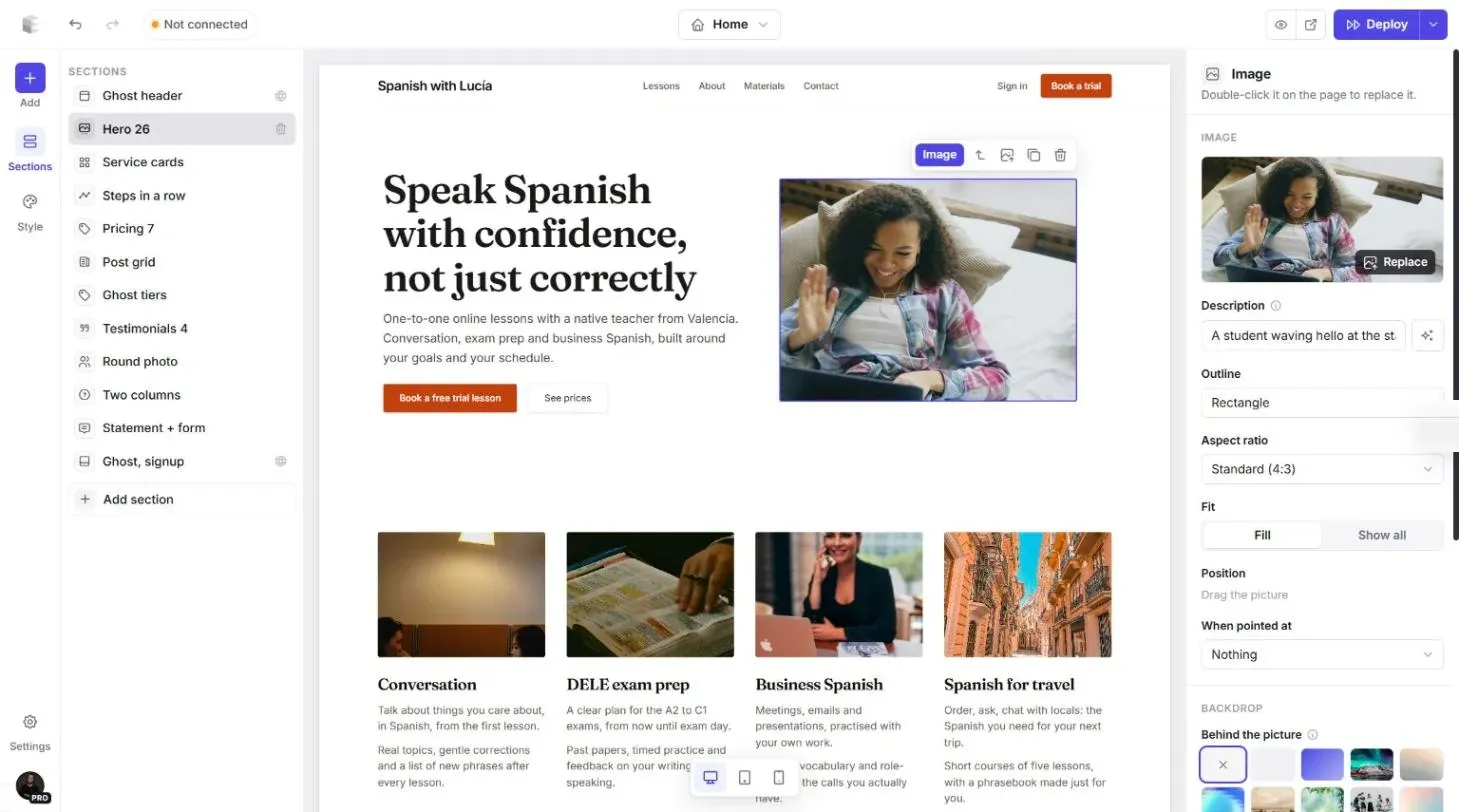
Click Replace (or double-click the picture) to open your assets. Upload your own photos, reuse pictures from your Ghost site, or search Unsplash's free photo library right inside the editor. Pick one and it drops into place at the right size.
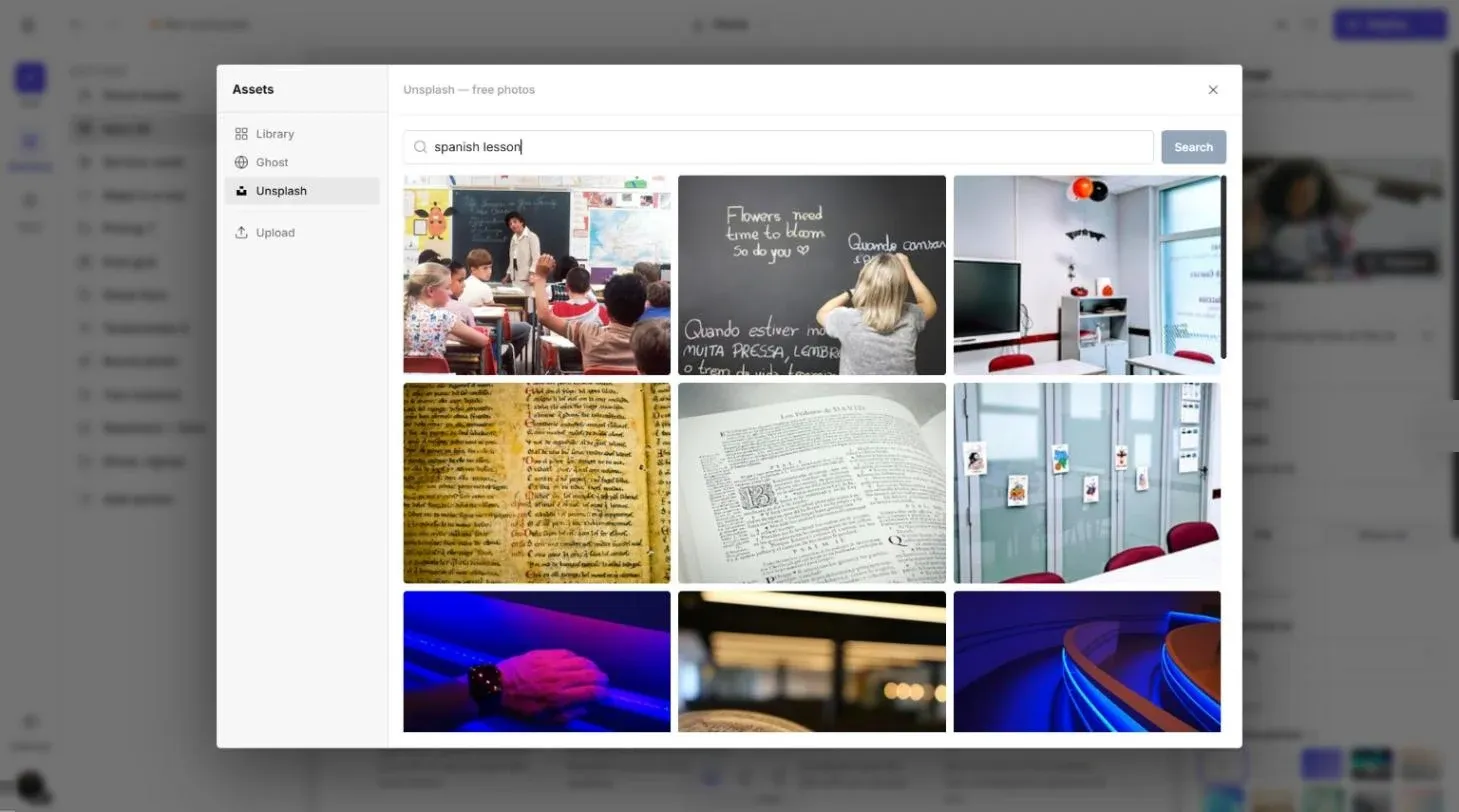
Write a short description for every picture you add. It helps visitors who use screen readers and it helps your pictures show up in search.
Build your Ghost theme without code.
Start from a finished theme or a blank page, change it by clicking, and publish it to your Ghost site. Free to start.
Step 5: Add sections from the library
This is where a visual builder pays off. Click Add (or Add section under the sections list) to open the library: about 270 ready-made sections, sorted into categories such as heroes, features, processes, pricing, testimonials, FAQs, contact forms and post lists. Each one shows a thumbnail, so you can see what you're getting before you add it.
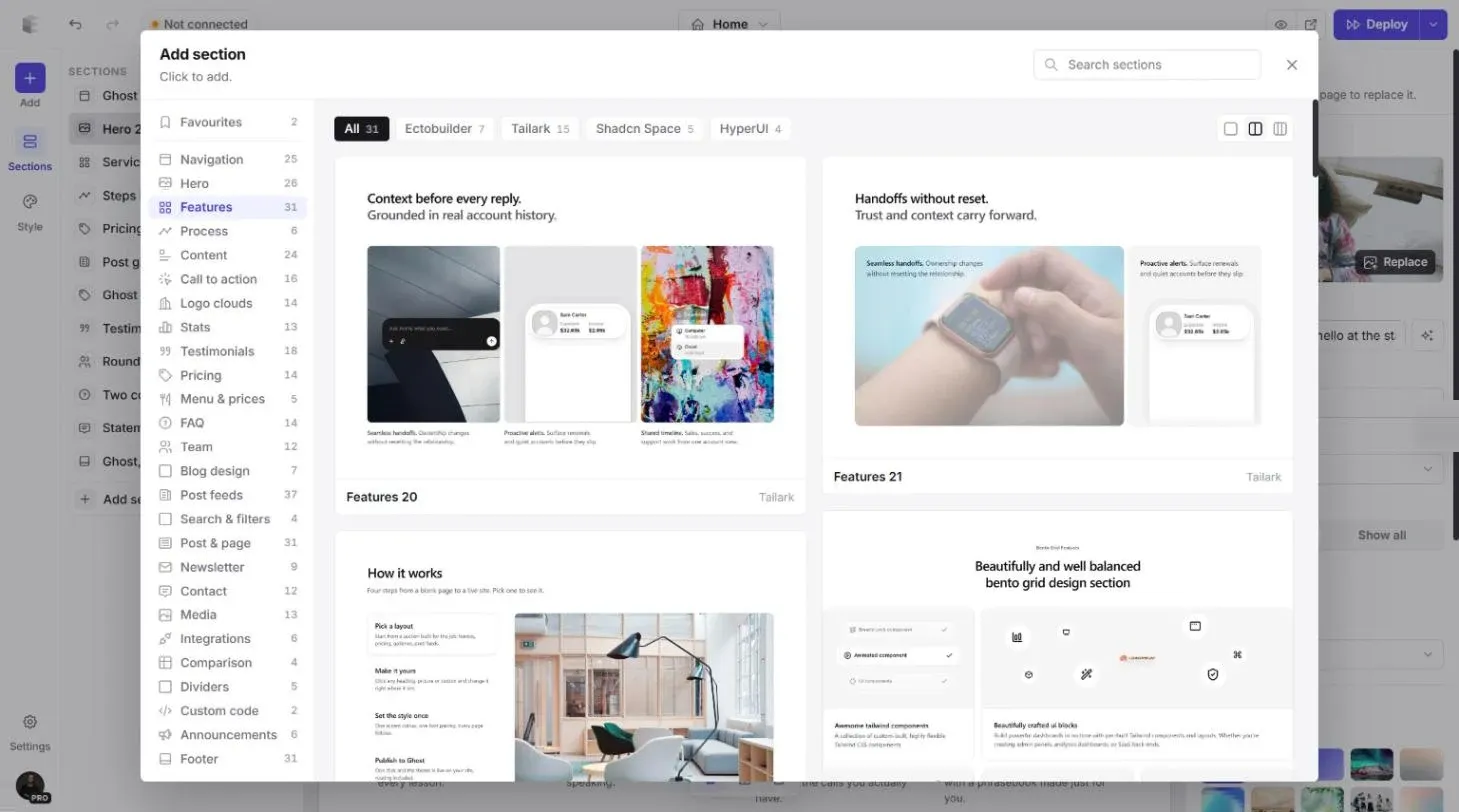
Click a section and it lands on your page, styled with your theme's colours and fonts, filled with sample content you then replace. Every section is built for phones as well as desktops, so there's no separate mobile layout to maintain.
Some sections do more than look good. There are contact forms that email you every message, booking sections for Calendly or Cal.com, pricing tables that read your Ghost tiers, and post lists with search and filters.
Step 6: Adjust a section
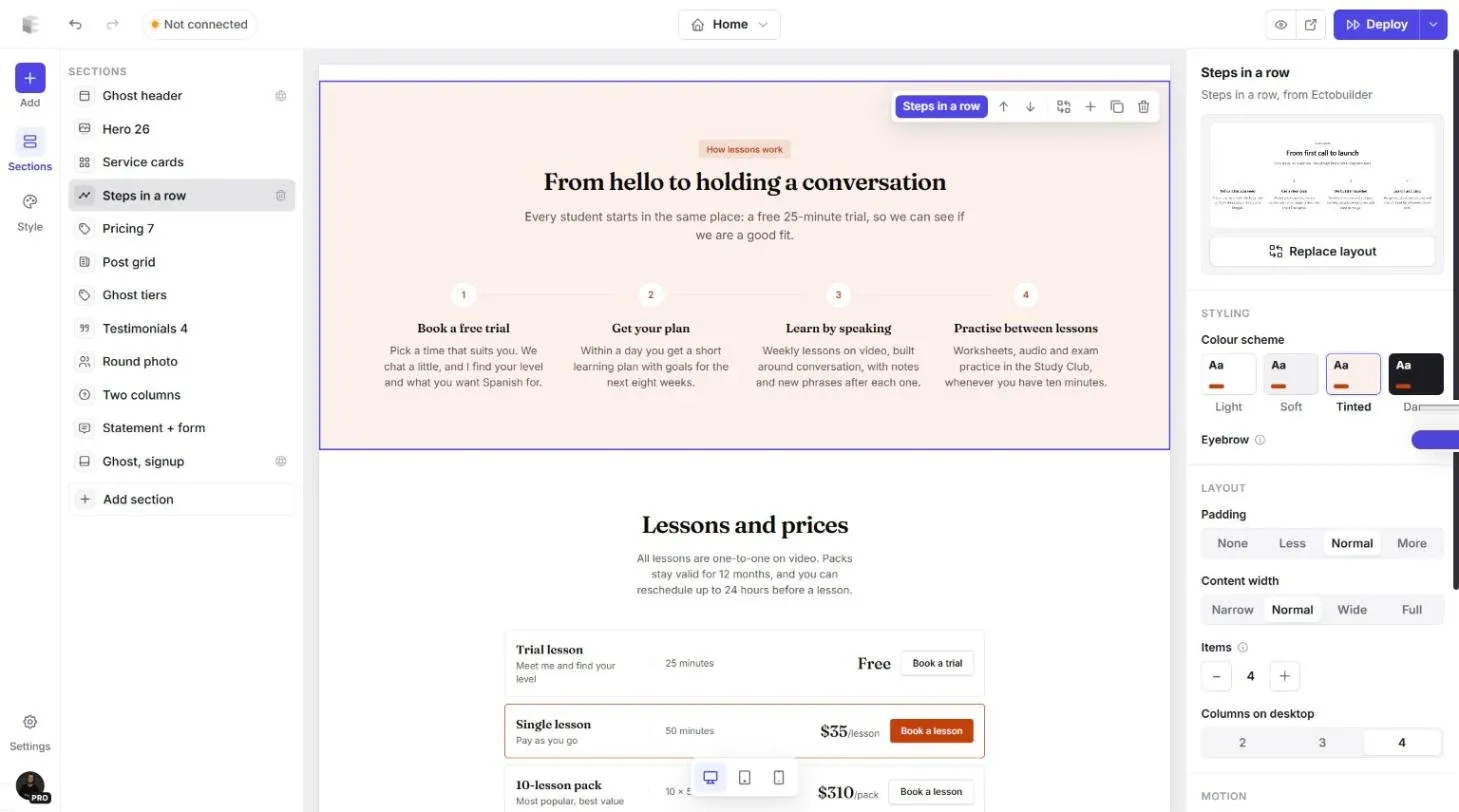
Select a section, either in the list on the left or by clicking its empty space on the canvas, and the inspector shows its settings. The most useful ones:
- Colour scheme. Light, Soft, Tinted or Dark. Alternating schemes down a page separate the sections without any extra design work. Here we've set the "how it works" steps to Tinted.
- Padding and content width. How much room the section takes up and how wide its content runs.
- Columns. How many items sit side by side on a desktop.
- Motion. Whether the section fades or slides in as readers scroll.
- Replace layout. Swap the section for another design and keep your content.
Step 7: Set your colours and fonts
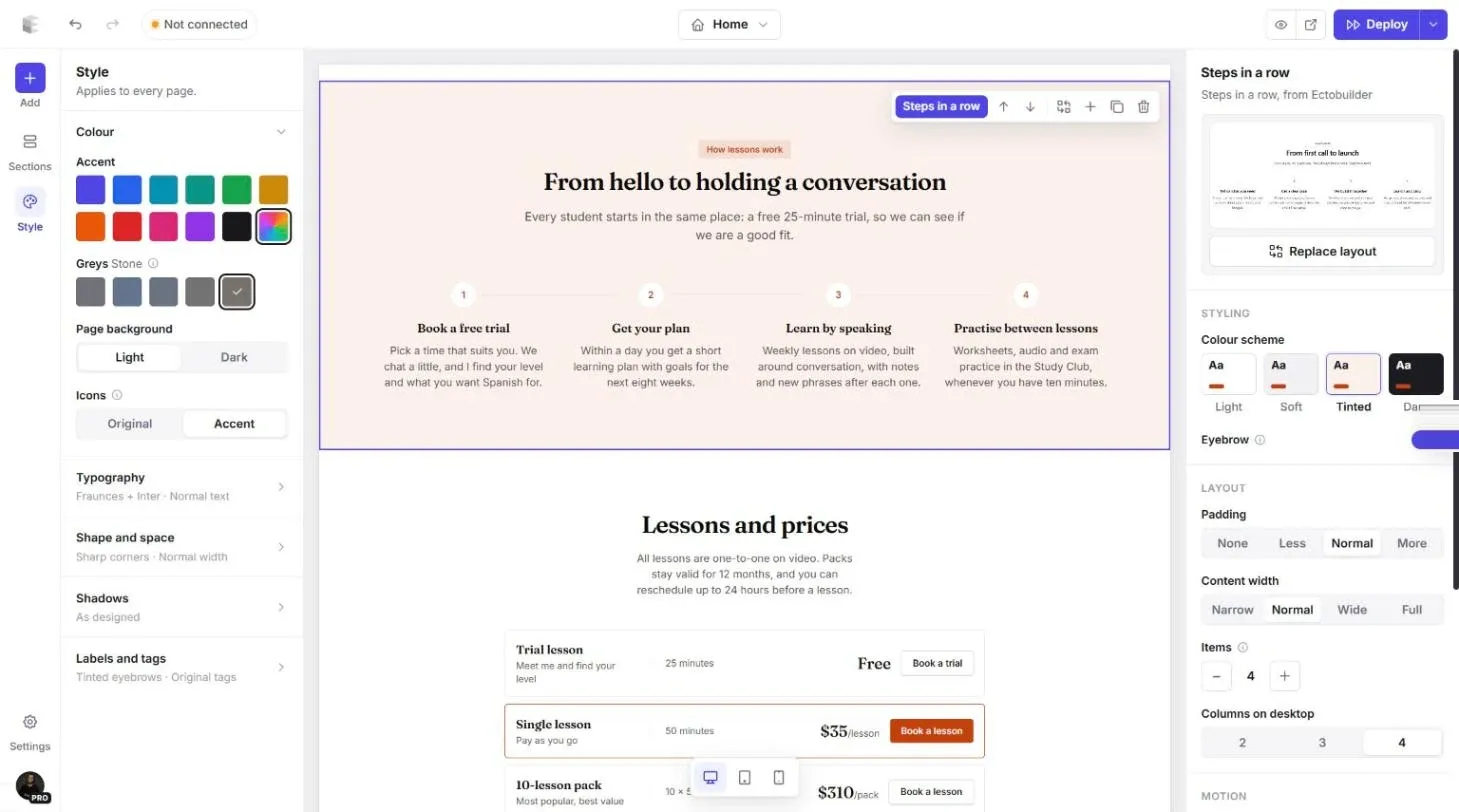
Open Style in the left bar. These settings apply to every page of the theme at once, so you can change your whole site's look in a minute:
- Colour: your accent colour, the grey tone, and whether the page background is light or dark.
- Typography: heading and body fonts and their sizes.
- Shape and space: rounded or square corners, and how tight or airy the layout feels.
- Shadows, labels and tags.
If you want readers to choose between light and dark, add a dark mode toggle. Ectobuilder makes the dark palette from your brand colours.
Step 8: Design every page of your site
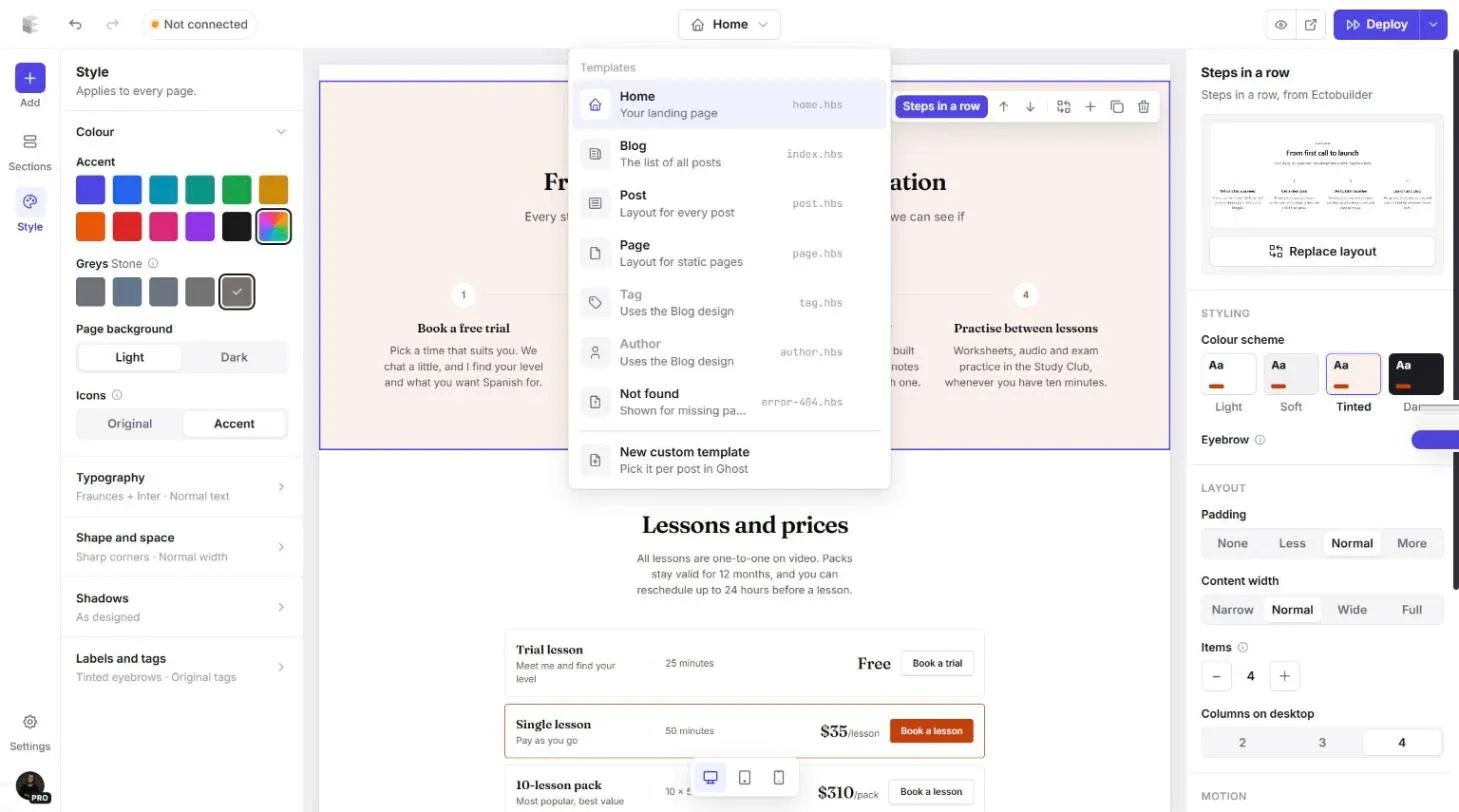
A Ghost site isn't one page. Open the switcher at the top of the editor to move between your theme's templates:
- Home, your landing page.
- Blog, the list of all posts. Tag and author pages use the same design unless you split them.
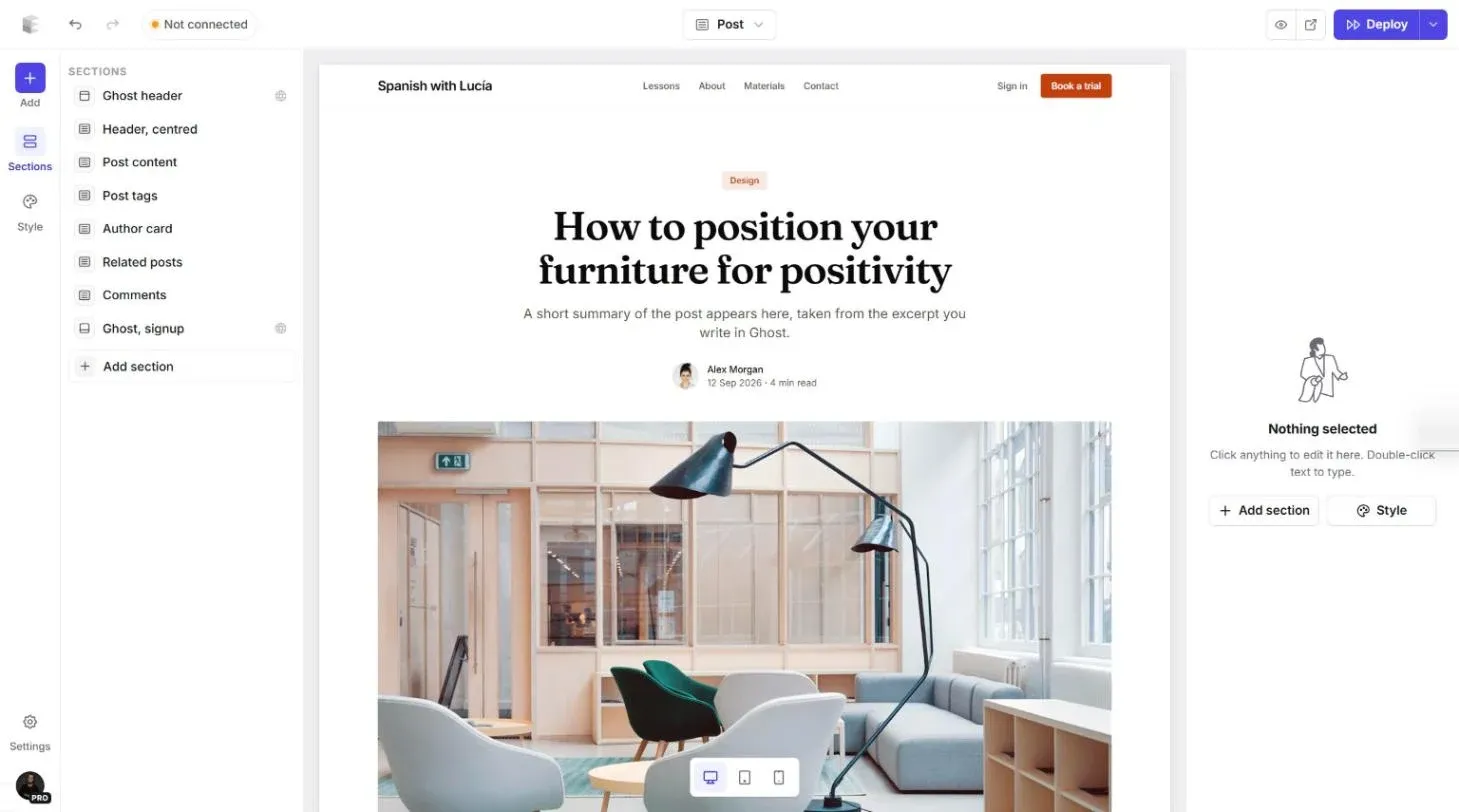
- Post, the layout every post uses.
- Page, for static pages such as About.
- Not found, the 404 page.
- New custom template, for one-off designs like a landing page or a features page. See how custom templates work.
The Post template deserves some care, since it's where readers spend most of their time. Add an author card, related posts, comments, a table of contents or a lightbox for your pictures. The canvas shows a sample post so you can judge the reading experience.
Step 9: Show your Ghost posts
Post grids, lists and carousels fill themselves with your real Ghost posts once the theme is live. You design the first card and Ghost repeats it for every post. Under Posts from Ghost you choose which posts appear: the latest ones, featured posts, or posts with a particular tag. Here the homepage shows the three newest posts tagged materials.
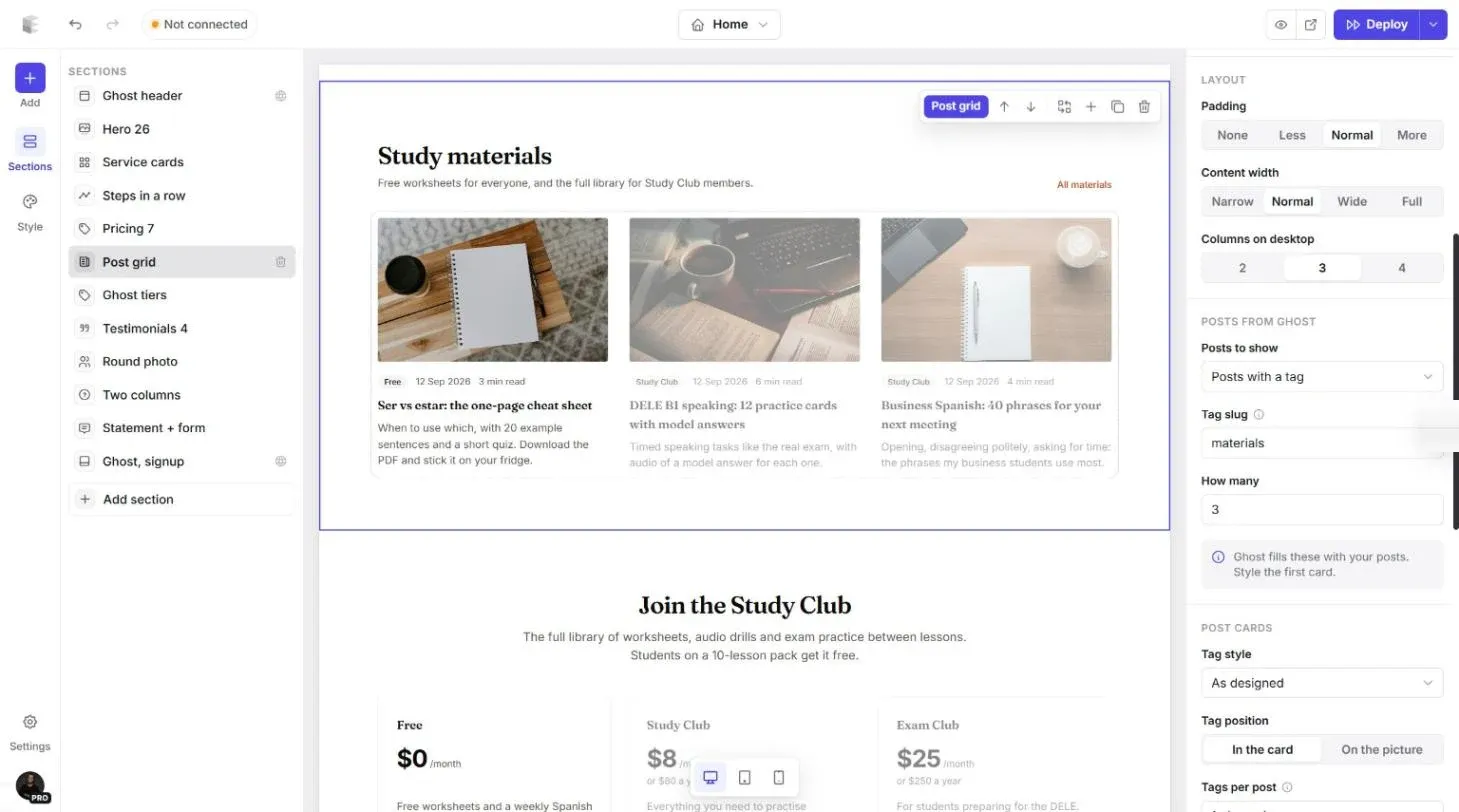
Below that, Post cards controls how tags look and where they sit. You can even show a tag as an icon on the picture, for example to mark premium posts.
Step 10: Check it on a phone
Most of your visitors will read on a phone. Use the three buttons at the bottom of the canvas to switch between desktop, tablet and phone widths. The menu collapses, columns stack and buttons resize on their own, but it's worth scrolling through every page at phone size to check your headlines and pictures.
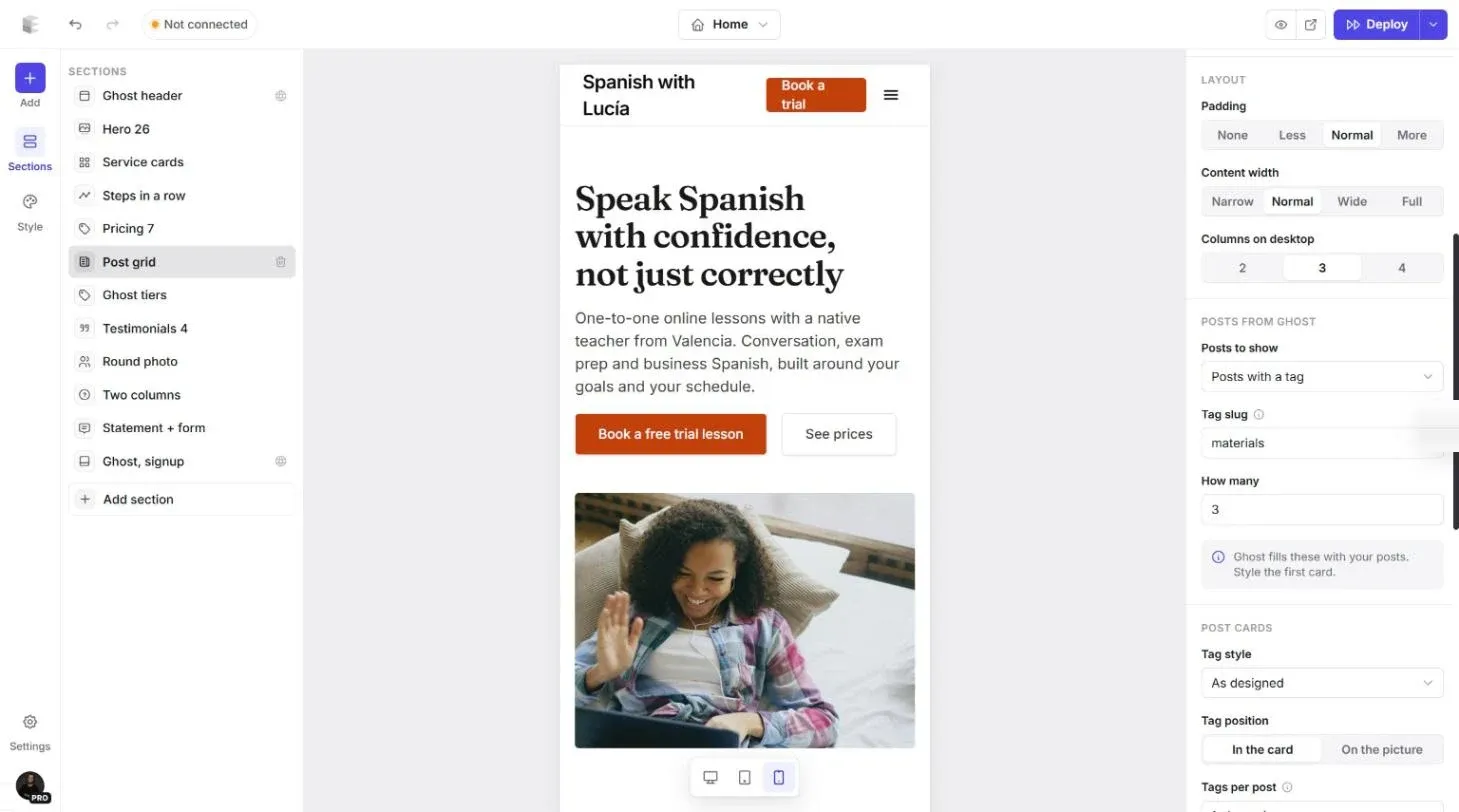
When you're happy, the eye icon at the top opens a full preview, and the arrow next to it opens the page in a new tab.
Step 11: Connect Ghost and deploy
Open Settings (bottom left) and go to Integrations. Under Ghost Admin API, click Connect and link your Ghost site. Once it's connected, Ectobuilder can publish your theme, show your real posts, and create the pages your custom templates need. The same screen sets up forms, booking and comments.
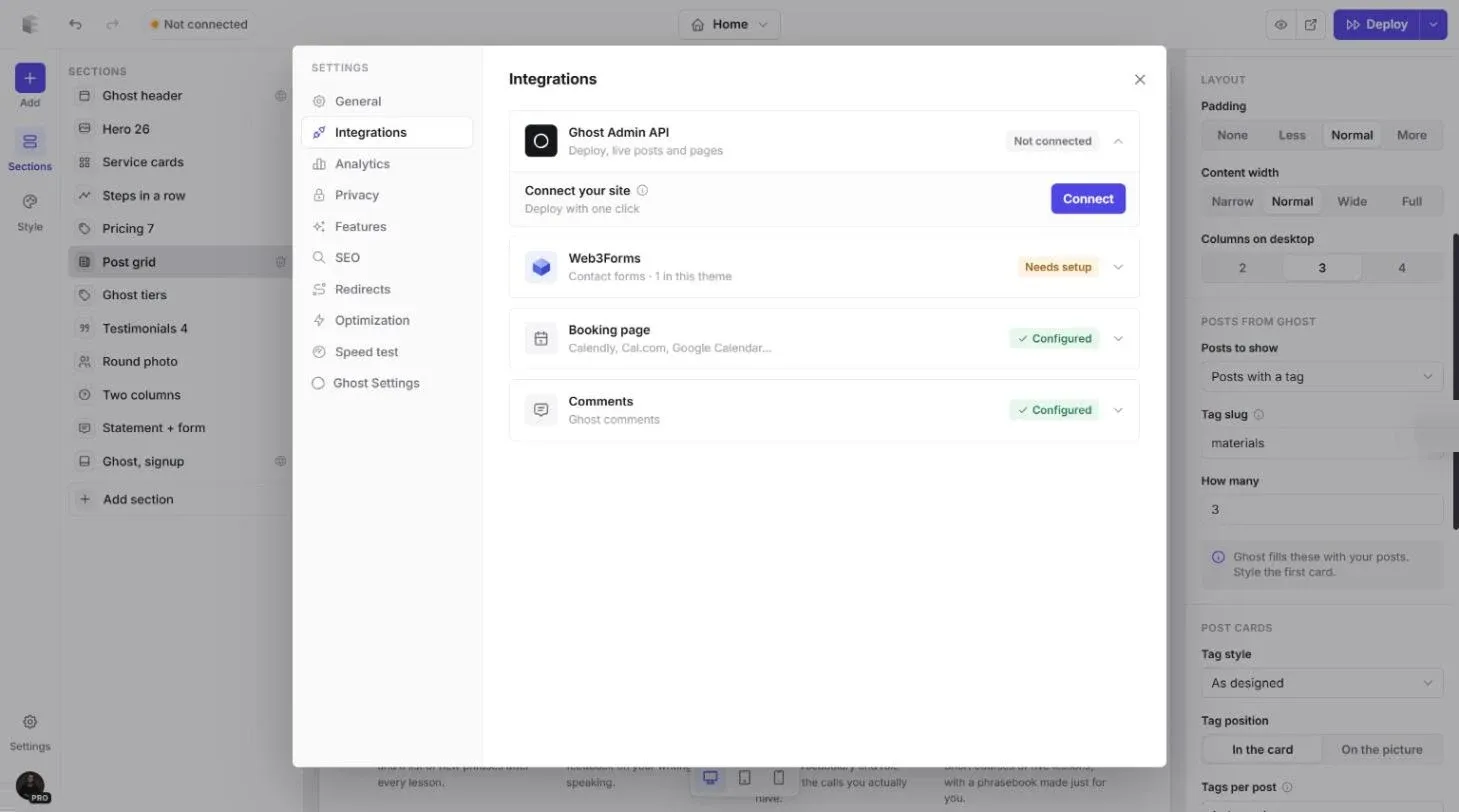
Then click Deploy. Ectobuilder builds the theme, uploads it to Ghost and switches it on. Your site changes straight away. Deploying needs a paid Ectobuilder plan. On the free plan, open the arrow next to Deploy and choose Download theme (.zip), then upload it in Ghost Admin under Settings → Design & branding → Change theme.
Note for Ghost(Pro) users: custom themes need the Publisher plan or higher. Ghost(Pro) is the simplest way to run Ghost if you'd rather not manage hosting at all.
One more thing: routes.yaml
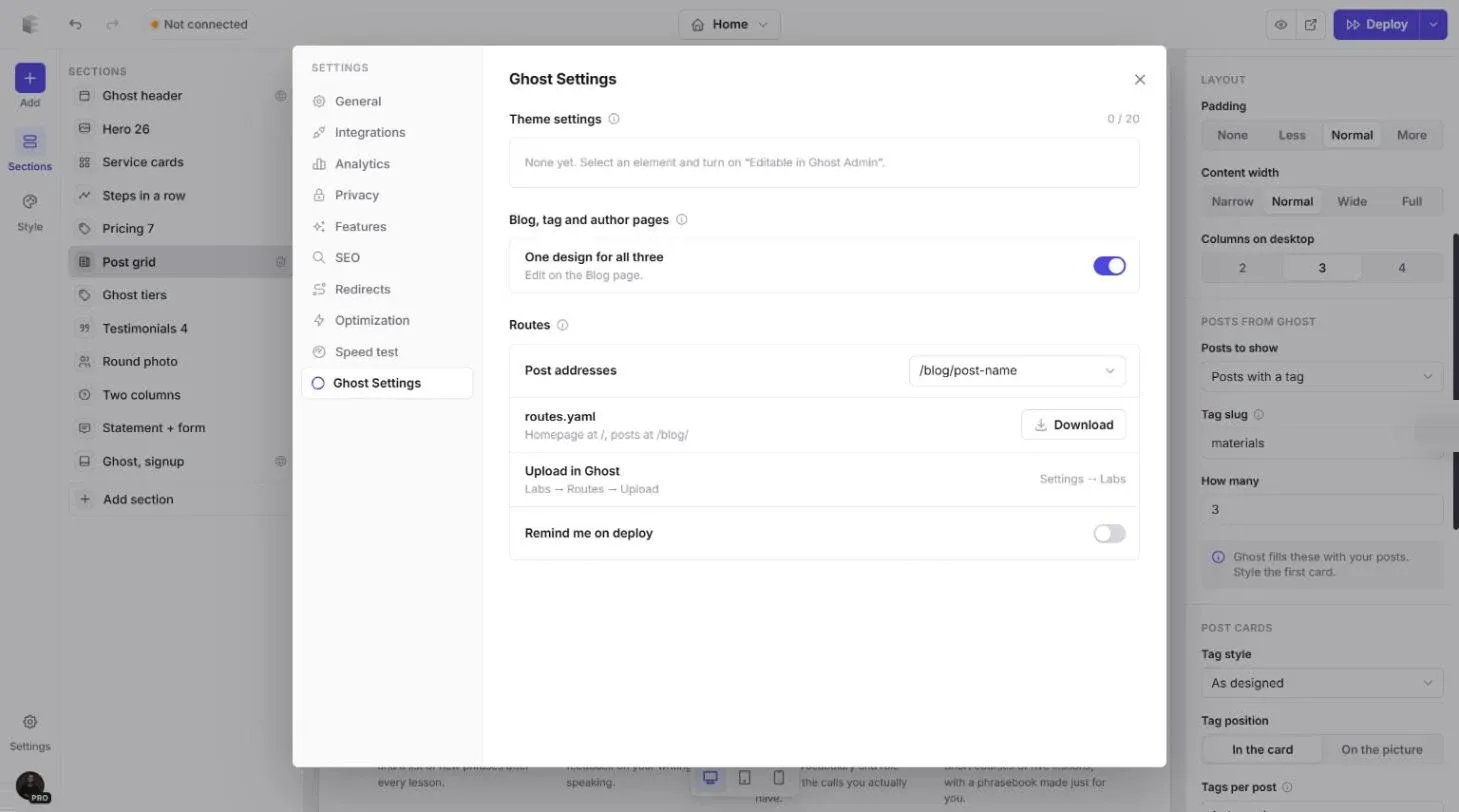
If your theme puts the blog somewhere other than the homepage (here posts live at /blog/), Ghost needs a routes.yaml file to know about it. Ghost doesn't let themes upload this file themselves, so it's a one-time manual step. In Ectobuilder, open Settings → Ghost Settings, check the post addresses, and click Download. In Ghost Admin, go to Settings → Labs → Routes and upload it. You only need to do it again if you change your addresses.
Bonus: ask Claude to do it
Everything in this guide can also be done by describing it. Connect Claude to Ectobuilder and ask for "a pricing section under the hero, using my Ghost tiers" or "make every section alternate between Light and Tinted". Claude edits the same theme you see in the editor, and you can still fine-tune it by hand. See how to connect Claude to Ectobuilder and example prompts and workflows.
FAQ
Do I need to know Handlebars or CSS?
No. Ectobuilder writes the Handlebars templates, CSS and JavaScript for you, and the result is a standard Ghost theme.
Can I edit the theme after I publish it?
Yes. Change anything in the editor and deploy again. Your posts, pages and members stay exactly as they are, because they live in Ghost, not in the theme.
Does it work with any Ghost host?
Yes, as long as your host lets you upload custom themes. Self-hosted Ghost, managed hosts and Ghost(Pro) from the Publisher plan up all do.
Is the theme mine?
Yes. Download it as a zip at any time and keep it, even if you stop using Ectobuilder. It doesn't depend on Ectobuilder to run.
How is this different from Ghost's own theme editor?
Ghost's built-in editor lets you change a theme's code in Ghost Admin. Ectobuilder lets you change its design without touching code. See Ghost's new theme editor for when each makes sense.
Your Ghost theme, designed by clicking.
Pick a theme from the gallery, make it yours, and publish it to your Ghost site. Start free and only pay when you want one-click deploys.
Some links in this article are affiliate links: if you sign up through them, we may earn a commission at no extra cost to you.
Written by
Founder of Ectobuilder, the AI-powered visual theme editor for Ghost. Indie software builder in Wrocław and co-author of The AdTech Book. I write about Ghost themes, newsletters and building websites with AI.
Comments
Questions or thoughts? Share them below.
Keep reading
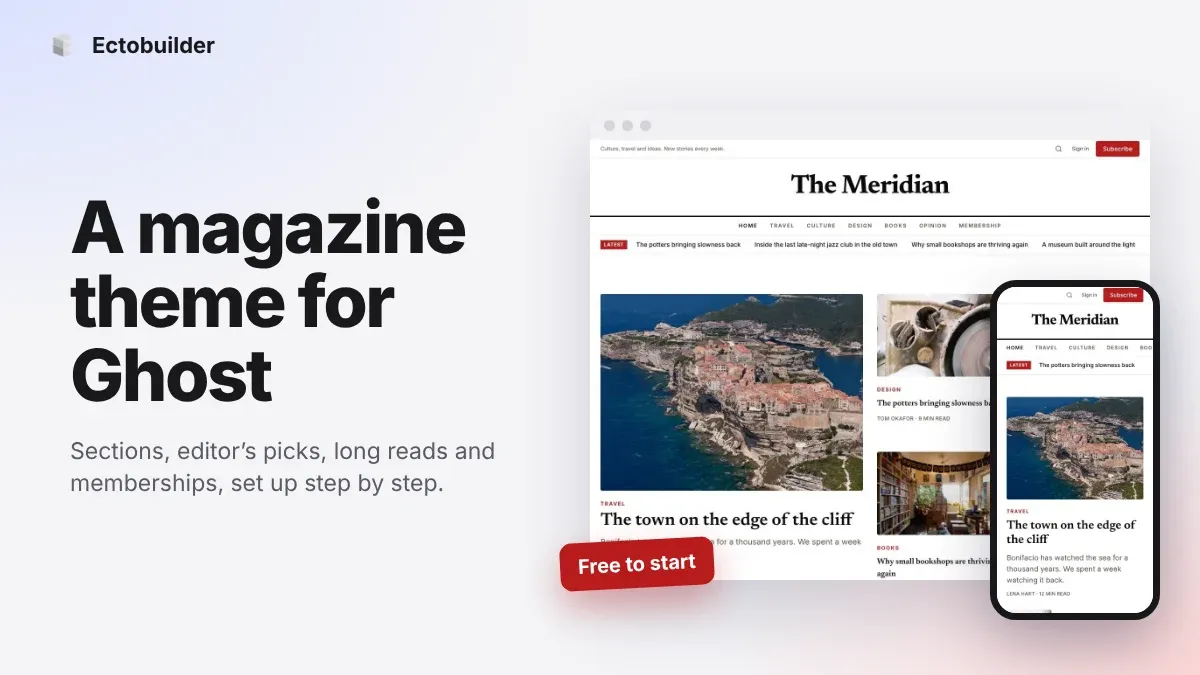
Magazine Theme for Ghost: Sections, Editor's Picks, Long Reads and Memberships
A step-by-step guide to the Magazine theme for Ghost: turn sections into tags, set up the navigation, fill the front page, editor's picks and section fronts, add your writers, sell memberships and send a weekly newsletter.
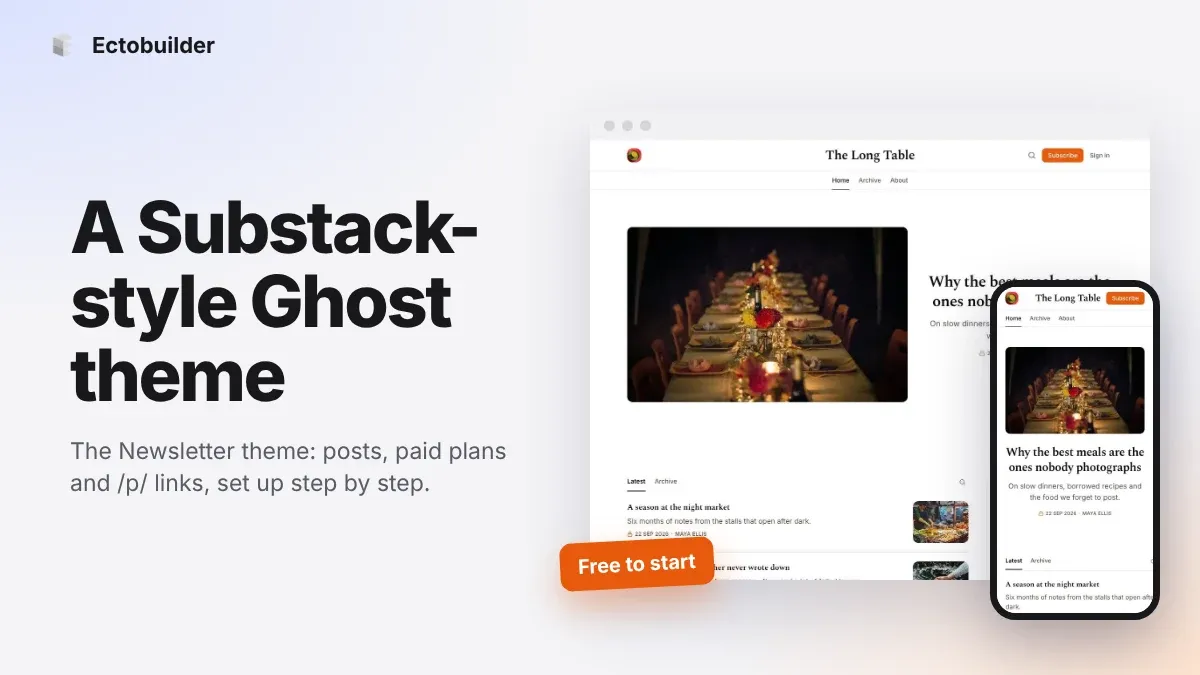
Newsletter Theme for Ghost: A Substack-Style Site With Paid Plans, /p/ Links and Comments
A step-by-step guide to the Newsletter theme for Ghost: a Substack-style homepage and reading page, then newsletters, paid plans, /p/ addresses, Plans, Welcome and About pages, comments and recommendations.
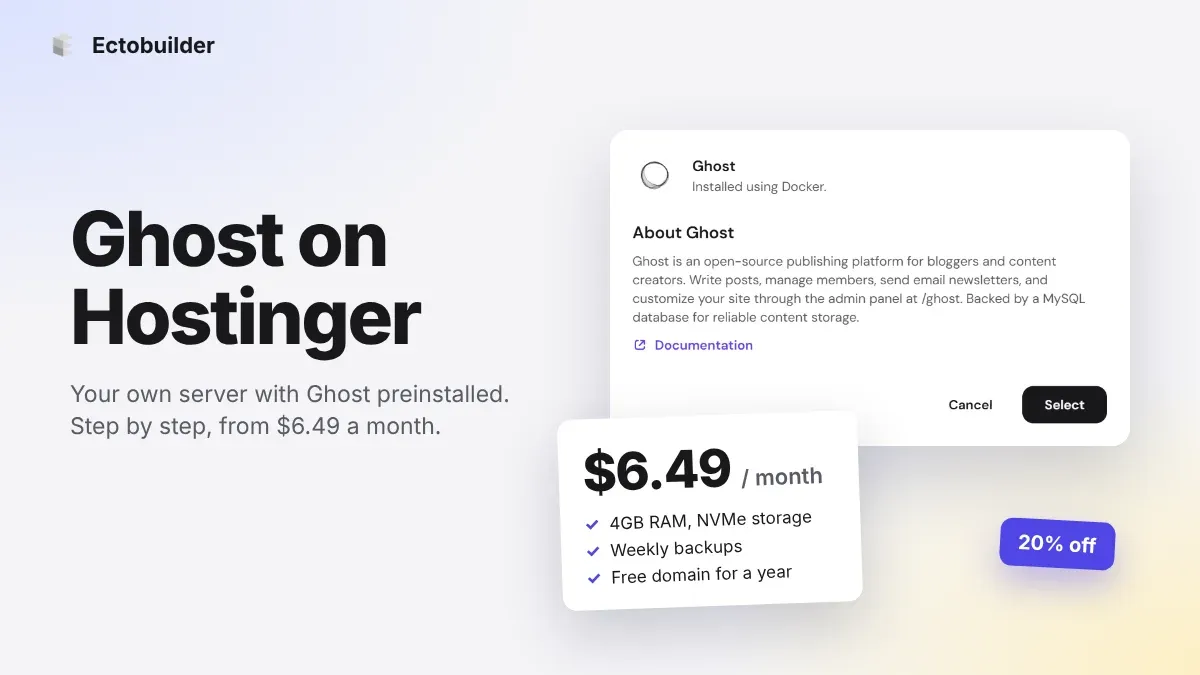
How to Host Ghost on Hostinger: Step-by-Step Guide (2026)
Run Ghost on your own Hostinger server with Ghost preinstalled: 4GB of RAM from $6.49 a month, weekly backups and a free domain. Step by step, with screenshots, plus email and theme setup.