
Ghost's New Theme Editor: How to Edit Theme Code in Ghost Admin (2026)
Ghost now lets you edit theme code right in Ghost Admin. How to open the theme editor, what it can do, what to watch out for, and when a visual editor is the better fit.

Michal Wlosik
· 5 min read
Until recently, changing one line in a Ghost theme meant a small ritual: download the theme as a zip, unpack it, edit the file on your computer, zip it up again and upload it. In May 2026 Ghost removed most of those steps. There's now an Edit code option in Ghost Admin that opens your theme's files in a code editor in the browser.
This guide covers what the editor does, how to use it, what to watch out for, and when a different tool is the better fit. The screenshots are from a live Ghost 6 site.
What Ghost announced
Ghost announced "Easy theme editing" on its changelog on 14 May 2026. In Ghost's words, it lets you make "quick changes to your theme code, directly in Ghost".
- Ghost(Pro): available straight away.
- Self-hosted Ghost: update to the latest version. It shipped in Ghost 6.39.0 on 15 May, according to AlternativeTo.
- Where it came from: community member Murat Çorlu first built it as a browser-based add-on, and Ghost merged it into Ghost itself, as the forum announcement explains.
How to open the theme editor
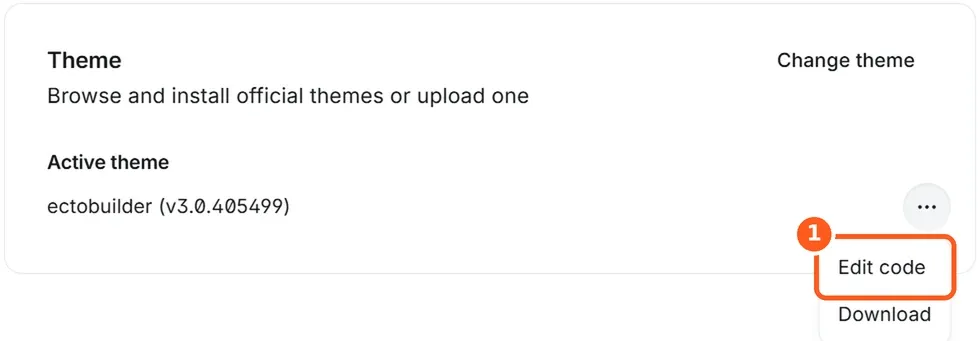
- In Ghost Admin, go to Settings → Theme.
- Next to your active theme, click the … menu.
- Choose Edit code.
What you can do in it
The editor opens full screen, with your theme's files on the left and the code on the right.
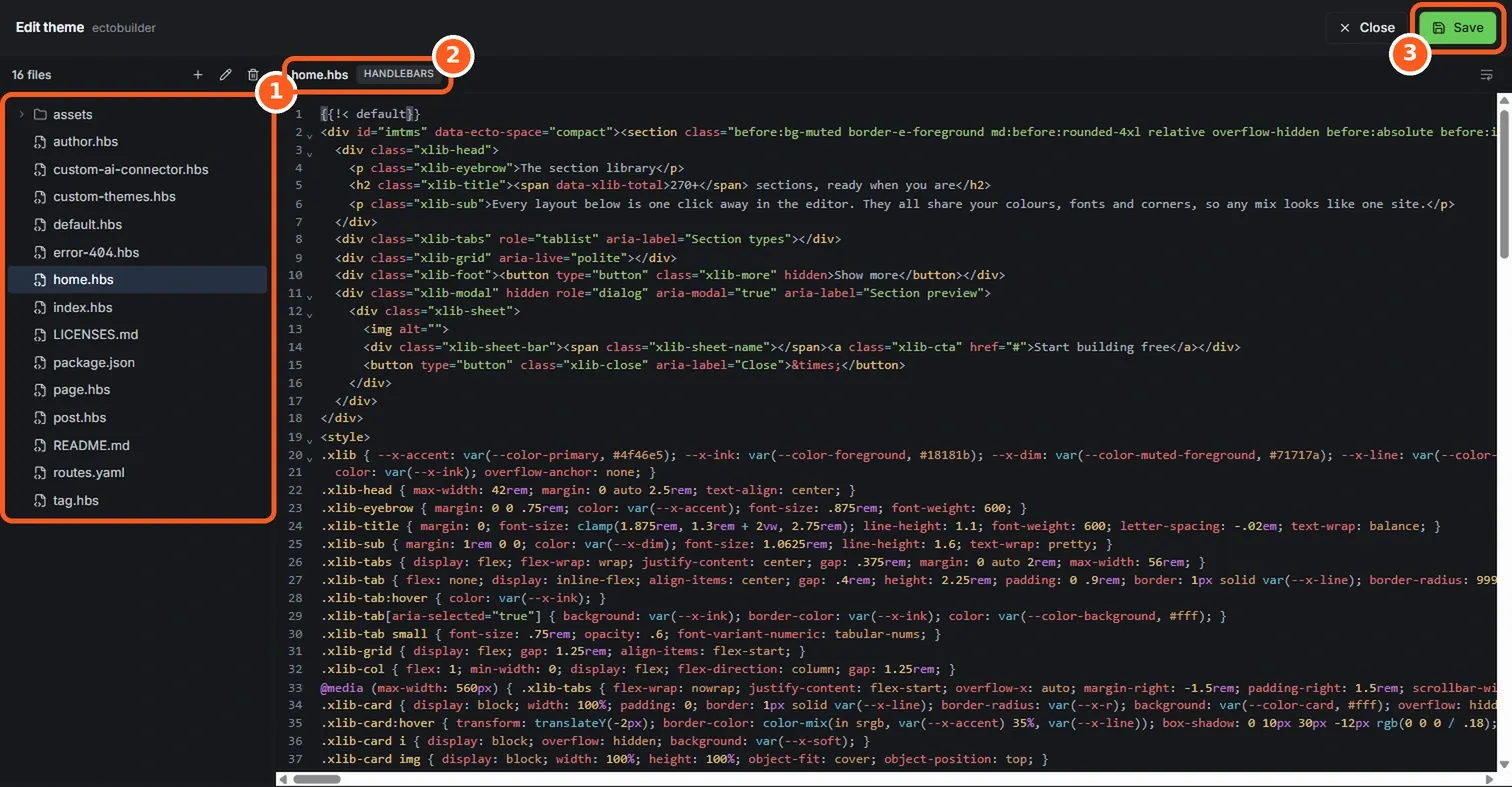
- Browse every file: templates (
.hbs),package.json, partials and theassetsfolder with your CSS and JavaScript. - Edit with syntax highlighting: Handlebars, HTML, CSS, JSON and JavaScript are coloured, with line numbers and code folding.
- Add, rename and delete files: handy for creating a custom template such as
custom-landing.hbs. - Save: your changes go live on the site.

Want a theme that’s exactly yours? Start from an Ectobuilder gallery theme, change anything by clicking, and publish it to Ghost. Start free and only pay if you’re happy with the design.
Good uses for it
- Fixing a typo or a hard-coded link in a template.
- Small CSS tweaks: a colour, a font size, some spacing.
- Adding a tracking or verification snippet to
default.hbs, when Code Injection isn't enough. - Changing
posts_per_pageor image sizes inpackage.json. - Creating a simple custom template by copying
page.hbsand changing it.
What to watch out for
- Download a copy first. The same menu has Download. Take a zip before you change anything, so you can upload it again if something breaks.
- Updates replace your edits. Your changes live in the installed copy of the theme. When you upload a newer version, from the theme's author or from a theme builder, its files replace yours. Keep a note of what you changed, or keep your own copy of the theme.
- There's no preview. The editor has no preview pane, and saving changes the live site. Make small changes, save, and check the site in another tab.
- It's still code. You need to know a little Handlebars, HTML and CSS. One unclosed tag can break a page, and the editor won't redesign a layout for you.
- New templates and Ghost Admin. If you add a custom template and Ghost Admin is already open in another tab, reload that tab before looking for the new template in a page's Template menu. Ghost itself picks up new templates as soon as they're saved.
When you need more than a code editor
The code editor is perfect for small, precise changes. It's less suited to designing: a new homepage layout, a landing page, a different post page, or a theme that looks like your brand rather than its author's. Those take many edits across many files, and you're working blind without a preview.
That's what a visual theme editor is for. Ectobuilder builds a complete Ghost theme from ready-made sections that you edit on the page, with a live preview on desktop and mobile, then publishes it to your site in one click. You can also connect an AI assistant such as Claude and ask it to make the changes for you.
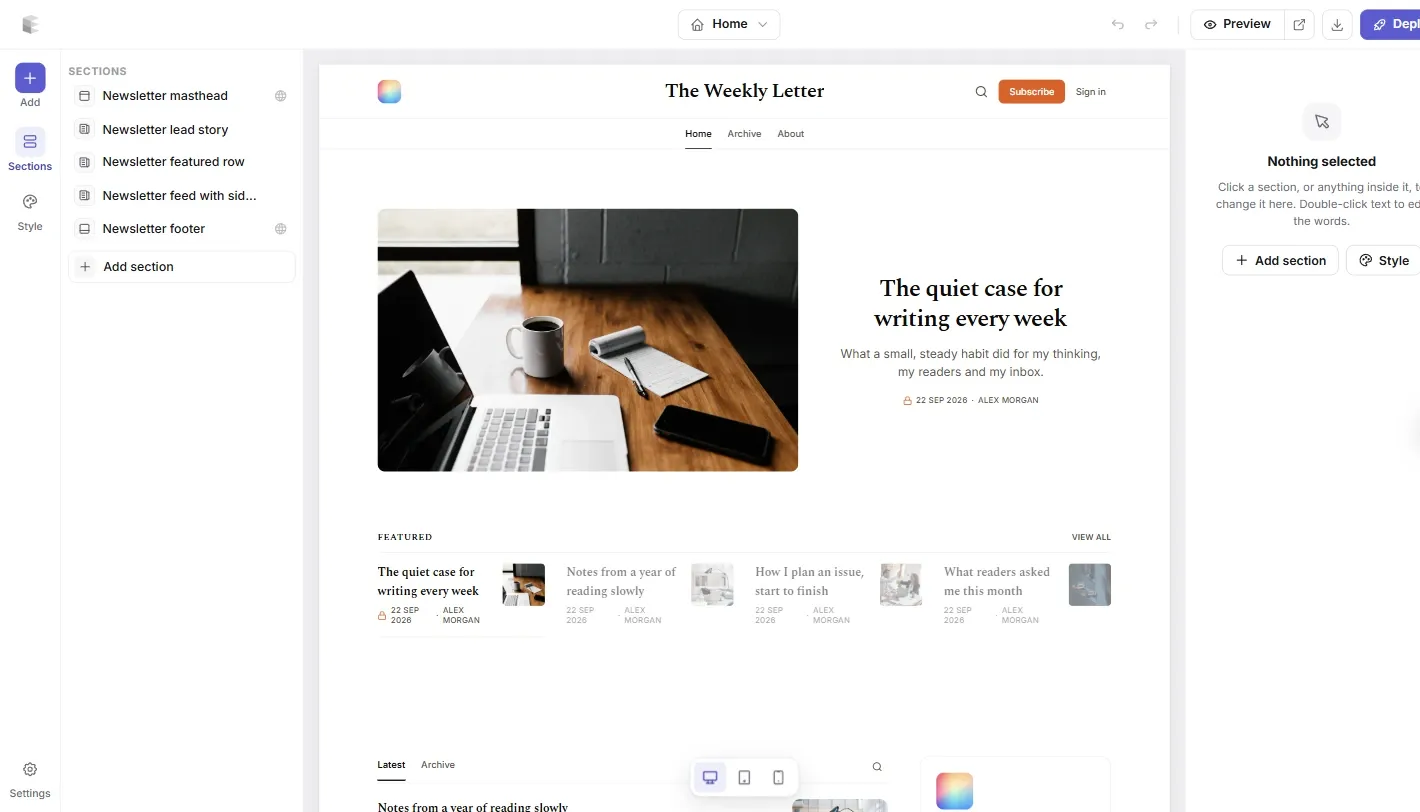
The two work well together. Ectobuilder exports a standard Ghost theme, so you can still open it in Ghost's code editor for a one-line tweak. Just remember that the next publish from Ectobuilder replaces the theme, so make lasting changes in Ectobuilder.
Comparing your options? See Best Ghost Themes in 2026: Free, Paid and Custom.
FAQ
Is Ghost's theme editor free?
Yes. It's part of Ghost itself: on Ghost(Pro) and on self-hosted Ghost from version 6.39.0.
Can I break my site with it?
Yes, if you save broken code. Download a copy of the theme first, make small changes, and check the site after each save.
Do my edits survive a theme update?
No. Uploading a new version of the theme replaces its files. Keep a record of your changes, or keep your own copy of the theme.
Can I edit any theme?
You can edit the files of the theme installed on your site, including paid themes. Check the theme's licence and support terms: some authors don't support themes that have been modified.
Does it replace Code Injection?
No. Code Injection still adds snippets to every page without touching the theme, and those survive theme updates. Use the theme editor for changes to the templates themselves.
Sources
- Ghost changelog: Easy theme editing
- Ghost Forum: Easy theme editing
- AlternativeTo: Ghost introduces in-browser theme code editing
Some links in this article are affiliate links: if you sign up through them, we may earn a commission at no extra cost to you.
Written by
Founder of Ectobuilder, the AI-powered visual theme editor for Ghost. Indie software builder in Wrocław and co-author of The AdTech Book. I write about Ghost themes, newsletters and building websites with AI.
Comments
Questions or thoughts? Share them below.
Keep reading
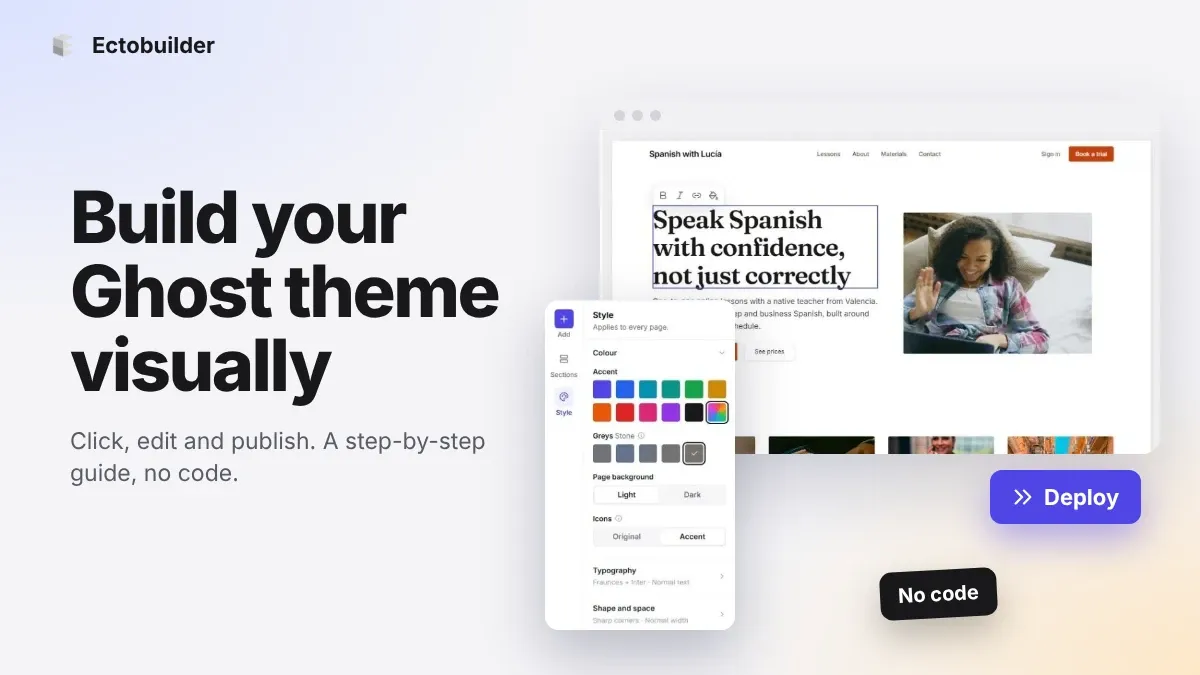
How to Build Your Ghost Theme Visually (Step-by-Step Guide, No Code)
Build a complete Ghost theme without touching code: start from a theme, edit text and pictures in place, add sections from a library of 270, set colours and fonts, design every page, and publish to Ghost in one click. Step by step, with screenshots.
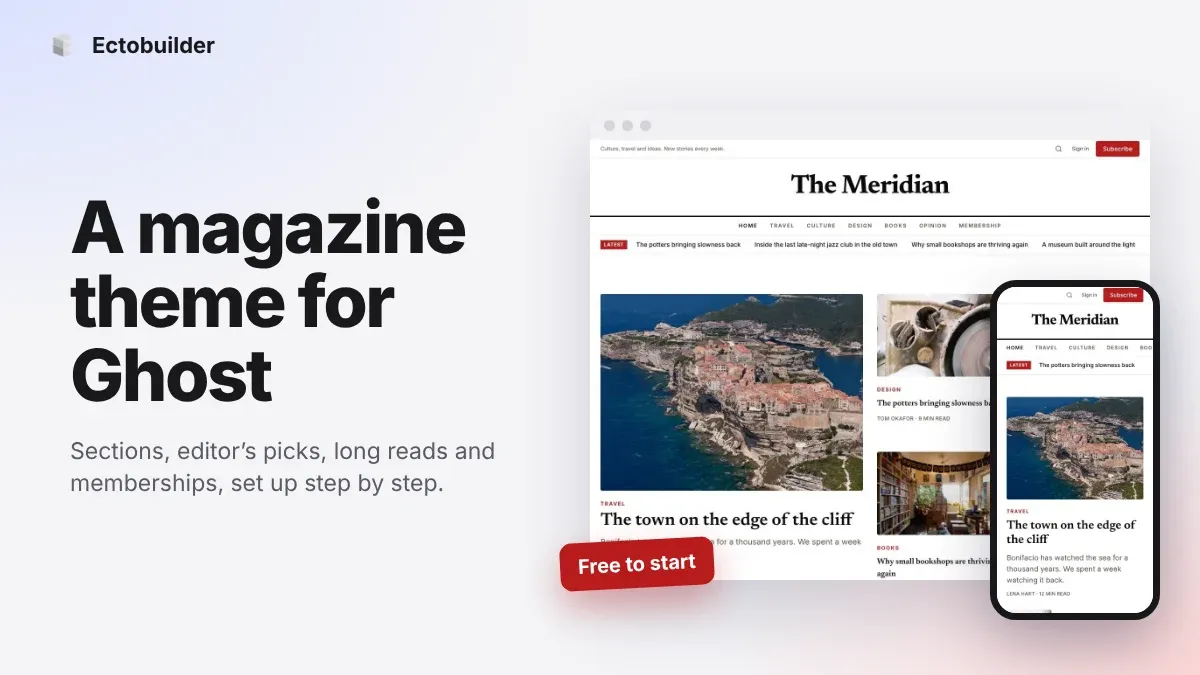
Magazine Theme for Ghost: Sections, Editor's Picks, Long Reads and Memberships
A step-by-step guide to the Magazine theme for Ghost: turn sections into tags, set up the navigation, fill the front page, editor's picks and section fronts, add your writers, sell memberships and send a weekly newsletter.
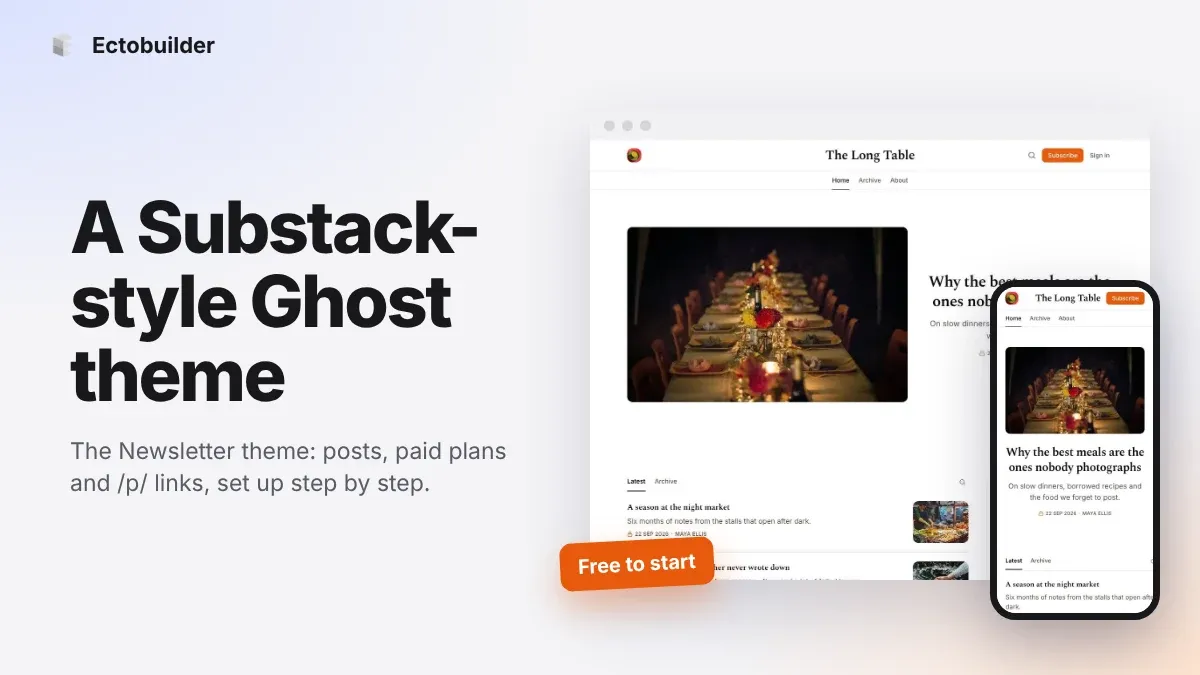
Newsletter Theme for Ghost: A Substack-Style Site With Paid Plans, /p/ Links and Comments
A step-by-step guide to the Newsletter theme for Ghost: a Substack-style homepage and reading page, then newsletters, paid plans, /p/ addresses, Plans, Welcome and About pages, comments and recommendations.