
Newsletter Theme for Ghost: A Substack-Style Site With Paid Plans, /p/ Links and Comments
A step-by-step guide to the Newsletter theme for Ghost: a Substack-style homepage and reading page, then newsletters, paid plans, /p/ addresses, Plans, Welcome and About pages, comments and recommendations.

Michal Wlosik
· 9 min read
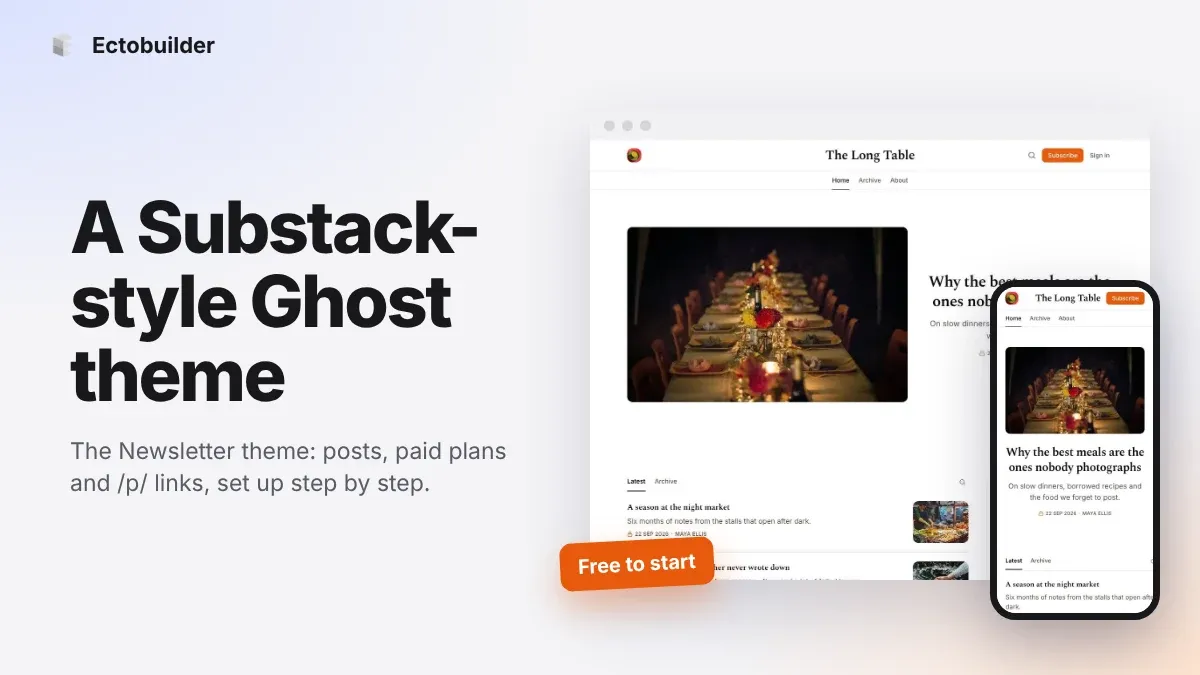
The Newsletter theme is an Ectobuilder theme for writers who publish a newsletter on Ghost and want their site to feel like Substack: a clean masthead, the latest letter up top, a reading column built for long posts, a subscribe box after every post, comments, recommendations and Substack-style /p/ addresses. The demo is "The Long Table", a weekly food letter, but every word, photo and colour can be changed.
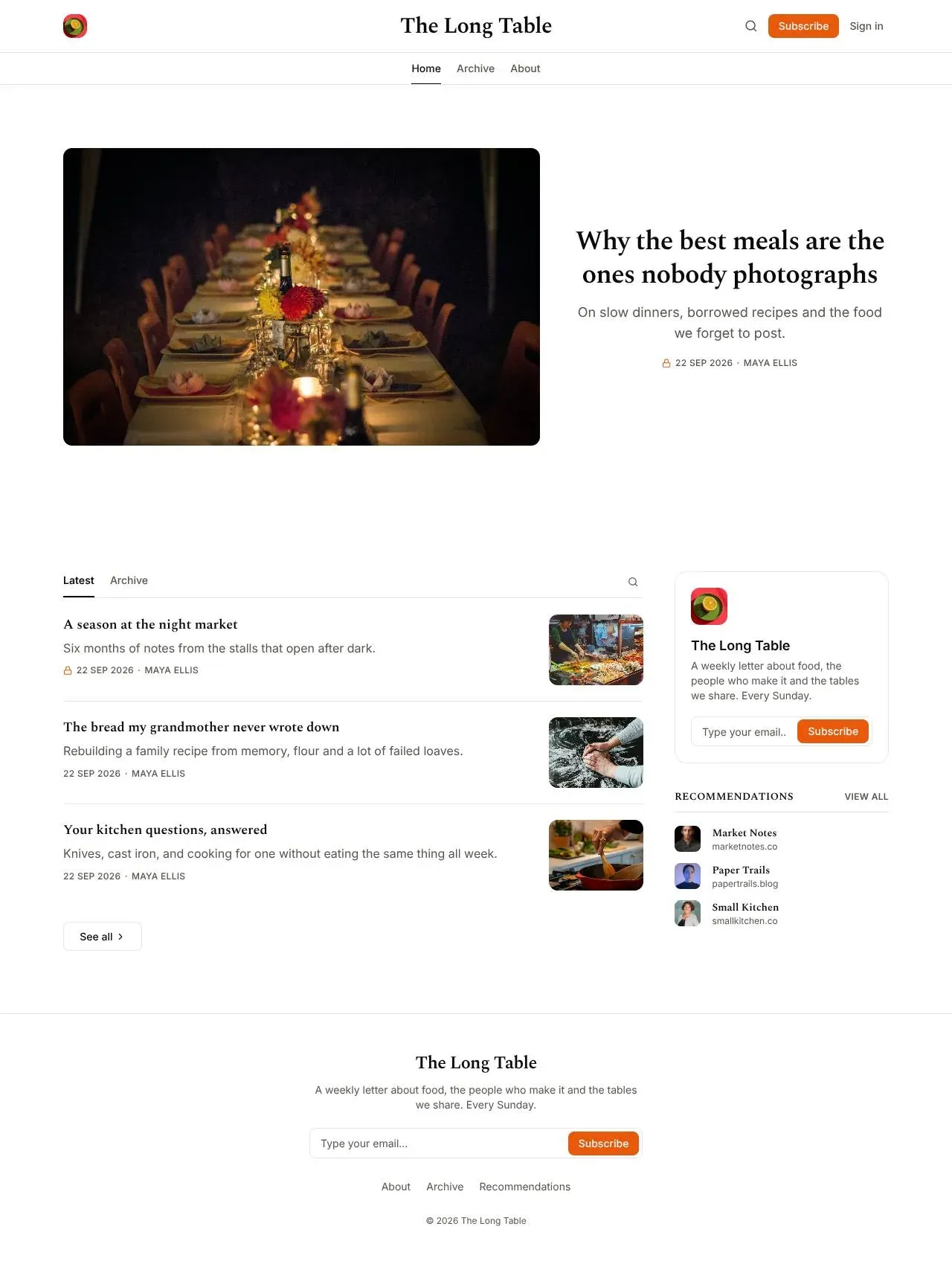
If you only want the look, our guide on how to make Ghost look like Substack explains the ideas behind it. This post is the hands-on version: start from the theme and set Ghost up so it works the way a Substack reader expects.
Here's what the theme gives you:
- Homepage: the newest post as a big lead story, then a Latest / Archive feed, with a sidebar that has your logo, description, a sign-up box and your recommendations.
- Post page: a big serif title, subtitle, author line, comment and share buttons, a comfortable reading column, a "Thanks for reading" subscribe box, an upgrade box for free members, the discussion and more posts.
- Archive: every post in one list, with tabs for your tags.
- Three page templates: Plans for your paid tiers, Welcome for new visitors, and About for you and your publication.
The design is ready as it is. Most of the setup happens in Ghost, in six parts:
- Make it yours
- Turn on the newsletter
- Add paid subscriptions
- Use Substack-style addresses
- Create the Plans, Welcome and About pages
- Turn on comments and recommendations
Moving from Substack? There's a section on bringing your posts and subscribers at the end.
To follow along, open the theme from the Ectobuilder theme gallery and connect your Ghost site under Settings → Integrations → Ghost Admin API.
Want this theme for your site? Open the Newsletter theme in Ectobuilder and make it yours. Starting is free, and you only pay if you’re happy with the design.
Part 1: Make it yours
Your publication's name, description and icon come from Ghost, so set them there first: Settings → Title & description for the name and the one-line description, and Settings → Design & branding for the icon. The masthead, the sidebar box and the footer all read them, so you change them once.
Then open Style in Ectobuilder. The demo uses a warm orange with Spectral for headings and Inter for everything else. Pick your own accent colour, change the fonts if you like, and keep Compact spacing if you want the dense, list-like feel of Substack.
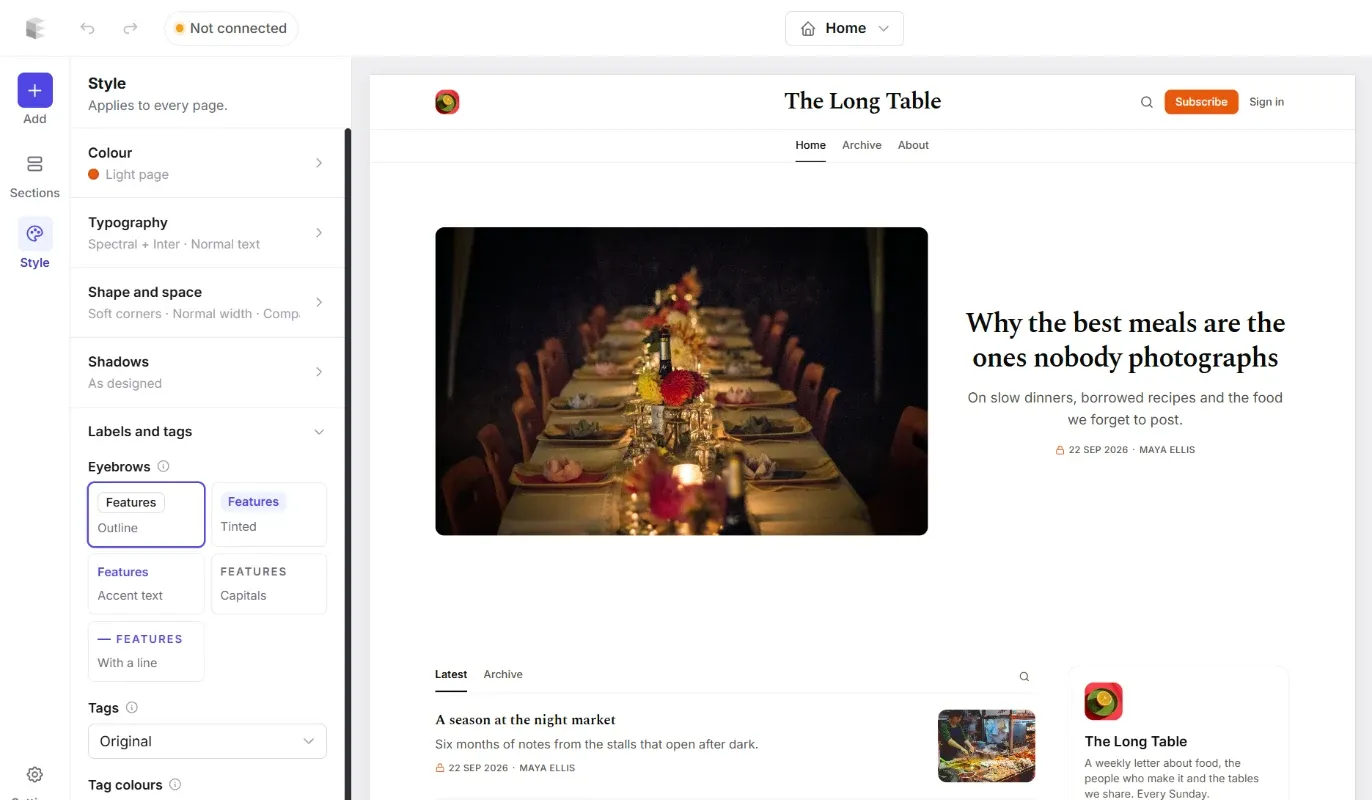
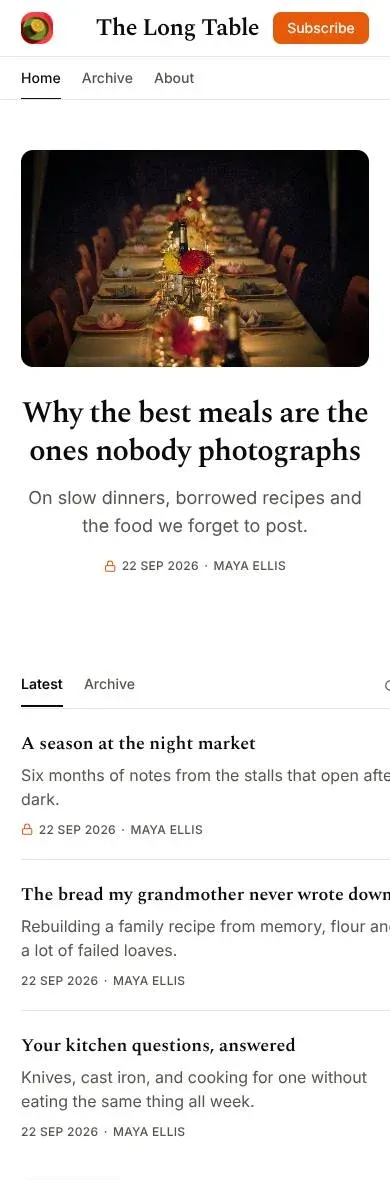
The posts, photos and recommendations you see in the editor are samples. On your live site they're replaced by your own posts and recommendations after you click Deploy. The theme is built for phones too: the sidebar moves below the feed and the masthead shrinks.
Part 2: Turn on the newsletter
Every subscribe box in the theme signs people up as free members of your Ghost site. For those members to get your posts by email, newsletter sending has to be on.
- In Ghost Admin, go to Settings → Newsletters.
- Check that Newsletter sending is enabled.
- Under Newsletters, click Edit next to your newsletter. Give it your publication's name, a sender name and a reply-to address, and set the header image and fonts so the email matches the site.
- Leave Default recipients on Whoever has access to the post. Free posts then go to everyone, and paid posts go to paying members only.
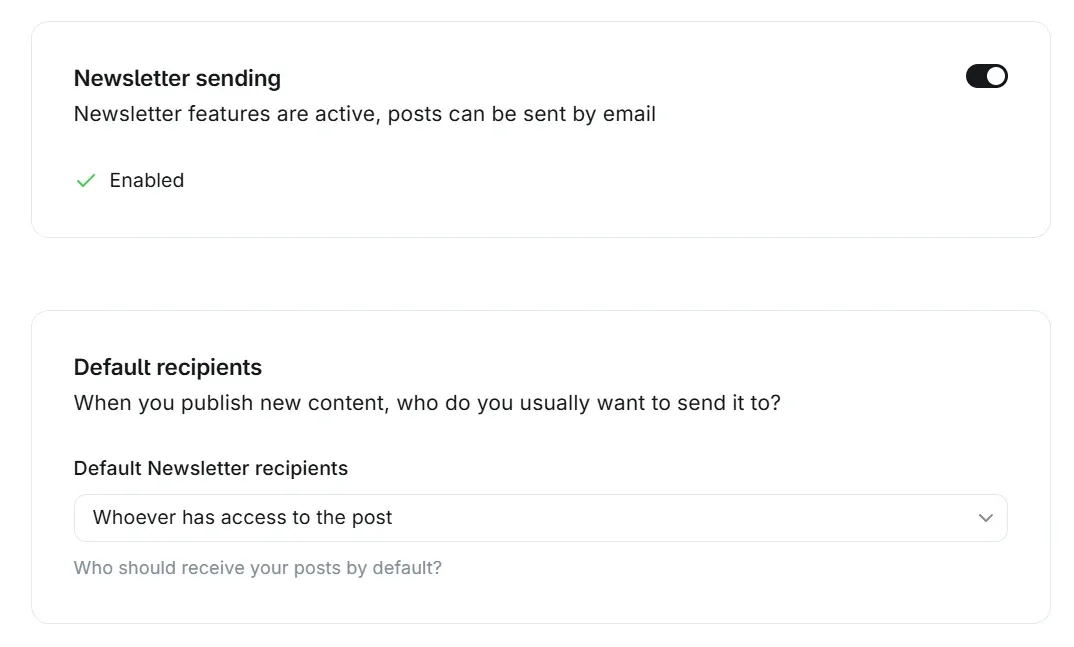
When you publish a post, Ghost asks whether to send it by email as well. That's how a letter goes out.
If you host Ghost yourself, sending to many people needs a bulk email service. Ghost uses Mailgun, which you set up under Settings → Newsletters → Mailgun. On Ghost(Pro), email is included and works from day one, which is the easiest route if you're coming from Substack and don't want to look after a server. Compare the options in Ghost(Pro) vs other Ghost hosting.
Part 3: Add paid subscriptions
Like Substack, Ghost lets readers pay for your newsletter. Unlike Substack, it takes no cut: payments go through your own Stripe account and you keep everything except Stripe's fee. See Ghost vs Substack for how the costs compare.
Step 1: Connect Stripe and create a tier
- In Ghost Admin, go to Settings → Tiers and click Connect with Stripe.
- Add a paid tier. The demo has Paid at $8 a month or $80 a year, and Founding member at $25 a month or $250 a year.
- For each tier, fill in a one-line description and a short list of benefits. The theme shows them on your Plans page.
One paid tier is plenty to start with. Substack's "founding member" idea works well as a second, higher tier for readers who want to support you more.
Step 2: Lock posts for paying members
- Write a post as usual.
- Open Post settings (the panel icon at the top right) and set Post access to Paid-members only.
- To choose where the free preview ends, click + on an empty line and insert a Public preview divider. Readers see everything above it, then an invitation to subscribe.
The theme marks locked posts with a small lock next to the date, in the feed and in the archive, so readers can tell at a glance what's for paying members.
Free members who reach the end of a post see an upgrade box: "You're reading the free edition of…" with a button that opens your plans. Visitors who aren't signed in see the subscribe box instead, and paying members see neither.
Part 4: Use Substack-style addresses
Substack posts live at yourname.substack.com/p/post-name, and the full list at /archive. Ghost's default is /post-name/. If you're moving from Substack, keep the Substack shape: every link people have shared, and every search result, keeps working with no redirects to maintain.
Step 1: Choose /p/ addresses in Ectobuilder
In Ectobuilder, open Settings → Ghost Settings. Under Routes, the Newsletter theme already has Post addresses set to /p/post-name (Substack). Click Download next to routes.yaml.
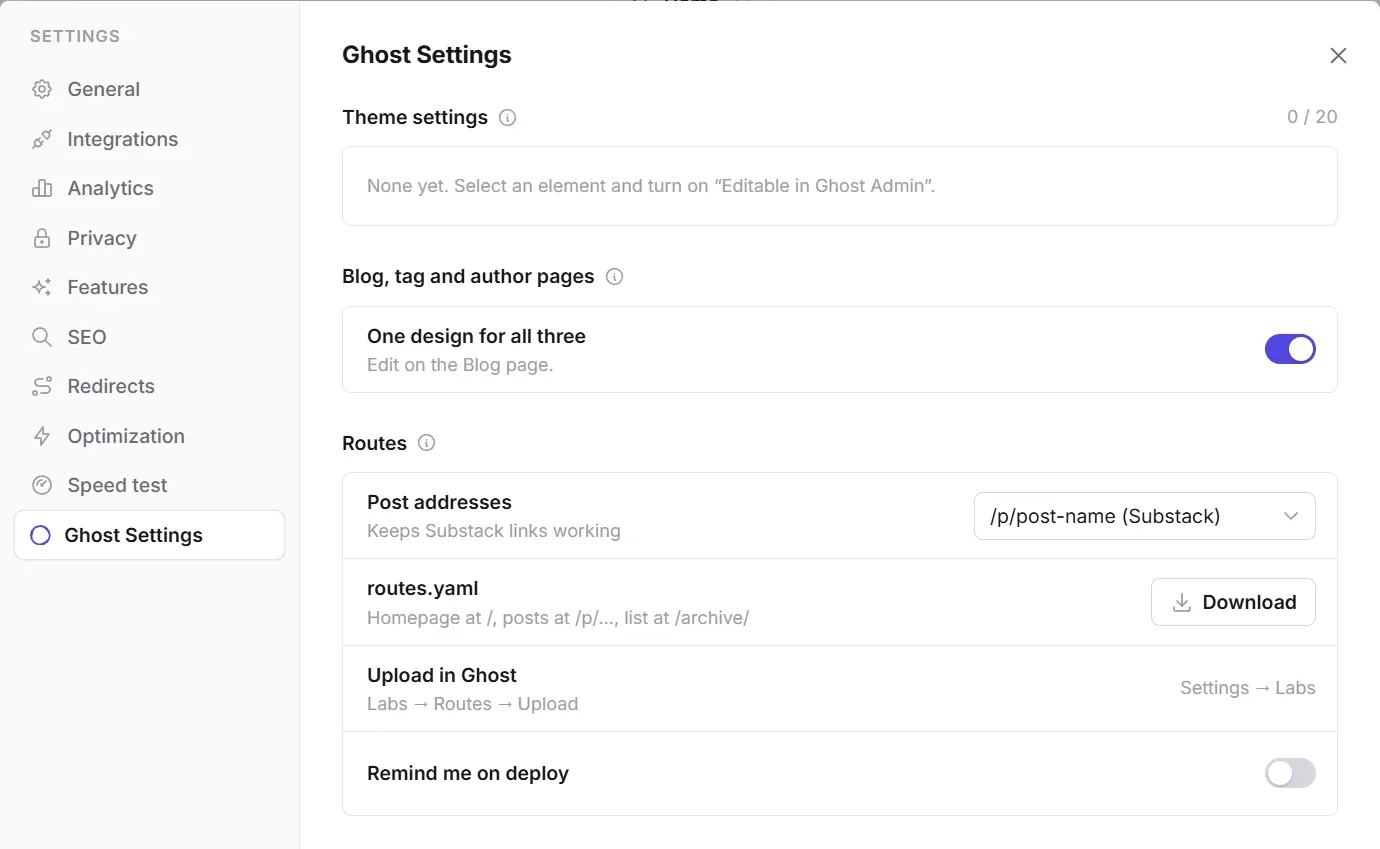
The file is short. It keeps the homepage at /, puts every post at /p/post-name/ and the full list at /archive/:
routes:
  /:
    template: home

collections:
  /archive/:
    permalink: /p/{slug}/
    template: index

taxonomies:
  tag: /tag/{slug}/
  author: /author/{slug}/
Step 2: Upload it in Ghost
Ghost doesn't read routes from the theme, so this is one manual step:
- In Ghost Admin, go to Settings → Labs and click Open.
- Next to Routes, click the ⋯ button and choose Upload file.
- Pick the
routes.yamlyou downloaded.
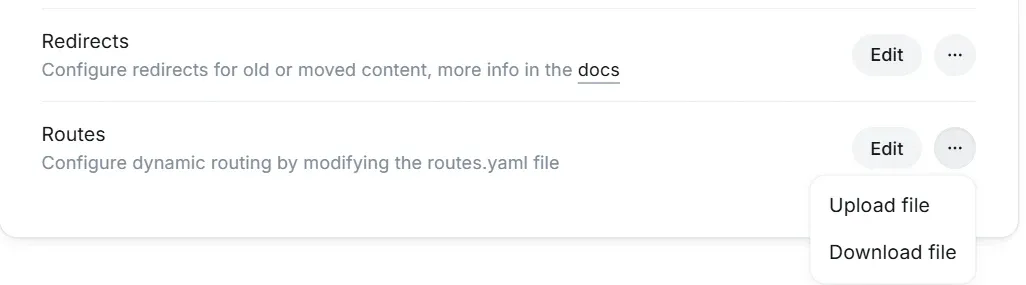
Before you upload, it's worth choosing Download file first to keep a copy of your current routes, just in case.
Step 3: Set up the navigation
The tabs under the masthead are your Ghost navigation. In Settings → Navigation, add:
- Home:
/ - Archive:
/archive/ - About:
/about/(you'll create this page in the next part)
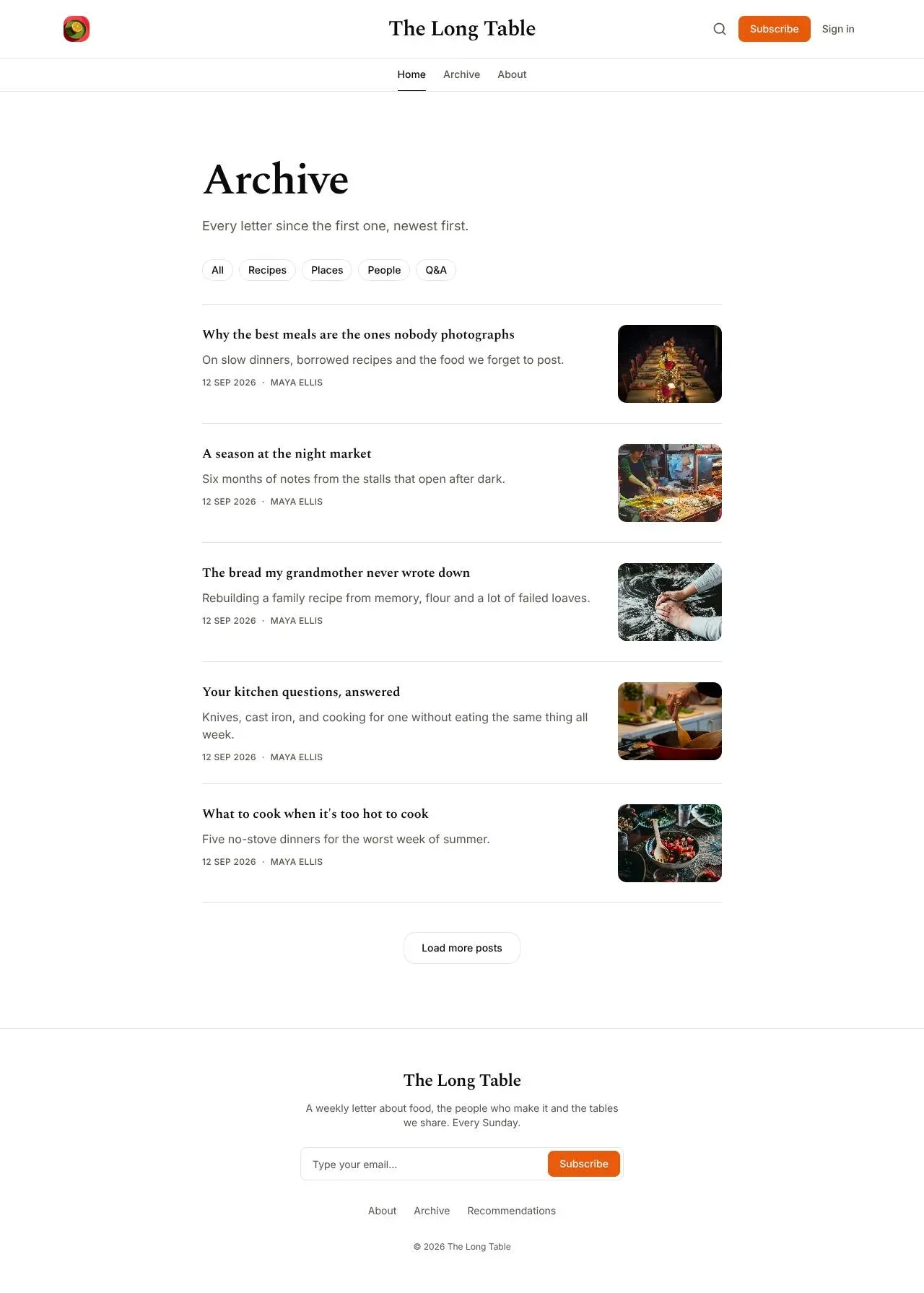
The archive lists every post, with tabs for your tags. Use three or four tags for your regular series, such as Recipes, Places or Q&A, so the tabs stay short.
If some of your old links still don't match, for example custom Substack pages, add them one by one as described in how to add redirects in Ghost.
Part 5: Create the Plans, Welcome and About pages
The theme comes with three page templates. Each is an ordinary Ghost page that uses a template from the theme:
- In Ghost Admin, go to Pages → New page.
- Give it a title, for example Plans. The title sets the address, here
/plans/. - Open Page settings and choose the matching Template: Plans, Welcome or About.
- Click Publish.
Plans
The Plans page lists your tiers side by side, with prices and benefits. Its buttons open Ghost's sign-up window for each plan. Link to it from your navigation, from your welcome email, or from the end of a paid post's preview.
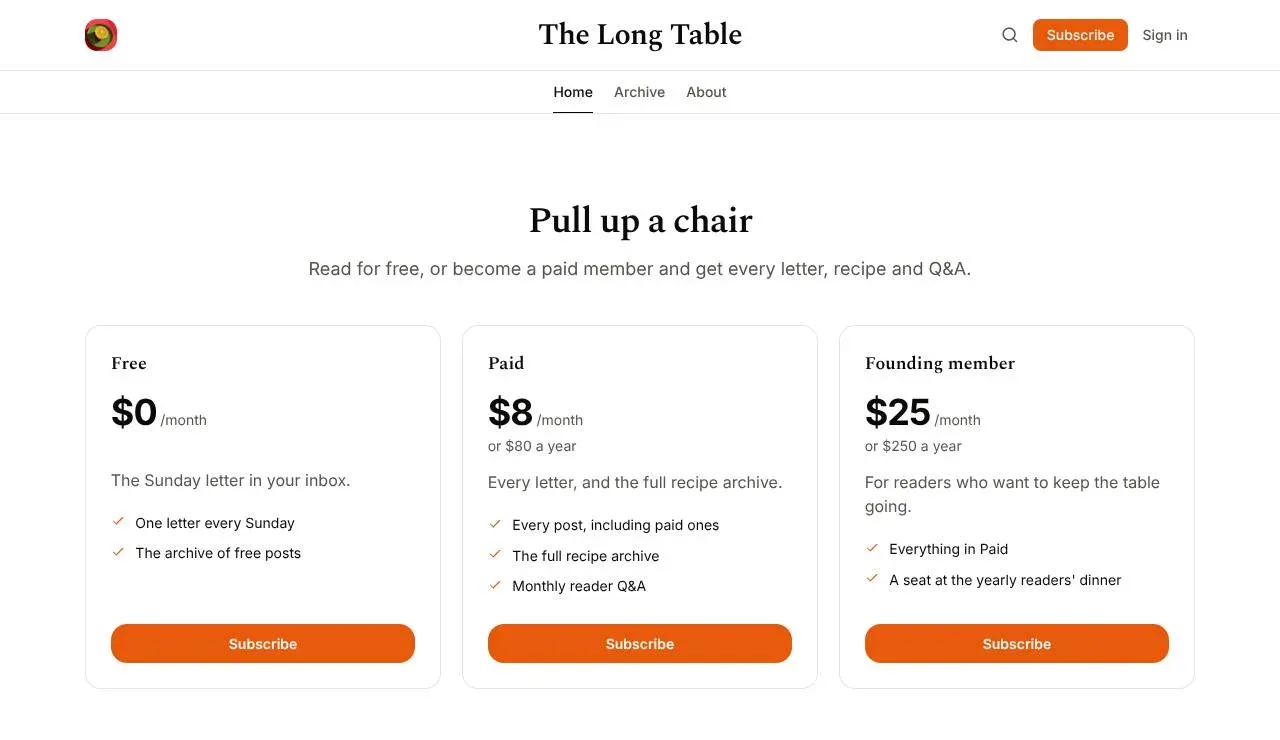
For more ideas, read how to build a pricing page in Ghost.
Welcome
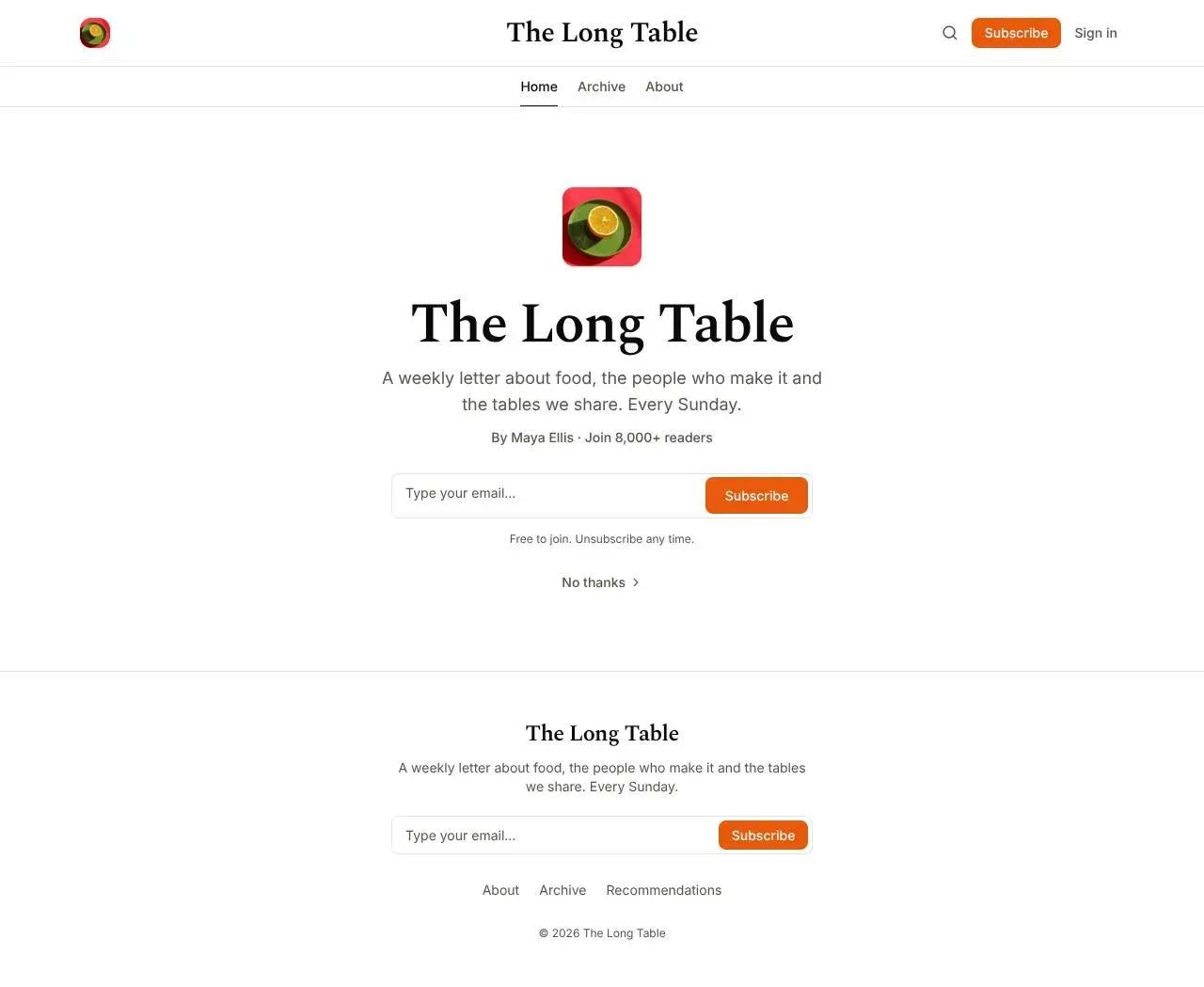
Substack shows new visitors a simple page: your logo, your name, one line about the newsletter and an email box. The Welcome template is the same thing. Share its address on social media or in your bio, where people decide in a few seconds whether to subscribe.
About
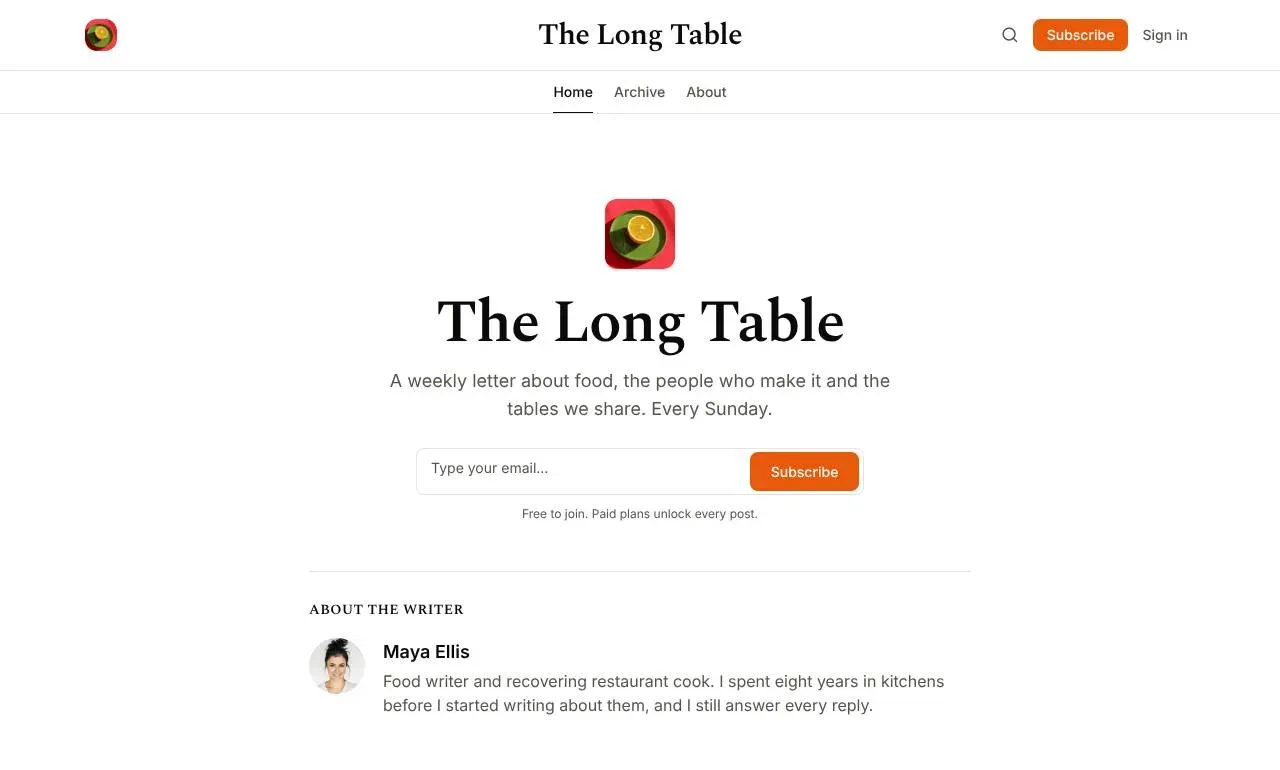
The About template shows your publication's name, description and a sign-up box, followed by a card about you. The card reads your name, photo and bio from your Ghost staff profile, so fill those in under Settings → Staff. Name this page About so it matches the /about/ link in your navigation.
Part 6: Turn on comments and recommendations
Comments
Each post has a comment button under the title and a discussion at the end. They use Ghost's own comments, which only members can write:
- In Ghost Admin, go to Settings → Access.
- Set Commenting to All members, or to Paid-members only if you want discussion to be a paid benefit.
Comparing Ghost's comments with Disqus and others? See comments for Ghost.
Recommendations
The sidebar lists newsletters you recommend, just like Substack. In Ghost Admin, go to Settings → Recommendations and add the sites you like. The theme shows them on the homepage, with a link to the full list. Ghost also suggests your recommendations to new subscribers when they sign up, which helps the writers you recommend, and they can recommend you back.
Moving from Substack
If you already have a Substack, bring everything with you:
- Posts: export them from Substack and import them in Ghost under Settings → Import/Export → Substack. With the
/p/routes from Part 4, they keep their old addresses. - Subscribers: import your subscriber list as members. Paying subscribers can move with their Stripe subscriptions, so nobody has to pay again.
- Your domain: point your custom domain at Ghost, and links to your old posts keep working.
The whole process, step by step, is in how to move from Substack to Ghost. Still deciding? Read our list of Substack alternatives.
Next steps
- Publish three or four posts before you launch, so the homepage, the archive and the "More from" list aren't empty.
- Use the subtitle (Ghost's excerpt) on every post. The theme shows it under the title, in the feed and in the lead story.
- Write a welcome email under Settings → Welcome emails, with a link to your best posts and your Plans page.
- Browse more designs in our roundup of the best Ghost themes.
Frequently asked questions
Is this an official Substack theme?
No. It's an Ectobuilder theme for Ghost with a similar layout and reading experience. Your site runs on Ghost, on your own domain, and you can change every part of the design.
Do I need a paid Ghost plan for paid subscriptions?
You need a Stripe account and a Ghost site that allows paid subscriptions. Self-hosted Ghost includes them. On Ghost(Pro), the Starter plan doesn't, so you need Publisher or higher.
Do I have to use /p/ addresses?
No. They matter if you're moving from Substack and want old links to keep working. For a new publication, you can choose another style in Ectobuilder's Ghost Settings, download that routes.yaml instead, or skip it and keep Ghost's default.
Why don't my posts show up in the editor?
The editor shows sample posts so you can style the cards. Your real posts, tags and recommendations appear on the live site after you click Deploy.
Ready to launch your newsletter? Everything in this guide works on your own copy of the Newsletter theme. Start free, connect your Ghost site when you’re ready, and only pay if you like the result.
Can I use it for something other than food?
Yes. Nothing is specific to food except the sample text and photos. It suits any newsletter: politics, tech, culture, local news, a personal letter.
Written by
Founder of Ectobuilder, the AI-powered visual theme editor for Ghost. Indie software builder in Wrocław and co-author of The AdTech Book. I write about Ghost themes, newsletters and building websites with AI.
Comments
Questions or thoughts? Share them below.
Keep reading
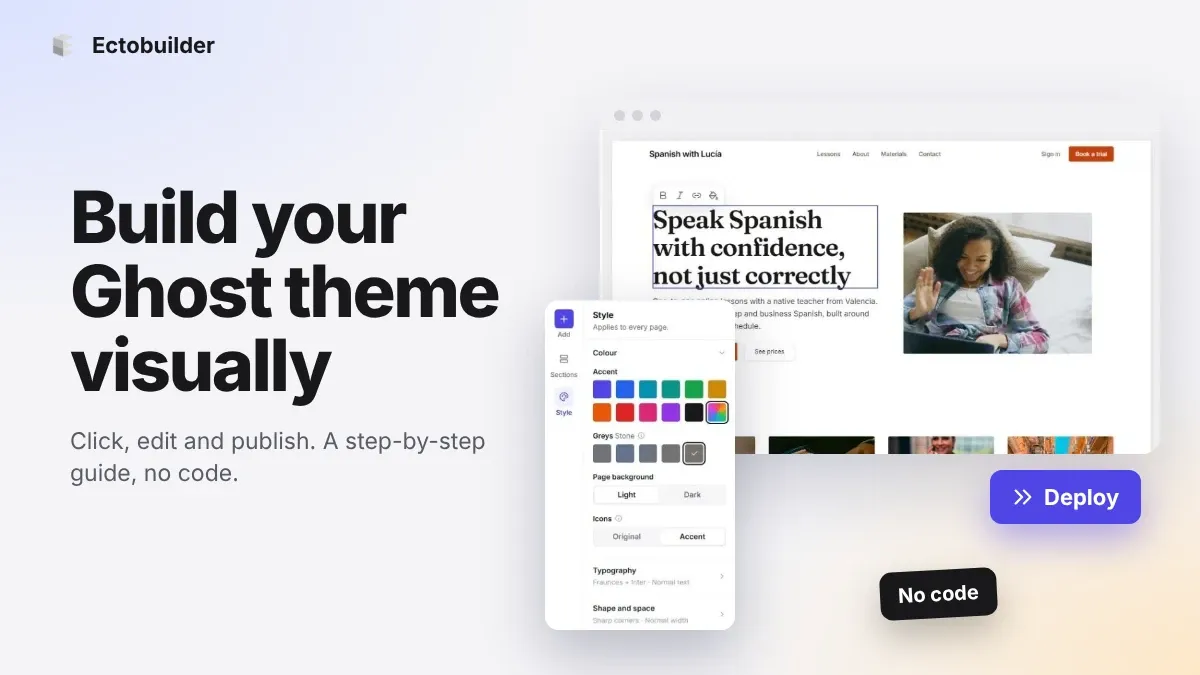
How to Build Your Ghost Theme Visually (Step-by-Step Guide, No Code)
Build a complete Ghost theme without touching code: start from a theme, edit text and pictures in place, add sections from a library of 270, set colours and fonts, design every page, and publish to Ghost in one click. Step by step, with screenshots.
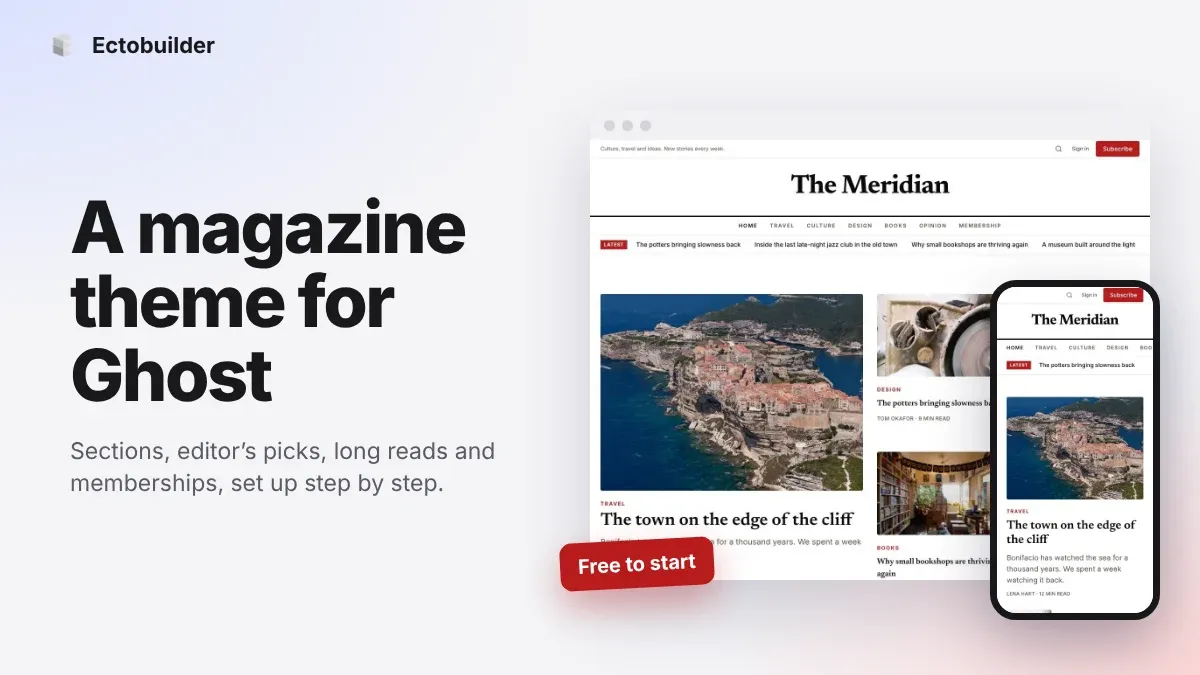
Magazine Theme for Ghost: Sections, Editor's Picks, Long Reads and Memberships
A step-by-step guide to the Magazine theme for Ghost: turn sections into tags, set up the navigation, fill the front page, editor's picks and section fronts, add your writers, sell memberships and send a weekly newsletter.
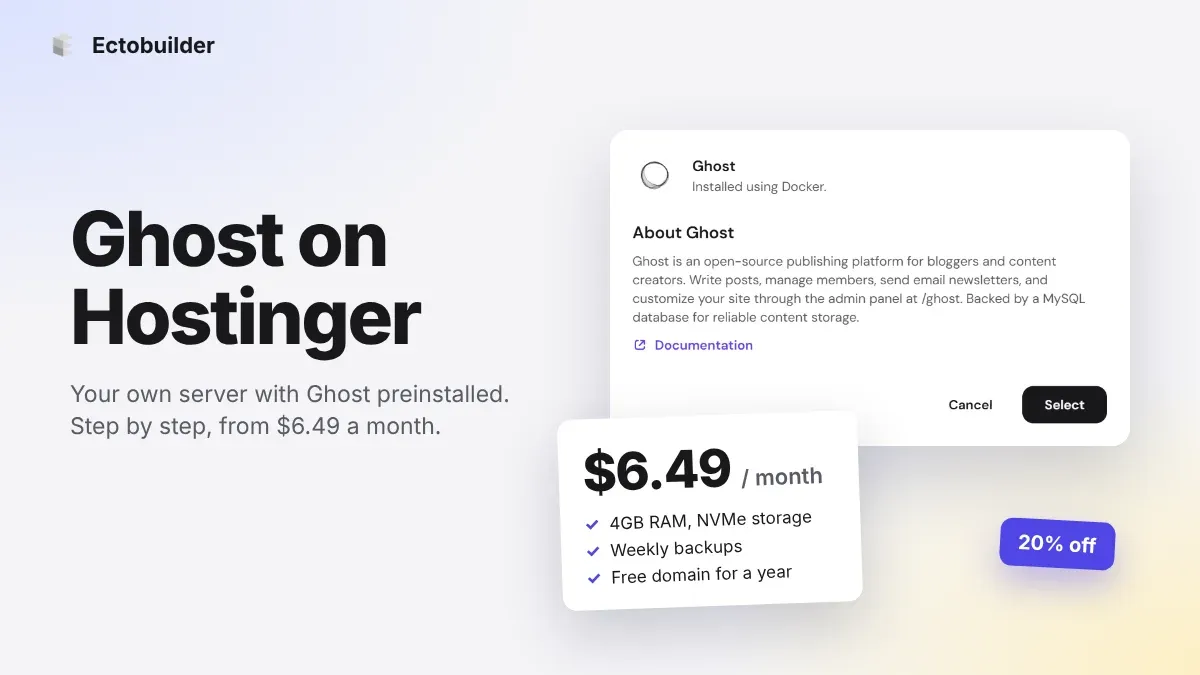
How to Host Ghost on Hostinger: Step-by-Step Guide (2026)
Run Ghost on your own Hostinger server with Ghost preinstalled: 4GB of RAM from $6.49 a month, weekly backups and a free domain. Step by step, with screenshots, plus email and theme setup.