
Moved to Ghost? How to find every missing page and redirect it
What breaks when you migrate from WordPress, Substack, Squarespace or Wix to Ghost, how Ghost redirects work, and how to find the old URLs you missed from the visitors still hitting them.

Michal Wlosik
· 6 min read
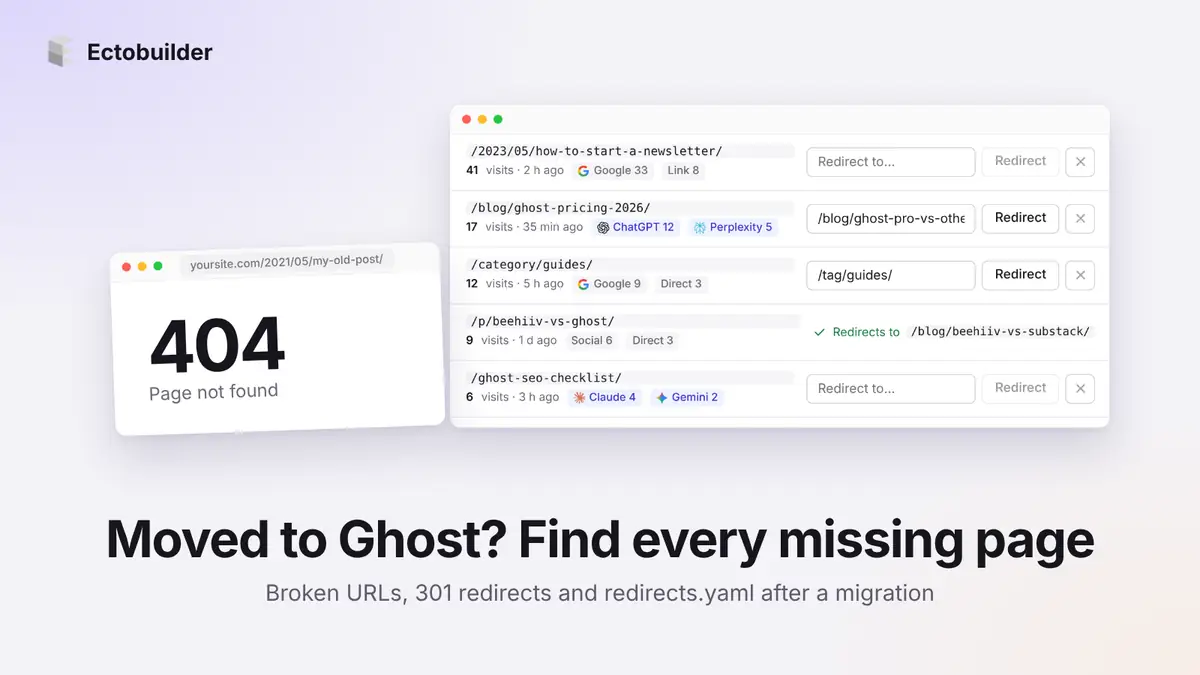
Moving a site to Ghost is the easy part. The import runs, the posts are there, the new theme looks great. Then, a few weeks later, you notice Google still sends people to /2021/05/my-old-post/, a newsletter from two years ago links to /category/guides/, and every one of those visitors lands on your 404 page.
This guide covers what breaks when you migrate to Ghost, how Ghost redirects work, and how to find the URLs you missed, using the visitors who are already hitting them.
Why URLs break when you move to Ghost
Every platform has its own URL habits. Ghost's are simple: posts live at /post-slug/ (or under a prefix like /blog/ if your routes say so), tags at /tag/name/, authors at /author/name/. Anything your old platform did differently stops working on the day you switch the domain over.
| Coming from | Old URL | On Ghost |
|---|---|---|
| WordPress, dated permalinks | /2021/05/my-post/ | /my-post/ |
| WordPress, plain links | /?p=123 | /my-post/ |
| WordPress categories | /category/guides/ | /tag/guides/ |
| WordPress feed | /feed/ | /rss/ |
| WordPress uploads | /wp-content/uploads/… | /content/images/… |
| Substack | /p/my-post | /my-post/ |
| Squarespace | /blog/my-post | /my-post/ |
| Wix | /post/my-post | /my-post/ |
Those are the patterns. The surprises are the one-offs: a page you renamed during the move, a post you merged into another, a landing page you decided not to bring over, an old slug with a typo someone linked to in 2019.
What a broken URL costs you
- Visitors. Someone clicks a link in an old newsletter, a forum thread or a bookmark and gets a 404. Most of them leave.
- Search rankings. The old URL had links pointing to it. Without a redirect, Google eventually drops it, and the authority it built doesn't pass to the new page.
- Signups. Your best-performing old posts are often the ones still bringing in members. Those are exactly the URLs people keep finding.
How redirects work in Ghost
Ghost reads redirects from one file, redirects.yaml (older sites use redirects.json). You upload it in Ghost Admin → Settings → Labs → Redirects. Uploading replaces the whole file, so always download the current one first and add to it.
301:
  /category/guides/: /tag/guides/
  /feed/: /rss/
  ^\/(\d{4})\/(\d{2})\/([a-z0-9-]+)\/?$: /$3/
  ^\/p\/([a-z0-9-]+)\/?$: /$1/

302:
/summer-sale/: /pricing/- 301 means the page moved for good. Search engines move the old URL's ranking to the new one. Use it for almost everything after a migration.
- 302 means temporary. Use it for a sale page or a campaign you'll switch back later.
- A line starting with
^is a regular expression. The third line above sends every dated WordPress URL to the bare slug, and the fourth does the same for Substack's/p/links. One rule like that covers hundreds of posts.
Pattern rules handle the bulk. The problem is the URLs that don't fit any pattern, because you can't write a redirect for a URL you don't know about.
How to find the URLs you missed
The usual advice is to crawl the old site before you shut it down and compare lists. That works if you remembered to do it. Other places to look:
- Google Search Console → Pages → Not found (404). Accurate, but it only shows URLs Googlebot found, and it can take weeks to update.
- Your server or CDN logs. Complete, but on Ghost(Pro) you don't have them.
- Your analytics. Most tools don't record 404s unless you set up a custom event.
The quickest signal is your own 404 page. Every request that ends there is a URL someone actually tried. If your 404 page wrote those down, you would have a list of exactly the redirects you need, sorted by how much they matter.
That's what Ectobuilder's Log missing pages does.
Log missing pages with Ectobuilder
When it's on, your theme's 404 page reports each missing URL back to Ectobuilder: the path, how many times it was requested, and where the visitors came from (Google, a link on another site, an AI assistant, or direct). You get a list in the editor, with the most-requested URLs at the top and a box next to each one to redirect it.
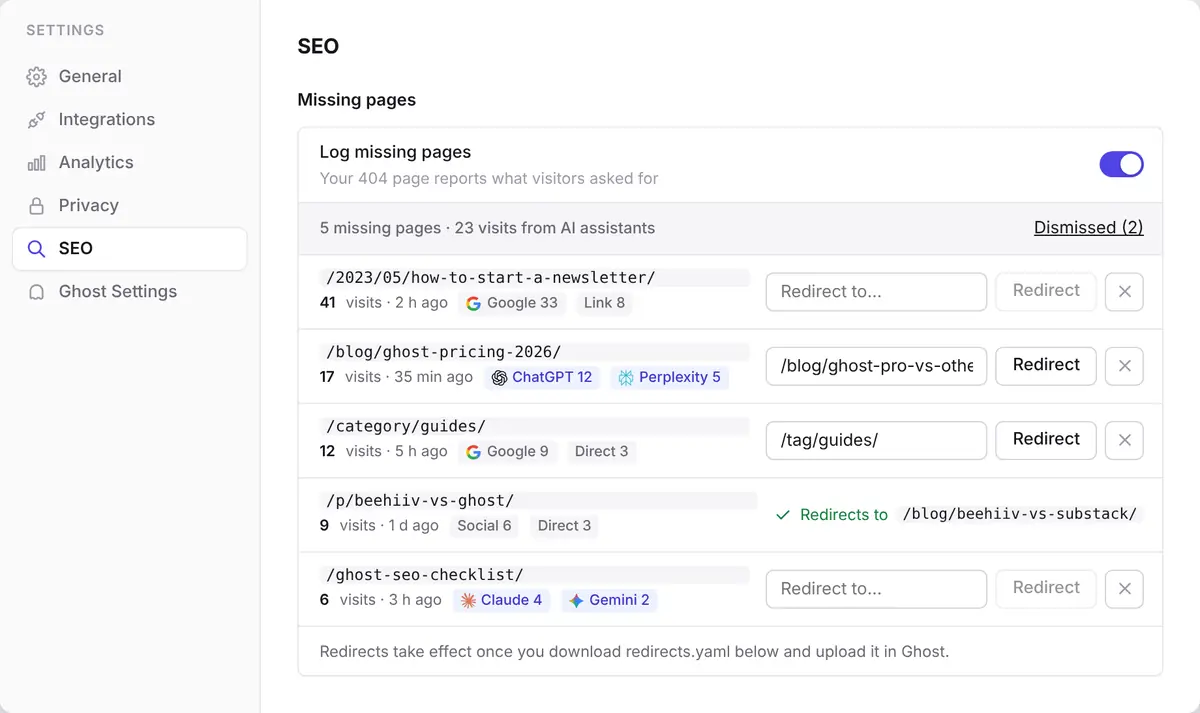
Step 1: Turn it on
Open your theme in Ectobuilder, click Settings, then SEO, and switch on Log missing pages. Deploy the theme. From then on, every visit to a page that doesn't exist is counted.
Step 2: Let it collect for a week or two
Some old URLs get a visit a day, some one a month. Give it time before you judge the list. Obvious junk, such as bots probing for /wp-login.php or .env files, is filtered out, and known crawlers aren't counted.
Step 3: Redirect the ones that matter
Start at the top. For each URL, type where it should go into Redirect to…. The field suggests your real posts, pages and tags, so you don't have to look slugs up. Click Redirect and the row shows where it now points. If a URL isn't worth a redirect, dismiss it and it moves out of the list.
Step 4: Upload the file to Ghost
Every redirect you add lands in the Redirects list below, as a 301. Download redirects.yaml from there and upload it in Ghost Admin under Settings → Labs → Redirects. The list includes any redirects you added by hand, so the file you upload is complete.

Moving to Ghost? Build the new theme in Ectobuilder by clicking, and let its 404 page tell you which old URLs still need a redirect. Start free and only pay when you publish.
A migration redirect checklist
- Before the switch: export a list of every URL on the old site (its sitemap is a good start) and note your top 50 pages by traffic.
- Write the pattern rules: dates,
/p/,/post/,/category/,/feed/, whatever your old platform used. - Map the one-offs from your top pages by hand: renamed, merged and retired pages.
- Upload
redirects.yamlon launch day, and test a handful of old URLs in a private window. - Turn on Log missing pages and check it weekly for the first month, then monthly.
- Keep the redirects. Old links live for years. Don't remove a 301 because it looks old.
Common mistakes
- Sending everything to the homepage. Google treats a redirect to an unrelated page like a 404. Point each URL at its closest match, or let it 404 if there isn't one.
- Uploading a new file without the old rules. Ghost replaces the file on upload. Download first, then add.
- Redirect chains. If A goes to B and B now goes to C, change A to point straight at C.
- Using 302 for permanent moves. The page will work, but search engines keep the old URL in their index.
- Forgetting images. Old posts on other sites may embed your
/wp-content/uploads/images directly. A pattern rule to/content/images/only helps if the file names match, so check a few.
The 404s that aren't from your migration
Once Log missing pages has been running for a while, you may notice URLs that never existed on any version of your site, with ChatGPT, Perplexity or Claude as the source. AI assistants sometimes link to pages that sound right but were never written. We wrote about what to do with phantom AI traffic: often the best answer is to write the page.
FAQ
Where do I upload redirects in Ghost?
In Ghost Admin under Settings → Labs → Redirects. Download the current file first: uploading replaces it.
Should I use 301 or 302 redirects after a migration?
301. The move is permanent, and a 301 tells search engines to pass the old URL's ranking to the new one.
Does Ghost support regex redirects?
Yes. Start the rule with ^ and use capture groups like $1 in the target. One rule can redirect every dated WordPress URL.
How long should I keep redirects after moving to Ghost?
As long as the site exists. Old links in newsletters, forums and other sites keep getting clicked for years, and a redirect costs nothing to keep.
Does Log missing pages slow down my site?
No. The script only exists on the 404 page, sends one small background request per visit, and sets no cookies.
Some links in this article are affiliate links: if you sign up through them, we may earn a commission at no extra cost to you.
Written by
Founder of Ectobuilder, the AI-powered visual theme editor for Ghost. Indie software builder in Wrocław and co-author of The AdTech Book. I write about Ghost themes, newsletters and building websites with AI.
Comments
Questions or thoughts? Share them below.
Keep reading

How to Build Your Ghost Theme Visually (Step-by-Step Guide, No Code)
Build a complete Ghost theme without touching code: start from a theme, edit text and pictures in place, add sections from a library of 270, set colours and fonts, design every page, and publish to Ghost in one click. Step by step, with screenshots.
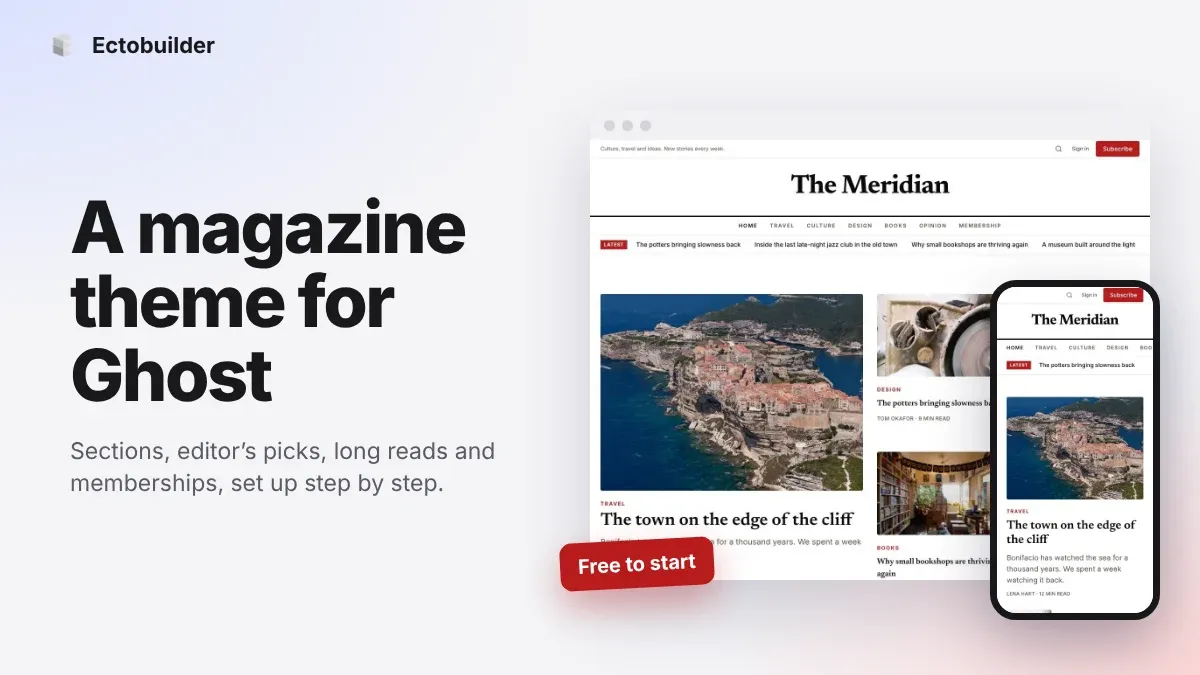
Magazine Theme for Ghost: Sections, Editor's Picks, Long Reads and Memberships
A step-by-step guide to the Magazine theme for Ghost: turn sections into tags, set up the navigation, fill the front page, editor's picks and section fronts, add your writers, sell memberships and send a weekly newsletter.
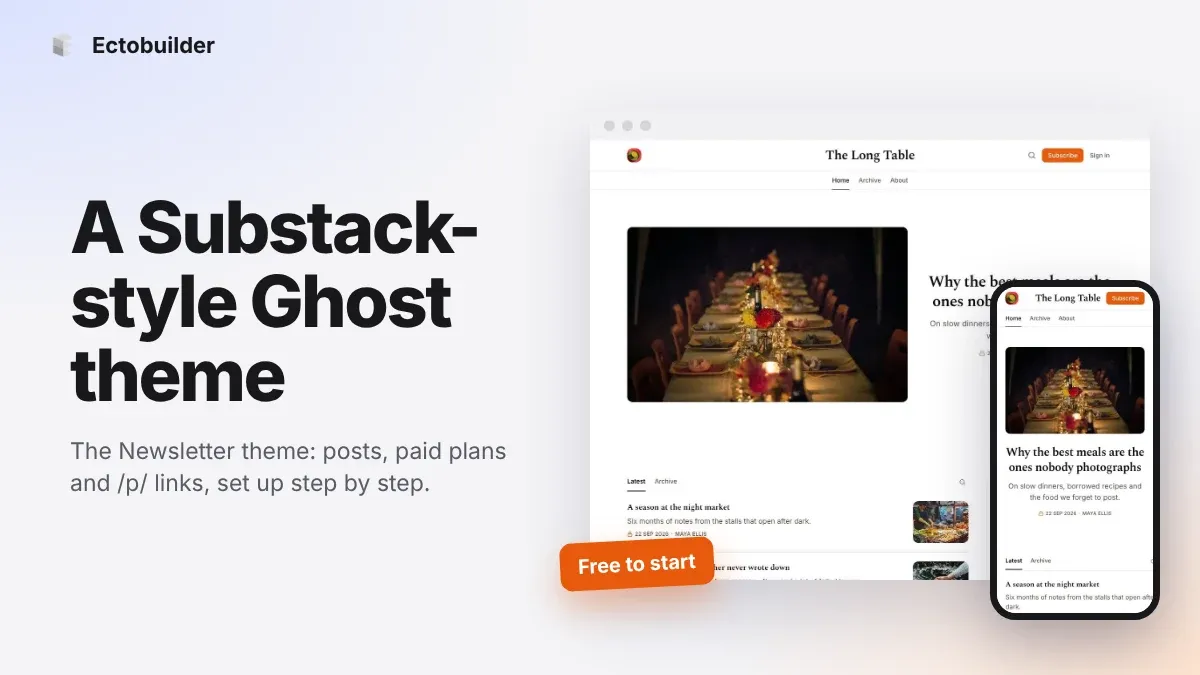
Newsletter Theme for Ghost: A Substack-Style Site With Paid Plans, /p/ Links and Comments
A step-by-step guide to the Newsletter theme for Ghost: a Substack-style homepage and reading page, then newsletters, paid plans, /p/ addresses, Plans, Welcome and About pages, comments and recommendations.