
How to make Ghost look and feel like Substack
Moved from Substack to Ghost and miss the look? Build a Substack-style Ghost theme in Ectobuilder, keep your /p/ post addresses, and set up Ghost so readers feel at home.

Michal Wlosik
· 6 min read
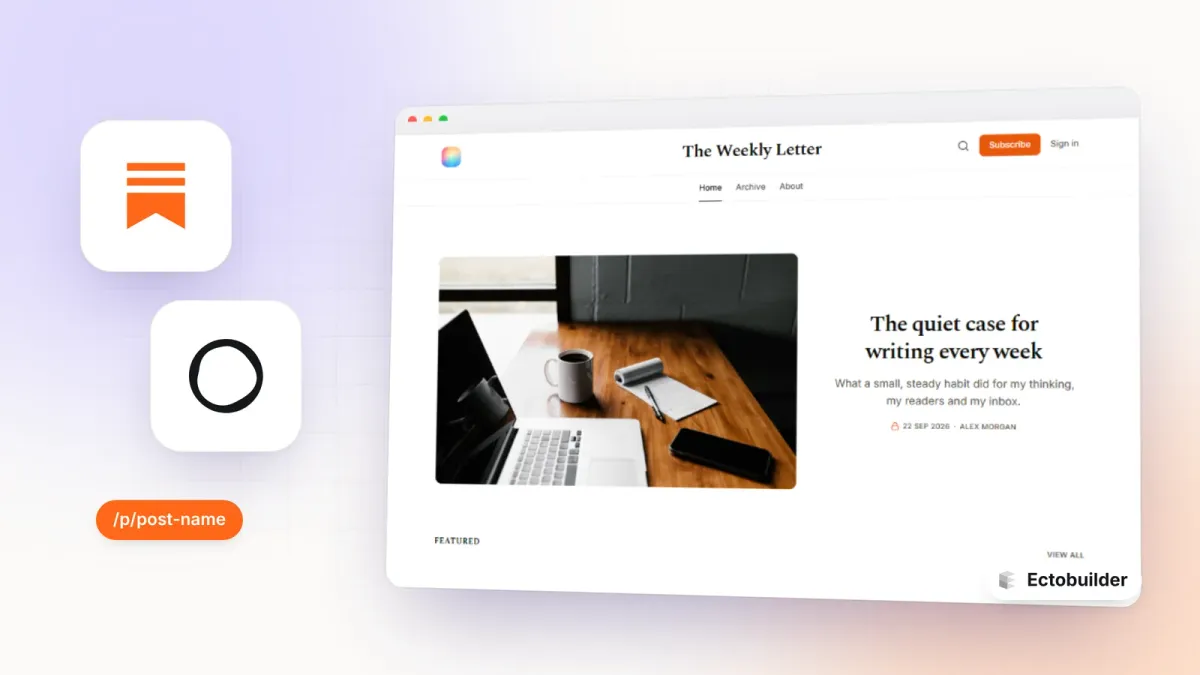
Substack has a look readers recognise straight away: the publication name centred at the top, an orange Subscribe button, a narrow serif reading column, and a post list with a subscribe box beside it. Moving to Ghost doesn't mean giving that up.
This guide shows how to build that design as a Ghost theme in Ectobuilder, without code, and how to set up Ghost so the rest of the experience feels familiar too, including Substack's /p/ post addresses.
First: move your content with Ghost's own importer
A theme changes how your site looks. It doesn't move posts or subscribers. Do that first with Ghost's built-in Substack importer. It brings your posts, free subscribers and paid subscribers across, and keeps paid subscriptions running on your Stripe account.
Follow How to migrate from Substack to Ghost, then come back here. You can also build the theme first and import later; the order doesn't matter to the theme.
What you'll build
| Page in Ectobuilder | Sections to use, top to bottom |
|---|---|
| Home | Newsletter masthead · Newsletter lead story · Newsletter featured row · Newsletter feed with sidebar · Newsletter footer |
| Blog (becomes your Archive) | Newsletter masthead · Newsletter archive · Load more button · Newsletter footer |
| Post | Newsletter masthead · Newsletter post header · Newsletter reading column · Newsletter subscribe box · Newsletter discussion · Newsletter more posts · Newsletter footer |
| Page (About and others) | Newsletter masthead · Newsletter page title · Newsletter reading column · Newsletter footer |
| Optional extras | Newsletter welcome (a Substack-style landing screen), Newsletter plans (your Ghost tiers), Newsletter recommendations, Newsletter post list or post grid |
All of these are in the section library. Search for substack or newsletter to see only them.
Step 1: Create a new theme
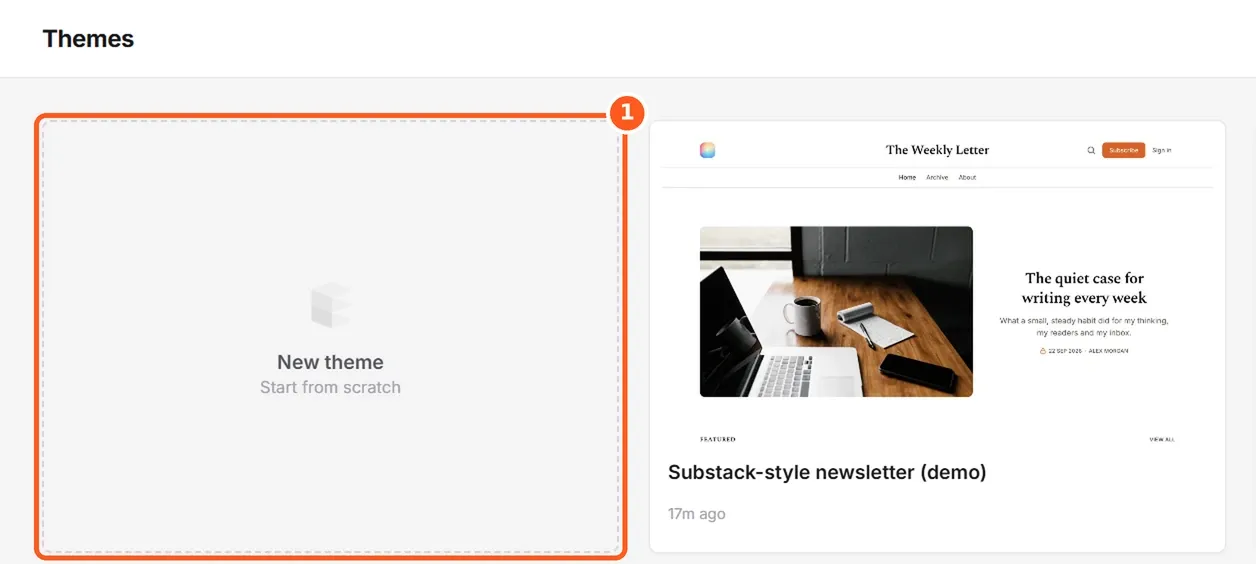
In your Ectobuilder dashboard, click New theme. The editor opens with a starter layout on every page: home, blog, post, page, tag, author and the error page.
Step 2: Swap in the newsletter sections
Work through the pages in the table above. For each one:
- Pick the page from the menu at the top of the editor (Home, Blog, Post…).
- In the Sections panel, click a section you don't need and delete it with the bin icon.
- Click Add, type substack in the search box, and click the section you want. It's added to the page; drag it in the Sections panel to change the order.
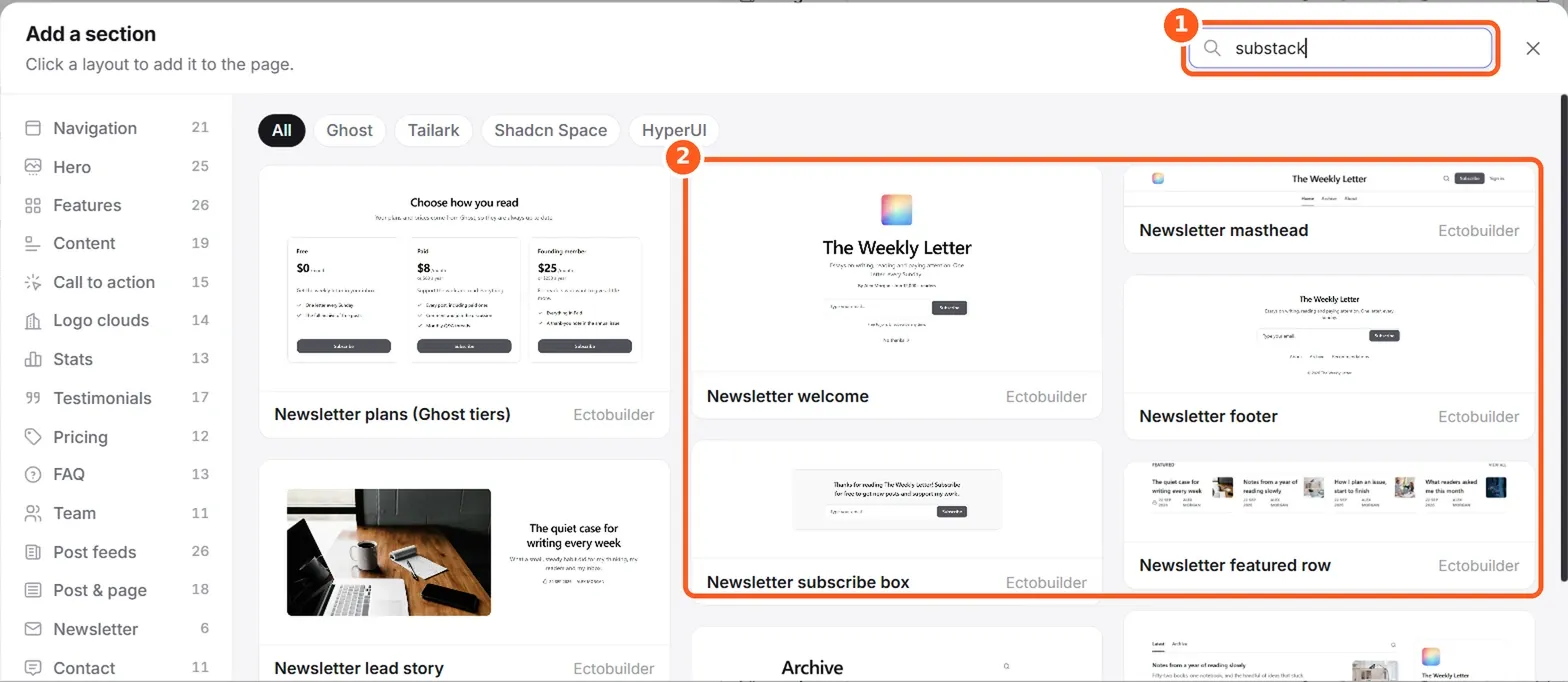
Start with the header and footer. They're shared across the whole site (the globe icon in the Sections panel marks them), so replacing them once on Home updates every page.
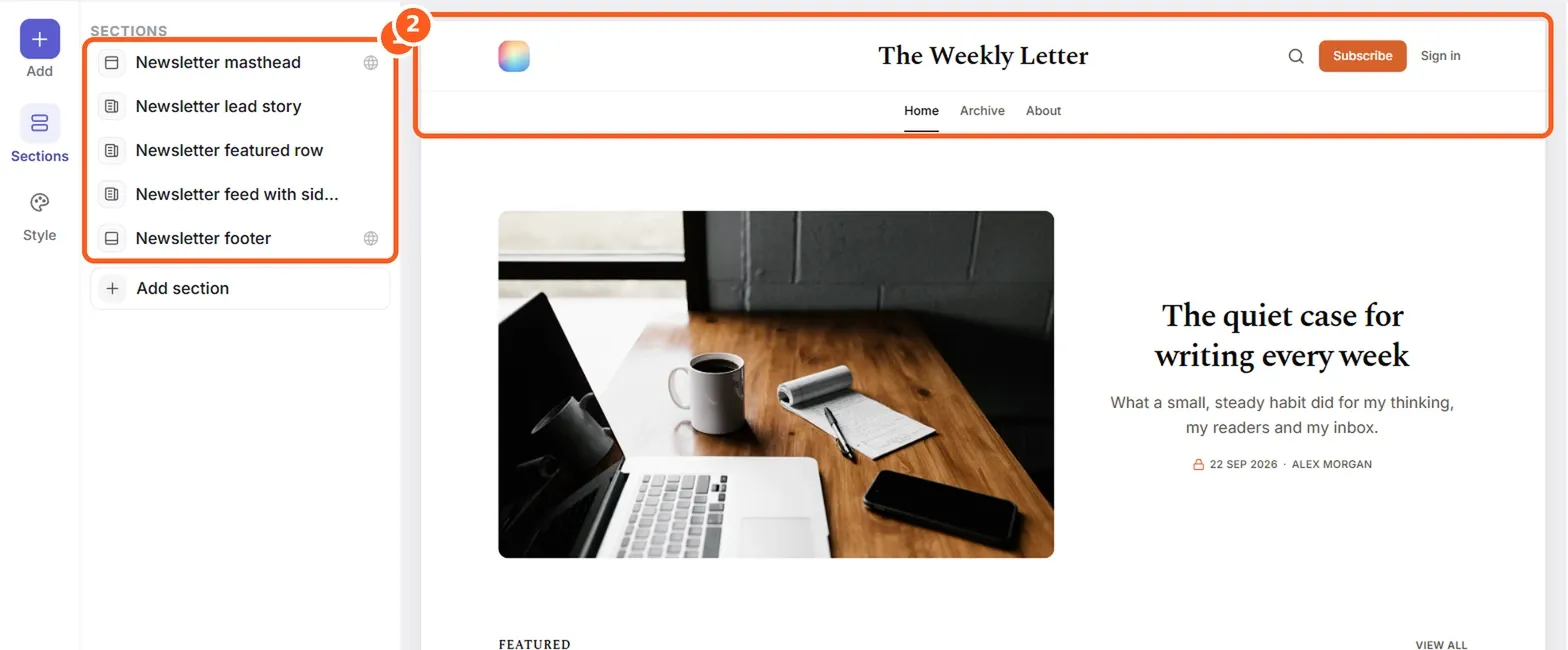
You don't need to type your posts into these sections. The text you see is a sample. On your site, the lead story, featured row and feed fill with your real Ghost posts, and the masthead shows your publication's name and icon from Ghost.

Moving your newsletter to Ghost? Ectobuilder lets you design your Ghost site visually, from a Substack-style layout to a full homepage, without touching theme code.
Step 3: Set the Substack look in Style
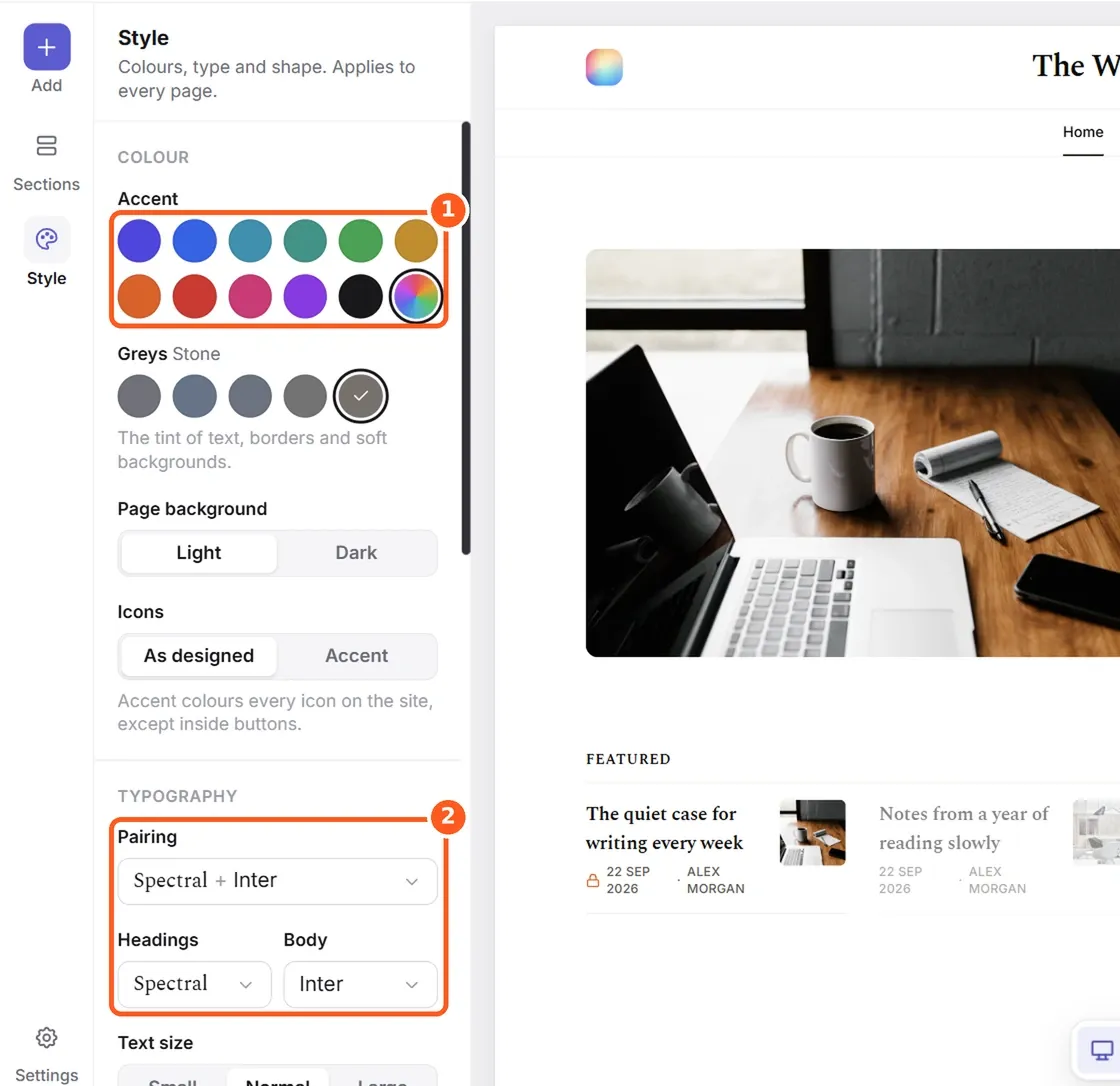
Click Style in the left bar. These settings apply to every page.
- Accent: pick the orange swatch for Substack's familiar button colour, or your own brand colour.
- Greys: Stone gives the warm grey Substack uses for secondary text.
- Page background: Light.
- Typography: choose the Spectral + Inter pairing: a serif for headings and reading, a clean sans for labels and buttons.
Step 4: Build the post page
Switch to Post. This is the page your readers spend the most time on, so it matters most.
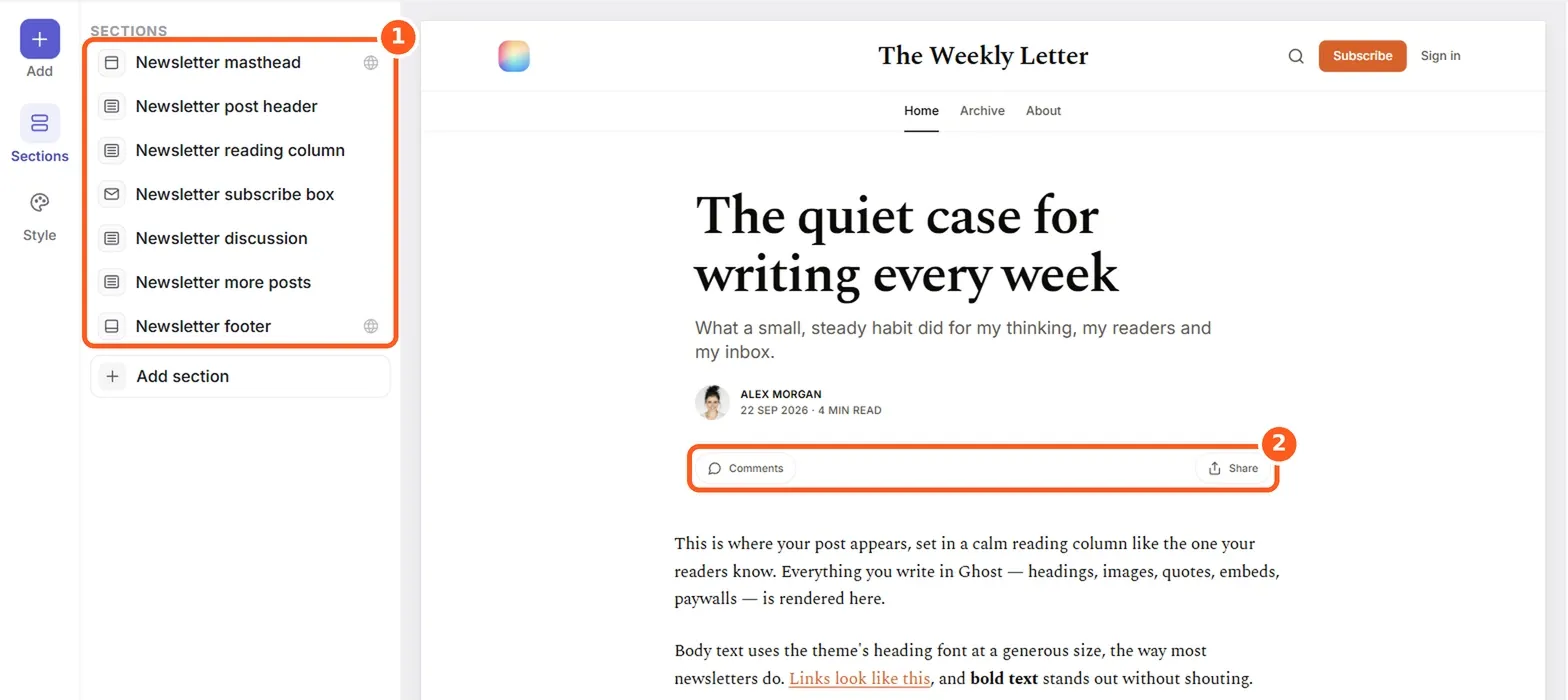
- Newsletter post header shows the title, subtitle (your Ghost excerpt), author, date and reading time, with Comments and Share buttons.
- Newsletter reading column is where Ghost puts your post. Headings, images, quotes, embeds and the paywall all render here.
- Newsletter subscribe box is the "Thanks for reading! Subscribe for free" box. It only shows to visitors who aren't signed in.
- Newsletter discussion holds Ghost's native comments. It only appears once comments are switched on in Ghost (see Step 7).
- Newsletter more posts lists your other posts, skipping the one being read.
Step 5: Turn the Blog page into your Archive
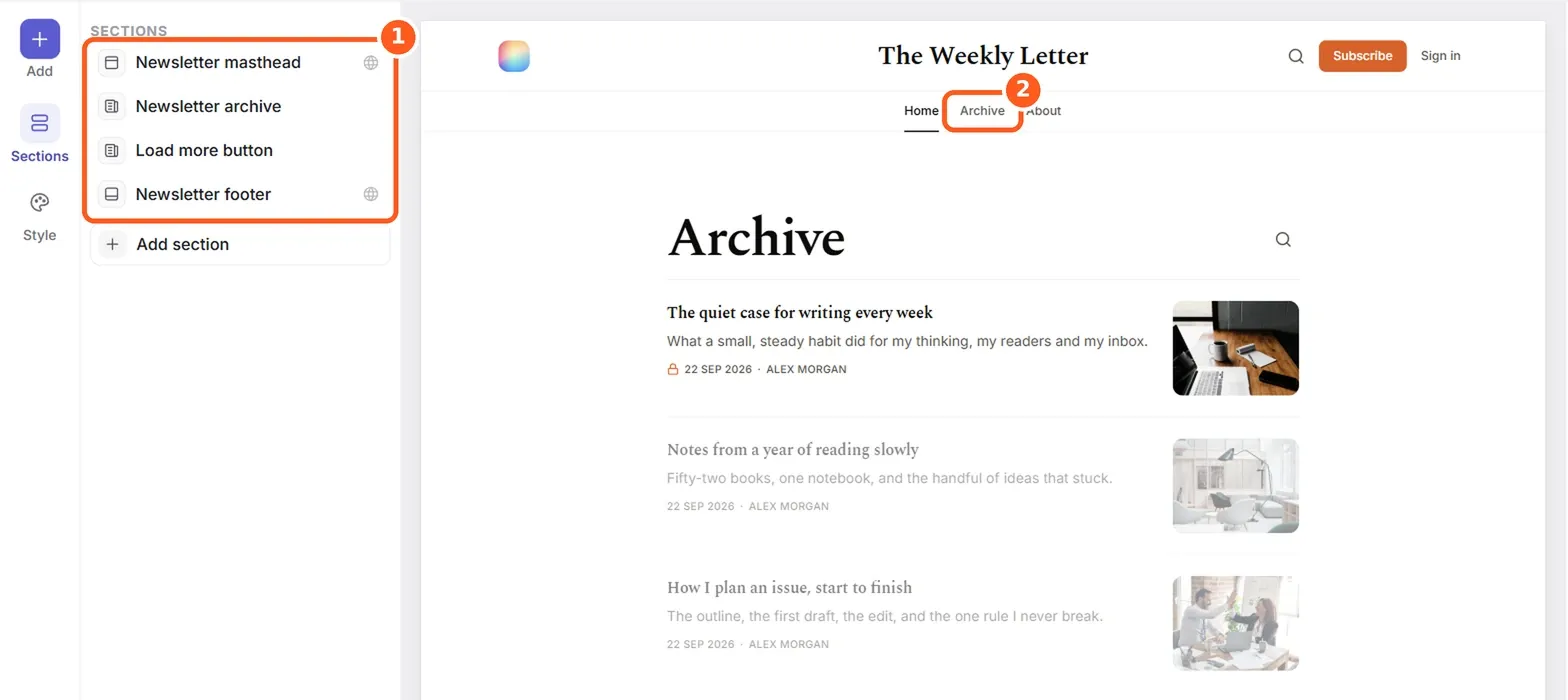
Switch to Blog. Use Newsletter archive for Substack's simple list of titles with thumbnails, and add Load more button under it. Readers click it to load older posts in place, without a page of numbered links.
Step 6: Keep Substack's /p/ post addresses
On Substack, every post lives at /p/post-name. Ghost uses /post-name/ by default. If your custom domain moves to Ghost, every link that people have shared over the years points at /p/. You have two ways to keep them working:
- Keep Substack's addresses (recommended with this theme). Your posts stay at
/p/post-name, the list of posts lives at/archive/as on Substack, and nothing needs redirecting. - Switch to Ghost's addresses and redirect the old links, as shown in the migration guide. Use one or the other, not both.
To keep Substack's addresses:
- In the editor, click Settings (bottom left), then Ghost Settings.
- Under Routes, set Post addresses to /p/post-name (Substack). Links in your theme that point to the post list now go to
/archive/. - Click Download next to routes.yaml.
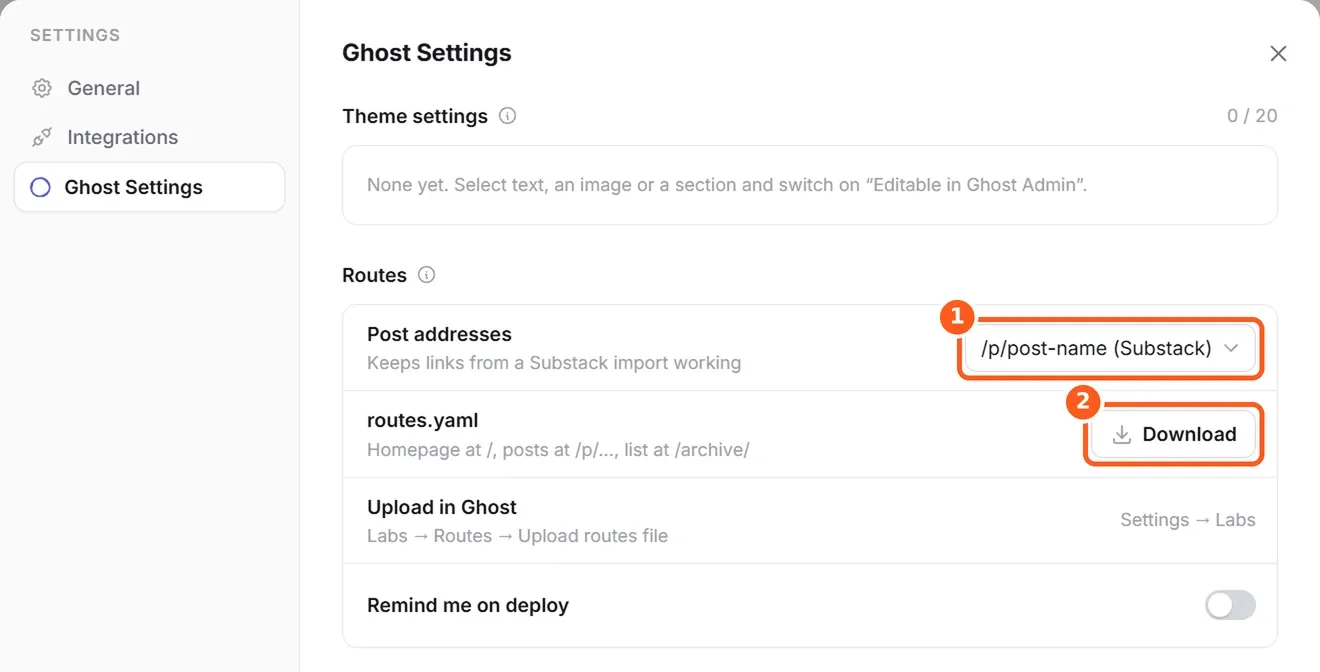
- In Ghost Admin, go to Settings → Labs, find Routes and click Upload routes file. Choose the file you downloaded.
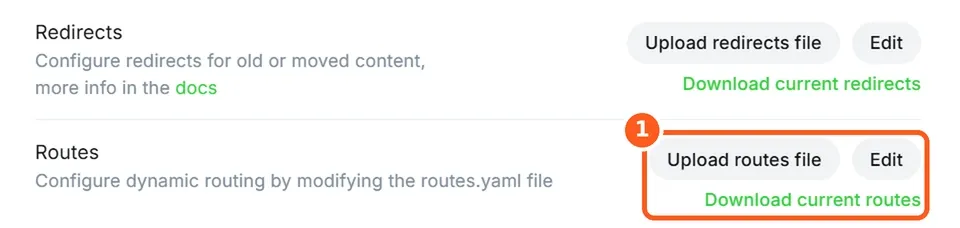
Ghost's own preview links also start with /p/, but they use a long random ID instead of a post name, so the two don't clash. Ghost's sitemap and canonical tags pick up the new addresses automatically.
Step 7: Publish, then set up Ghost to match
Click Deploy. Ectobuilder builds the theme and switches it on at your Ghost site (connect your site once under Settings → Integrations). You can also download the theme ZIP and upload it in Ghost under Settings → Theme.
The theme covers how things look. These Ghost settings cover how they behave, and each one has a Substack equivalent:
| Substack feature | Where to set it in Ghost |
|---|---|
| Subscribe pop-up | Settings → Signup portal. Keep the free signup on so the Subscribe button takes just an email address. |
| Home, Archive, About menu | Settings → Navigation. Add Archive pointing to /archive/ (or /blog/ if you kept Ghost's addresses). |
| Comments | Settings → Access → Who can comment on posts. The Discussion section appears once comments are on. |
| Recommendations | Settings → Recommendations. Add the publications you recommend; the Newsletter recommendations section lists them. |
| Paid plans and Founding member | Settings → Tiers. Ghost's tiers show up in the Newsletter plans section; name one "Founding member" if you had it. |
| Email design | Settings → Newsletters → Edit. Pick a serif title font and your accent colour so emails match the site. |
| Welcome email | Settings → Welcome emails, for free and paid signups. |
| Notes and the Substack app | No direct equivalent. Ghost's Network (Settings → Network) lets people follow you from other apps and see your posts there. |
What's different, and what isn't
Readers keep the parts they notice: the masthead, the reading column, the subscribe box, comments under posts, the archive and the links they saved. What changes is what you get as a writer: your own domain, your own design, no cut of your revenue, and a site you can take anywhere because Ghost is open source.
Be honest with your readers about the move. Comments, likes and Notes don't come across (the migration guide lists everything), so a short "we've moved" post on Substack and a first email from Ghost go a long way.
Build your Ghost theme without code. Pick a theme from the Ectobuilder gallery or start from scratch, change it by clicking, and publish it to your Ghost site. Start free and only pay if you’re happy with it.
Written by
Founder of Ectobuilder, the AI-powered visual theme editor for Ghost. Indie software builder in Wrocław and co-author of The AdTech Book. I write about Ghost themes, newsletters and building websites with AI.
Comments
Questions or thoughts? Share them below.
Keep reading
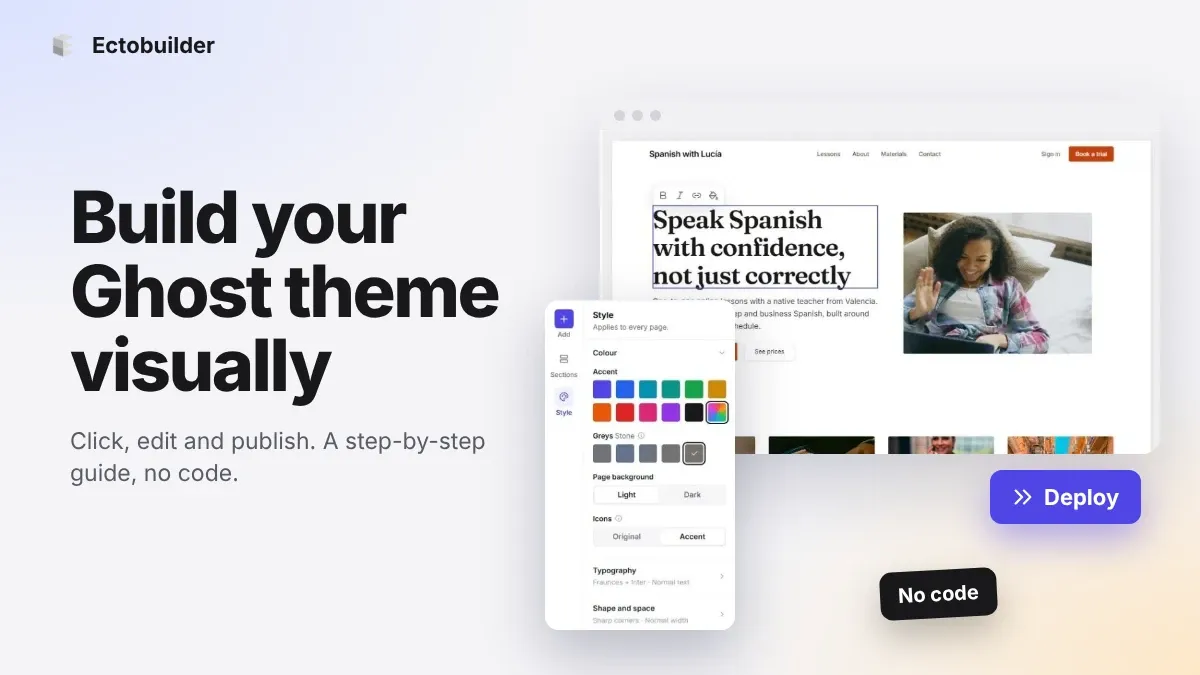
How to Build Your Ghost Theme Visually (Step-by-Step Guide, No Code)
Build a complete Ghost theme without touching code: start from a theme, edit text and pictures in place, add sections from a library of 270, set colours and fonts, design every page, and publish to Ghost in one click. Step by step, with screenshots.
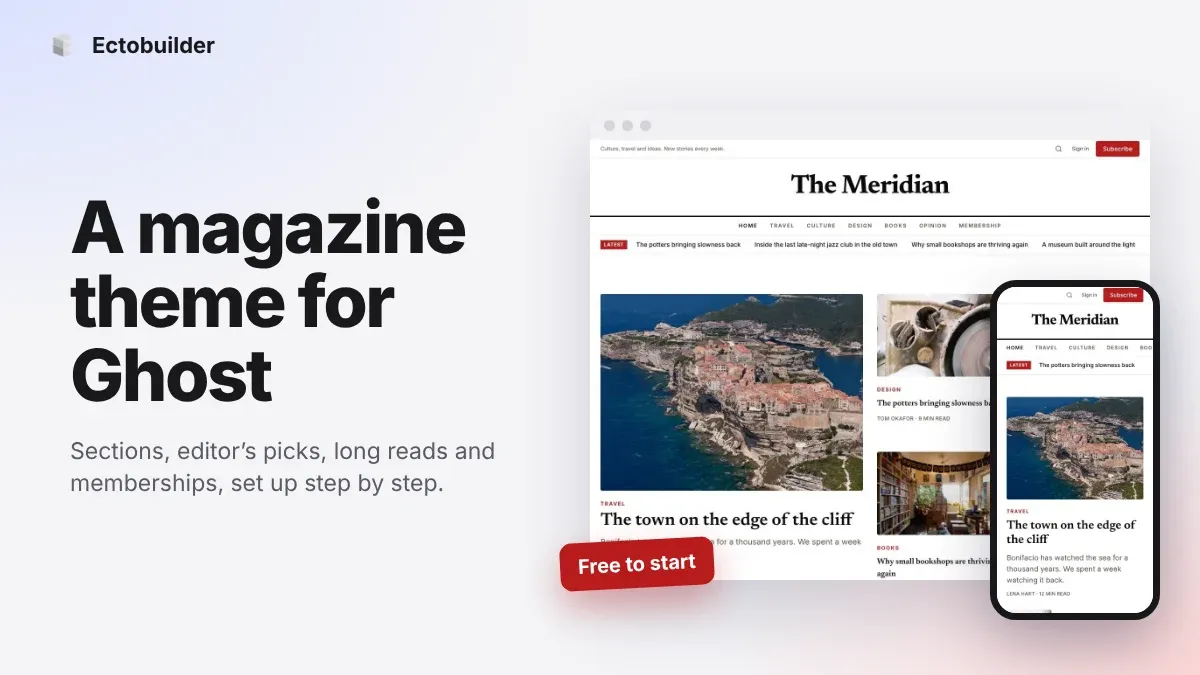
Magazine Theme for Ghost: Sections, Editor's Picks, Long Reads and Memberships
A step-by-step guide to the Magazine theme for Ghost: turn sections into tags, set up the navigation, fill the front page, editor's picks and section fronts, add your writers, sell memberships and send a weekly newsletter.
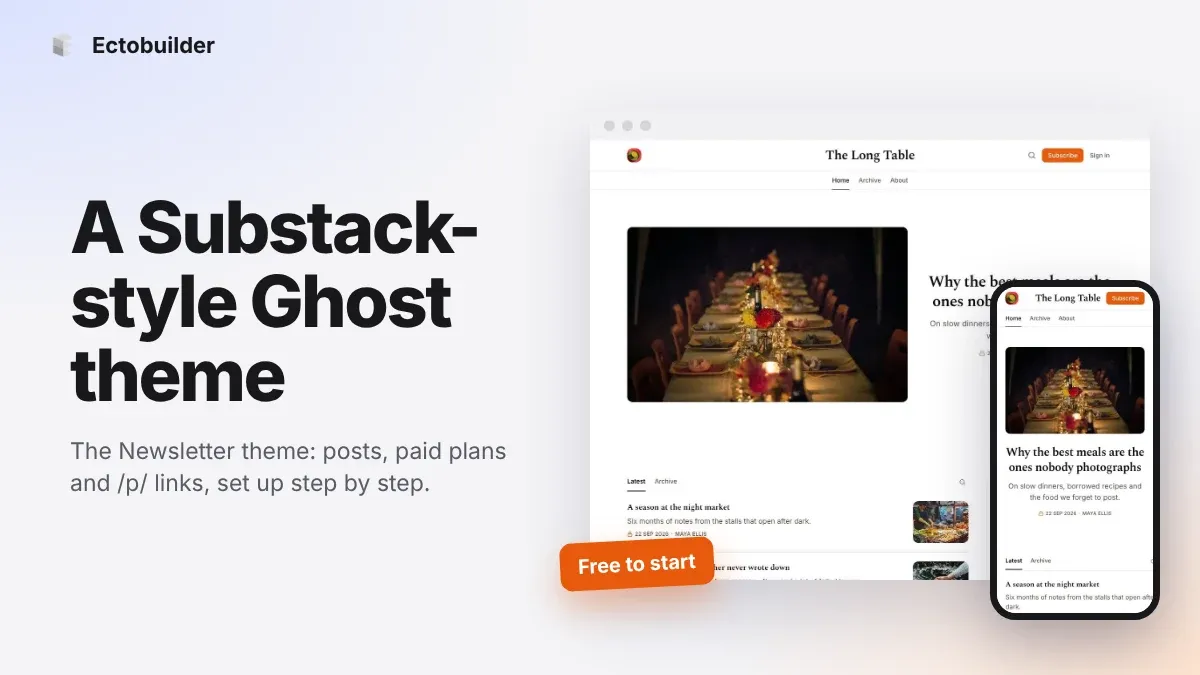
Newsletter Theme for Ghost: A Substack-Style Site With Paid Plans, /p/ Links and Comments
A step-by-step guide to the Newsletter theme for Ghost: a Substack-style homepage and reading page, then newsletters, paid plans, /p/ addresses, Plans, Welcome and About pages, comments and recommendations.