
How to Host Ghost on Hostinger: Step-by-Step Guide (2026)
Run Ghost on your own Hostinger server with Ghost preinstalled: 4GB of RAM from $6.49 a month, weekly backups and a free domain. Step by step, with screenshots, plus email and theme setup.

Michal Wlosik
· 7 min read
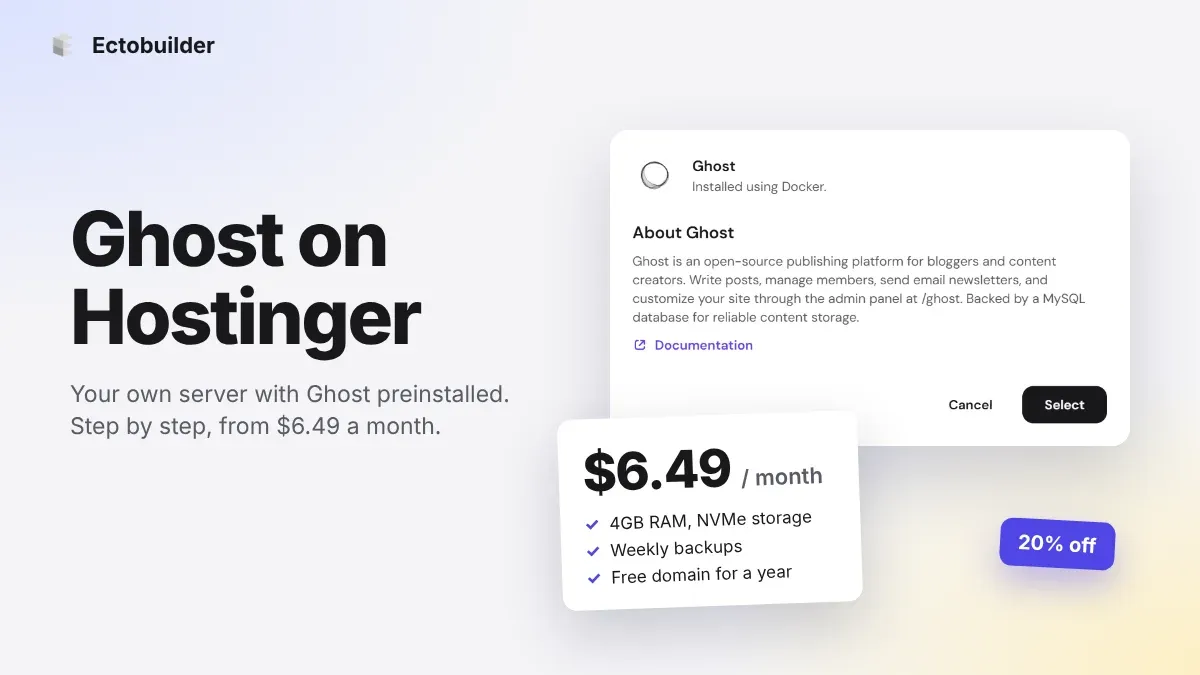
Most cheap Ghost hosting asks you to choose: a tiny shared container, or a bare server you set up yourself. Hostinger sits in between. You get your own virtual server with full root access, and Ghost comes preinstalled from a ready-made template, so there is no Docker Compose file to write and no MySQL to configure.
The entry plan gives you 4GB of RAM for $6.49 a month. That's twice what Ghost and MySQL need to run comfortably, at about the price of a bare 2GB server elsewhere. This guide walks through the whole setup, from choosing a server to a live site with your own domain, email and theme.
Disclosure: the Hostinger links in this guide are affiliate links. Sign up through them and you get 20% off your first purchase, and we may earn a commission at no extra cost to you.
Why Hostinger for Ghost
- Ghost preinstalled. Pick the Ghost template while you buy the server and it installs itself, using Docker, the install method Ghost now recommends.
- Plenty of memory. 4GB of RAM on the smallest plan. Ghost plus MySQL on 1GB is the classic way to have your site fall over during a traffic spike. That doesn't happen here.
- Fast hardware. AMD EPYC processors, NVMe storage and a 1 Gbps network on every plan.
- Backups and security included. Free weekly backups, firewall management and DDoS protection.
- A free domain for the first year. One less thing to buy separately.
- Data centres worldwide. Europe, North America, Asia and South America, so you can host close to your readers.
- No risk. A 30-day money-back guarantee, and 20% off your first purchase through our link.
Hostinger Ghost plans and prices
| Plan | Intro price | Renews at | CPU | RAM | Storage | Bandwidth |
|---|---|---|---|---|---|---|
| KVM 1 | $6.49/mo | $11.99/mo | 1 vCPU | 4GB | 50GB NVMe | 4TB |
| KVM 2 | $8.79/mo | $14.99/mo | 2 vCPU | 8GB | 100GB NVMe | 8TB |
| KVM 4 | $12.99/mo | $28.99/mo | 4 vCPU | 16GB | 200GB NVMe | 16TB |
| KVM 8 | $25.99/mo | $49.99/mo | 8 vCPU | 32GB | 400GB NVMe | 32TB |
Intro prices are for a 24-month term paid upfront. Prices exclude VAT and were checked in October 2026. For one Ghost site, KVM 1 is plenty. Choose KVM 2 if you plan to run several sites on the same server or expect heavy traffic.
Ghost preinstalled, 4GB of RAM, $6.49 a month.
Start your Ghost site on Hostinger and get 20% off your first purchase through our link.
What you need
- About 20 minutes.
- A domain. Hostinger includes one free for the first year, or use one you already own.
- A Mailgun account, but only if you want to send newsletters. More on that in step 7.
Step 1: Choose a server location
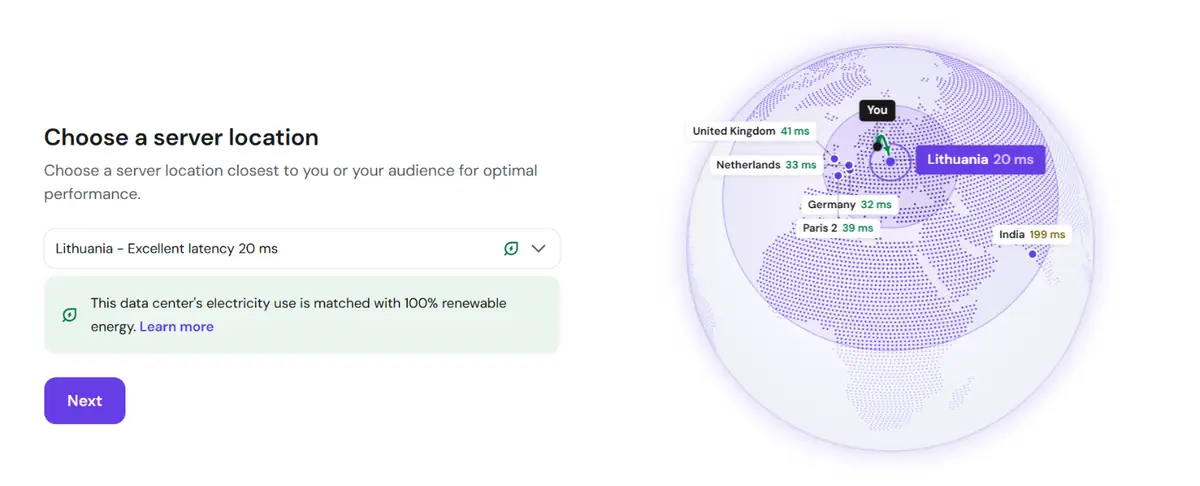
Open Hostinger through our link to get 20% off, sign in or create an account, and start a new VPS. The first screen asks where your server should live. Hostinger measures the latency from where you are and suggests the closest data centre. Pick the location nearest to most of your readers, not necessarily nearest to you.
Step 2: Choose Ghost
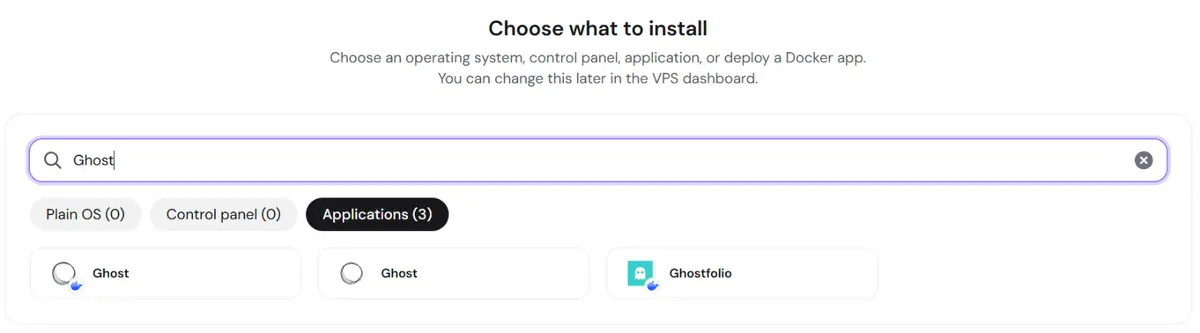
Next, Hostinger asks what to install. Type Ghost into the search box and open the Applications tab. Choose the Ghost entry with the small Docker badge on its icon.
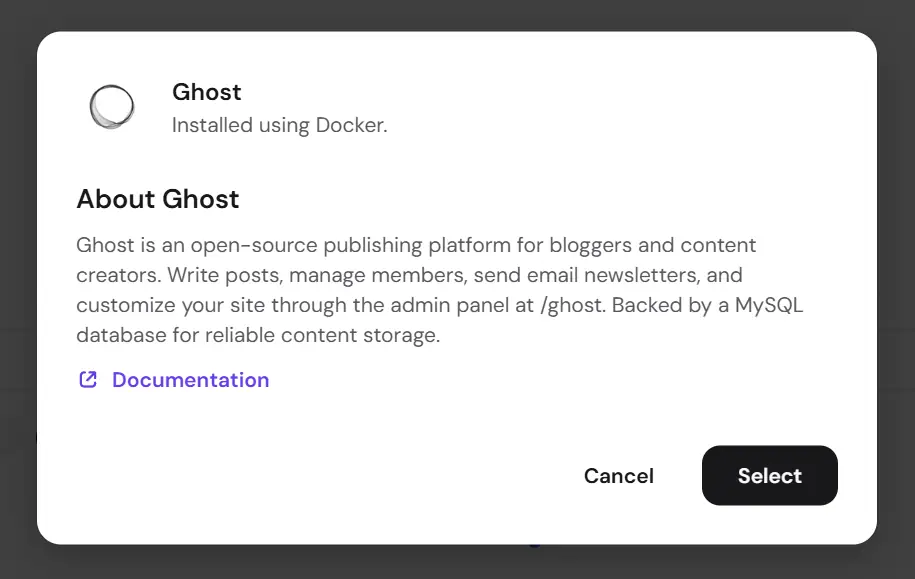
Hostinger confirms that Ghost will be installed using Docker, with a MySQL database and the admin panel at /ghost. Click Select.
Step 3: Choose a plan
Now pick the size of your server. All four plans run Ghost well. KVM 1, with 4GB of RAM, is the right choice for a single blog or newsletter site, and you can upgrade later without reinstalling.
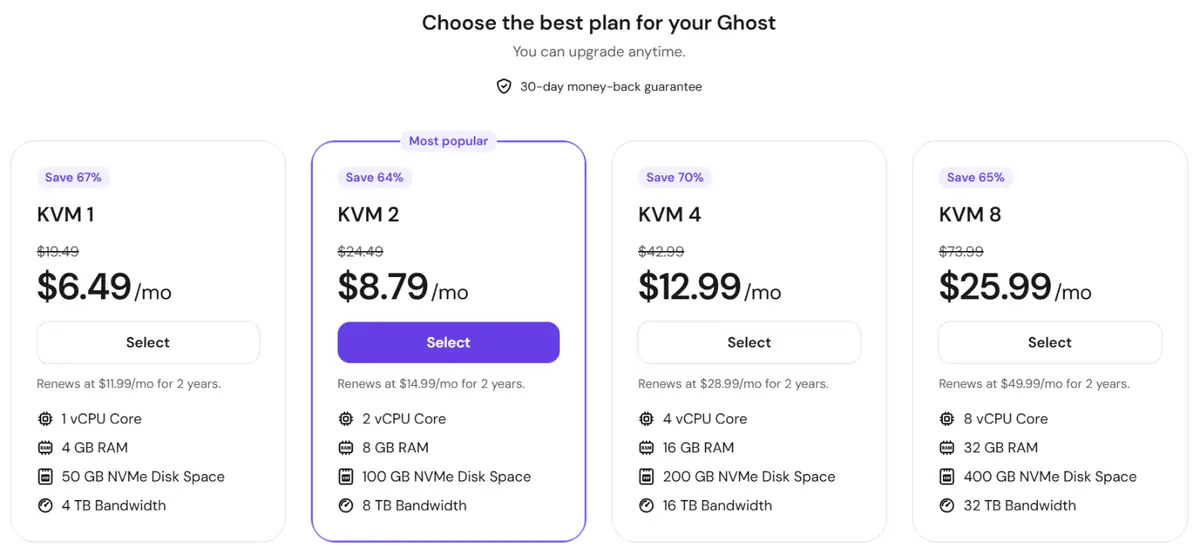
Every plan includes the same extras: weekly backups, firewall management, an AI web terminal, a public API and a free domain for the first year.

Step 4: Choose a billing period and pay
The longer the term, the lower the monthly price: $6.49 a month for 24 months, $6.99 for 12 months, or $9.99 for a single month. If you only want to try Ghost, a month is the cheapest way in. If you know you'll keep the site, 24 months gives you the lowest price for the longest time. Either way, the 30-day money-back guarantee applies.
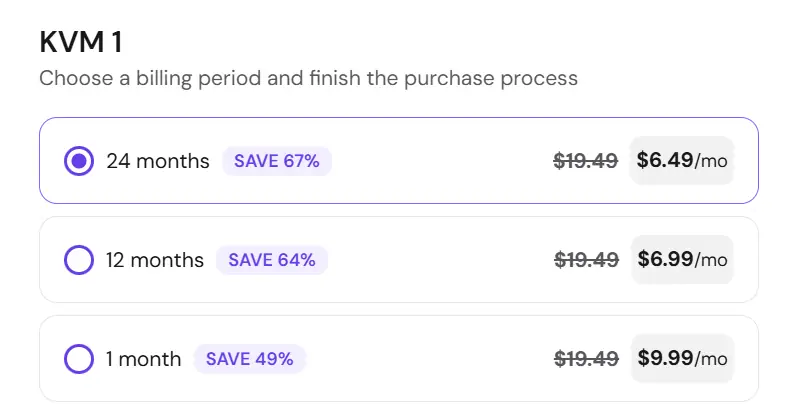
Pay, and Hostinger starts building your server.
Ready to set it up? Hostinger’s Ghost VPS comes with Ghost preinstalled, 4GB of RAM, weekly backups and a free domain from $6.49 a month, with a 30-day money-back guarantee. Get 20% off your first purchase through our link.
Step 5: Open Ghost and create your account
When setup finishes, open your VPS in hPanel. The overview shows your server's IP address, and Docker Manager lists the Ghost project with the address it runs on. Open that address with /ghost on the end. Ghost's setup wizard appears: enter your site title, your name, email and a password, and you're in Ghost Admin.
Do this straight away, because the first person to open the setup wizard becomes the site owner.
Step 6: Connect your domain and turn on HTTPS
Your site should live at your own domain, not an IP address. Three things to do:
- Point the domain at the server. In your domain's DNS settings (in hPanel under Domains if the domain is with Hostinger), add an
Arecord for@, and forwwwif you use it, with your VPS IP address as the value. - Tell Ghost its address. Ghost builds every link from its
urlsetting. In Docker Manager, open the Ghost project, set theurlenvironment variable to your domain, for examplehttps://yourdomain.com, and redeploy. - Turn on HTTPS. Follow Hostinger's guide to SSL on a VPS. If you get stuck, Hostinger's AI assistant in hPanel can walk you through it on your own server.
DNS changes can take up to a few hours to reach everyone. Once your domain opens your Ghost site over HTTPS, you're live.
Step 7: Set up email
Ghost sends two kinds of email, and a self-hosted site needs both set up:
- Sign-in and signup emails. Members get a magic link to sign in. Ghost sends these through any SMTP account, such as a Gmail account or a mailbox on your own domain.
- Newsletters. Bulk newsletter sending in Ghost works only through Mailgun. The free plan covers 100 emails a day, and Basic is $15 a month for 10,000 emails. Add your Mailgun details in Ghost Admin under Settings → Email newsletter.
If you don't plan to send newsletters, you can skip Mailgun entirely. Our PikaPods guide covers both email setups in detail, and the steps are the same on Hostinger.
Step 8: Make it look like your site
A fresh Ghost install uses the default Source theme. Because the server is yours, you can install any theme you like, with no plan restrictions. Upload a theme under Settings → Design & branding → Change theme, or build your own in Ectobuilder and publish it to your new site in one click.

Build your Ghost theme without code.
Pick a theme from the Ectobuilder gallery or start from scratch, change it by clicking, and publish it to your Ghost site. Start free and only pay if you’re happy with it.
Hostinger, PikaPods or Magic Pages?
- Hostinger if you want your own server with real headroom, Ghost preinstalled, and room to add more sites later. Best value per gigabyte of RAM.
- PikaPods if you want the lowest possible bill for a small personal blog and don't mind a small, shared container.
- Magic Pages if you never want to think about servers, email or updates. Newsletters are included, for €13 a month.
For the full comparison, see our guide to cheap Ghost hosting.
FAQ
Is KVM 1 enough for Ghost?
Yes. Ghost and MySQL run comfortably in 4GB of RAM, and KVM 1 handles a busy blog or newsletter site. Upgrade to KVM 2 if you add more sites to the same server.
Can Hostinger send my Ghost newsletters?
No host can, on a self-hosted install: Ghost sends bulk newsletters only through Mailgun. Hostinger runs Ghost itself, and you connect Mailgun in Ghost Admin.
Can I use a custom theme?
Yes. It's your server, so any Ghost theme works, including marketplace themes and themes you build in Ectobuilder.
How do backups work?
Hostinger makes free weekly backups of the whole server. Before big changes such as a Ghost upgrade, take a snapshot in hPanel so you can roll back in one click. Exporting your content from Ghost Admin now and then is still a good habit.
Can I run more than one Ghost site?
Yes. Each site runs as its own Docker project. KVM 2's 8GB of RAM fits several small sites comfortably.
Some links in this article are affiliate links: if you sign up through them, we may earn a commission at no extra cost to you. Prices were checked in October 2026 and may change.
Written by
Founder of Ectobuilder, the AI-powered visual theme editor for Ghost. Indie software builder in Wrocław and co-author of The AdTech Book. I write about Ghost themes, newsletters and building websites with AI.
Comments
Questions or thoughts? Share them below.
Keep reading
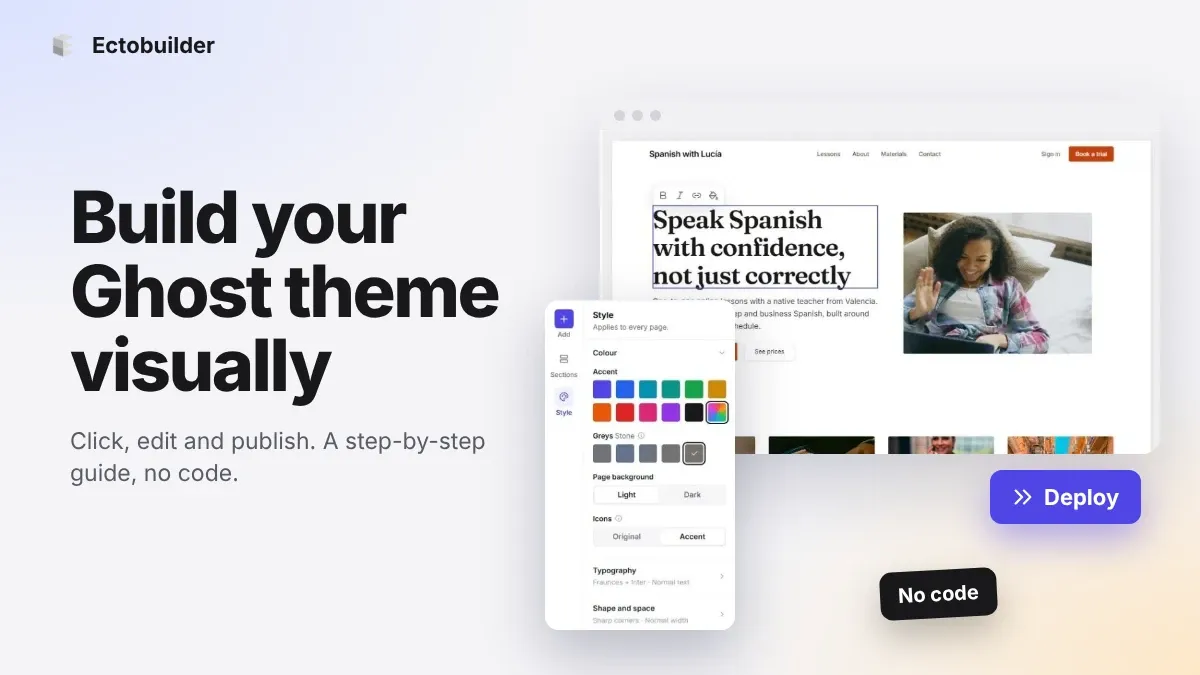
How to Build Your Ghost Theme Visually (Step-by-Step Guide, No Code)
Build a complete Ghost theme without touching code: start from a theme, edit text and pictures in place, add sections from a library of 270, set colours and fonts, design every page, and publish to Ghost in one click. Step by step, with screenshots.
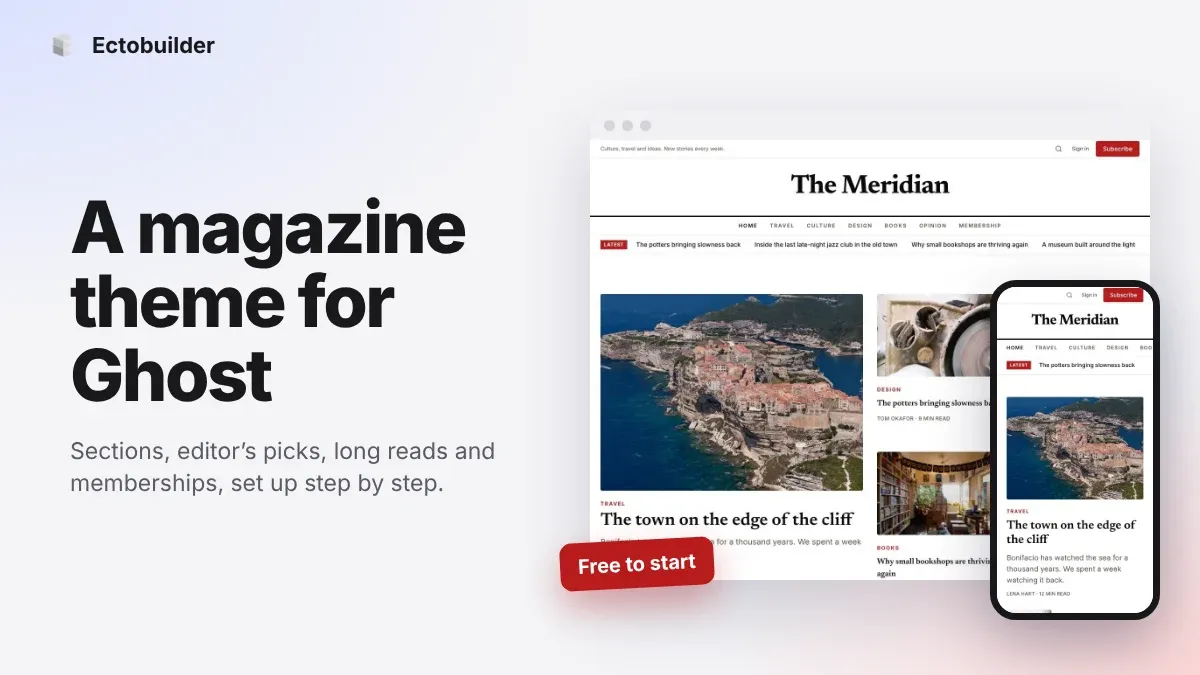
Magazine Theme for Ghost: Sections, Editor's Picks, Long Reads and Memberships
A step-by-step guide to the Magazine theme for Ghost: turn sections into tags, set up the navigation, fill the front page, editor's picks and section fronts, add your writers, sell memberships and send a weekly newsletter.
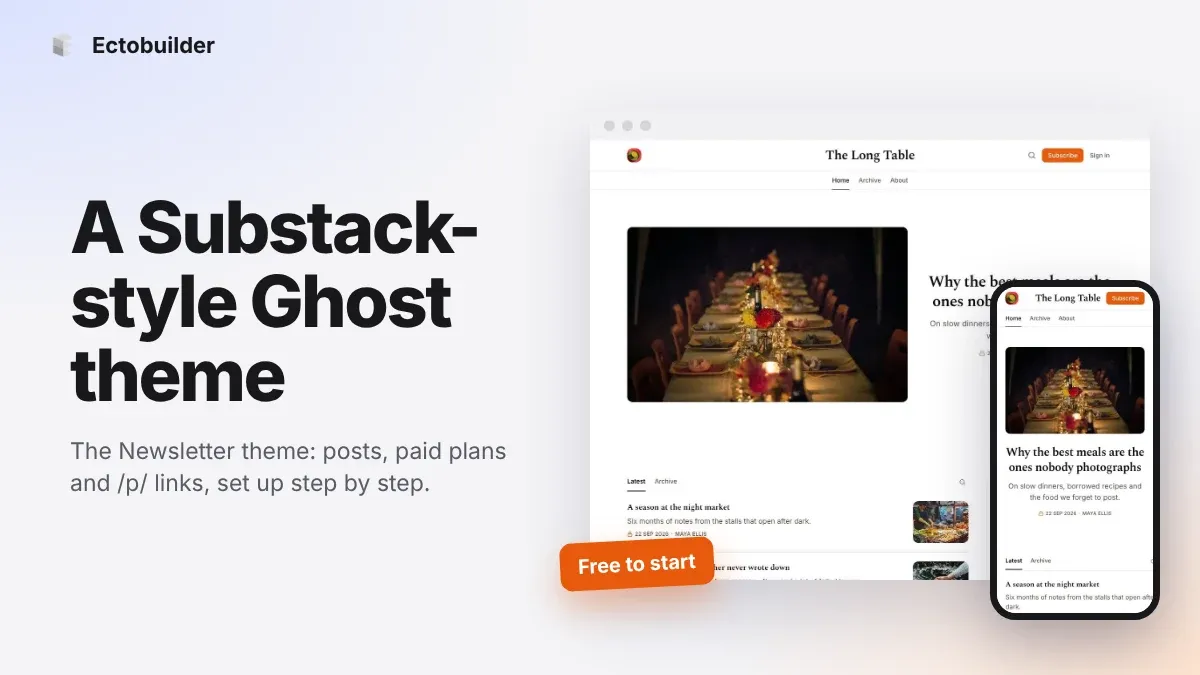
Newsletter Theme for Ghost: A Substack-Style Site With Paid Plans, /p/ Links and Comments
A step-by-step guide to the Newsletter theme for Ghost: a Substack-style homepage and reading page, then newsletters, paid plans, /p/ addresses, Plans, Welcome and About pages, comments and recommendations.