
How to Host Ghost on PikaPods: Setup Guide with Gmail or Mailgun Email (2026)
Run Ghost on PikaPods from about $3 a month: create the pod, pick its size, connect your domain, and set up email with a Gmail app password or Mailgun. Step by step, with screenshots.

Michal Wlosik
· 13 min read
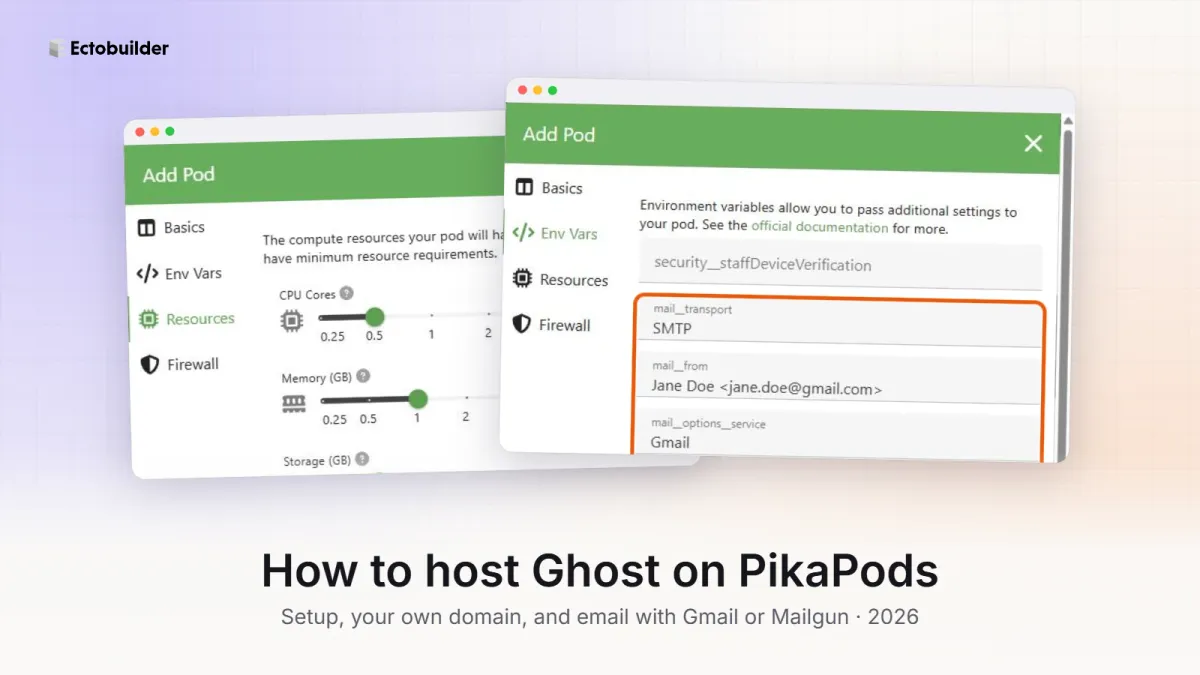
PikaPods is the cheapest reliable way to run your own Ghost site. You get the full Ghost, with the same admin, editor and themes as Ghost(Pro), from about $3 a month, with updates and HTTPS handled for you.
This guide sets it up from scratch: create the pod, choose its size, set up email (through your Gmail account with an app password, or through Mailgun), connect your domain, and give the site a design of its own. Email matters more than it looks: Ghost needs it for sign-in links, member sign-ups and the security codes it sends when you log in from a new device.
Set aside 20 minutes, or an hour with Mailgun. You need a PikaPods account, a Google or Mailgun account for email, and your domain if you want to use one.
What it costs
PikaPods charges for the resources your pod uses, from a prepaid balance. For Ghost, the default size is half a CPU core, 1 GB of memory and 5 GB of storage, which costs $3.28 a month (about $39 a year). A small site can run on a quarter core and 0.5 GB for $2.36 a month. You can change the size at any time.
Your domain costs extra, usually $10 to $20 a year from any registrar. Email through Gmail is free; Mailgun is free for up to 100 emails a day and $15 a month for more.
Prices as shown in PikaPods in October 2026.
Rather not set up email and backups yourself? Magic Pages runs Ghost for you for €13 a month, with 10,000 newsletter emails, daily backups, custom themes and support from a person who knows Ghost all included. Try it free for 14 days, no card needed.
Step 1: Create the Ghost pod
- Sign up at pikapods.com and add some credit to your balance under Account. Your balance shows at the top right.
- Go to My Pods and click Add Pod.
- Under Choose App, type
Ghostand select it. - Give the pod a name, for example your site's name. Only you see it.
- Choose the region, EU or US, closest to most of your readers. It can't be changed later.
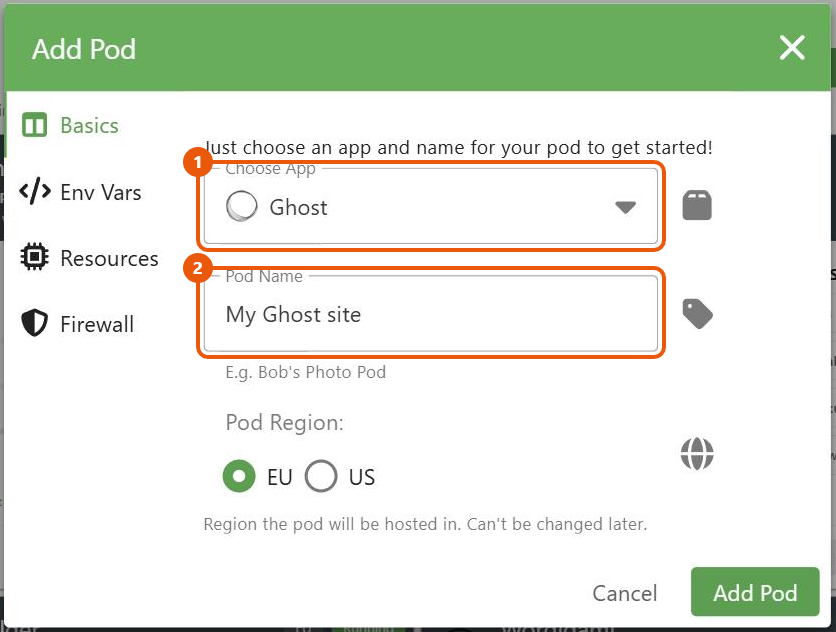
Don't click Add Pod yet. Set up email first, in step 3; it saves you a restart later.
Step 2: Choose the size
Open the Resources tab. The default for Ghost is fine for most sites, and the monthly cost updates as you move the sliders.
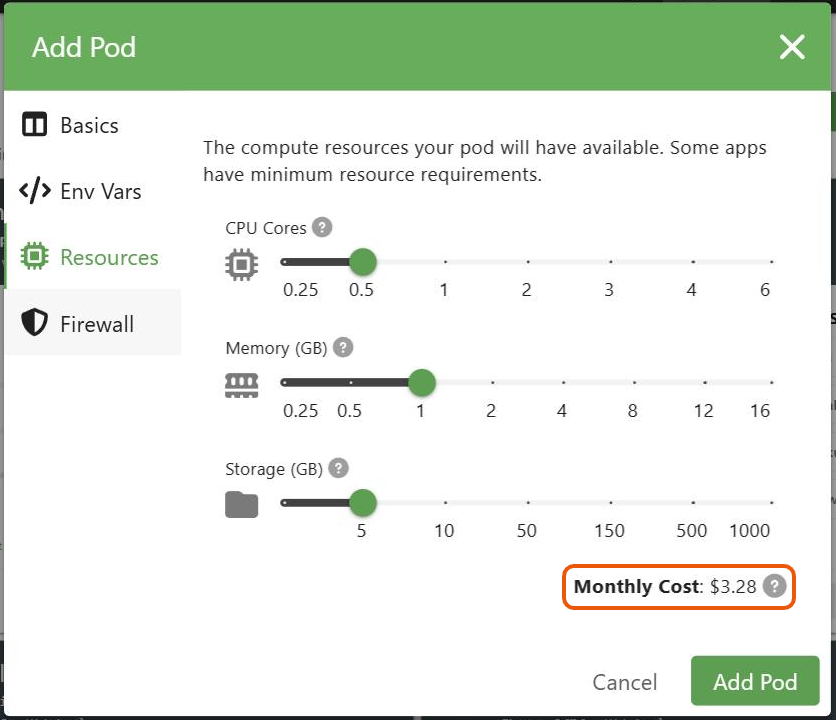
- Memory matters most. Keep 1 GB if you can; Ghost can run out of memory on 0.5 GB when traffic spikes.
- Storage holds your images and files. 5 GB is plenty for years of a typical blog.
Step 3: Set up email
Ghost sends two kinds of email:
- Transactional email: sign-in links for members, sign-up confirmations, staff invitations, password resets, and the code Ghost sends when you sign in to Ghost Admin from a new device. These go out one at a time, and Gmail can send them.
- Newsletters: one email to all your subscribers. Ghost sends these only through Mailgun, whatever you set here. If you want a newsletter, see Newsletters below.
Without any email set up, members can't sign in, and you can be locked out of Ghost Admin when it asks for a device code. So do this before the pod starts.
You have two options:
| Gmail | Mailgun | |
|---|---|---|
| Cost | Free | Free up to 100 emails a day, then from $15 a month |
| Setup | 10 minutes | 30 minutes, plus DNS records on your domain |
| Sends from | Your Gmail address | Your own domain, e.g. hello@yourname.com |
| Newsletters | No | Yes |
| Daily limit | About 500 | Depends on plan |
Choose Gmail for a portfolio, blog or business site without a newsletter. Choose Mailgun if you'll send a newsletter, or want every email to come from your own domain. You can start with Gmail and switch later; it only means changing the pod's mail settings.
Option A: Gmail
A1: Turn on 2-Step Verification in your Google account
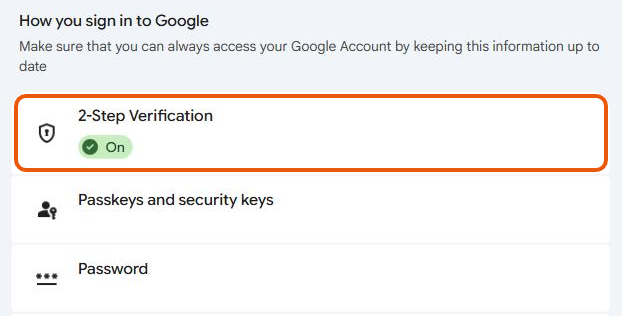
Google only gives out app passwords on accounts with 2-Step Verification. Go to myaccount.google.com/security, find 2-Step Verification and turn it on if it's off.
A2: Create an app password
An app password is a 16-letter code that lets one app, here Ghost, send email from your account. It isn't your Google password, and you can delete it at any time without affecting anything else.
- Go to myaccount.google.com/apppasswords. Google may ask for your password first.
- Type a name you'll recognise, for example
Ghost on PikaPods, and click Create. - Copy the 16-letter code Google shows. You'll only see it once. If you lose it, delete it and create a new one.
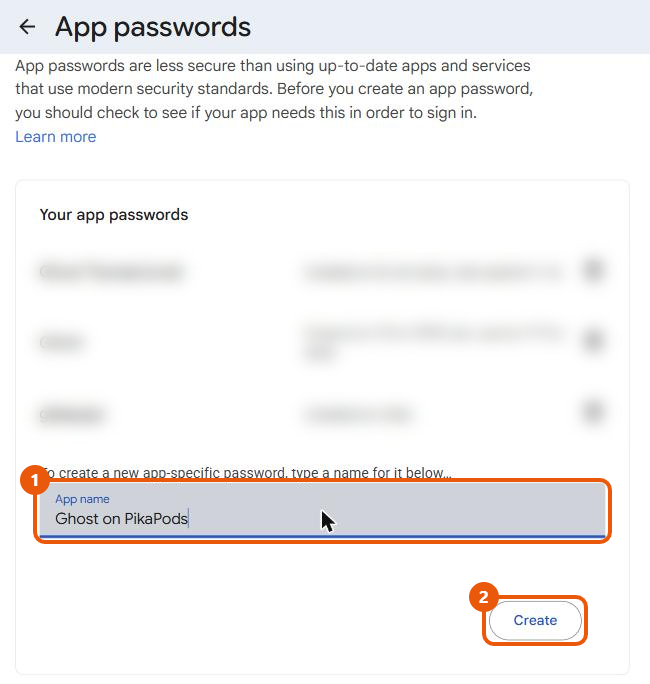
If the App passwords page says the setting isn't available, 2-Step Verification is off, or your account is managed by an organisation that has turned app passwords off. On a Google Workspace account, ask your admin.
A3: Add the mail settings to your pod
Back in the Add Pod dialog, open the Env Vars tab. PikaPods lists the settings Ghost understands; fill in the mail ones:
| Setting | Value |
|---|---|
mail__transport | SMTP |
mail__from | Your Name <you@gmail.com> |
mail__options__service | Gmail |
mail__options__host | smtp.gmail.com |
mail__options__port | 465 |
mail__options__secure | true |
mail__options__auth__user | Your full Gmail address |
mail__options__auth__pass | The 16-letter app password, without spaces |
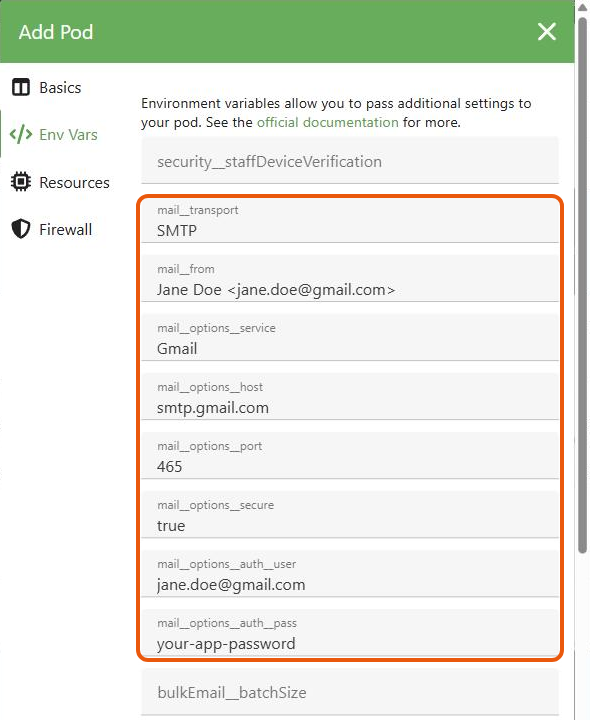
Use your Gmail address in mail__from. Gmail sends everything from the account you sign in with, so another address there won't be used.
Leave security__staffDeviceVerification empty. It's the setting that turns off Ghost's new-device codes; you only need it if email ever stops working and you're locked out (see Troubleshooting).
Option B: Mailgun
Mailgun is the email service Ghost is built to use. It costs more than Gmail but is the better choice for most sites that grow:
- Newsletters work. Ghost sends newsletters only through Mailgun, so with Mailgun one account covers everything.
- Email comes from your own domain, such as hello@yourname.com, not a Gmail address. That looks more professional and, with the DNS records below, reaches inboxes more reliably.
- No personal account in the loop. Your site doesn't depend on your Gmail password, app passwords or Google's daily limit.
- You can see what happened. Mailgun's logs show every email: delivered, bounced or marked as spam.
The free plan sends 100 emails a day, which covers sign-ins and confirmations on a small site. A newsletter to more than about 100 people needs a paid plan, from $15 a month for 10,000 emails.
B1: Create an account and add your domain
- Sign up at mailgun.com.
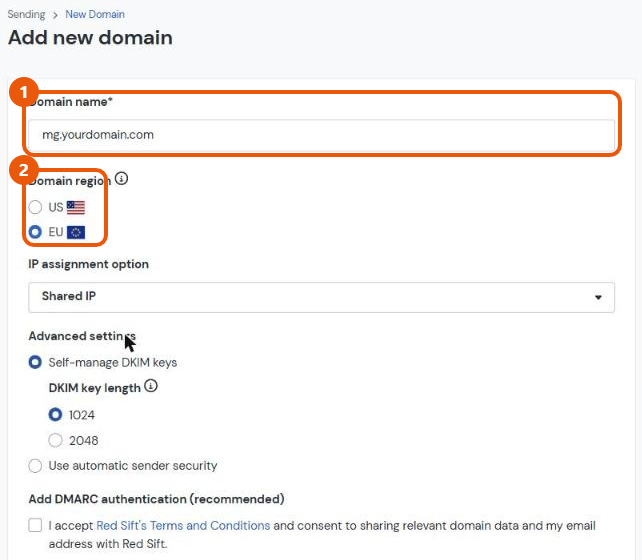
- Go to Send → Domains and click Add new domain.
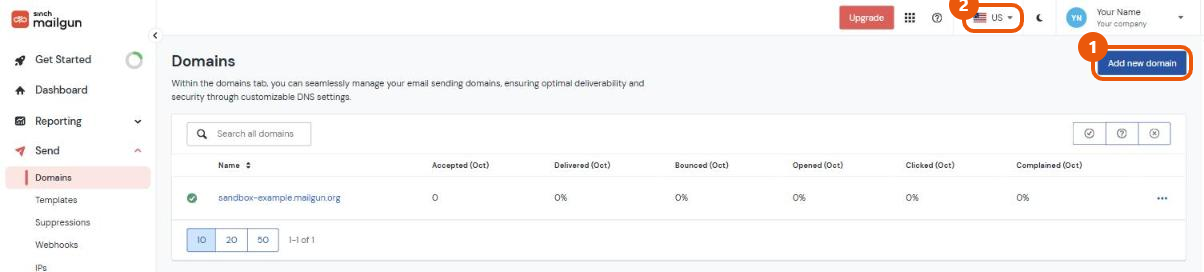
- Enter a subdomain of your site, such as
mg.yourname.com. Using a subdomain keeps Mailgun's settings apart from your normal email. - Choose the domain region, EU or US, and remember it; Ghost needs to know which one. Leave the other options as they are and click Add Domain.
B2: Add Mailgun's DNS records
Mailgun then lists the DNS records for your sending domain, usually:
| Type | Name (host) | What it does |
|---|---|---|
| TXT | mg | SPF: allows Mailgun to send for your domain |
| TXT | Something like krs._domainkey.mg | DKIM: signs your emails so inboxes trust them |
| MX (two) | mg | Receives bounces and replies to the sending domain |
| CNAME | email.mg | Click and open tracking |
Copy each value exactly as Mailgun shows it into your domain registrar's DNS settings, then click Verify in Mailgun. It can take from a few minutes to a few hours. You can find the records again under Send → Domain Settings → DNS Records.
The two TXT records are the important ones: they prove Mailgun may send email for your domain, which keeps your emails out of spam folders.
B3: Connect Mailgun to Ghost for newsletters
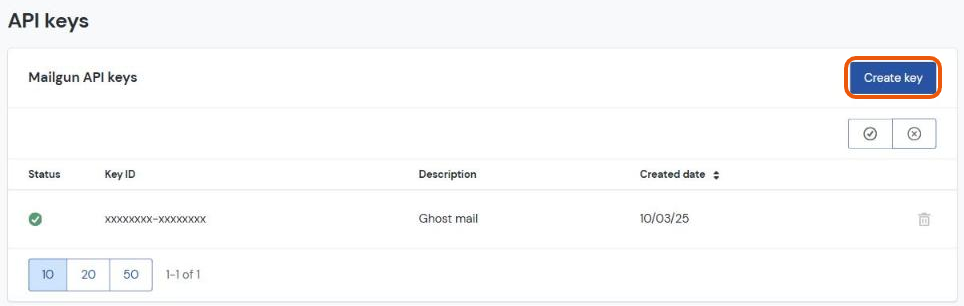
- In Mailgun, open the menu under your name at the top right, go to API Security, click Create key, give it a description such as
Ghost, and copy the key. Mailgun shows it only once.
- In Ghost Admin, go to Settings → Mailgun and click Edit.
- Choose the same region, enter your sending domain (
mg.yourname.com) and paste the API key. Click Save.
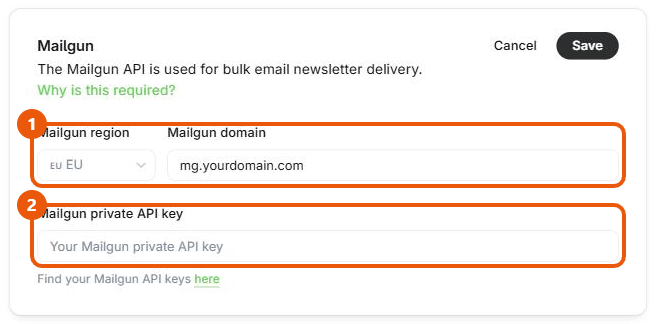
Ghost can now send newsletters. Test it on any post: open the post, click Preview, switch to Email and click Send test email.
B4: Use Mailgun for Ghost's other emails too
The API key covers newsletters only. For sign-in links and other transactional emails, give the pod Mailgun's SMTP login:
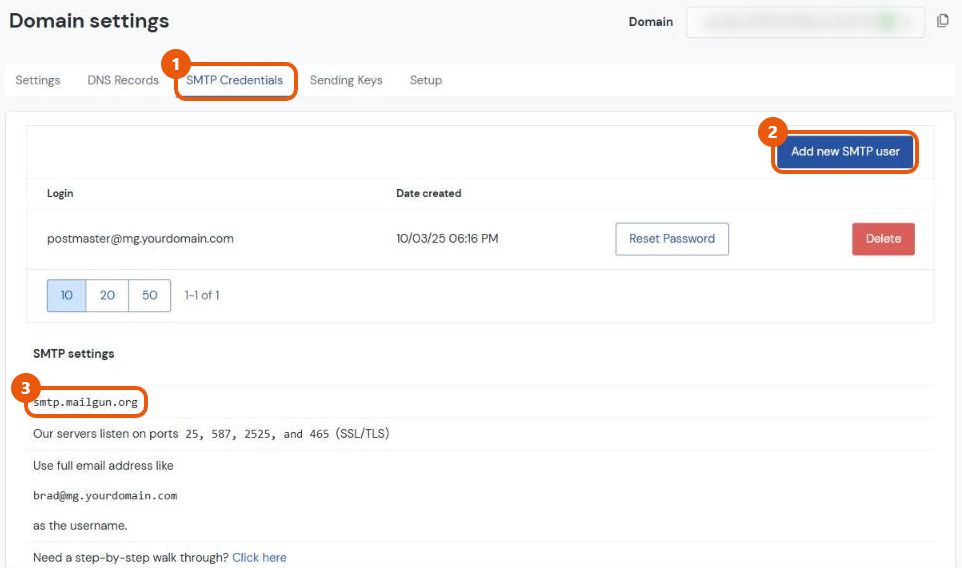
- In Mailgun, go to Send → Domain Settings, pick your sending domain at the top, and open SMTP Credentials.
- Click Add new SMTP user, create a login such as
postmaster@mg.yourname.com, and copy the password. Mailgun shows it only once; Reset Password makes a new one.
- In PikaPods, fill in the pod's Env Vars as below (in the Add Pod dialog, or later through the gear icon).
| Setting | Value |
|---|---|
mail__transport | SMTP |
mail__from | Your Name <hello@mg.yourname.com> |
mail__options__service | Mailgun |
mail__options__host | smtp.eu.mailgun.org (EU) or smtp.mailgun.org (US) |
mail__options__port | 465 |
mail__options__secure | true |
mail__options__auth__user | Your SMTP login, e.g. postmaster@mg.yourname.com |
mail__options__auth__pass | The SMTP password from Mailgun |
Use an address on your sending domain in mail__from. Replies go wherever you set the reply-to address in Ghost's newsletter settings.
Already using Gmail? Replace the Gmail values with these, click Apply, and you can delete the Gmail app password afterwards.
Already created the pod?
You can add or change the mail settings at any time. On the pod's card, click the gear icon, open Env Vars, fill in the fields and click Apply. The pod restarts with the new settings, which takes about a minute.
Got Ghost running? The next step is a design you like. Ectobuilder lets you build a Ghost theme by clicking, then publishes it straight to your site.
Step 4: Start Ghost and create your account
- Click Add Pod. After a minute or two the pod's card shows Running.
- Click Open Pod. Your site opens on a free address ending in
.pikapod.net. - Add
/ghostto the end of the address, for exampleyour-pod.pikapod.net/ghost, and create your Ghost Admin account: site title, your name, email and a password.
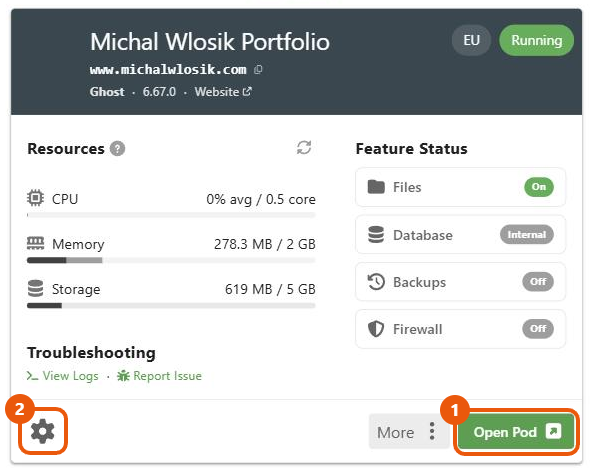
Bookmark the /ghost address. It's where you'll write and manage your site.
Check that email works
Open your site in a private browser window, click Subscribe and sign up with a different email address from the one you use for Ghost. The sign-up email should arrive within a minute. If it doesn't, see Troubleshooting.
Step 5: Connect your domain
Your site works on the .pikapod.net address straight away. To use your own domain:
- On the pod's card, click the gear icon and open Domain.
- Turn on Enable Custom Domain and type your address, for example
www.yourname.com. PikaPods shows the DNS record to add. - At your domain registrar, add that CNAME record: name
www, pointing to the.pikapod.netaddress PikaPods shows. - Wait until the record is live (usually a few minutes, sometimes a few hours), then click Apply in PikaPods.
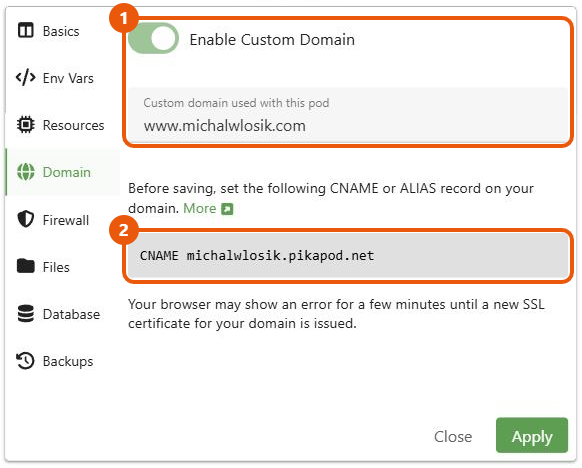
Your browser may show a security warning for a few minutes while PikaPods issues the HTTPS certificate. That's normal.
The bare domain (yourname.com without www) can't use a CNAME at most registrars. Either use an ALIAS or ANAME record if your registrar offers one, or set up a redirect from yourname.com to www.yourname.com in your registrar's settings.
Step 6: Give your site a design of its own
Ghost starts with its default theme, Source. Every Ghost site that hasn't changed it looks the same, and Source is a blog layout: no services page, no portfolio, no contact form. Unlike Ghost(Pro)'s Starter plan, PikaPods lets you use any theme, so this is where your site becomes yours.
The quickest way is to start from a finished theme in the Ectobuilder theme gallery. Each one is a complete Ghost theme with all its pages designed: portfolios for writers and photographers, sites for local businesses, newsletters and more. Building and previewing is free.
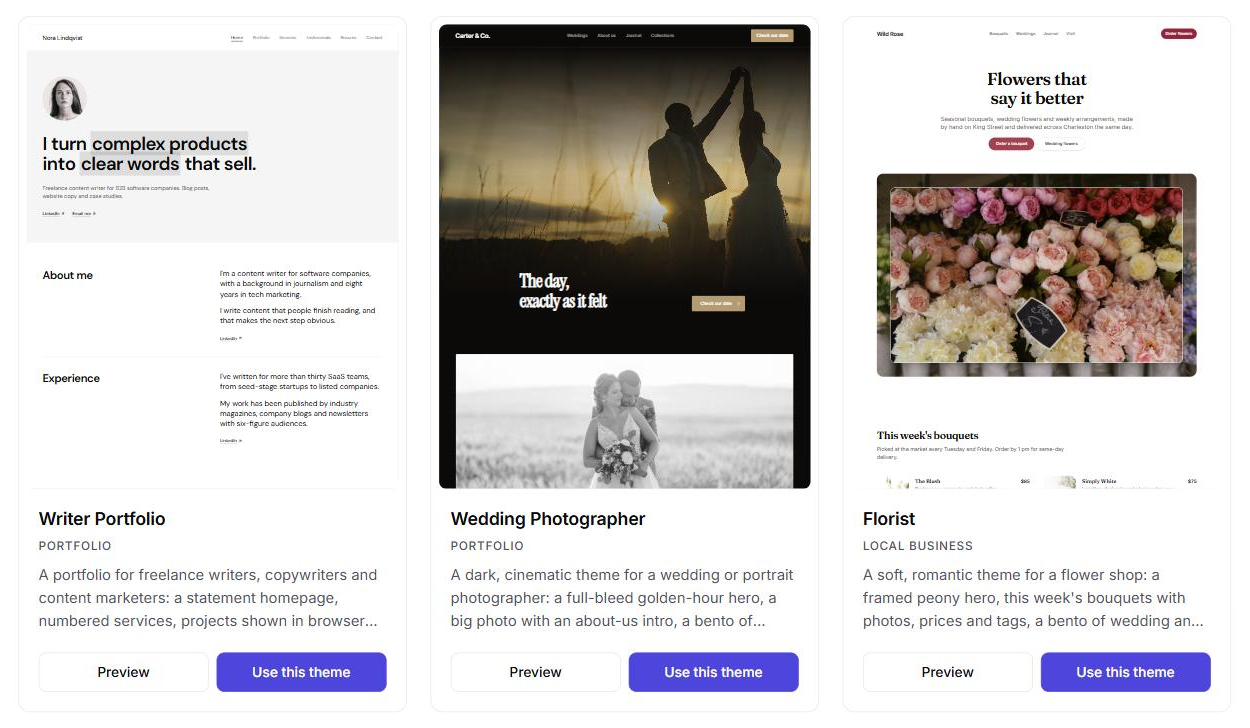
- Open the theme gallery, preview a few themes and click Use this theme on the one closest to what you want.
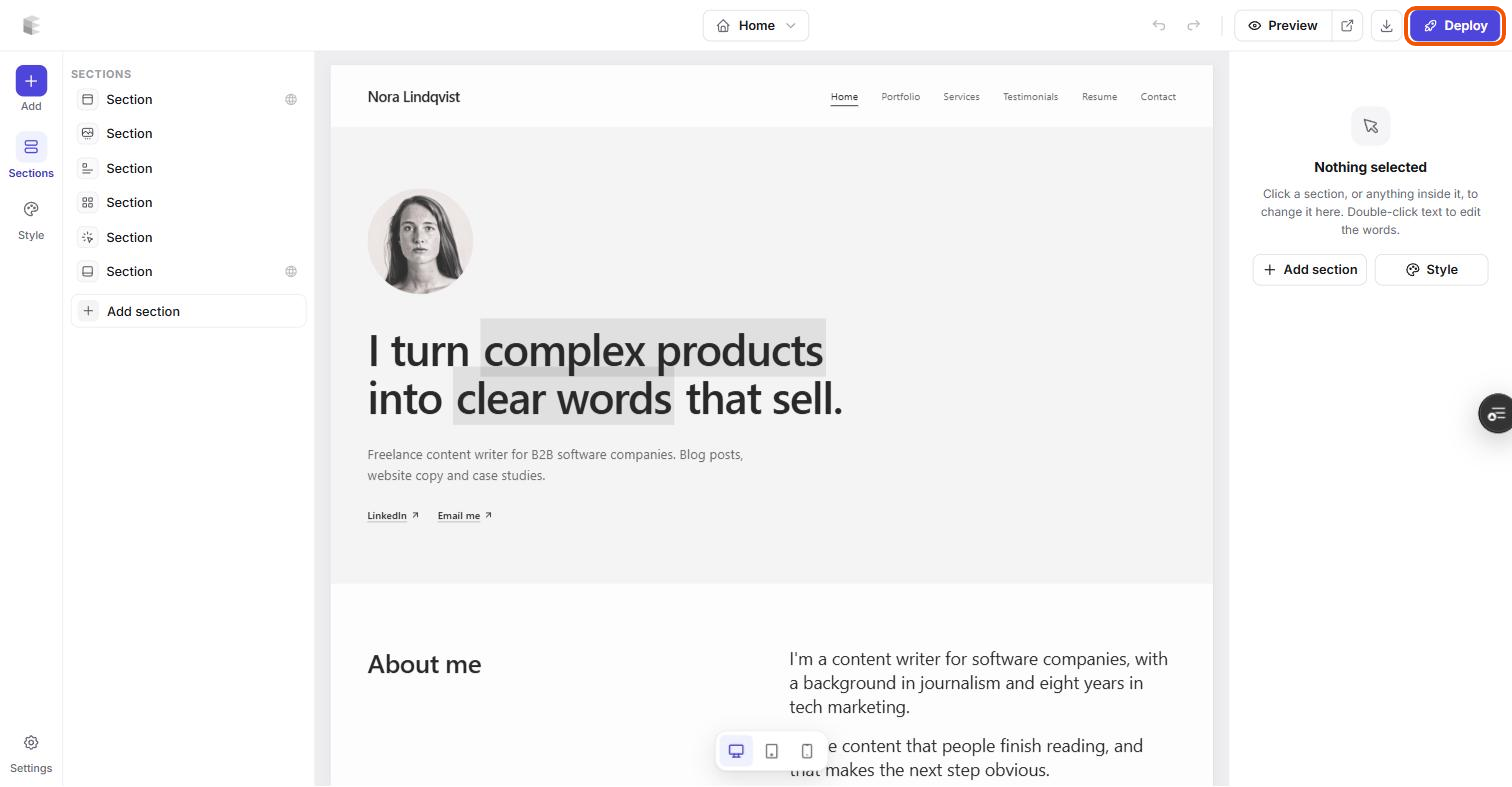
- Make it yours on the canvas: double-click any text to change it, click images to replace them, and add, move or remove sections. Change fonts and colours for the whole site under Style. You can also describe a change and let AI make it.
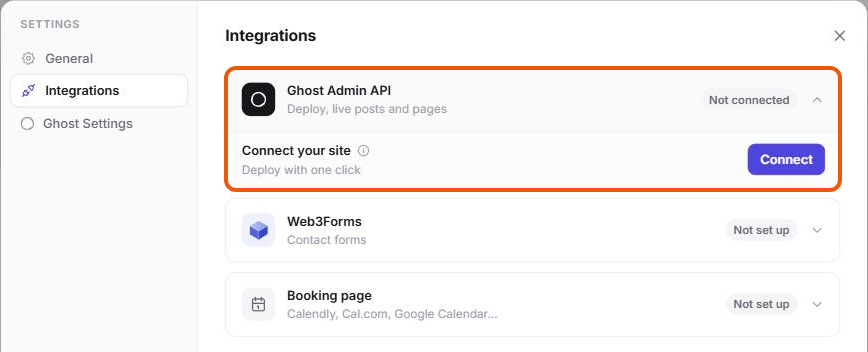
- Connect your PikaPods site: open Settings → Integrations → Ghost Admin API and click Connect.
- Click Deploy. The theme goes live on your Ghost site straight away.
Already have a theme as a .zip file? Upload it in Ghost Admin under Settings → Theme → Change theme → Upload theme instead.
Step 7: Keep a backup
PikaPods keeps your pod running and updated, but backups are up to you. Two things to do:
- Turn on Backups in the pod's settings (the gear icon). The price shows there before you confirm.
- Every now and then, export your content from Ghost Admin under Settings → Import/Export → Export. The file has all your posts, pages, tags and settings, and you can import it into any Ghost site.
Newsletters
Gmail covers sign-ins and confirmations only. To send posts to subscribers as a newsletter, set up Mailgun as in Option B of step 3. Without it, your site still works fully: people can subscribe, sign in and read members-only posts; only newsletter sending is off.
If your newsletter grows to thousands of subscribers, compare Mailgun's price with a managed Ghost host that includes email, in Cheap Ghost hosting: 7 alternatives to Ghost(Pro).
Troubleshooting
No emails arrive. Check your spam folder first. Then open the pod's settings and check every mail field for typos; the most common mistakes are a space in the app password or a missing true in mail__options__secure. Click View Logs on the pod's card and look for lines mentioning mail.
The log says "Invalid login" or "Username and Password not accepted". The password is wrong. For Gmail, the app password was mistyped or deleted; create a new one. For Mailgun, click Reset Password next to your SMTP login. Paste the new one into mail__options__auth__pass.
Mailgun newsletters fail with a "Forbidden" or "Unauthorized" error. The region in Ghost doesn't match your Mailgun domain, or the API key is wrong. Check both under Settings → Mailgun.
Mailgun emails land in spam. Check that Mailgun shows your domain as verified, with the SPF and DKIM records green.
Ghost asks for a code and none arrives, so you can't sign in. In the pod's Env Vars, set security__staffDeviceVerification to false and click Apply. Sign in, fix your mail settings, then clear the field again so the protection is back on.
Some emails don't send on busy days. Gmail limits how many emails a personal account sends per day (about 500). That's plenty for sign-ins and confirmations on a small site; if you get close to it, switch to Mailgun.
Build your Ghost theme without code. Pick a theme from the Ectobuilder gallery or start from scratch, change it by clicking, and publish it to your Ghost site. Start free and only pay if you’re happy with it.
Frequently asked questions
Is PikaPods a good host for Ghost?
For blogs, portfolios and small business sites, yes: it's cheap, updates Ghost for you and supports custom domains and themes. It has no uptime guarantee, so for a business-critical publication a managed Ghost host is the safer choice.
Can I use a custom theme on PikaPods?
Yes, any Ghost theme. Upload a .zip in Ghost Admin, or build one in Ectobuilder and deploy it in one click.
Can I use Gmail to send Ghost newsletters?
No. Ghost sends newsletters only through Mailgun. Gmail works for every other email Ghost sends.
Gmail or Mailgun: which should I use?
Gmail if you want free email for sign-ins and don't send a newsletter. Mailgun if you send a newsletter, want email from your own domain, or expect more than a few hundred emails a day.
Can I use Google Workspace instead of Gmail?
Yes, with the same settings, if your Workspace admin allows app passwords. Your emails then come from your own domain.
Is the app password safe in PikaPods?
Treat it like a password: it gives access to your Gmail through email apps, so keep it private. Only you can see your pod's settings, and you can delete the app password in your Google account at any time. Use a separate one for each app so you can remove one without affecting the others. If that worries you, use Mailgun instead.
Can I move my site off PikaPods later?
Yes. Export your content from Ghost Admin, copy your images, and import them on any other Ghost host.
PikaPods, Mailgun, Gmail and Google are trademarks of their owners. Ectobuilder is not affiliated with them. Prices were checked in October 2026 and may change.
Written by
Founder of Ectobuilder, the AI-powered visual theme editor for Ghost. Indie software builder in Wrocław and co-author of The AdTech Book. I write about Ghost themes, newsletters and building websites with AI.
Comments
Questions or thoughts? Share them below.
Keep reading
How to Build Your Ghost Theme Visually (Step-by-Step Guide, No Code)
Build a complete Ghost theme without touching code: start from a theme, edit text and pictures in place, add sections from a library of 270, set colours and fonts, design every page, and publish to Ghost in one click. Step by step, with screenshots.
Magazine Theme for Ghost: Sections, Editor's Picks, Long Reads and Memberships
A step-by-step guide to the Magazine theme for Ghost: turn sections into tags, set up the navigation, fill the front page, editor's picks and section fronts, add your writers, sell memberships and send a weekly newsletter.
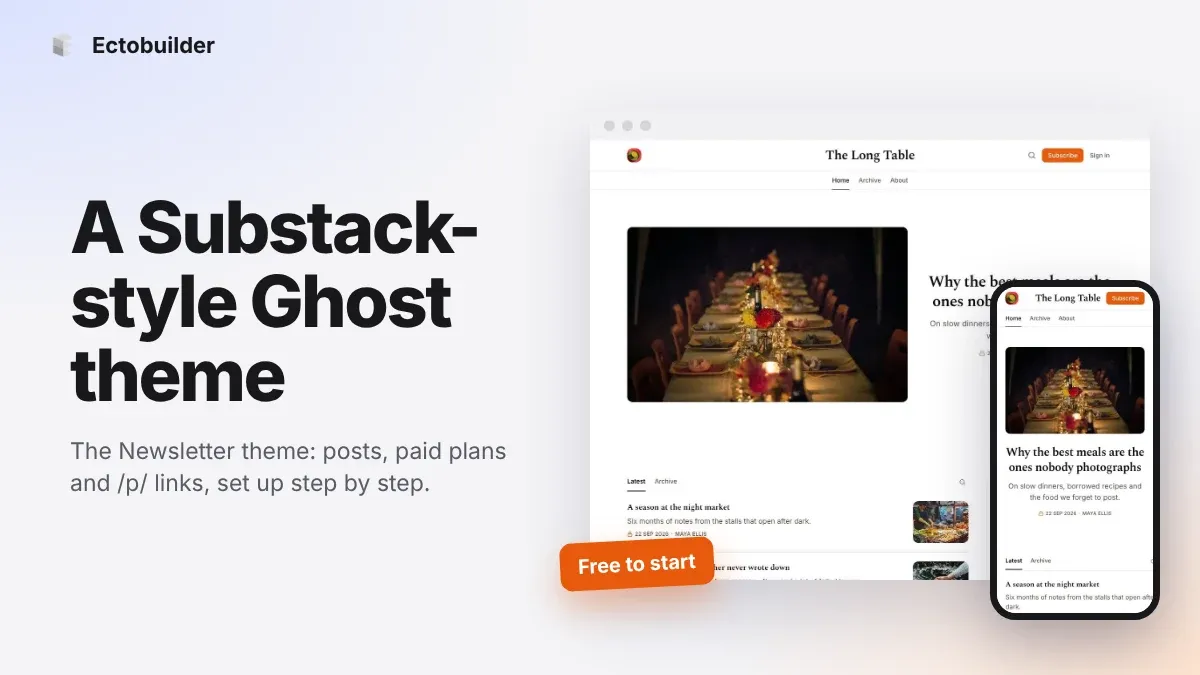
Newsletter Theme for Ghost: A Substack-Style Site With Paid Plans, /p/ Links and Comments
A step-by-step guide to the Newsletter theme for Ghost: a Substack-style homepage and reading page, then newsletters, paid plans, /p/ addresses, Plans, Welcome and About pages, comments and recommendations.