
How to Build a Pricing Page in Ghost: Tiers, Monthly/Yearly Switch and Custom Checkout
Two ways to build a pricing table in Ghost: one that reads your Ghost tiers, and a designed one with a monthly and yearly switch, a recommended plan and a payments line. Plus how to connect the buttons to Ghost memberships or to your own checkout.

Michal Wlosik
· 6 min read
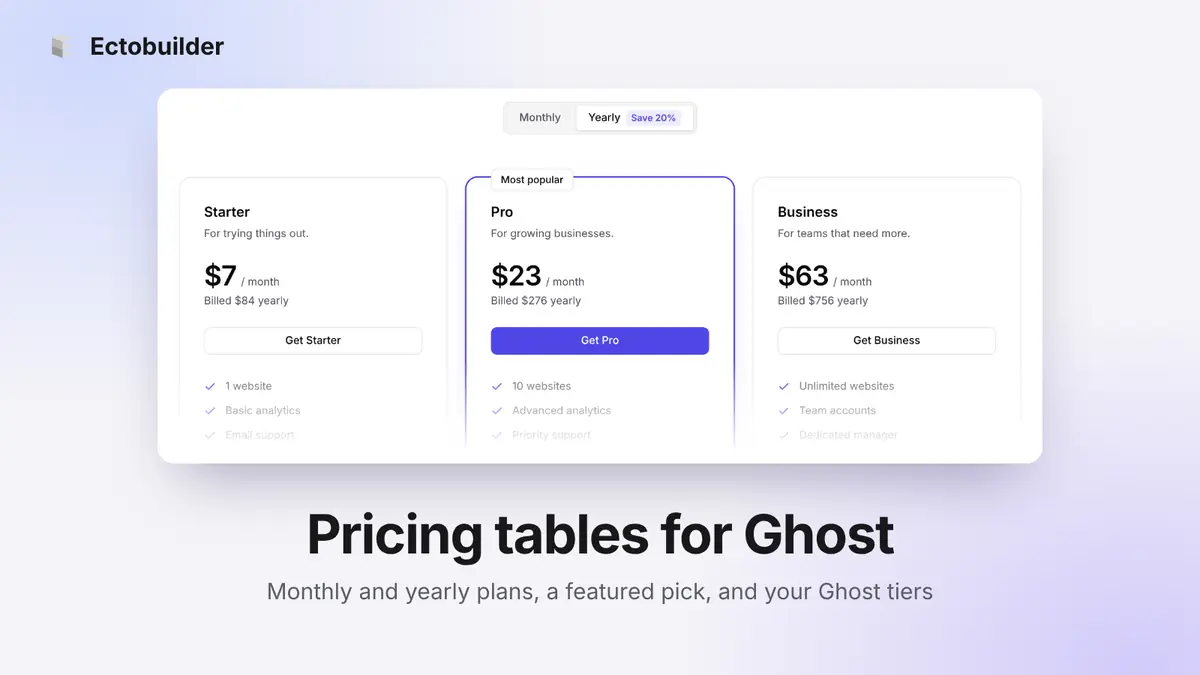
A pricing page is where readers decide whether to pay. Ghost handles the hard part, subscriptions and payments through Stripe, but the page itself is up to your theme. Ghost's own signup window (Portal) lists your tiers, but it's a popup, not a page you can design, explain and link to.
This guide shows two ways to build a proper pricing table in Ghost, and how to connect it to payments: through Ghost tiers, so subscribers become paid members, or through a checkout of your own for things Ghost doesn't sell.
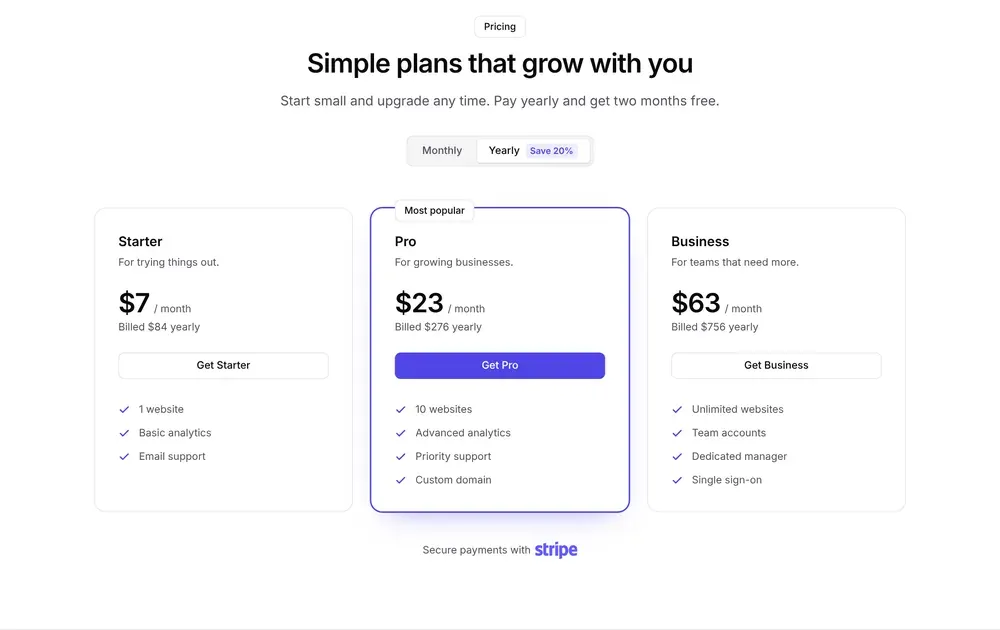
Two ways to show your prices
- Straight from Ghost tiers. The table reads your tiers from Ghost: names, prices, descriptions and benefits. Change a price in Ghost Admin and the page follows. Best when you sell Ghost memberships and want one source of truth.
- A designed pricing table. You control every word: a monthly and yearly switch, a "Most popular" plan, feature lists, a payments line. Link each plan to a Ghost tier and it takes its prices and signup from Ghost, or point its button at your own checkout.
Option 1: a pricing table from Ghost tiers
Set up your tiers in Ghost
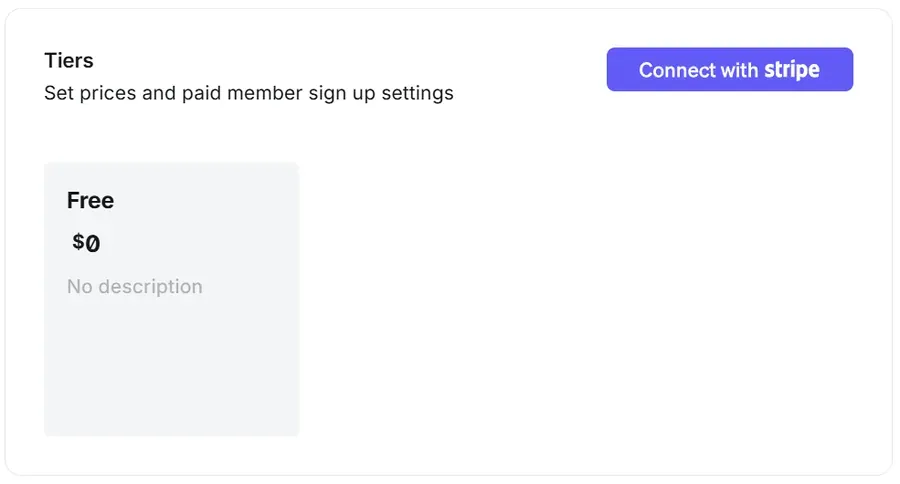
In Ghost Admin, go to Settings → Tiers. Paid tiers need Stripe, so if you haven't yet, click Connect with Stripe first. Then add a tier with a name, a monthly and a yearly price, a short description and a few benefits. Only tiers that are visible on your site appear in the table.
Add the Ghost tiers section
In Ectobuilder, open the page where you want your prices, for example your homepage or a custom pricing page. Click Add section, go to Pricing and pick Ghost tiers. In the editor it shows sample plans. On your site it shows your real tiers.
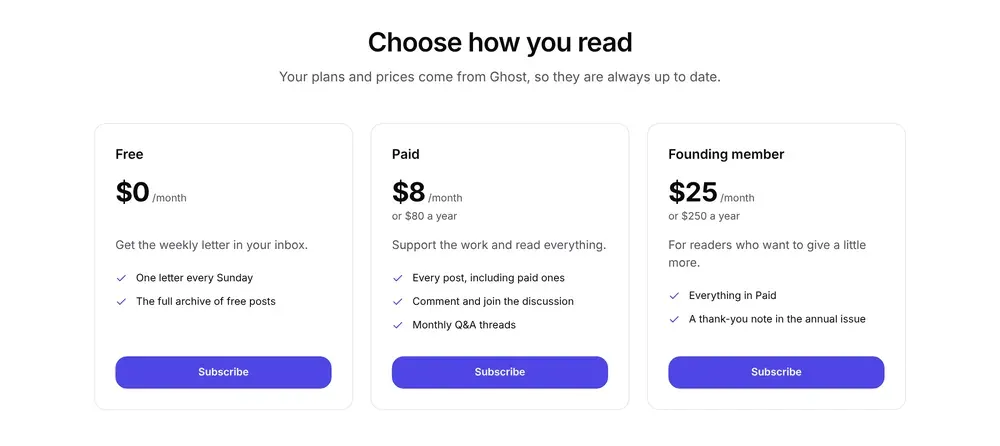
Each card shows the tier's name, monthly price, the yearly price underneath ("or $80 a year"), its description and benefits. The Subscribe button opens Ghost's signup for that tier, so a reader who clicks it ends up as a paid member, with Stripe handling the payment. The free tier's button opens the free signup.
The headline and text above the cards are yours to edit. Everything inside the cards comes from Ghost, so edit those in Settings → Tiers.
A pricing page that matches the rest of your site.
Build your Ghost theme visually in Ectobuilder, with pricing tables that read your Ghost tiers. Then publish to Ghost in one click.
Option 2: a designed pricing table
When you want more than Ghost's tier cards, like a monthly and yearly switch, a highlighted plan or longer feature lists, use one of the designed tables: Monthly / yearly (three plans) or Two plans, toggle. Add one from Add section → Pricing, then click it to see its settings.
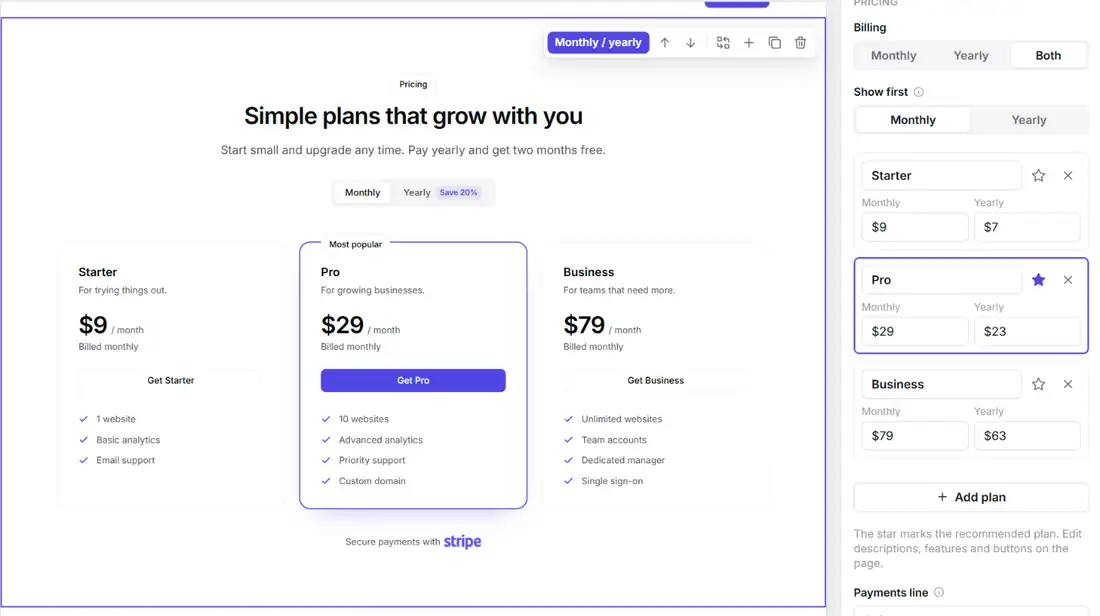
- Billing: Monthly, Yearly or Both. With Both, readers get a switch, and Show first picks which prices they see first. Showing yearly first makes the lower monthly equivalent the first number they see.
- Plans: name each plan and type its monthly and yearly price. Add plan adds a card, and the cross removes one.
- Ghost tier: with your Ghost site connected, links the plan to one of your tiers. More on that below.
- The star marks the recommended plan. It gets a coloured border, a "Most popular" label and a filled button. Click the star again to remove it.
- Payments line adds "Secure payments with" and the logo of Stripe, PayPal, Lemon Squeezy, Paddle, Polar or Dodo Payments under the plans. It's a small thing that answers "is this safe?" right before the click.
Descriptions, feature lists, the "Save 20%" badge and the button labels are edited right on the page: double-click any text to change it.
Connect the buttons to payments
A designed table doesn't take payments by itself: each plan's button sends readers to a checkout. Which one depends on what you're selling.
To a Ghost tier
If the plans are Ghost memberships, link each plan to its tier. With your Ghost site connected in Ectobuilder, every plan in the settings panel has a Ghost tier menu listing your tiers. Pick one and Ectobuilder:
- fills in the plan's monthly and yearly prices from Ghost, and keeps them in step when you change them there;
- points the button at Ghost's checkout for that tier, so readers pay through Stripe and become paid members;
- switches the button between the monthly and yearly checkout when readers flip the switch, so they pay for the period they were looking at.
The free tier works too: its button opens Ghost's free signup. You still write the plan names, descriptions and features yourself, so the table can say more than Ghost's tier cards.
Not connected to Ghost? You can link the buttons by hand. #/portal/signup opens Ghost's signup with all your tiers, and #/portal/signup/TIER_ID/monthly or /yearly goes straight to one tier. You'll find those links in Ghost Admin under Settings → Signup portal → Customize, in the Links tab. In that case, keep the prices in the table in step with Ghost yourself.
To your own checkout
If you're selling something Ghost doesn't, like a course, a template pack, coaching or software, link each button to a checkout page from your payment provider: a Stripe Payment Link, a Lemon Squeezy, Paddle or Polar checkout, or a PayPal button link. You create the product and its price there, copy the checkout link, and paste it into the button. The provider takes the payment and sends the receipt. For a worked example, see the Language Tutor theme, which sells study materials through Ghost tiers.
Keep in mind that buyers who pay this way don't become Ghost members on their own. If they should also get paid posts, you'll need to add them in Ghost, or connect the two with an automation tool such as Zapier.
Mixing both
Nothing stops you from combining them: a free plan linked to #/portal/signup/free, a membership plan linked to a Ghost tier, and a "Team" or "Lifetime" plan linked to your own checkout or to your contact page.
Tips
- Keep it to two or three plans. More than that and readers compare instead of deciding.
- Recommend one. The starred plan is where most people look first. Make it the one most readers should pick.
- Show the yearly saving. Change the "Save 20%" badge to your real discount, or "2 months free" if that's easier to picture.
- Write benefits, not features. "Every post, including paid ones" says more than "Premium access". On the posts themselves, tag icons can mark which ones are for paying members.
- Answer doubts below the table. An FAQ section under your prices, about cancelling, refunds and what happens after paying, catches the questions that stop people from clicking.
FAQ
Do I need Stripe?
For paid Ghost tiers, yes: Ghost takes payments through Stripe. For your own checkout, you need whichever provider you link to.
Will the Ghost tiers section update when I change prices?
Yes. It reads your tiers every time the page loads, so new prices, tiers and benefits show up without touching your theme.
Can the monthly and yearly switch use prices from Ghost?
Yes. Link each plan to a Ghost tier and its prices come from Ghost, and its button opens the checkout for the period readers picked.
Does the payments line connect anything?
No. It's a label with the provider's logo, to reassure readers. Payments happen wherever your buttons link.
Can I put pricing on its own page?
Yes. Create a custom template in Ectobuilder, add a pricing section, and Ectobuilder can publish a page using it when you deploy.
Turn readers into paying members.
Design your pricing page in Ectobuilder, connect it to Ghost tiers or your own checkout, and deploy straight to Ghost.
Written by
Founder of Ectobuilder, the AI-powered visual theme editor for Ghost. Indie software builder in Wrocław and co-author of The AdTech Book. I write about Ghost themes, newsletters and building websites with AI.
Comments
Questions or thoughts? Share them below.
Keep reading
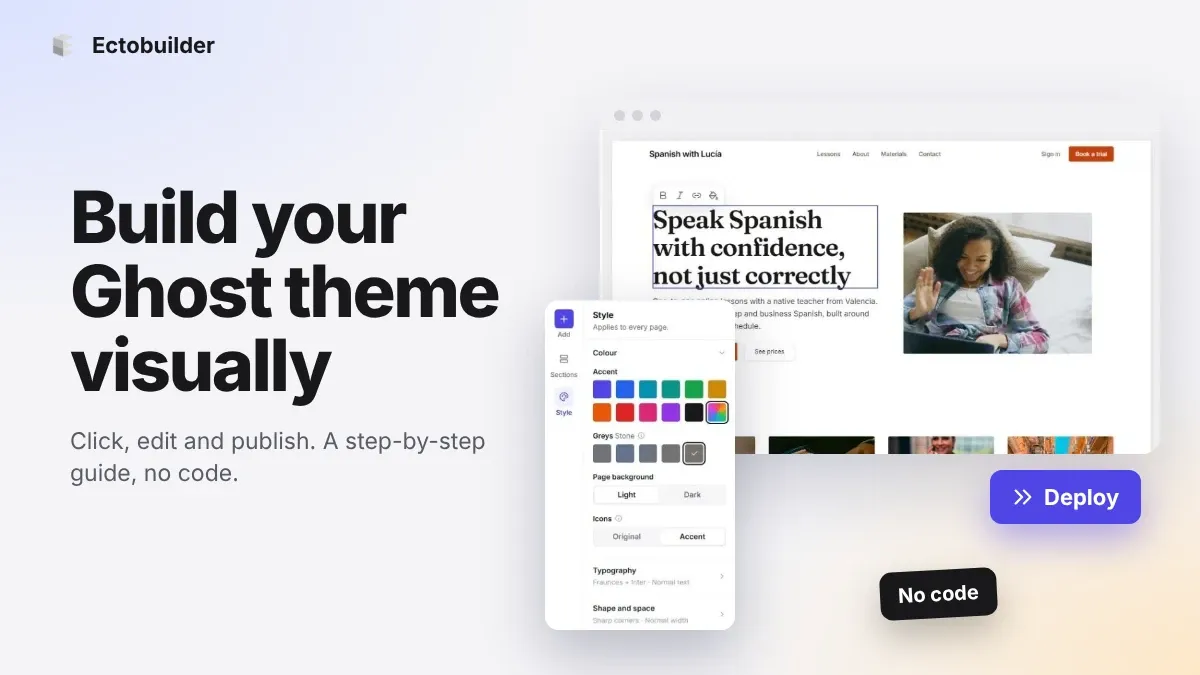
How to Build Your Ghost Theme Visually (Step-by-Step Guide, No Code)
Build a complete Ghost theme without touching code: start from a theme, edit text and pictures in place, add sections from a library of 270, set colours and fonts, design every page, and publish to Ghost in one click. Step by step, with screenshots.
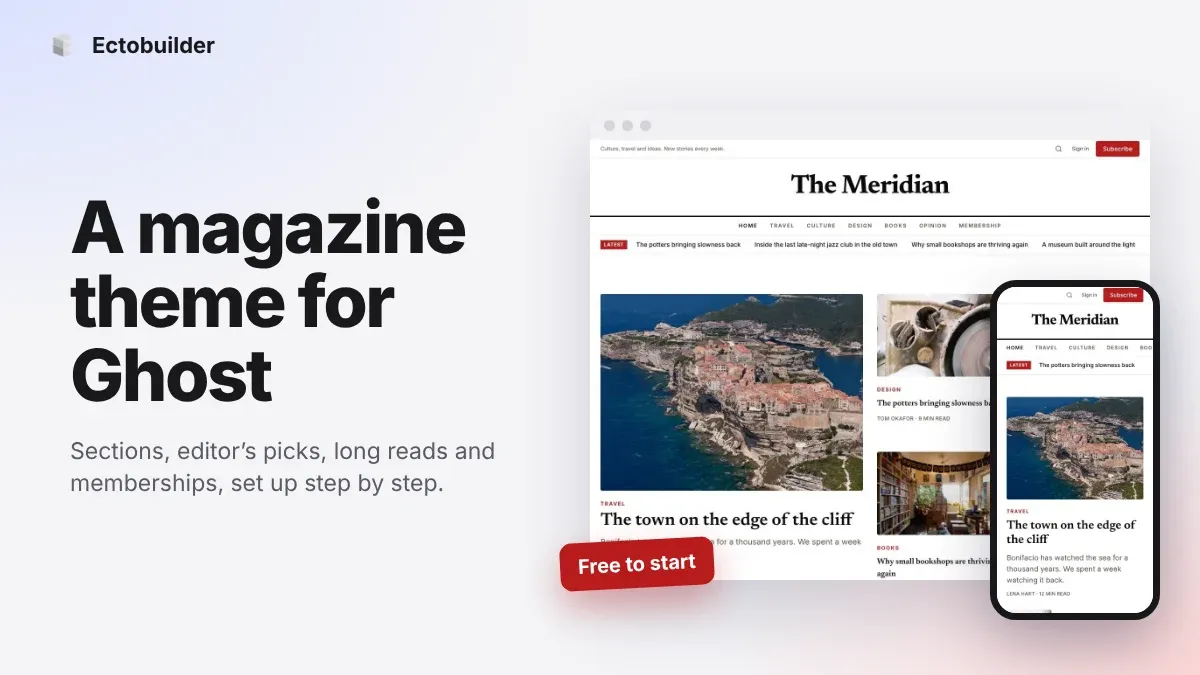
Magazine Theme for Ghost: Sections, Editor's Picks, Long Reads and Memberships
A step-by-step guide to the Magazine theme for Ghost: turn sections into tags, set up the navigation, fill the front page, editor's picks and section fronts, add your writers, sell memberships and send a weekly newsletter.
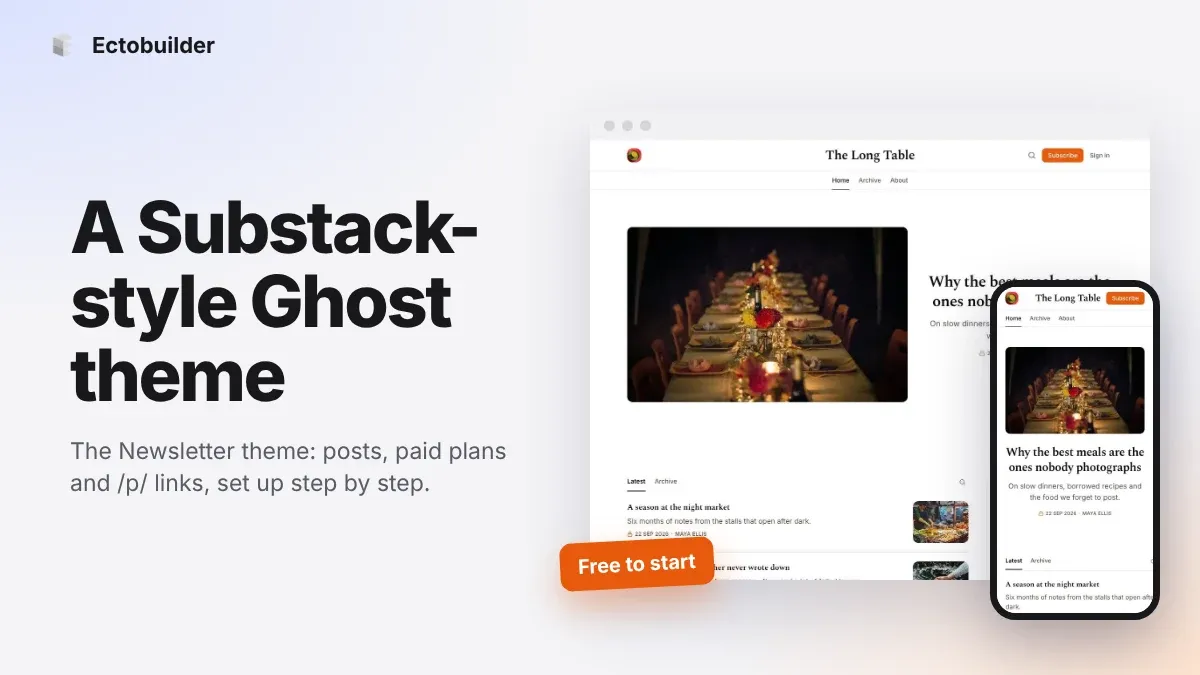
Newsletter Theme for Ghost: A Substack-Style Site With Paid Plans, /p/ Links and Comments
A step-by-step guide to the Newsletter theme for Ghost: a Substack-style homepage and reading page, then newsletters, paid plans, /p/ addresses, Plans, Welcome and About pages, comments and recommendations.