
Language Tutor Theme for Ghost: Sell Study Materials, Take Bookings and Grow a Newsletter
A step-by-step guide to the Language Tutor theme for Ghost: sell worksheets and audio with Ghost's paywall, show them on your homepage, let students book a trial lesson, and turn on the contact form and newsletter.

Michal Wlosik
· 9 min read
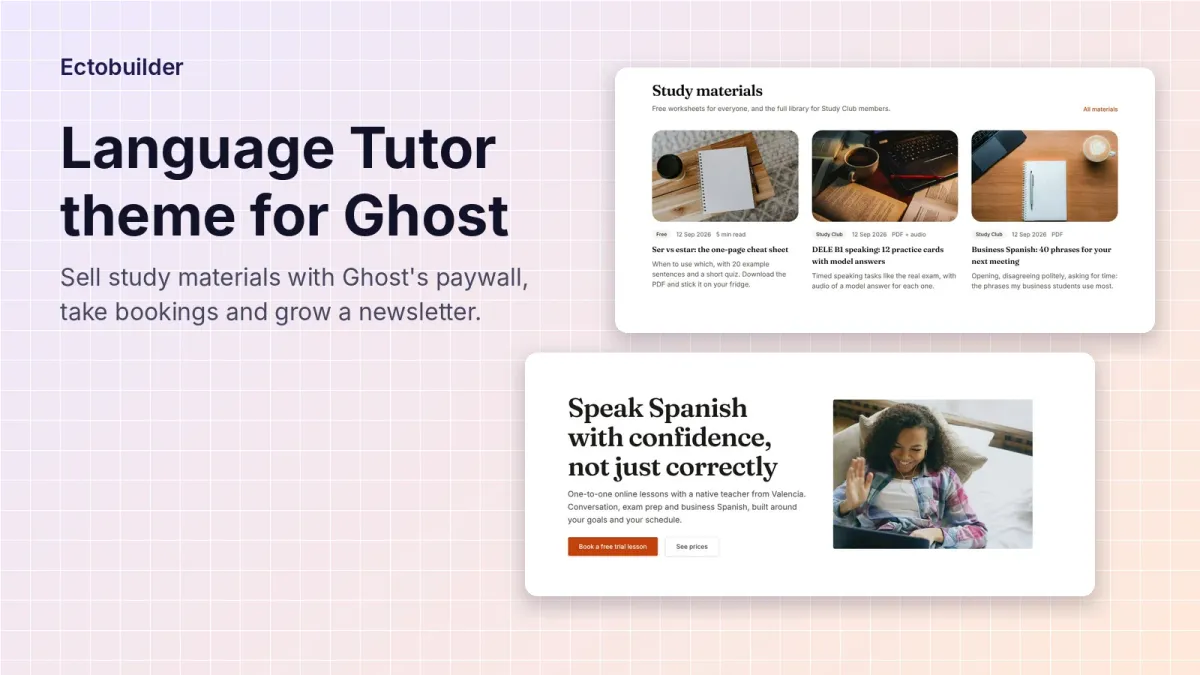
The Language Tutor theme is an Ectobuilder theme for online teachers who run their site on Ghost: language tutors, music teachers, exam coaches, anyone who sells one-to-one lessons and shares study materials. The demo is "Spanish with Lucía", but every word, photo and colour can be changed.
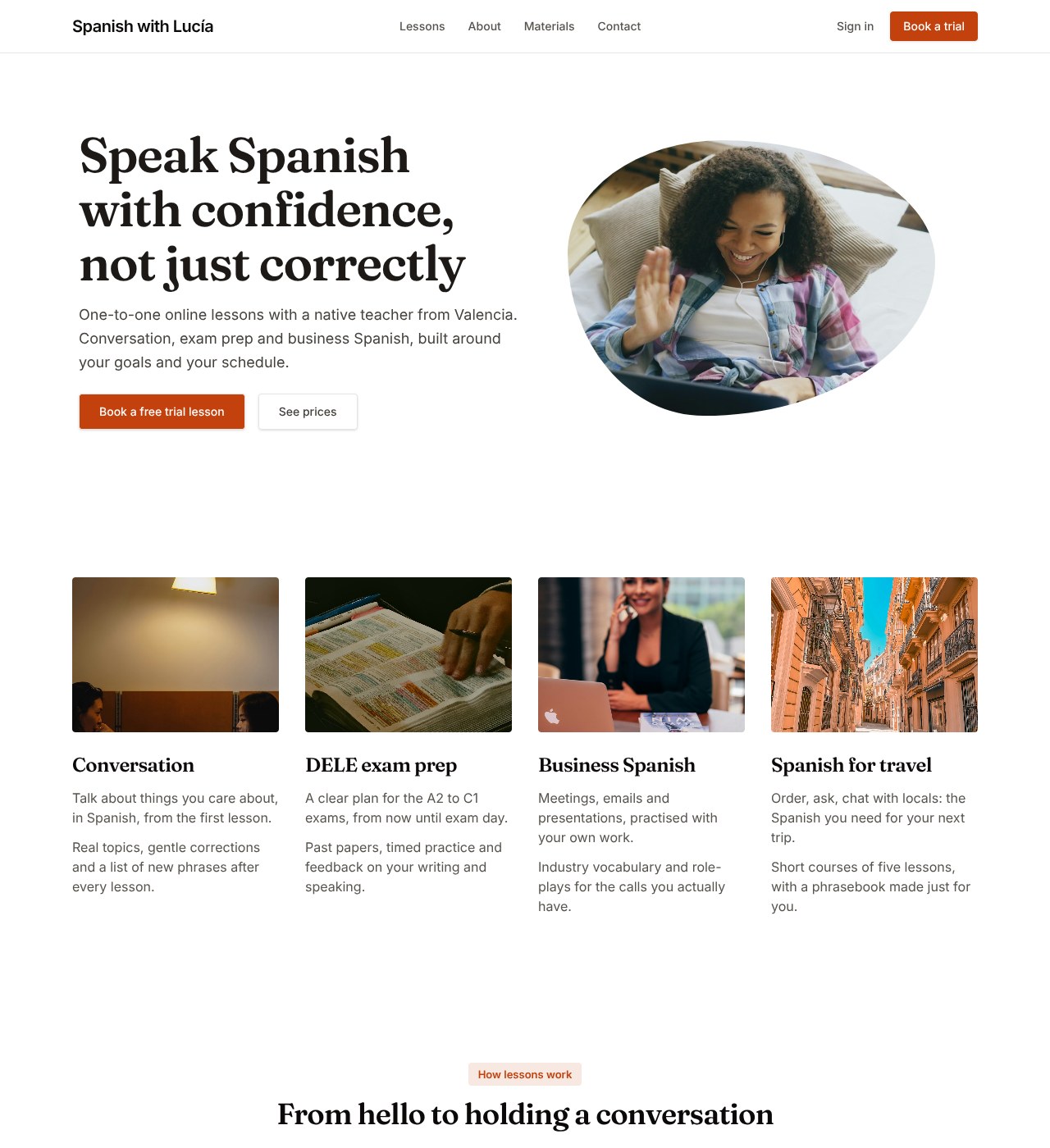
The homepage has lesson types, how lessons work, a price list, study materials, Study Club plans, student reviews, an about block, questions and answers, and a contact form with a booking button.
Most of it is plain text you edit in place. Four parts are worth setting up properly, because they are what turn the site into a small business:
- Sell study materials with Ghost's paywall, so worksheets and audio are free for some and paid for others.
- Show the materials on your homepage, straight from your Ghost posts.
- Let students book a lesson from your calendar.
- Turn on the contact form and the newsletter.
To follow along, open the theme from the Ectobuilder theme gallery and connect your Ghost site under Settings → Integrations → Ghost Admin API.

Want this theme for your site? Open the Language Tutor theme in Ectobuilder and make it yours. Starting is free, and you only pay if you’re happy with the design.
Part 1: Sell study materials with Ghost's paywall
You don't need a separate course platform to sell worksheets. Ghost has memberships and payments built in: visitors sign up as members, paying members get access to locked posts, and Stripe handles the money. Ghost takes no cut of what you earn. To show your plans on a page, see how to build a pricing page in Ghost.
The idea is simple. Every worksheet, audio drill or exam pack is a Ghost post. You decide, post by post, who can read it:
- Public: anyone, no sign-up. Good for a few free samples that bring people to your site from Google.
- Members only: anyone with a free account. Good for materials you swap for an email address.
- Paid-members only, or specific tiers: only students who pay for your Study Club.
Step 1: Connect Stripe and create your tiers
In Ghost Admin, go to Settings → Membership → Tiers and click Connect with Stripe. You need a Stripe account; Ghost walks you through creating or linking one.
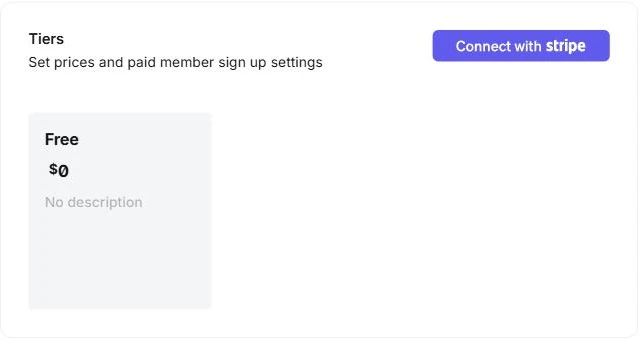
Once Stripe is connected, add a paid tier for each level you want to sell. The demo uses two:
- Study Club, $8 a month or $80 a year: the full materials library.
- Exam Club, $25 a month or $250 a year: everything in Study Club plus timed exam practice.
For each tier, fill in the name, a one-line description, the monthly and yearly price, and a short list of benefits. Keep the tier visible on your site. One tier is plenty to start with; you can add a second later.
Step 2: Check the Study Club section
The Join the Study Club section on the homepage reads your tiers from Ghost. Each card shows a tier's name, description, prices and benefits, and its button opens Ghost's sign-up window for that tier.
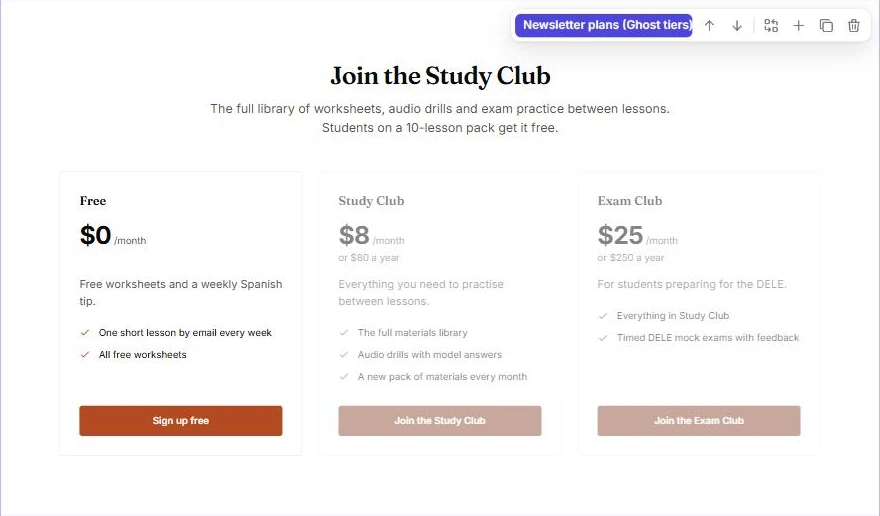
So you never type prices into the theme. Change a price in Ghost and the section follows. In the editor you only edit the heading and the line below it, and style the first card.
Step 3: Publish a material and choose who can read it
- In Ghost Admin, click New post. Give it a clear title, for example DELE B1 speaking: 12 practice cards with model answers, and a feature image.
- Write a short introduction that says what's inside and who it's for. This is what non-members will see.
- Add the material itself below: text, images, an Audio card for listening drills, or a File card for a PDF download.
- Open Post settings (the panel icon at the top right). Under Post access, choose Paid-members only, or Specific tier(s) and pick Exam Club for exam material.
Step 4: Decide where the free preview ends
When a post isn't public, Ghost shows visitors the part before the paywall, then a box inviting them to sign up or upgrade. By default the preview is the first few paragraphs.
To choose the exact spot, click + on an empty line in the editor and insert a Public preview divider. Everything above the line is the teaser; everything below is locked. Put it after your introduction and one sample exercise, so people can see the quality before they pay.
Step 5: Tag it as a material and publish
In Tags, add two tags in this order:
- A label for the card's badge, such as
Study CluborFree. The first tag is the small badge on the homepage card, so use it to tell visitors at a glance what's included. Materials. This is what puts the post in the Study materials section.
Click Publish. If Ghost asks whether to email it, decide whether this material is worth a newsletter. A monthly round-up of new materials is usually better than an email for every worksheet.
Give Study Club access to pack students
The demo offers the Study Club at no extra cost to anyone who buys a 10-lesson pack. Ghost handles this with complimentary subscriptions:
- Ask the student to sign up on your site with a free account, using the email they'll log in with.
- In Ghost Admin, go to Members and open their name.
- In their subscriptions, add a complimentary subscription and pick the Study Club tier.
They can now read everything in the Study Club without paying for it. When their pack runs out, remove the complimentary subscription, or leave it as a thank-you.
A note on files
A File card inside a locked post is hidden from non-members, but the file's own address is not secret. Anyone who has the direct link can download it. For worksheets that's usually fine. For anything you'd really mind being shared, put the content in the post itself (text, images, audio) rather than in a downloadable PDF.
Part 2: Show the materials on your homepage
The Study materials section shows your newest posts tagged Materials, with their feature image, badge, date, reading time and excerpt. Nothing to update in the theme when you add a new one.
To check or change what it shows, select the section in the Ectobuilder editor and look at Posts from Ghost on the right:
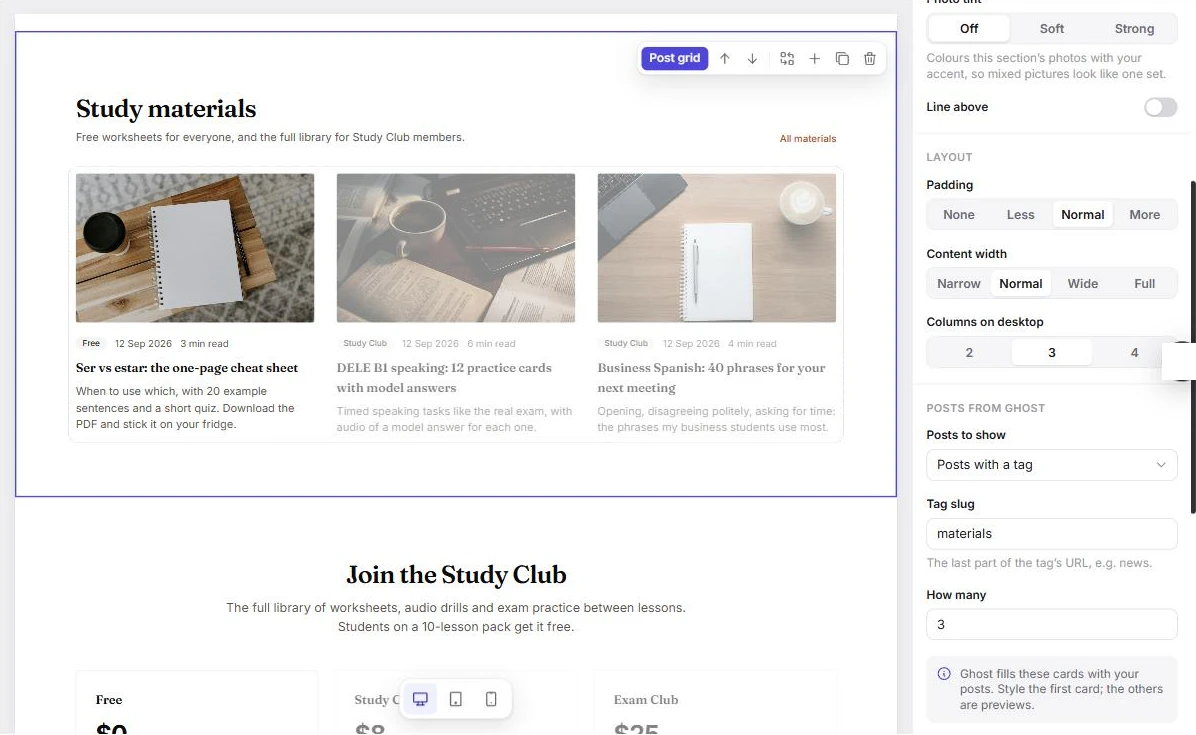
- Posts to show is set to Posts with a tag.
- Tag slug is
materials, the last part of the tag's address. If you name your tag Worksheets instead, change it toworksheets. - How many is the number of cards. Three fill one row.
The All materials link goes to yoursite.com/tag/materials/, a page Ghost creates automatically with every post that has the tag. Locked posts are listed there too, which is good: visitors can see what they'd get by joining.
The cards in the editor are samples so you can style them. Your real materials appear on the live site after you click Deploy.
Part 3: Let students book a lesson
New students usually want to try a lesson before they buy a pack. The theme sends every "Book a trial" button to your booking page, so they can pick a time without any back-and-forth emails.
Step 1: Set up a booking page
Use the scheduling tool you already have, or create one with Calendly, Cal.com or Google Calendar appointment schedules. Create one event type for the trial lesson (25 minutes in the demo) and, if you like, one for regular lessons. Most tools can add a video link to the confirmation automatically.
Step 2: Add it in Ectobuilder
Open Settings → Integrations → Booking page and paste your booking page's address, for example https://cal.com/your-name.
Every button that links to #booking now opens it. In the demo that's the header's Book a trial button, the hero's Book a free trial lesson, the trial and lesson buttons in the price list, and the links in the about and FAQ sections. To send any other button there, select it and set its link to #booking.
Step 3: Choose the booking button on the contact section
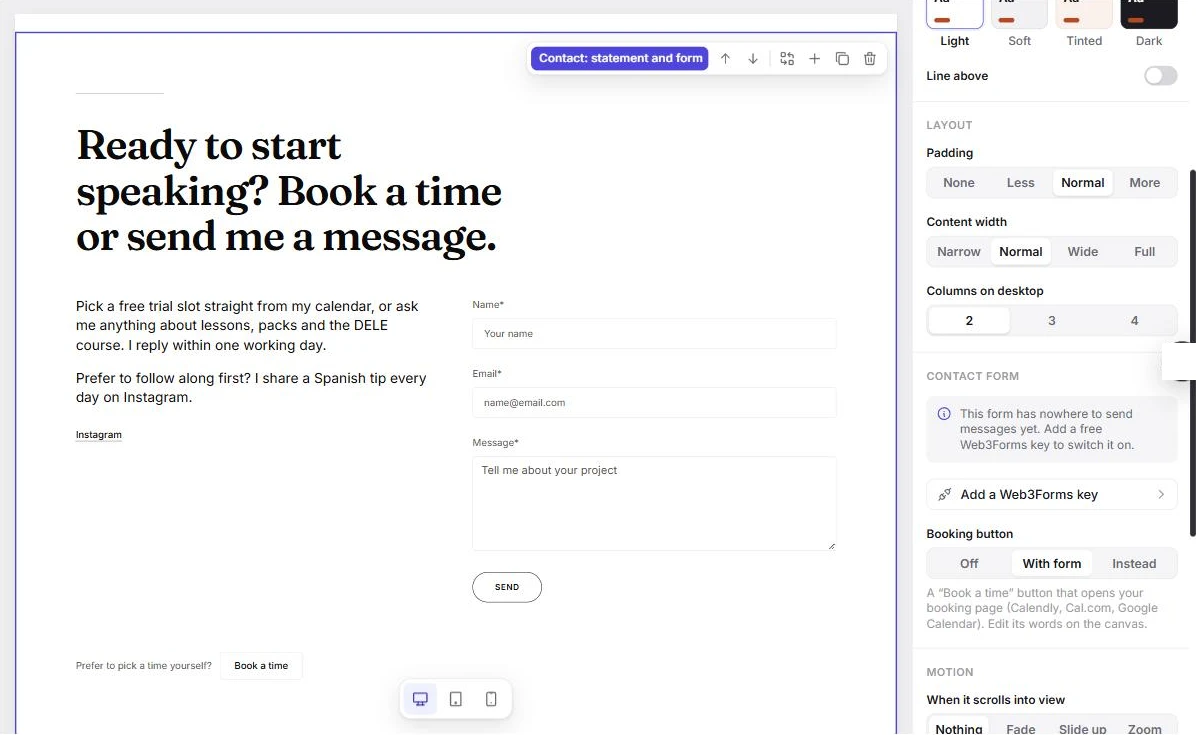
Select the contact section at the bottom of the homepage. Under Booking button, choose:
- Off: just the form.
- With form: a "Book a time" button below the form, so people can choose. This is how the demo is set up.
- Instead: only the booking button, no form.
Step 4: Deploy and test
Click Deploy, open your live site and click Book a trial. Book a test slot to see the confirmation your students will get.
For choosing a booking tool and embedding a calendar instead of a button, read How to add online booking to your Ghost site.
Part 4: Turn on the contact form and the newsletter
The contact form
Some students have questions before they book: which exam level, group lessons, a lesson for their child. The contact section's form sends their message straight to your inbox:
- Get a free access key from Web3Forms. You enter your email address and they send you the key.
- In Ectobuilder, open Settings → Integrations → Web3Forms, or click Add a Web3Forms key in the contact section's settings, and paste the key.
- Click Deploy and send yourself a test message from the live site. Check your spam folder the first time.
The header's Contact link already jumps to this section. For every detail, read How to add a contact form to your Ghost site.
The newsletter
The footer has a sign-up box, and the Free card in the Study Club section signs people up as free members. Both add people to your Ghost members list, and Ghost can email them your new posts.
A weekly tip works well for tutors: one short lesson, one phrase or one common mistake. It keeps your name in front of former and future students, and it's the easiest way to announce new materials or free lesson slots. Write it as a normal Ghost post and choose to send it by email when you publish.
Ready to build yours? Everything in this guide works on your own copy of the Language Tutor theme. Start free, connect your Ghost site when you’re ready, and only pay if you like the result.
Next steps
- Change the colours and fonts under Style. They apply to every page at once.
- Replace the sample reviews with real ones from your students, with their permission.
- Edit the lesson cards and the price list to match what you teach and charge.
- Publish three or four materials before you launch, with at least one public one, so the section and the tag page aren't empty.
Frequently asked questions
Can I use Ghost's paywall to sell worksheets and lessons?
Yes. Each worksheet or drill is a Ghost post, and you choose who can read it: everyone, free members, paying members or specific tiers. Payments go through your own Stripe account and Ghost takes no commission. Ghost doesn't sell single lessons, though, so take lesson payments through your booking tool or your usual invoices.
Do I need a paid Ghost plan to charge for materials?
You need a Stripe account and a Ghost site that allows paid subscriptions. Self-hosted Ghost includes them. On Ghost(Pro), the Starter plan doesn't, so you need Publisher or higher.
Can students buy one worksheet without subscribing?
Not with Ghost alone. Ghost sells subscriptions to tiers, not single posts. If you want to sell individual packs, link to a checkout from a payment tool such as Stripe Payment Links, Gumroad or Lemon Squeezy from inside the post.
Will locked materials still show up in Google?
The title, excerpt and the free preview above the paywall are visible to search engines. The locked part isn't. Write a useful introduction so the page can rank and convince people to join.
Can I change the plans shown on the homepage?
Yes, in Ghost. The Study Club section reads your public tiers, with their names, descriptions, prices and benefits. Hide a tier in Ghost to remove its card, or add a new tier to add a card.
Does the theme work for other subjects?
Yes. Nothing is specific to Spanish except the sample text. Music, maths, exam coaching or any one-to-one teaching works the same way: lessons and prices, a booking page, and a library of materials for paying students.
Written by
Founder of Ectobuilder, the AI-powered visual theme editor for Ghost. Indie software builder in Wrocław and co-author of The AdTech Book. I write about Ghost themes, newsletters and building websites with AI.
Comments
Questions or thoughts? Share them below.
Keep reading
How to Build Your Ghost Theme Visually (Step-by-Step Guide, No Code)
Build a complete Ghost theme without touching code: start from a theme, edit text and pictures in place, add sections from a library of 270, set colours and fonts, design every page, and publish to Ghost in one click. Step by step, with screenshots.
Magazine Theme for Ghost: Sections, Editor's Picks, Long Reads and Memberships
A step-by-step guide to the Magazine theme for Ghost: turn sections into tags, set up the navigation, fill the front page, editor's picks and section fronts, add your writers, sell memberships and send a weekly newsletter.
Newsletter Theme for Ghost: A Substack-Style Site With Paid Plans, /p/ Links and Comments
A step-by-step guide to the Newsletter theme for Ghost: a Substack-style homepage and reading page, then newsletters, paid plans, /p/ addresses, Plans, Welcome and About pages, comments and recommendations.