
How to Add Online Booking to Your Ghost Site (for Personal Trainers and Other Specialists)
Let clients book sessions straight from your Ghost site. Pick a booking tool, add it with a button or an embed, and get bookings from Google Search and Maps too.

Michal Wlosik
· 10 min read
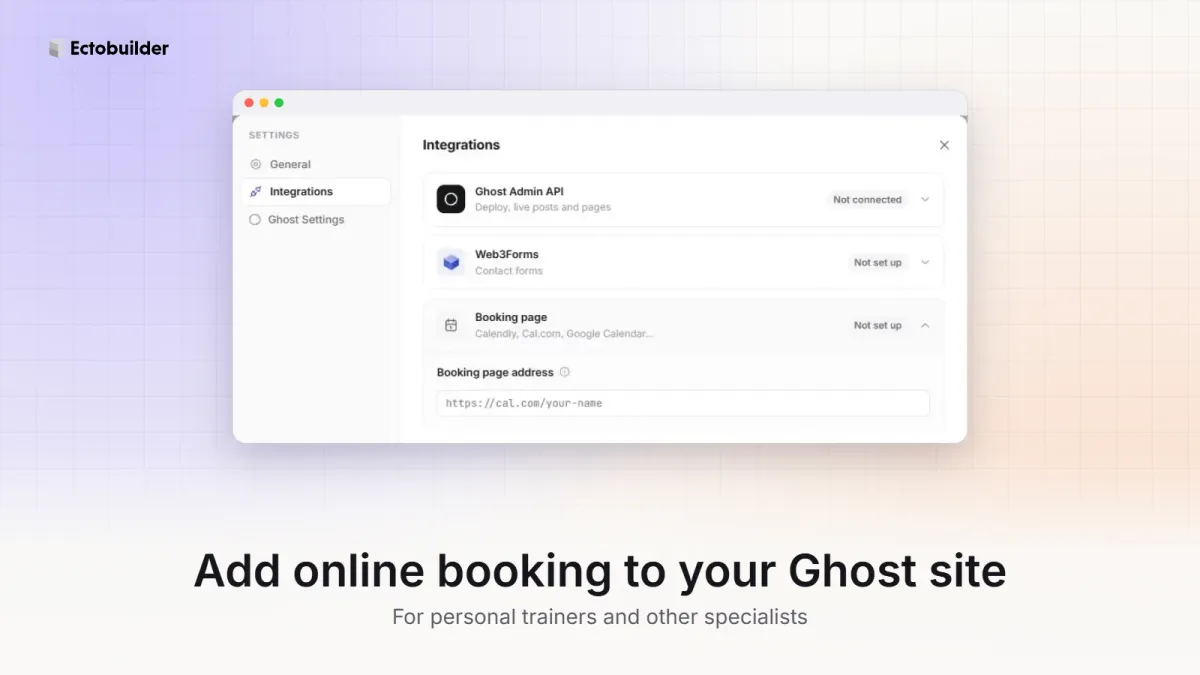
If you're a personal trainer, massage therapist, nail technician, physio or coach, your website has one job above all: getting people to book. Ghost is great for the rest of it. Your blog brings people in from search, and your newsletter keeps clients coming back. But Ghost doesn't take bookings by itself. Teach languages? The Language Tutor theme has booking built in, and so does the Real Estate Agent theme for viewings.
You don't need it to. A dedicated booking tool handles your availability, reminders and payments, and you connect it to your Ghost site in a few minutes. This guide shows you which tools to look at, how to add them to Ghost, and how to get bookings from Google Search and Maps too.
How booking works on a Ghost site
Every option below works the same way:
- You set up a booking page in a booking tool: your services, how long they take, when you're free and, if you like, a price.
- The tool gives you a link and an embed code. The link opens your booking page. The embed code puts a calendar or a "Book now" button right on your site.
- You add either one to Ghost. A link goes on a button. An embed goes into a page with Ghost's HTML card, or across your whole theme with a custom code section in Ectobuilder.
Clients pick a time, the booking lands in your calendar and both of you get a confirmation. You never have to copy anything by hand.
Step 1: Choose a booking tool
Pick the tool that fits how you work. If you just need people to grab a slot in your calendar, start simple. If you run a studio with staff, classes and memberships, go for a tool built for that.
| Tool | Best for | Free option |
|---|---|---|
| Google Calendar appointment schedules | Solo specialists who already use Google Calendar | Yes, one booking page. Reminders, payments and more pages need a paid Google plan |
| Calendly | Consultations and one-to-one sessions | Yes, with one event type |
| Cal.com | Solo specialists who want a flexible, open-source option | Yes, for individuals |
| SimplyBook.me | Salons, therapists and clinics with several services | Yes, with a monthly booking limit |
| Fresha | Hair, nail, beauty and massage salons | No subscription; you pay fees on payments and some new clients |
| Square Appointments | Specialists who also take card payments in person | Yes, for individuals |
| Mindbody | Gyms, yoga and fitness studios with classes and memberships | No, paid plans |
Plans and prices change, so check each tool's pricing page before you sign up. Most offer a free trial of their paid features.
Some things to decide before you choose:
- Do clients pay when they book? Taking a deposit cuts down on no-shows. Calendly, Cal.com, SimplyBook.me, Fresha and Square can all take payments. Google Calendar can too, but only on some paid Google Workspace plans.
- Do you need reminders? Automatic email or text reminders are one of the most useful features for a busy practice. Check which plan includes them.
- Classes or one-to-one? Group classes with limited spaces need a tool that handles capacity, such as Mindbody or SimplyBook.me.
- Do you work alone or with a team? If clients choose a specific trainer or therapist, you need a tool with staff calendars.
Skip the setup. The Personal Trainer theme already has a booking button in the header and a contact section with a “Book a time” button. Open it in Ectobuilder, swap in your words and photos, and only pay if you’re happy with the design.
Step 2: Set up your booking page (Google Calendar example)
If you already live in Google Calendar, its appointment schedules are the quickest way to start. Bookings appear in your calendar straight away, and busy times in your calendar are blocked automatically.
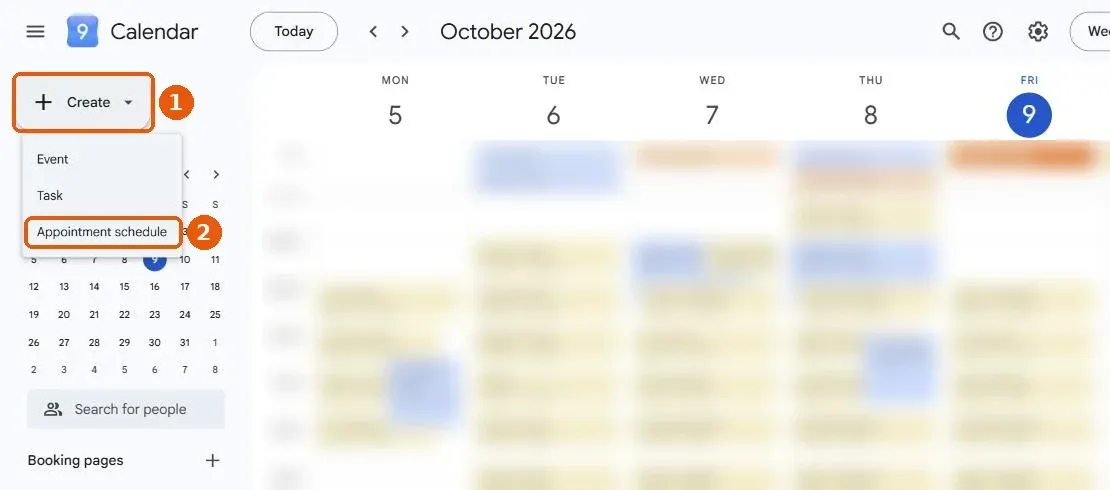
- Open Google Calendar on your computer.
- Click Create, then Appointment schedule.
- Give it a title such as "1:1 training session", and set how long each session lasts.
- Set your general availability: the days and hours you take bookings. Add buffer time between sessions if you need to reset or travel.
- Set where the session happens: your studio address, a video call or a phone call.
- Choose what clients fill in on the booking form, such as phone number or goals.
- Click Save.
Now get the code for your site. In Google Calendar, under Booking pages, hover over your page, click the three-dot menu, then Sharing options → Website embed. Choose:
- Inline booking page to show the calendar of free slots directly on your page, or
- Button with popup for a "Book an appointment" button that opens the calendar over your page.
Click Copy code. If you just want a link instead, hover over the booking page and click the copy-link icon. Google's help article Share your appointment schedule has the full details, and Compare premium features for appointment schedules explains what needs a paid plan.
Calendly, Cal.com and the others work the same way: create a service or event type, set your hours, then look for Share, Embed or Add to website to copy a link or an embed code.
Step 3: Add booking to your Ghost site
There are four ways to do it. Use whichever fits; many sites combine them.
Option A: A "Book now" button (any Ghost theme)
The simplest option, and it works with every booking tool. You link to your booking page, and it opens in a new page.
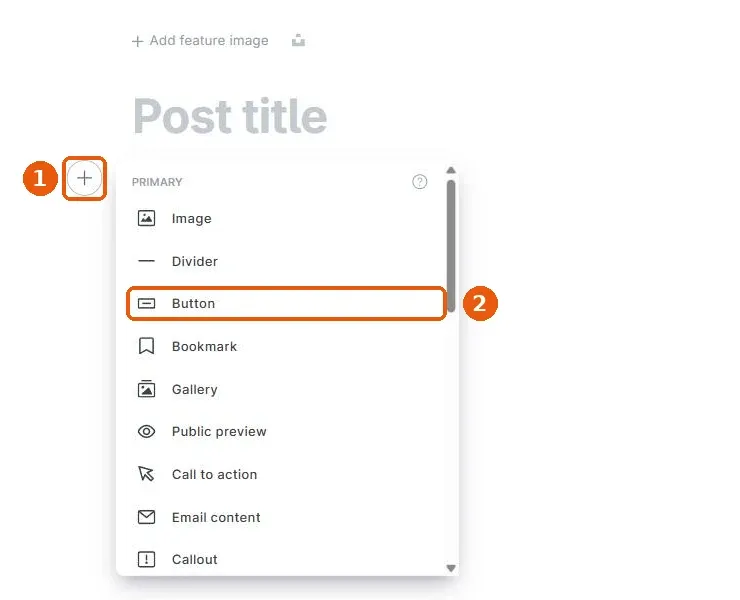
- Open the page or post in Ghost, for example your Services or Contact page.
- On an empty line, click + and choose Button.
- Type the button text, such as "Book a session", and paste your booking link as the URL.
- Update the page.
Add the link to your site's navigation too: in Ghost Admin, go to Settings → Navigation and add an item called "Book" pointing to your booking link. It then appears on every page.
Option B: Embed the calendar in a page (any Ghost theme)
To show free slots right on your page, use Ghost's HTML card.
- Open the page in Ghost, for example a new page called "Book a session".
- Click + and choose HTML (or type
/htmlon an empty line). - Paste the embed code from your booking tool.
- Click outside the card, then Preview to check it. The calendar doesn't show inside the editor, only on the page.
- Publish the page.
A Google Calendar inline embed looks like this. The address in src is your own booking page:
<iframe src="https://calendar.google.com/calendar/appointments/schedules/YOUR-SCHEDULE-ID?gv=true" style="border: 0" width="100%" height="600" frameborder="0"></iframe>If the calendar looks cramped on phones, raise the height value to 800 or more.
Option C: One booking page for every button (Ectobuilder)
In Ectobuilder you set your booking page once, and every "Book a time" button in your theme opens it: the button after a contact form, a button in your header, a booking button in a price list. Change the address later and every button follows.
- Open your theme in Ectobuilder and go to Settings → Integrations → Booking page.
- Paste your booking page link, for example
https://cal.com/your-nameor your Calendly or Google Calendar link. The badge changes to Configured. - Turn on Open over the page if you want the booking page to open in a window on top of your site, so clients never leave it. Leave it off to open the booking page in a new tab.
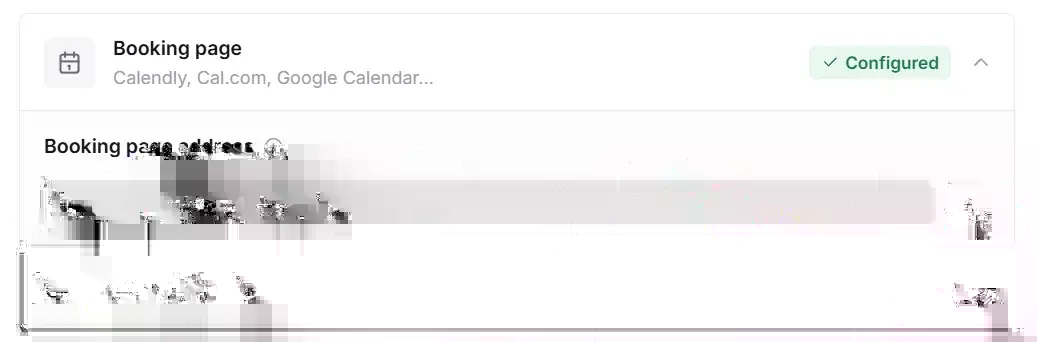
- Add the buttons. Contact sections have a Booking setting: a "Book a time" button after the form, or the button instead of the form. Any other button or link opens the booking page when you set its link to
#booking. - Click Deploy.
Open over the page works with Calendly, Cal.com, Google Calendar appointment pages, TidyCal and most other tools that allow embedding. On a phone the window fills the screen, and holding Ctrl or ⌘ while clicking still opens a new tab.
Option D: Build the calendar into your theme (Ectobuilder)
If you want the calendar itself to be part of the design, for example on your home page under the hero, or on a dedicated landing page template, add it to your theme. The Custom code section takes any embed code and places it wherever you put the section.
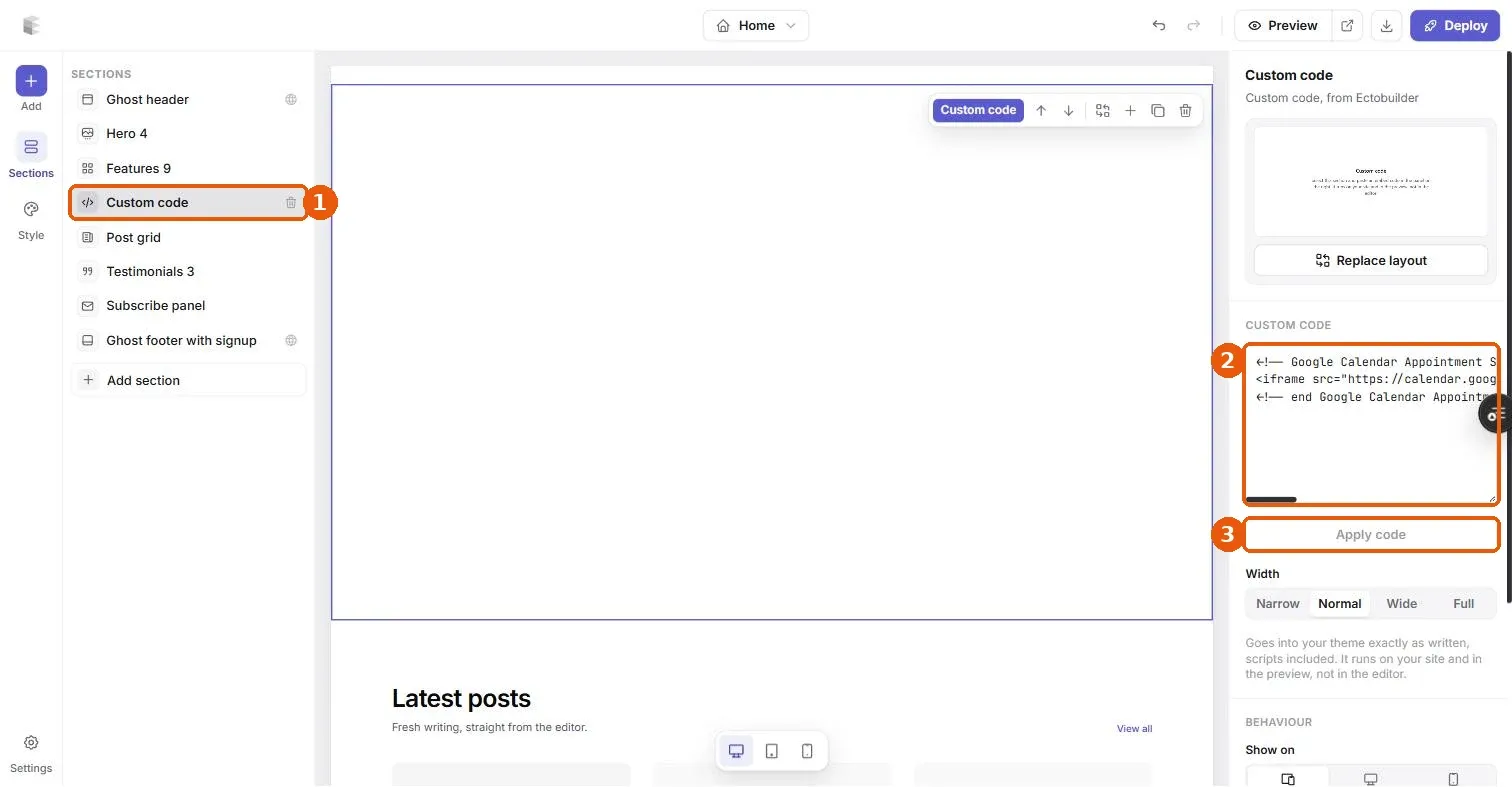
- Open your theme in the Ectobuilder editor and pick the page, such as Home.
- Click Add section, open the Code category and add Custom code. Drag it where you want it.
- With the section selected, paste your booking embed code into the Custom code box on the right and click Apply code.
- Pick a width: Normal suits a calendar; Full suits a wide widget.
- Click Preview to see the calendar working. It doesn't run inside the editor itself.
- Click Deploy to send the theme to your Ghost site.
Ectobuilder's ready-made sections help around the calendar too. The Menu & prices sections list your services with prices and a booking button on each one, and the Process sections explain what happens at a first session. Our theme gallery has a local business theme with all of this already laid out.
If you use an AI assistant with the Ectobuilder connector, you can simply ask: "Set my booking page to this Calendly link, open it over the page, add a booking section under the hero on my home page, check it on mobile and deploy."
Step 4: Get bookings from Google Search and Maps
For a local specialist, many bookings start on Google, not on your website. When someone searches "personal trainer near me" and finds your Google Business Profile, you want a booking button right there.
- Sign in to your Google Business Profile. You can also manage it from Google Search: search for your business name while signed in.
- Open the Bookings section.
- Choose Links to your online booking tools, click Add a link, paste your booking page link and save.
Use the direct link to your booking page, not your home page, so people land right on the calendar. The button shows on your profile in Search and Maps, usually within minutes.
Some booking platforms go a step further. As partners of Google's Reserve with Google programme, they let people book without leaving Google, with a Book button on your profile. If that matters to you, ask your booking tool whether it's a Reserve with Google partner and how to connect it.
Tips that get more bookings
- Put a booking button above the fold. On the home page, the first button people see should be "Book a session", not "Read more".
- Repeat it. A booking button in the navigation, after your services and at the end of each blog post. People decide at different moments.
- Keep clients on your site. A booking window over the page feels quicker than sending people to another site, and they're back on your page the moment they've booked.
- Show prices. Clients book faster when they know what a session costs. A price list section next to the calendar works well.
- Offer an easy first step. A free 15-minute consultation or an intro session is easier to book than a full package.
- Turn on reminders and deposits. They're the two most effective ways to cut no-shows.
- Use your newsletter. Ghost's newsletter is perfect for telling past clients about free slots, new classes and seasonal offers, with a booking link in every email.
- Check on your phone. Most people book from their phone. Open your booking page on mobile and book a test session yourself.
Build your Ghost theme without code. Pick a theme from the Ectobuilder gallery or start from scratch, change it by clicking, and publish it to your Ghost site. Start free and only pay if you’re happy with it.
FAQ
Does Ghost have a built-in booking system?
No. Ghost handles your website, blog, newsletter and paid memberships. For appointments, you connect a booking tool with a link or an embed code, as shown above.
Can the booking page open on my site instead of a new tab?
Yes. In Ectobuilder, turn on Open over the page under Settings → Integrations → Booking page, and every "Book a time" button opens your booking page in a window on your site. Without Ectobuilder, use your booking tool's popup embed code, such as Google Calendar's "Button with popup".
Which booking tool is free?
Google Calendar appointment schedules, Calendly, Cal.com, SimplyBook.me and Square Appointments all have free options with some limits. Fresha has no subscription but charges fees on payments. Check each tool's current pricing.
Can clients pay when they book?
Yes, with most tools: Calendly, Cal.com, SimplyBook.me, Fresha and Square all take payments or deposits. Google Calendar takes payments only on some paid Google Workspace plans.
Why doesn't my embed show in the Ghost editor?
Ghost doesn't run embed code inside the editor, for safety. Preview the page or open it on your site to see the calendar. In Ectobuilder, use Preview for the same reason.
Can I limit booking to paying members?
Yes. Put the booking embed on a Ghost page or post and set its access to paid members only. Only logged-in paying members will see the calendar. Keep in mind that anyone with the direct booking link can still use it.
Written by
Founder of Ectobuilder, the AI-powered visual theme editor for Ghost. Indie software builder in Wrocław and co-author of The AdTech Book. I write about Ghost themes, newsletters and building websites with AI.
Comments
Questions or thoughts? Share them below.
Keep reading
How to Build Your Ghost Theme Visually (Step-by-Step Guide, No Code)
Build a complete Ghost theme without touching code: start from a theme, edit text and pictures in place, add sections from a library of 270, set colours and fonts, design every page, and publish to Ghost in one click. Step by step, with screenshots.
Magazine Theme for Ghost: Sections, Editor's Picks, Long Reads and Memberships
A step-by-step guide to the Magazine theme for Ghost: turn sections into tags, set up the navigation, fill the front page, editor's picks and section fronts, add your writers, sell memberships and send a weekly newsletter.
Newsletter Theme for Ghost: A Substack-Style Site With Paid Plans, /p/ Links and Comments
A step-by-step guide to the Newsletter theme for Ghost: a Substack-style homepage and reading page, then newsletters, paid plans, /p/ addresses, Plans, Welcome and About pages, comments and recommendations.