
Real Estate Agent Theme for Ghost: Add Listings, a Contact Form and Booking
A step-by-step guide to the Real Estate Agent theme for Ghost: add property listings with prices and Sold badges, turn on the contact form, and let clients book a viewing.

Michal Wlosik
· 6 min read
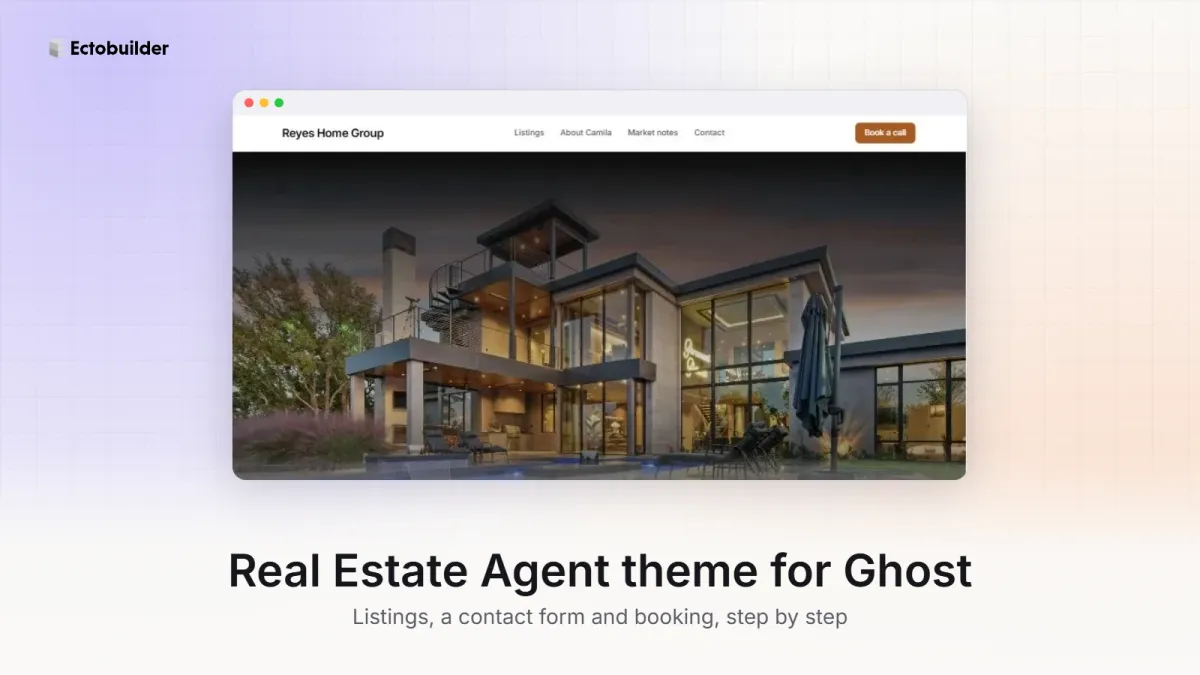
The Real Estate Agent theme is an Ectobuilder theme for agents, brokers and small agencies running their site on Ghost. It has a homepage with your current listings, a "how buying with me works" section, reviews, a map of your office and a contact page.
This guide walks through the three things most agents want to set up first:
- Add your listings, with price, photo and a Sold or Under offer badge.
- Turn on the contact form, so enquiries reach your inbox.
- Let people book a call or viewing straight from the site.
To follow along, open the theme from the Ectobuilder theme gallery and connect your Ghost site under Settings → Integrations → Ghost Admin API.

Want this theme for your site? Open the Real Estate Agent theme in Ectobuilder and make it yours. Starting is free, and you only pay if you’re happy with the design.
Part 1: Add listings
Each listing is a normal Ghost post. You write it in Ghost Admin like any blog post, give it a Listing tag, and the theme puts it on your homepage automatically. Nothing to edit in the theme when a home comes on the market or sells.
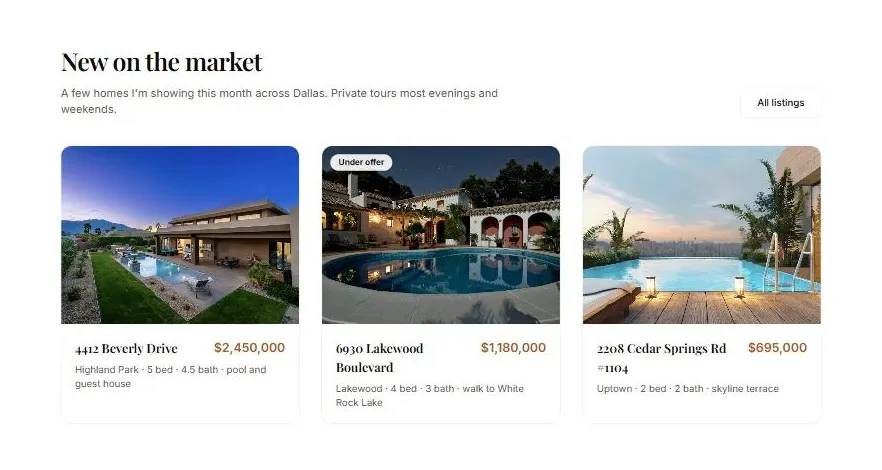
Here is how each part of a card is filled in:
- Photo: the post's feature image.
- Address: the post title.
- Price: the post's second tag.
- Details line (area, beds, baths): the post excerpt.
- Badge: shown when the post also has a Sold or Under offer tag.
Step 1: Create a new post
In Ghost Admin, go to Posts and click New post.
Step 2: Add the photo and the address
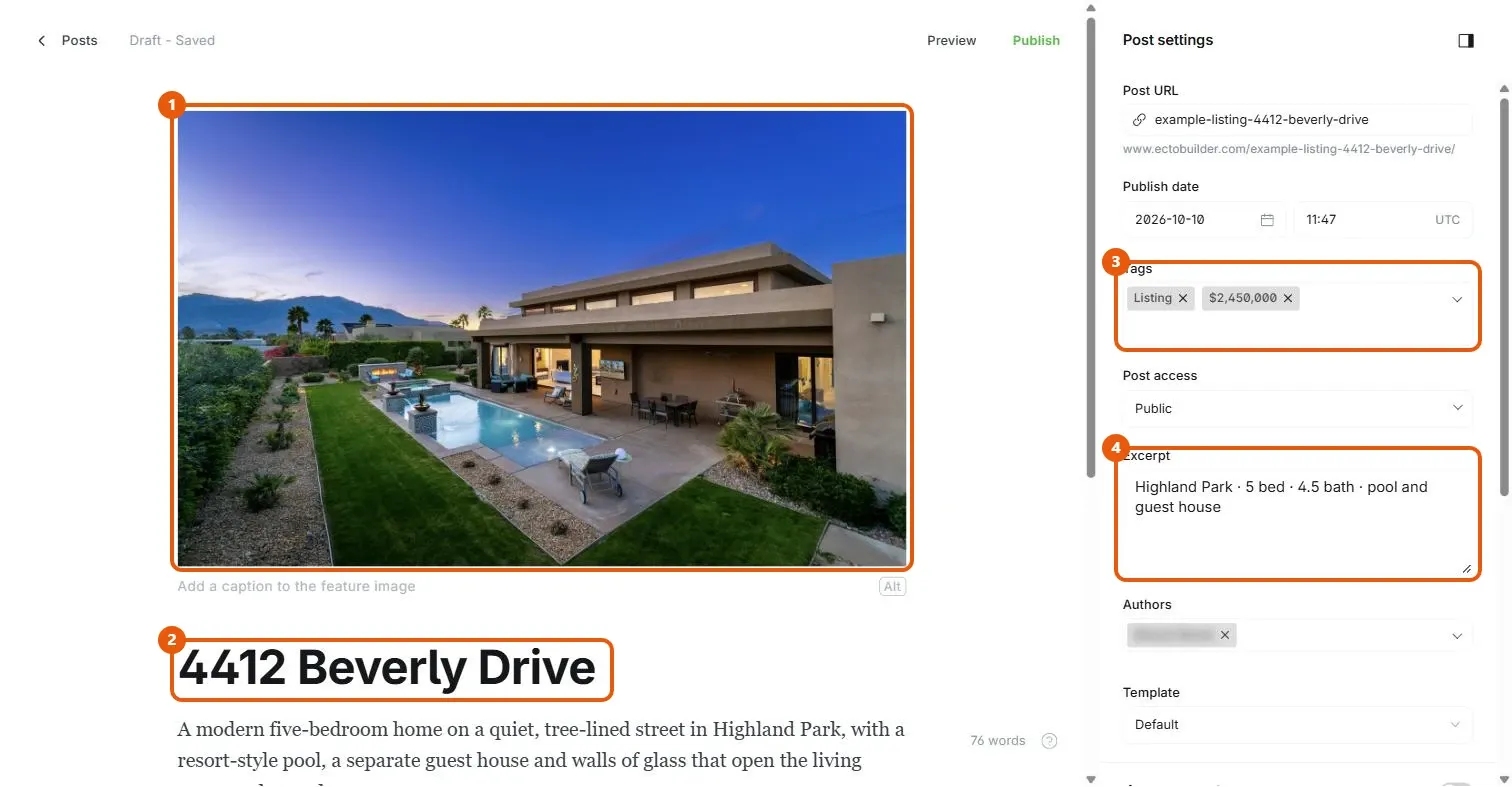
- Click Add feature image above the title and upload your best exterior photo. A landscape photo works best; the card crops it to a wide rectangle. To let visitors enlarge photos, turn on the lightbox.
- Type the address as the post title, for example 4412 Beverly Drive.
- Write the full description in the body: rooms, size, features, more photos. Visitors see this when they click the card.
Step 3: Add the tags, in this order
Click the panel icon at the top right to open Post settings. In Tags:
- Type
Listingand press Enter. This must be the first tag. It is what puts the post in the listings section. - Type the price, for example
$2,450,000, and press Enter. This must be the second tag. Write it exactly as you want it shown. - Optional: add
Under offerorSoldas a third tag to show a badge on the photo.
Then fill in Excerpt with a short details line, for example Highland Park · 5 bed · 4.5 bath · pool and guest house. Keep it to one line; it sits under the address on the card.
Step 4: Publish
Click Publish. If Ghost asks whether to send the post as an email, choose to publish on the site only, unless you really want every subscriber to get each new listing.
Open your homepage. The new listing appears first in the section. The All listings button goes to yoursite.com/tag/listing/, a page Ghost makes automatically with every post tagged Listing.
When a home goes under offer or sells
Open the post, add the Under offer or Sold tag, and click Update. The badge appears on the card. When you no longer want to show the home at all, remove the Listing tag or unpublish the post.
Changing what the section shows
In the Ectobuilder editor, click the listings section. The Posts from Ghost settings on the right control which posts it shows:
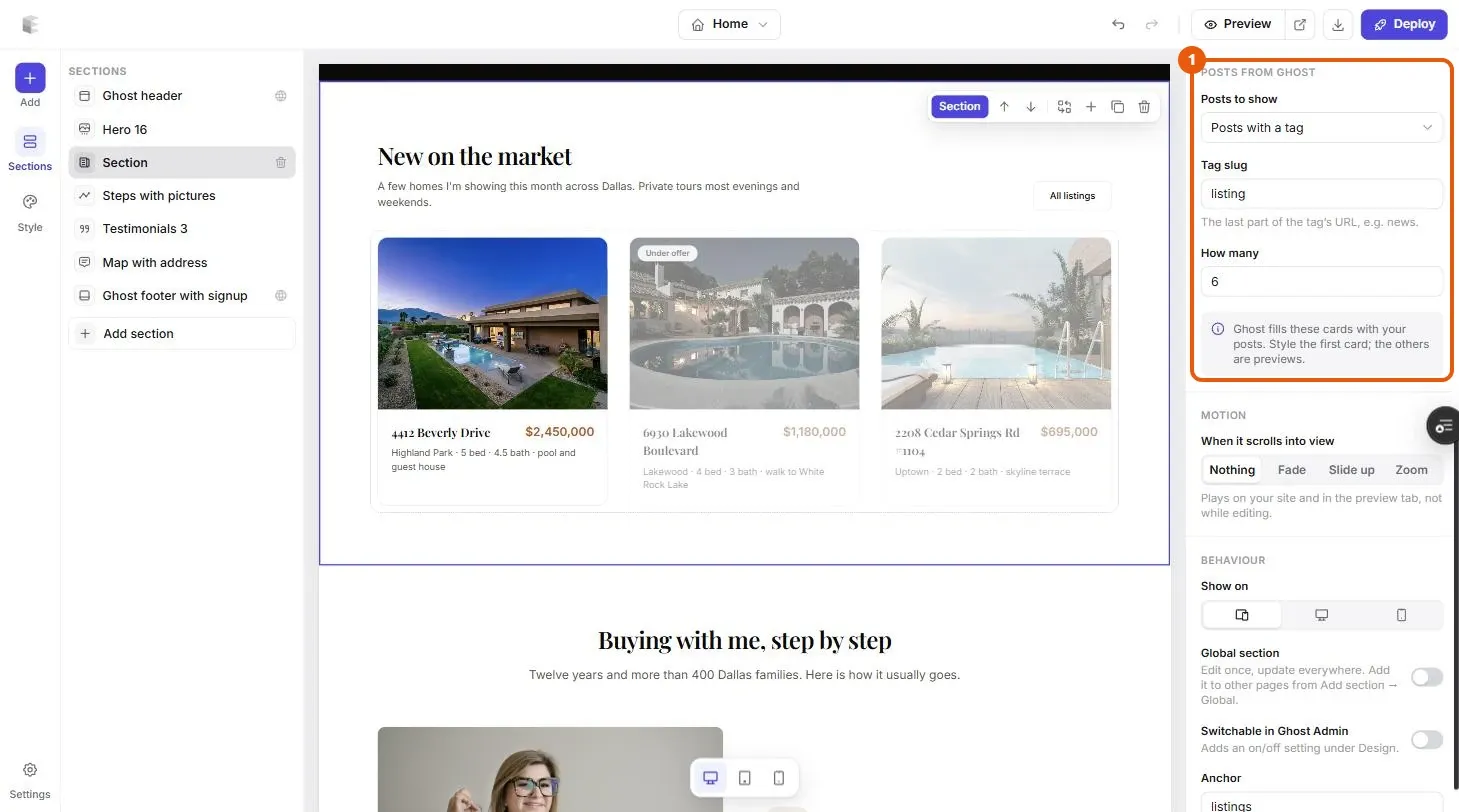
- Tag slug is the tag the section looks for. It is
listing, the last part of the tag's address. If you'd rather tag your posts For sale, change this tofor-sale. - How many sets the number of cards. Six fills two rows of three.
The cards in the editor are samples so you can style them. Your real listings only appear on the live site after you click Deploy.
Part 2: Turn on the contact form
The theme comes with a Contact template: your email, phone and office on the left, and a form on the right. To make the form send messages to your inbox:
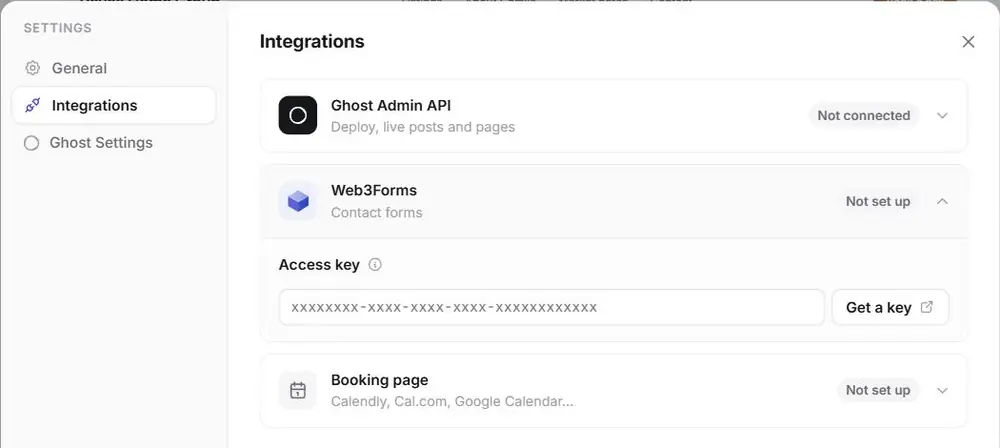
- Get a free access key from Web3Forms. You enter your email address and they send you the key.
- In Ectobuilder, open Settings → Integrations → Web3Forms and paste the key.
- Click Deploy.
- In Ghost Admin, create a page called Contact, set its URL to
contactand choose Contact under Template in the page settings. Publish it.
Point your menu's Contact link at /contact/ in Ghost Admin under Settings → Navigation. Send yourself a test message from the live site and check your spam folder the first time.
For every detail, including how to add a form to other pages and what to do when messages don't arrive, read How to add a contact form to your Ghost site.
Part 3: Let people book a call or viewing
Many buyers and sellers would rather pick a time than write a message. The theme's Book a call button in the header can open your booking page, and any contact section can show a booking button too.
Step 1: Get a booking page
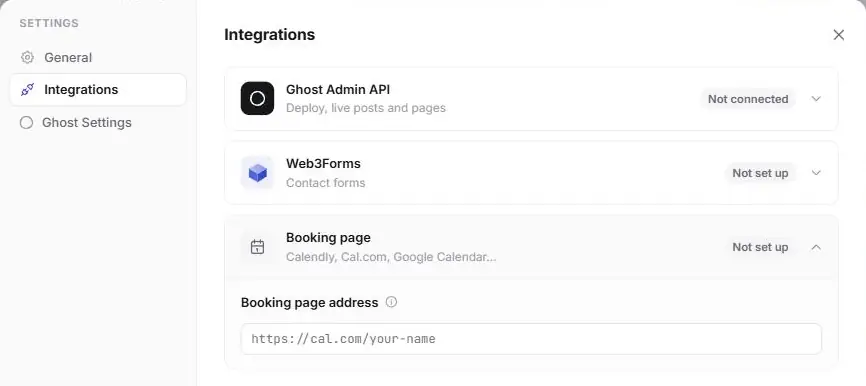
Use the scheduling tool you already have, or create a free one with Calendly, Cal.com or Google Calendar appointment schedules. Copy your booking page's address, for example https://cal.com/your-name.
Step 2: Add it in Ectobuilder
Open Settings → Integrations → Booking page and paste the address.
Step 3: Choose where the booking button appears
Select the contact section on the Contact page. Under Booking button choose:
- Off: just the form.
- With form: a "Book a time" button next to the form, so people can choose.
- Instead: only the booking button, no form.
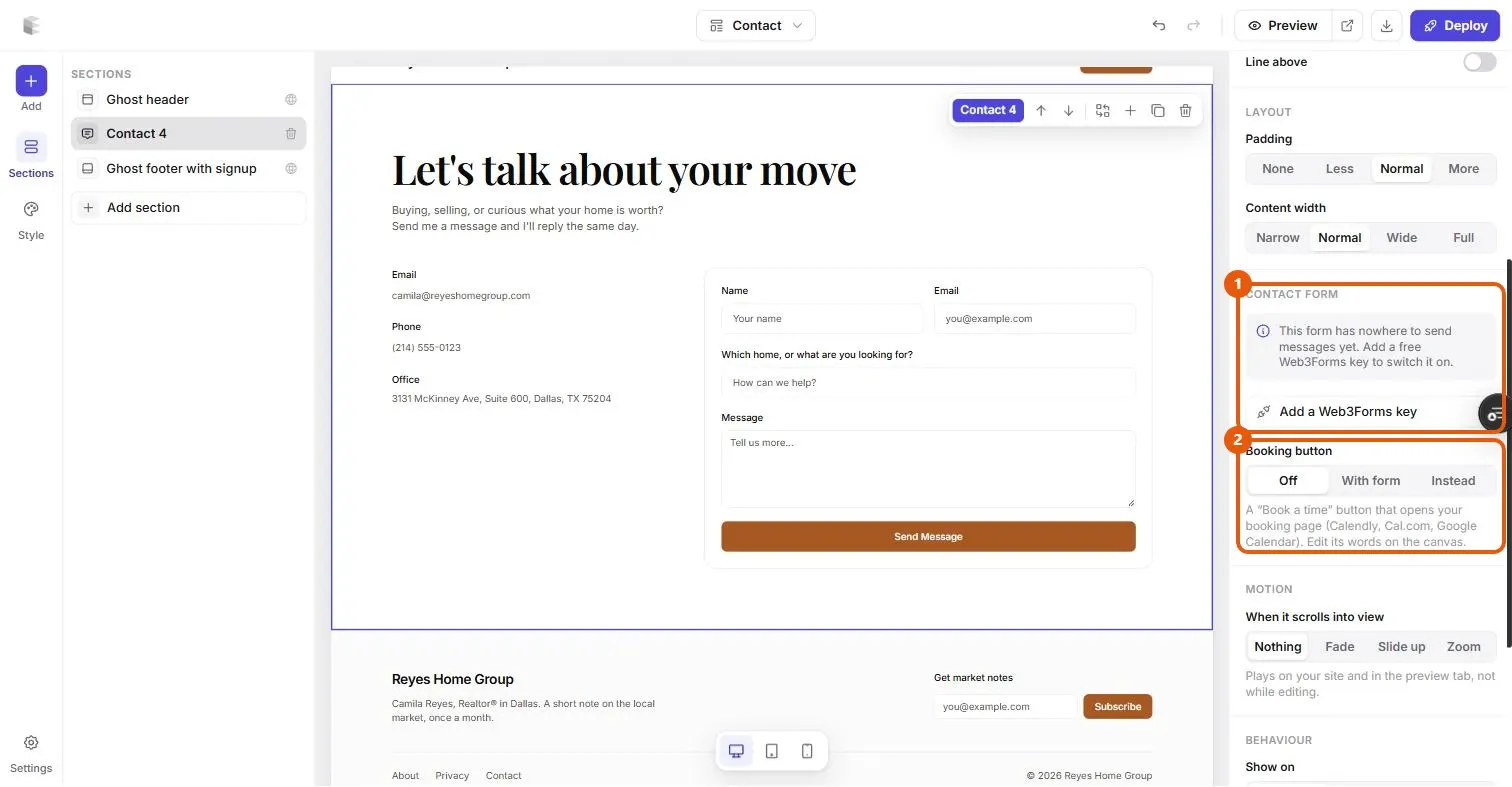
Double-click the button on the canvas to change its words, for example Book a viewing. The Book a call button in the header already links to #booking, so it opens your booking page as soon as you add one. To do the same with any other button or link, select it and set its link to #booking.
Step 4: Deploy
Click Deploy and test the button on the live site.
For choosing a booking tool, embedding a calendar instead of a button, and getting bookings from Google Search and Maps, read How to add online booking to your Ghost site.
Ready to build yours? Everything in this guide works on your own copy of the Real Estate Agent theme. Start free, connect your Ghost site when you’re ready, and only pay if you like the result.
Next steps
- Change the colours and fonts under Style. They apply to every page at once.
- Replace the sample reviews with real ones from your clients.
- Write a few posts without the Listing tag, such as market updates or neighbourhood guides. They appear on your blog, not in the listings.
Written by
Founder of Ectobuilder, the AI-powered visual theme editor for Ghost. Indie software builder in Wrocław and co-author of The AdTech Book. I write about Ghost themes, newsletters and building websites with AI.
Comments
Questions or thoughts? Share them below.
Keep reading
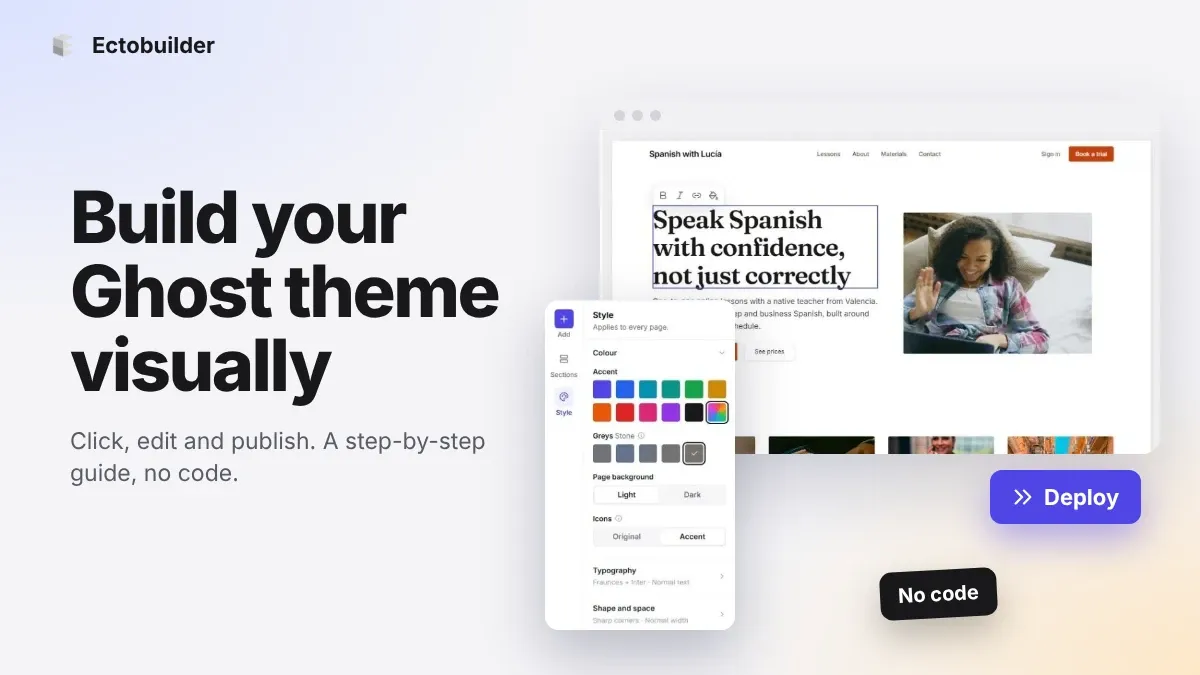
How to Build Your Ghost Theme Visually (Step-by-Step Guide, No Code)
Build a complete Ghost theme without touching code: start from a theme, edit text and pictures in place, add sections from a library of 270, set colours and fonts, design every page, and publish to Ghost in one click. Step by step, with screenshots.
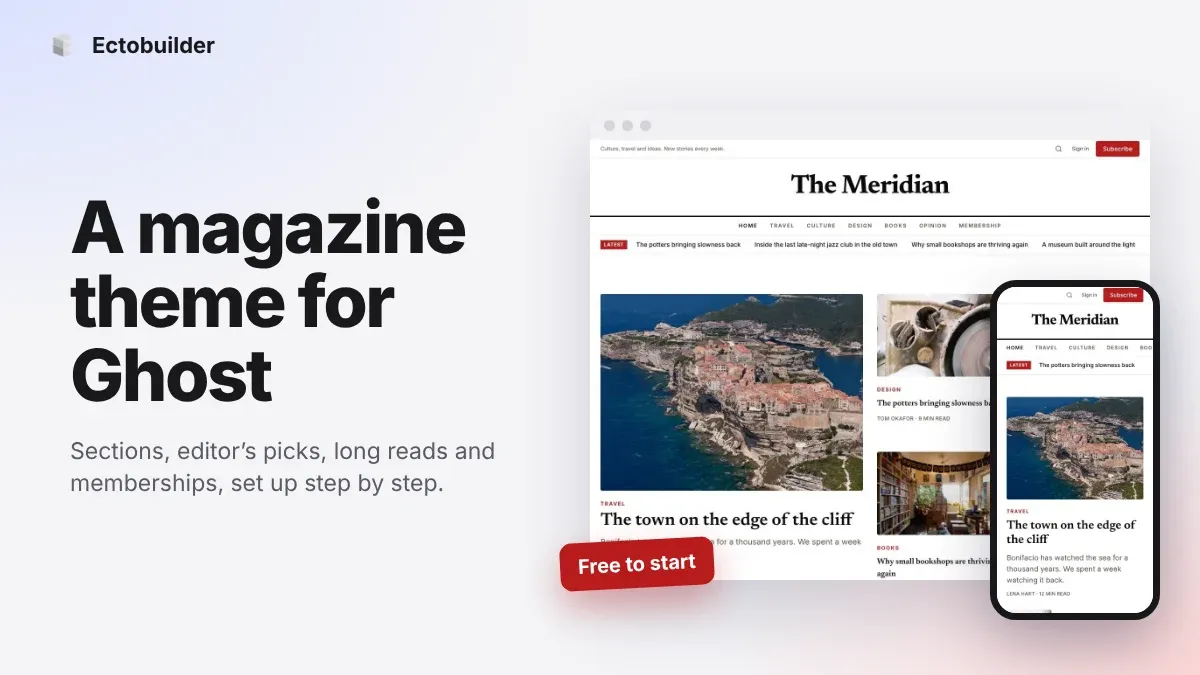
Magazine Theme for Ghost: Sections, Editor's Picks, Long Reads and Memberships
A step-by-step guide to the Magazine theme for Ghost: turn sections into tags, set up the navigation, fill the front page, editor's picks and section fronts, add your writers, sell memberships and send a weekly newsletter.
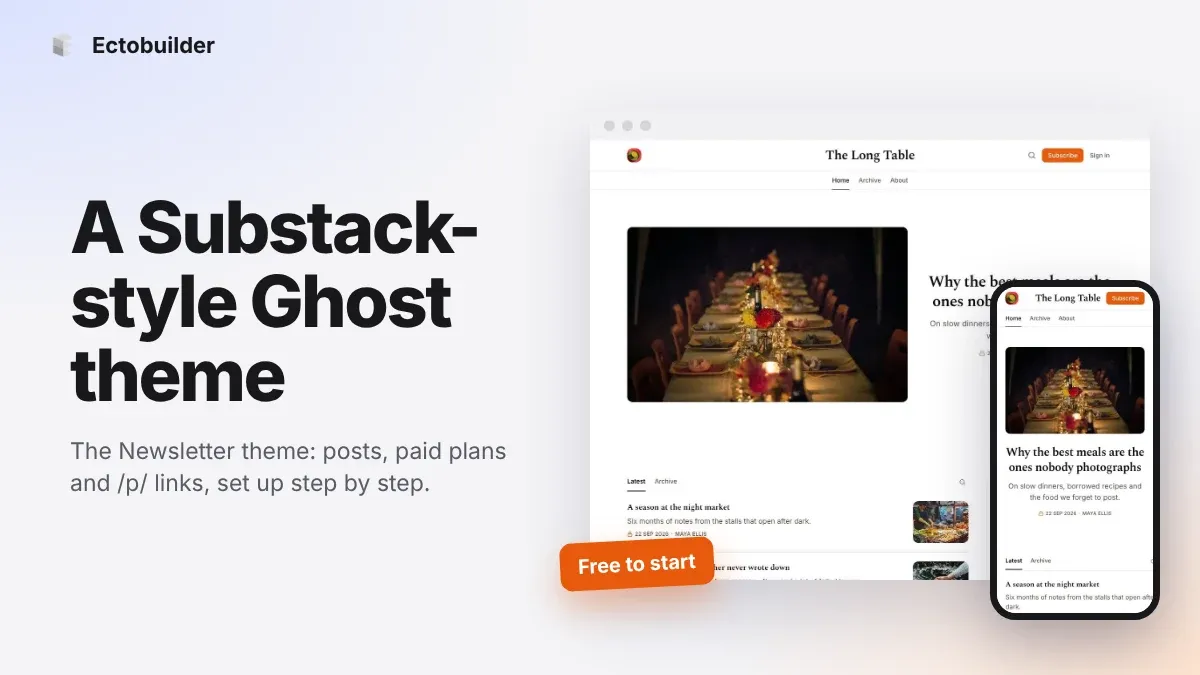
Newsletter Theme for Ghost: A Substack-Style Site With Paid Plans, /p/ Links and Comments
A step-by-step guide to the Newsletter theme for Ghost: a Substack-style homepage and reading page, then newsletters, paid plans, /p/ addresses, Plans, Welcome and About pages, comments and recommendations.