
How to Add a Lightbox to Ghost: Click to Enlarge Pictures and Galleries
Ghost doesn't let readers enlarge your pictures. A lightbox does: click any picture or gallery and it opens full screen, at its original size, with captions, swipe and arrow keys. Here's how to add one to your Ghost site without code.

Michal Wlosik
· 5 min read
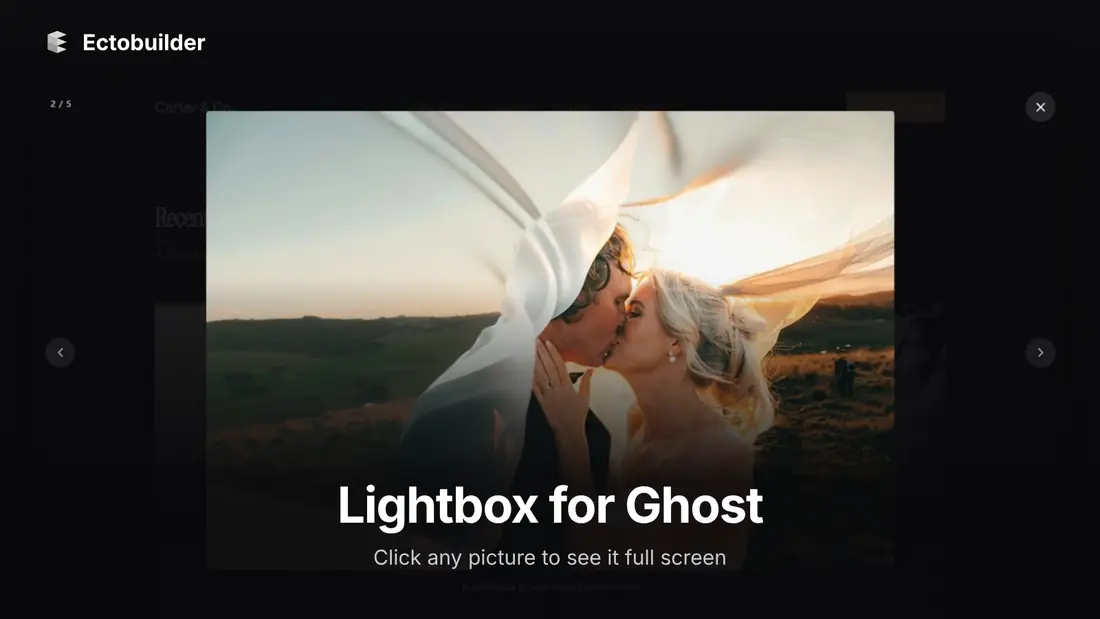
Ghost shows your pictures at the width of the post, and that's where they stay. A reader who wants to see the detail in a photo, read a small label in a screenshot or flick through a gallery has no way to do it. Click a picture and nothing happens.
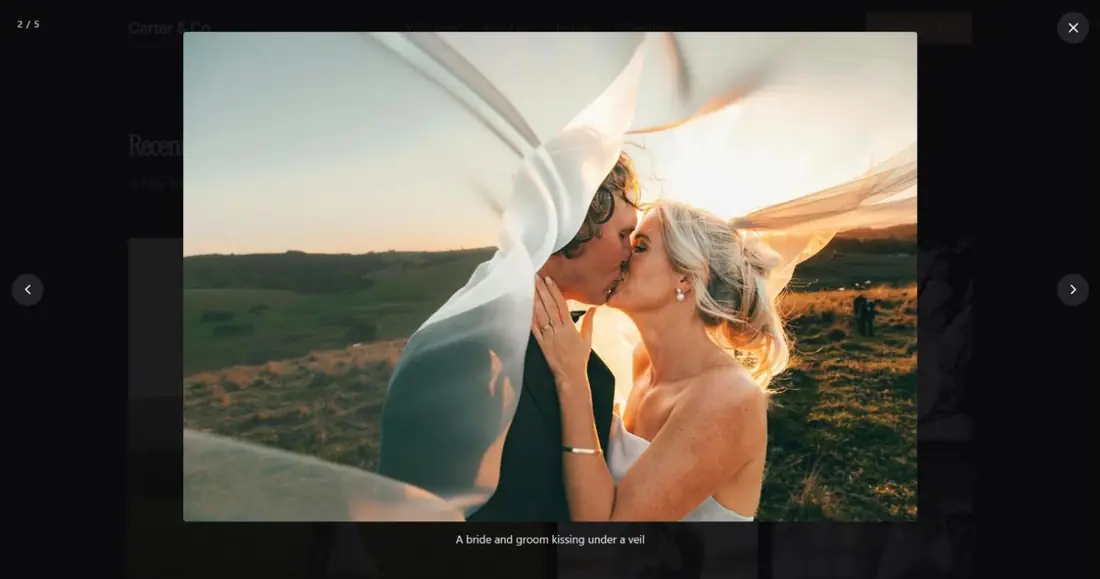
A lightbox fixes that. Click any picture and it opens full screen, at its original size, over a dark background. In a gallery, readers move between pictures with arrows, a swipe or the keyboard. This guide shows how to add one to your Ghost site without code, and what makes a lightbox good.
Does Ghost have a lightbox?
Not built in. Ghost's editor has image and gallery cards, and a theme decides what happens when someone clicks them. Most themes, including Ghost's default Source theme, do nothing. Some photo-focused themes ship their own lightbox, but if yours doesn't, you need to add one yourself.
What a good lightbox does
Plenty of lightbox scripts exist. The ones that feel good share a few things, and the Ectobuilder lightbox does all of them:
- Shows the original picture. Ghost serves smaller copies of your images to keep pages fast. The lightbox loads the full-size original, so the detail is actually there when you zoom in.
- Treats a post as one set. All the pictures in a post, galleries included, open as one set. A counter like "2 / 5" shows where you are, and the next picture loads in the background, so moving on feels instant.
- Works with any input. Arrow buttons and the arrow keys on a computer, a swipe on a phone. Esc, the close button or a click outside the picture closes it.
- Keeps your captions. If a picture has a caption in Ghost, it appears under the picture in the lightbox too.
- Is accessible. Pictures can be opened with the keyboard (Tab to one, then Enter), screen readers announce the viewer as a dialog, focus stays inside it while it's open and returns to the picture when it closes. Animations are switched off for people who ask their device for reduced motion.
- Knows what to leave alone. Pictures that are links still go where they link. Logos, author avatars, small icons and the pictures inside bookmark, product and call-to-action cards don't open in the lightbox.
How to add a lightbox to Ghost
1. Open Settings → Features
Open your theme in Ectobuilder and go to Settings → Features. You'll find Click to enlarge there.

2. Choose where it works
- Posts (the default): pictures and galleries in your posts and pages. This is what most sites want.
- All: also the pictures in your theme's own sections, like a gallery or a photo grid on your homepage. Each section opens as its own set.
- Off: no lightbox, for example if you only use pictures as decoration.
3. Deploy
Deploy your theme to Ghost. Every image and gallery card in every post now opens in the lightbox, including posts you published years ago. There's nothing to change in the posts themselves and nothing to add to Code injection.
Let readers see your pictures properly.
Click to enlarge comes with every Ectobuilder theme, along with galleries, dark mode and more. Design visually, then publish to your Ghost site.
The code route
Without Ectobuilder, you can add a lightbox library such as PhotoSwipe or GLightbox through Settings → Code injection in Ghost Admin, or by editing your theme. It works, but plan for a few things:
- Most libraries expect each picture to be wrapped in a link to the large version. Ghost's image cards aren't, so you need a script that finds the pictures in
.gh-contentand builds those links. - Ghost's images point to resized copies, with
/size/w1000/in the address. Strip that part to load the original. - Skip pictures that are already links, and the images inside bookmark and product cards.
- Load the library's files only on posts, and check what they add to your page weight. A lightbox shouldn't slow down your Core Web Vitals.
- Code injection lives outside your theme, so test it again whenever you change themes.
Tips
- Upload big enough pictures. The lightbox shows the original, so a 600px upload stays 600px. For photos, 2000px wide is a good size: sharp on large screens, still reasonable to load.
- Write captions. They show in the lightbox, where readers are looking closely. A caption that explains the picture is worth more there than anywhere else.
- Fill in alt text. Screen readers use it when announcing the picture, in the post and in the lightbox.
- Use galleries for sets. A gallery card keeps related pictures compact in the post, and the lightbox lets readers go through them one by one at full size.
- Link a picture to stop the lightbox. If a picture should open a page instead, give it a link in Ghost's editor. Linked pictures always follow their link.
FAQ
Does the lightbox slow down my site?
No. The script is small, part of your theme, and the full-size picture only loads when someone opens it.
Does it work on phones?
Yes. Swipe left or right to move between pictures, and tap outside the picture to close it. The arrow buttons hide on small screens to leave room for the picture.
Can I turn it off for one picture?
Yes: give that picture a link in Ghost's editor. Linked pictures open their link instead of the lightbox.
Does it work with Ghost galleries?
Yes. Gallery pictures open in the lightbox, and you can move through them together with the other pictures in the post.
Do I need to change my old posts?
No. The lightbox works on every image and gallery card already on your site as soon as you deploy.
Build a Ghost theme that shows off your work.
Start from a photography template or a blank page in Ectobuilder, switch on click to enlarge, and deploy straight to Ghost.
Written by
Founder of Ectobuilder, the AI-powered visual theme editor for Ghost. Indie software builder in Wrocław and co-author of The AdTech Book. I write about Ghost themes, newsletters and building websites with AI.
Comments
Questions or thoughts? Share them below.
Keep reading
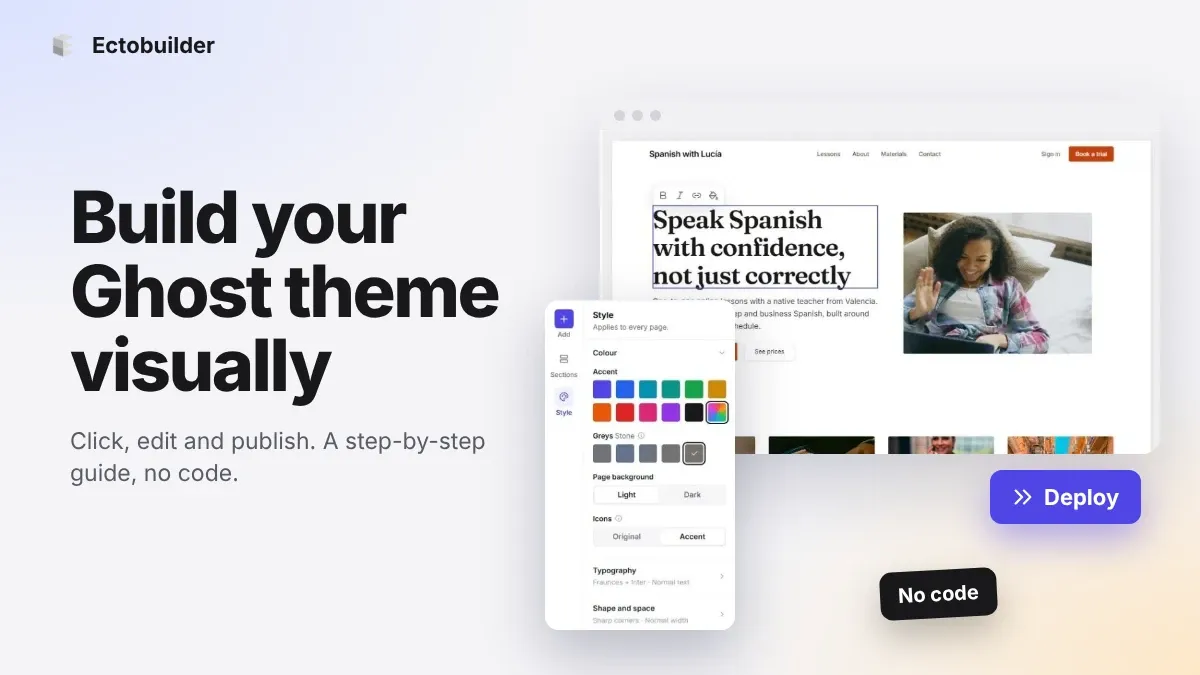
How to Build Your Ghost Theme Visually (Step-by-Step Guide, No Code)
Build a complete Ghost theme without touching code: start from a theme, edit text and pictures in place, add sections from a library of 270, set colours and fonts, design every page, and publish to Ghost in one click. Step by step, with screenshots.
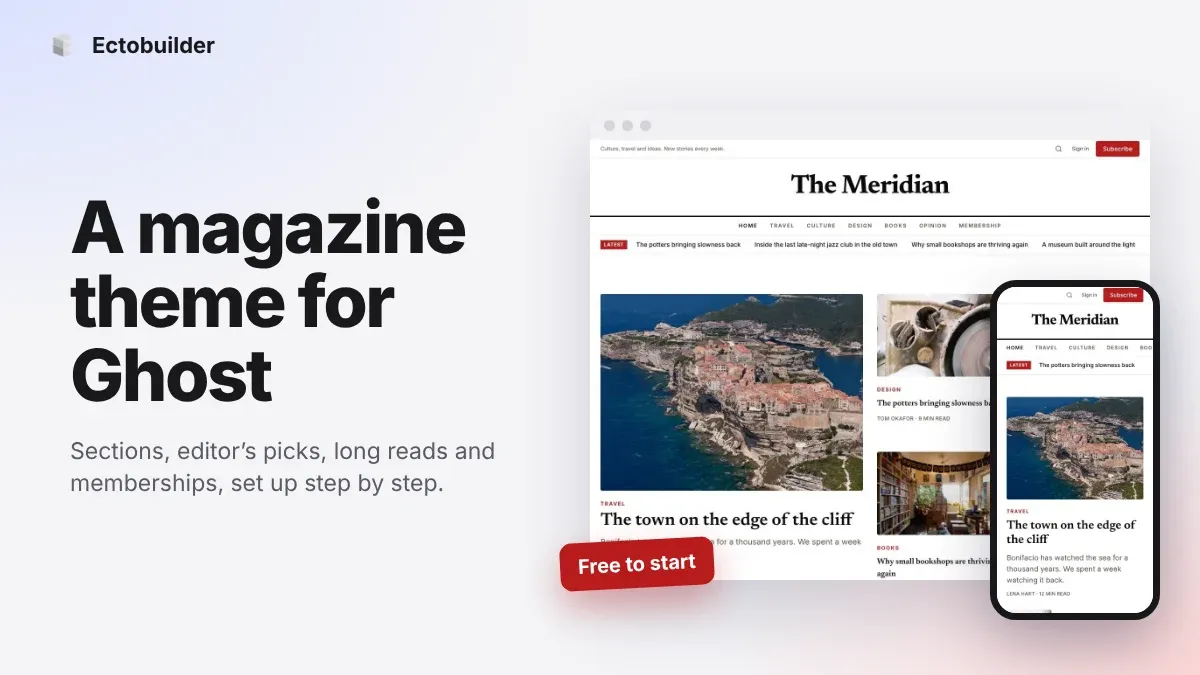
Magazine Theme for Ghost: Sections, Editor's Picks, Long Reads and Memberships
A step-by-step guide to the Magazine theme for Ghost: turn sections into tags, set up the navigation, fill the front page, editor's picks and section fronts, add your writers, sell memberships and send a weekly newsletter.
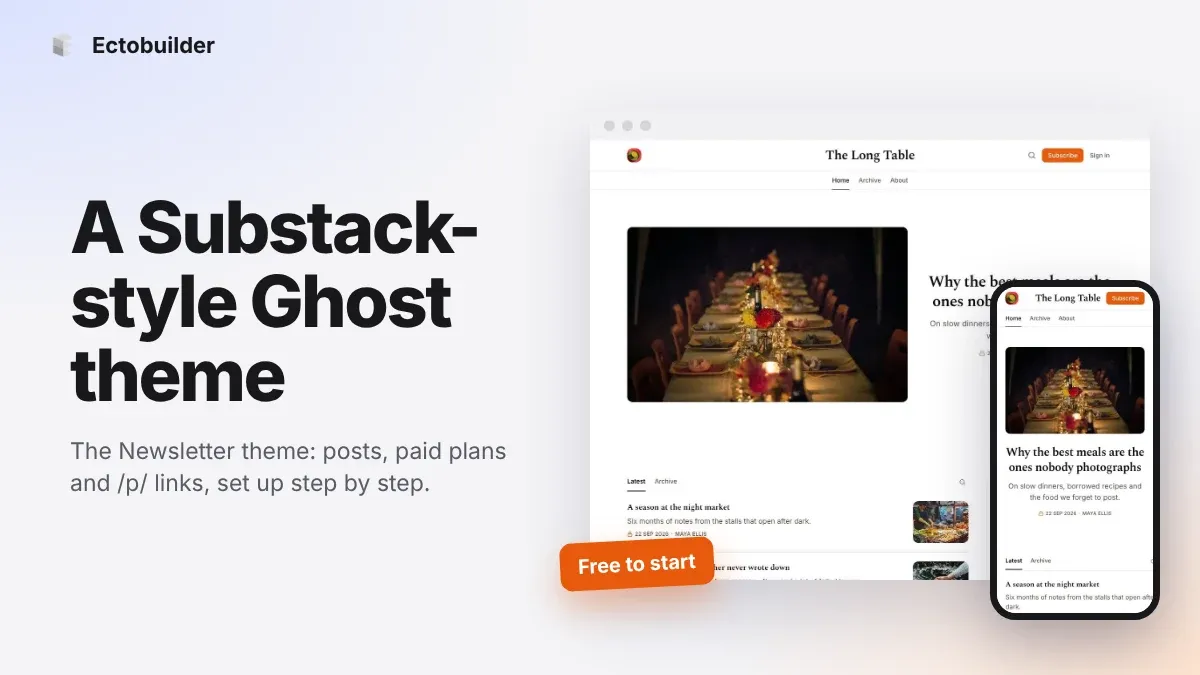
Newsletter Theme for Ghost: A Substack-Style Site With Paid Plans, /p/ Links and Comments
A step-by-step guide to the Newsletter theme for Ghost: a Substack-style homepage and reading page, then newsletters, paid plans, /p/ addresses, Plans, Welcome and About pages, comments and recommendations.