
How to Add a Contact Form to Your Ghost Site
Ghost has no contact form of its own. Here is how to add one that emails every message to your inbox, step by step, in about ten minutes.

Michal Wlosik
· 5 min read
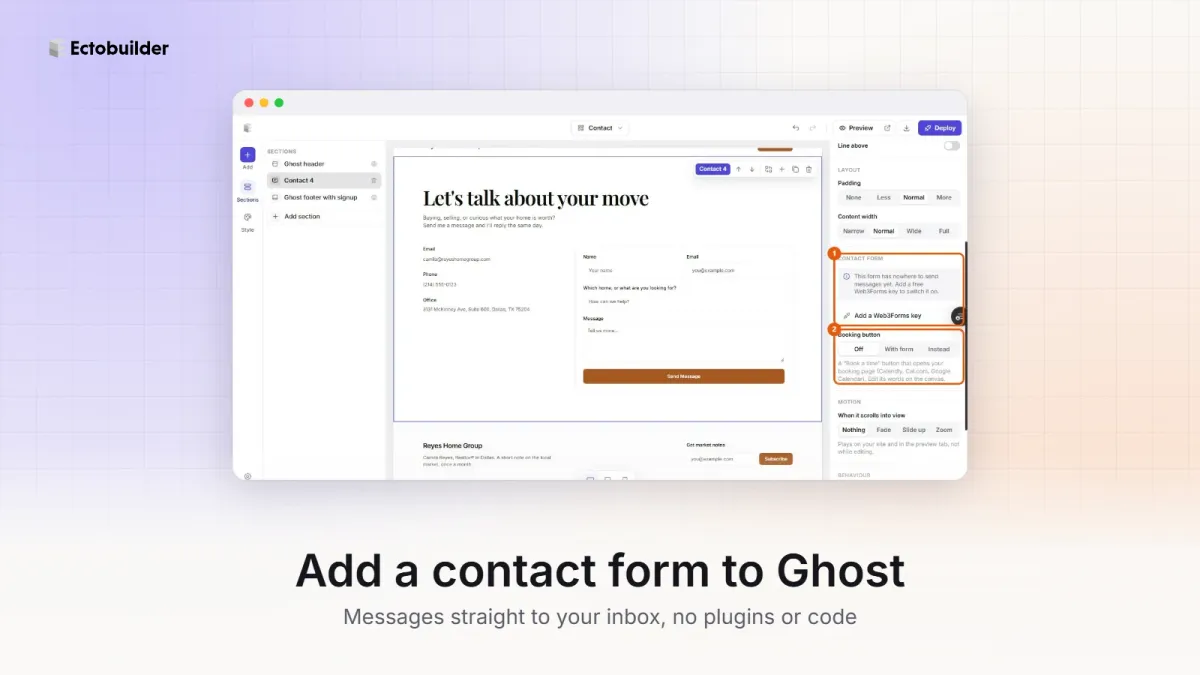
Ghost has no contact form of its own. You can write a Contact page, but there is nowhere for a visitor to type a message and send it. This guide shows you how to add a working contact form to a Ghost site built with Ectobuilder, step by step, and what to do if you use a different Ghost theme.
It takes about ten minutes. You need an Ectobuilder theme and an email address where messages should arrive. Nothing to install, no plugins, no server.
How it works
Ectobuilder's contact sections send messages through Web3Forms, a free form service. When a visitor presses Send, Web3Forms emails the message to you. You never see a database or a dashboard; messages simply land in your inbox.
You connect Web3Forms once per theme, with an access key. After that, every contact form in the theme works, on every page.
Step 1: Get a free Web3Forms access key
- Go to web3forms.com.
- Type the email address where you want to receive messages and click Create Access Key.
- Open the email Web3Forms sends you and copy the access key. It is a long code that looks like
xxxxxxxx-xxxx-xxxx-xxxx-xxxxxxxxxxxx.
The key is not a password. It only tells Web3Forms which inbox to send messages to, so it is fine for it to sit inside your theme.
Step 2: Add the key in Ectobuilder
- Open your theme in the Ectobuilder editor.
- Click Settings at the bottom left, then choose Integrations.
- Open Web3Forms and paste the key into Access key. If you skipped step 1, the Get a key button takes you to Web3Forms.
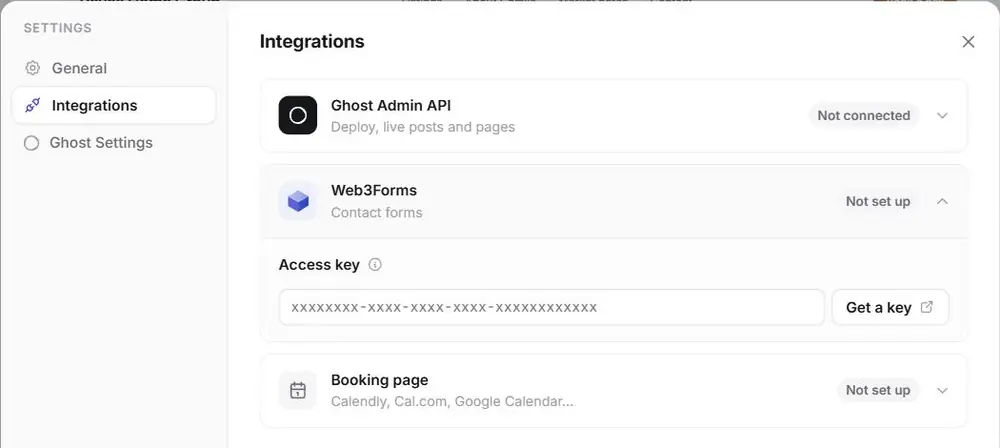
The badge next to Web3Forms changes from Not set up once the key is saved. The key belongs to this theme only; if you build another theme, add it there too.

Want the form built into your theme? Ectobuilder themes come with contact sections ready for Web3Forms: paste your key and the form works. Start free and only pay if you’re happy with the design.
Step 3: Add a contact section to a page
If your theme already has a contact section (many Ectobuilder gallery themes do), skip to step 4. Otherwise:
- Pick the page you want the form on. A dedicated Contact template works well (see step 5), but a form at the bottom of the homepage is fine too.
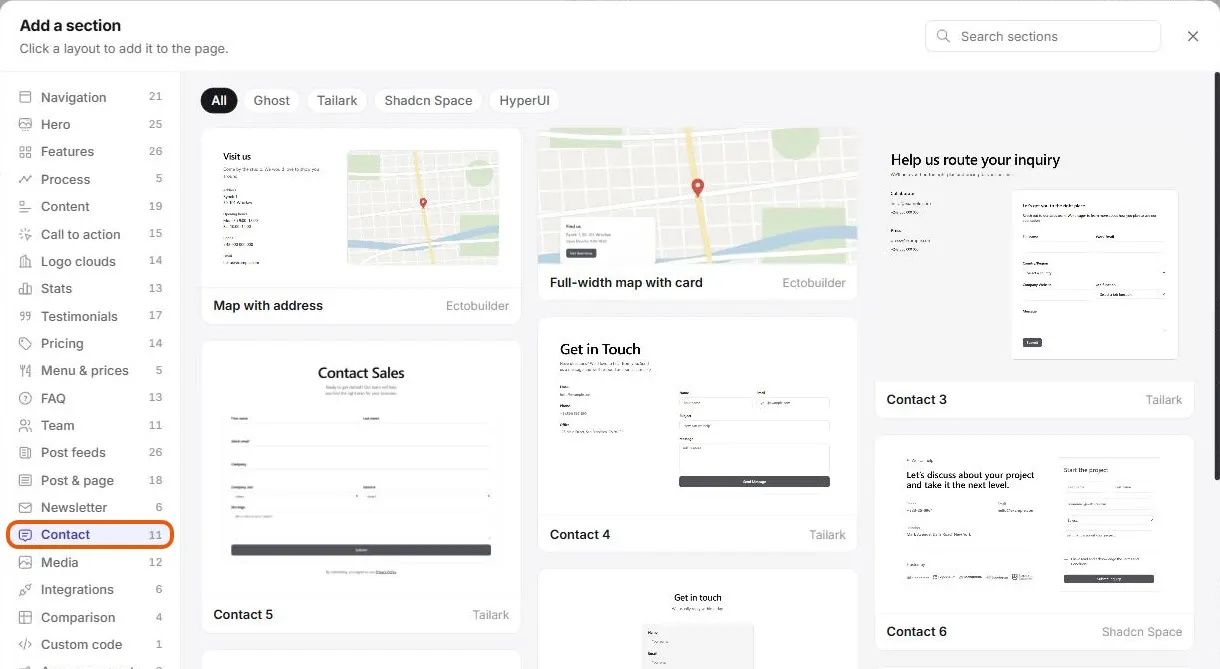
- Click Add at the top left and choose the Contact category.
- Click a layout to add it. Some have the form next to your email, phone and address; others are just the form.
Double-click any text on the canvas to change it: the heading, the field labels, the button. Change the labels to suit your business. A real estate agent might ask "Which home, or what are you looking for?"; a dentist might ask "Are you a new patient?".
Step 4: Check the section settings
Click the contact section to select it. The panel on the right has a Contact form group.
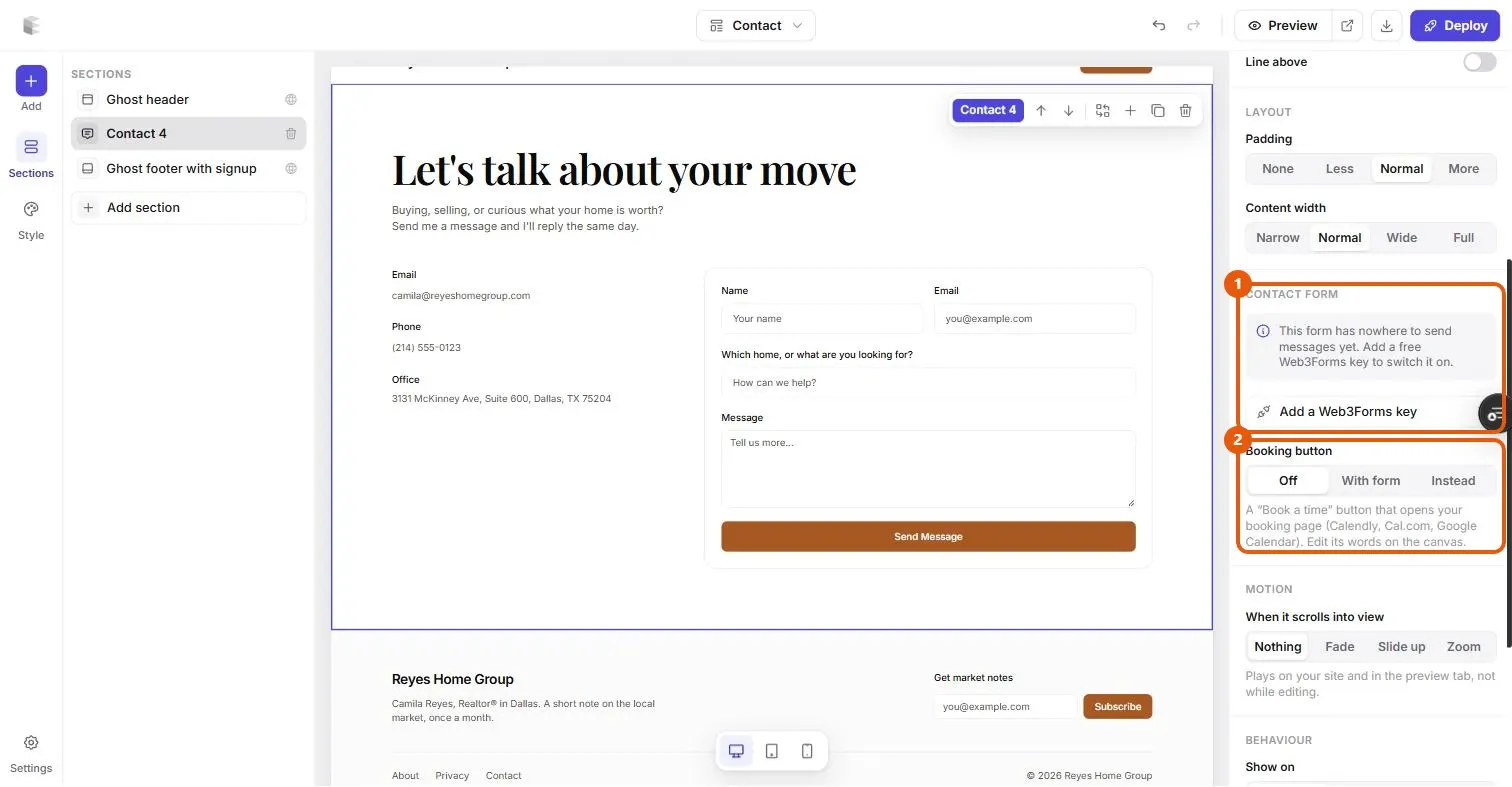
- Contact form tells you whether the form can send. If it says the form has nowhere to send messages yet, the key from step 2 is missing; the Add a Web3Forms key button opens the settings for you.
- Booking button adds a "Book a time" button that opens your booking page. Leave it Off for a plain contact form. With form shows the button next to the form, and Instead replaces the form with the button. Booking is covered in How to add online booking to your Ghost site.
Step 5: Make a Contact page in Ghost (optional)
If you put the form on a custom template such as Contact, Ghost needs a page that uses it:
- In Ghost Admin, go to Pages and click New page.
- Title it Contact. You can leave the body empty; the template draws the page.
- Open the page settings (the panel icon at the top right), set Page URL to
contactand choose Contact under Template. - Publish the page. It now lives at
yoursite.com/contact/.
Add it to your menu in Ghost Admin under Settings → Navigation if it isn't there already.
Step 6: Deploy and send a test message
- Click Deploy in Ectobuilder to put the updated theme on your Ghost site.
- Open your live site in a private window, fill in the form and press Send.
- Check your inbox, and your spam folder the first time. Mark the message as "not spam" so later ones arrive normally. The subject line reads "New message from" followed by your site's name.
The form only sends from your live site, not from the Ectobuilder editor or preview. That way testing the design never fills your inbox.
Common problems
- Nothing arrives. Check spam first. Then check that the email you used on Web3Forms is the one you are reading, and that you deployed after adding the key.
- The form says it isn't set up. The key is missing or was added to a different theme. Open Settings → Integrations in the theme that is live on your site.
- You want messages to go to someone else. Create a new key on Web3Forms with their address and replace the old one. Deploy again.
- Spam. The form includes a hidden trap field that catches most bots, and Web3Forms filters more. If some still gets through, its dashboard has extra spam options.
Using a different Ghost theme?
Any theme can have a contact form; it just takes code. The usual routes:
- Embed a form service. Tally, Google Forms, Typeform and similar tools give you an embed code. Paste it into an HTML card on a Ghost page. Easy, but the form looks like the service, not your site.
- Write the HTML yourself. A plain HTML form that posts to Web3Forms or Formspree, placed in an HTML card or a theme template. It matches your site, but you style it yourself.
- Use a mailto link. An "Email me" button that opens the visitor's email app. Simple, but many visitors don't have an email app set up on their computer.
Ectobuilder's contact sections do the second option for you, styled to your theme, with nothing to paste.
Written by
Founder of Ectobuilder, the AI-powered visual theme editor for Ghost. Indie software builder in Wrocław and co-author of The AdTech Book. I write about Ghost themes, newsletters and building websites with AI.
Comments
Questions or thoughts? Share them below.
Keep reading
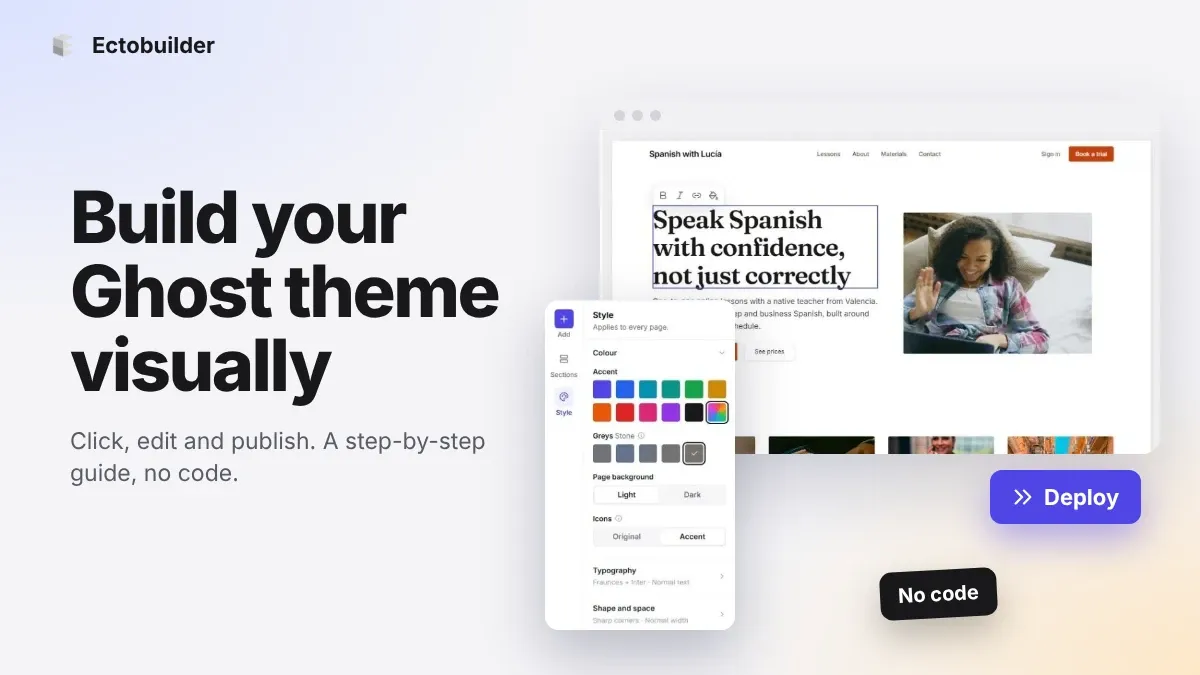
How to Build Your Ghost Theme Visually (Step-by-Step Guide, No Code)
Build a complete Ghost theme without touching code: start from a theme, edit text and pictures in place, add sections from a library of 270, set colours and fonts, design every page, and publish to Ghost in one click. Step by step, with screenshots.
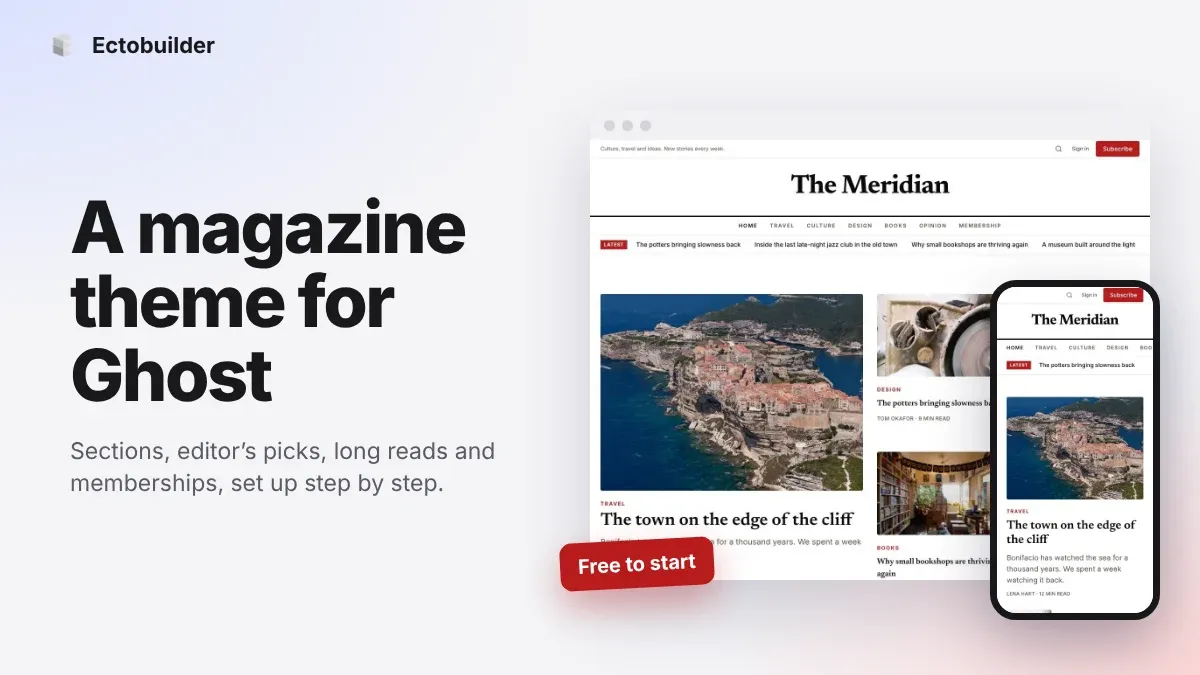
Magazine Theme for Ghost: Sections, Editor's Picks, Long Reads and Memberships
A step-by-step guide to the Magazine theme for Ghost: turn sections into tags, set up the navigation, fill the front page, editor's picks and section fronts, add your writers, sell memberships and send a weekly newsletter.
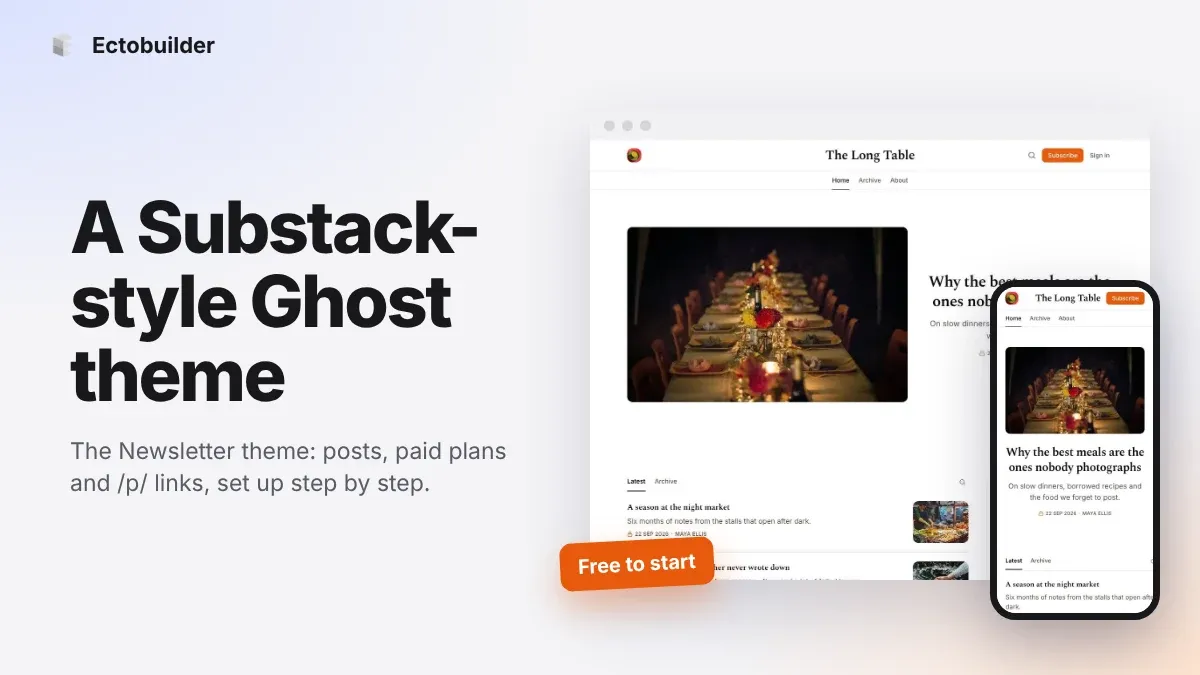
Newsletter Theme for Ghost: A Substack-Style Site With Paid Plans, /p/ Links and Comments
A step-by-step guide to the Newsletter theme for Ghost: a Substack-style homepage and reading page, then newsletters, paid plans, /p/ addresses, Plans, Welcome and About pages, comments and recommendations.