
How to Add a Dark Mode Toggle to Your Ghost Site
Ghost themes can be light or dark, but visitors can't choose. Here's how a dark mode switch works, what it takes to build one by hand, and how to add one to your header or footer in Ectobuilder, with a dark palette made from your brand colours.

Michal Wlosik
· 5 min read
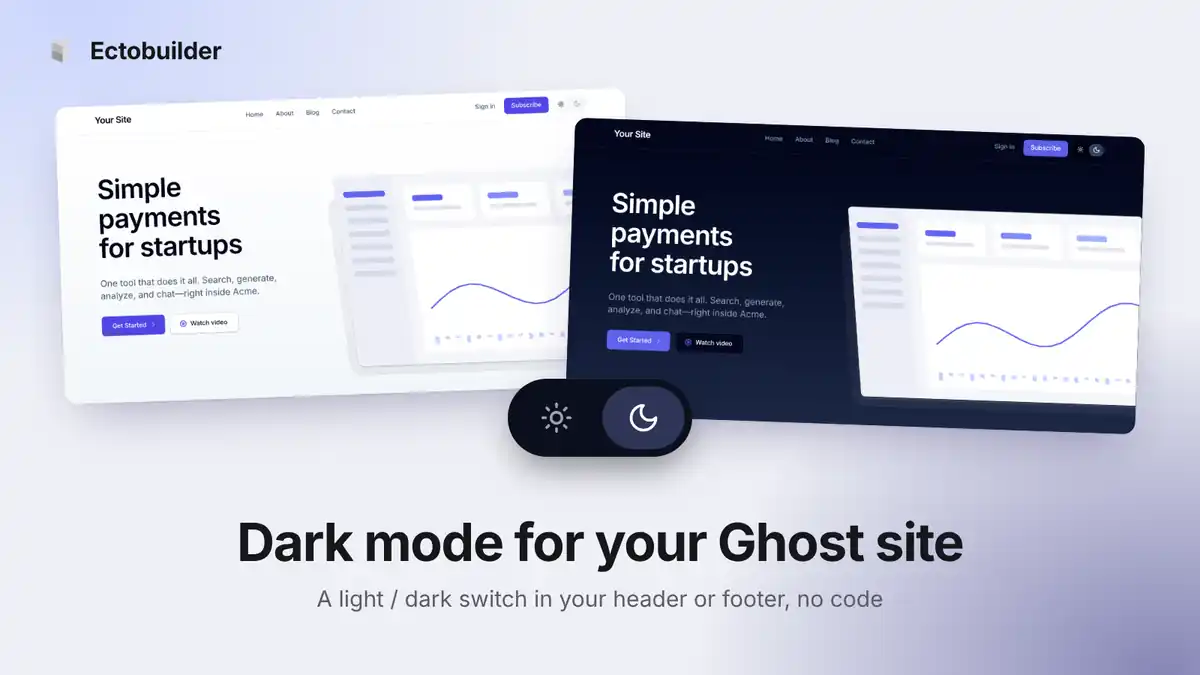
Plenty of readers prefer dark mode, especially in the evening and on phones. Others find light text on a dark background harder to read for long articles. The friendly answer is to let each visitor choose, with a small sun and moon switch in your header or footer.
Ghost doesn't include one. This guide explains how a dark mode toggle works, what it takes to add one to a Ghost theme by hand, and how to switch one on in an Ectobuilder theme without code.
Does Ghost have dark mode?
Partly. Some Ghost themes, including the official Casper theme, have a colour scheme setting in Ghost Admin: light, dark, or follow the visitor's device. That's a choice you make for the whole site. Visitors still can't flip it themselves, and anyone whose device is set to dark gets dark whether they like it on your site or not.
A toggle fixes that. Readers pick light or dark, and the site remembers their choice the next time they visit.
How a dark mode toggle works
Under the hood, a good toggle has four parts:
- Two sets of colours. The theme defines its colours as CSS variables, with a second set that applies when a
darkclass is on the page. - A switch. A button that adds or removes that class, and tells screen readers whether it's on.
- Memory. The choice is saved in the browser's local storage, so it sticks between pages and visits.
- No flash. A tiny script at the very top of the page applies the saved choice before anything is drawn. Without it, a dark-mode reader sees a white flash on every page load.
Optionally, first-time visitors can start in whatever their device is set to, using the prefers-color-scheme media query.
Adding a dark mode toggle to Ghost with code
By hand, you'd add a button to default.hbs, write the dark colours for every part of the theme, add the switching script to your theme's JavaScript, and put the no-flash script in the <head> before the stylesheet. Then you'd go through every template looking for hard-coded colours, borders, shadows and pictures that don't work on a dark background.
The script is the easy part. The real work is the dark design itself: making every section readable, keeping enough contrast and keeping your brand recognisable. That's where most hand-made dark modes fall down.
Adding a dark mode toggle with Ectobuilder (no code)
In Ectobuilder, the switch is a single setting, and the dark design comes with it.
1. Turn on the dark mode switch
Open your theme, go to Settings → Features, and find Dark mode switch. Choose where it goes: Header, Footer or Both.
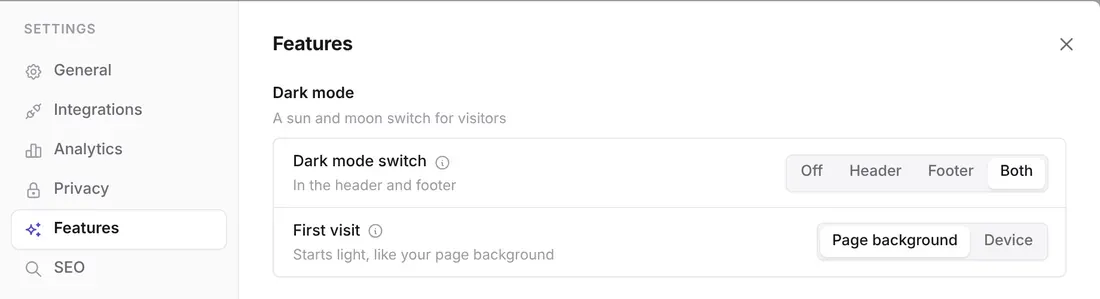
The switch appears in the editor straight away, in the right place:
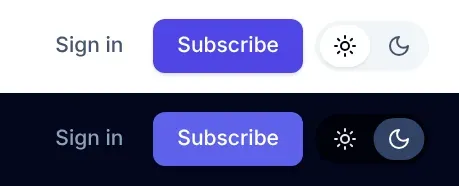
- In the header, it sits next to your header buttons, like Sign in and Subscribe. When the menu button sits with them, it goes just before it, so phone visitors get it too.
- In the footer, it sits on the bottom row, next to your copyright line.
2. Choose what first-time visitors see
With the switch on, a second setting appears: First visit.
- Page background (default): new visitors see your site the way you designed it, light or dark, until they use the switch.
- Device: new visitors start in whatever their phone or computer is set to, light or dark.
Either way, once a visitor uses the switch, their choice wins on every page and every return visit.
3. Deploy
Deploy your theme to Ghost and the switch goes live. There's nothing to add to Ghost's code injection.
A dark palette made from your brand colours
Plain dark grey can make a branded site look generic. With the switch on, Ectobuilder tints the dark backgrounds, cards and form fields with a little of your accent colour, so a purple brand gets a deep navy-purple night mode and a green brand a deep green-black one.
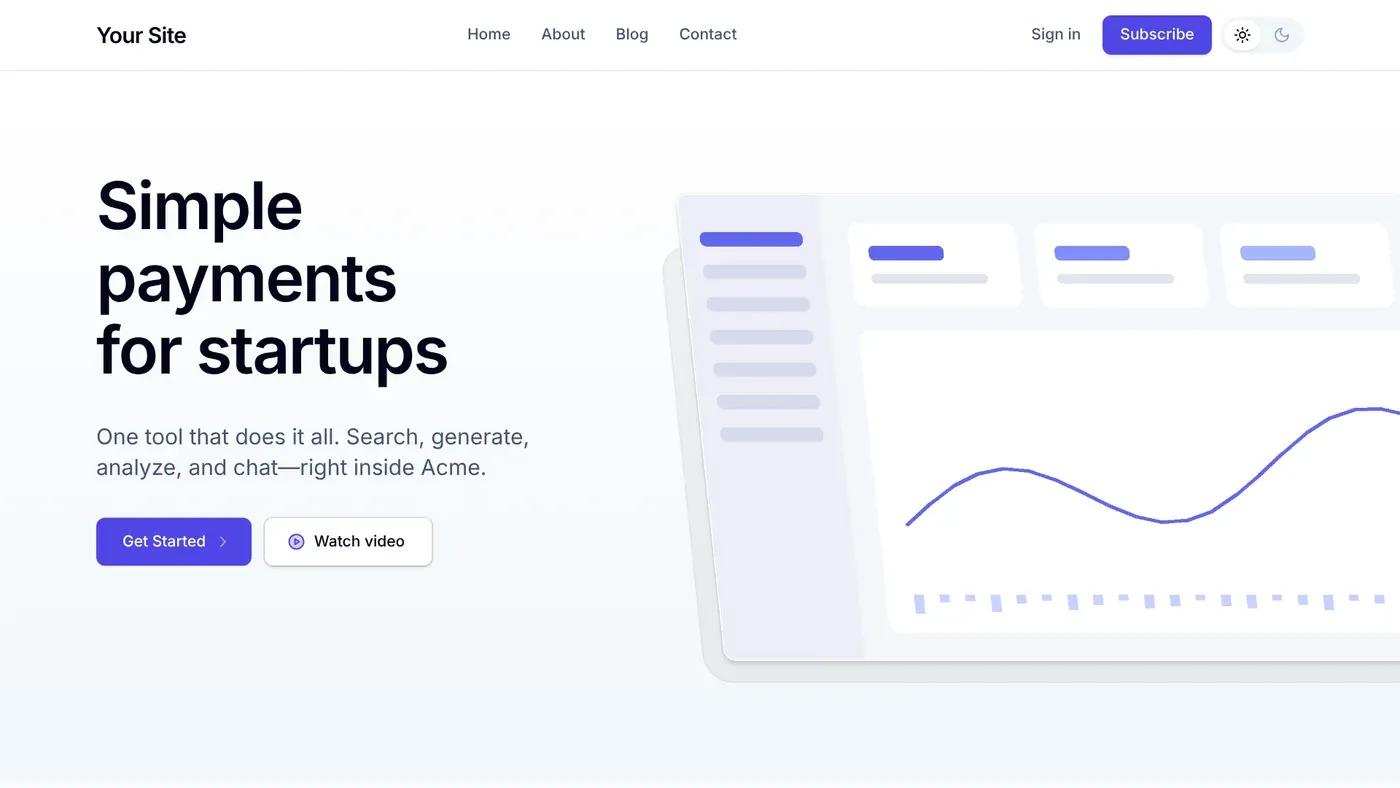
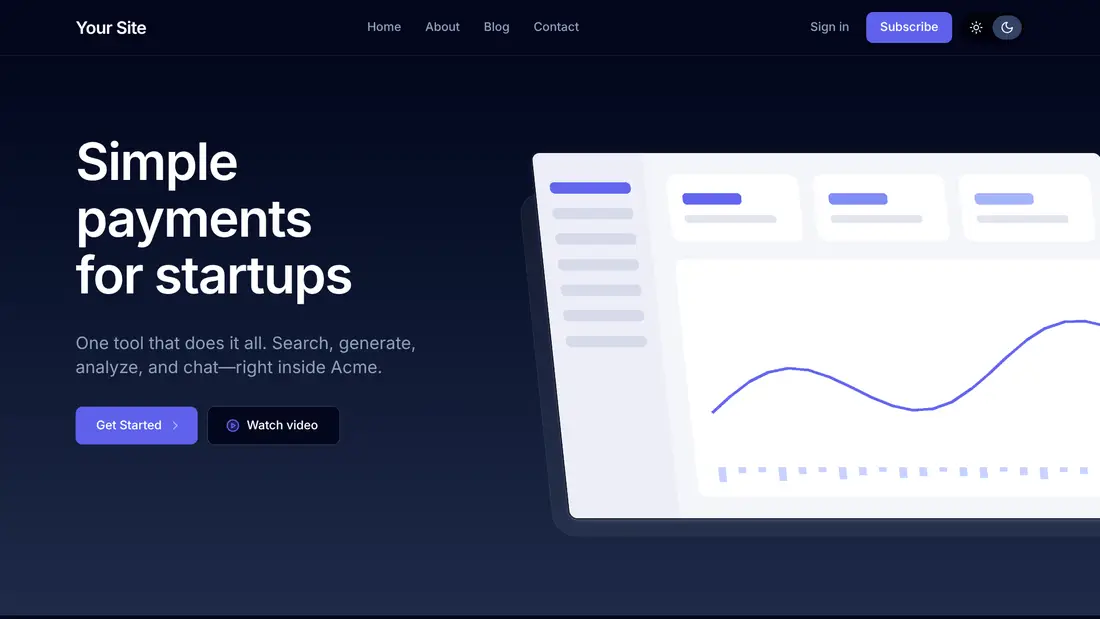
Only the surfaces take the tint. Text stays near white and secondary text keeps its contrast, so long posts stay readable. Your buttons and links use a lighter shade of your accent so they stand out against the dark background.

Sections you've already set to dark stay dark in both modes, and the switch itself follows your theme's colours, with a soft grey track in light mode and a deep track with a tinted knob in dark mode.
Light and dark, from one switch.
Design your Ghost theme visually in Ectobuilder, turn on the dark mode switch, and publish to your Ghost site.
Tips for a good dark mode
- Check every page in dark. In the editor, set Style → Colour → Page background to Dark to see how each template looks, then set it back. Look at your homepage, a post, a page and your blog list.
- Use a logo that works on both. A dark logo on a dark header disappears. A transparent PNG or SVG with enough contrast on both backgrounds, or a light outline, avoids that.
- Watch pictures with white backgrounds. Screenshots and product shots on white look like glaring boxes in dark mode. A light grey or transparent background blends in better.
- Don't fight your custom code. Custom code sections keep the colours you give them. Use the theme's colour classes in them if you want them to follow the switch.
- Keep the switch easy to find. The header is where most people look for it. The footer works if your header is already busy.
FAQ
Does the dark mode switch slow my site down?
No. It's a few lines of CSS and JavaScript, with no extra files or requests. The dark colours are already part of your theme's stylesheet.
Will visitors see a white flash when a page loads?
No. The saved choice is applied by a tiny script at the top of the page, before anything is drawn.
Is the switch accessible?
Yes. It's a real button that works with the keyboard, shows a focus ring, and tells screen readers it's a dark mode switch and whether it's on.
My theme is already dark. Can I still add the switch?
Yes. With Page background set to Dark, the site starts dark and the switch offers light mode instead.
Sources
Written by
Founder of Ectobuilder, the AI-powered visual theme editor for Ghost. Indie software builder in Wrocław and co-author of The AdTech Book. I write about Ghost themes, newsletters and building websites with AI.
Comments
Questions or thoughts? Share them below.
Keep reading
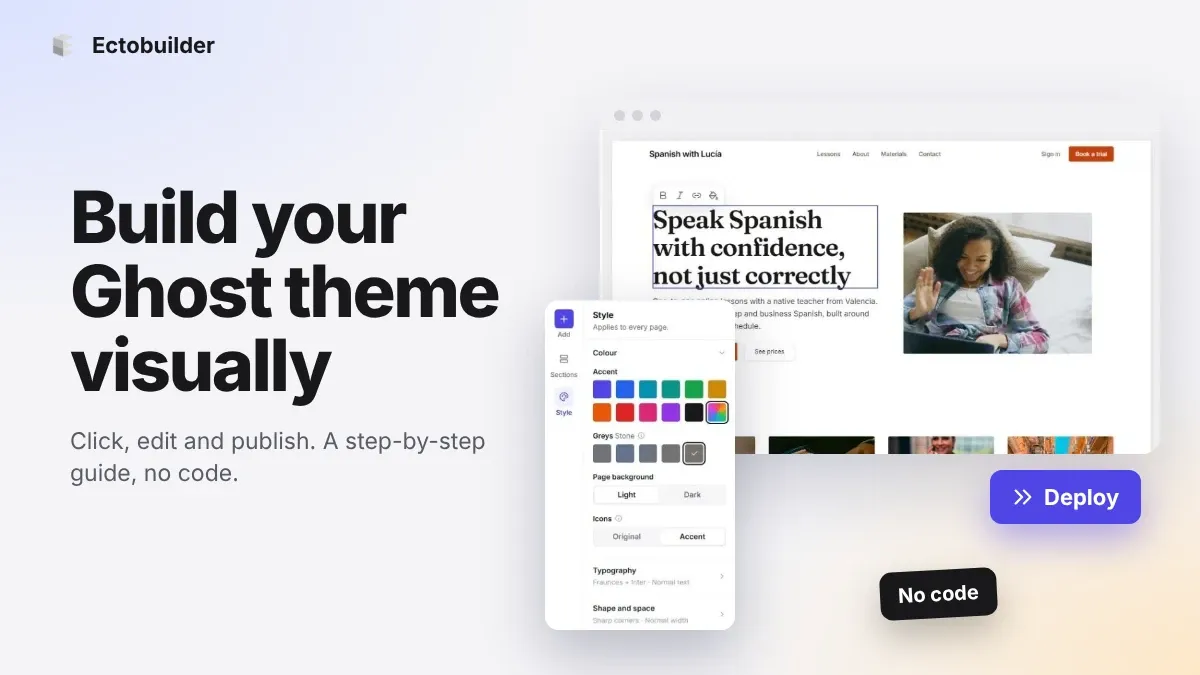
How to Build Your Ghost Theme Visually (Step-by-Step Guide, No Code)
Build a complete Ghost theme without touching code: start from a theme, edit text and pictures in place, add sections from a library of 270, set colours and fonts, design every page, and publish to Ghost in one click. Step by step, with screenshots.
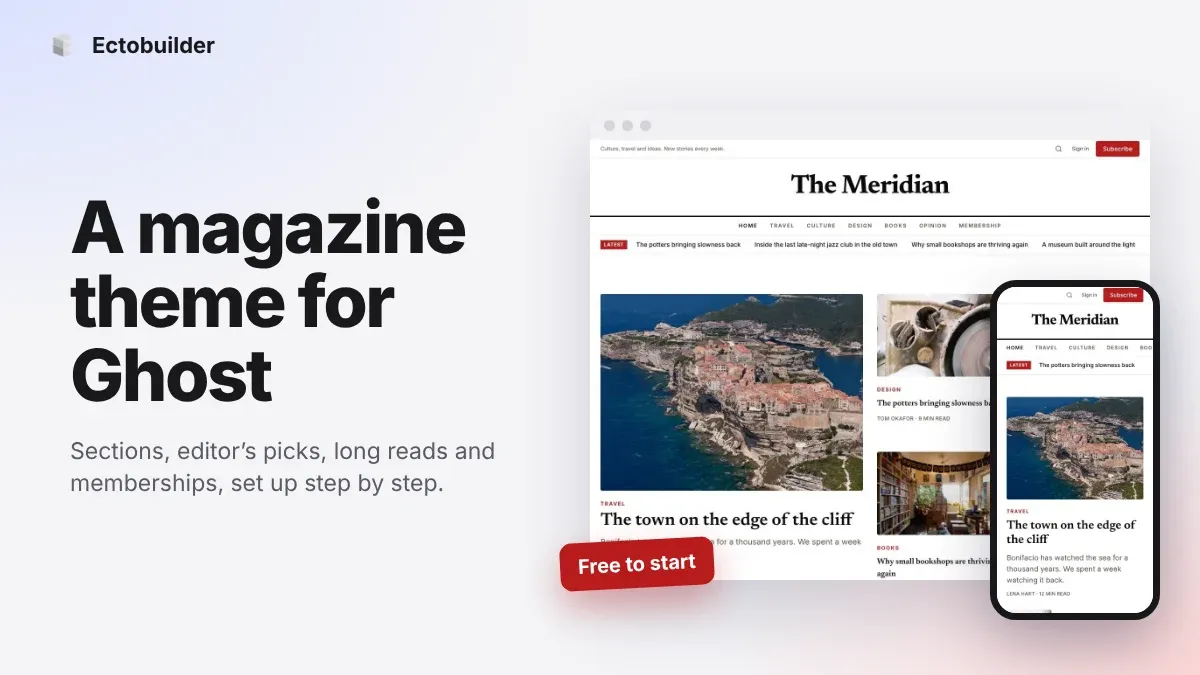
Magazine Theme for Ghost: Sections, Editor's Picks, Long Reads and Memberships
A step-by-step guide to the Magazine theme for Ghost: turn sections into tags, set up the navigation, fill the front page, editor's picks and section fronts, add your writers, sell memberships and send a weekly newsletter.
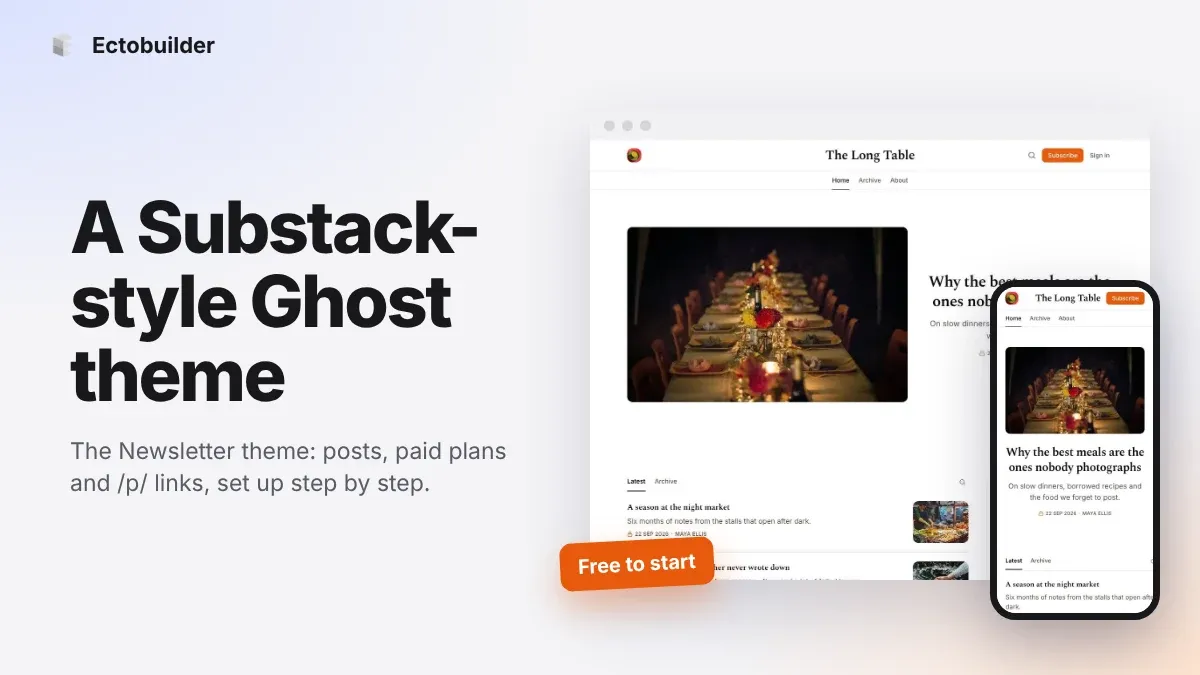
Newsletter Theme for Ghost: A Substack-Style Site With Paid Plans, /p/ Links and Comments
A step-by-step guide to the Newsletter theme for Ghost: a Substack-style homepage and reading page, then newsletters, paid plans, /p/ addresses, Plans, Welcome and About pages, comments and recommendations.