
How to add search and filters to your Ghost blog
Ghost gives you a search popup and one page per tag. Here's how to add a search bar, topic and date filters, and sorting to your blog's post list, without theme code.

Michal Wlosik
· 6 min read
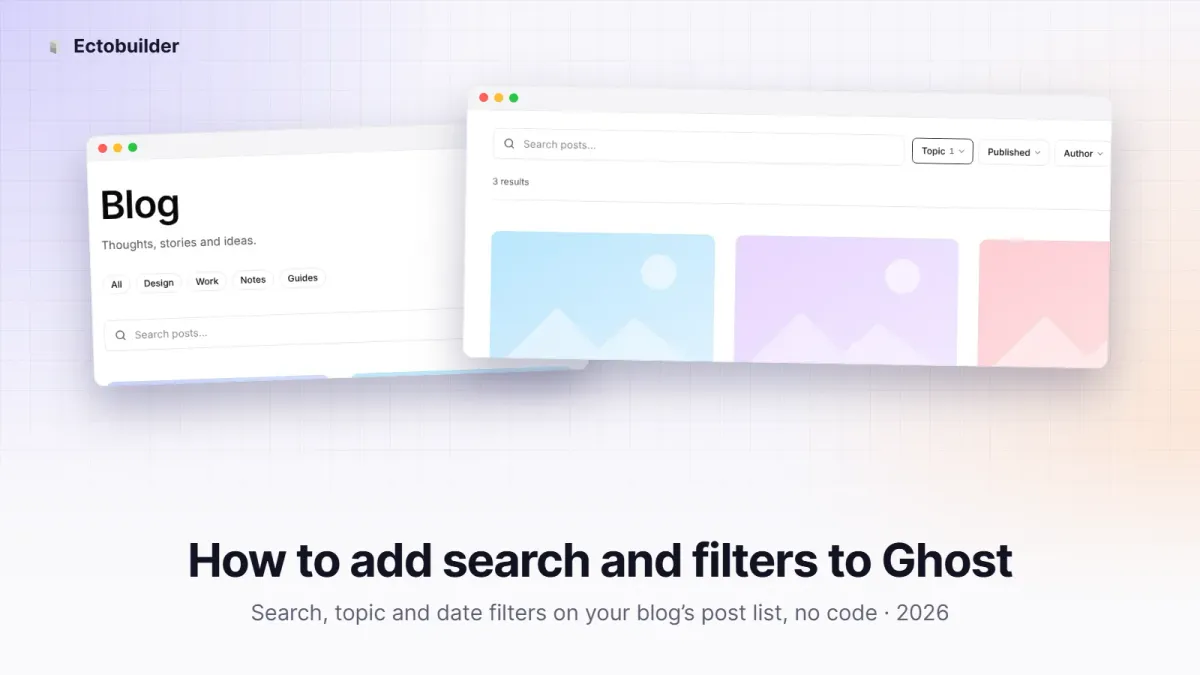
A Ghost blog starts with one way to find posts: scroll. Ghost adds a search popup and a page for each tag, and that's where it stops. A reader can't ask for "posts tagged Work and Process from the last six months, newest first".
This guide shows what Ghost's own search and filtering can and can't do, and how to add a search bar and filters on top of your blog's post list with Ectobuilder, without writing theme code.
What Ghost gives you out of the box
- Search is a popup. Ghost's built-in search opens over the page and lists matching posts, tags and authors. It's fast, but it isn't part of your blog page: readers can't see results in the post list, narrow them down or sort them.
- Tag pages show one tag at a time.
/tag/work/lists posts tagged Work. There's no page for Work and Process, or for Work or Process. - No filters by date or author. Ghost has author pages, but nothing that combines an author with a tag or a date range.
- Anything more means theme code. Ghost's Content API can filter posts every which way, but using it from a theme means writing JavaScript and Handlebars. And routes.yaml collections are fixed lists you set up in advance, not something readers can change.
What Ectobuilder adds
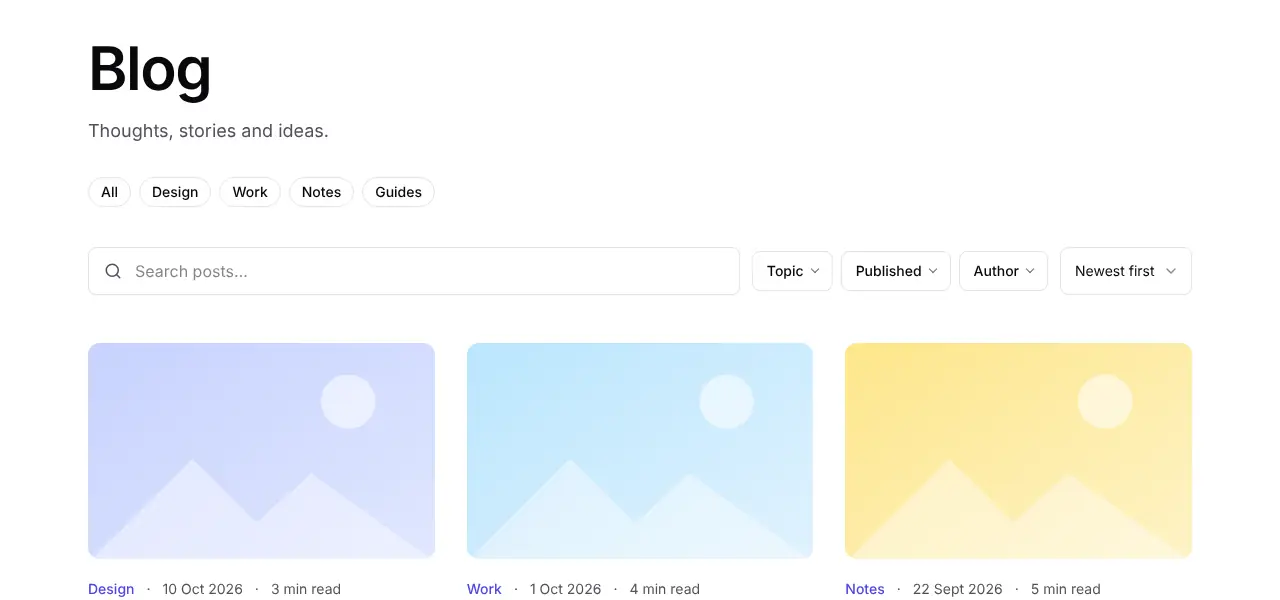
Every Blog design section in Ectobuilder (the post lists on your blog, tag and author pages) can show a bar above the list with:
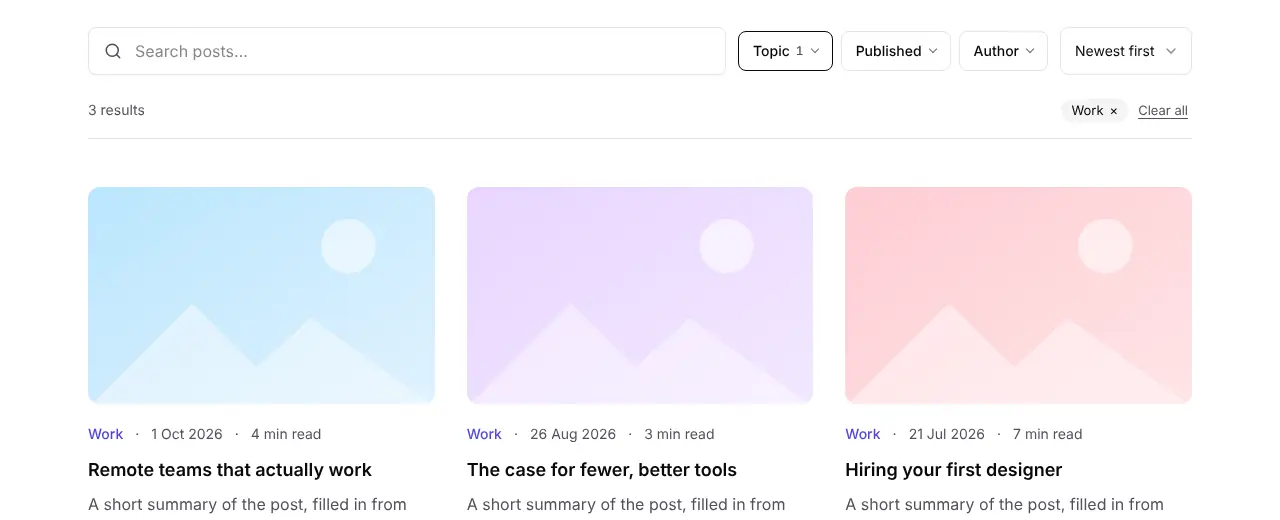
- A search box that filters as you type, by title, excerpt, tags and authors.
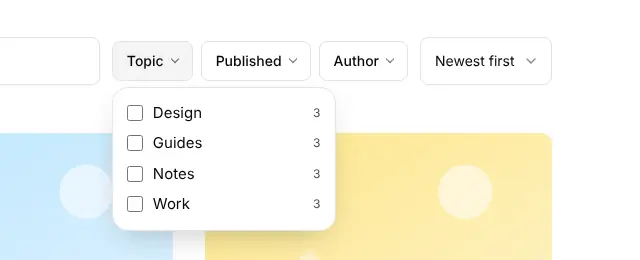
- Filters: topics (your tags, as checkboxes, with the number of posts for each) and the date published.
- Sorting: newest, oldest, A to Z, or best match while searching.
Your blog page doesn't change underneath. Ghost still renders the normal list and its pages. The search results appear in place of the list only while a reader is searching or filtering, and the list comes back when they clear it.

Don't have an Ectobuilder theme yet? Pick one from the gallery or start from scratch, change it by clicking, and publish it to your Ghost site. Blog search and filters come built in.
Step 1: Select the Blog design section
Open your theme in Ectobuilder and go to the page that lists posts: Blog (Ghost's index page), or a tag or author page. Click the post list to select its Blog design section. Its settings open in the panel on the right.
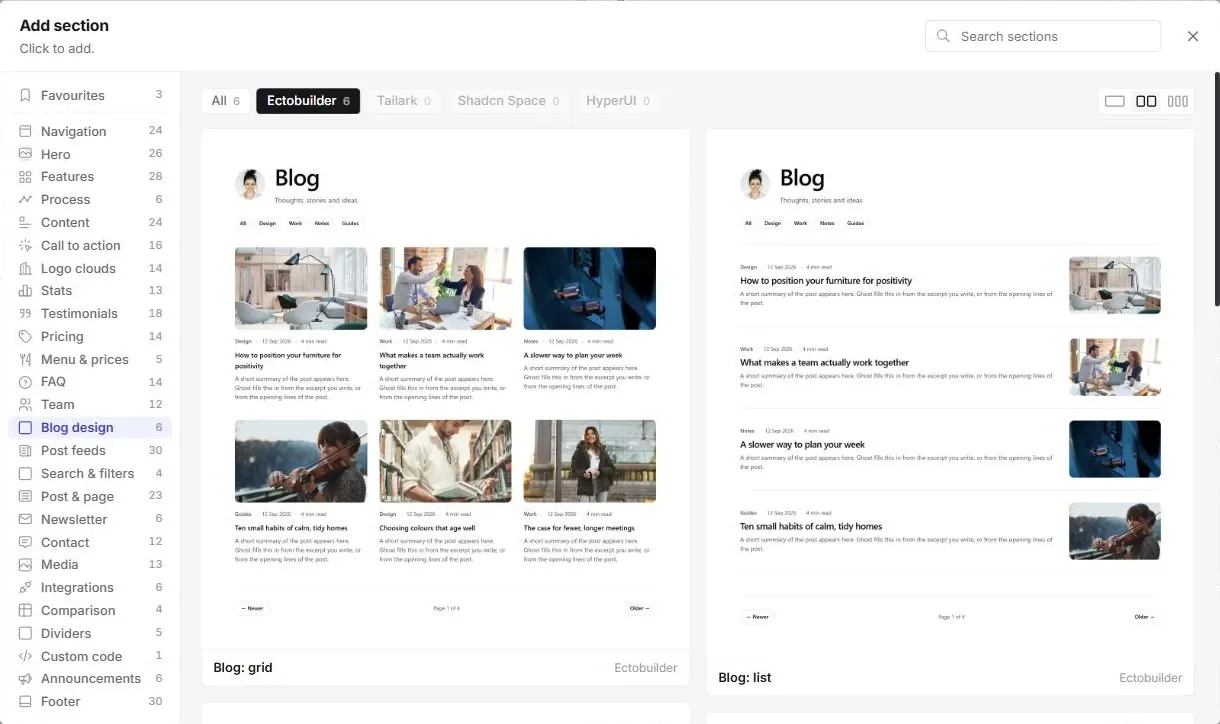
No post list on the page yet? Open Add section → Blog design and pick one, such as Blog: grid or Blog: list. Blog design sections work on Blog, Tag and Author pages.
Step 2: Turn on search
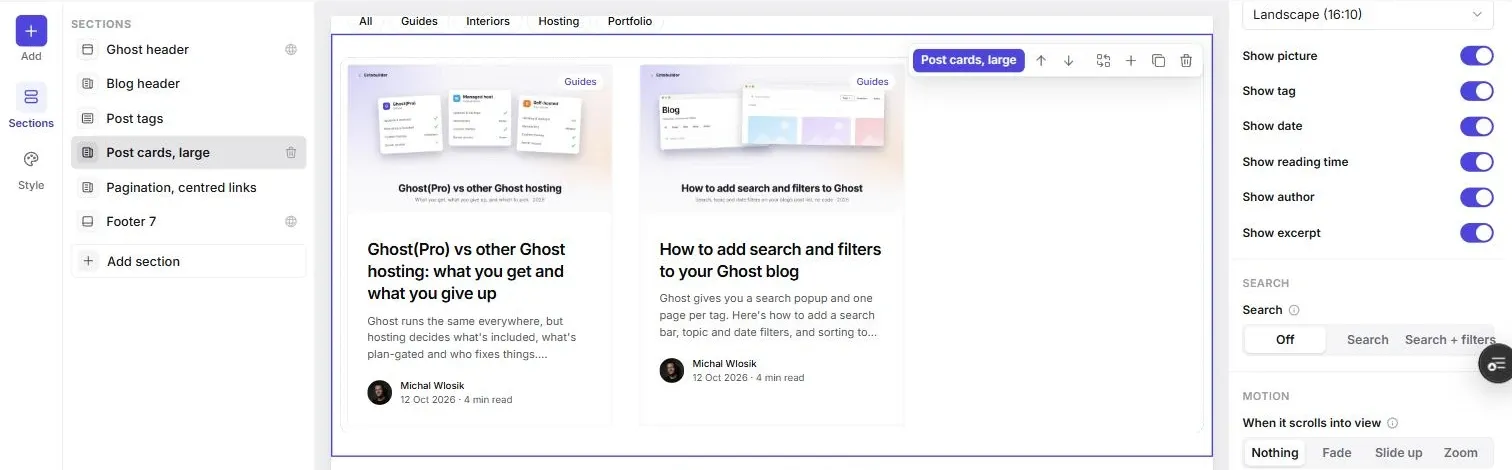
Find the Search setting and pick one of:
- Off: just the post list, as Ghost renders it.
- Search: a search box and a sort menu.
- Search + filters: the search box, sorting, and the Topic and Published filters.
The bar appears above the list right away, as wide as the post grid below it.
Step 3: Check the filters
Topic lists your Ghost tags, each with the number of posts that use it. Readers can tick several: a post shows if it has any of the ticked tags. Internal tags (the ones starting with #) never appear. Published narrows posts to the past 30 days or the past year.
On tag and author pages, search and filters only cover that page's posts. Searching on /tag/design/ finds design posts, not the whole blog.
Step 4: Deploy and test
Click Deploy. Then open your blog and try it:
- Type a word from a post title. Results replace the list as you type.
- Open Topic, tick a tag, and click anywhere to close the menu. Active filters show as chips you can remove one by one.
- Clear the search and filters. The normal list and its page links come back.
New posts show up in search as soon as they're published. There's nothing to rebuild or redeploy.
What it means for SEO
Search and filters don't hide anything from search engines, but they don't create new pages for them either:
- Your post list stays crawlable. Ghost still renders the blog, tag and author pages and their page links on the server, exactly as before. Search engines see every post.
- Results aren't indexed. Search results and filtered lists are built in the reader's browser, so search engines don't see them. That's fine: your tag pages remain the pages that rank for a topic, so give them a description and a meta title in Ghost Admin → Tags.
- Filtered views aren't separate pages. The address keeps the search and filters (like
/blog/?topic=design), so readers can share a filtered view. But it's still the same blog page, and the results only appear in the browser. Don't use filtered links as landing pages or in your menu; link to tag pages instead. - Search reads summaries, not whole posts. It matches titles, excerpts, tags and authors, so a good custom excerpt makes a post easier to find.
Tips
- Tidy your tags first. The Topic filter lists every public tag. Merge near-duplicates and turn helper tags into internal ones (#name) so the list stays short.
- Write excerpts. Search reads the excerpt, so a specific one helps readers find a post by what it's about, not only by its title.
- Use Search + filters on big blogs. For a few dozen posts, the search box alone is enough. Filters earn their place once readers can't scan the whole list.
- Keep Ghost's search popup if you like it. The two don't clash: the popup searches the whole site from any page, the bar works on the list in front of you.
Build your Ghost theme without code. Blog search and filters, headers with dropdown menus, contact forms and more. Start free and only pay when you publish.
FAQ
Does it search the full text of my posts?
No. It matches titles, excerpts, tags and author names. That keeps it fast enough to filter as readers type.
Do I need to change routes.yaml or install anything?
No. It's part of the theme. Turn it on in the Blog design section and deploy.
Does it slow the page down?
The page loads as before. The post data for search loads afterwards, when the browser is idle, so it doesn't hold up what readers see first.
Does it work with members-only posts?
They appear in results like any post, with their title and excerpt. Ghost still asks readers to sign in when they open one.
Want a menu that's as easy to find your way around? See how to add dropdown menus to Ghost.
Written by
Founder of Ectobuilder, the AI-powered visual theme editor for Ghost. Indie software builder in Wrocław and co-author of The AdTech Book. I write about Ghost themes, newsletters and building websites with AI.
Comments
Questions or thoughts? Share them below.
Keep reading
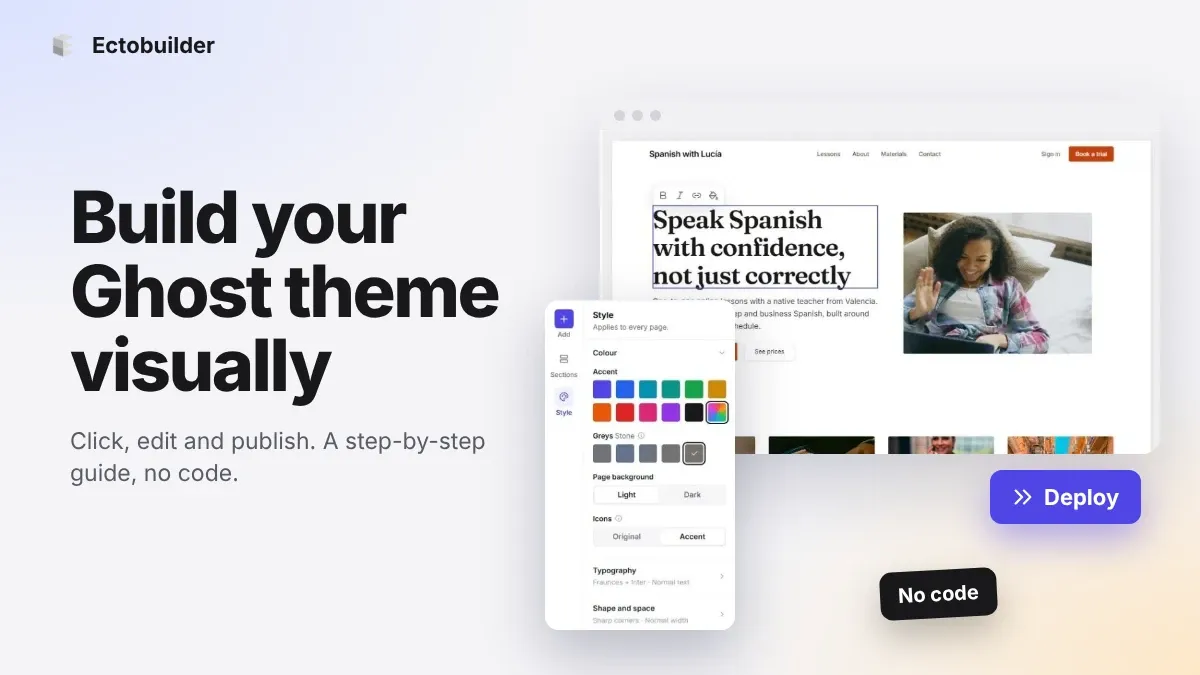
How to Build Your Ghost Theme Visually (Step-by-Step Guide, No Code)
Build a complete Ghost theme without touching code: start from a theme, edit text and pictures in place, add sections from a library of 270, set colours and fonts, design every page, and publish to Ghost in one click. Step by step, with screenshots.
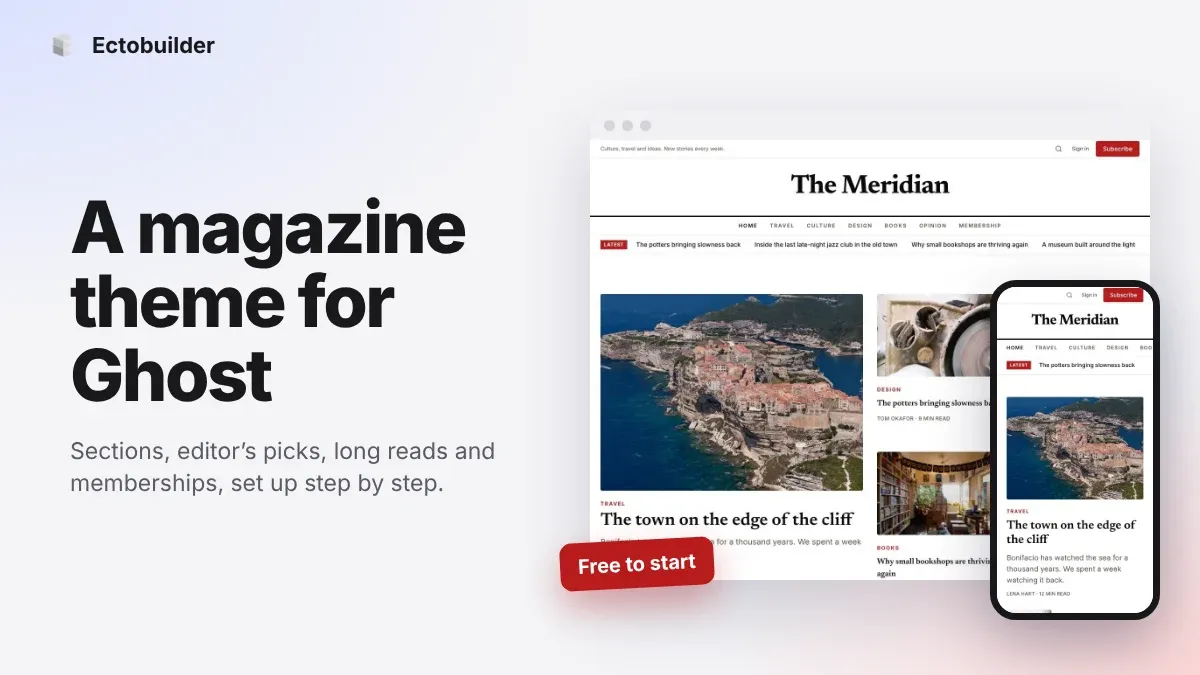
Magazine Theme for Ghost: Sections, Editor's Picks, Long Reads and Memberships
A step-by-step guide to the Magazine theme for Ghost: turn sections into tags, set up the navigation, fill the front page, editor's picks and section fronts, add your writers, sell memberships and send a weekly newsletter.
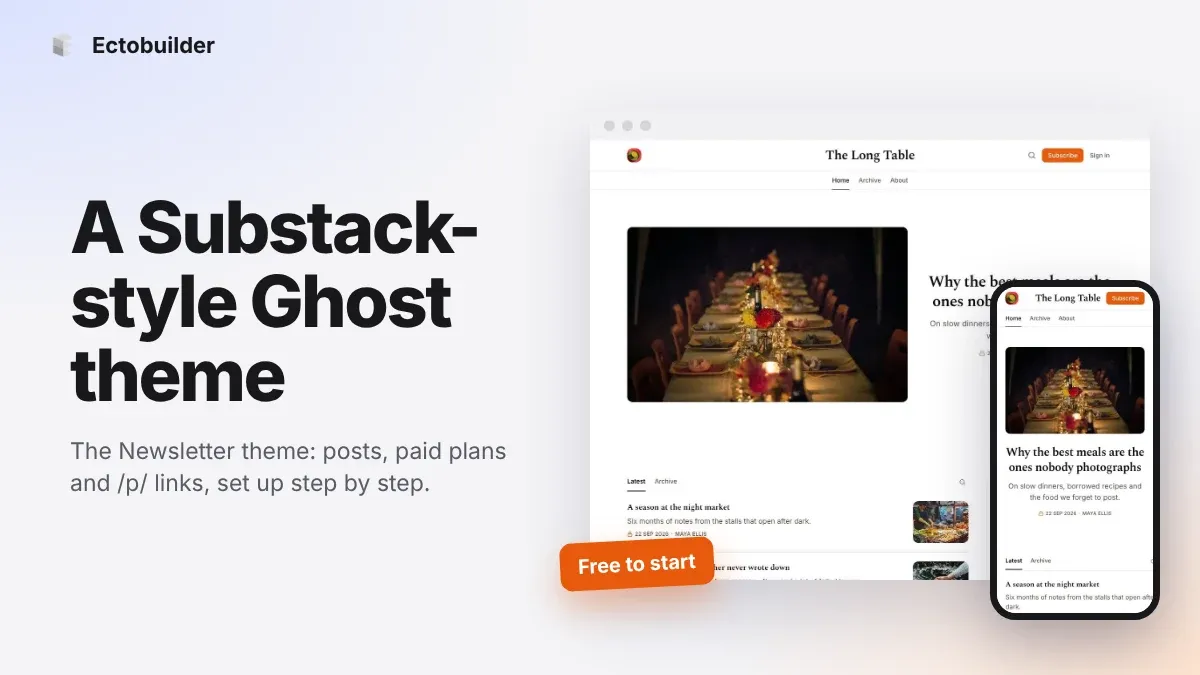
Newsletter Theme for Ghost: A Substack-Style Site With Paid Plans, /p/ Links and Comments
A step-by-step guide to the Newsletter theme for Ghost: a Substack-style homepage and reading page, then newsletters, paid plans, /p/ addresses, Plans, Welcome and About pages, comments and recommendations.