
How to Add Dropdown Menus to Ghost (Without Code)
Ghost's navigation is a flat list, so most themes have no dropdowns. Here's how to add list or wide dropdown menus to your Ghost site with Ectobuilder, managed from Ghost's own Navigation settings.

Michal Wlosik
· 5 min read
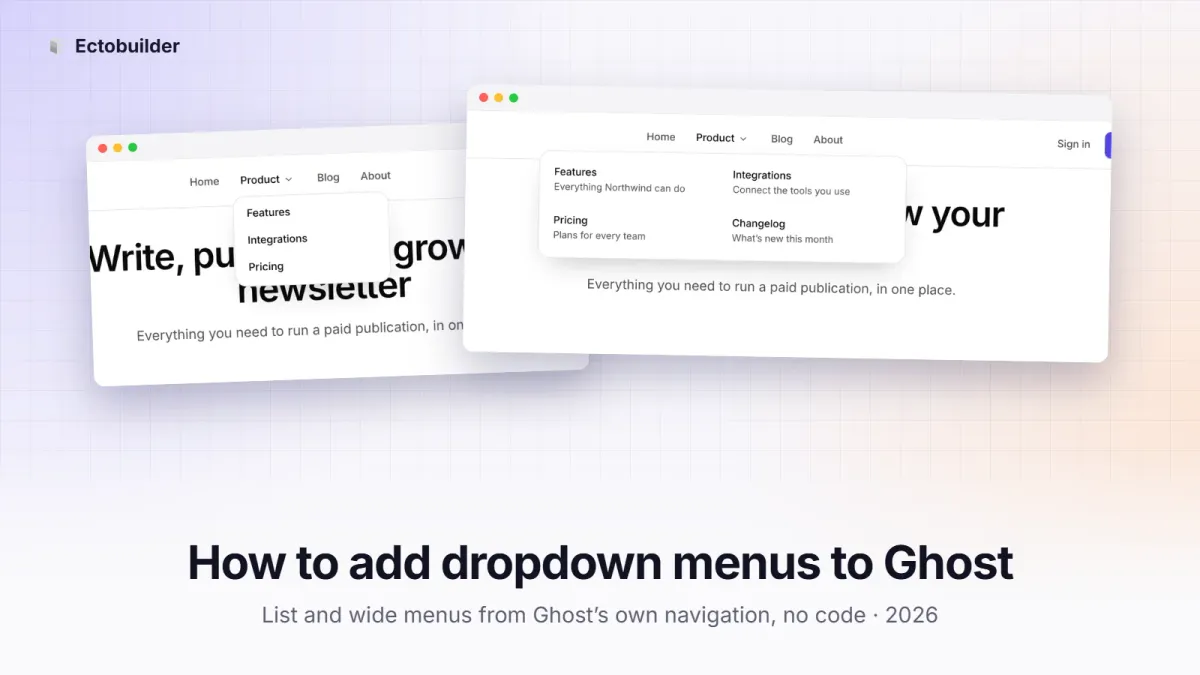
Ghost's navigation is a flat list: a label and a link, one after another. There's no way in Ghost Admin to put links under other links, so most Ghost themes have no dropdown menus at all.
You can still have them. Ghost themes built with Ectobuilder read a simple naming rule: start a link's label with a dash and it goes under the link above it. This guide shows how to set it up, from choosing the header to checking it on a phone. It takes about five minutes and needs no code.
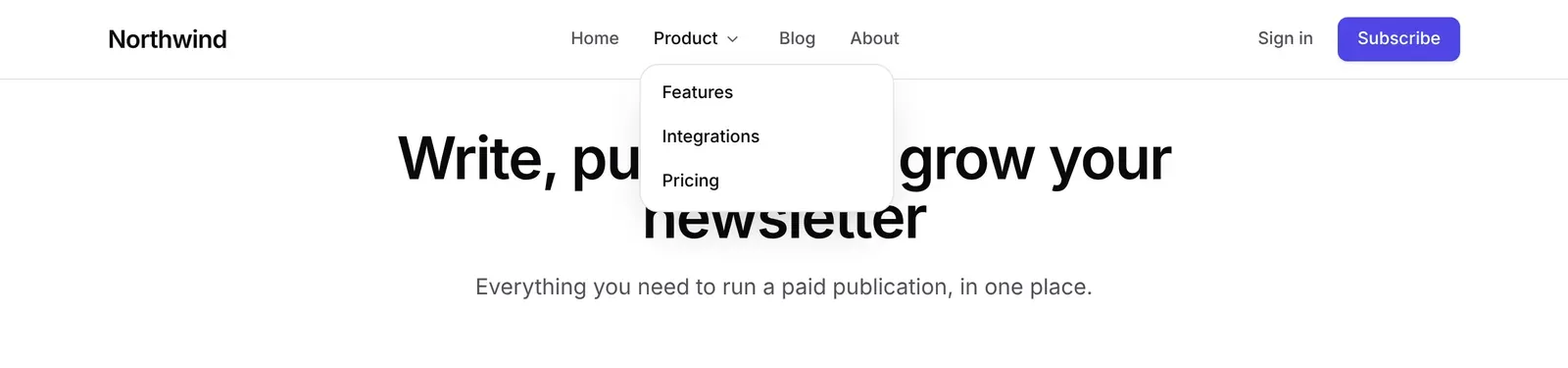
Why Ghost has no dropdown menus
Ghost keeps its settings simple. Under Settings → Navigation you get two lists of links, primary and secondary, and each link has only a label and an address. The theme decides how they look.
That leaves dropdowns to the theme, and a theme only has the flat list to work with. The common solution, used by several Ghost themes, is a naming rule: a link whose label starts with a dash belongs to the link above it. The theme's script then groups the links into menus when the page loads. Ectobuilder uses the same rule, so you manage everything from Ghost's own navigation settings.
Step 1: Choose a header and the menu style
Every header in Ectobuilder that shows Ghost's navigation supports dropdowns, including the one your theme already has. If you'd like a header made for them, add one from the library: open Add section → Navigation and pick Ghost header with menus or Ghost header with wide menus. Hover over Product in the editor to see the sample menu.
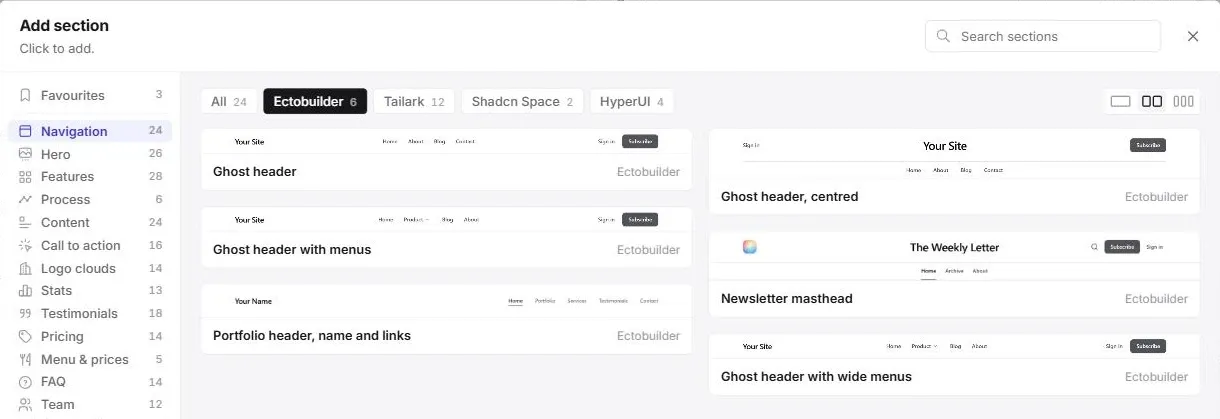
Then select the header and find Dropdowns in its settings:
- List: a simple column of links. This is the default.
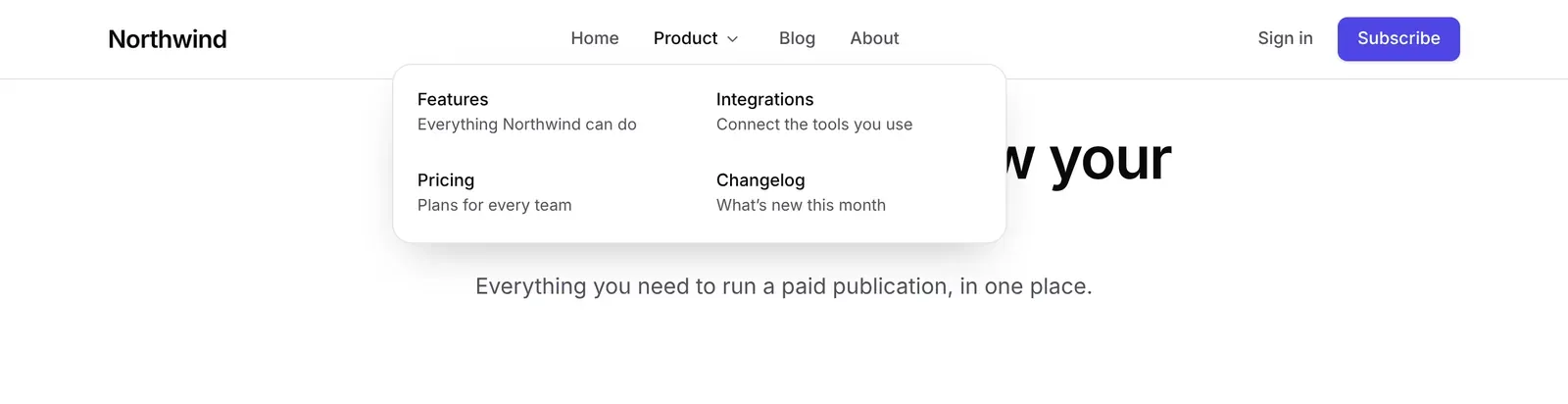
- Wide: a two-column panel where each link can have a short description underneath. Good for product or service pages.
- Off: no menus. Dashed links show as normal links, without the dash.
Don't have an Ectobuilder theme yet? Pick one from the gallery or start from scratch, change it by clicking, and publish it to your Ghost site. Dropdown menus come built in.
Step 2: Add the links in Ghost Admin
In Ghost Admin, open Settings → Navigation. In the primary navigation, add the menu's parent link, then the links that go under it straight after, each label starting with a dash:
| Label | URL | Shows as |
|---|---|---|
Home | / | A normal link |
Product | # | The menu's title |
- Features | /features/ | Under Product |
- Integrations | /integrations/ | Under Product |
- Pricing | /pricing/ | Under Product |
Blog | /blog/ | A normal link |
About | /about/ | A normal link |
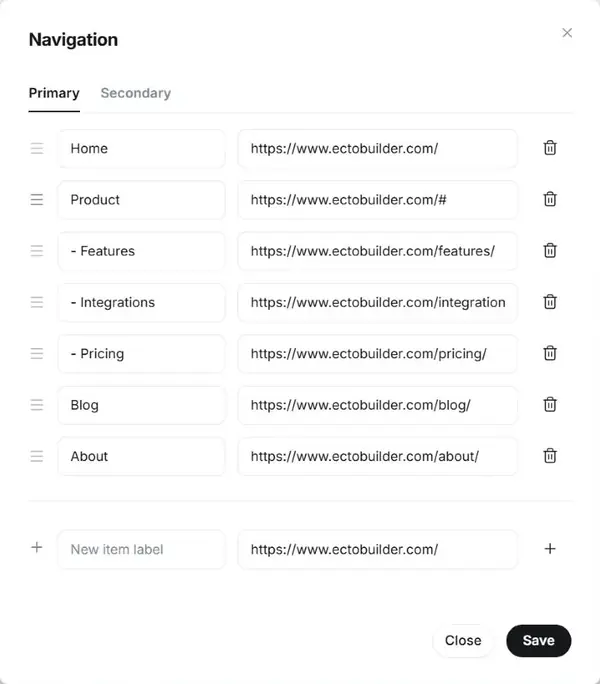
Click Save. A few things to know:
- The dash goes first. A space after it is optional:
-Pricingand- Pricingboth work. - A parent can go somewhere or nowhere. With
#as its URL, clicking it opens the menu. With a real address, clicking it opens that page, and the small arrow next to it opens the menu. - Descriptions are for wide menus. Add a vertical bar and the text after the label:
- Pricing | Plans for every team. List menus show only the label. - One level only. A menu can't contain another menu. Keep each one to between three and seven links.
Step 3: Deploy and check
Back in Ectobuilder, click Deploy. You only need to deploy once: after that, any menu changes you make in Ghost's Navigation settings show on your site straight away.
Open your site and hover over the parent link. The menu opens on hover or click, and closes when you click elsewhere or press Escape. It also works with the keyboard: tab to the arrow and press Enter.
On phones
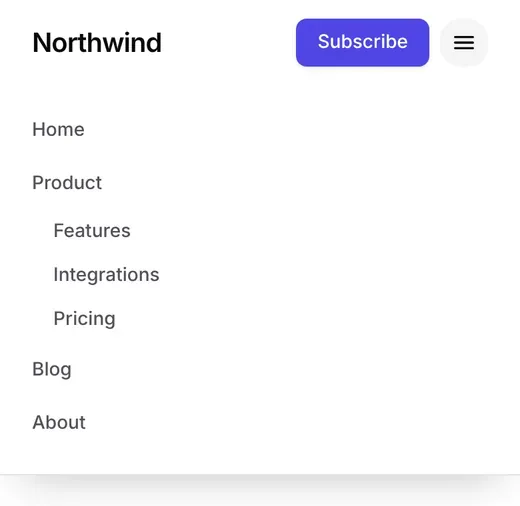
On a phone there's no room for a menu that drops down, so the links appear inside the header's menu button instead, indented under their parent and always open. Nothing to set up: it uses the same links.
Tips for a good menu
- Name the parent for what's inside. "Product", "Services" or "Resources" tells readers what they'll find; "More" doesn't.
- Keep the important pages on top. Readers who don't open menus should still find your main pages in one click.
- Use the footer for the rest. The footer's links (Ghost's secondary navigation) never become menus, so it's the place for legal pages and less-visited links.
- Check the order. A dashed link always goes under the nearest normal link above it, so reordering links in Ghost can move them into another menu.
Build your Ghost theme without code. Headers with dropdown menus, search and filters for your blog, contact forms and more. Start free and only pay if you're happy with it.
Frequently asked questions
Does this work with any Ghost theme?
Only with themes that read the dash rule. Ghost's default themes, Source and Casper, don't: they show the dashed links as normal links, dash included. Every theme built with Ectobuilder does.
Can I have a menu inside a menu?
No, one level only. Deeper menus are hard to use, especially on phones; a page that lists the links is usually the better choice.
Do dropdown menus hurt SEO?
No. Every link is in the page as a normal link, so search engines find them all. The menu only changes how they're shown.
Do I need to redeploy when I change the menu?
No. Once your theme is deployed, add, remove or reorder links in Ghost's Navigation settings and the menus update on your site straight away. Only switching between List, Wide and Off needs a deploy.
Why does my dashed link show with the dash?
Your site is using a theme that doesn't support the rule, or a theme deployed before menus were added. Deploy your Ectobuilder theme again and reload the page.
Written by
Founder of Ectobuilder, the AI-powered visual theme editor for Ghost. Indie software builder in Wrocław and co-author of The AdTech Book. I write about Ghost themes, newsletters and building websites with AI.
Comments
Questions or thoughts? Share them below.
Keep reading
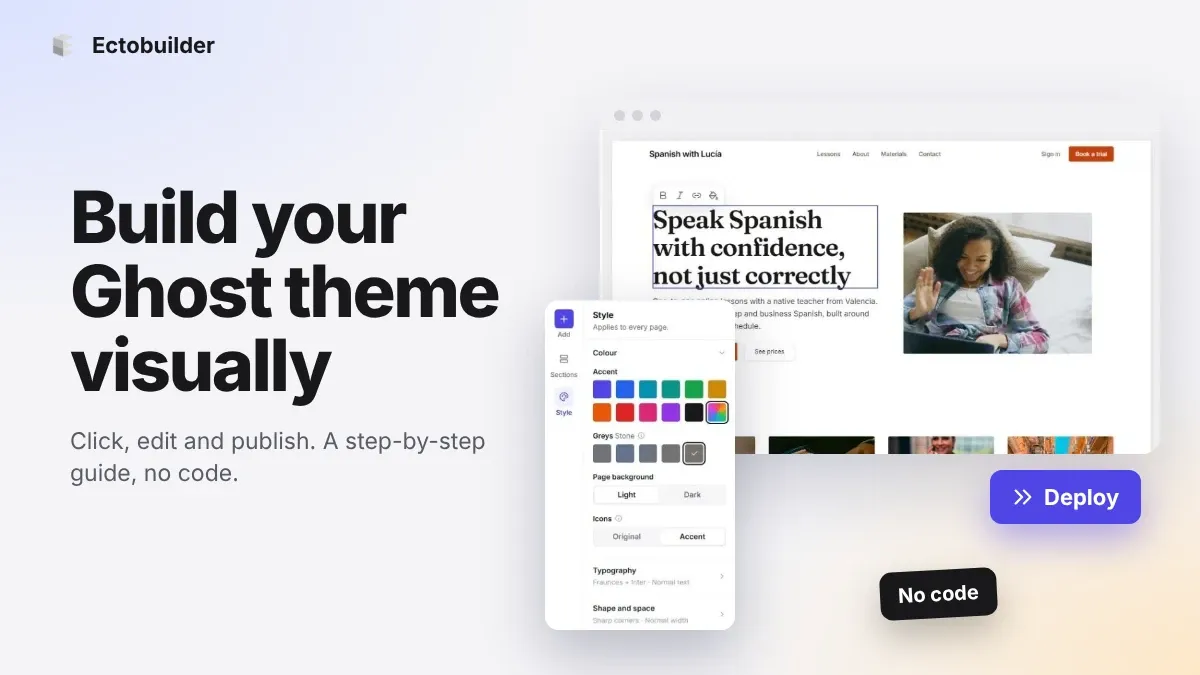
How to Build Your Ghost Theme Visually (Step-by-Step Guide, No Code)
Build a complete Ghost theme without touching code: start from a theme, edit text and pictures in place, add sections from a library of 270, set colours and fonts, design every page, and publish to Ghost in one click. Step by step, with screenshots.
Magazine Theme for Ghost: Sections, Editor's Picks, Long Reads and Memberships
A step-by-step guide to the Magazine theme for Ghost: turn sections into tags, set up the navigation, fill the front page, editor's picks and section fronts, add your writers, sell memberships and send a weekly newsletter.
Newsletter Theme for Ghost: A Substack-Style Site With Paid Plans, /p/ Links and Comments
A step-by-step guide to the Newsletter theme for Ghost: a Substack-style homepage and reading page, then newsletters, paid plans, /p/ addresses, Plans, Welcome and About pages, comments and recommendations.