
How to build Ghost themes with Claude and Ectobuilder
Connect Claude to Ectobuilder in about two minutes, then build and edit your Ghost theme by describing what you want.

Michal Wlosik
· 5 min read
Connect Claude to Ectobuilder once and you can build and edit Ghost themes by describing what you want: Claude picks sections, writes the copy, finds photos and checks its work with screenshots. Setup takes about two minutes, and every change still shows up in the editor for you to adjust by hand.
What you need
- An Ectobuilder account. The Free plan works for building and previewing. Downloading or publishing a theme needs Pro.
- A Claude account on the web, the desktop app or the mobile app. Free plans can add one custom connector; Pro, Max, Team and Enterprise can add more.
- On a Claude Team or Enterprise plan, an Owner adds the connector for the whole organisation under Organization settings → Connectors. You then only do Step 3 onwards.
Step 1: Copy Ectobuilder's connector address
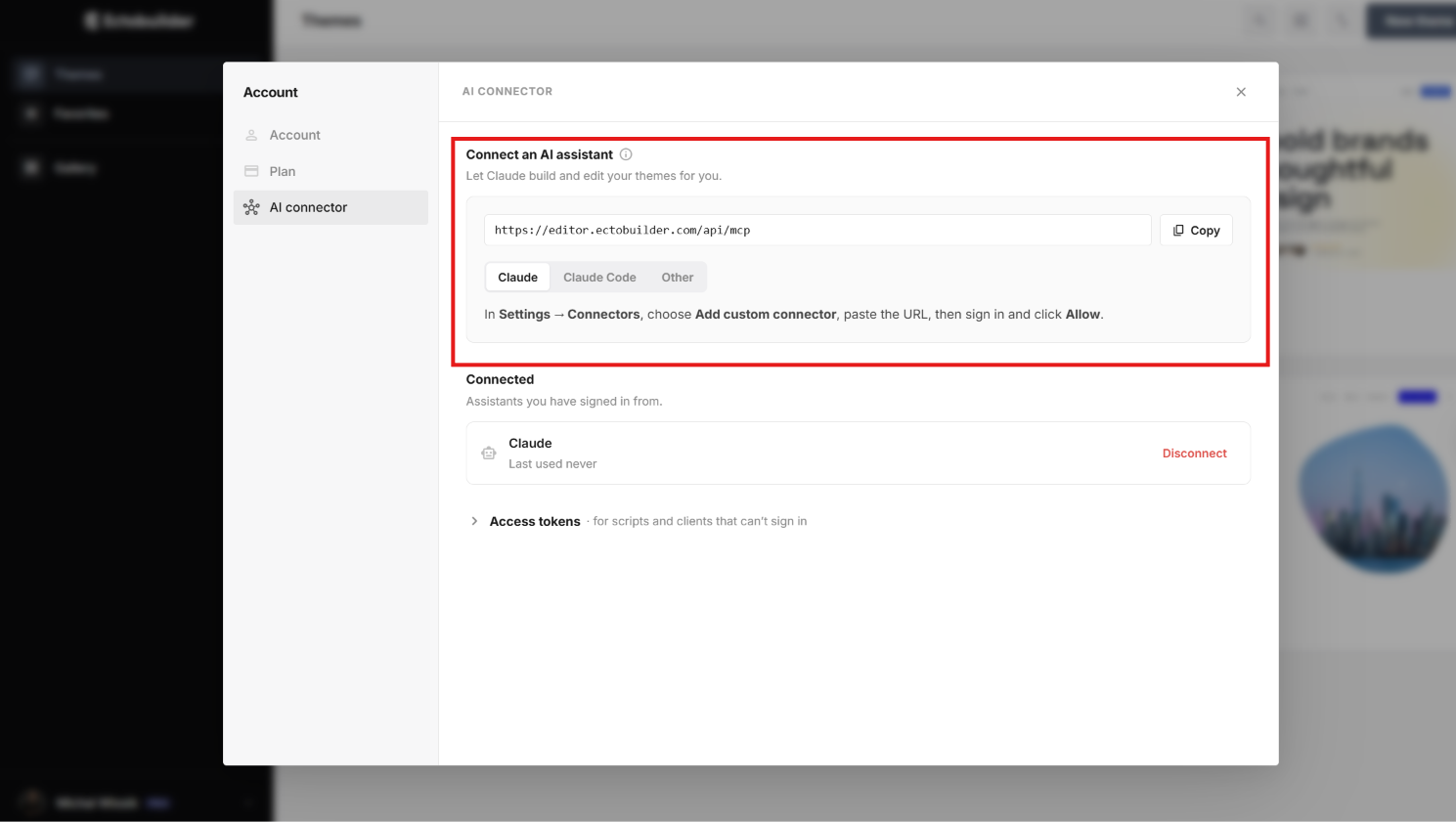
In Ectobuilder, open your account menu and choose AI connector. Click Copy next to the address:
https://editor.ectobuilder.com/api/mcpYou can also copy it from here; it is the same for everyone.
Step 2: Add Ectobuilder as a custom connector in Claude
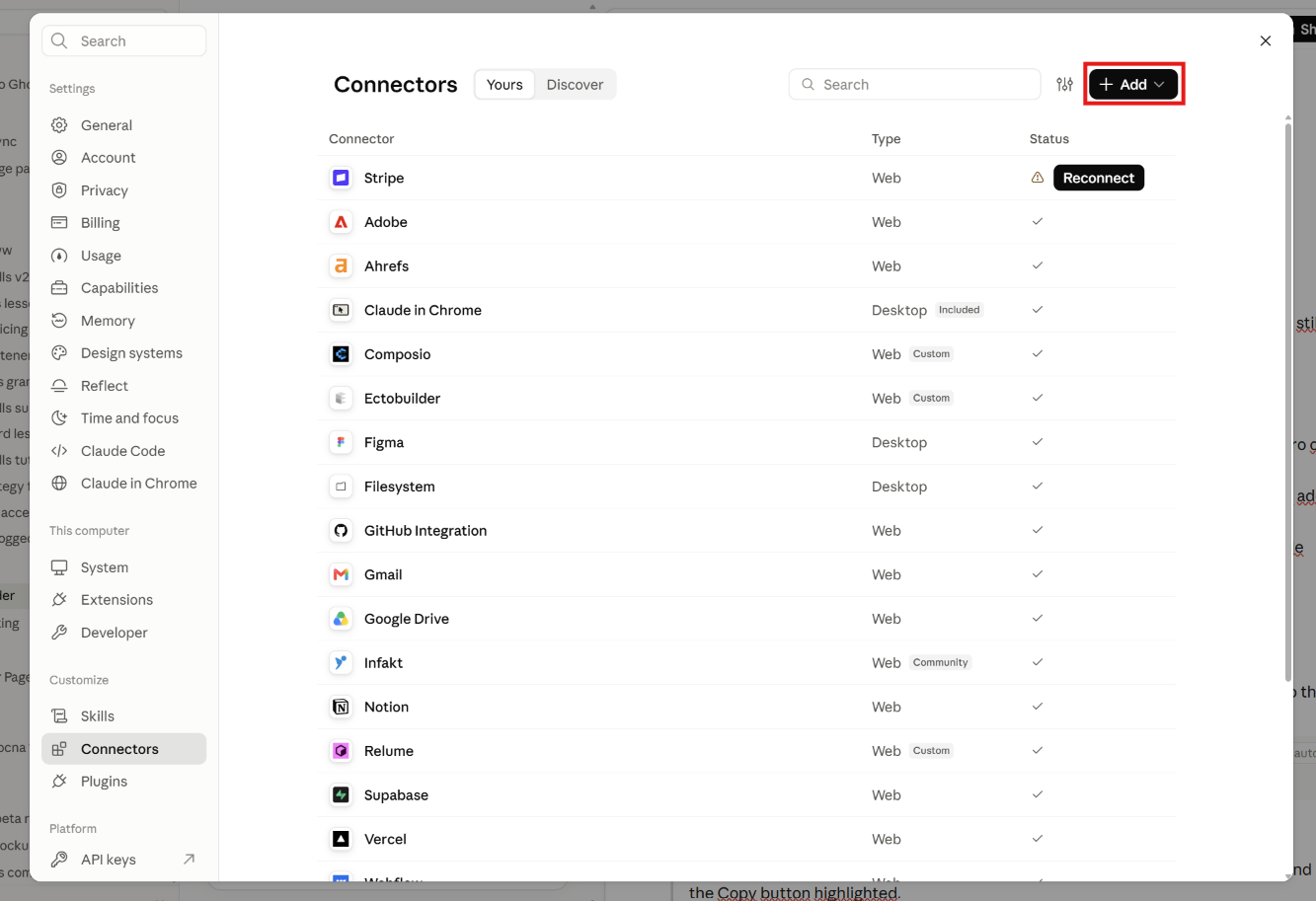
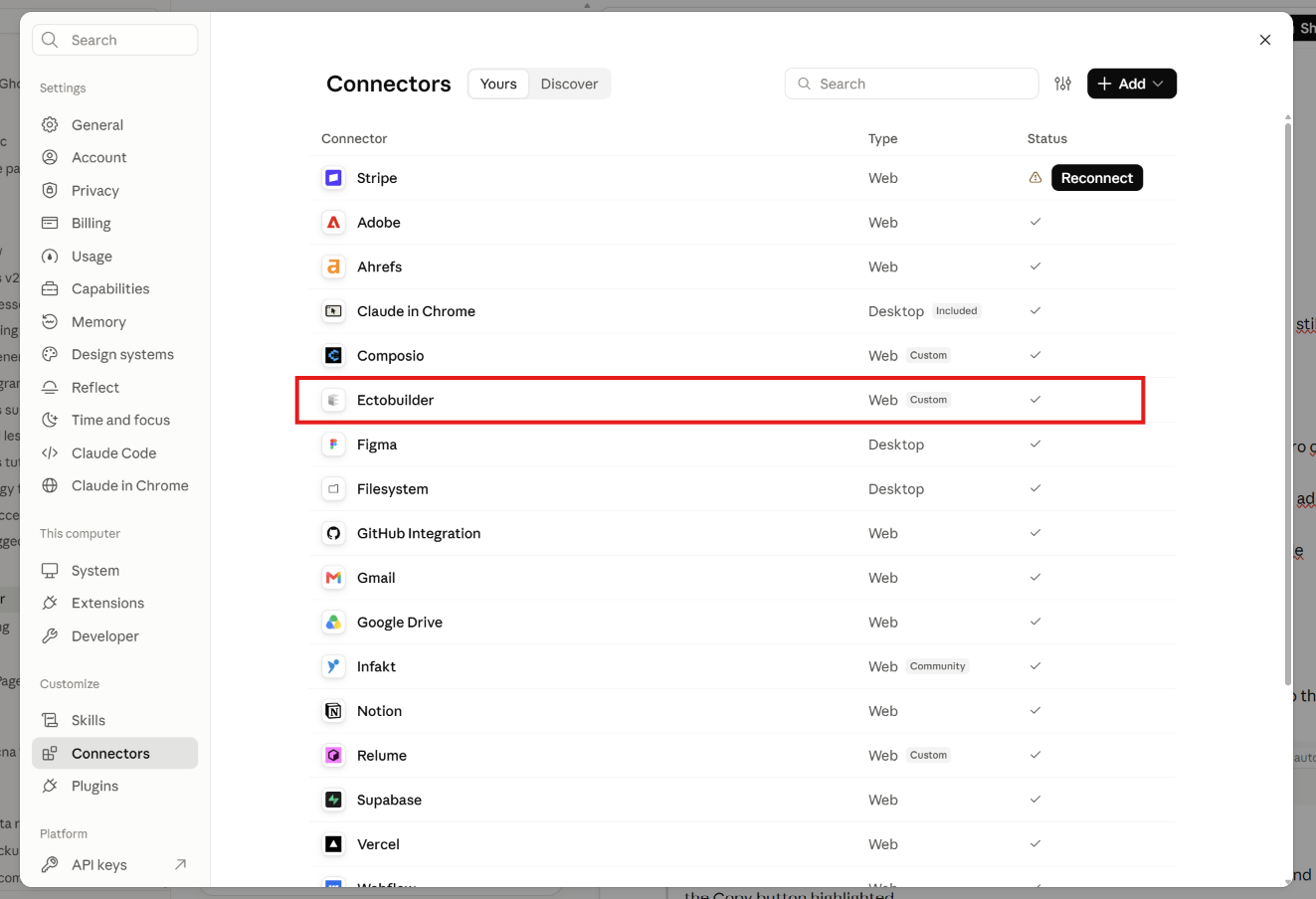
- In Claude, go to Customize → Connectors.
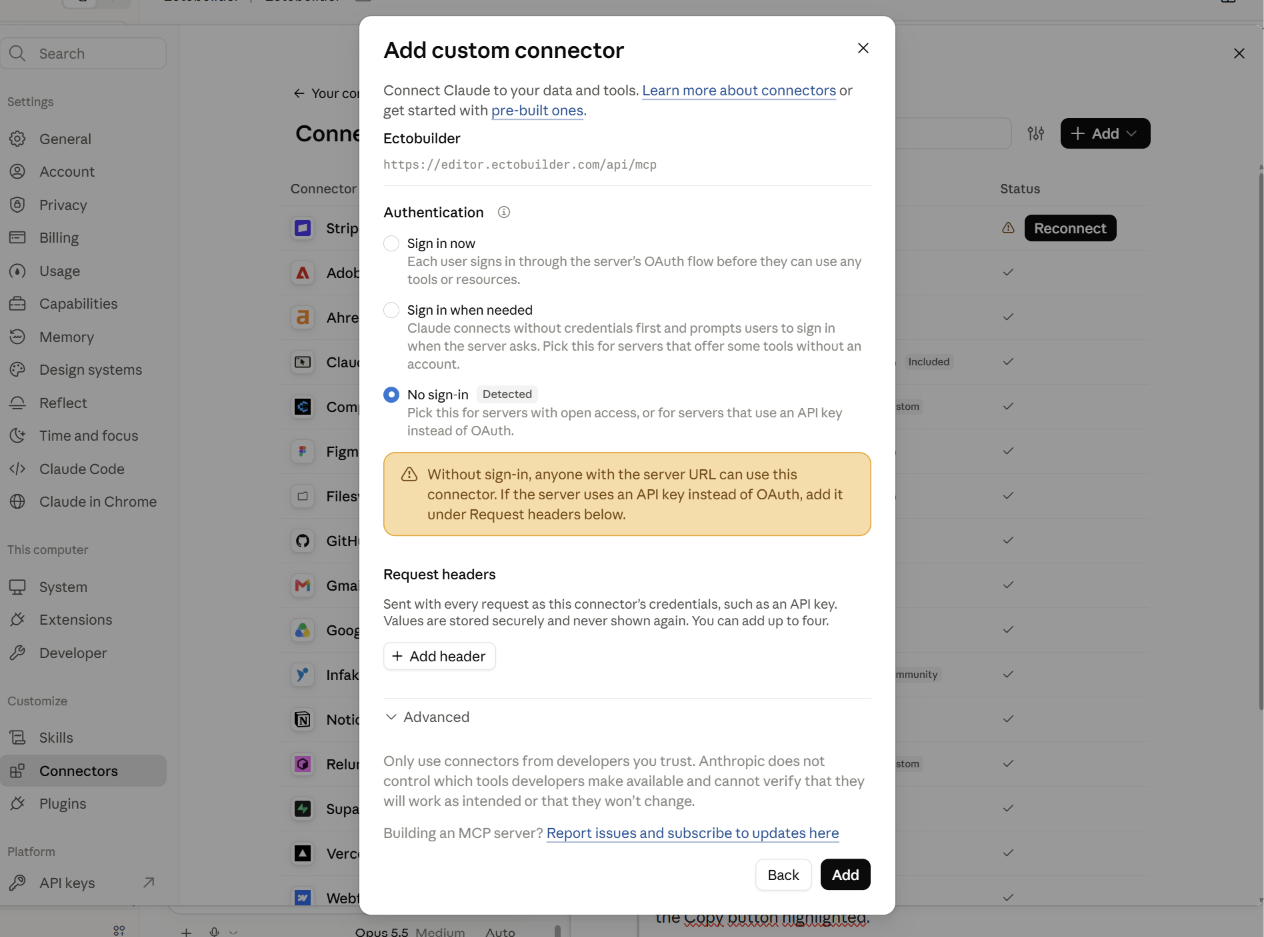
- Click Add custom connector.
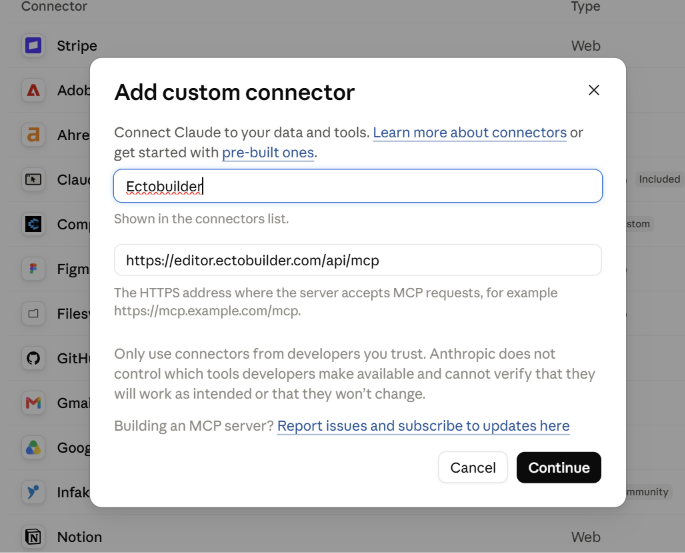
- Name it Ectobuilder and paste the address from Step 1.
- Leave the advanced settings as they are and click Add.
No Ectobuilder account yet? Sign up free, connect Claude, and ask it to build your first Ghost theme. You only pay if you’re happy with the result.
Step 3: Sign in and allow access
Click Connect next to Ectobuilder. A window opens on Ectobuilder: sign in if you are asked, then read the request Connect Claude to Ectobuilder? and click Allow. The window closes and Claude shows Ectobuilder as connected.
You approve each assistant once. You can see and remove it later in Ectobuilder under AI connector → Connected.
Step 4: Turn it on in a chat
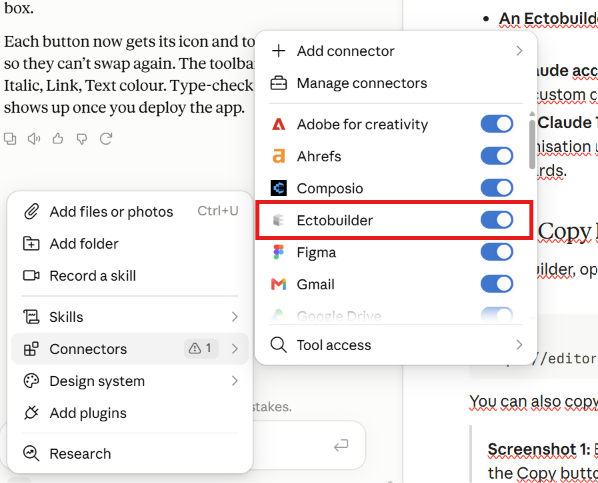
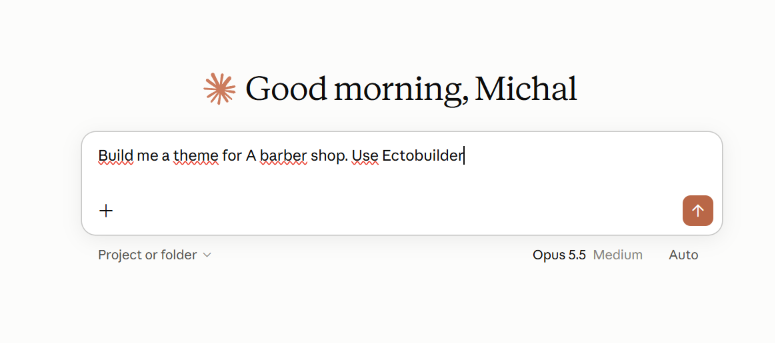
Start a new chat, click the + button, choose Connectors and make sure Ectobuilder is switched on. It stays on for that chat.
Optional: faster image uploads
When Claude adds a picture of its own, like a screenshot or a photo you attached, it uploads it to Ectobuilder. In the Claude apps that code runs in a sandbox that can only reach websites you allow, and Ectobuilder isn't on that list by default. Claude then falls back to sending the picture as text, which works but is much slower for large images.
To speed it up, open Settings → Capabilities in Claude and add editor.ectobuilder.com to the allowed domains. On Team and Enterprise plans an Owner sets this under Admin settings → Capabilities. Claude Code on your own computer doesn't need it.
Step 5: Ask Claude to build something
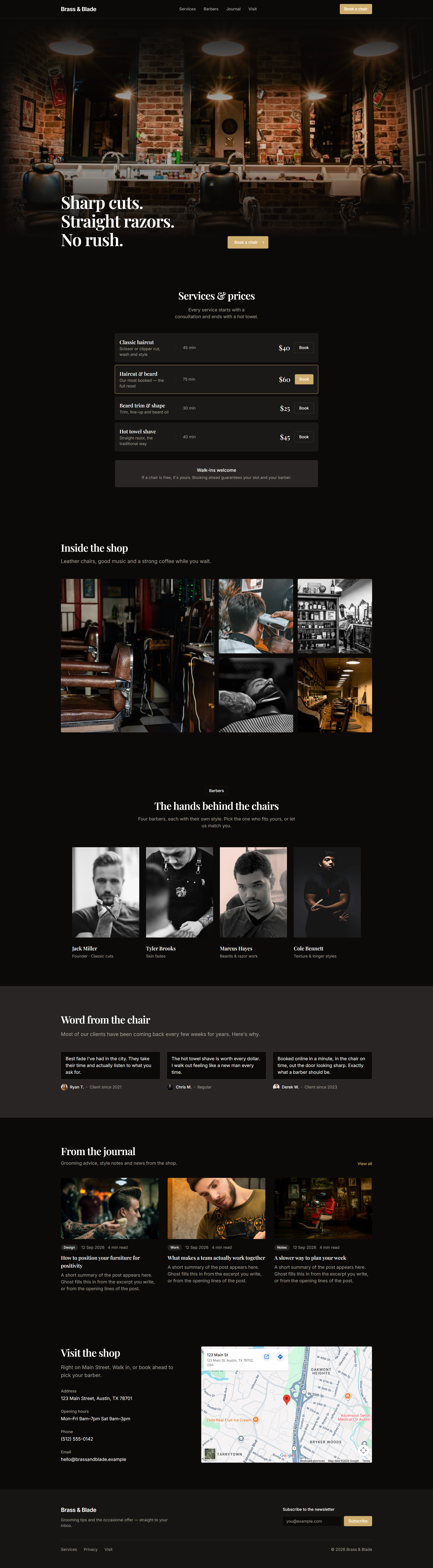
Talk to Claude the way you would brief a designer. It lists your themes, opens the right page, picks sections from the library and shows you a screenshot when it is done. A few prompts to start with:
- "Create a new Ectobuilder theme called Fern & Petal for a florist. Warm colours, a serif heading font, a hero with a flower photo, our services, testimonials and a contact section with a map."
- "In my theme Fern & Petal, rewrite the home page copy to sound friendlier, then show me a screenshot."
- "Add a pricing section after the testimonials on the home page with three plans: Basic, Plus and Studio."
- "Change the accent colour to deep green and make the corners rounder across the whole theme."
- "Deploy Fern & Petal to my Ghost site."
The first time Claude uses an Ectobuilder tool, it asks for your permission; you can allow it once or always. If the theme is open in the editor while Claude works, the editor asks you to reload so you see the changes. For prompts and complete workflows, see what you can do with the Ectobuilder MCP.
Using Claude Code instead
If you work in Claude Code, add Ectobuilder from your terminal:
claude mcp add --transport http ectobuilder https://editor.ectobuilder.com/api/mcpThen type /mcp in Claude Code, choose ectobuilder and sign in. The same Allow screen from Step 3 opens in your browser.
Other assistants that support remote MCP servers work too: add the same address and sign in when asked. For a script or a tool that can't sign in, create an access token under AI connector → Access tokens and send it as an Authorization: Bearer header.
What Claude can do, and how to stop it
Once connected, Claude works with your account the way you do in the editor:
- Themes: create a theme, add, move, replace and remove sections, change text, images, links, videos, maps and custom code, set colours, fonts and corners, and take screenshots to check the result.
- Your Ghost site: deploy a theme, create pages and posts. Pages and posts are created as drafts. Claude only emails your subscribers when you explicitly ask it to send a post as a newsletter.
- Your plan's limits still apply. On Free, Claude can build up to three themes but can't deploy them.
To disconnect, open Ectobuilder's AI connector tab and click Disconnect next to Claude. It stops working straight away. You can also remove the connector in Claude under Customize → Connectors.
Troubleshooting
| What you see | What to do |
|---|---|
| Claude doesn't mention Ectobuilder | Check the connector is switched on in this chat (+ → Connectors). |
| "Add custom connector" is missing | On Team or Enterprise, ask an Owner to add it under Organization settings → Connectors. On Free, you may already have one custom connector. |
| The sign-in window closes without connecting | Allow pop-ups for claude.ai, then click Connect again. |
| "You have reached your theme limit" | Free includes three themes. Edit or delete one you have, or upgrade to Pro. |
| Claude can't deploy | Connect your Ghost site in the editor first (Site settings → Integrations → Ghost Admin API), and check your plan includes publishing. |
| The editor shows old content | Reload when the editor asks; Claude saved a newer version. |
| Adding your own images is slow | Allow editor.ectobuilder.com in Claude under Settings → Capabilities (on Team and Enterprise, an Owner does this under Admin settings → Capabilities). |
Written by
Founder of Ectobuilder, the AI-powered visual theme editor for Ghost. Indie software builder in Wrocław and co-author of The AdTech Book. I write about Ghost themes, newsletters and building websites with AI.
Comments
Questions or thoughts? Share them below.
Keep reading
How to Build Your Ghost Theme Visually (Step-by-Step Guide, No Code)
Build a complete Ghost theme without touching code: start from a theme, edit text and pictures in place, add sections from a library of 270, set colours and fonts, design every page, and publish to Ghost in one click. Step by step, with screenshots.
Magazine Theme for Ghost: Sections, Editor's Picks, Long Reads and Memberships
A step-by-step guide to the Magazine theme for Ghost: turn sections into tags, set up the navigation, fill the front page, editor's picks and section fronts, add your writers, sell memberships and send a weekly newsletter.
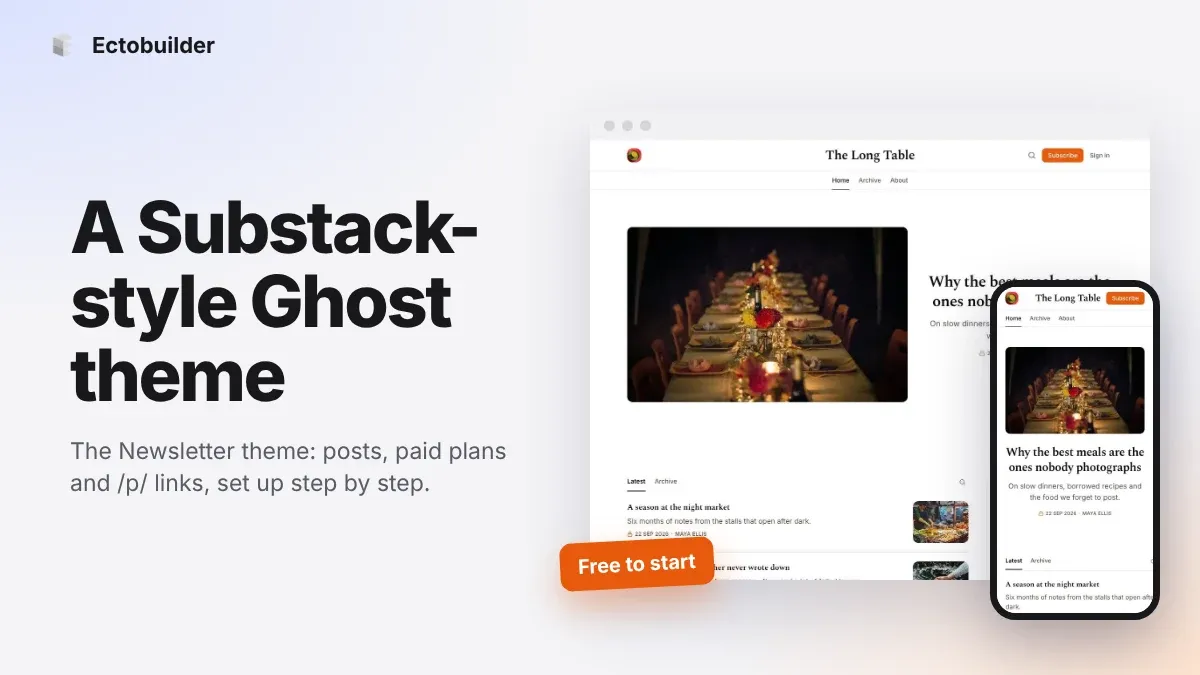
Newsletter Theme for Ghost: A Substack-Style Site With Paid Plans, /p/ Links and Comments
A step-by-step guide to the Newsletter theme for Ghost: a Substack-style homepage and reading page, then newsletters, paid plans, /p/ addresses, Plans, Welcome and About pages, comments and recommendations.