
How to Add a Table of Contents to Ghost Posts
Ghost has no table of contents. Here's how to add one that builds itself from your headings, highlights the part you're reading and stays in view as you scroll, with no code. Plus the code route, and tips for headings that make a good list.

Michal Wlosik
· 5 min read
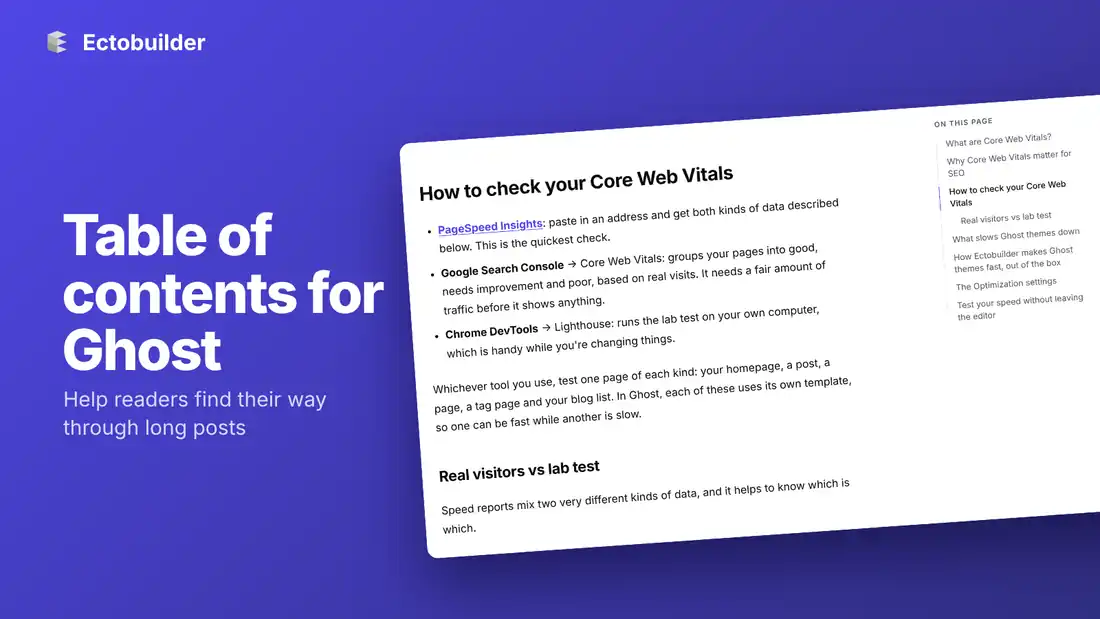
Long posts are where Ghost shines: guides, tutorials, deep dives. They're also where readers get lost. Someone looking for one answer has to scroll and skim, and someone who left halfway has no quick way back to where they were.
A table of contents solves both. It lists the post's headings at the top or alongside the text, and one click jumps to that part. This guide covers what Ghost offers, how to add a table of contents that builds itself, and how to get the most from it.
Does Ghost have a table of contents?
No. Ghost's editor has no table of contents card, and most themes don't include one. Ghost's own documentation suggests adding one with a script (Tocbot) and some theme changes, which means editing your theme files.
Doing it by hand inside each post isn't a real option either: you'd have to keep the list in sync every time you rename or move a heading.
What a good table of contents does
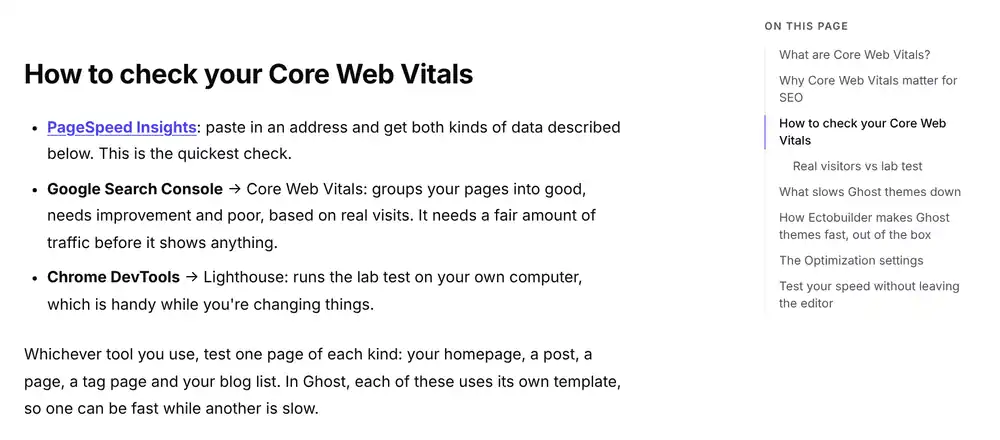
- Builds itself from your headings. Every H2 in the post becomes an entry, and H3s appear indented under them. Rename a heading in Ghost and the list follows.
- Shows where you are. As you scroll, the heading you're reading is highlighted, so the list doubles as a progress bar.
- Lands in the right place. Clicking an entry scrolls to the heading and leaves room above it, so it doesn't end up hidden under a sticky header.
- Gives every part a link. Each heading gets its own address, like
/my-post/#pricing, that you can share or link to from other posts. - Stays out of the way on short posts. With fewer than two headings, the list doesn't appear at all.
Three layouts to choose from
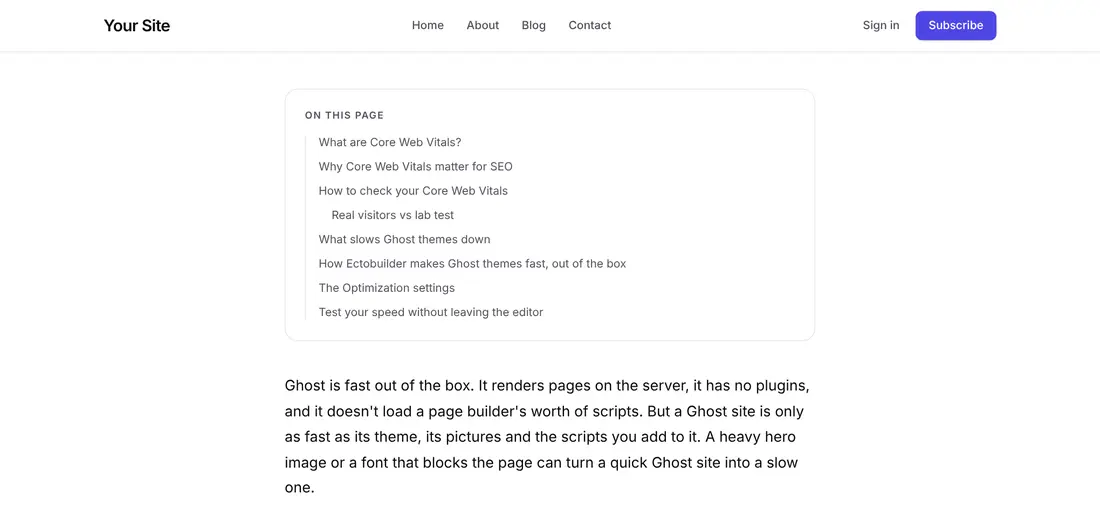
Ectobuilder has three post layouts with a table of contents. All of them build the list the same way. The difference is where it sits.
- Content + contents: the list sits to the right of the post and stays in view as you scroll. The most common choice for guides and documentation.
- Contents left: the same, on the left, like many documentation sites.
- Contents on top: a box with the list above the first paragraph. It works on every screen size and suits narrow, single-column themes.
On phones and small tablets there's no room for a sidebar, so the two side layouts show the post on its own. If most of your readers are on phones, choose Contents on top.
How to add a table of contents to Ghost
1. Open your theme's Post page
Open your theme in Ectobuilder and switch to the Post page in the page menu. This is the template Ghost uses for every post. If you want the list on your pages too, do the same on the Page page.
2. Swap the content section
Open the section library, go to Post and pick Content + contents, Contents left or Contents on top. Use it in place of your current post content section, so the post isn't shown twice. Your header, post title, author box and anything else on the page stay as they are.
3. Deploy
Deploy your theme to Ghost. Every post with two or more headings now has a table of contents, old posts included. There's nothing to add in the posts themselves.
Help readers find their way through long posts.
Add a table of contents in a few clicks, along with everything else your Ghost theme needs. Design visually, then publish to Ghost.
Only want it on some posts?
A table of contents is great on a 3,000-word guide and odd on a 300-word update. To use it only where it helps, make it a custom template:
- In Ectobuilder, open the page menu and choose New custom template, for example "Guide".
- Build it with one of the contents layouts. Keep your regular Post page as it is.
- Deploy, then in Ghost open a post's settings and choose Guide under Template.
Long posts get the table of contents, everything else keeps the regular layout.
The code route
Without Ectobuilder, the usual approach is Tocbot, a small script that builds a list from your headings. Ghost's documentation has a tutorial. You'll need to:
- Edit
post.hbsin your theme to add a place for the list, and the CSS to position it and make it sticky. - Load Tocbot's script and styles, and start it with settings that point at your post content and headings.
- Add a scroll offset if your theme has a sticky header, so headings don't end up behind it.
- Upload the changed theme, and redo the changes when you update or switch themes.
Tips
- Write headings that work as a list. Read your headings on their own: if they tell the story of the post, the table of contents will too. "Pricing" says more than "Part 3".
- Use H2 for sections, H3 for steps. The list follows your heading levels, so a clear structure gives a clear list. Don't pick a heading level just for its size.
- Keep it to one screen. Five to ten entries are easy to scan. With twenty, consider whether some H3s can become bold text instead.
- Link to sections. Each heading has its own address. Use them in newsletters, replies and other posts to send people straight to the answer.
FAQ
Which headings appear in the table of contents?
H2 and H3 headings in the post. H3s are indented under the H2 before them. The post title and headings in the theme around the post aren't included.
Does a table of contents help SEO?
Indirectly. It makes long posts easier to use, and the links to each section can show up in Google as "jump to" links under your result. It isn't a ranking factor on its own.
Why doesn't the table of contents show on a post?
It only appears when a post has two or more H2 or H3 headings. In the side layouts, it's also hidden on small screens.
Can I change the "On this page" title?
Yes. Click the title in the Ectobuilder editor and type your own, like "Contents" or "In this guide".
Build a Ghost theme made for long reads.
Start from a template or a blank page in Ectobuilder, add a table of contents to your posts, and deploy straight to Ghost.
Written by
Founder of Ectobuilder, the AI-powered visual theme editor for Ghost. Indie software builder in Wrocław and co-author of The AdTech Book. I write about Ghost themes, newsletters and building websites with AI.
Comments
Questions or thoughts? Share them below.
Keep reading
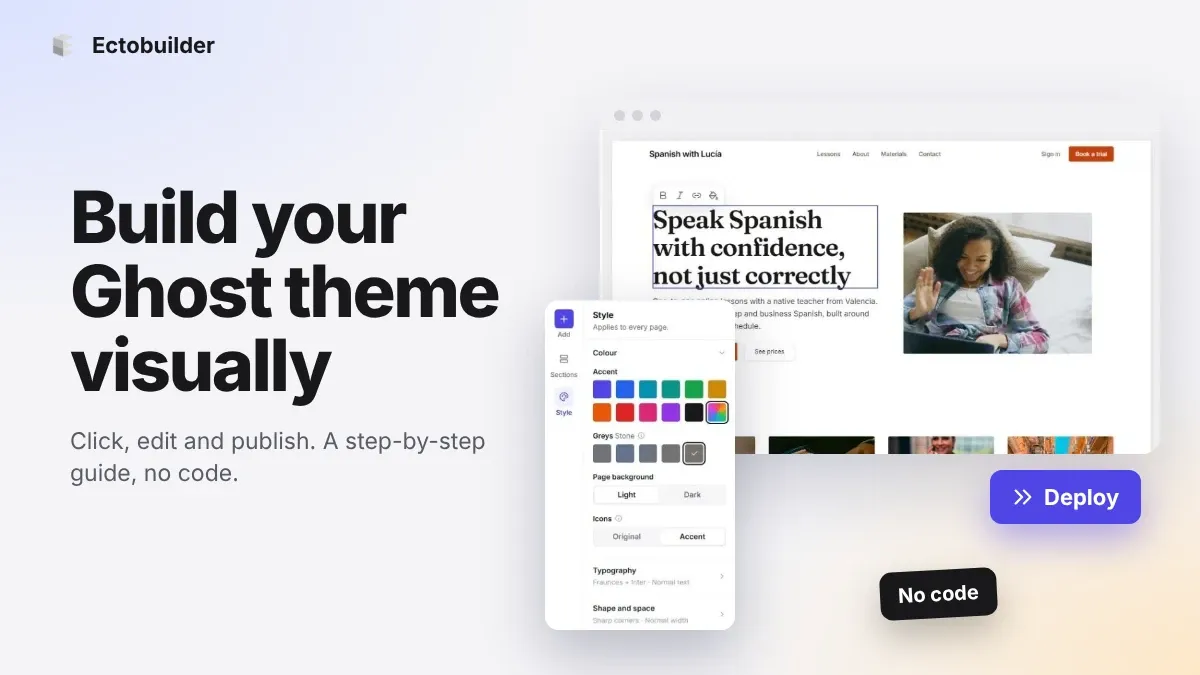
How to Build Your Ghost Theme Visually (Step-by-Step Guide, No Code)
Build a complete Ghost theme without touching code: start from a theme, edit text and pictures in place, add sections from a library of 270, set colours and fonts, design every page, and publish to Ghost in one click. Step by step, with screenshots.
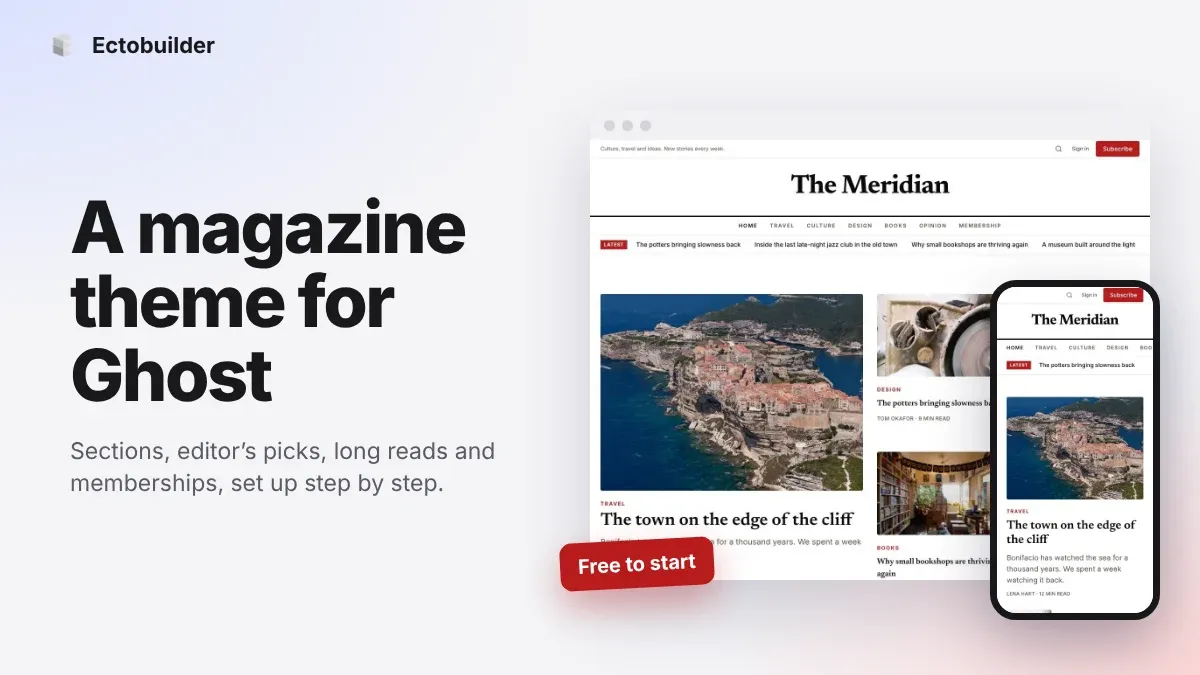
Magazine Theme for Ghost: Sections, Editor's Picks, Long Reads and Memberships
A step-by-step guide to the Magazine theme for Ghost: turn sections into tags, set up the navigation, fill the front page, editor's picks and section fronts, add your writers, sell memberships and send a weekly newsletter.
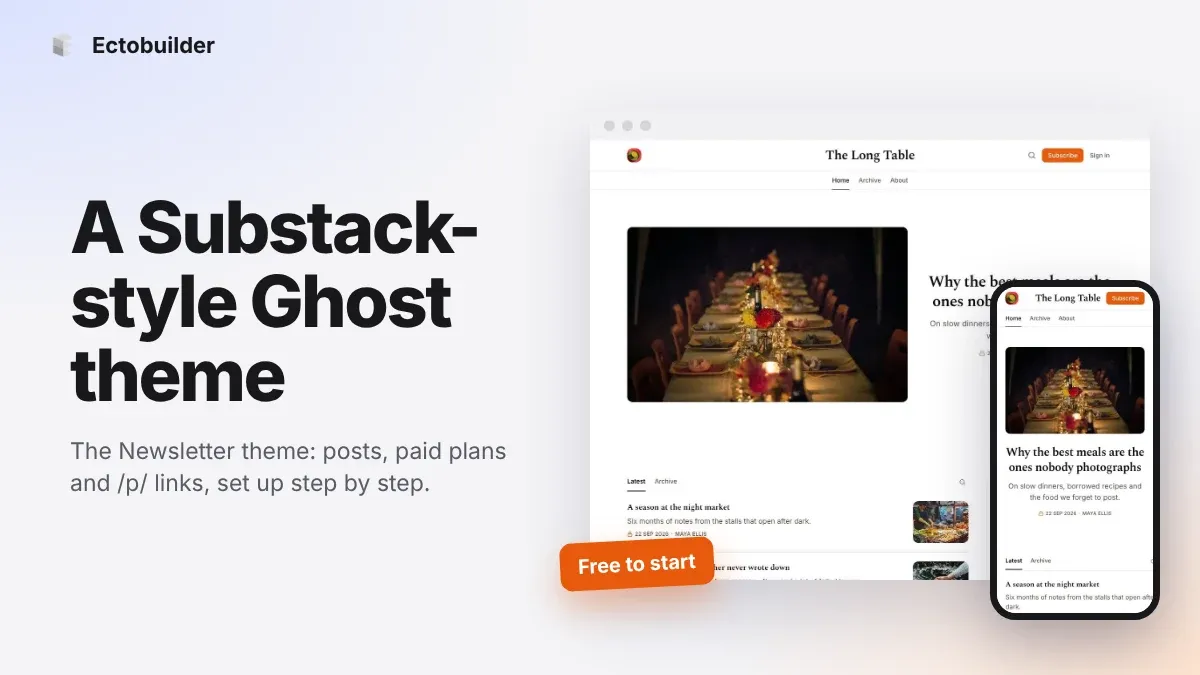
Newsletter Theme for Ghost: A Substack-Style Site With Paid Plans, /p/ Links and Comments
A step-by-step guide to the Newsletter theme for Ghost: a Substack-style homepage and reading page, then newsletters, paid plans, /p/ addresses, Plans, Welcome and About pages, comments and recommendations.