
Podcast Theme for Ghost: Episodes, Show Notes, Hosts and Email Subscribers
A step-by-step guide to the Podcast theme for Ghost: publish episodes with a player and show notes, feature the latest one with its video, introduce the hosts, and send show notes to subscribers by email.

Michal Wlosik
· 5 min read
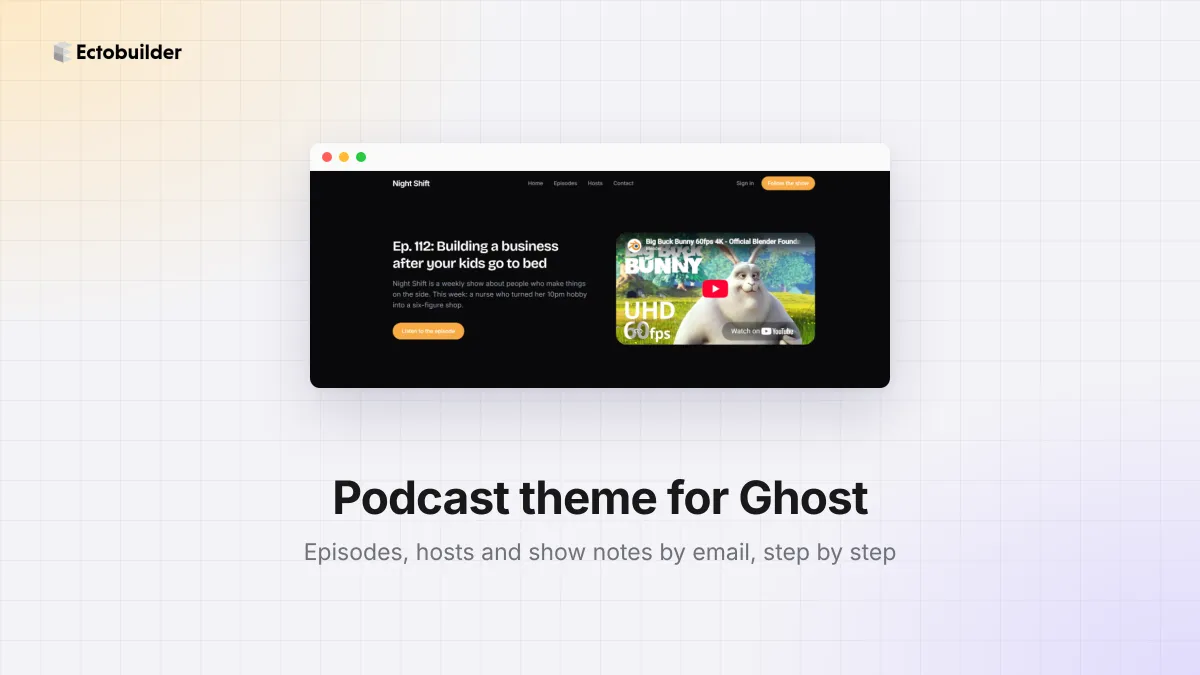
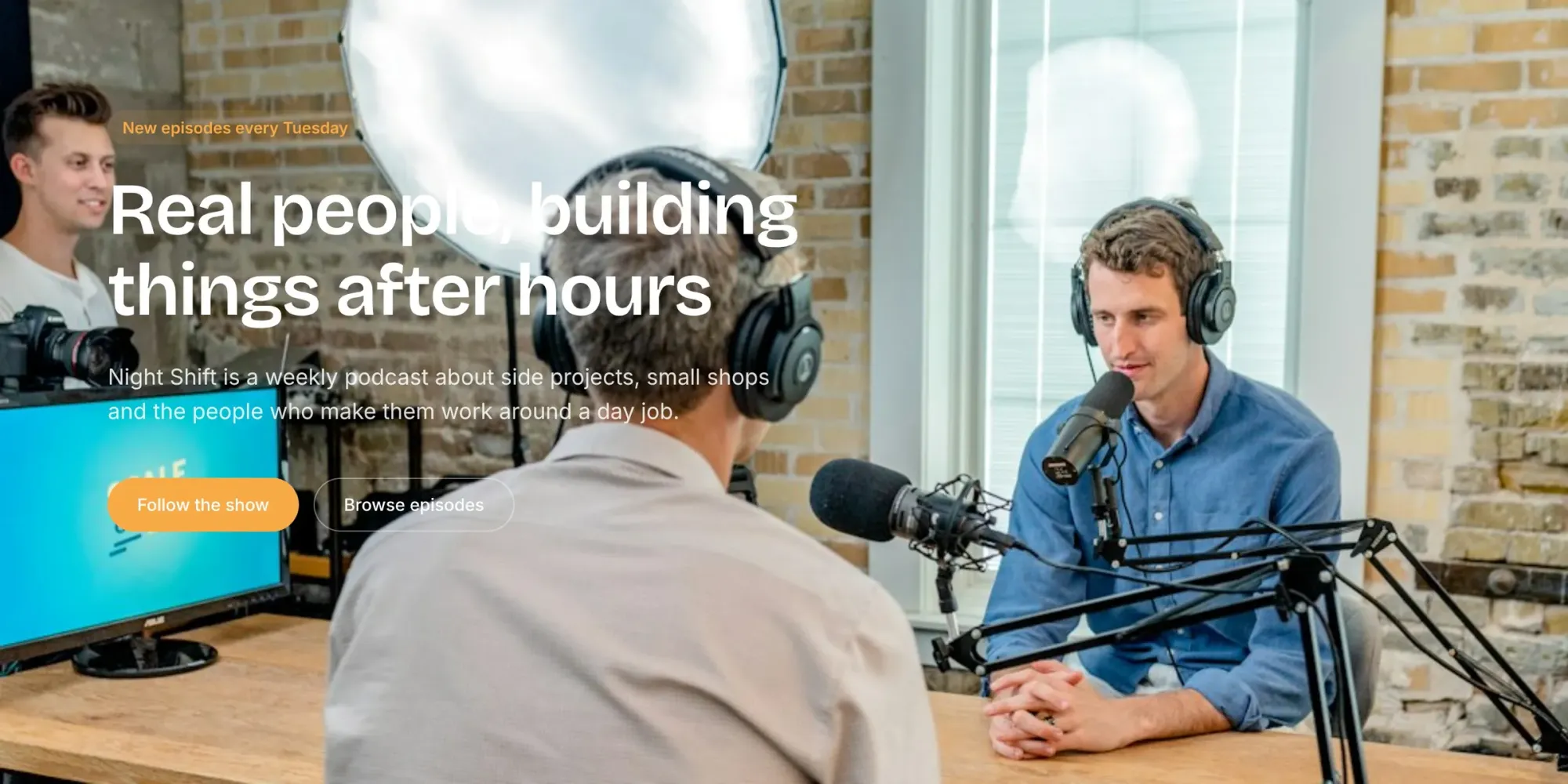
The Podcast theme is a dark, bold Ectobuilder theme for a weekly show on Ghost. The homepage opens with a big studio photo and a Follow the show button. Then it puts your latest episode next to its video, lists recent episodes, links to your show on Apple Podcasts and Spotify, introduces the people behind the mic, shows listener reviews, answers common questions and asks visitors to get the show notes by email.
Ghost isn't a podcast host, but it's a great home for one: every episode gets its own page with show notes, and your listeners become subscribers you can email. This guide walks through:
- Publish episodes as Ghost posts, with the player and show notes.
- Feature the latest episode with its video on the homepage.
- Introduce the hosts and add listener reviews.
- Send show notes by email to every subscriber.
To follow along, open the theme from the Ectobuilder theme gallery and connect your Ghost site under Settings → Integrations → Ghost Admin API.
Want this theme for your site? Open the Podcast theme in Ectobuilder and make it yours. Starting is free, and you only pay if you’re happy with the design.
Part 1: Publish episodes
Each episode is a Ghost post. The Recent episodes list on the homepage fills itself with your latest posts, so publishing an episode in Ghost is all it takes.
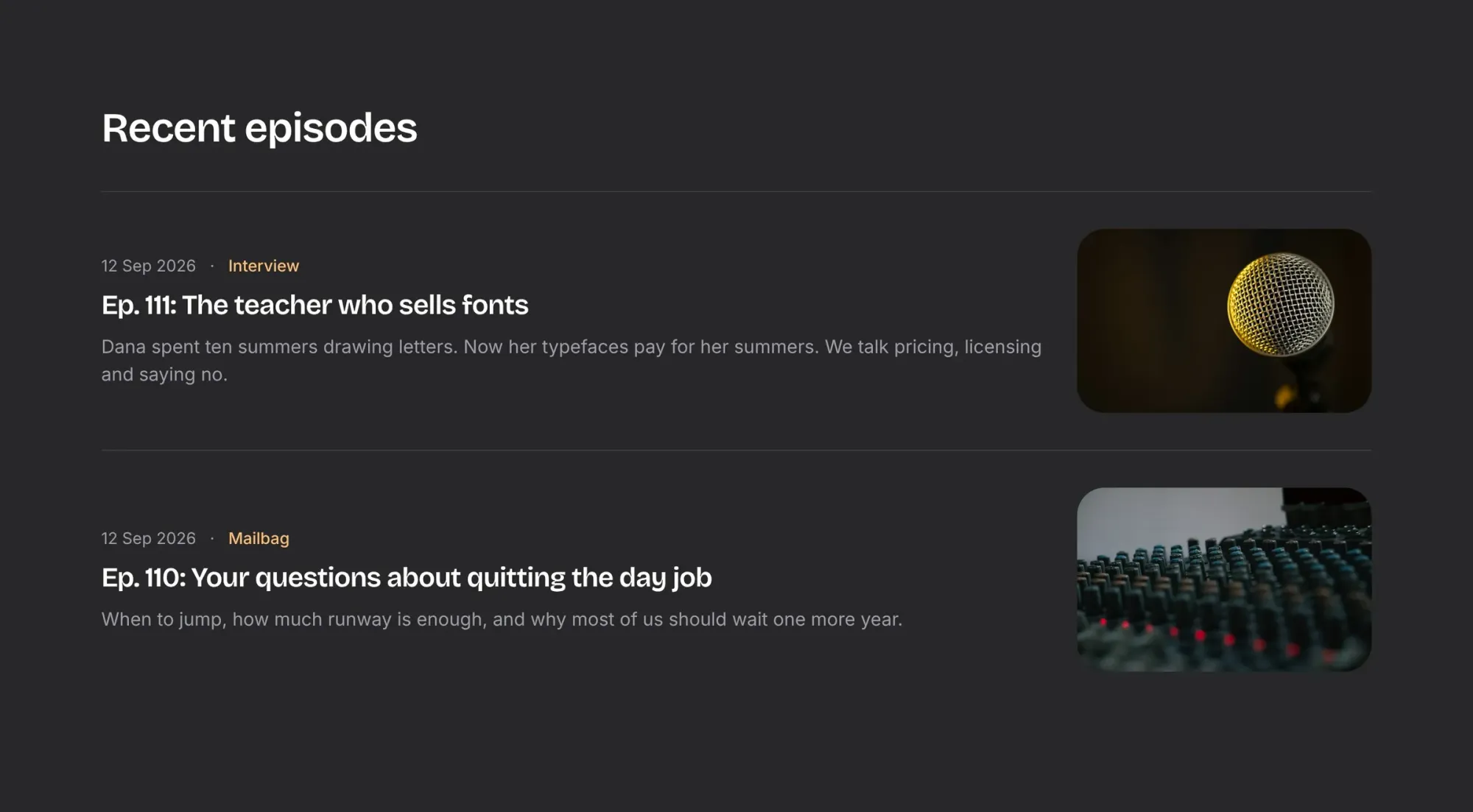
Here is where each part of a row comes from:
- Title: the post title, for example Ep. 111: The teacher who sells fonts.
- Summary: the post excerpt.
- Label (Interview, Mailbag): the post's first tag. Use tags for the kind of episode, so listeners can browse them at
/tag/interview/. - Picture: the post's feature image, such as the guest's photo or your episode artwork.
Step 1: Host the audio
Keep your audio on a podcast host, such as Buzzsprout, Transistor, Captivate or Spotify for Creators. It sends your episodes to Apple Podcasts and Spotify and gives you a player you can embed. Ghost isn't built to feed podcast apps itself.
Step 2: Write the episode post
- In Ghost Admin, click New post, type the episode title and add the feature image.
- Paste your host's episode link on an empty line. Ghost turns links from Spotify, SoundCloud and YouTube into players. For other hosts, add an HTML card and paste their embed code.
- Write the show notes underneath: what you talked about, links you mentioned, and timestamps for long episodes.
- In Post settings, add the tag and an excerpt of one or two sentences.
Step 3: Publish
Click Publish. Choose Publish and email if you want subscribers to get the show notes in their inbox (see Part 4).
Long show notes? Turn on the table of contents so listeners can jump to a topic.
Part 2: Feature the latest episode
Under the hero, one episode sits next to its video, with a Read the show notes button. It's part of the theme, so you update it in Ectobuilder when a new episode comes out.
- Double-click the title and description to type the new episode's.
- Click the video. In its settings on the right, paste the episode's YouTube or Vimeo link. You can make it start muted, loop, hide the controls or start at a given second.
- Click Read the show notes and link it to the episode's post on your site.
- Click Deploy.
No video version? Replace the section with one that has a picture, under Replace layout, and link its button to the episode post.
Set the follow and listen buttons
- Follow the show, in the header and the hero, opens the Ghost sign-up out of the box. Keep it that way to collect email subscribers, or link it to your show on Apple Podcasts or Spotify.
- Listen wherever you get your podcasts has an Apple Podcasts and a Spotify button. They point to the apps' home pages, so link each one to your show's page there.
- Change the hero photo for one of your own studio. Click it and pick a new one in the Images panel: see how to add images to your Ghost theme.
Part 3: Introduce the hosts
Listeners like to know who they're listening to. The Behind the mic section, headed Two friends, too many side projects, has a photo, name and role for each person on the show.
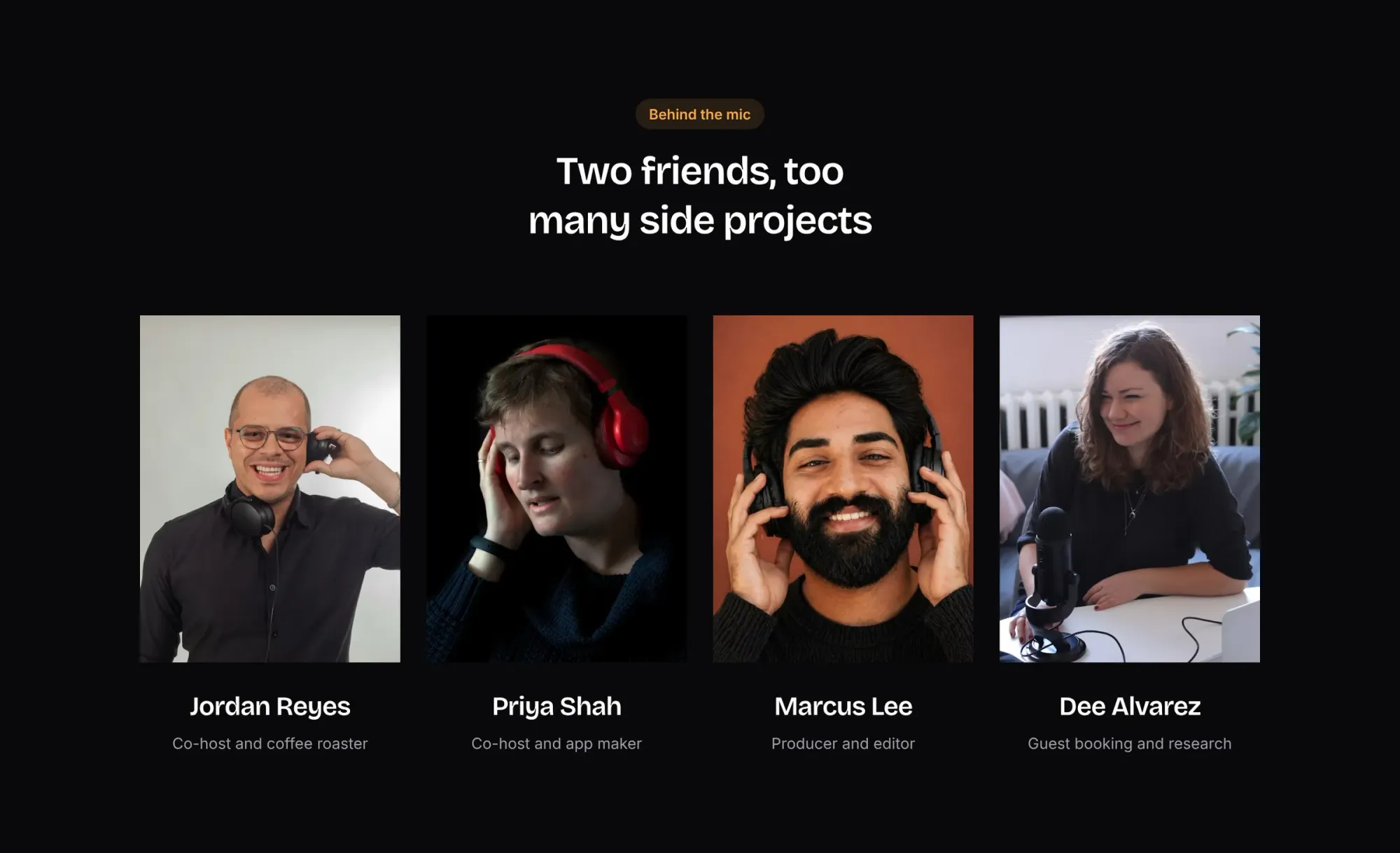
- Click a photo, then Replace, to upload a host's picture. Tall portrait photos work best.
- Double-click the name and role to type over them.
- Two people, or five? Click a person and use Items in the settings to duplicate or remove one.
The What listeners say section underneath works the same way. Copy your best reviews from Apple Podcasts or Spotify, or from listener emails, with their permission.
Part 4: Send show notes by email
The orange Get every episode in your inbox box and the Get the show notes form in the footer sign people up as members of your Ghost site. They're your listeners, not the podcast app's, and you can email them every week.
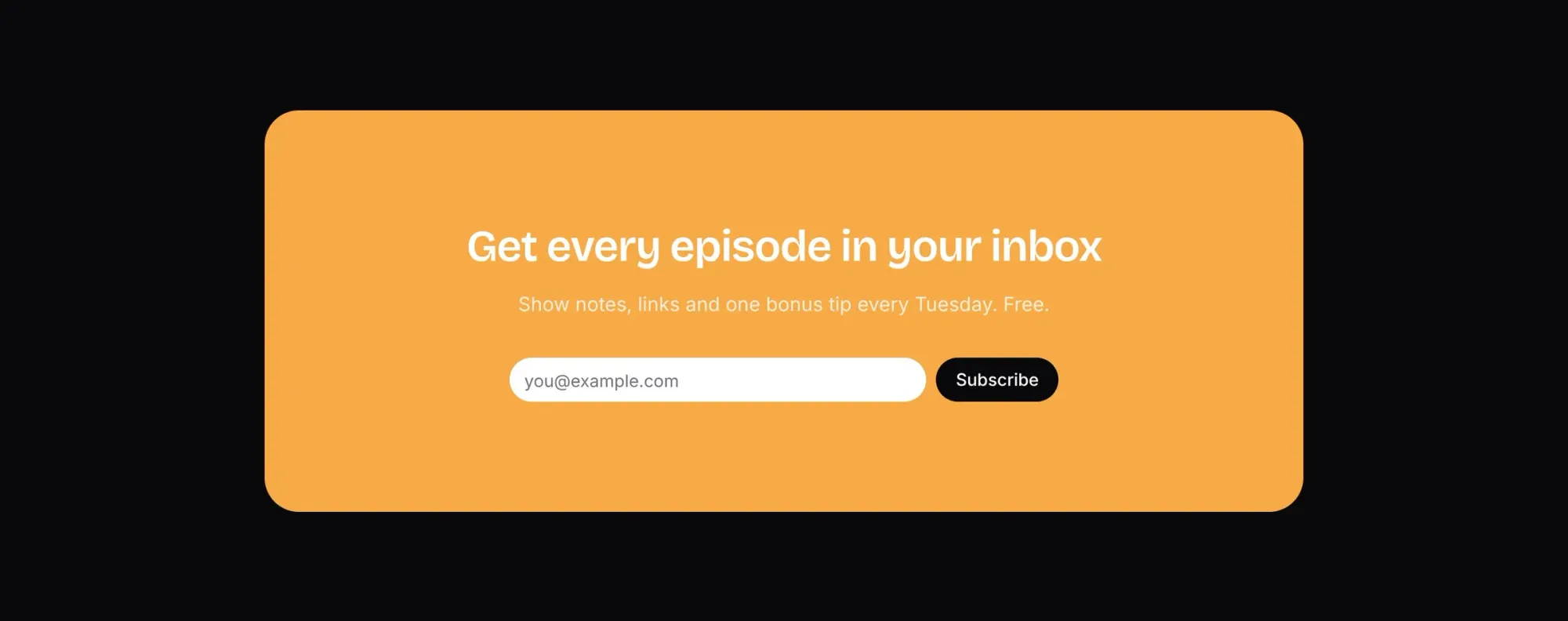
- In Ghost Admin, open Settings → Newsletters and name your newsletter, for example Night Shift show notes.
- Publish each episode with Publish and email. Subscribers get the show notes and the player link the moment it's out.
- Change the promise in the box to match what you send. "Show notes, links and one bonus tip" tells people why to sign up.
Want to make money from it? Ghost can sell paid memberships: bonus episodes or an ad-free archive for paying members. Build a pricing page with this guide.
Ready to build yours? Everything in this guide works on your own copy of the Podcast theme. Start free, connect your Ghost site when you’re ready, and only pay if you like the result.
Next steps
- Answer your listeners' real questions in the Questions FAQ: release day, where to listen, how to pitch as a guest.
- Turn on comments so listeners can talk about each episode: compare the options.
- Add share buttons to the episode page. Most podcasts grow by word of mouth.
- Change the colors and fonts under Style to match your show's artwork.
- Moving from Substack? Bring your subscribers with you.
Written by
Founder of Ectobuilder, the AI-powered visual theme editor for Ghost. Indie software builder in Wrocław and co-author of The AdTech Book. I write about Ghost themes, newsletters and building websites with AI.
Comments
Questions or thoughts? Share them below.
Keep reading
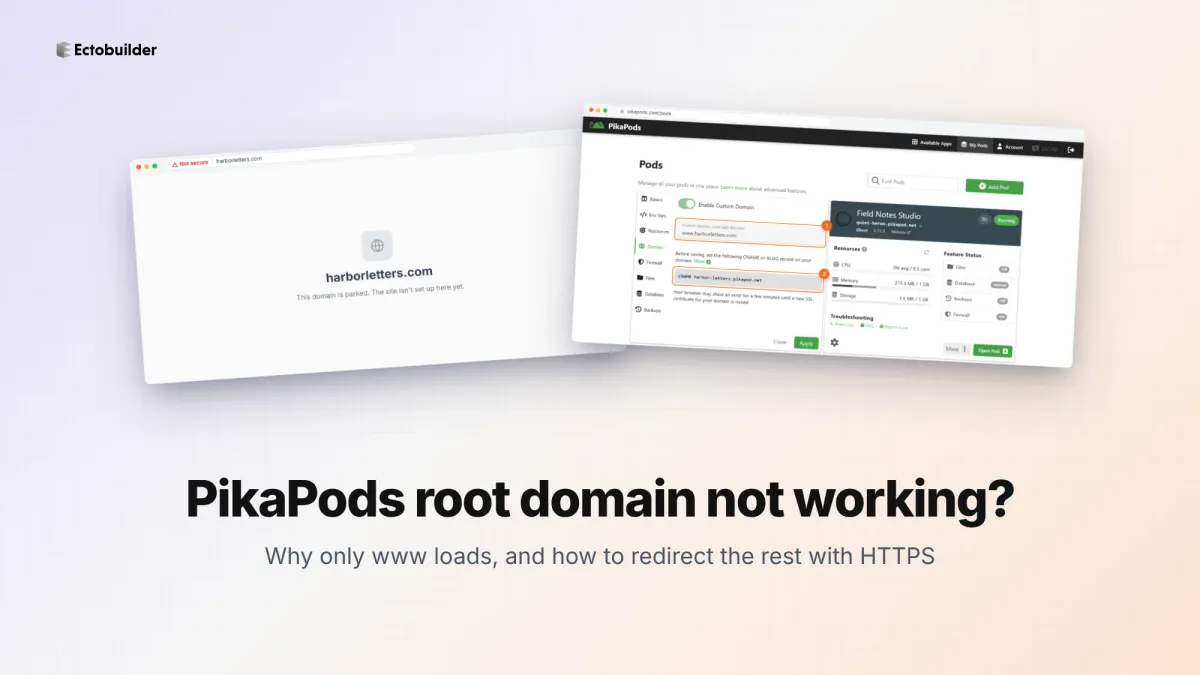
PikaPods Custom Domain: Why Only www Works (and How to Fix the Root Domain)
PikaPods maps one custom domain per pod, so yourdomain.com without www stays on a parked page with no SSL. Here's why, and three ways to redirect it to www over HTTPS without touching your email records.
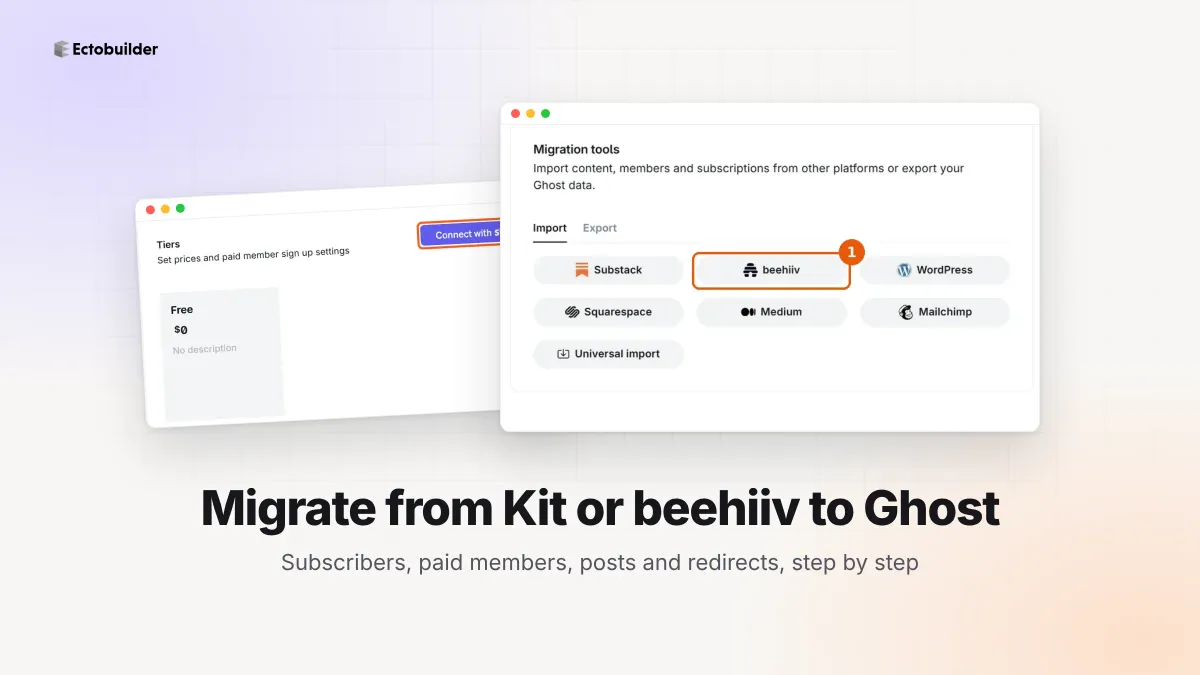
How to Migrate from Kit or beehiiv to Ghost (Subscribers, Paid Members, Posts and Redirects)
Move your newsletter from Kit (ConvertKit) or beehiiv to Ghost step by step: export and import subscribers, deal with paid members and Stripe, bring your posts across, set up redirects and your domain, warm up email sending, and make the new site look right.
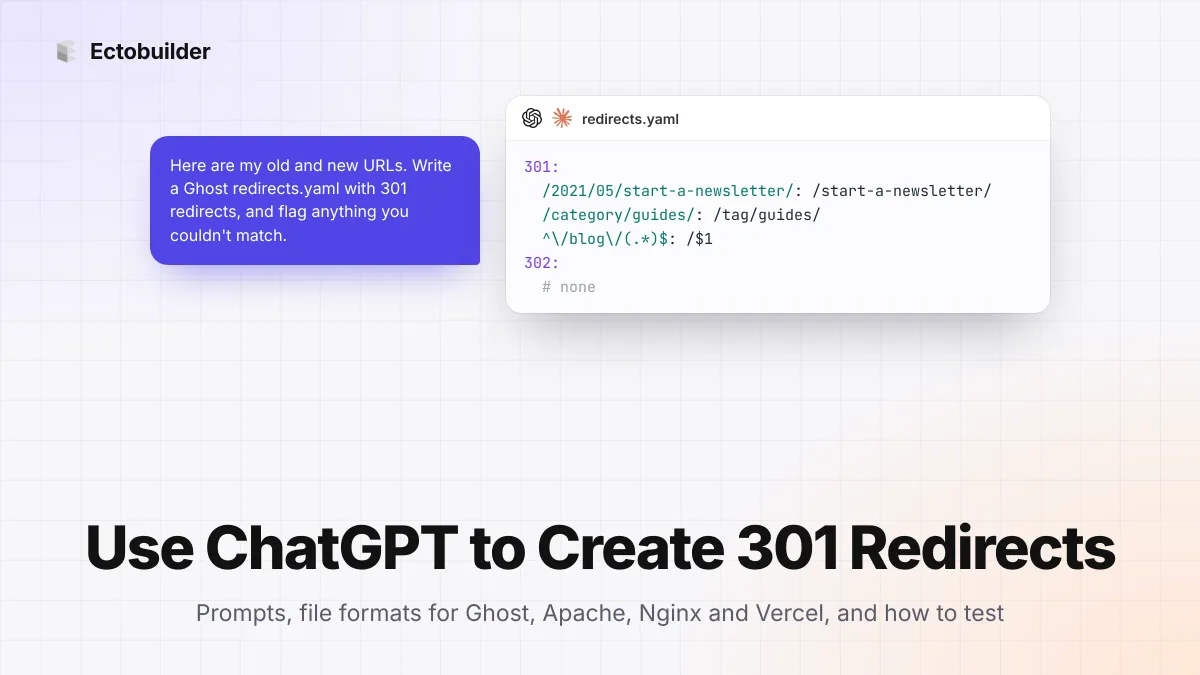
How to Use ChatGPT to Create 301 Redirects (Prompts, File Formats and Testing)
Let ChatGPT or Claude match your old URLs to new ones and write the redirect file for Ghost, Apache, Nginx, Netlify or Vercel. Prompts to copy, the mistakes to avoid, and how to test every redirect.