
How to Add Images to Your Ghost Theme: Free Photos, Logos and Your Own Pictures
Replace the placeholder pictures in your Ghost theme without leaving the editor: search free Unsplash and Pexels photos, add company logos, upload your own, use your Ghost logo and cover, and let AI write the alt text.

Michal Wlosik
· 6 min read
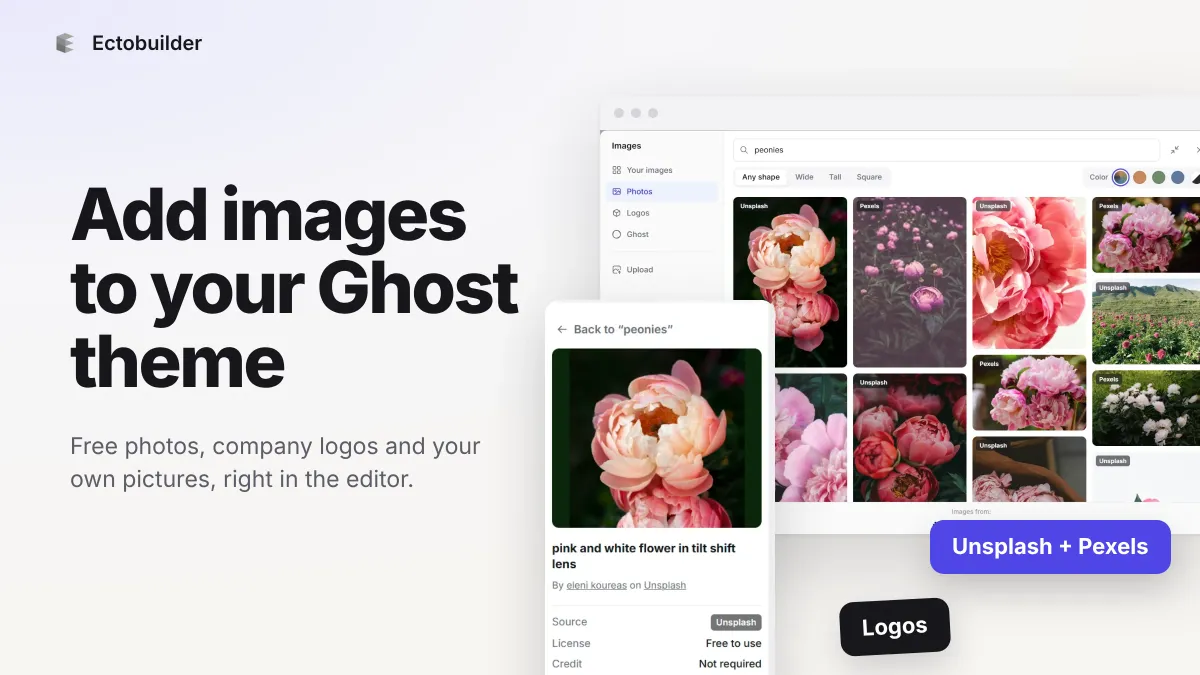
Pictures make or break a website. A Ghost theme usually comes with placeholder photos, and replacing them means hunting for free stock photos in another tab, downloading them, resizing them and uploading them one by one. Logos for an "As seen in" row are worse: you end up screenshotting company websites.
In Ectobuilder all of that happens in one place. The Images panel holds your own pictures, a search across free photo libraries, a company logo search and the pictures you've set in Ghost. Click a picture on your page, click a new one in the panel, and it's replaced. This guide walks through each part, with screenshots from the editor.
Open the Images panel
Click Images in the left bar of the editor. The panel has four tabs:
- Yours: every picture you've uploaded or saved for this theme.
- Photos: free photos from Unsplash and Pexels, in one search.
- Logos: company logos, found by name or website.
- Ghost: the logo, cover and icon set in your Ghost site.
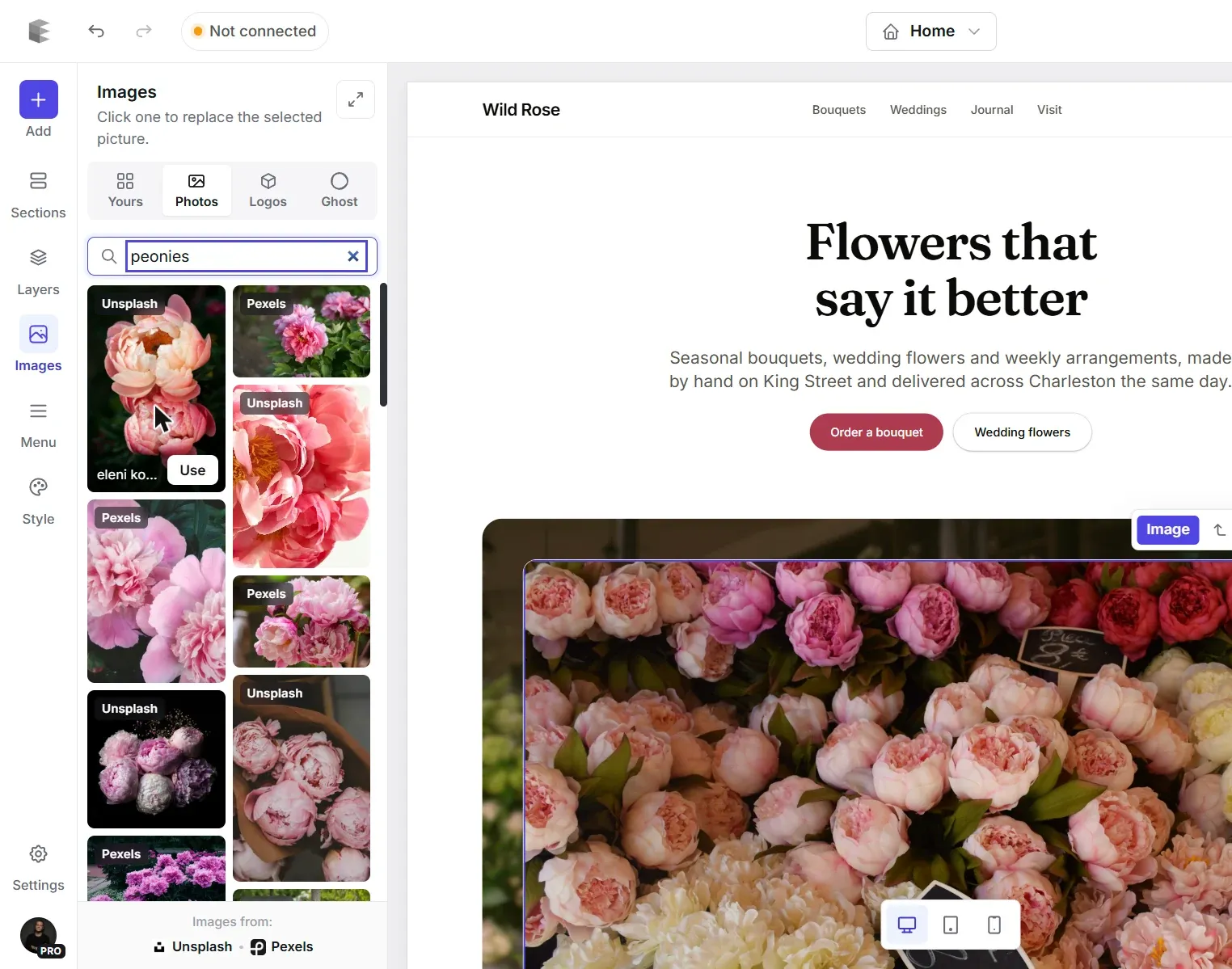
Select a picture on the page first. The panel then says Click one to replace the selected picture, and any picture you click goes straight into its place. With nothing selected, you can still browse, upload and save pictures for later.
Search free photos from Unsplash and Pexels
Open Photos and type what you need: "peonies", "coffee shop", "people working". Results from Unsplash and Pexels arrive mixed in one grid, so neither service fills the top. A small tag on each photo says where it came from, and hovering shows the photographer's name and a Use button.
Both libraries are free to use on a website, including commercial ones, and neither requires a credit line, though photographers always appreciate one. The panel shows who took each photo, with a link to their page.
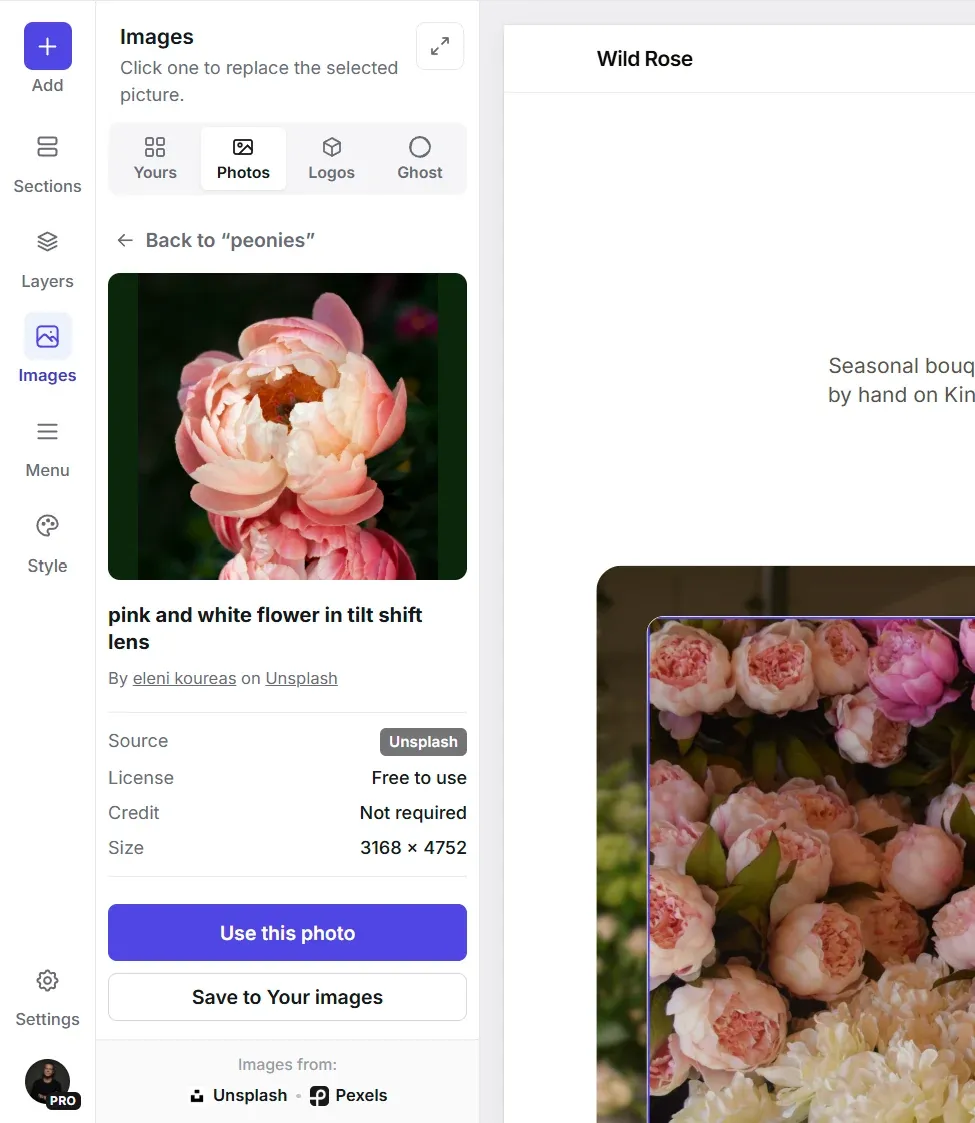
Click a photo to see it larger before you decide. You get its title, the photographer and a link to the photo's page, its source and size, and two buttons:
- Use this photo puts it on your page.
- Save to Your images keeps a copy in your theme's own library, so it's there next time.
Use the wide view for more room
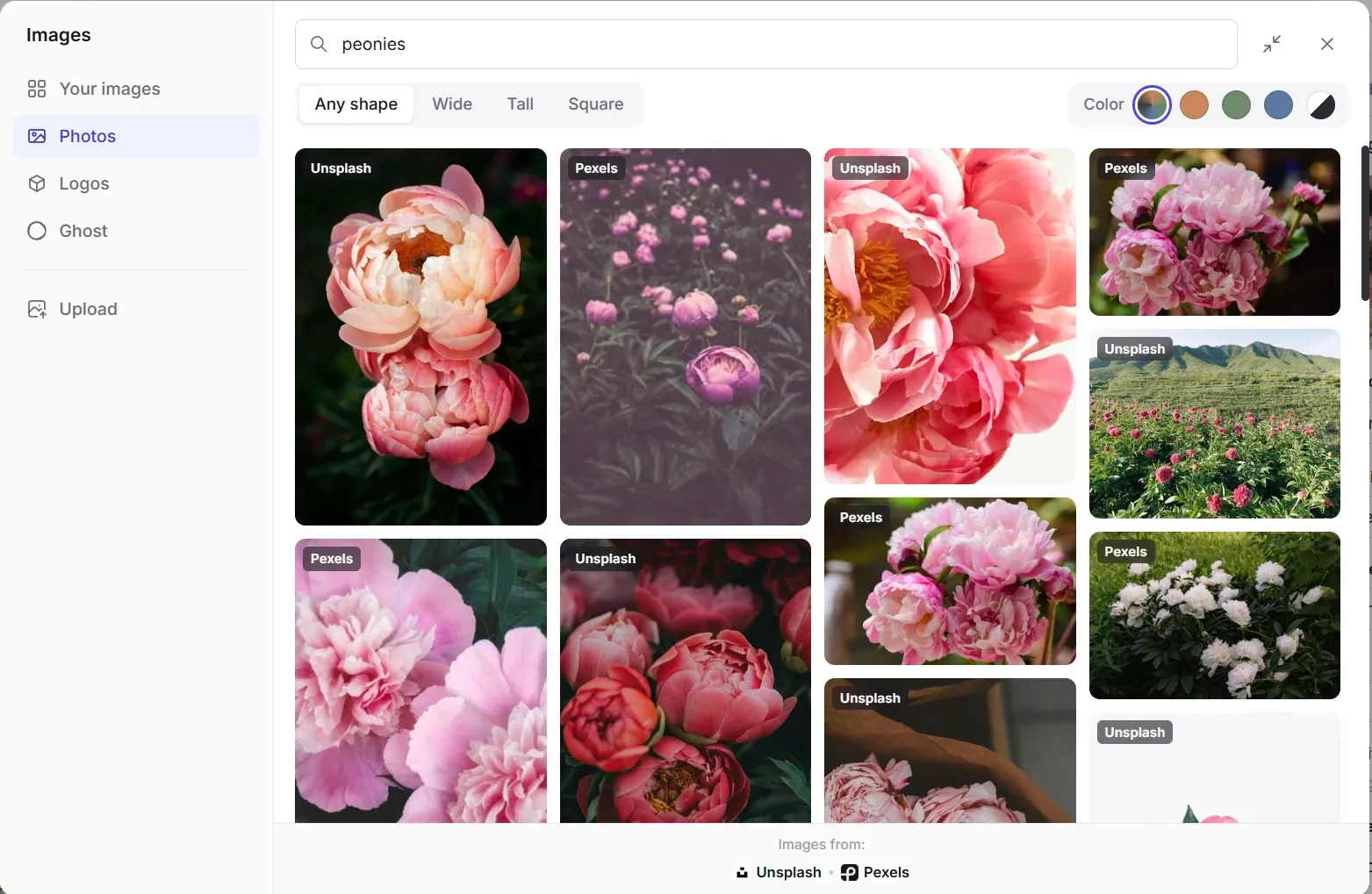
The panel sits beside your page, so you can keep clicking pictures and replacing them without closing anything. When you want to browse properly, click the expand button at the top of the panel. The same search opens full width, four columns across, with filters:
- Shape: any, wide, tall or square. Pick wide for a banner, tall for a portrait column.
- Color: warm, green, blue or black and white, to match your brand.
Popular searches give you a starting point when you're not sure what to look for. The arrows in the top corner take you back to the panel, with your search still there.
Upload and manage your own pictures
Yours is your theme's own library. To add pictures, click Upload or drop files anywhere on the panel. JPG, PNG, WebP, GIF and SVG all work, and large photos are made smaller for the web automatically.
Pictures are shown whole, never cropped, on a checkered background, so logos with transparent backgrounds are easy to tell apart. Under each one you see where it came from (uploaded, or saved from Unsplash, Pexels or Logo.dev) and how many pages use it. Search finds a picture by name, and in the wide view you can filter photos from logos and graphics.
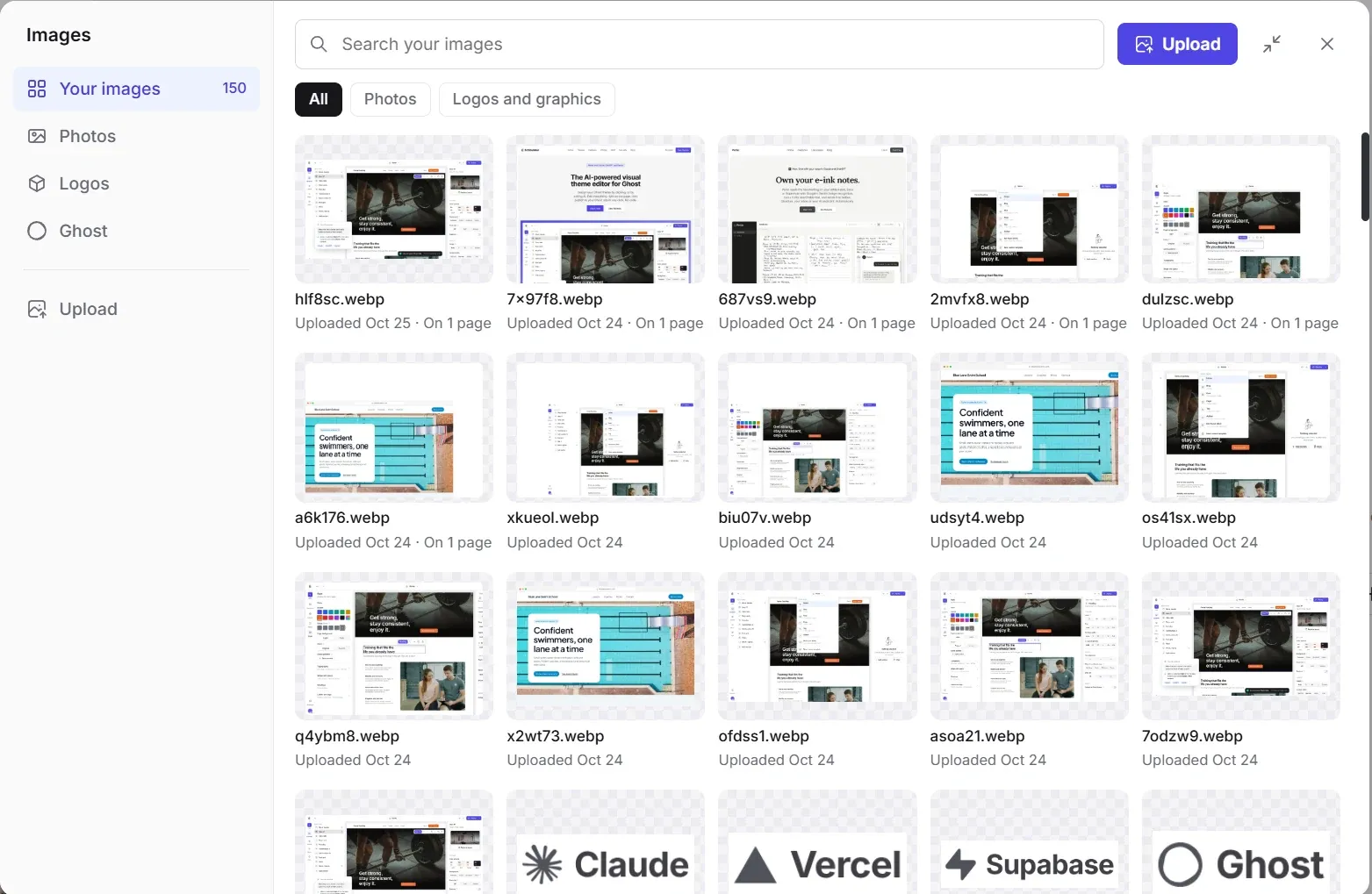
Hover a picture to copy its link or delete it. If a picture is still on your pages, Ectobuilder tells you how many before deleting it, so you don't leave an empty space by accident.
Your uploads travel with the theme. When you deploy or download it, Ectobuilder copies them into the theme in screen-sized WebP versions, so your site stays fast and keeps working on its own.
Pictures for your Ghost site, in one place.
Free photos, company logos and your own uploads, right beside your page. Start free and build your Ghost theme visually.
Add company logos
Logo rows ("Trusted by", "As seen in", "Our clients") are some of the most useful sections on a homepage, and the most tedious to fill. Open Logos, type a company name or website, and pick the right one. Typing the website, such as spotify.com, puts that exact company first.
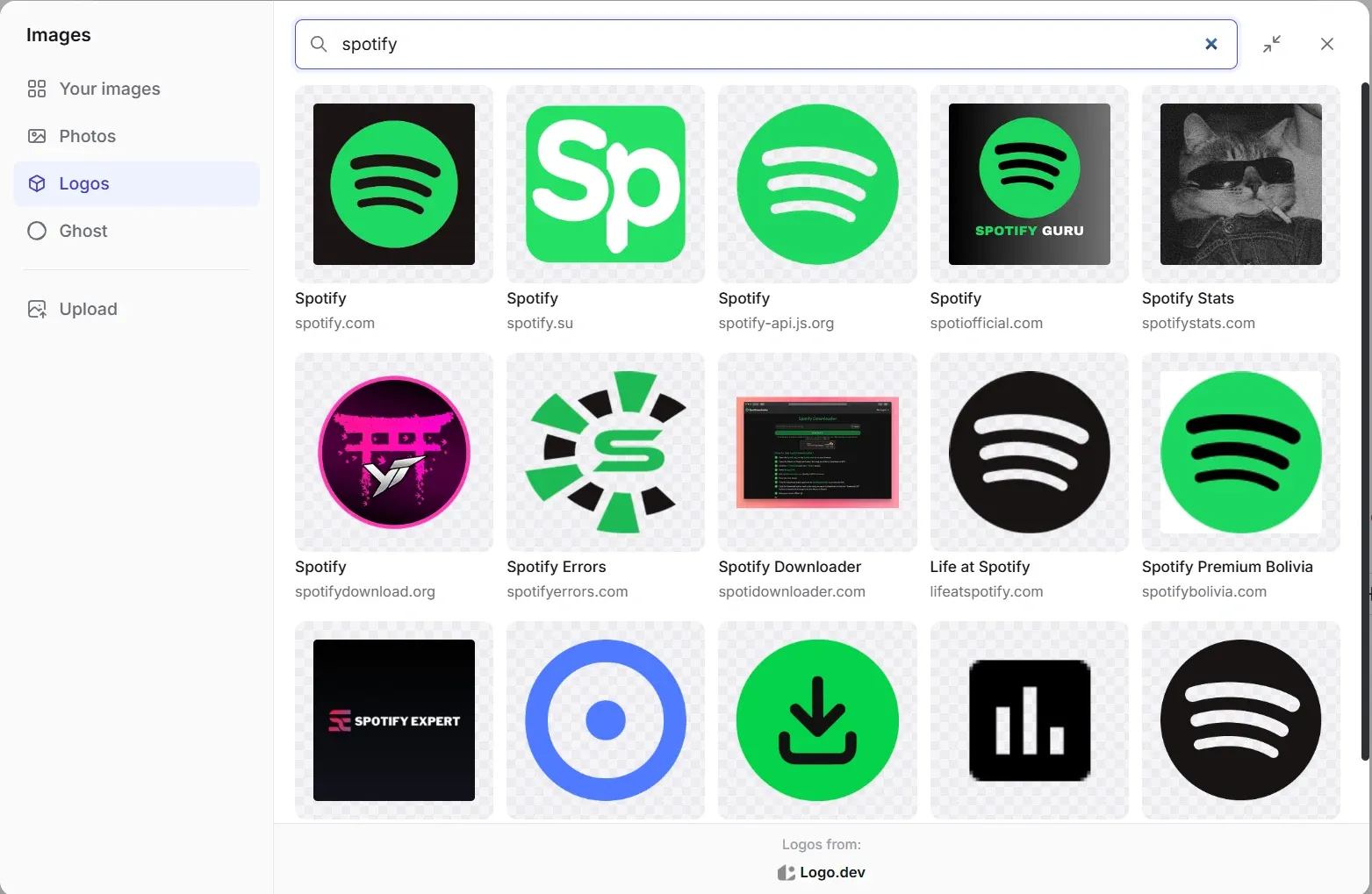
When you pick a logo, Ectobuilder saves a copy to Your images and puts it on the page. Your published site loads it from your own theme, not from a logo service.
One note: logos belong to their companies. Use them to show who you work with, have worked with or have been featured by, not to suggest an endorsement you don't have.
Use the pictures you set in Ghost
The Ghost tab shows your publication logo, cover and icon, as set in Ghost Admin under Settings → Design & branding. Use one of them on the page and it stays linked to Ghost: change your logo in Ghost Admin later, and your site shows the new one straight away, with no new deploy.
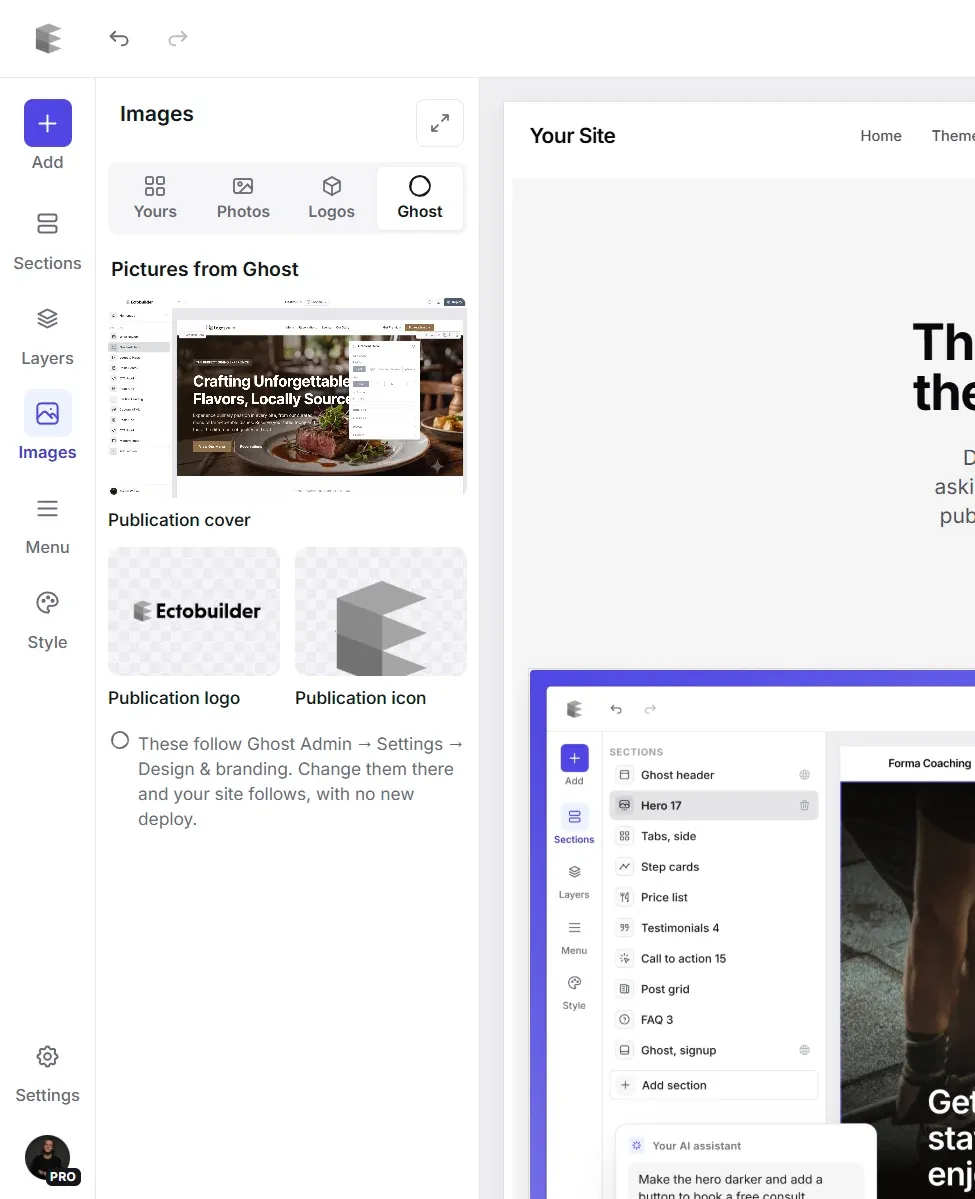
This tab needs your Ghost site connected. See how to build your Ghost theme visually for connecting Ghost in Settings → Integrations.
Replace a picture from the page
You don't have to open the panel first. On the page, either:
- double-click a picture, or
- select it and click Replace in its settings on the right, or the picture button in the small bar above it.
The wide view opens with everything above: Yours, Photos, Logos and Ghost. Click a picture and it takes the place of the old one, at the size and shape the old one had.
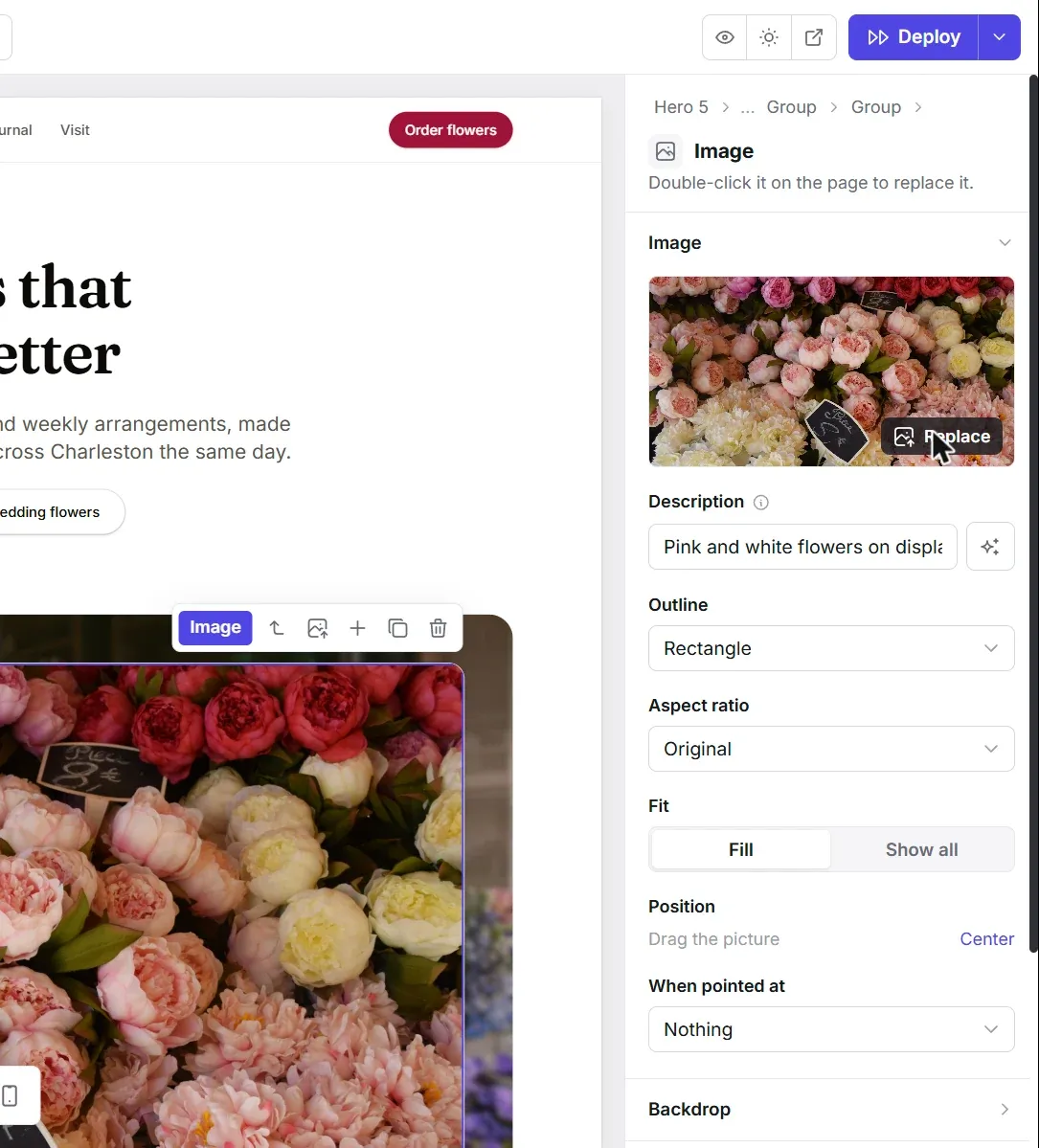
The same settings let you change how the picture sits in its space:
- Outline: a rectangle, or a circle, arch, rounded square, blob, diamond or hexagon.
- Aspect ratio: keep the original, or pick one such as wide (16:9), square or portrait (4:5).
- Fit: fill the space (cropping the edges) or show all of it.
- Position: drag the picture to choose which part stays in view when it's cropped.
Describe every picture (AI can do it for you)
Every picture needs a short description, the alt text that screen readers read aloud and Google uses to understand your images. Ectobuilder writes one with AI whenever you add or replace a picture, in your site's language. Check it in the Description field, edit it if needed, or click the sparkle button to write it again. If you'd rather write your own, turn off Write alt text for images automatically in Settings. More on that in three small upgrades for your Ghost site.
FAQ
Are the photos really free?
Yes. Unsplash and Pexels photos are free to use on websites, including commercial ones, without asking permission or paying. You can't sell the photos themselves or present them as your own work.
Do I need to credit the photographer?
Neither service requires it, but it's a kind thing to do. Ectobuilder shows each photographer's name in the panel, so you can add a credit in a caption if you like.
Will big photos slow my site down?
No. Uploads are resized for the web, and your theme serves screen-sized versions, so phones get small files and large screens get sharp ones. See Core Web Vitals for Ghost for more on speed.
Can visitors enlarge my pictures?
Yes, with a lightbox. See how to add a lightbox to Ghost.
Make your Ghost site look like yours.
Swap the placeholders for your own photos, free stock or your clients’ logos in a few clicks, then publish to Ghost. Free to start.
Written by
Founder of Ectobuilder, the AI-powered visual theme editor for Ghost. Indie software builder in Wrocław and co-author of The AdTech Book. I write about Ghost themes, newsletters and building websites with AI.
Comments
Questions or thoughts? Share them below.
Keep reading
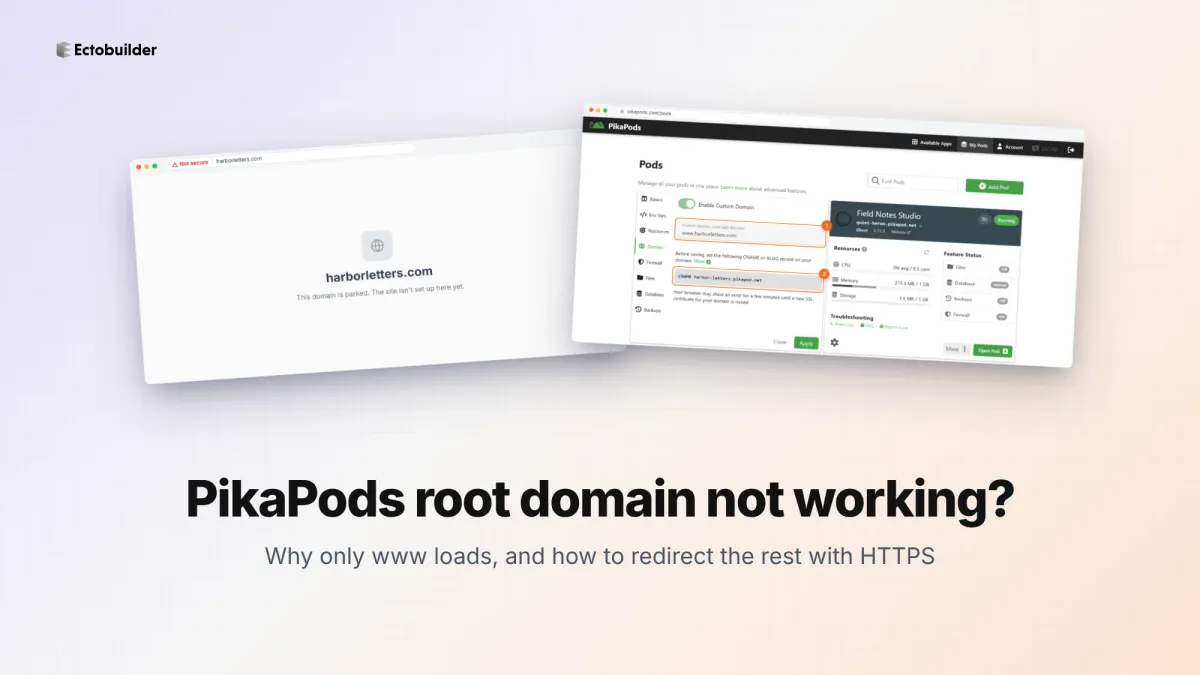
PikaPods Custom Domain: Why Only www Works (and How to Fix the Root Domain)
PikaPods maps one custom domain per pod, so yourdomain.com without www stays on a parked page with no SSL. Here's why, and three ways to redirect it to www over HTTPS without touching your email records.
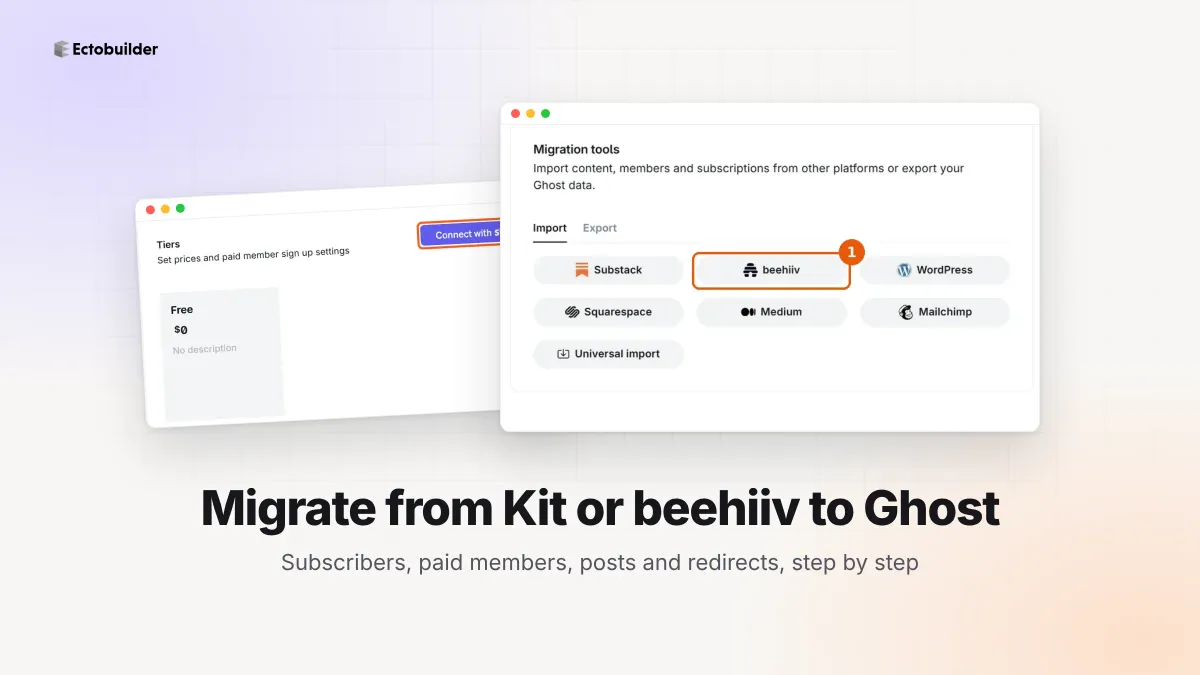
How to Migrate from Kit or beehiiv to Ghost (Subscribers, Paid Members, Posts and Redirects)
Move your newsletter from Kit (ConvertKit) or beehiiv to Ghost step by step: export and import subscribers, deal with paid members and Stripe, bring your posts across, set up redirects and your domain, warm up email sending, and make the new site look right.
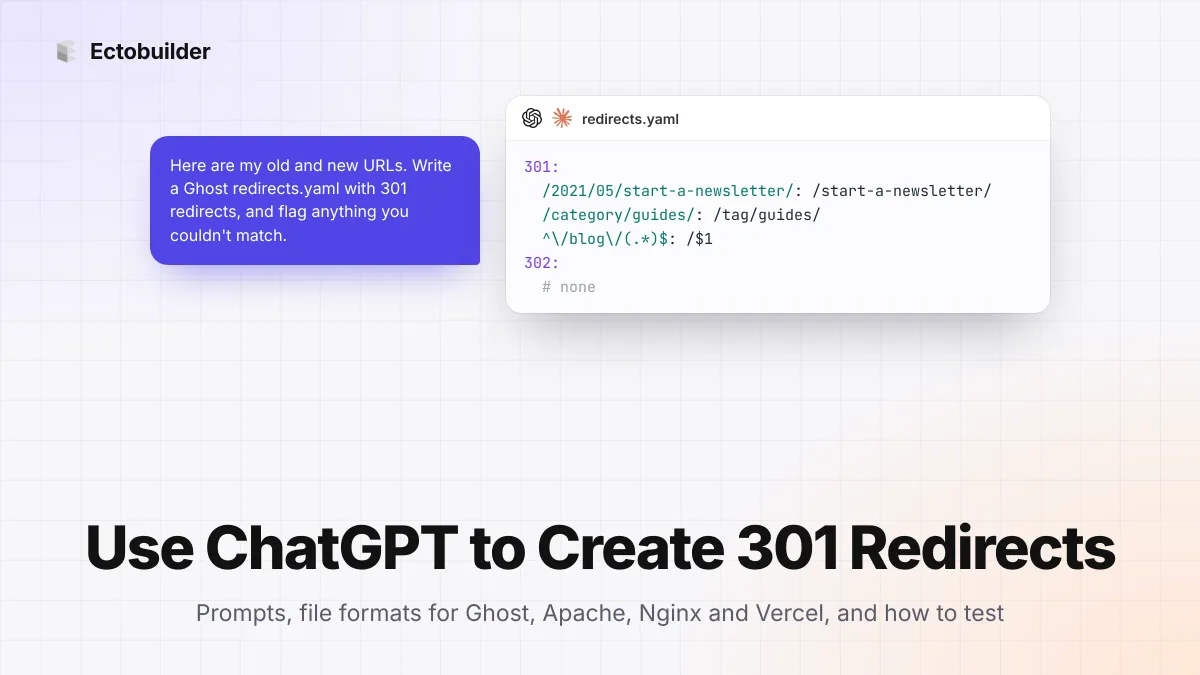
How to Use ChatGPT to Create 301 Redirects (Prompts, File Formats and Testing)
Let ChatGPT or Claude match your old URLs to new ones and write the redirect file for Ghost, Apache, Nginx, Netlify or Vercel. Prompts to copy, the mistakes to avoid, and how to test every redirect.