
How to Migrate from Kit or beehiiv to Ghost (Subscribers, Paid Members, Posts and Redirects)
Move your newsletter from Kit (ConvertKit) or beehiiv to Ghost step by step: export and import subscribers, deal with paid members and Stripe, bring your posts across, set up redirects and your domain, warm up email sending, and make the new site look right.

Michal Wlosik
· 10 min read
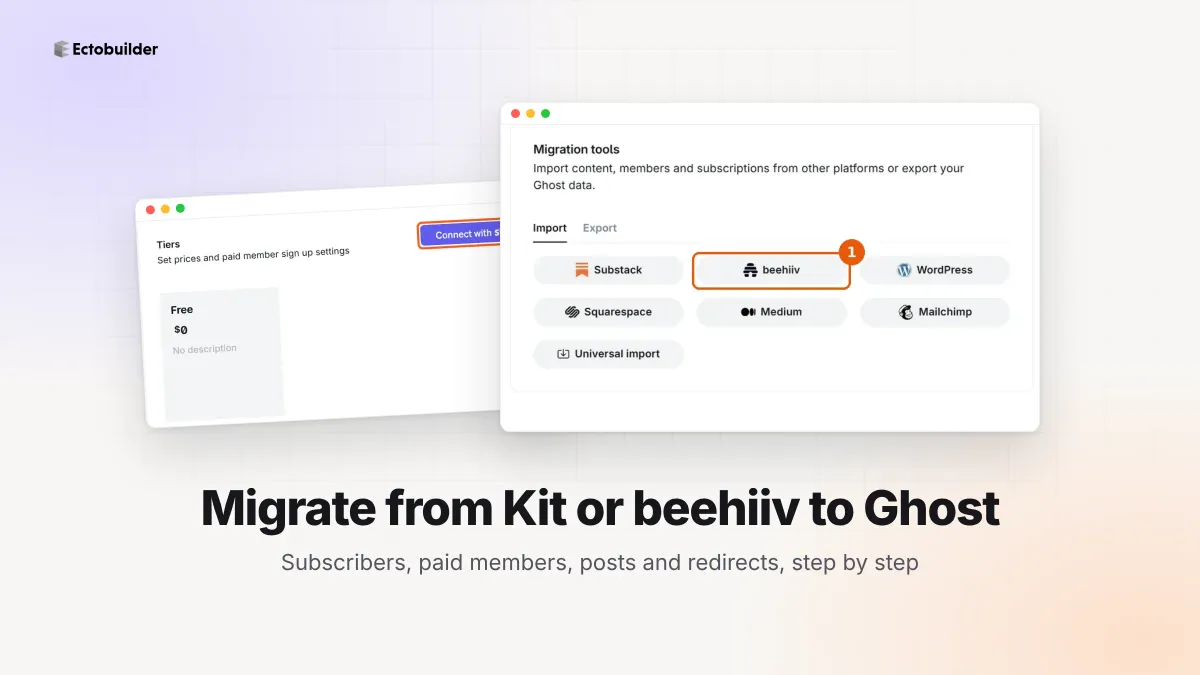
Moving a newsletter from Kit or beehiiv to Ghost takes an afternoon for a small list and a few days of care for a big one. The free subscribers are the easy part. Paid subscribers, old posts and old links need more thought, and the details differ a lot between the two platforms.
This guide goes through it in order: what to prepare, how to export from Kit and from beehiiv, how to import members into Ghost, what to do about paid subscriptions, how to bring posts across, and the domain, redirect and email steps that keep readers and search traffic with you. Instructions were checked against Ghost's, Kit's and beehiiv's own help pages in October 2026.
Still deciding? Read beehiiv vs Ghost or our comparison of Kit alternatives first.
What moves, and how
| From Kit | From beehiiv | |
|---|---|---|
| Free subscribers | CSV export, then Ghost's member import | Ghost's beehiiv migrator (API key), or a CSV export |
| Tags and segments | Tags column in the CSV, imported as Ghost labels | Tier in the CSV; use labels for anything else |
| Paid subscribers | No direct path; give free access, then ask them to re-subscribe | Copy to a new Stripe account (Ghost's migrations team or its Stripe tool) |
| Posts | No export; copy the ones worth keeping | Ghost's beehiiv migrator |
| Old links | Redirects, if you used a custom domain | Redirects for /p/ and /t/, or keep /p/ with your theme |
| Automations and sequences | Rebuild; Ghost has welcome emails, the rest through Zapier | Rebuild the same way |
| Stats, referrals, Boosts, ads | Stay behind | Stay behind |
Before you start
- Set up Ghost. Ghost(Pro) or a self-hosted install both work. If you charge for subscriptions or want a custom theme, you need Publisher or higher on Ghost(Pro). For self-hosting on a budget, see our cheap Ghost hosting guide.
- Write down your numbers. Active subscribers, paid subscribers and their prices, so you can check the import against them.
- List your important URLs. Your most-visited posts, from Google Search Console or your analytics. These are the ones that must keep working.
- Pick a moving day. Export on that day, and pause new signups on the old platform if you can. Anyone who subscribes after your export won't be in it.
- Tell your readers. One short email from the old platform saying the newsletter is moving, and that the next one will come from a new address, does more for deliverability than any setting.
Step 1: Set up Ghost and connect Stripe
In Ghost Admin, go to Settings → Tiers, connect Stripe, and create tiers and prices that match what readers paid before. Do this before importing anyone, so paid members have somewhere to land.
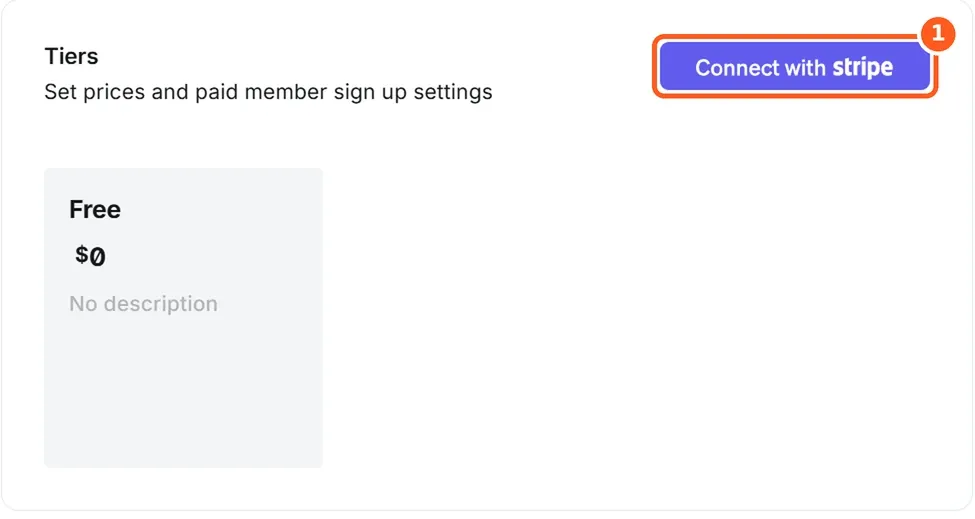
Which Stripe account to use depends on where you're coming from. That's the subject of step 4, so read it before you connect.
Step 2: Export your subscribers
From Kit
- Open Subscribers and filter by status Confirmed, so you leave out unsubscribed and bounced addresses.
- Select all, open the Bulk actions menu and choose Export.
- Kit emails you a CSV. Download links expire after five days.
The file includes first name, email, sign-up date, status and tags, plus any custom fields.
From beehiiv
If you use Ghost's beehiiv migrator (step 3), you don't need a file. For a backup, or to clean the list first:
- Go to Settings, then Export Data.
- Under Export Subscribers, choose Export All Subscribers for the full version with custom fields.
- beehiiv emails you when it's ready. The download link lasts 24 hours.
Step 3: Import members into Ghost
The beehiiv migrator
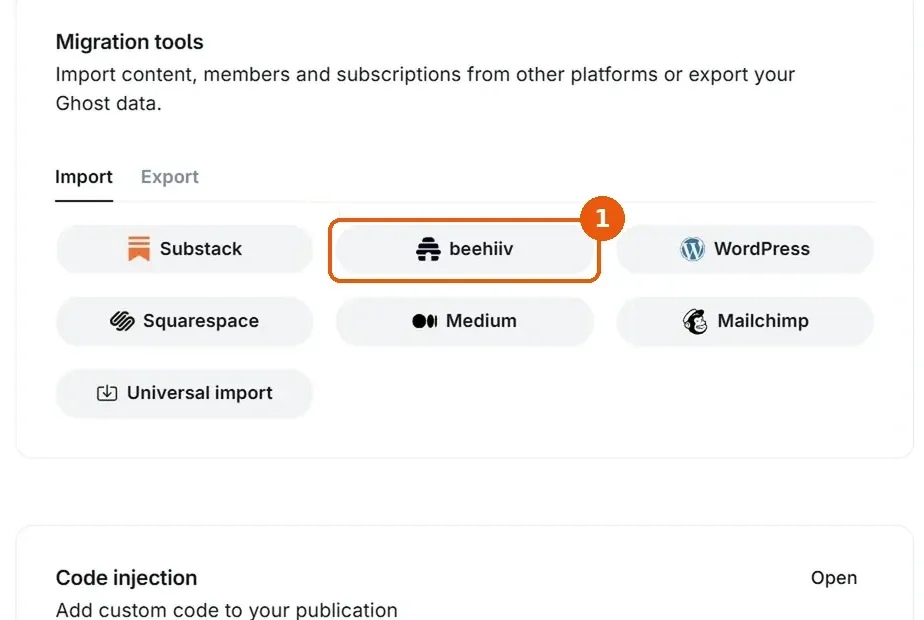
In Ghost Admin, open Settings → Import/Export under Advanced and choose beehiiv. Create an API key in beehiiv, paste it in, pick your publication, choose posts, subscribers or both, check the counts and click Import content and subscribers.
A CSV import, for Kit or a cleaned beehiiv list
Open Members, then the settings menu at the top, and choose Import members. Upload the CSV and map each column to a Ghost field. Only email is required. The other columns Ghost understands are:
| Column | What it does |
|---|---|
email | Required. The member's address. |
name | Map Kit's first name column here. |
labels | Comma-separated, in quotes, for example "kit, customers". Map Kit's tags here to keep your segments. |
subscribed_to_emails | true or false. Use false for anyone who shouldn't get the newsletter. |
complimentary_plan | true gives the member free access to paid content. Useful for paid subscribers you can't move (step 4). |
stripe_customer_id | A Stripe customer ID, or auto to match by email in your connected Stripe account. |
created_at | The original sign-up date, so your member history starts in the right place. |
note | Anything you want to keep about the member. |
Add a label to everyone in the import, such as from-kit or from-beehiiv. It costs nothing and makes it easy to email or filter these readers later. On Ghost(Pro), a very large import can trigger a short review before your first send to the whole list, so import a few days before you plan to publish.
Step 4: Move or replace paid subscriptions
This is the step that differs most between the two platforms.
Paid subscribers on beehiiv
Ghost's beehiiv guide says the Stripe account attached to a beehiiv site can't be used or connected on any other platform. So you can't simply connect the same Stripe account to Ghost, as you would when leaving Substack. Instead:
- On Ghost(Pro): contact Ghost's migrations team, who can move customers and subscriptions to your own Stripe account.
- Self-hosting: Ghost publishes an open-source tool, mg-stripe, that copies customers and subscriptions from one Stripe account to another.
- Afterwards: check the statement descriptor in Stripe's public details, so readers' bank statements don't still say beehiiv.
Paid subscribers on Kit
Ghost's Kit guide says there is no direct migration path for paid subscriptions. beehiiv's guide explains why: Kit accounts on Stripe Express don't give you the customer and payment data a transfer needs. The usual way through:
- Import paid readers into Ghost with
complimentary_planset totrueand a label likekit-paid. - Cancel their Kit subscriptions so nobody pays twice.
- Email that label, explain the move, and invite them to subscribe on Ghost before their free access ends. A discount or an extra free month helps, and Ghost's offers can do both.
Expect some paid readers not to come back. Be generous with the free period and clear with the message.
Step 5: Bring your posts across
From beehiiv
The beehiiv migrator imports your posts along with subscribers. Afterwards, open five or six of them, including an old one, a paid one and one with embeds or polls, and check that images load and paywalls sit where you expect. Polls and some beehiiv-only blocks won't carry over.
From Kit
Kit has no export for broadcasts, and Ghost has no Kit post importer. The usual advice, even from other platforms' Kit guides, is to copy and paste. In practice:
- Move the posts that matter. Start with the ones that get traffic or that you link to, not your whole history.
- Paste into Ghost's editor, then set each post's original publish date in post settings so your archive keeps its order.
- Or ask an AI assistant. With Ectobuilder's MCP connector, Claude, ChatGPT or Gemini can create the drafts in your Ghost site for you from your public Kit posts. Check each one before publishing.
Step 6: Point your domain and fix old links
If your newsletter had a custom domain, point it at Ghost (on Ghost(Pro), under Settings → Domain). Lower the DNS time-to-live a day before, so the switch happens quickly. If you were on a beehiiv.com or Kit address, those links can't follow you, so post a "we've moved" note there.
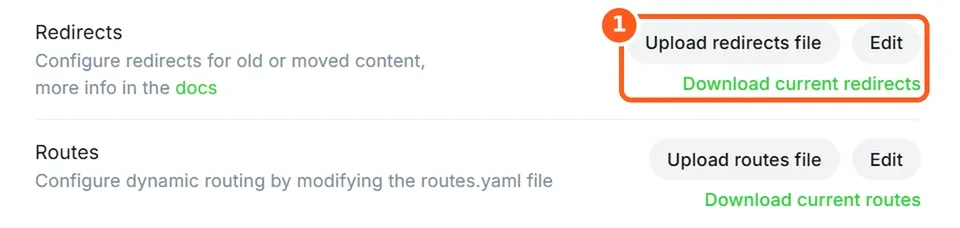
beehiiv post addresses look like /p/post-name and tag pages like /t/tag-name. Ghost uses /post-name/ and /tag/tag-name/. In Settings → Labs, download your current redirects file, add these rules and upload it again:
301:
  ^\/p\/(?![0-9a-f]{8}-[0-9a-f]{4}-[0-9a-f]{4}-[0-9a-f]{4}-[0-9a-f]{12})(.*)$: /$1
  ^\/t\/(.*)$: /tag/$1
The first rule leaves Ghost's own preview links alone, because they also start with /p/ followed by a long ID. The second assumes your tags have the same names in Ghost; check a few. If you'd rather keep /p/ addresses as they are, the Newsletter theme uses them. For Kit landing pages and anything else, see how to find every missing page and redirect it.
Step 7: Set up email sending and warm-up
A new platform means a new sender, and inboxes are cautious with strangers.
- Use your own sending domain. On Ghost(Pro), custom sending domains need Publisher or higher. Ghost gives you the DNS records to add, and a DMARC record is required (a simple
v=DMARC1; p=none;is enough to start). - Let the warm-up run. Ghost warms up a new sending domain gradually over about six weeks. Until it finishes, some readers get your newsletter from Ghost's own domain. That's normal.
- Self-hosting? You'll send through Mailgun. Warm up yourself: send first to your most engaged readers, using a label, and widen over a few issues.
- Import only active subscribers. Old, bounced and unsubscribed addresses hurt your reputation from the first send.
- Send yourself a test before the first real issue, and ask readers to reply or add your address to their contacts.
Step 8: Rebuild what Ghost does differently
- Welcome emails: set one per tier under Settings. Longer sequences need Zapier or a connected email tool.
- Newsletters: Ghost can run several newsletters on one site; readers choose which they get.
- Recommendations: add the publications you recommend under Settings → Recommendations.
- Social web: turn on Ghost's Network so people can follow you from Mastodon and other ActivityPub apps.
- Sponsors: without beehiiv's ad network, sell placements directly, or add a sponsor block to your theme.
Step 9: Make the site look right
Your readers are used to a certain look, and Ghost's default theme isn't it. This is where most moves stall, because changing a Ghost theme usually means editing code.
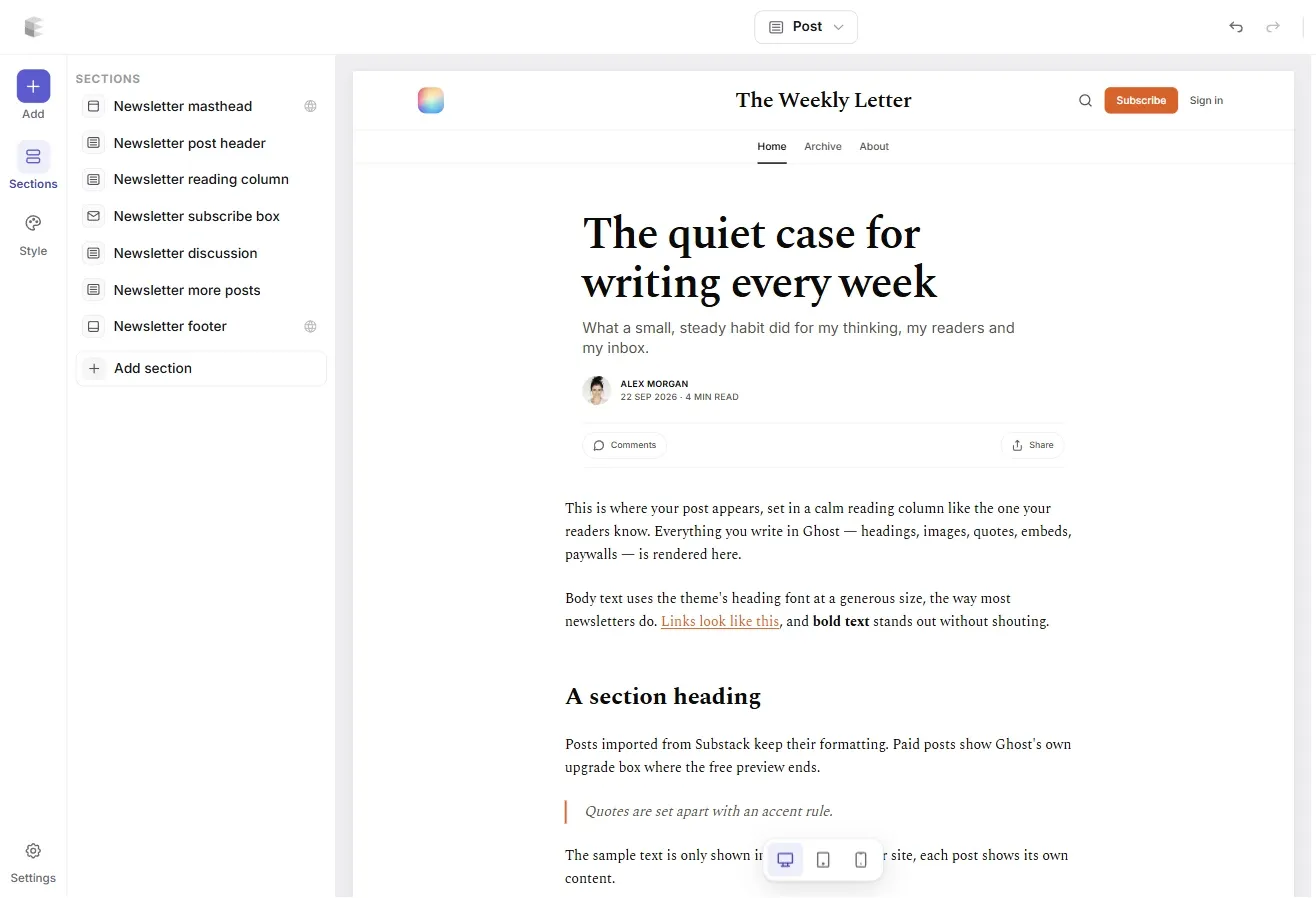
Ectobuilder lets you build a Ghost theme visually instead: pick from more than 400 sections, such as a newsletter signup hero, post lists, a pricing table or an about block, edit the text and pictures on the page, and publish to Ghost in one click. You can also describe what you want to Claude, ChatGPT or Gemini and let it build the theme through the MCP connector. Building is free; Pro is $79 a year for up to three Ghost sites.
- For a reading-first newsletter site, start from the Newsletter theme, with paid plans,
/p/links and comments. - For a familiar, Substack-style layout, see how to make Ghost look and feel like Substack.
- When you're ready to sell, here's how to build a pricing page in Ghost.

Moving your newsletter to Ghost? Ectobuilder lets you design your Ghost site visually, from a simple newsletter homepage to a full magazine, without touching theme code.
Migration checklist
- Ghost set up on the right plan, Stripe connected, tiers created.
- Readers told the newsletter is moving.
- Subscribers exported (active only) and imported, with a label.
- Member counts checked against the old platform.
- Paid subscribers moved, or given free access with a clear email.
- Posts imported or copied, with original dates.
- Domain pointed at Ghost, redirects uploaded, top URLs tested.
- Sending domain set up, test email sent.
- Theme designed, welcome emails and recommendations set.
- Old platform paused, not deleted, until the first few issues land well.
Coming from Substack instead? We have a separate guide: How to migrate from Substack to Ghost. Comparing more platforms first? See the best newsletter platforms and our Substack alternatives.
FAQ
Can I move paid subscribers from Kit to Ghost?
Not directly. Ghost's guide says there's no migration path for Kit paid subscriptions. Import those readers with free (complimentary) access, cancel their Kit subscriptions, and invite them to subscribe again on Ghost.
Can I connect my beehiiv Stripe account to Ghost?
No. A Stripe account tied to a beehiiv site can't be connected to another platform. Paid subscriptions have to be copied to a new Stripe account, with help from Ghost's migrations team on Ghost(Pro) or Ghost's open-source Stripe tool.
Does Ghost import posts from Kit?
No. Kit has no broadcast export and Ghost has no Kit post importer. Copy the posts worth keeping, or ask an AI assistant to create them as drafts through Ectobuilder's MCP connector.
Will my emails land in spam after the move?
Not if you prepare. Import only active subscribers, tell readers the move is coming, set up a custom sending domain with DMARC, and let Ghost's six-week warm-up run.
How long does the move take?
A free newsletter from beehiiv can be across in an hour. Paid subscribers, a long Kit archive and design work stretch it to a few days. Keep the old account until the first issues from Ghost have gone out well.
Sources
- Ghost: migrating from beehiiv and migrating from Kit
- Ghost: importing members
- Ghost: custom sending domains
- Kit: exporting subscribers
- beehiiv: exporting posts and subscribers
- beehiiv: migrating from Kit (on Kit paid subscriptions and Stripe Express)
- Buttondown: migrating from Kit (on Kit broadcasts)
- TryGhost/migrate: mg-stripe
Some links in this article are affiliate links: if you sign up through them, we may earn a commission at no extra cost to you.
Written by
Founder of Ectobuilder, the AI-powered visual theme editor for Ghost. Indie software builder in Wrocław and co-author of The AdTech Book. I write about Ghost themes, newsletters and building websites with AI.
Comments
Questions or thoughts? Share them below.
Keep reading
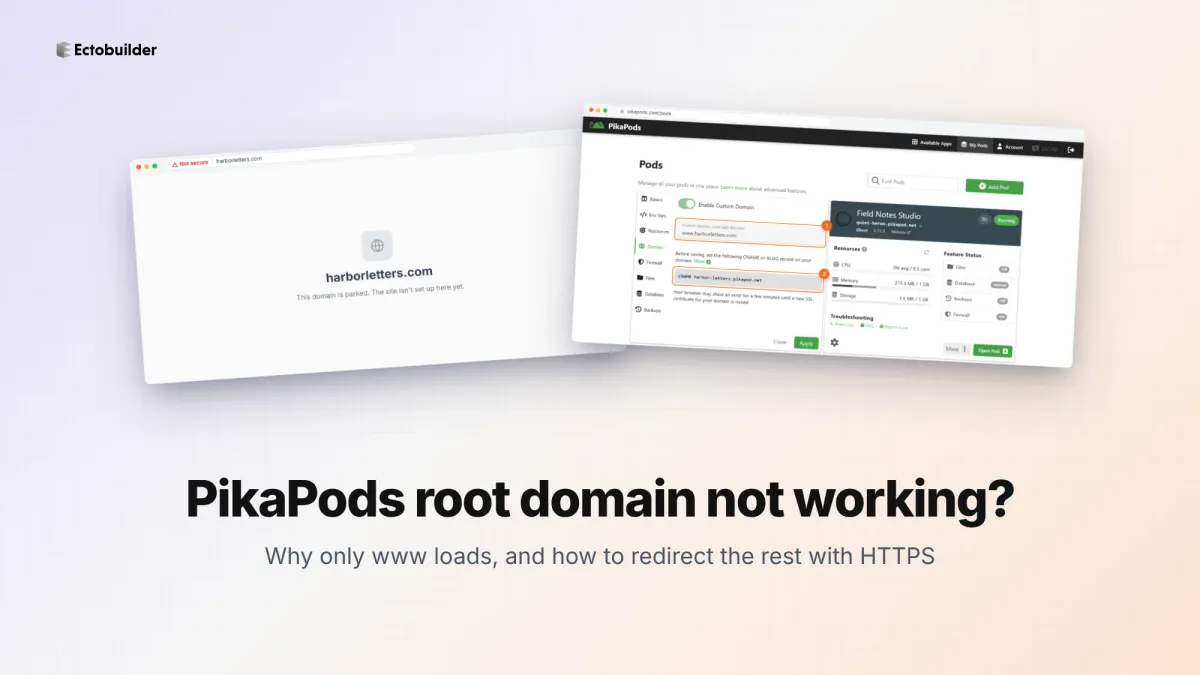
PikaPods Custom Domain: Why Only www Works (and How to Fix the Root Domain)
PikaPods maps one custom domain per pod, so yourdomain.com without www stays on a parked page with no SSL. Here's why, and three ways to redirect it to www over HTTPS without touching your email records.
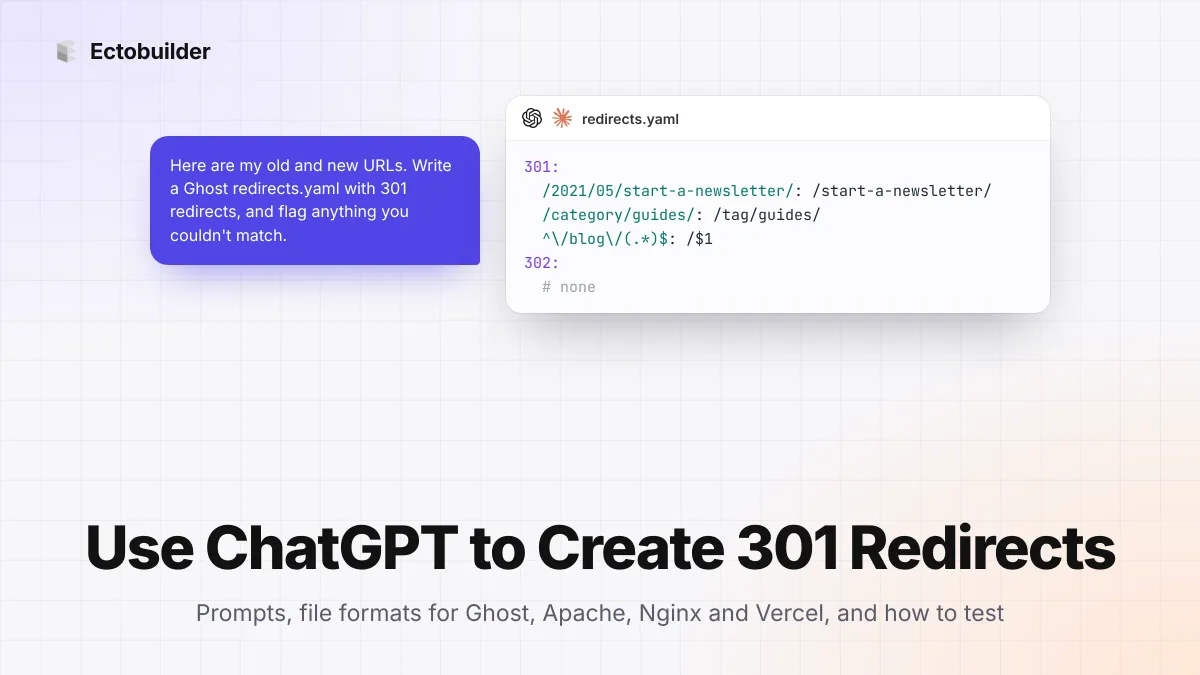
How to Use ChatGPT to Create 301 Redirects (Prompts, File Formats and Testing)
Let ChatGPT or Claude match your old URLs to new ones and write the redirect file for Ghost, Apache, Nginx, Netlify or Vercel. Prompts to copy, the mistakes to avoid, and how to test every redirect.
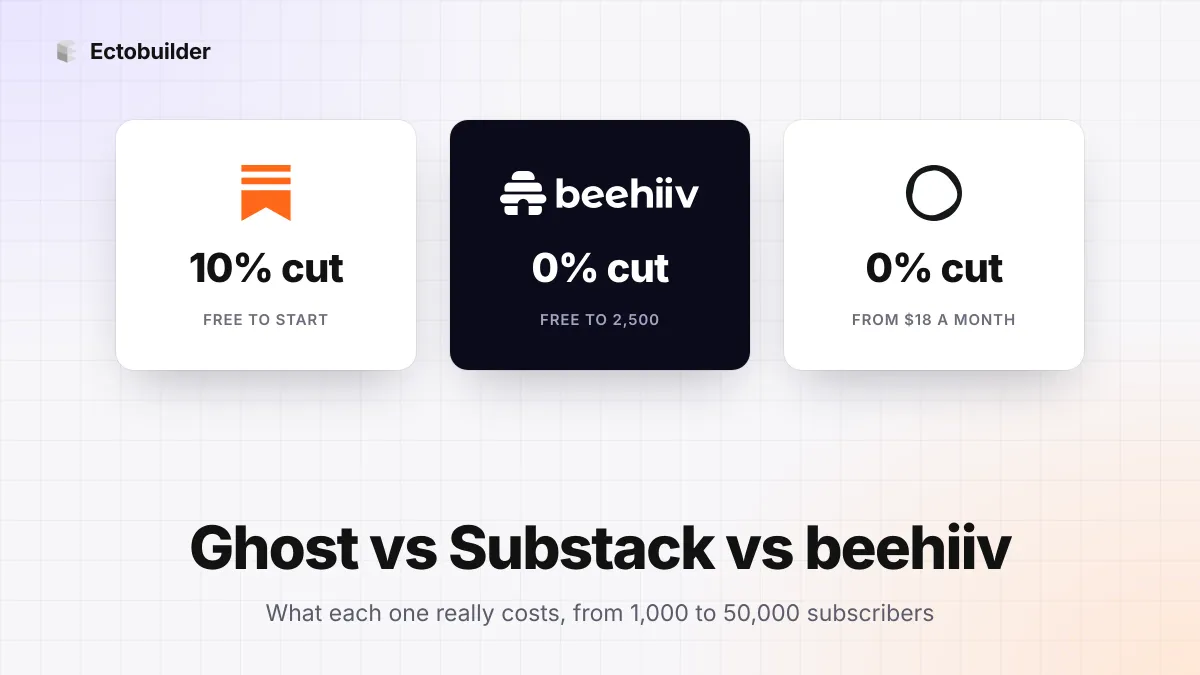
Ghost vs Substack vs beehiiv (2026): What Each Really Costs, and Which to Choose
Substack is free but takes 10%. beehiiv and Ghost take 0% but charge a monthly plan. The three newsletter platforms side by side, with what each costs at 1,000, 10,000 and 50,000 subscribers.