
How to Add Share Buttons to Ghost Posts (No Plugins, No Tracking)
Add share buttons for X, LinkedIn, Facebook, Bluesky, Threads, WhatsApp and more to every Ghost post, with no third-party scripts, no cookies and nothing to slow your site down.

Michal Wlosik
· 4 min read
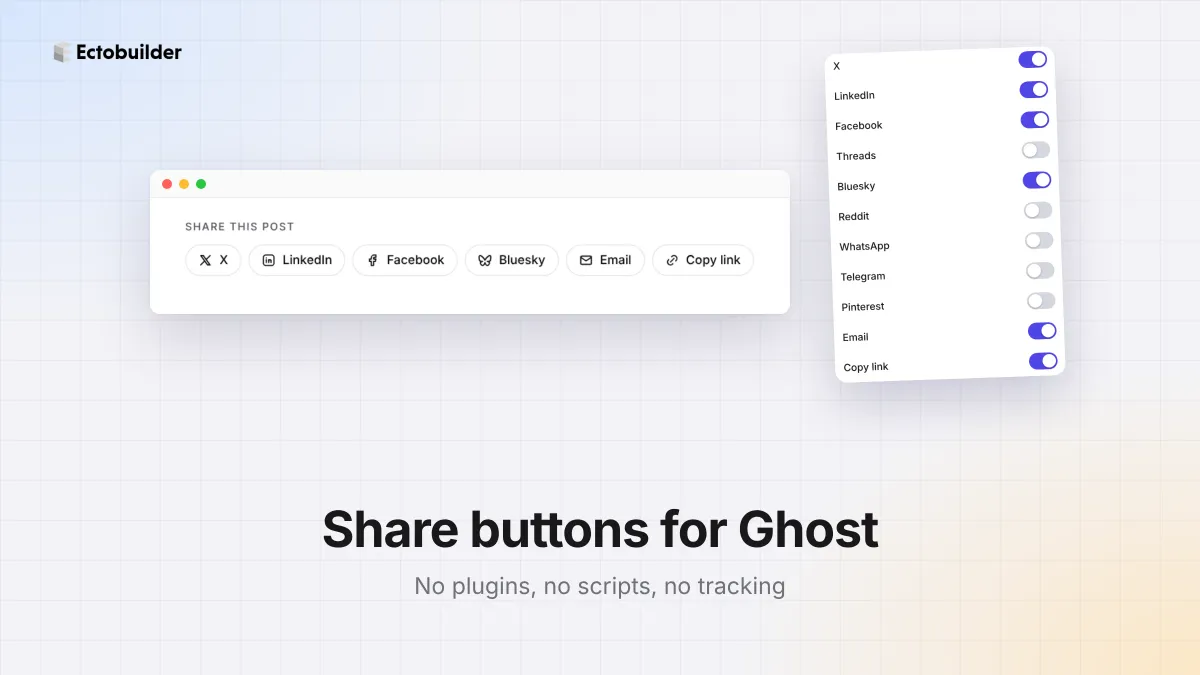
A reader likes your post and wants to send it to a friend. On most Ghost sites, they copy the address from the browser bar, if they bother. Share buttons at the end of a post make it one click, and that's often the difference between a post that spreads and one that doesn't.
Ghost doesn't add share buttons, and most themes don't either. This guide shows how to add them without code, without third-party scripts, and without slowing your site down.

Why not a share plugin?
The usual route is a share widget from a third-party service, or each social network's own buttons. They load scripts from another company on every page, which slows the page down, sets cookies and tracks your readers, so you'd also need a cookie banner for them.
Share buttons don't need any of that. A share button is just a link to the network's share page with your post's address in it. That's how Ectobuilder's share sections work: plain links, no scripts, no tracking.
What you get
- Three designs: a compact row, larger buttons, and a card that asks readers to share.
- Eleven ways to share: X, LinkedIn, Facebook, Threads, Bluesky, Reddit, WhatsApp, Telegram, Pinterest, email and Copy link. Pick the ones your readers use.
- The right link, every time. Each button shares the post's own address and title, filled in by Ghost.
- Copy link puts the address on the clipboard in one click, for sharing anywhere else.
How to add share buttons to Ghost
1. Open your Post page
Open your theme in Ectobuilder and switch to the Post page in the page menu. That's the template for every post.
2. Add a share section
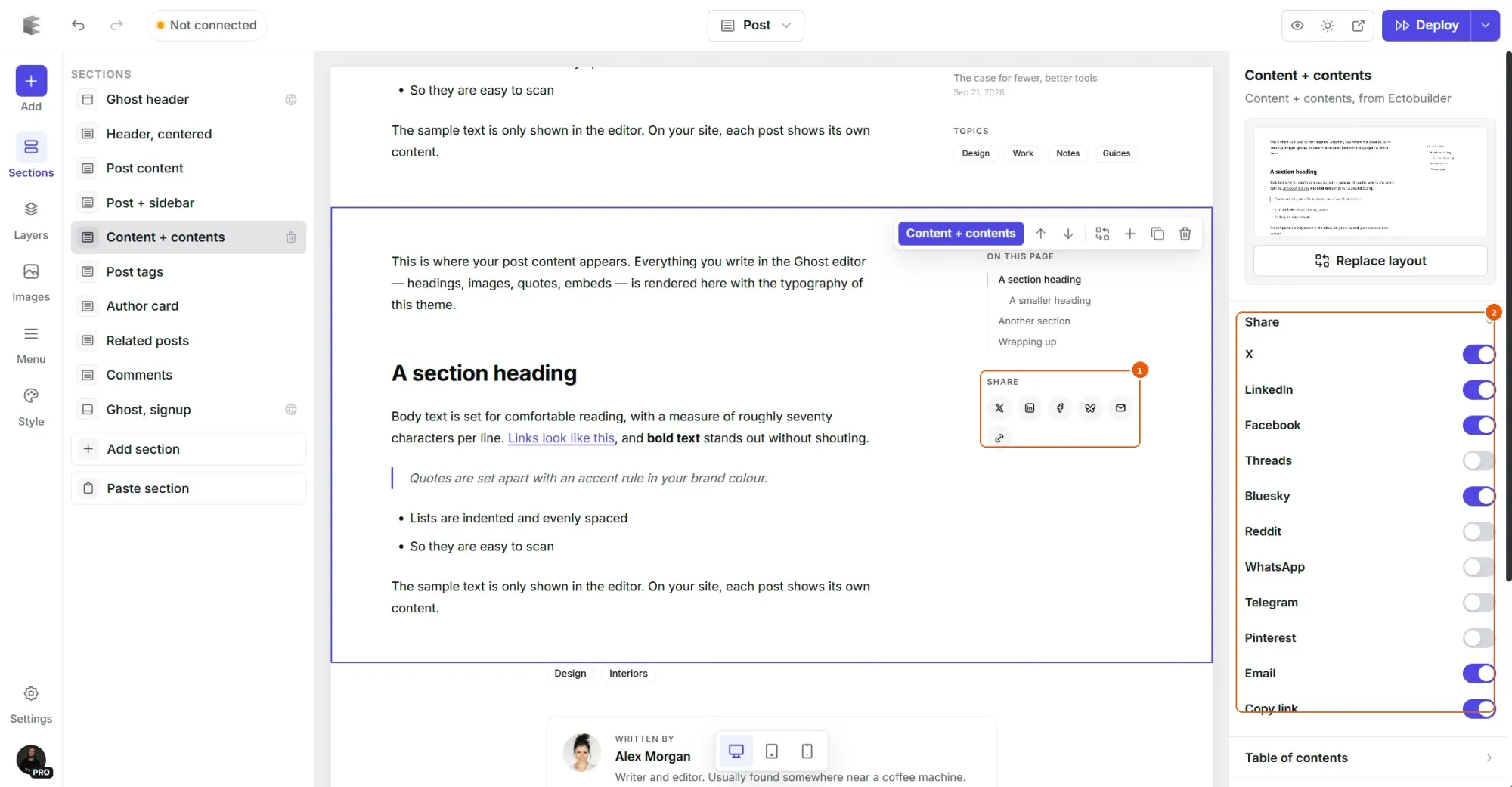
Click Add section, open Post & page and pick Share row, Share buttons or Share card. Move it below the post's content with the arrows, where readers finish reading.
3. Choose the networks
Select the section. Under Share in the panel on the right, switch on the networks you want.
4. Deploy
Deploy your theme to Ghost. Every post has share buttons now, old posts included. Add a share section to the Page template too if your pages are worth sharing.

Help readers share your posts.
Add share buttons to every Ghost post in a few clicks, with no scripts and no tracking.
Tips
- Fewer is better. Three to five buttons get more clicks than eleven. Pick the networks where your readers are: LinkedIn for business topics, Bluesky and Threads for tech and media, Pinterest for food, travel and design, WhatsApp for local audiences.
- Always include Copy link. It covers every app you didn't add a button for.
- Put them at the end. People share after reading, not before. One share section after the post works better than buttons at the top.
- Set a good social image. Shared links show the post's feature image and title. Check them in Ghost's post settings under Social.
- Translate the labels under Settings → Language if your site isn't in English.
Related guides
- Table of contents for Ghost posts: builds itself from your headings and follows the reader.
- Sidebars for Ghost posts: recent posts, topics and a subscribe box beside every post.
- Reading progress, page transitions and AI alt text: three small upgrades readers notice.
- How to build your Ghost theme visually: every step, from picking a theme to publishing it to Ghost.
FAQ
Do share buttons need a cookie banner?
No. They’re plain links: nothing loads from the social networks until a reader clicks one.
Do they work on members-only posts?
Yes. They share the post’s address. Whoever opens it sees what Ghost shows them: the free preview, or the whole post if they’re a member.
Can I add share buttons to pages?
Yes. Add a share section to the Page template, or to a custom template.
Why isn’t Instagram or TikTok in the list?
They don’t have a way to share a link from a website. Copy link covers them: readers paste the address into their bio or story.
Build a Ghost theme readers want to share.
Share buttons, a table of contents, related posts and more, designed visually and deployed straight to Ghost.
Written by
Founder of Ectobuilder, the AI-powered visual theme editor for Ghost. Indie software builder in Wrocław and co-author of The AdTech Book. I write about Ghost themes, newsletters and building websites with AI.
Comments
Questions or thoughts? Share them below.
Keep reading
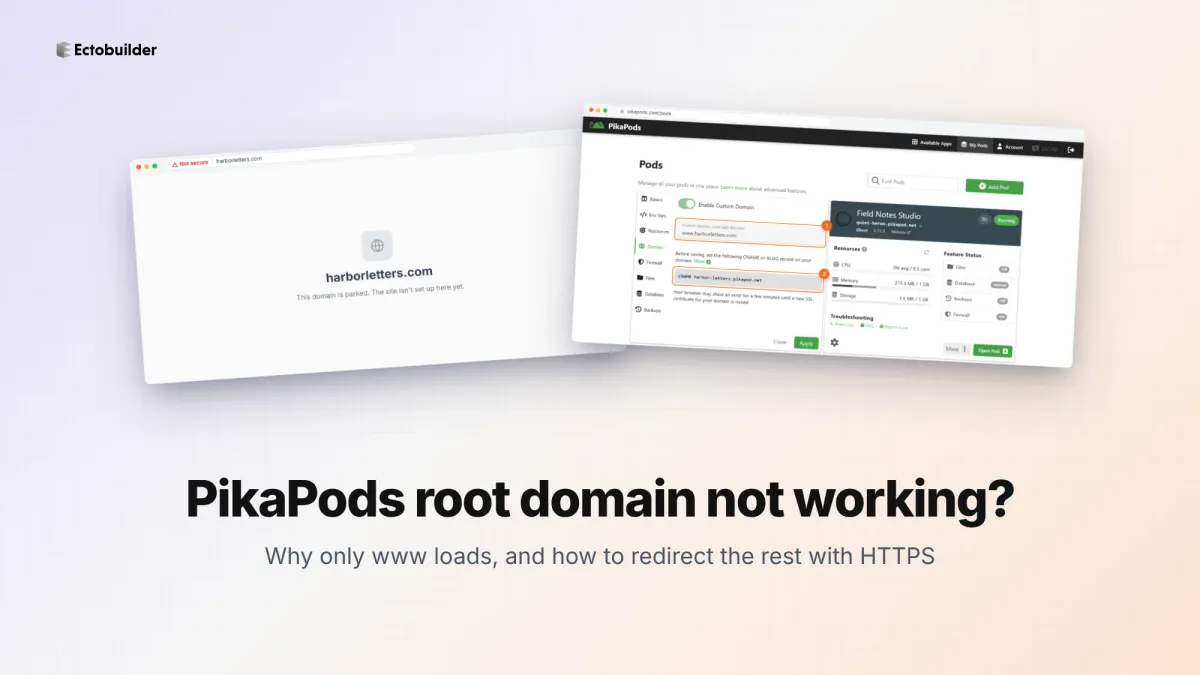
PikaPods Custom Domain: Why Only www Works (and How to Fix the Root Domain)
PikaPods maps one custom domain per pod, so yourdomain.com without www stays on a parked page with no SSL. Here's why, and three ways to redirect it to www over HTTPS without touching your email records.
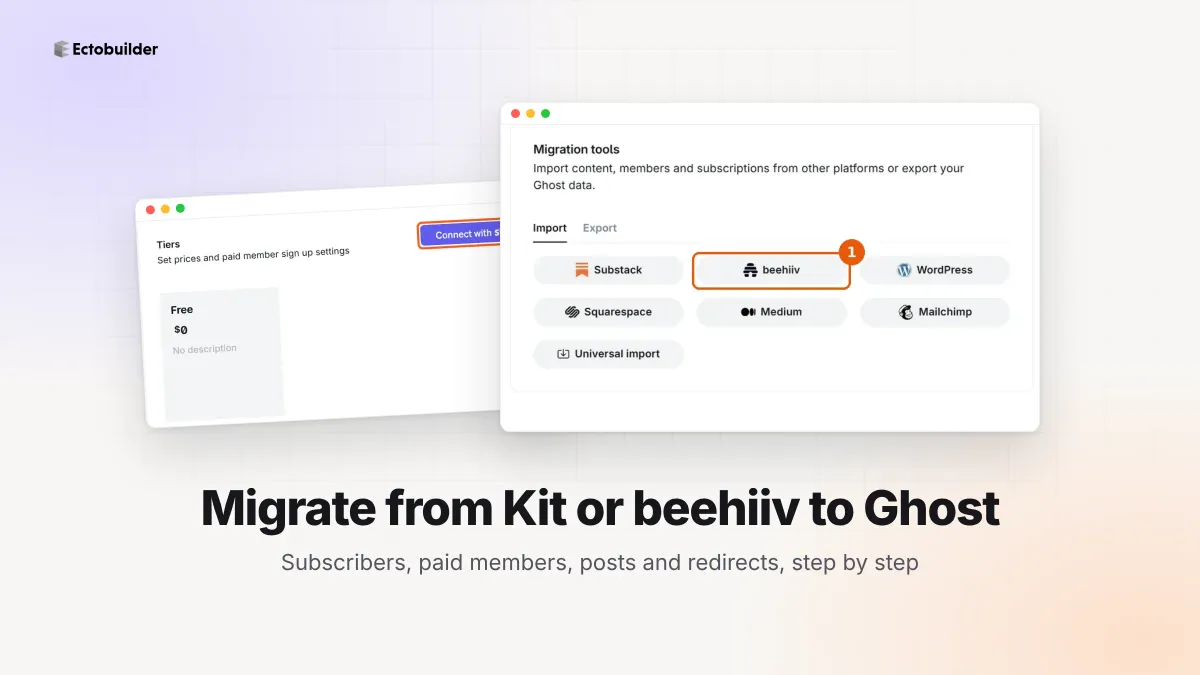
How to Migrate from Kit or beehiiv to Ghost (Subscribers, Paid Members, Posts and Redirects)
Move your newsletter from Kit (ConvertKit) or beehiiv to Ghost step by step: export and import subscribers, deal with paid members and Stripe, bring your posts across, set up redirects and your domain, warm up email sending, and make the new site look right.
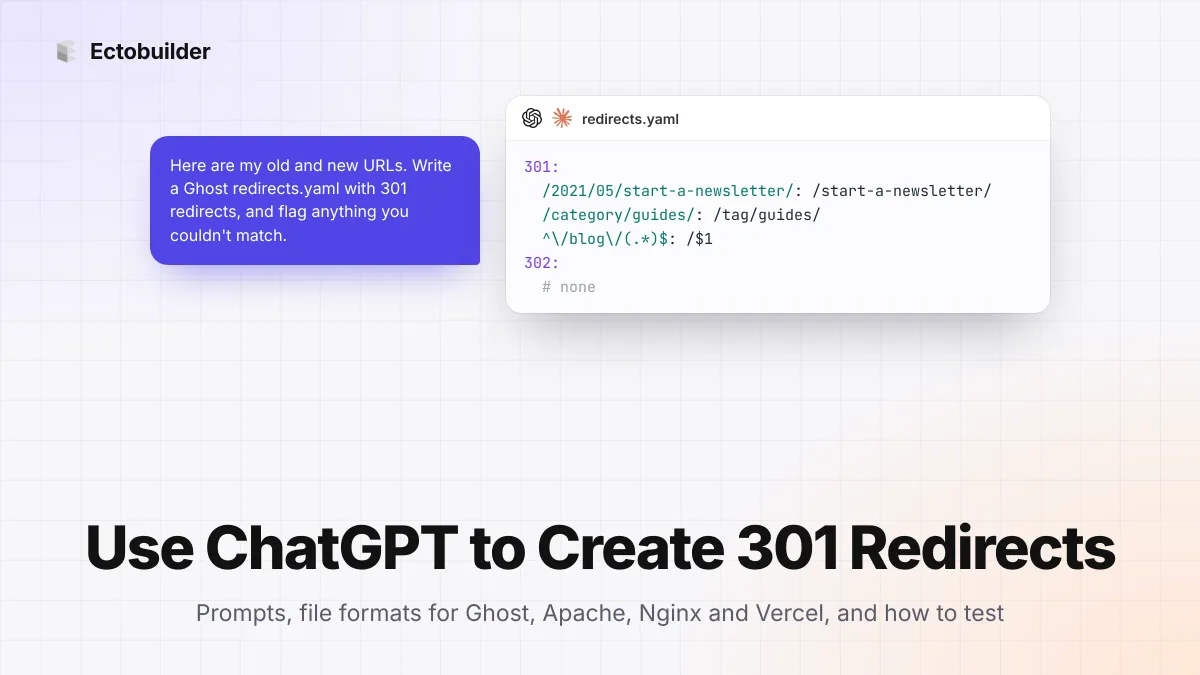
How to Use ChatGPT to Create 301 Redirects (Prompts, File Formats and Testing)
Let ChatGPT or Claude match your old URLs to new ones and write the redirect file for Ghost, Apache, Nginx, Netlify or Vercel. Prompts to copy, the mistakes to avoid, and how to test every redirect.