
How to Add a Sidebar to Ghost Posts (No Code)
Most Ghost themes have no sidebar. Here’s how to add one beside your posts, on the left or right, with recent posts, your topics, a subscribe box, share links and a table of contents. No code.

Michal Wlosik
· 5 min read
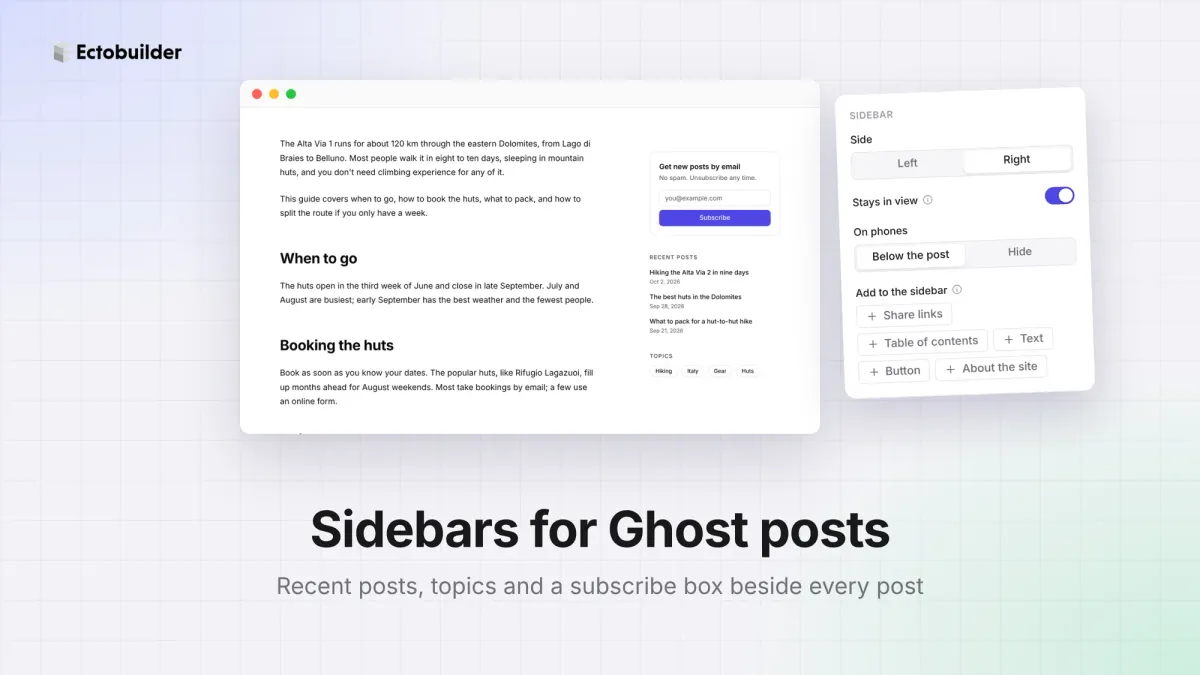
Ghost themes put the post in a single column, and most of them have nothing beside it. That keeps reading clean, but on a wide screen it also leaves a lot of empty space, and readers who finish a post have no easy way to find the next one.
A sidebar fixes that. This guide shows how to add one to your Ghost posts, on the left or the right, and what to put in it, without touching theme code.
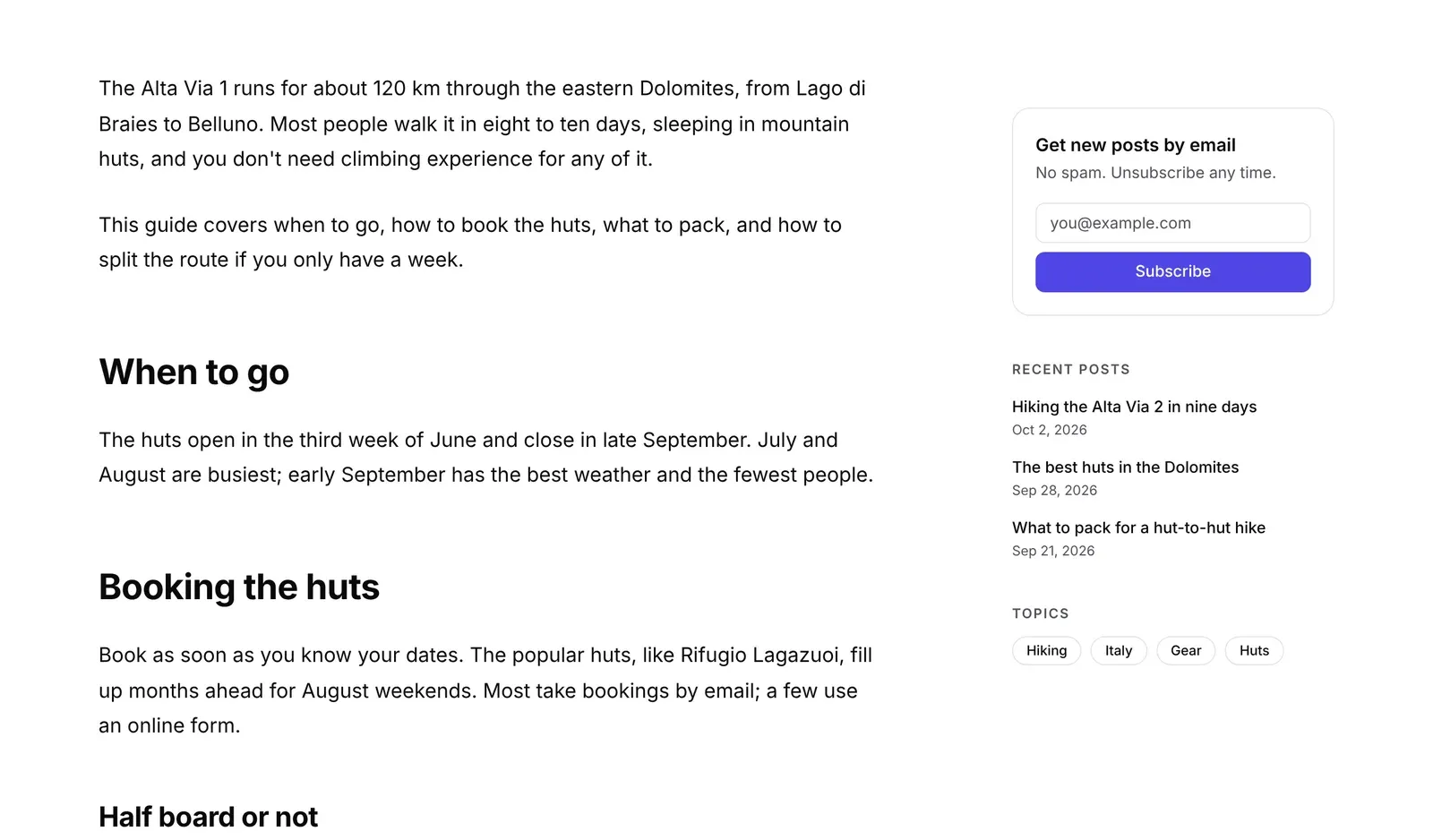
Does Ghost have sidebars?
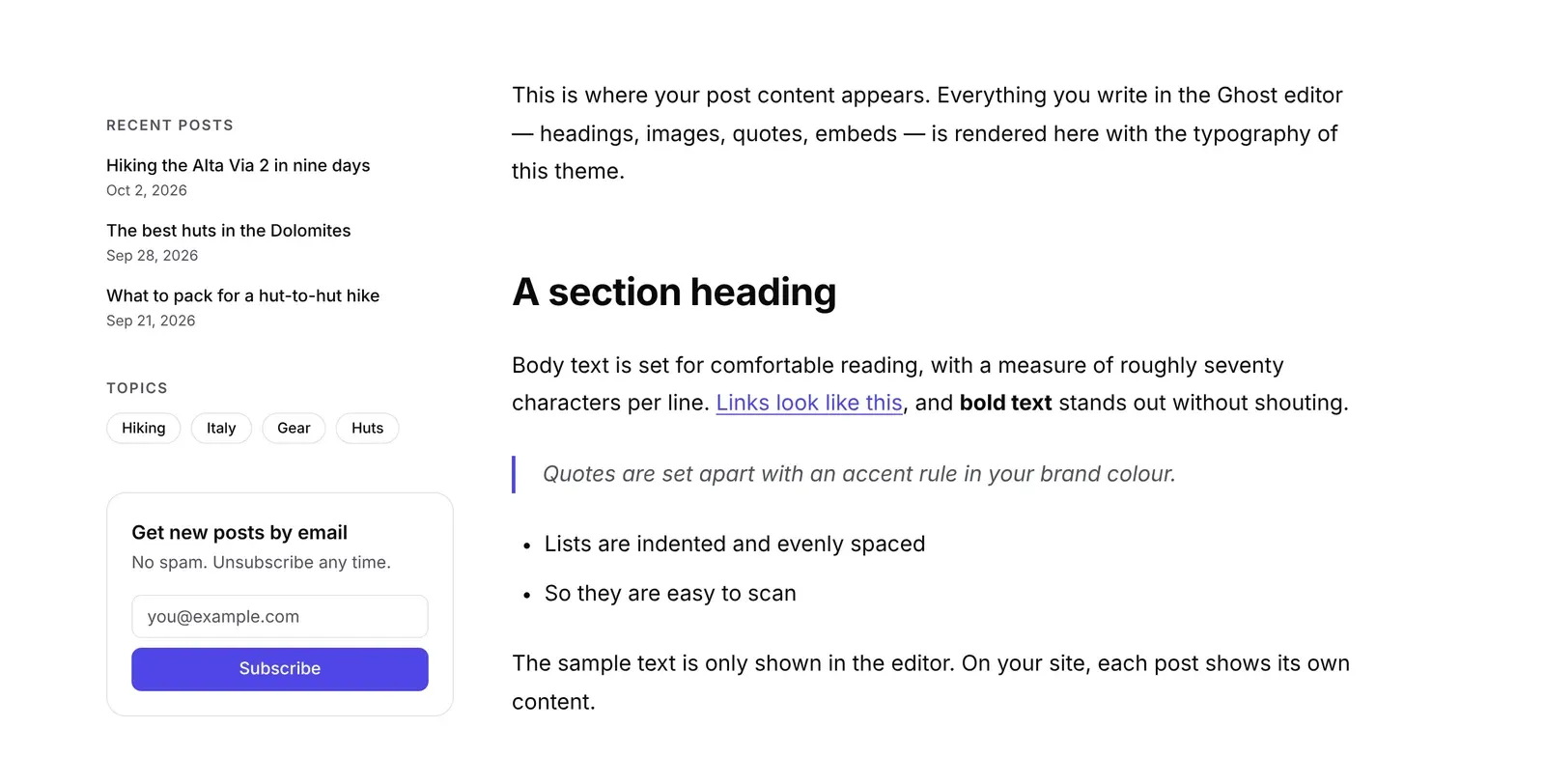
Not in its default themes. Casper and Source show the post on its own, and Ghost has no widgets or sidebar settings: what appears beside a post is entirely up to the theme. Adding one by hand means editing post.hbs, writing the queries for recent posts and tags in Handlebars, and styling it for every screen size.
What you can put in it
- Recent posts: your latest four posts, leaving out the one being read. Filled in by Ghost, so it stays current.
- Topics: your site's tags, the busiest first, each linking to its tag page.
- Subscribe box: signs readers up as Ghost members, right where they finish reading.
- Share links: X, LinkedIn, Bluesky, email, copy link and more, with no tracking scripts.
- Table of contents: the post's headings, highlighting the part you're reading. See our table of contents guide.
- A note: any text you like, such as who writes here or a link to your archive.
- A button and About the site: your site's name and description from Ghost.
How to add a sidebar to Ghost posts
1. Open the Post page
Open your theme in Ectobuilder and switch to the Post page in the page menu. This is the template Ghost uses for every post.
2. Swap the content section
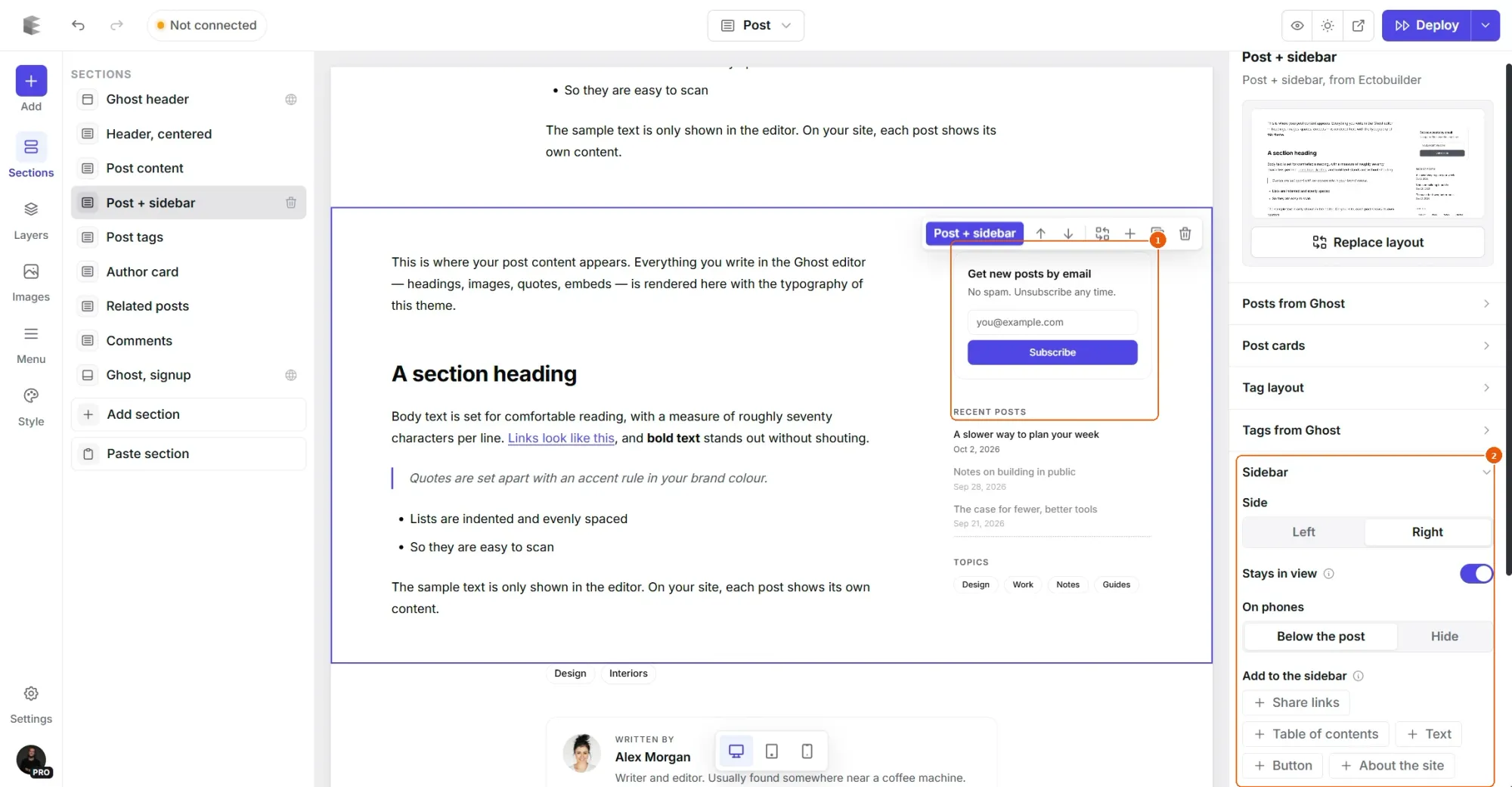
Open the section library, go to Post and pick Post + sidebar (sidebar on the right) or Sidebar + post (on the left). Use it in place of your current post content section, so the post isn't shown twice. It starts with a subscribe box, recent posts and topics.
3. Choose what goes in it
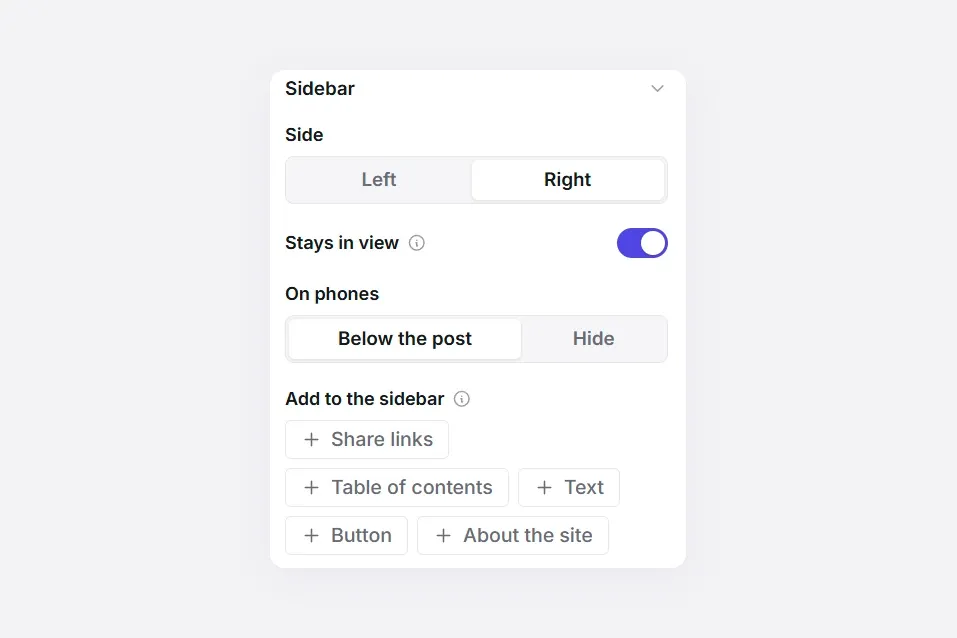
Select the section. Under Sidebar in the panel on the right:
- Side: left or right. You can switch at any time.
- Stays in view: the sidebar stays on screen while readers scroll the post. If it's taller than the screen, it scrolls on its own.
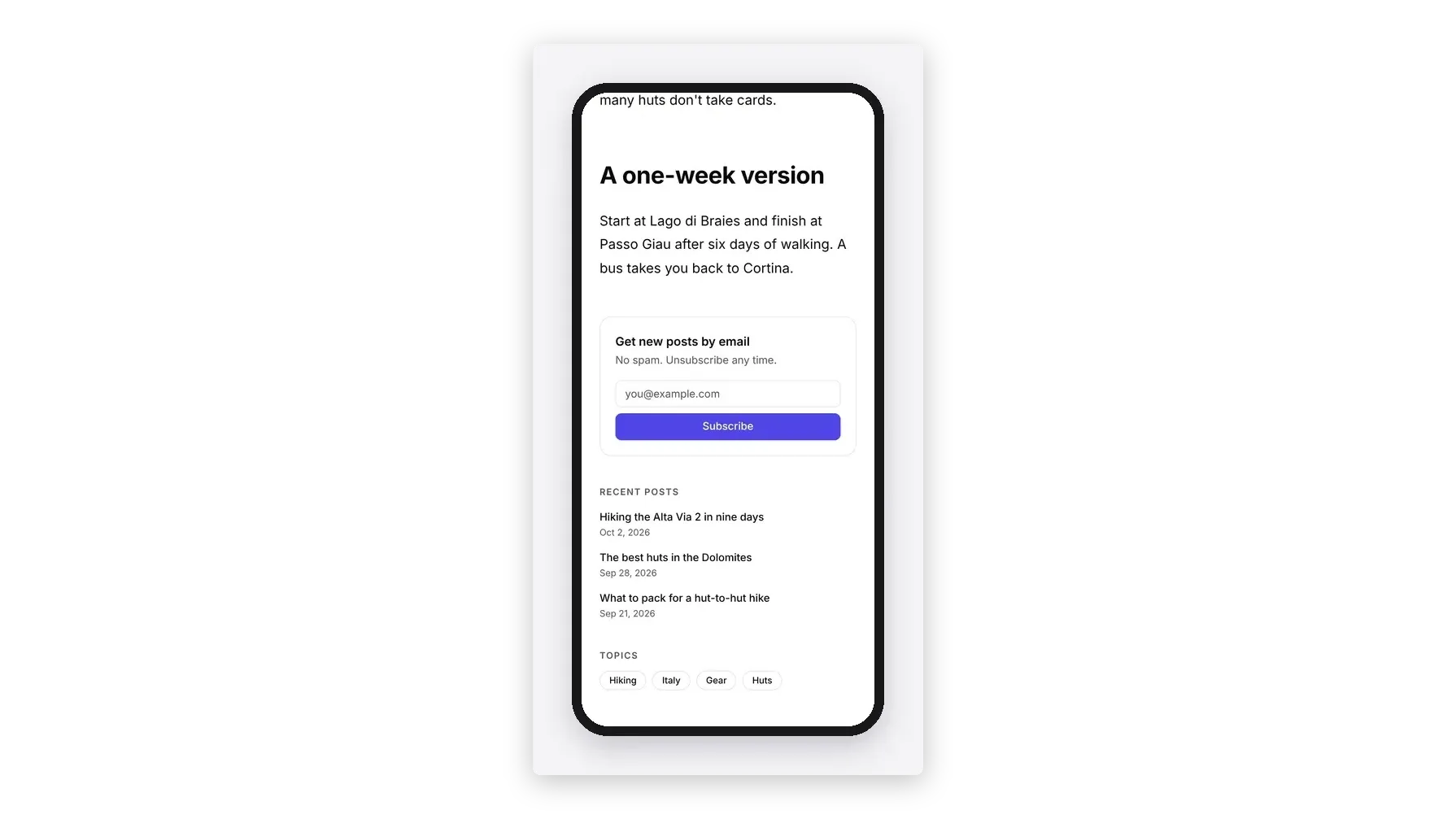
- On phones: below the post, or hidden.
- Add to the sidebar: one click adds share links, the table of contents, a note, a button or your site's name and description.
To change or remove anything already in the sidebar, click it on the page. Edit the words in place, or delete it.
4. Deploy
Deploy your theme to Ghost. Every post now has the sidebar, old posts included, and the recent posts and topics update by themselves as you publish.

Give your posts a sidebar.
Recent posts, topics and a subscribe box beside every post, in a few clicks. Design visually, then publish to Ghost.
Left or right?
Right is the usual choice for blogs: readers start on the left, read the post, and find the sidebar when they look for what's next. Left suits documentation and guides, where the sidebar is mainly a table of contents that readers use to find their way.
On phones
There's no room beside the post on a phone, so the sidebar moves below it. Readers who reach the end see the subscribe box and what to read next, which is exactly when they're most likely to use them. If you'd rather keep phones to the post alone, set On phones to Hide.
Tips
- Three things is plenty. A sidebar with everything in it gets ignored. Recent posts and a subscribe box do most of the work.
- Put the subscribe box where it's seen. At the top for readers who arrive from search, at the bottom for those who read to the end.
- Keep the post column readable. The post keeps a comfortable line length, about 70 characters, whatever the screen size, so the sidebar never squeezes it.
- Use it on pages too. The same sections work on the Page template, or on a custom template for long guides only.
Related guides
- Infinite scroll and Load more: the next posts on the same page, on blog, tag and author pages.
- Custom author pages: profiles with a cover photo, bio and social links.
- How to build your Ghost theme visually: every step, from picking a theme to publishing it to Ghost.
FAQ
Does the sidebar show on every post?
Yes, on every post that uses the Post page. For a sidebar on some posts only, build a custom template with it and choose that template in the post’s settings in Ghost.
Which posts appear under Recent posts?
Your four latest published posts, leaving out the one being read. Ghost fills them in, so there’s nothing to update.
Which tags appear under Topics?
Your site’s public tags, the ones with the most posts first. Internal tags (starting with #) don’t show.
Can I change the words, like “Recent posts”?
Yes. Click any heading or text in the sidebar and type your own.
Does a sidebar slow the page down?
No. Recent posts and topics come from Ghost with the page, and share links are plain links with no scripts.
Build a Ghost theme made for reading.
Sidebars, a table of contents, share links and more. Start from a template or a blank page, and deploy straight to Ghost.
Written by
Founder of Ectobuilder, the AI-powered visual theme editor for Ghost. Indie software builder in Wrocław and co-author of The AdTech Book. I write about Ghost themes, newsletters and building websites with AI.
Comments
Questions or thoughts? Share them below.
Keep reading
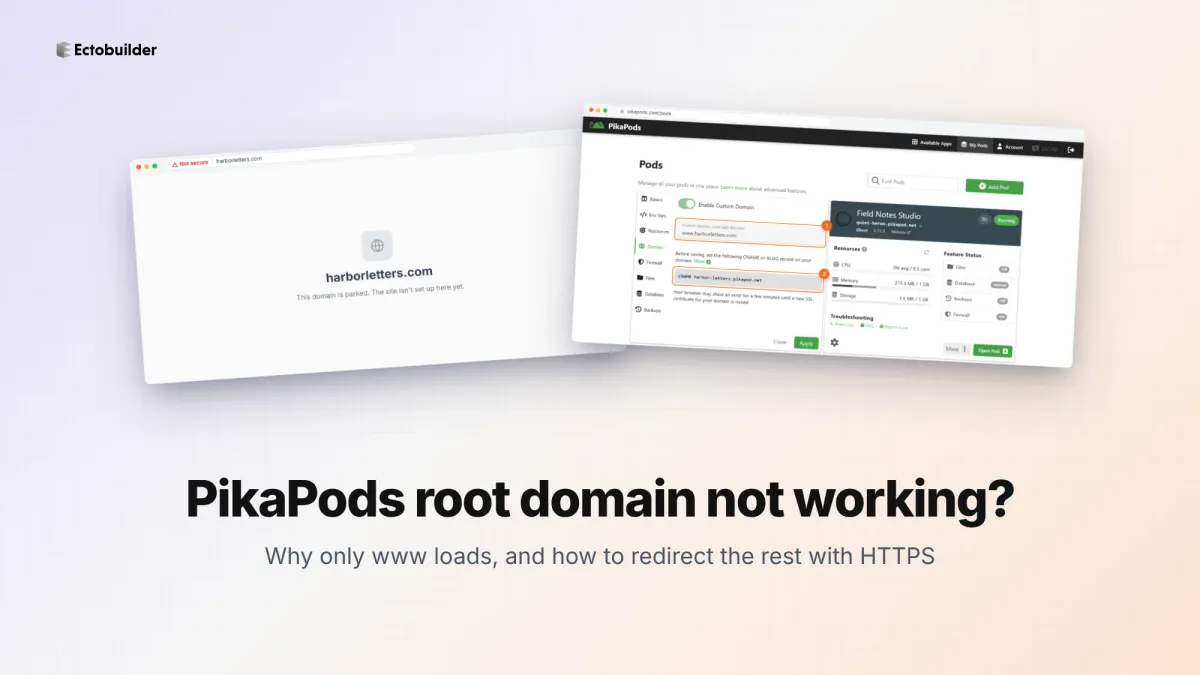
PikaPods Custom Domain: Why Only www Works (and How to Fix the Root Domain)
PikaPods maps one custom domain per pod, so yourdomain.com without www stays on a parked page with no SSL. Here's why, and three ways to redirect it to www over HTTPS without touching your email records.
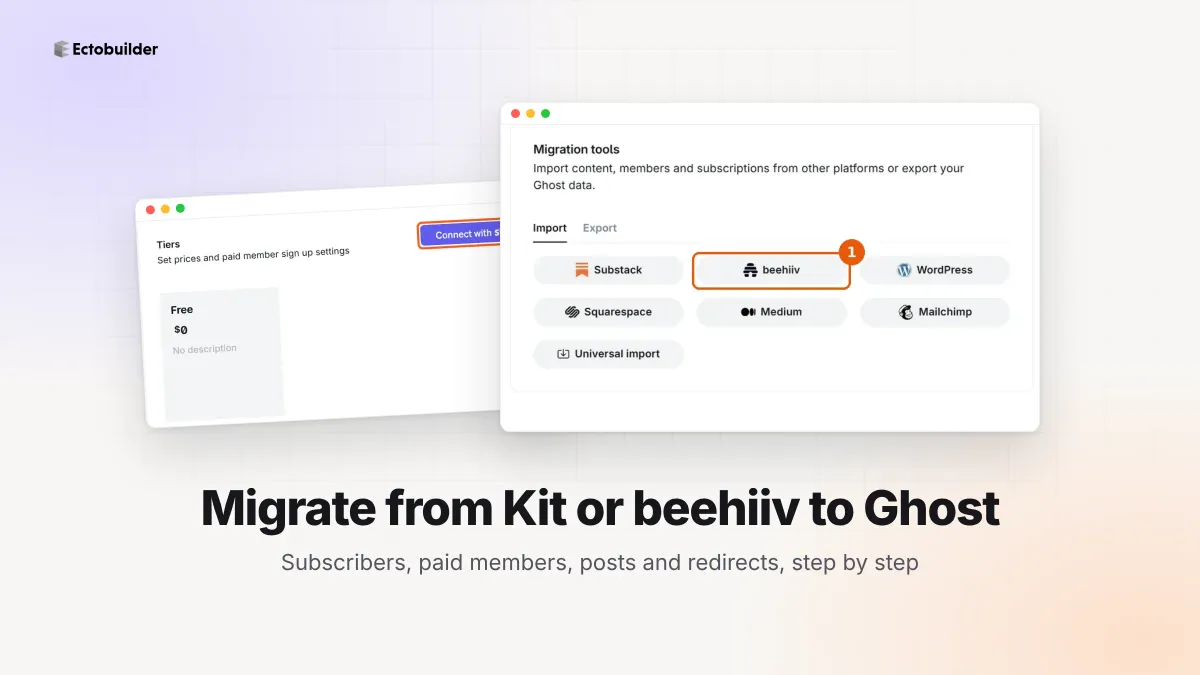
How to Migrate from Kit or beehiiv to Ghost (Subscribers, Paid Members, Posts and Redirects)
Move your newsletter from Kit (ConvertKit) or beehiiv to Ghost step by step: export and import subscribers, deal with paid members and Stripe, bring your posts across, set up redirects and your domain, warm up email sending, and make the new site look right.
How to Use ChatGPT to Create 301 Redirects (Prompts, File Formats and Testing)
Let ChatGPT or Claude match your old URLs to new ones and write the redirect file for Ghost, Apache, Nginx, Netlify or Vercel. Prompts to copy, the mistakes to avoid, and how to test every redirect.