
How to Add Sample Content to Ghost (and Remove It in One Click)
An empty Ghost site is hard to design. Here’s how to fill it with sample posts, tags and pictures in one click, see every page with real-looking content, then remove all of it before launch.

Michal Wlosik
· 5 min read
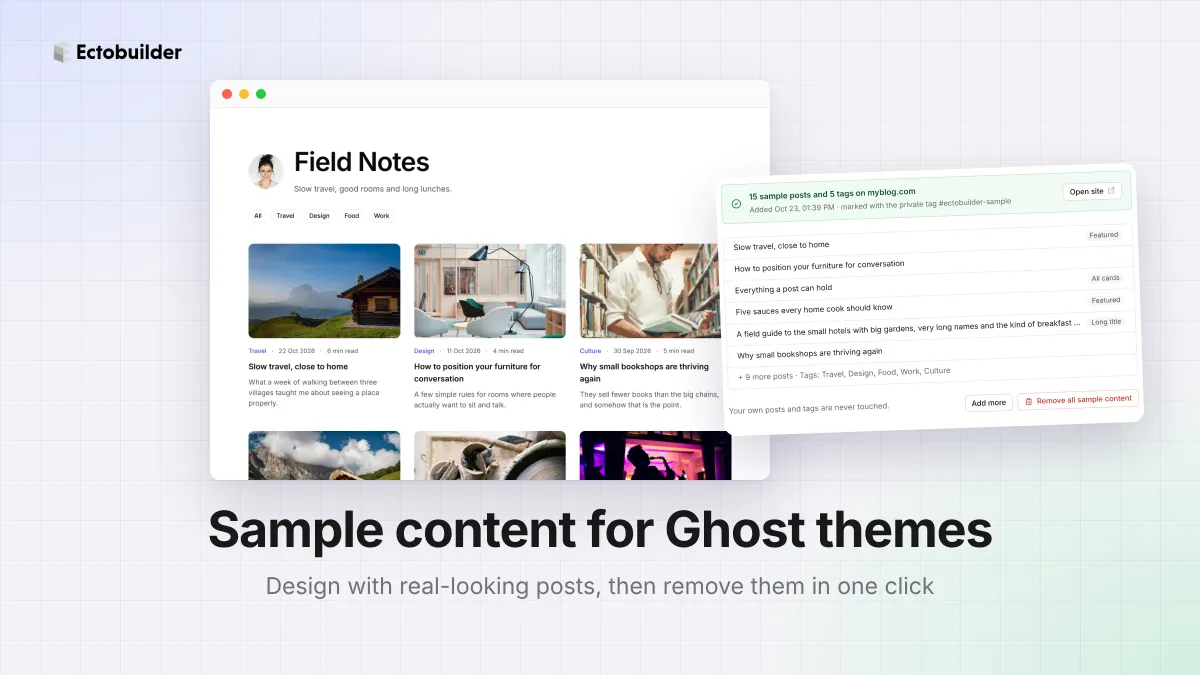
A new Ghost site is empty, and an empty site is hard to design. The blog page shows one welcome post, tag pages have nothing on them, and you can't tell how your cards look with a long title, a missing picture or a paywall until real posts arrive.
This guide shows how to fill your Ghost site with sample posts, tags and pictures in one click, so you can design every page with real-looking content, and how to remove all of it again before you launch.
Why design with sample content
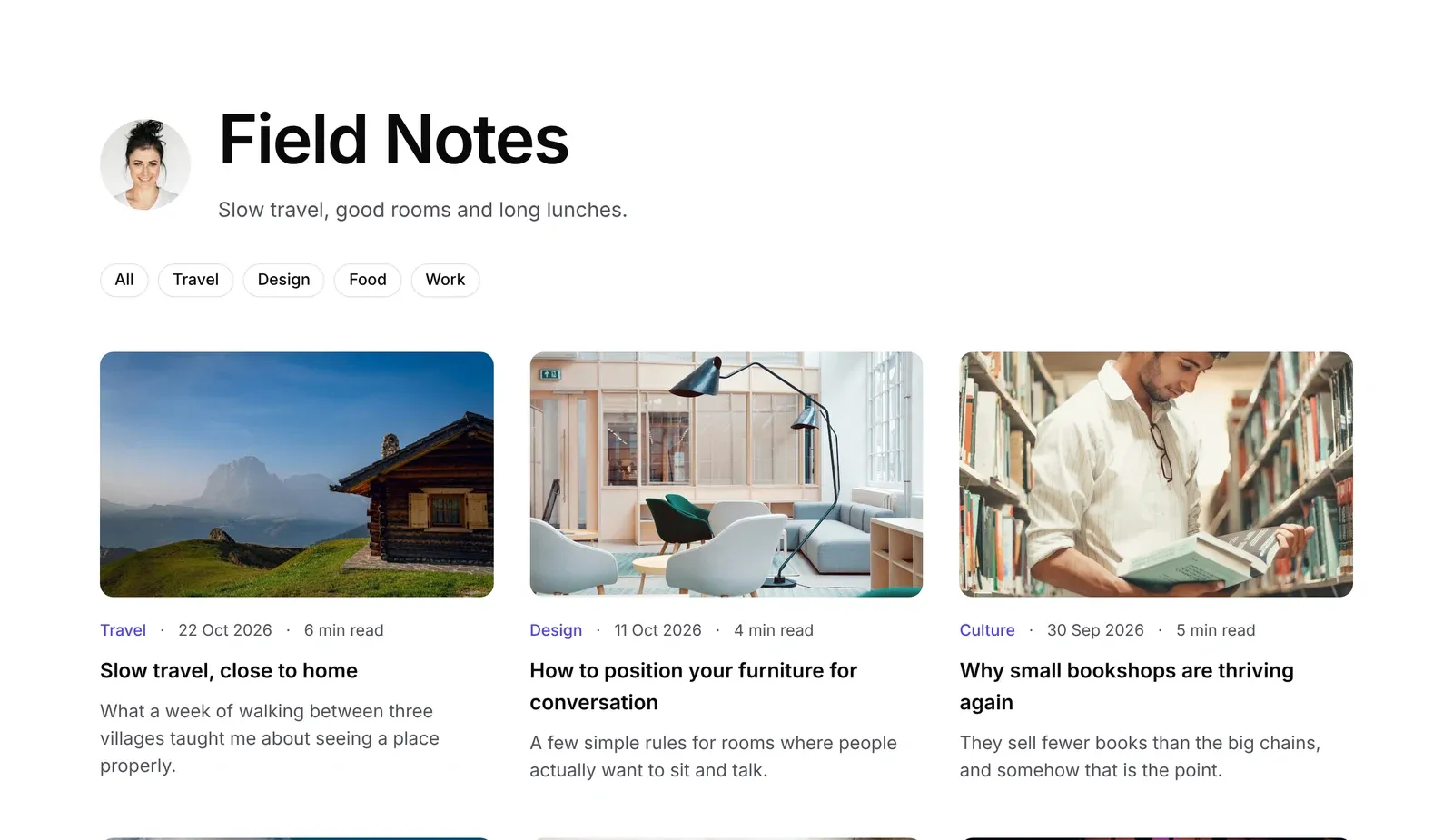
Themes break on content you didn't plan for. A design that looks right with three short posts can fall apart with fifteen: a two-line title pushes cards out of line, a post without a picture leaves a gap, page links never show because there's only one page. Sample content lets you see all of that while you're still designing, instead of after launch.
Ghost has no built-in sample content beyond its welcome posts, and writing twenty test posts by hand takes an afternoon. Removing them later means finding and deleting each one.
What gets added
Ectobuilder adds a set of posts written to look like a real blog, with topics, excerpts and pictures. By default:
- 15 posts, enough for two pages of the blog at 12 per page, so the next-page link (or Load more button) shows too.
- A tag per topic, with a description and a picture, for tag pages and topic rows.
- 2 featured posts, for heroes and featured lists.
- A members-only post and a paid post, to see the paywall and the upgrade box.
- One post with every content card: headings, lists, quotes, a callout, an image, a gallery, a toggle, code and a button.
- Awkward cases: a very long title, a post with no picture and a short note.
- Dates spread over six months, so archives and "latest" lists look lived in.
The text is plain English by default. It shows your fonts and line lengths the way real posts will, which Latin lorem ipsum doesn't. You can switch to lorem ipsum if you prefer.
How to add sample content
1. Connect your Ghost site
Open your theme in Ectobuilder and go to Settings → Integrations → Ghost Admin API. Paste your site's address and an Admin API key from a custom integration in Ghost (Settings → Integrations → Add custom integration).
2. Choose what to add
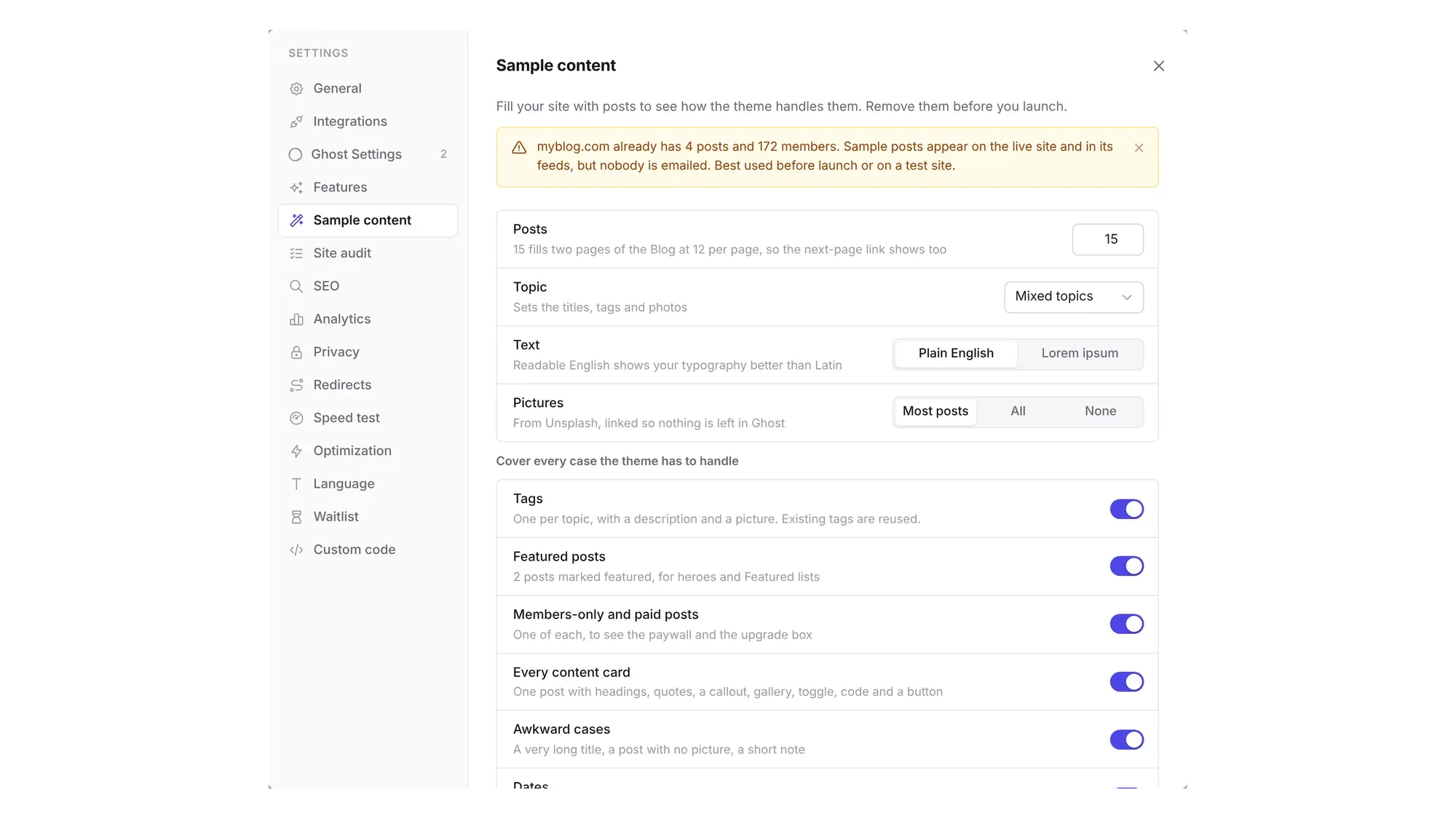
Go to Settings → Sample content. The recommended settings are already selected. You can change:
- Posts: how many, up to 30.
- Topic: mixed, or one of Travel, Design & homes, Food, Work and Books & culture. It sets the titles, tags and pictures.
- Text: plain English or lorem ipsum.
- Pictures: on most posts, all posts or none.
- Which special cases to include: tags, featured posts, members-only and paid posts, the post with every card, awkward cases and spread-out dates.
3. Add the posts
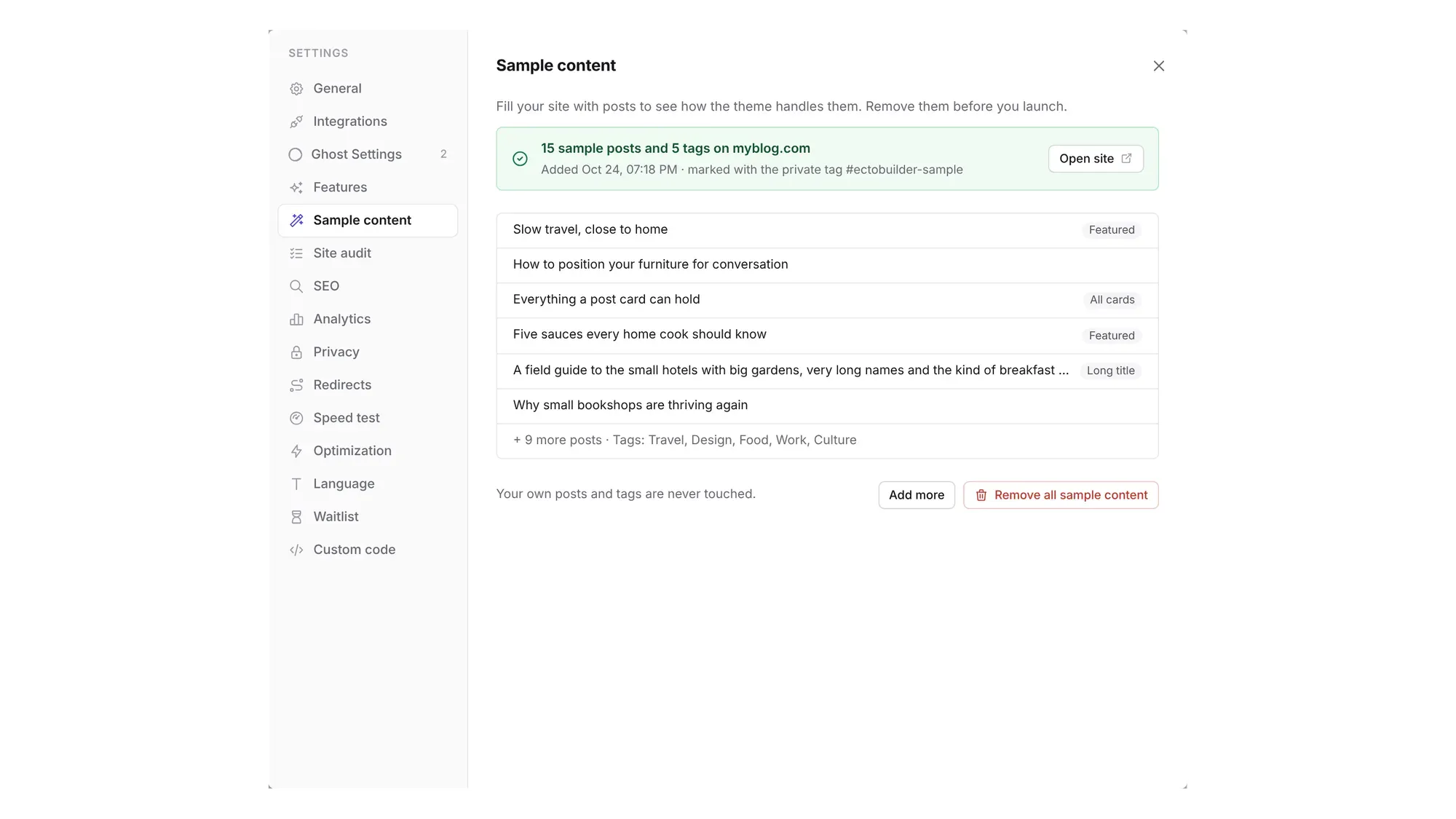
Click Add 15 sample posts. It takes up to a minute. The posts are published on your site, signed by you, and nobody is emailed: Ectobuilder never sends them as a newsletter.
Open your site and go through every page: home, blog, a post, a tag page, a members-only post. Adjust your design in Ectobuilder and deploy as often as you like. The sample posts stay until you remove them.
Design your Ghost theme with real-looking content.
Fill your site with sample posts in one click, see every page as it will look, then remove them before launch.
How to remove it
When you're done designing, go back to Settings → Sample content and click Remove all sample content. After you confirm, every sample post is deleted from your site, along with the tags Ectobuilder created for them.
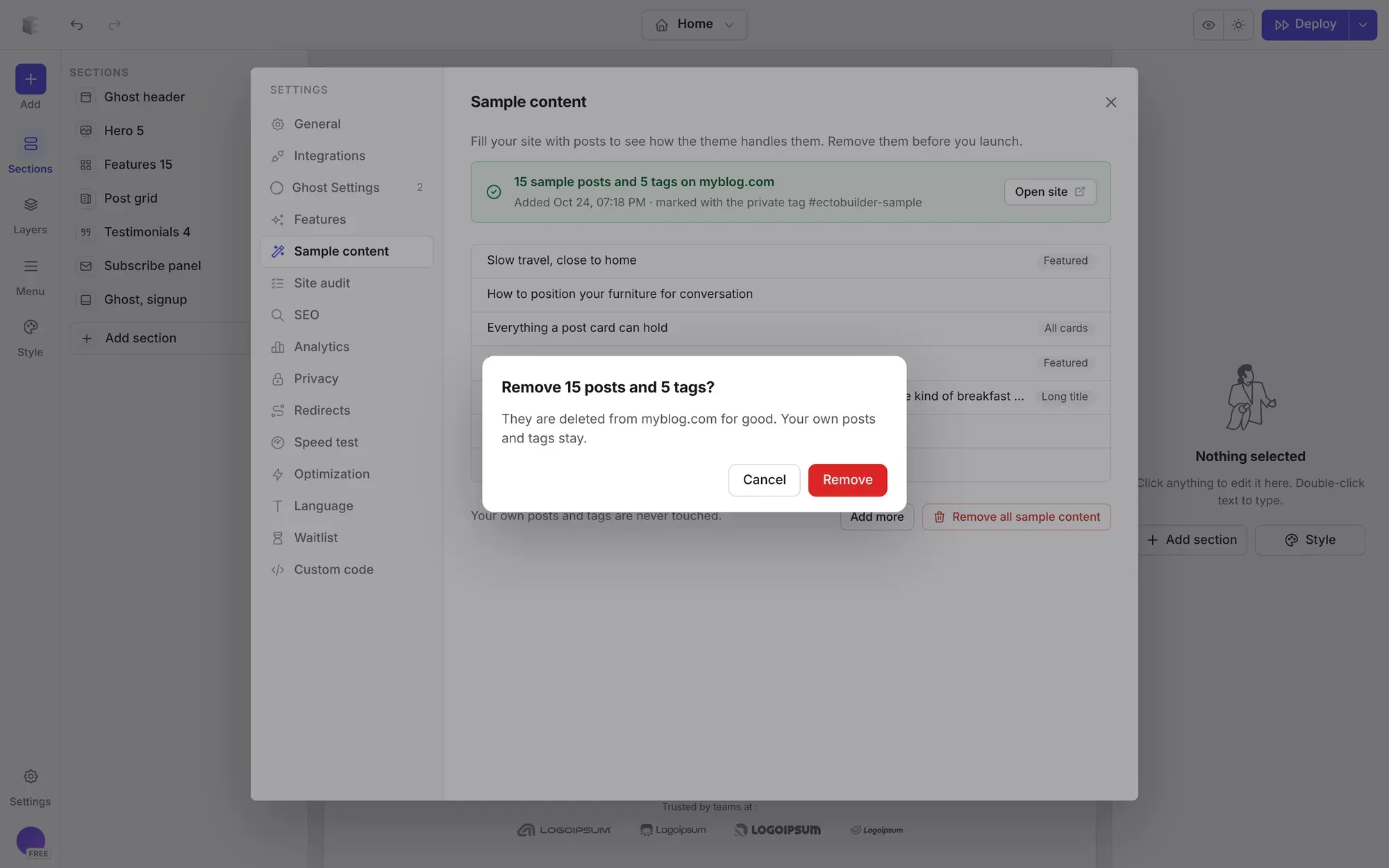
Your own posts and tags are never touched:
- Every sample post carries a private tag,
#ectobuilder-sample. Readers never see it, and removal only deletes posts that have it. - If your site already had a tag with the same name, like Travel, the sample posts use it, and it isn't deleted.
- A tag Ectobuilder created is only deleted if no other posts use it.
- Pictures are linked from Unsplash rather than uploaded, so nothing is left behind in your media library.
Removal works from any device, even after you close the editor: Ectobuilder finds the sample posts on your site by their tag.
Tips
- Use it before launch. Sample posts are published, so on a live site readers can see them, and they appear in your RSS feed and sitemap until you remove them. If your site already has readers, use a test site, or add and remove them quickly.
- Check the awkward posts first. The long title and the post without a picture break more designs than anything else.
- Look at it on a phone. Sample posts are real posts, so you can open your site on your phone and see every page there too.
- Add more any time. Want three pages of posts, or a single topic? Add more, then remove everything together.
Related guides
- Custom author pages: profiles with a cover photo, bio and social links.
- Table of contents for Ghost posts: builds itself from your headings and follows the reader.
- Core Web Vitals for Ghost: what makes a Ghost theme fast.
- How to build your Ghost theme visually: every step, from picking a theme to publishing it to Ghost.
FAQ
Does adding sample content email my subscribers?
No. The posts are published without a newsletter, so Ghost sends no email.
Will my own posts be deleted?
No. Removal only deletes posts with the private #ectobuilder-sample tag, and only tags Ectobuilder created that no other posts use.
Why are the posts published and not drafts?
Drafts don’t show on your site, so your theme can’t display them. Published posts appear on every page, the way real ones will.
Who is shown as the author?
You, the site owner. Ghost doesn’t let integrations create authors.
Can I edit a sample post?
Yes, in Ghost Admin like any post. It stays a sample post and is removed with the rest, unless you take off its #ectobuilder-sample tag.
Is sample content free?
It’s part of Ectobuilder Pro, like deploying to Ghost. You can design your theme for free first.
Where do the pictures come from?
Unsplash. They’re linked, not uploaded, so removing the posts leaves nothing behind in Ghost.
Build a Ghost theme, then see it with real content.
Design visually, fill your site with sample posts, and deploy straight to Ghost. Start free.
Written by
Founder of Ectobuilder, the AI-powered visual theme editor for Ghost. Indie software builder in Wrocław and co-author of The AdTech Book. I write about Ghost themes, newsletters and building websites with AI.
Comments
Questions or thoughts? Share them below.
Keep reading
PikaPods Custom Domain: Why Only www Works (and How to Fix the Root Domain)
PikaPods maps one custom domain per pod, so yourdomain.com without www stays on a parked page with no SSL. Here's why, and three ways to redirect it to www over HTTPS without touching your email records.
How to Migrate from Kit or beehiiv to Ghost (Subscribers, Paid Members, Posts and Redirects)
Move your newsletter from Kit (ConvertKit) or beehiiv to Ghost step by step: export and import subscribers, deal with paid members and Stripe, bring your posts across, set up redirects and your domain, warm up email sending, and make the new site look right.
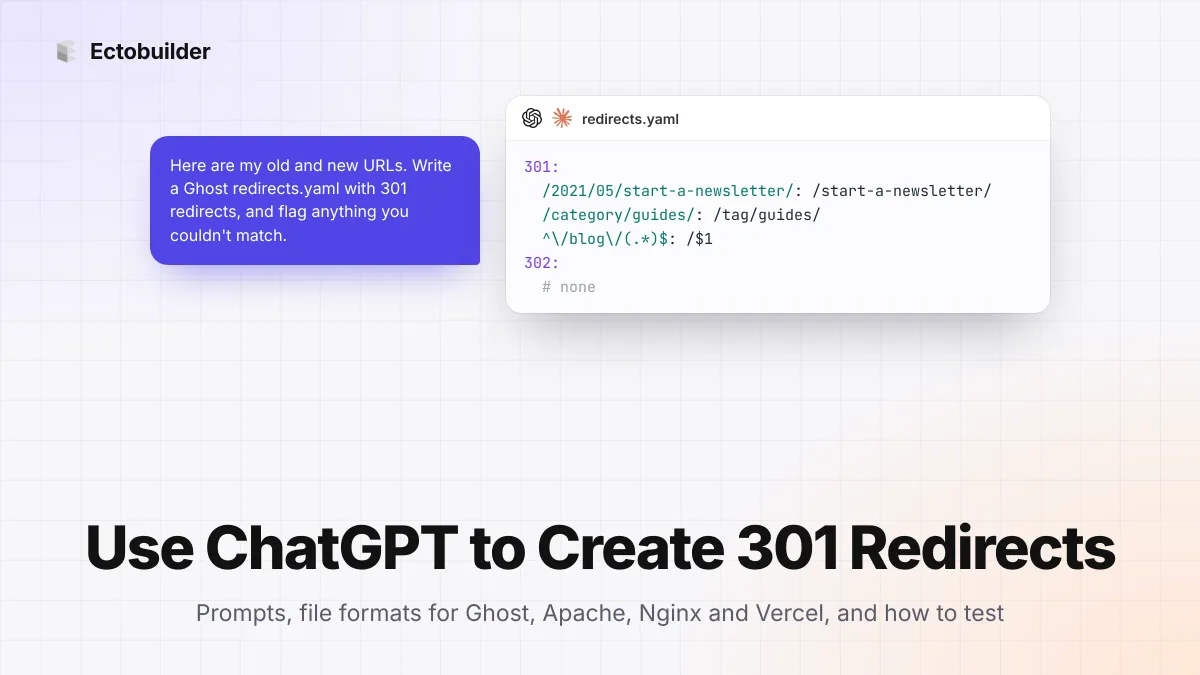
How to Use ChatGPT to Create 301 Redirects (Prompts, File Formats and Testing)
Let ChatGPT or Claude match your old URLs to new ones and write the redirect file for Ghost, Apache, Nginx, Netlify or Vercel. Prompts to copy, the mistakes to avoid, and how to test every redirect.