
Full-Text Search for Ghost: Search Inside Every Post, Not Just Titles
Ghost's search only matches titles and excerpts. Here's how to add a search that reads the text of your posts, shows the sentence that matched with your words highlighted, and opens with Ctrl+K or /. No code.

Michal Wlosik
· 4 min read
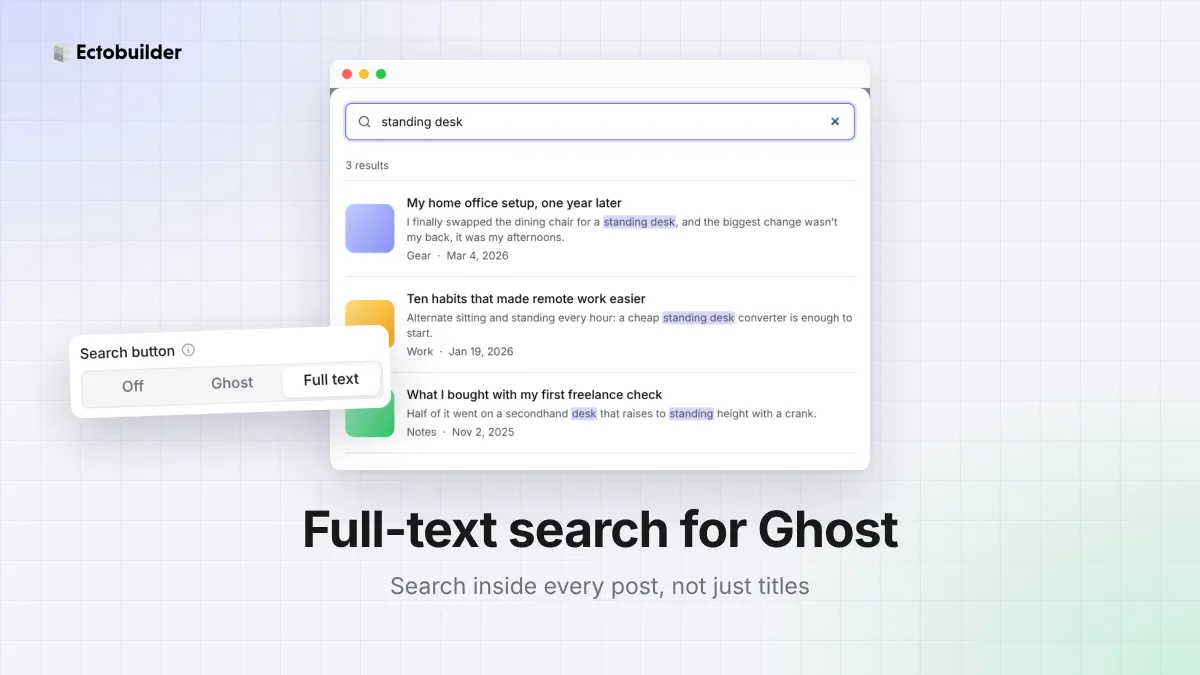
A reader remembers that you once wrote about standing desks. They open your Ghost site's search, type "standing desk", and get nothing, because the post was called "My home office setup, one year later". The words are in the post, but Ghost's search never looks there.
This guide explains what Ghost's search covers, and how to add a search that reads the whole post and shows the sentence that matched, without code.
What Ghost's search covers
Ghost has a built-in search window (Sodo Search) that most themes open from a magnifying glass in the header. It's fast and needs no setup, but it only matches post titles and excerpts, plus tag and author names. The text of your posts isn't searched.
That's fine for a small blog with clear titles. It stops working once you have a few hundred posts, titles that don't spell out the topic, or readers looking for a detail mentioned halfway through a guide.
What full-text search adds
- It reads the posts. The text of your newest 300 posts is searched, not just their titles. Older posts are still found by title, tags and excerpt.
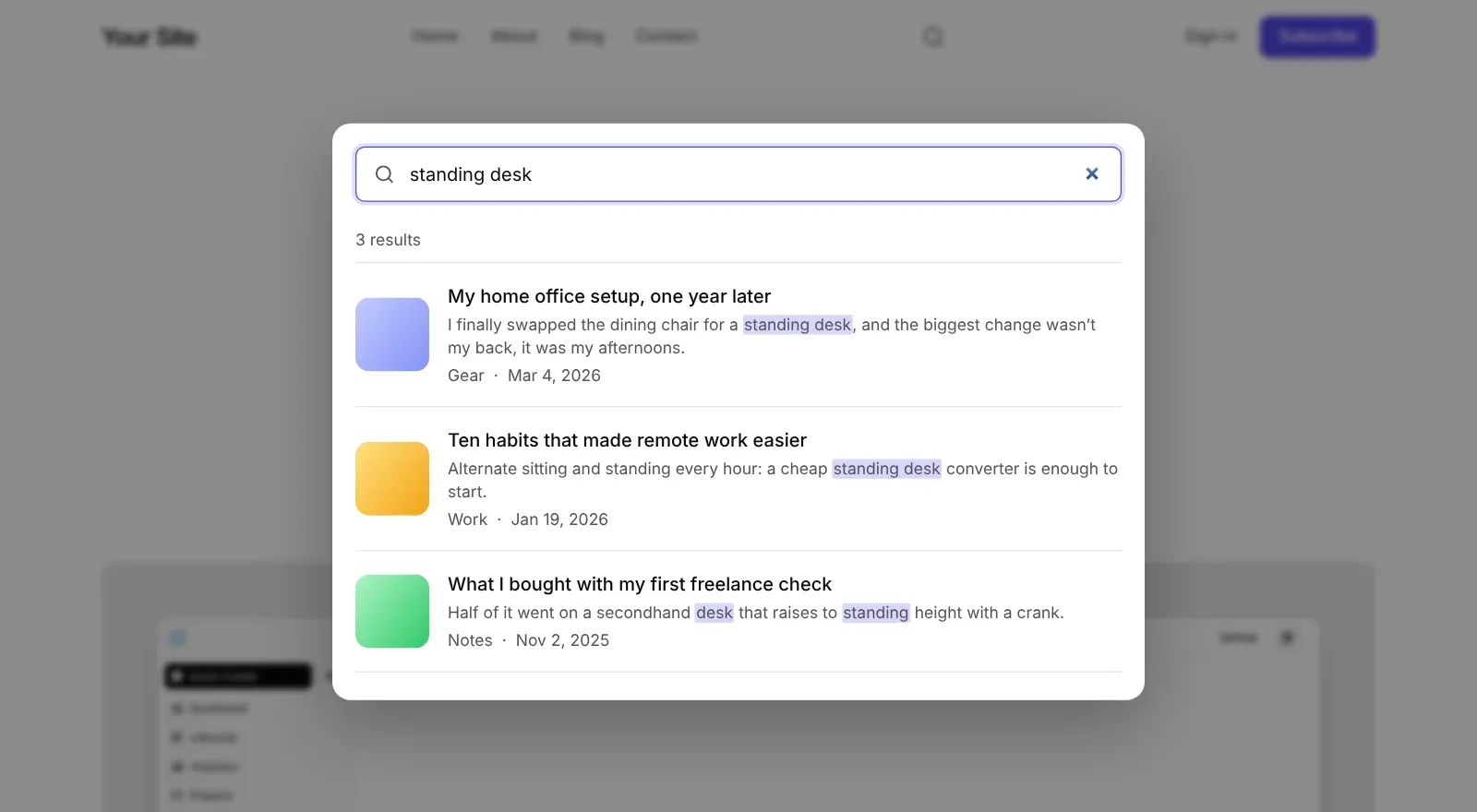
- It shows why a post matched. Each result has the sentence where the words appear, with the words highlighted.
- It ignores accents and forgives small typos. "cafe" finds "café", and a misspelled word in a title or tag, like "recipies", still finds the post.
- It ranks sensibly. A match in the title counts most, then tags and authors, then the excerpt, then the text of the post.
- It opens from anywhere. A search button in the header,
Ctrl+K(⌘Kon a Mac), or the/key.Esccloses it. - It costs nothing until it's used. Posts load the first time someone opens the search, so your pages stay as fast as before.
How to add full-text search to Ghost
1. Select your header
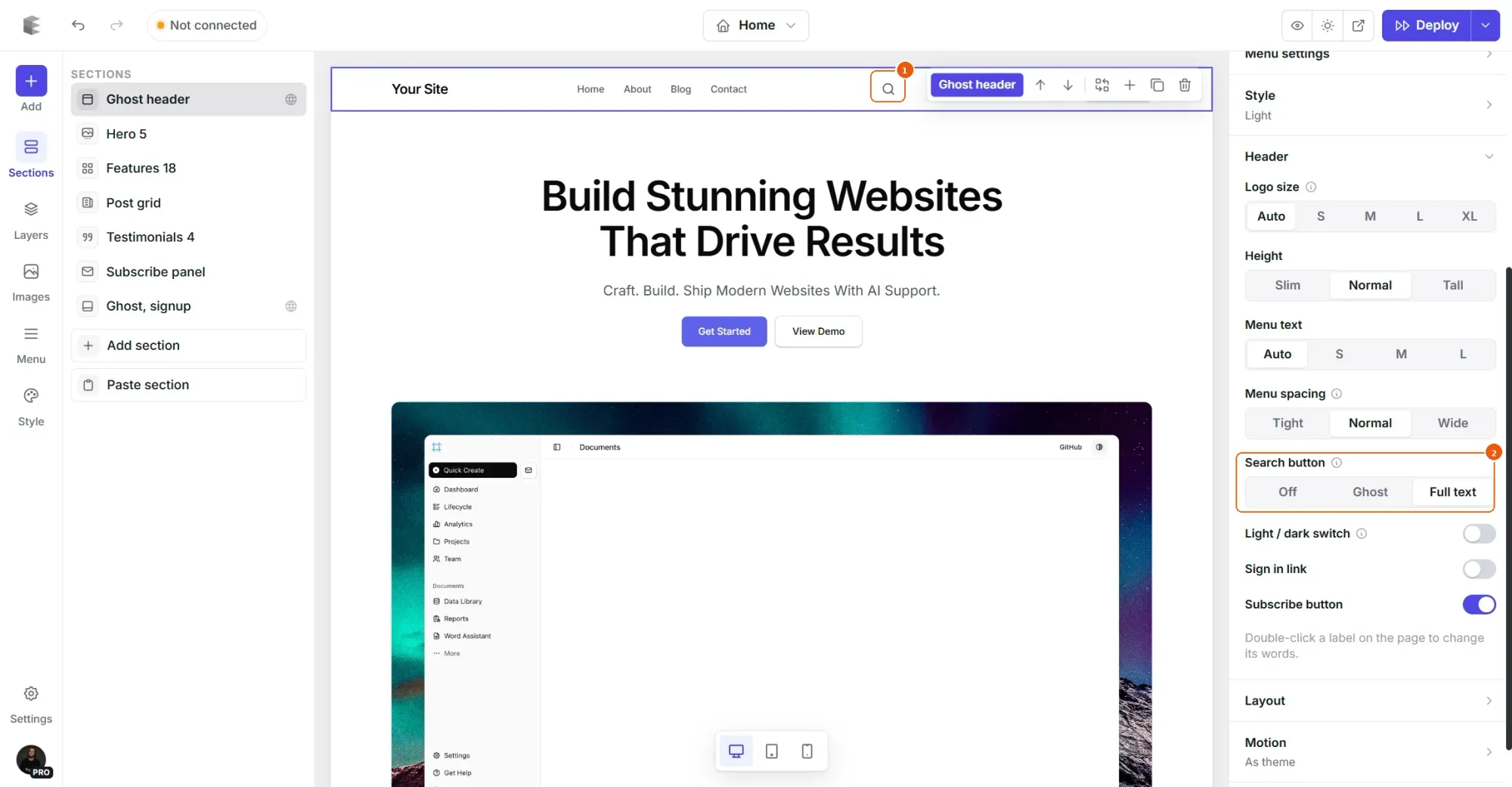
Open your theme in Ectobuilder and click the header at the top of any page. The header is shared by every page, so you only do this once.
2. Choose Full text
In the panel on the right, open the Header group, find Search button and choose Full text. The other choices are Ghost, which opens Ghost's own search, and Off.
3. Deploy
Deploy your theme to Ghost. The search button is in your header, and the keyboard shortcuts work on every page. There's nothing to set up in Ghost: the search uses your site's own public post list, the same one Ghost's search reads. Leave Ghost's search switched on, as it is by default.

Help readers find what you wrote.
Add full-text search to your Ghost site in two clicks, along with everything else your theme needs.
Search on your blog page too
If you use a Search & filters section on your blog page or a search page, it can read your posts as well. Select the section and switch on Search inside posts. Results then show the matching sentence too, alongside your topic and date filters. See how to add search and filters to your Ghost blog for the rest of that section.
Members-only posts
Search only sees what Ghost shows the public. For members-only and paid posts, that's the part before the paywall, so the free preview is searchable and the rest isn't. Nothing behind your paywall leaks into search results.
Tips
- Write excerpts that say what a post covers. They help both the search and the people reading the results.
- Tell readers about the shortcut. A line like "Press / to search" in your footer or About page gets regular readers using it.
- Tag consistently. Tag names count in the ranking, so a reader searching "recipes" finds everything tagged Recipes.
- Put the words readers use in your posts. If people call it a "standing desk", say "standing desk" somewhere, even if your title is more playful.
Related guides
- Syntax highlighting for code blocks: colored code with a Copy button.
- Infinite scroll and Load more: the next posts on the same page, on blog, tag and author pages.
- How to build your Ghost theme visually: every step, from picking a theme to publishing it to Ghost.
FAQ
Does Ghost have full-text search?
Not built in. Ghost’s search matches post titles and excerpts, plus tag and author names. Full-text search in an Ectobuilder theme reads the text of your posts as well.
How many posts can it search?
The full text of your newest 300 posts. Older posts are still found by their title, excerpt and tags.
Does it slow down my site?
No. Nothing loads until a reader opens the search window, and then only once per page.
Does it search members-only content?
Only the public part of members-only and paid posts, the free preview before the paywall. The rest stays private.
Can I still use Ghost’s own search?
Yes. Choose Ghost under Search button and the header opens Ghost’s search instead, or Off to hide the button.
Build a Ghost theme readers can find their way around.
Full-text search, filters, a table of contents and more, designed visually and deployed straight to Ghost.
Written by
Founder of Ectobuilder, the AI-powered visual theme editor for Ghost. Indie software builder in Wrocław and co-author of The AdTech Book. I write about Ghost themes, newsletters and building websites with AI.
Comments
Questions or thoughts? Share them below.
Keep reading
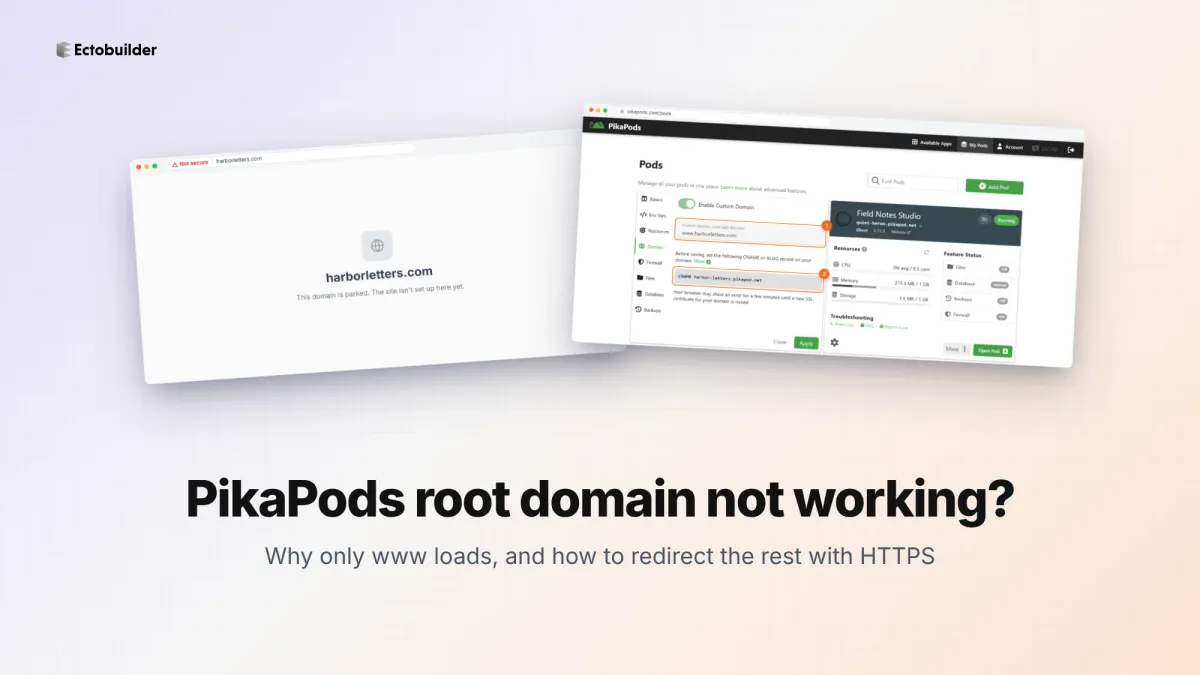
PikaPods Custom Domain: Why Only www Works (and How to Fix the Root Domain)
PikaPods maps one custom domain per pod, so yourdomain.com without www stays on a parked page with no SSL. Here's why, and three ways to redirect it to www over HTTPS without touching your email records.
How to Migrate from Kit or beehiiv to Ghost (Subscribers, Paid Members, Posts and Redirects)
Move your newsletter from Kit (ConvertKit) or beehiiv to Ghost step by step: export and import subscribers, deal with paid members and Stripe, bring your posts across, set up redirects and your domain, warm up email sending, and make the new site look right.
How to Use ChatGPT to Create 301 Redirects (Prompts, File Formats and Testing)
Let ChatGPT or Claude match your old URLs to new ones and write the redirect file for Ghost, Apache, Nginx, Netlify or Vercel. Prompts to copy, the mistakes to avoid, and how to test every redirect.