
How to Translate Your Ghost Theme (and Set Up Right-to-Left)
Ghost translates its own parts, but your theme’s words stay in English. Here’s how to translate every word your theme shows visitors in one click, into 40 languages, and switch to right-to-left for Arabic, Hebrew, Persian and Urdu.

Michal Wlosik
· 4 min read
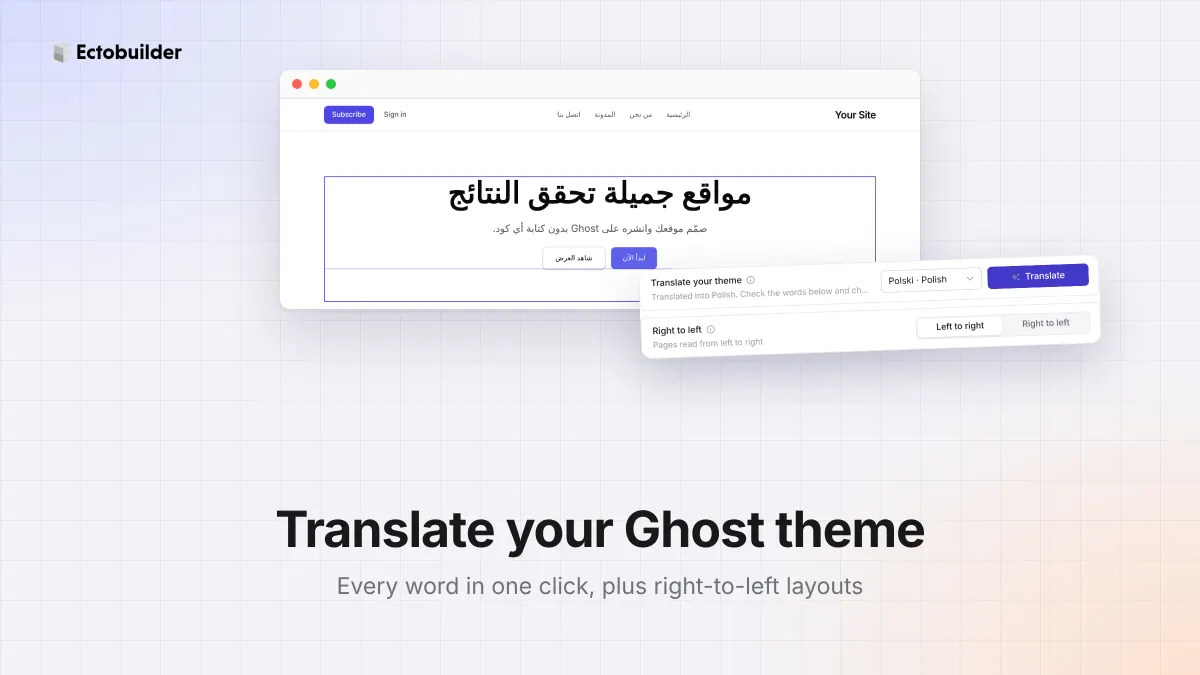
You write your posts in Spanish, Polish or Arabic, but your site still says "Search posts…", "Load more" and "5 min read". Those words come from your theme, not from Ghost, and most themes only speak English.
This guide explains which words Ghost translates for you and which it leaves to the theme, how to translate the theme's own words in one click, and how to switch your site to right-to-left for Arabic, Hebrew, Persian and Urdu.
What Ghost translates for you
In Ghost Admin, Settings → General → Publication language sets your site's language. Ghost uses it for its own parts of the site: the sign-up and account window (Portal), dates, comments, and the language tag search engines read.
Everything your theme writes is a different story. "Read more", "Search posts…", "Share on X", "Load more", "Close" and "min read" are part of the theme's templates and scripts. A theme can include translation files for them, but most only ship English, and editing those files means editing theme code.
What Ectobuilder adds
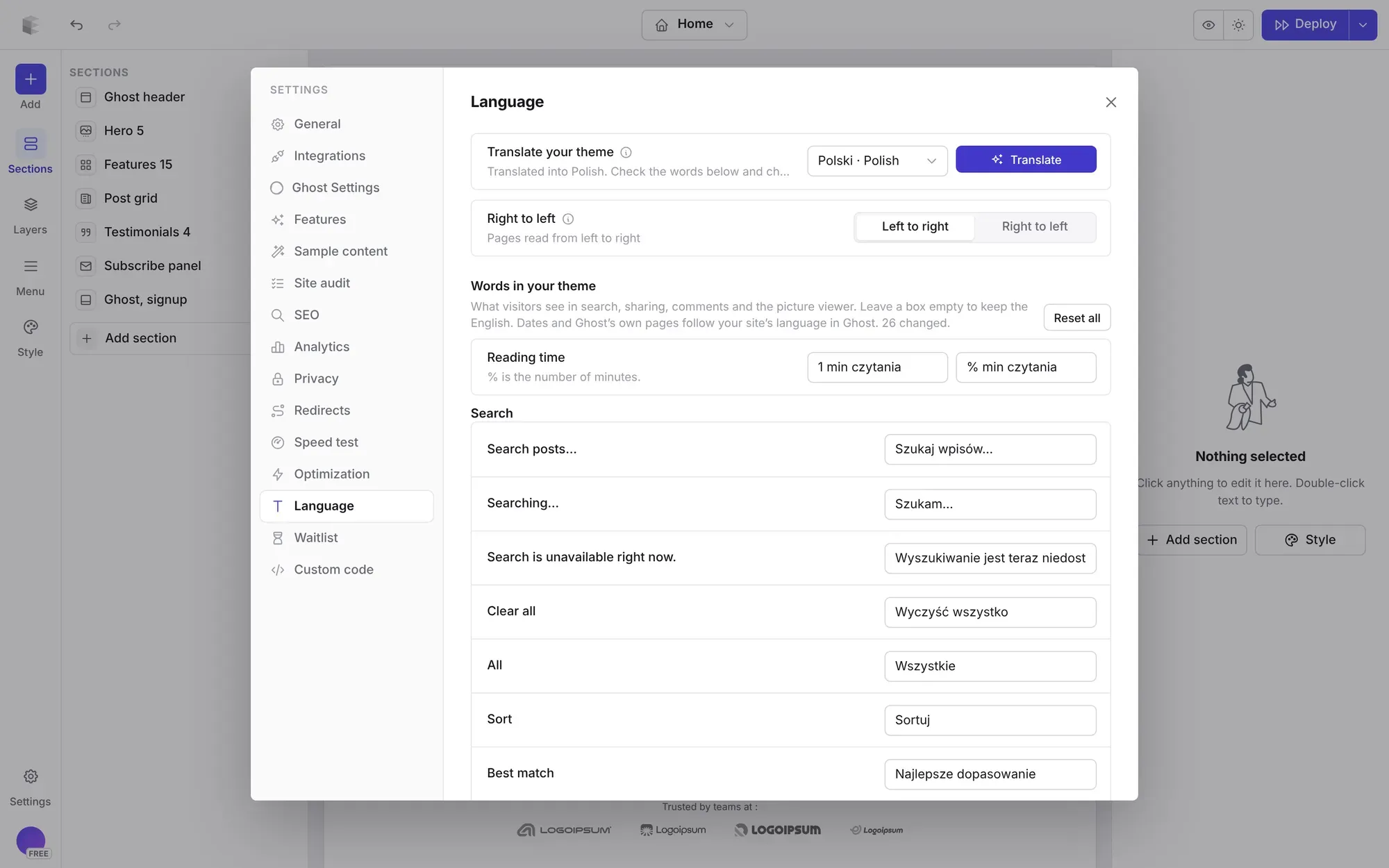
- Every word in one list. Settings → Language lists everything your theme shows visitors: search, sorting, sharing, comments, the picture viewer, code blocks, the dark mode switch and reading time. Change any of them.
- One-click translation. Pick one of 40 languages and every word is filled in for you, in natural, short wording. You can still edit each one afterwards.
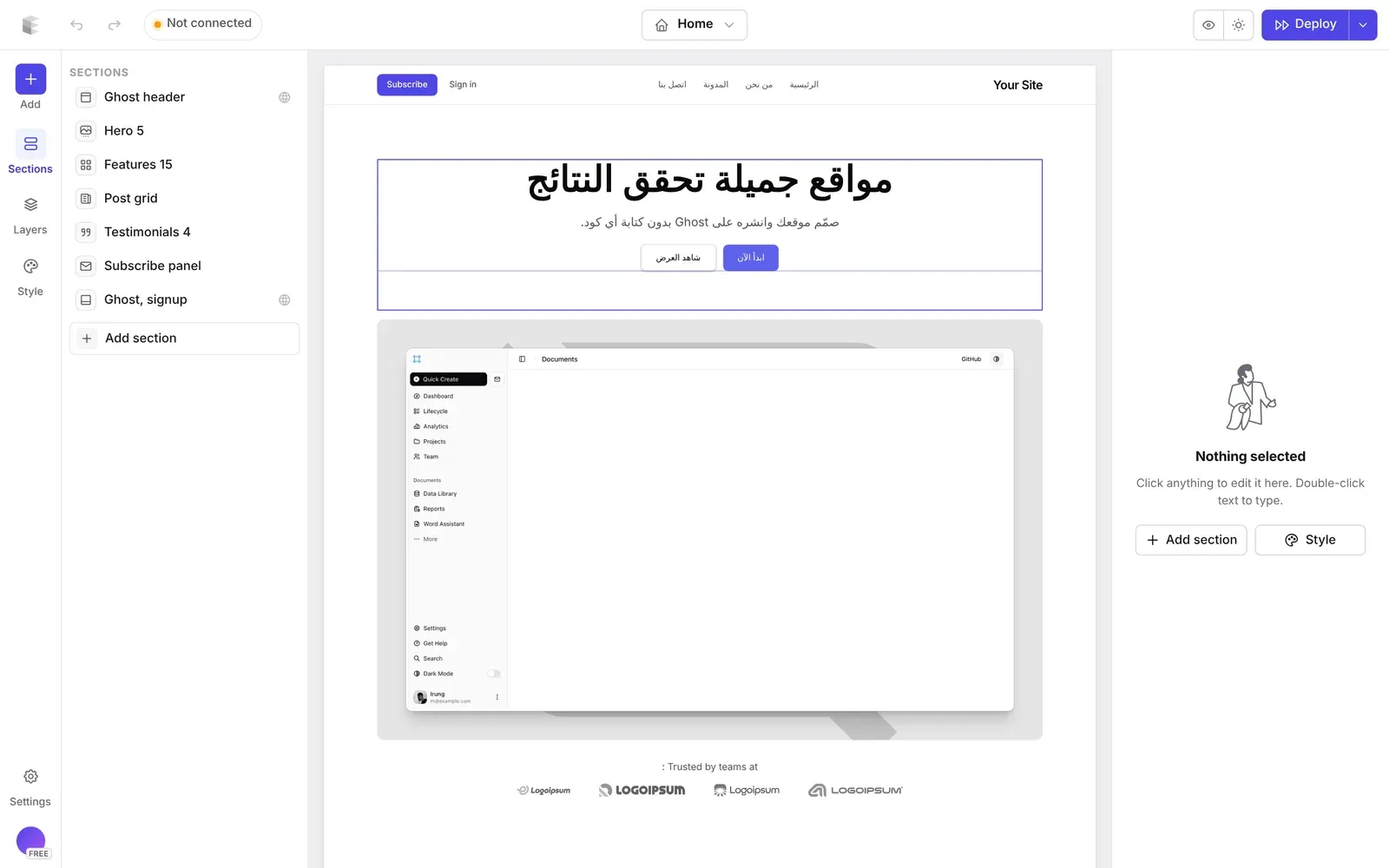
- Right-to-left layouts. For Arabic, Hebrew, Persian and Urdu, pages read from the right: the logo, menu, text and buttons all swap sides.
- Your own words are already yours. Headlines, buttons and anything else you typed into a section stay as you wrote them, in any language.
How to translate your Ghost theme
1. Open Settings → Language
Open your theme in Ectobuilder, click Settings in the left rail and choose Language.
2. Pick your language and translate
Under Translate your theme, choose your language and click Translate. Every word below is filled in a moment later.
3. Check the words
Read through the list. The translation is good, but you know your readers: you might prefer "Szukaj" to "Szukaj wpisów", or a more casual tone. Change any box and it's saved. Empty a box to go back to the English.
4. Reading time
Reading time has two boxes: one for exactly one minute and one for several. In the second, % stands for the number, like % min czytania.
5. Deploy
Deploy your theme to Ghost. While you're in Ghost Admin, set Publication language to the same language, so Ghost's own parts match.

Make your Ghost site speak your language.
Translate every word your theme shows visitors in one click, and switch to right-to-left for Arabic or Hebrew.
Right-to-left sites
When you translate into Arabic, Hebrew, Persian or Urdu, the Right to left setting switches on by itself. You can also set it by hand in the same panel.
- The layout mirrors. The logo moves to the right, menus read from right to left, text aligns right, and pictures beside text swap sides.
- Pictures aren't flipped. Photos, logos and screenshots stay as they are. Only their position changes.
- Check your sections. Most sections follow on their own. A few with a fixed design keep their original side, so look through each page in the editor before you deploy.
Also set Ghost's Publication language to your right-to-left language, so Ghost's own windows and dates follow.
Tips
- Translate before you design. Some languages are longer than English. German and Polish buttons, for example, can be twice as wide, so it's easier to check the layout with the real words.
- Keep it short. These words sit on buttons and in small menus. "Load more" in two words works better than a full sentence.
- Ask a native speaker for a quick look. The list is short, so it takes them a few minutes.
Related guides
- Custom fonts in Ghost: pick a font or upload your own files.
- The Language Tutor theme: materials, bookings and a newsletter.
- How to build your Ghost theme visually: every step, from picking a theme to publishing it to Ghost.
FAQ
Does Ghost support multiple languages on one site?
Not built in. Ghost sites have one publication language. For two languages, people usually run two Ghost sites, or tag posts by language. Each Ectobuilder theme speaks one language, so a second site can use a copy of the theme translated into the other.
Which languages can I translate into?
Forty, including Spanish, French, German, Italian, Portuguese, Polish, Dutch, Japanese, Korean, Chinese, Arabic, Hebrew, Hindi and Turkish. For any other language, type the words in yourself.
Does it translate my posts?
No. It translates the words your theme shows, like Search posts or Load more. Your posts, pages and the text you typed in sections stay as you wrote them.
Is right-to-left just for Arabic?
It’s for any language written from right to left: Arabic, Hebrew, Persian and Urdu are switched on automatically, and you can turn it on for others by hand.
Build a Ghost theme for your language.
Translate your theme, design every page visually and deploy straight to Ghost.
Written by
Founder of Ectobuilder, the AI-powered visual theme editor for Ghost. Indie software builder in Wrocław and co-author of The AdTech Book. I write about Ghost themes, newsletters and building websites with AI.
Comments
Questions or thoughts? Share them below.
Keep reading
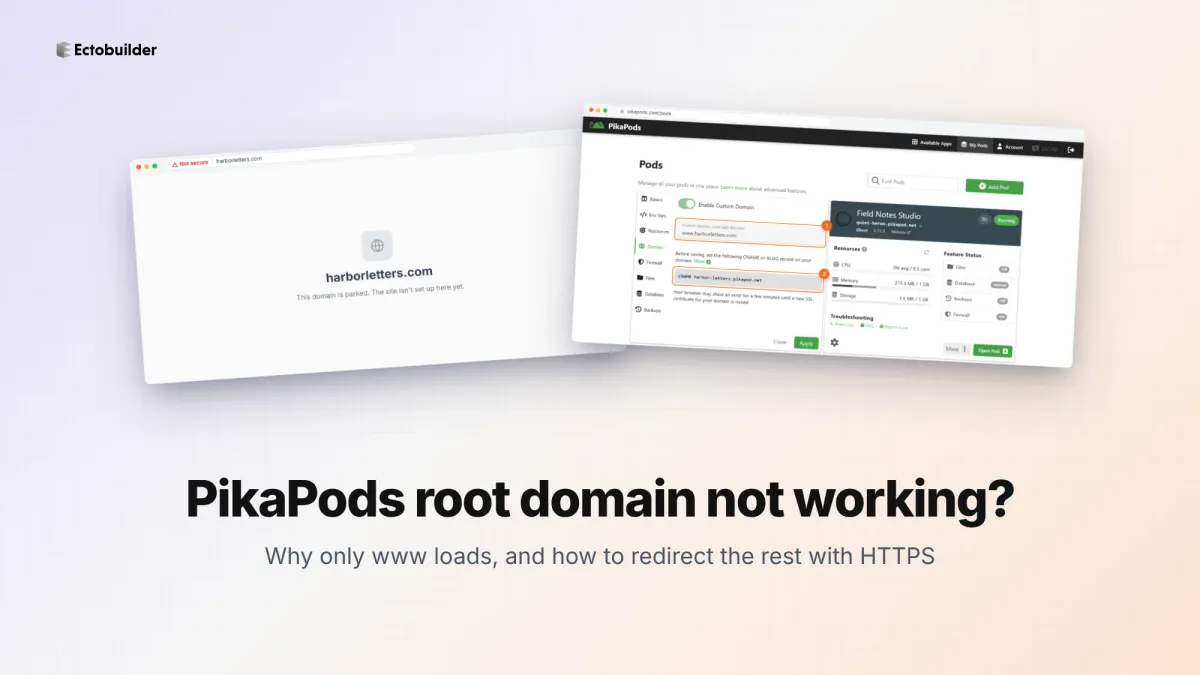
PikaPods Custom Domain: Why Only www Works (and How to Fix the Root Domain)
PikaPods maps one custom domain per pod, so yourdomain.com without www stays on a parked page with no SSL. Here's why, and three ways to redirect it to www over HTTPS without touching your email records.
How to Migrate from Kit or beehiiv to Ghost (Subscribers, Paid Members, Posts and Redirects)
Move your newsletter from Kit (ConvertKit) or beehiiv to Ghost step by step: export and import subscribers, deal with paid members and Stripe, bring your posts across, set up redirects and your domain, warm up email sending, and make the new site look right.
How to Use ChatGPT to Create 301 Redirects (Prompts, File Formats and Testing)
Let ChatGPT or Claude match your old URLs to new ones and write the redirect file for Ghost, Apache, Nginx, Netlify or Vercel. Prompts to copy, the mistakes to avoid, and how to test every redirect.