
How to Use Custom Fonts in Ghost (Including Your Own Font Files)
Use any font on your Ghost site without editing theme code: pick from a curated list or upload your own .woff2, .ttf or .otf files. Plus which file to use, licenses, speed and privacy.

Michal Wlosik
· 4 min read
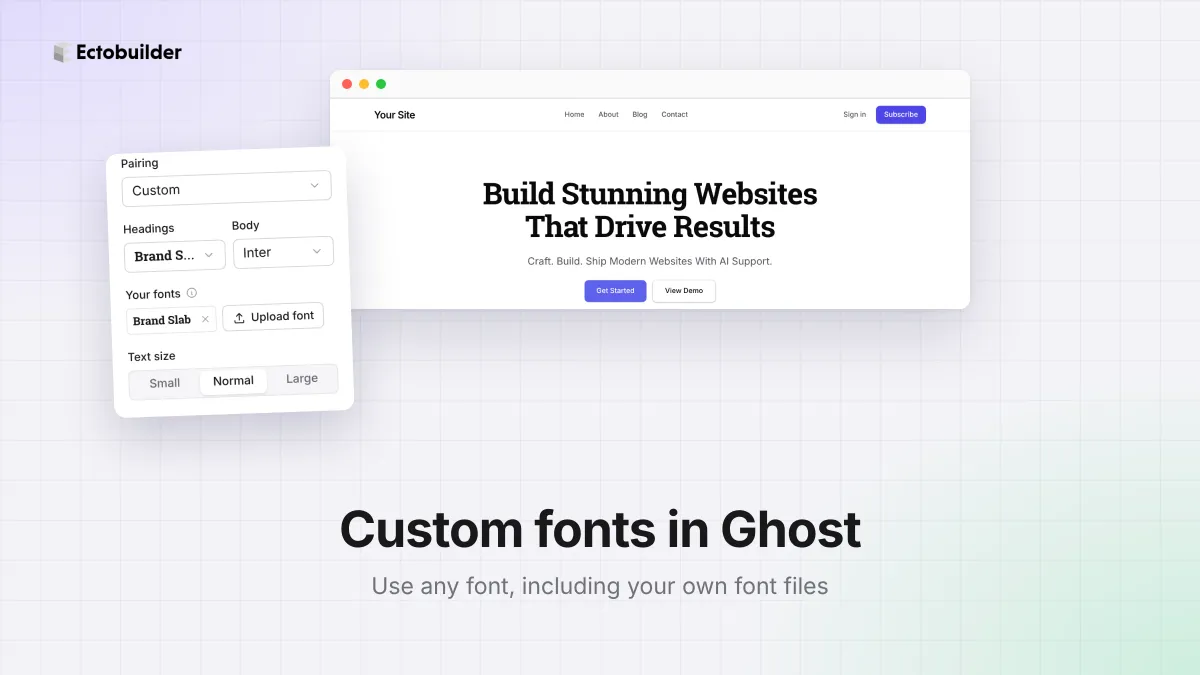
Your brand has a typeface. It's on your logo, your business cards and your app. On your Ghost site, though, you're limited to whatever fonts the theme offers, and changing them means editing theme code and font files.
This guide shows how to use any font on your Ghost site, including your own font files, without code, and how to keep them fast and legal.
How fonts work in Ghost
Fonts come from your theme. Some of Ghost's official themes let you choose from a short list of fonts in Settings → Design, and that's it. Using any other font, or your own, means editing the theme: adding the font files, writing the @font-face rules and changing the CSS. Or pasting a Google Fonts link into code injection and overriding the theme's styles by hand.
What Ectobuilder gives you
- A choice of well-made fonts. Inter, Geist, Manrope, Plus Jakarta Sans, DM Sans, Figtree, Outfit, Space Grotesk, Fraunces, Playfair Display, Lora, Newsreader and more, plus ready-made pairings for headings and body text.
- Your own fonts. Upload a .woff2, .woff, .ttf or .otf file and use it for headings, body text or both.
- Fonts that travel with the theme. Uploaded fonts are bundled into your theme and served from your own Ghost site. Nothing loads from Google or anyone else.
How to use your own font in Ghost
1. Open Typography
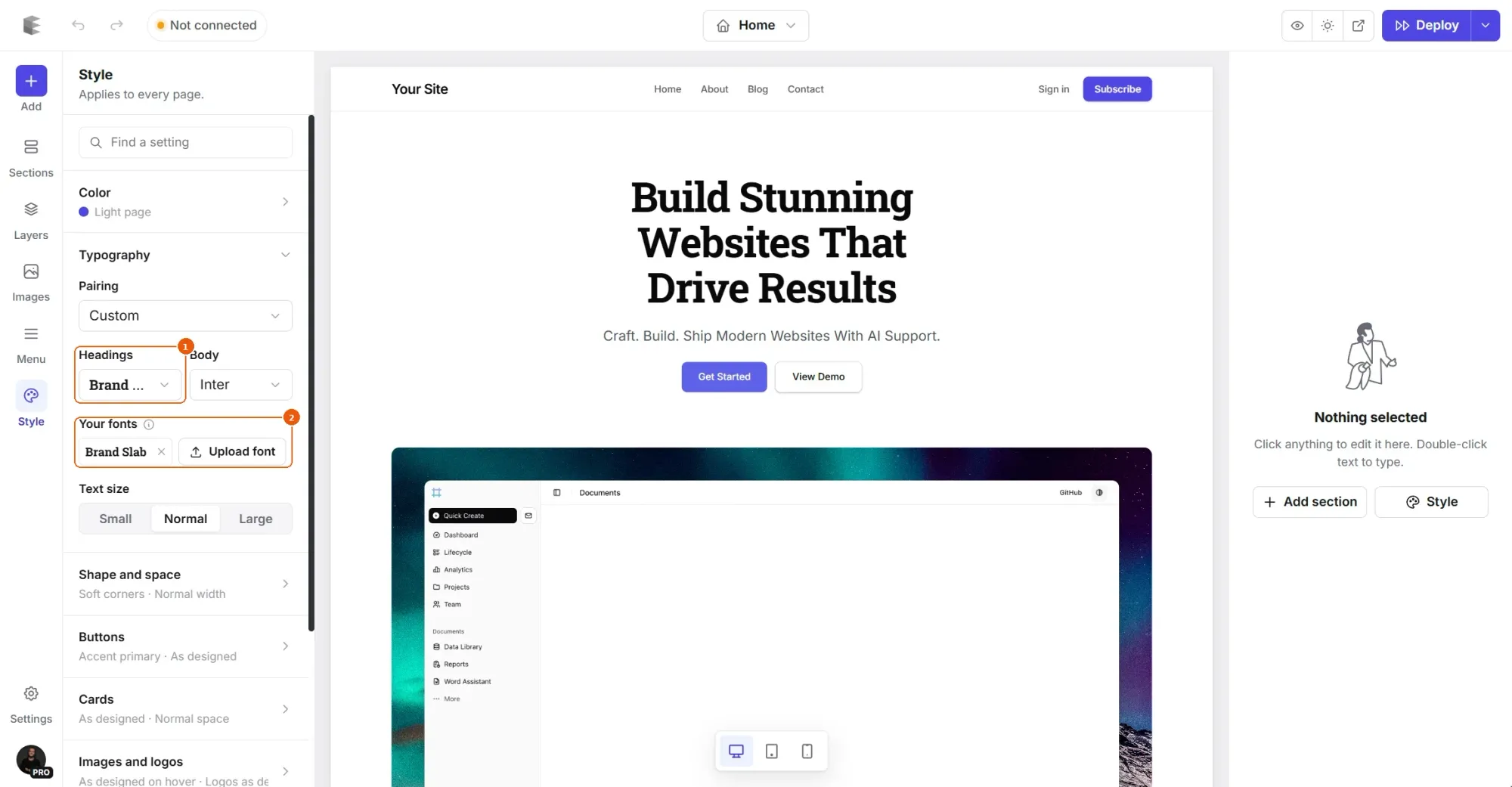
Open your theme in Ectobuilder, click Style in the left rail and open Typography.
2. Upload the font
Under Your fonts, click Upload font and choose the file. Give the font a name: that's how it shows in the font pickers. Files can be up to 2 MB.
3. Use it
Click the font's name to use it for headings, or pick it in the Headings or Body menu. The canvas changes right away, so you can see it on every page before you deploy.
4. Deploy
Deploy your theme to Ghost. The font file goes with it, into the theme's own assets.
Put your brand’s fonts on your Ghost site.
Upload your own fonts or pick from a curated list, and see them on every page as you design.
Which file to upload
- WOFF2 if you have it. It's the smallest format and every current browser reads it. If you only have TTF or OTF, a free converter turns it into WOFF2 at about a third of the size.
- A variable font for several weights. One variable font file holds every weight, from light to black, so headings and body text can share it. A regular font file holds a single weight.
- Only the characters you need. Fonts that cover many alphabets are large. If you write in one language, a font with just the Latin characters loads faster.
Licenses
Buying a font usually gives you a desktop license, for documents and design apps. Putting it on a website needs a web license. Check the license before you upload: fonts from Google Fonts and Fontshare are free for the web, and most commercial foundries sell web licenses alongside desktop ones.
Speed and privacy
Uploaded fonts load from your own site, so there's no extra connection to another server. That's a little faster, and it means no visitor data goes to Google. Courts in the EU have ruled that loading Google Fonts from Google's servers without consent shares visitors' IP addresses, so serving fonts yourself avoids that question.
Fonts load with font-display: swap: text shows right away in a fallback font and switches when the font arrives, so a slow connection never hides your words.
Related guides
- Translate your Ghost theme: every word your theme shows, in 40 languages, plus right-to-left.
- A dark mode switch for Ghost: let readers choose light or dark.
- Core Web Vitals for Ghost: what makes a Ghost theme fast.
- How to build your Ghost theme visually: every step, from picking a theme to publishing it to Ghost.
FAQ
Can I use Adobe Fonts or Typekit?
Adobe Fonts are served by Adobe, so you can’t upload them. Add Adobe’s embed code under Settings → Custom code → Head, then add CSS there that uses the font for your headings or text.
Can I use two of my own fonts?
Yes. Upload both and pick one for headings and the other for body text.
How big can the file be?
Up to 2 MB per file. Most WOFF2 fonts are well under 100 KB.
What happens if I remove a font?
Headings or text that used it go back to a built-in font. Deploy again to update your live site.
Design a Ghost theme that looks like your brand.
Your fonts, your colors and your layout, designed visually and deployed straight to Ghost.
Written by
Founder of Ectobuilder, the AI-powered visual theme editor for Ghost. Indie software builder in Wrocław and co-author of The AdTech Book. I write about Ghost themes, newsletters and building websites with AI.
Comments
Questions or thoughts? Share them below.
Keep reading
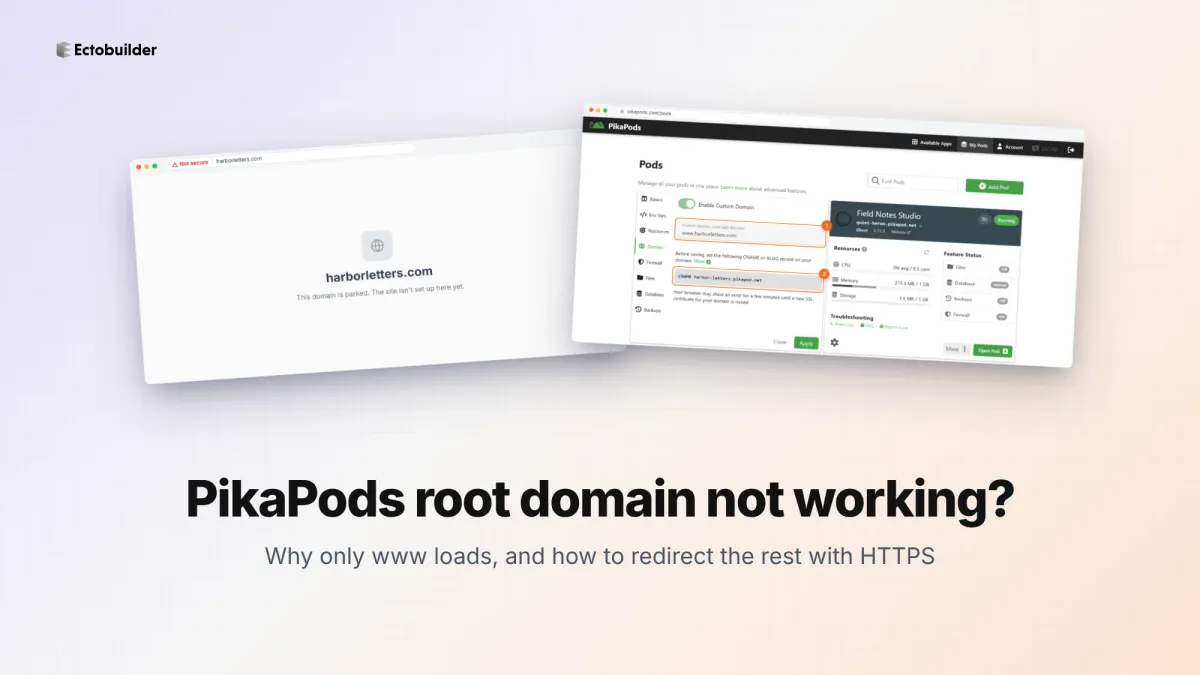
PikaPods Custom Domain: Why Only www Works (and How to Fix the Root Domain)
PikaPods maps one custom domain per pod, so yourdomain.com without www stays on a parked page with no SSL. Here's why, and three ways to redirect it to www over HTTPS without touching your email records.
How to Migrate from Kit or beehiiv to Ghost (Subscribers, Paid Members, Posts and Redirects)
Move your newsletter from Kit (ConvertKit) or beehiiv to Ghost step by step: export and import subscribers, deal with paid members and Stripe, bring your posts across, set up redirects and your domain, warm up email sending, and make the new site look right.
How to Use ChatGPT to Create 301 Redirects (Prompts, File Formats and Testing)
Let ChatGPT or Claude match your old URLs to new ones and write the redirect file for Ghost, Apache, Nginx, Netlify or Vercel. Prompts to copy, the mistakes to avoid, and how to test every redirect.