
How to Edit Your Ghost Menu in Ectobuilder: Links, Icons and Dropdowns
Add, rename and reorder your Ghost menu right beside your design, drag links into dropdowns, give them icons, and save it all straight to Ghost with a staff access token.

Michal Wlosik
· 8 min read
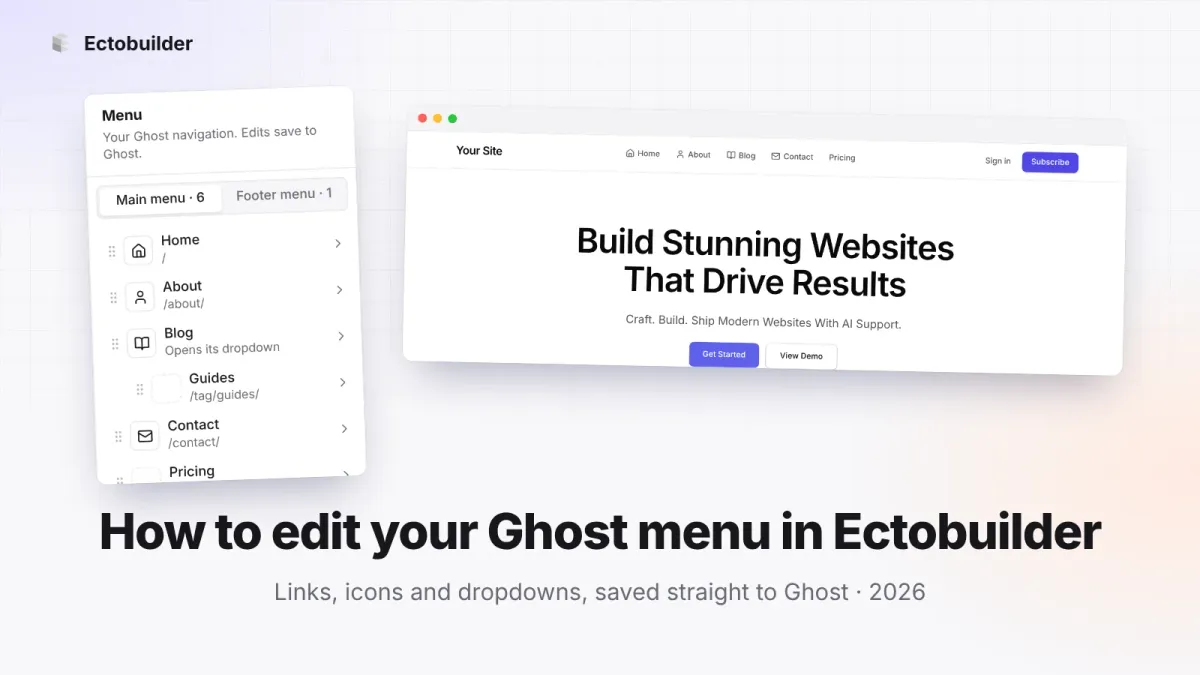
Ghost keeps your site's menu in Ghost Admin, under Settings → Navigation: two lists of links, each with a label and an address. It works, but it lives far from your design. You switch tabs to add a link, there's no way to give a link an icon, and dropdowns only come from a naming rule you have to remember.
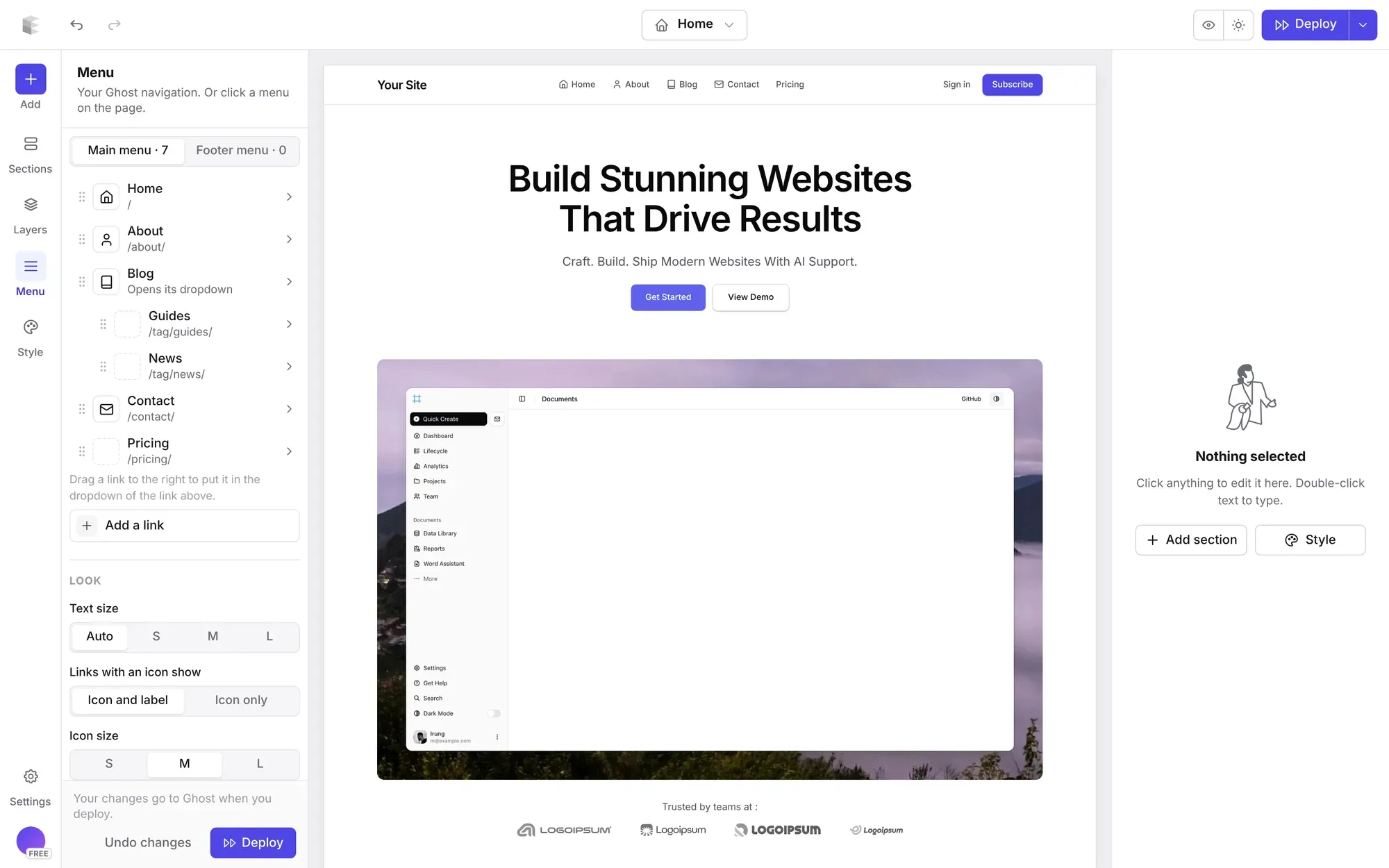
Ectobuilder now has a Menu panel right next to your page. Add, rename and reorder links, drag them into dropdowns or footer columns, give them icons, and save the result straight to Ghost. The page in the editor shows each change as you make it.
What you need
- A theme in Ectobuilder that's connected to your Ghost site (Settings → Integrations → Ghost Admin API).
- A staff access token from your Ghost profile. You need it once, and it must belong to an Administrator or the site's Owner.
Why a second key? The Admin API key you connected for deploying can read Ghost's settings but can't change them. Ghost reserves that for staff users. A staff access token acts as you, so Ectobuilder can save the menu the same way you would in Ghost Admin.
Step 1: Add your staff access token
- In Ghost Admin, open Settings → Staff and click your name.
- Under Staff access token, click Copy.
- In Ectobuilder, open Settings → Integrations → Ghost staff token, paste it and click Connect.
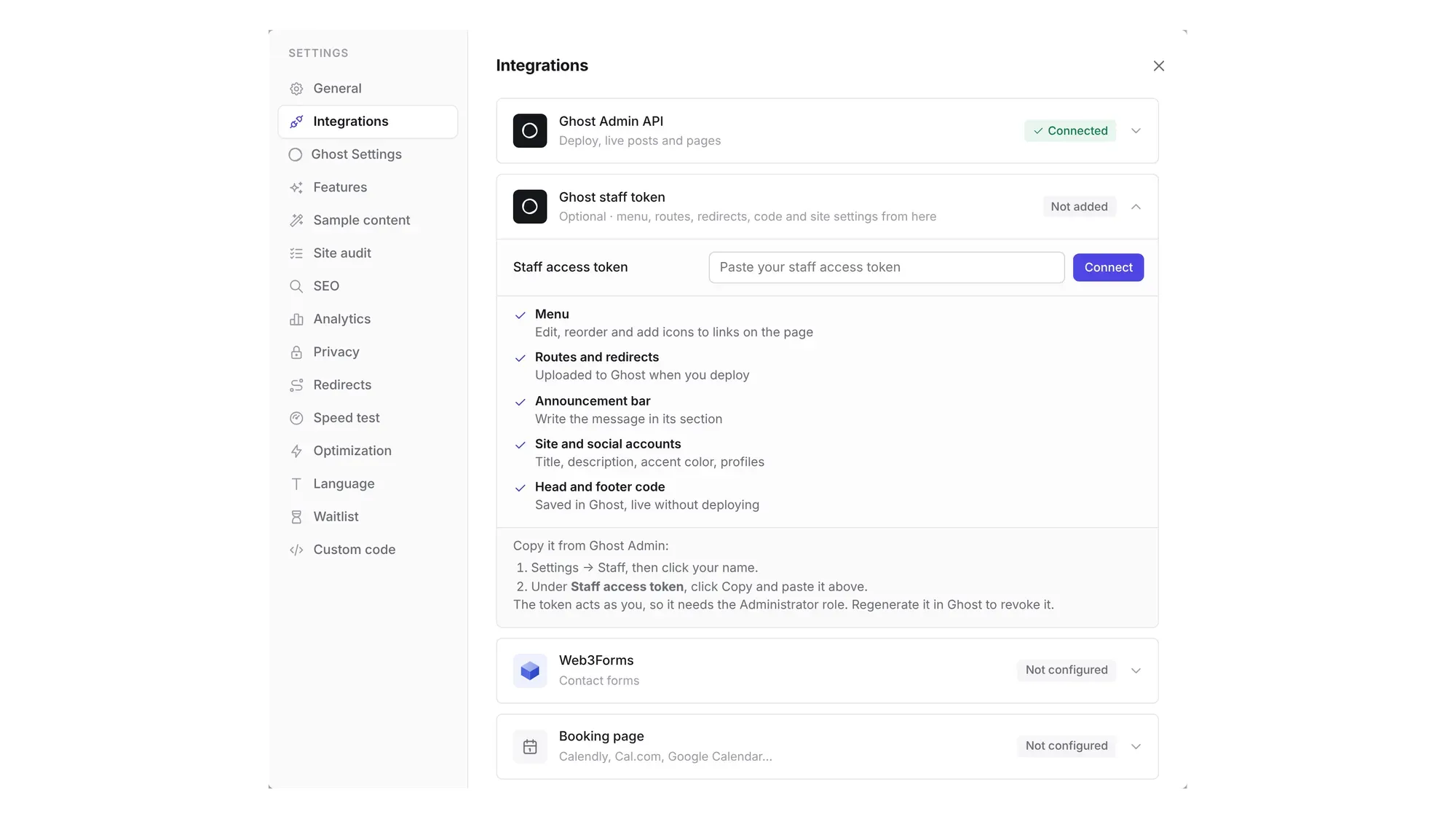
Ectobuilder checks the token with Ghost before it keeps it, and tells you whose it is. A token from an Editor or Author is turned away, because Ghost wouldn't let it change the menu anyway.
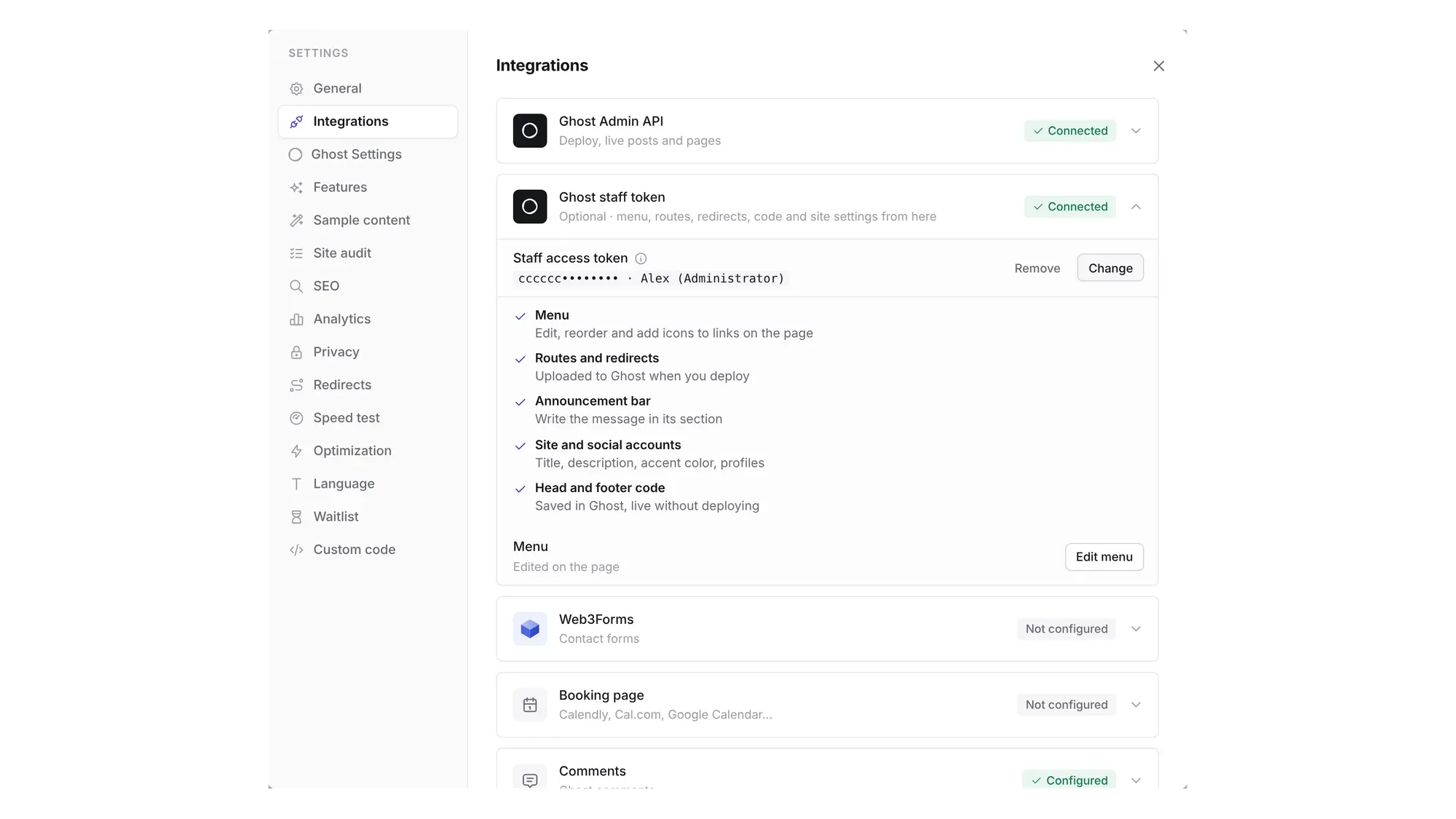
Is it safe? The token is stored encrypted (AES-256-GCM) on our server and never sent back to your browser. Ectobuilder uses it only for the menu and the few site settings you change in Ectobuilder. To revoke it, regenerate it in Ghost: the old one stops working at once. More on how we keep your keys safe.
Step 2: Open the Menu panel
Click Menu in the left rail, between Layers and Style. You'll see your links straight from Ghost, with a switch between the Main menu (Ghost's primary navigation, usually in the header) and the Footer menu (the secondary navigation).
Each row shows the link's icon, its label and where it goes. Click a row to edit it. You can also click the menu on the page, in the header or the footer: its links open in the settings panel on the right, the same list with the same draft, so a change in one place shows in the other.
Step 3: Add and edit links
Click Add a link, or click an existing one. Give it a label, then choose where it goes. Type any address, or click Pick to search your site's pages, posts, tags and authors and choose one. If the label is still empty, it fills in with the page's title.
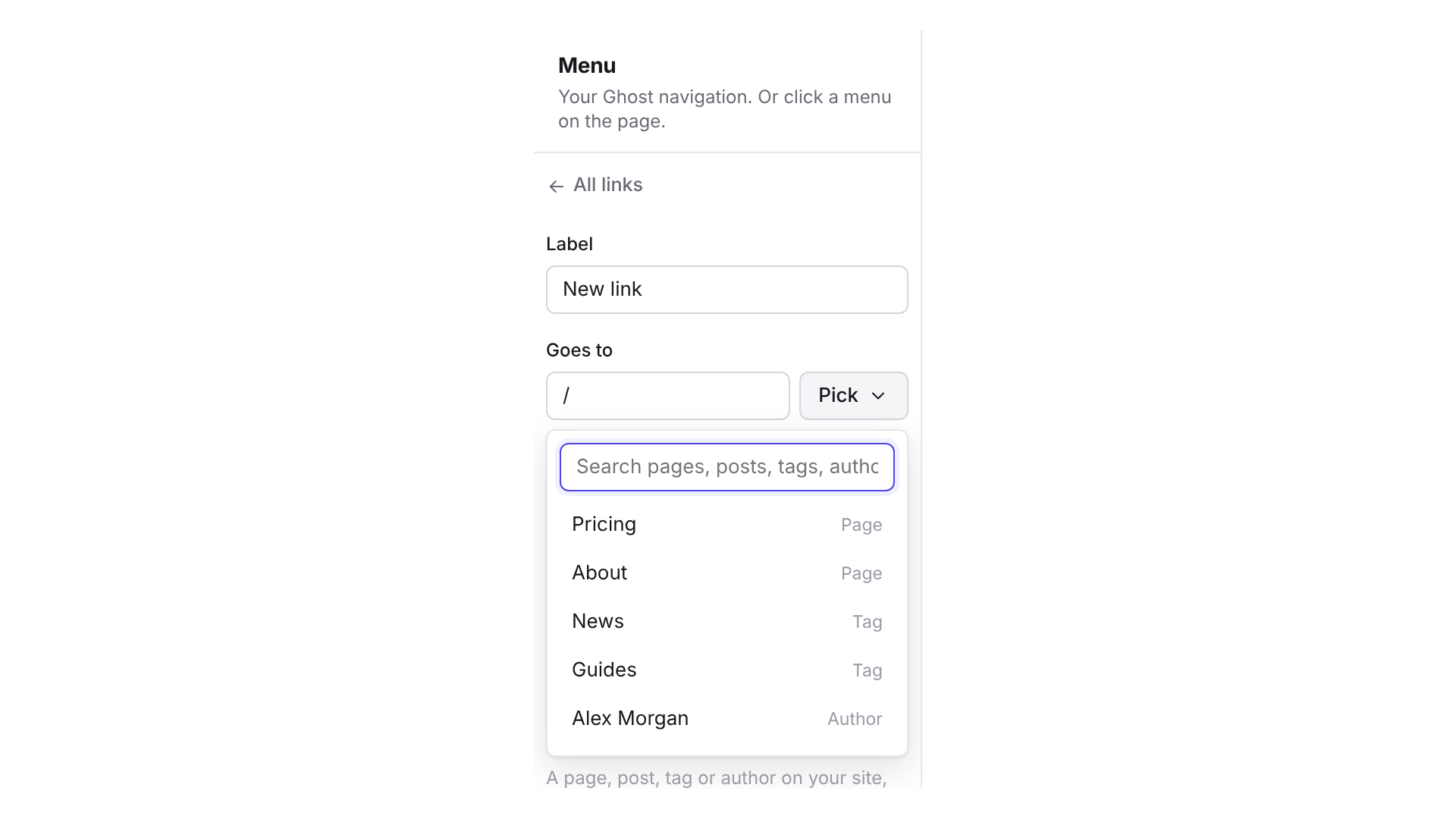
The list closes when you click anywhere else. To take a link out of the menu, open it and click Remove from menu.
Step 4: Reorder links and build dropdowns
Drag a link by its handle to move it up or down. To put a link into a dropdown, drag it slightly to the right: it moves in under the nearest link above it, and the row shows where it will land before you let go. Drag it back to the left to bring it out again.
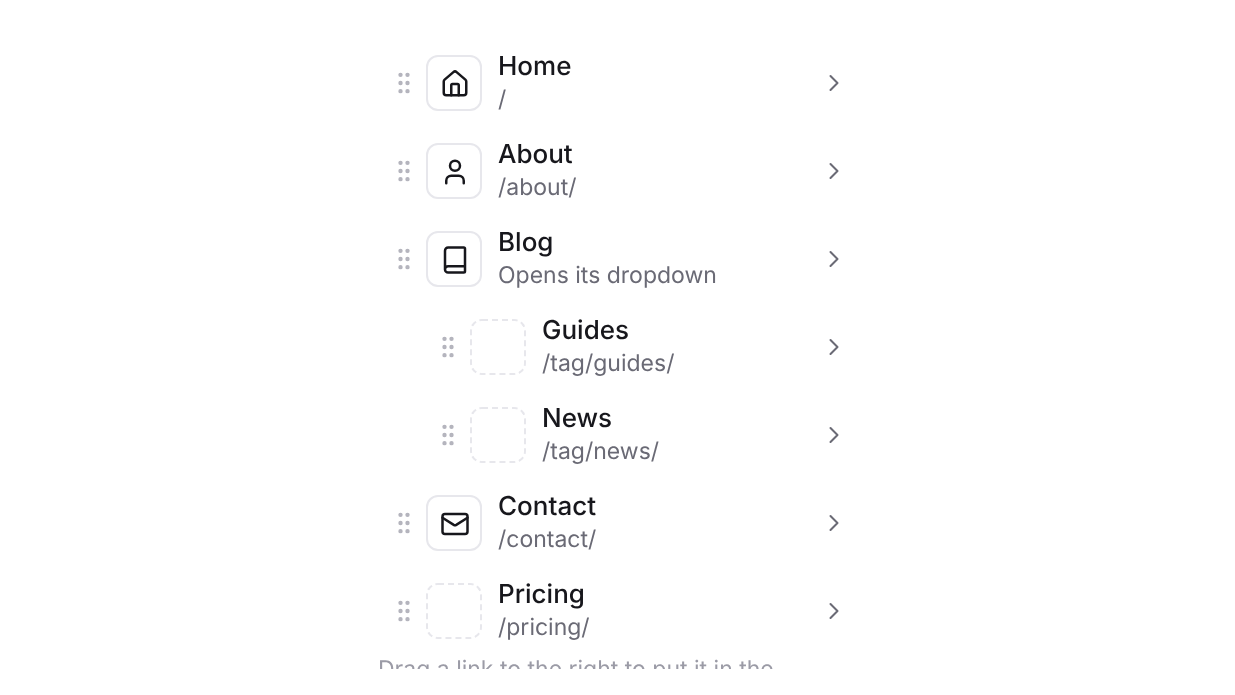
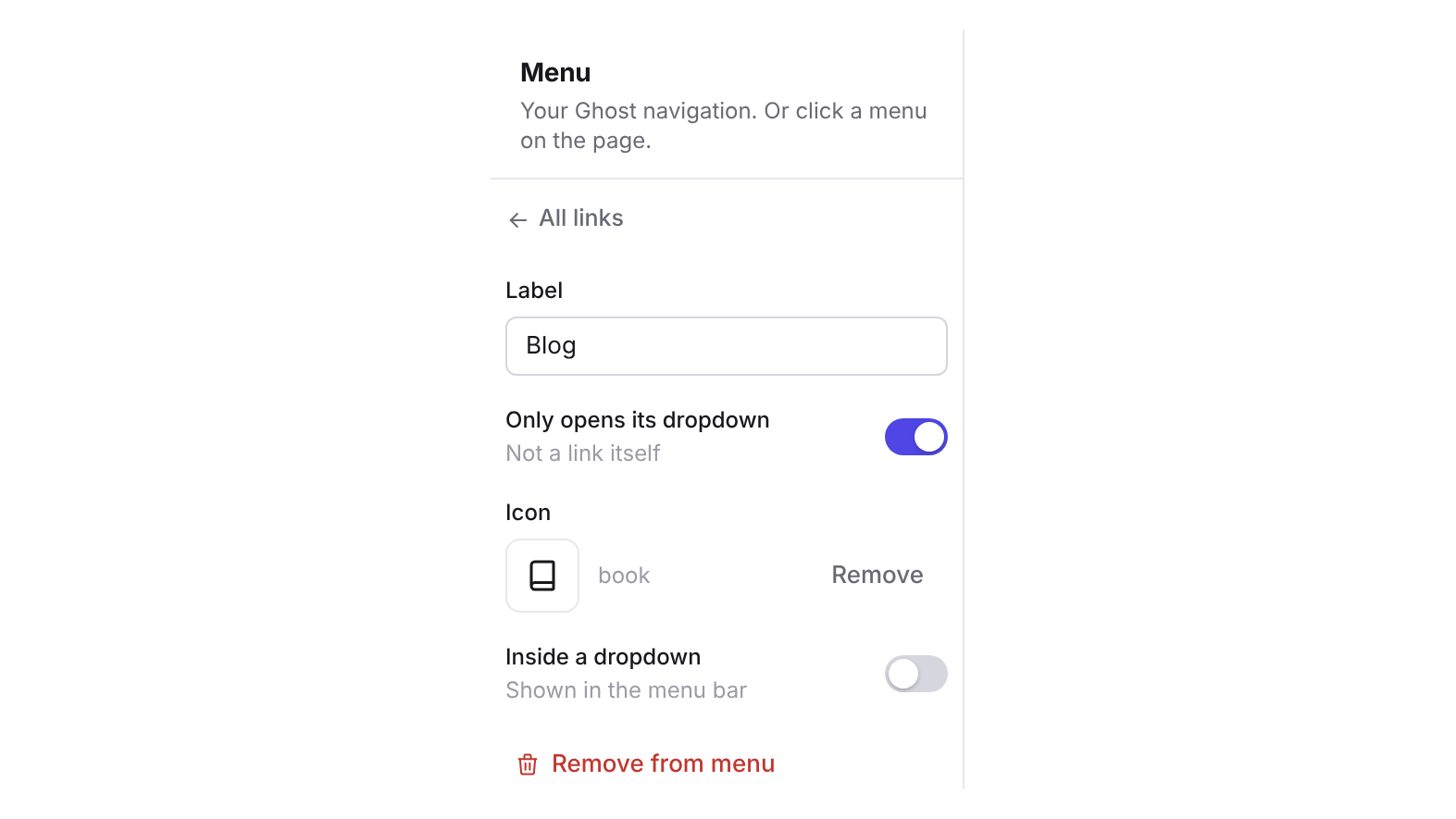
Prefer clicking? Open a link and use the Inside a dropdown switch. A link that has others under it gets one more switch, Only opens its dropdown. Turn it on and the link goes nowhere by itself: clicking it opens its dropdown, which suits a "Resources" or "Topics" heading.
Behind the scenes this is the same rule Ghost themes have always used for dropdowns: a link whose label starts with a dash belongs to the link above it. Ectobuilder writes the dashes for you, so the menu also works if you open it in Ghost Admin later. Dropdowns are one level deep.
Footer columns
Switch to Footer menu and set Layout to Columns. The panel then shows your footer the way the page does: one card per column, with its heading at the top and its links underneath. Switching an existing list to columns puts your links into a first column called "Links", ready to rename.
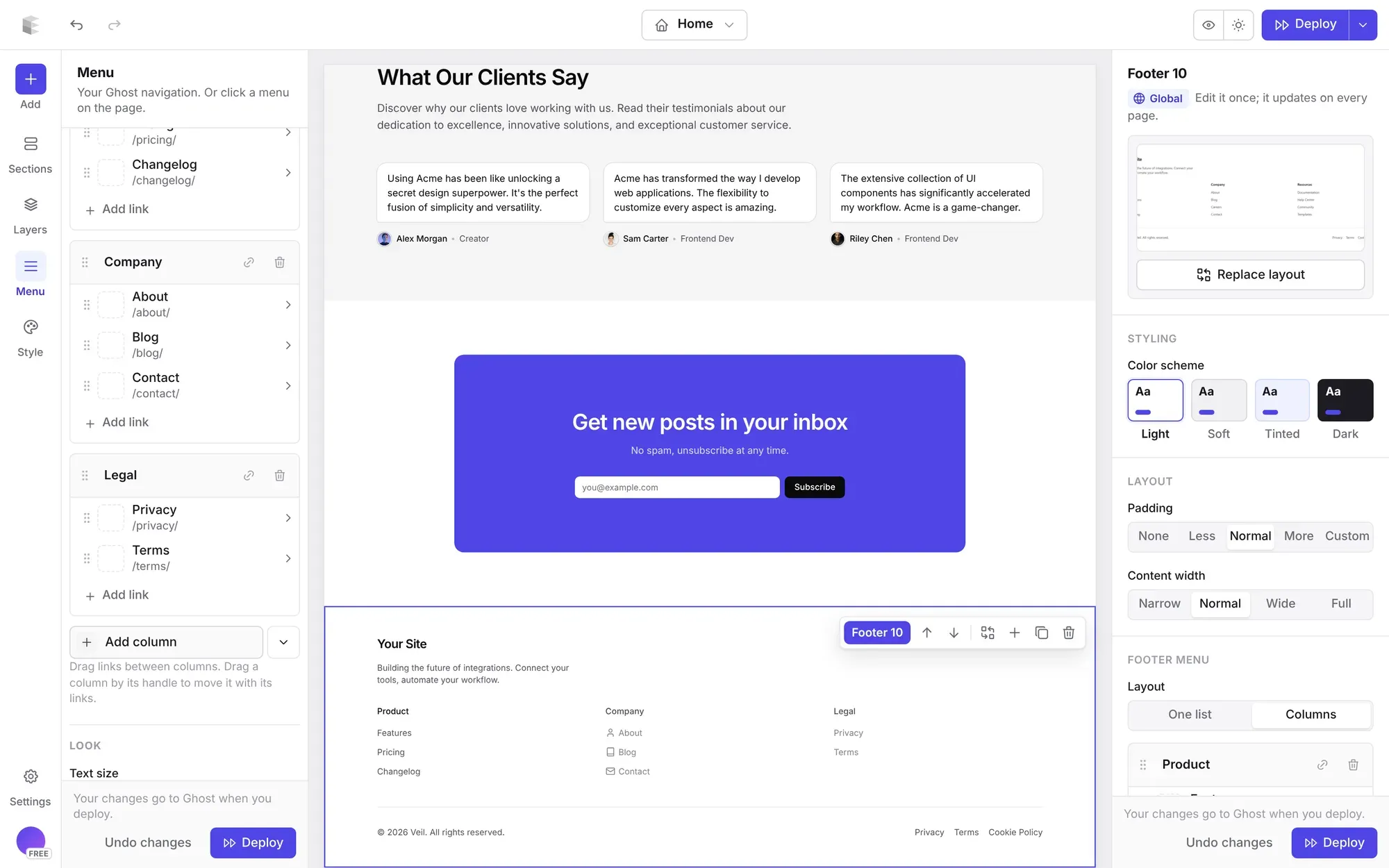
- Add column: adds an empty column with one link to fill in. The arrow next to it offers ready-made columns (Company, Product, Resources and Legal) with typical links. When your site has a page of the same name, the link goes to it.
- Add link: at the bottom of each card, adds a link to that column and opens it to edit.
- Rename a heading: type straight into the card's heading.
- Make the heading a link: the link button next to the heading. Without it, the heading is just a heading.
- Move things: drag a link into another column, or drag a column by its handle to move it with all its links.
- Remove a column: the bin next to the heading removes the column and its links, after you confirm.
There's one column per heading. The columns sit where the footer's design puts them, and a fourth or fifth one wraps to a new row on narrow screens. Choose One list for a footer menu without columns.
Most footers in the section library come with columns. Pick one under Add → Footer, or click Replace layout on your footer. You style the first column, its heading and a link, and the others follow.
Step 5: Add icons
Open a link and click the square next to Icon. Search more than 1,500 icons, the same set the editor uses for the rest of your theme, and click one.
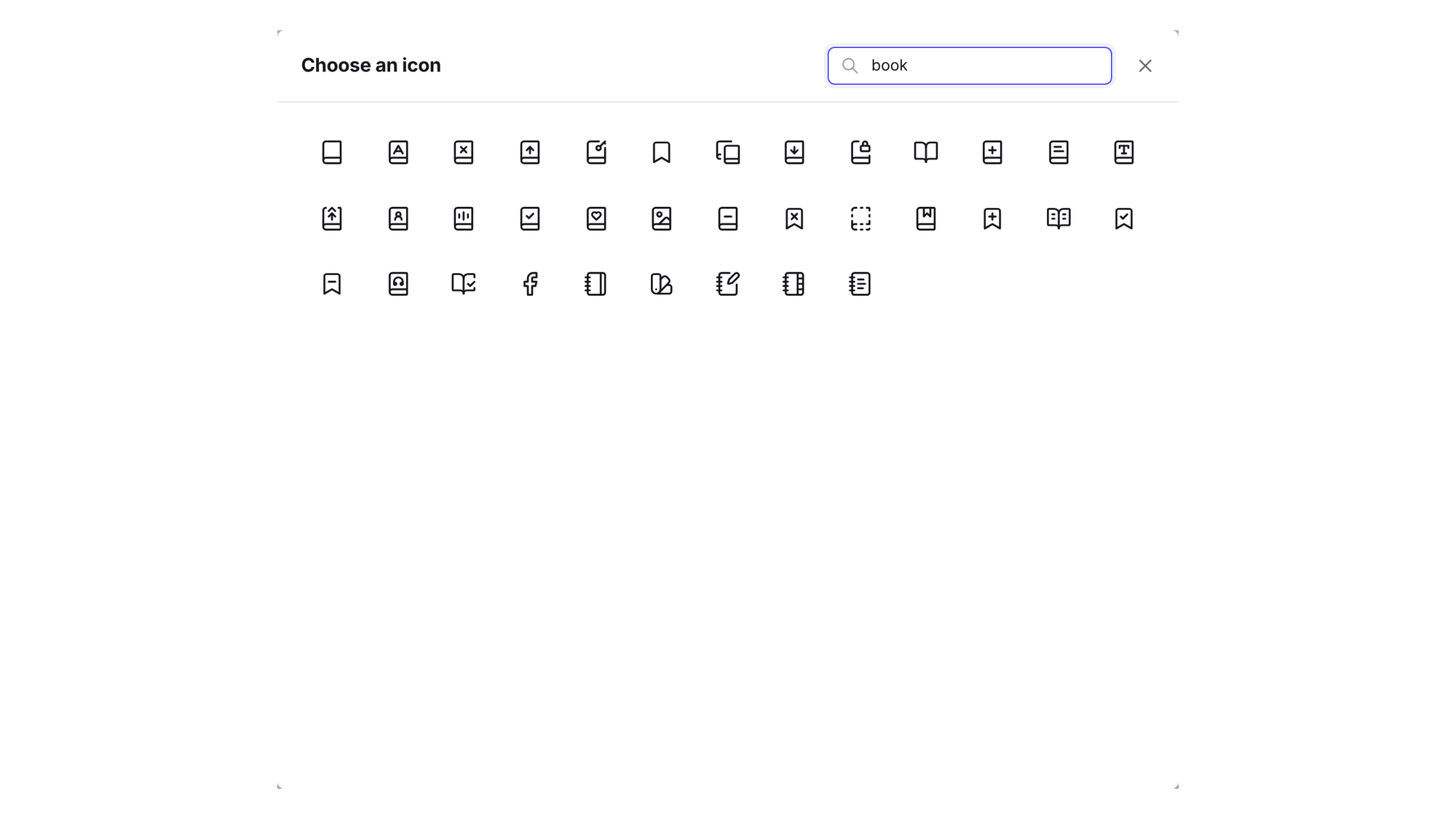
Under Look at the bottom of the panel you choose how they show:
- Links with an icon show: Icon and label, or Icon only. With icon only, the label stays in the page for screen readers and search engines, and it shows again in the phone menu.
- Icon size: S, M or L.
- Text size: the size of the menu's labels, the same setting as the header's Menu text.
Icons take the color of the link, so they match your header in light and dark mode.
Step 6: Save to Ghost
Nothing reaches your site until you click Save to Ghost. Discard brings back what Ghost has. After saving:
- Links are live on your site straight away, with no deploy.
- Icons and their look are part of your theme, so they show after your next Deploy. So does a new footer layout.
Renaming a link in the Menu panel keeps its icon. If you rename it in Ghost Admin instead, pick the icon again, because icons are matched to a link by its label.
Edit your Ghost menu where you design it.
Links, dropdowns, footer columns and icons in one panel, saved straight to Ghost. Start free and only pay when you publish.
Without a staff token
The token is optional. Without it, your menu still works the classic way: edit it in Ghost Admin under Settings → Navigation, and put a dash in front of a label to put it under the link above, in a dropdown in the header or in a column in the footer. Our guide to dropdown menus in Ghost covers that route.
Let Claude edit the menu
If you use Ectobuilder with Claude, the Ectobuilder connector can read and change your menu too, with the same staff token. Try:
Add a Resources dropdown to my main menu with Guides (/tag/guides/) and Changelog (/changelog/), give Home a house icon and Contact a mail icon, then deploy.
Related guides
- How to add dropdown menus to Ghost: list and wide menus, and the dash rule.
- A dark mode switch for Ghost: let readers choose light or dark.
- Landing pages with custom templates: pages worth linking from your menu.
Frequently asked questions
Why does Ectobuilder need a staff token for the menu?
Ghost's navigation is a site setting, and Ghost only lets staff users change settings. The Admin API key from a custom integration can read the menu but not save it. A staff access token acts as you, with your role, so it can.
How do I make columns in my footer?
Use a footer with columns from the section library, then open the Footer menu, set Layout to Columns and click Add column for each one. All the links come from Ghost's footer menu, so you edit them in one place, in the Menu panel or in Ghost Admin (where a link under a heading starts with a dash).
Can an Editor use the Menu panel?
Only with a token from an Administrator or the Owner. Ghost doesn't let Editors, Authors or Contributors change site settings, so Ectobuilder doesn't accept their tokens.
How do I stop Ectobuilder from using my token?
Click Remove next to it in Settings → Integrations, and it's deleted from our server. To be certain, also regenerate the token in Ghost (Settings → Staff → your profile): the old one stops working everywhere.
Do I need to deploy after changing the menu?
Not for links: they're live as soon as you click Save to Ghost. Icons, icon size, the icon-only setting and a new footer layout belong to your theme, so deploy once to see them on your site.
Can I still edit the menu in Ghost Admin?
Yes. Both edit the same menu. The Menu panel loads what Ghost has each time you open it. Just remember that icons follow the label, so a link renamed in Ghost Admin needs its icon picked again.
Written by
Founder of Ectobuilder, the AI-powered visual theme editor for Ghost. Indie software builder in Wrocław and co-author of The AdTech Book. I write about Ghost themes, newsletters and building websites with AI.
Comments
Questions or thoughts? Share them below.
Keep reading
PikaPods Custom Domain: Why Only www Works (and How to Fix the Root Domain)
PikaPods maps one custom domain per pod, so yourdomain.com without www stays on a parked page with no SSL. Here's why, and three ways to redirect it to www over HTTPS without touching your email records.
How to Migrate from Kit or beehiiv to Ghost (Subscribers, Paid Members, Posts and Redirects)
Move your newsletter from Kit (ConvertKit) or beehiiv to Ghost step by step: export and import subscribers, deal with paid members and Stripe, bring your posts across, set up redirects and your domain, warm up email sending, and make the new site look right.
How to Use ChatGPT to Create 301 Redirects (Prompts, File Formats and Testing)
Let ChatGPT or Claude match your old URLs to new ones and write the redirect file for Ghost, Apache, Nginx, Netlify or Vercel. Prompts to copy, the mistakes to avoid, and how to test every redirect.