
How to Add a Waitlist to Your Ghost Site (With Invite Links and a Live Count)
Collect early users for your app on your own Ghost site: a waitlist that signs people up as Ghost members, shows a live count and each person's place in line, and gives them invite links to move up. No form tools or spreadsheets.

Michal Wlosik
· 5 min read
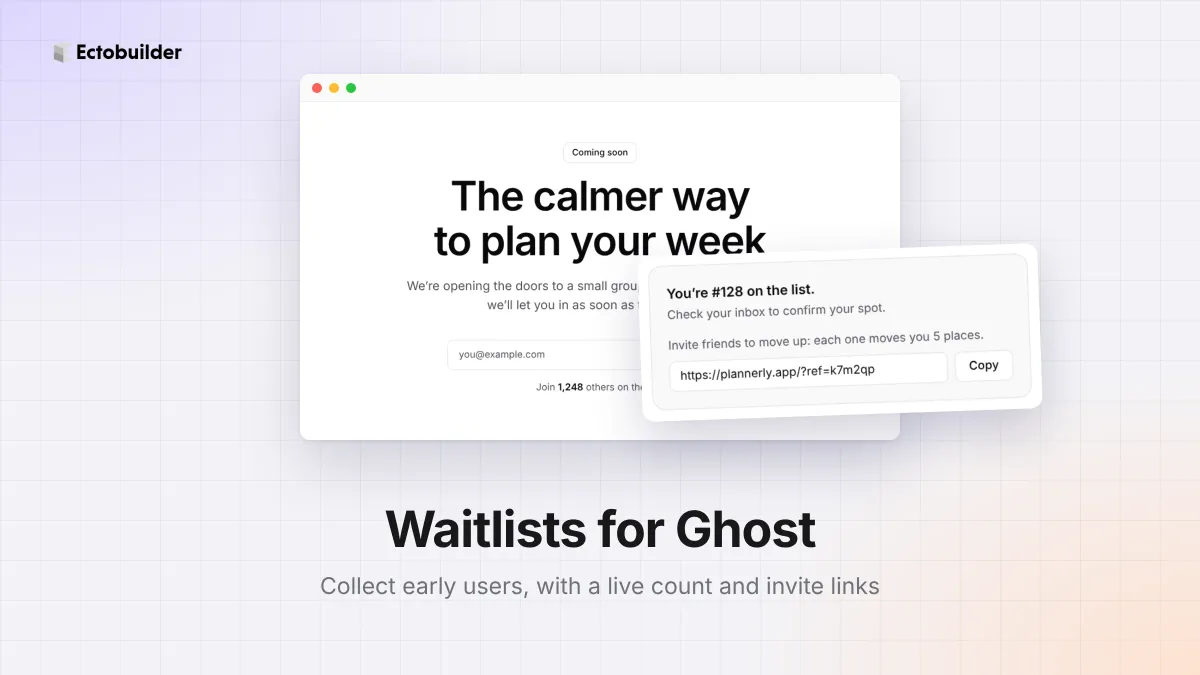
You're building an app, and it isn't ready yet. You want a page that explains the idea and collects the email addresses of people who want in. You want to see how many signed up, and on launch day you want to send them all a link. That's a waitlist.
Most people put one together from a landing-page builder, a form tool and a spreadsheet. If your site runs on Ghost, you don't need any of that. Ectobuilder now has waitlist sections that sign people up straight into Ghost, show each person their place in line, and give them an invite link to move up.
What you get
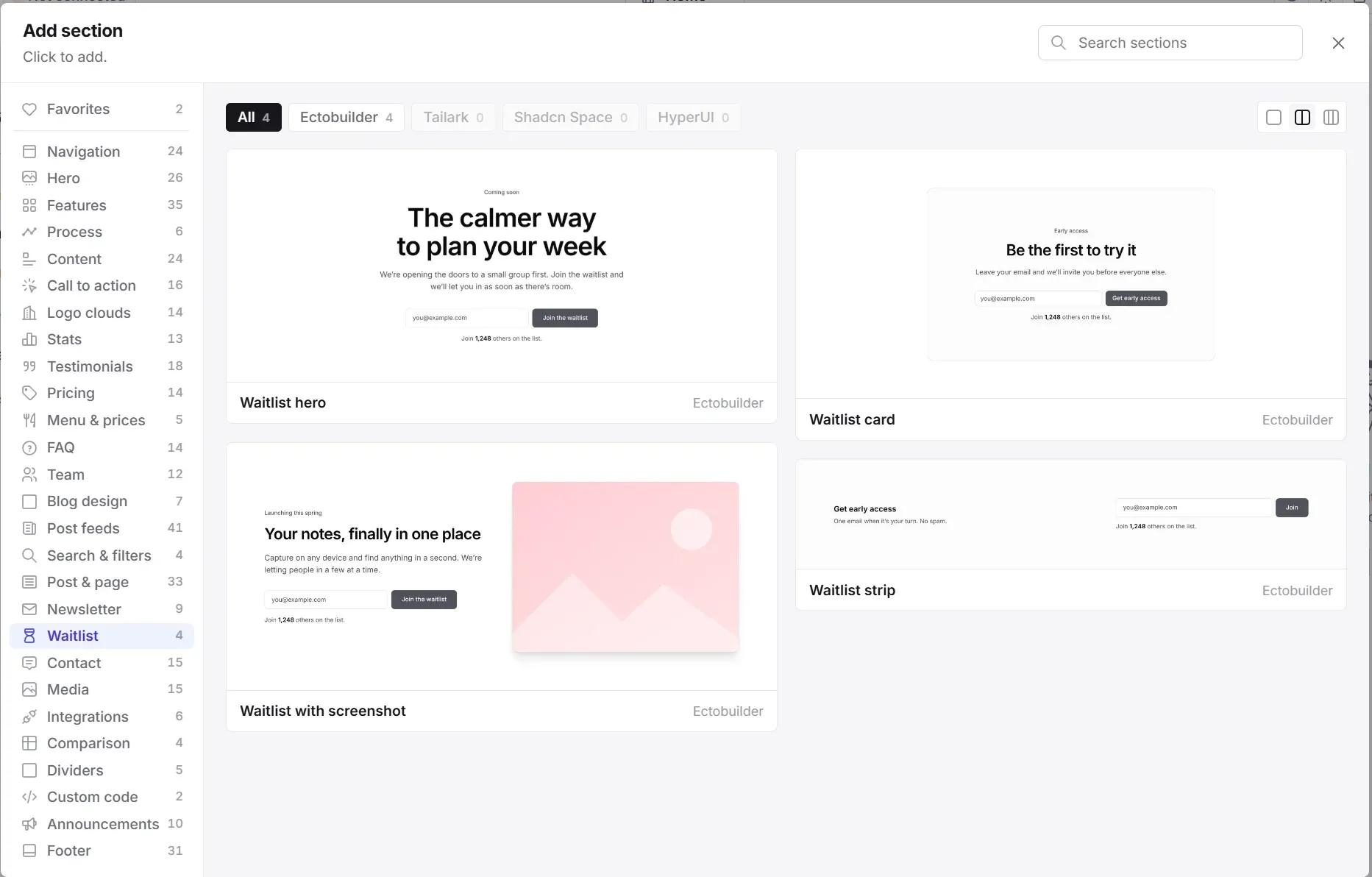
- Four waitlist sections: a big hero, a card for the middle of a page, a split layout with a picture of your app, and a slim strip that fits above a footer.
- Signups in Ghost. Everyone who joins becomes a Ghost member with your list's label, so you can find them under Members and email them from Ghost on launch day.
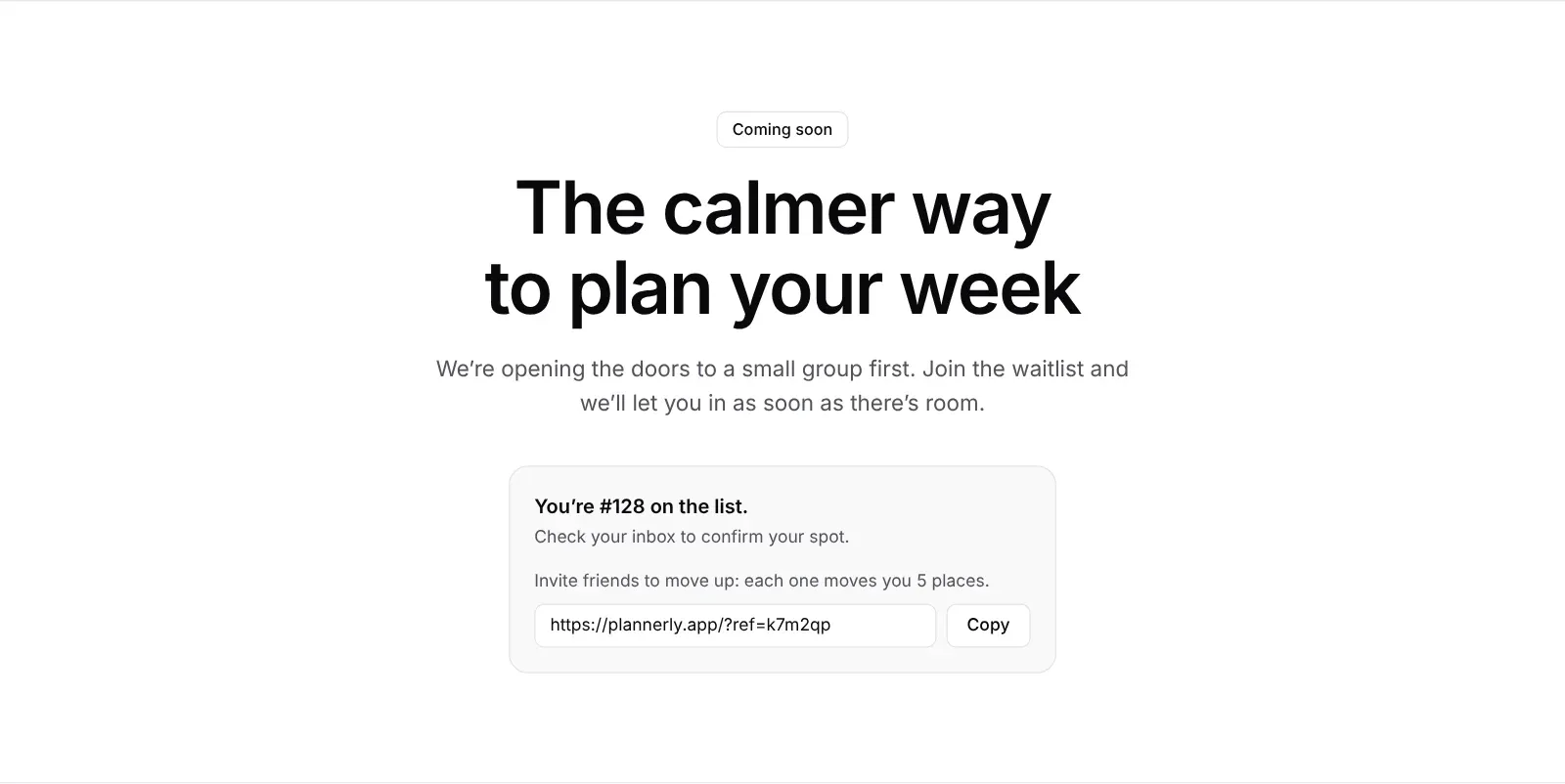
- A live count. "Join 1,248 others on the list." It appears once 10 people have joined, so an empty list never shows.
- A place in line. After joining, each person sees their number.
- Invite links. Each person gets a link to share. Every friend who joins through it moves them up 5 places.
- A Launched switch. On launch day, the form turns into a button to your app, so the page keeps working.
- Your list in the editor. See how many joined and download everyone as a CSV file.
How to add a waitlist to Ghost
1. Add a waitlist section
Open your theme in Ectobuilder, go to the page where the waitlist should go (your Home page, or a new custom template like "Early access"), and click Add section. Open Waitlist and pick a layout.
Change the headline and the text to describe your app. Double-click any text to type.
2. Name your list
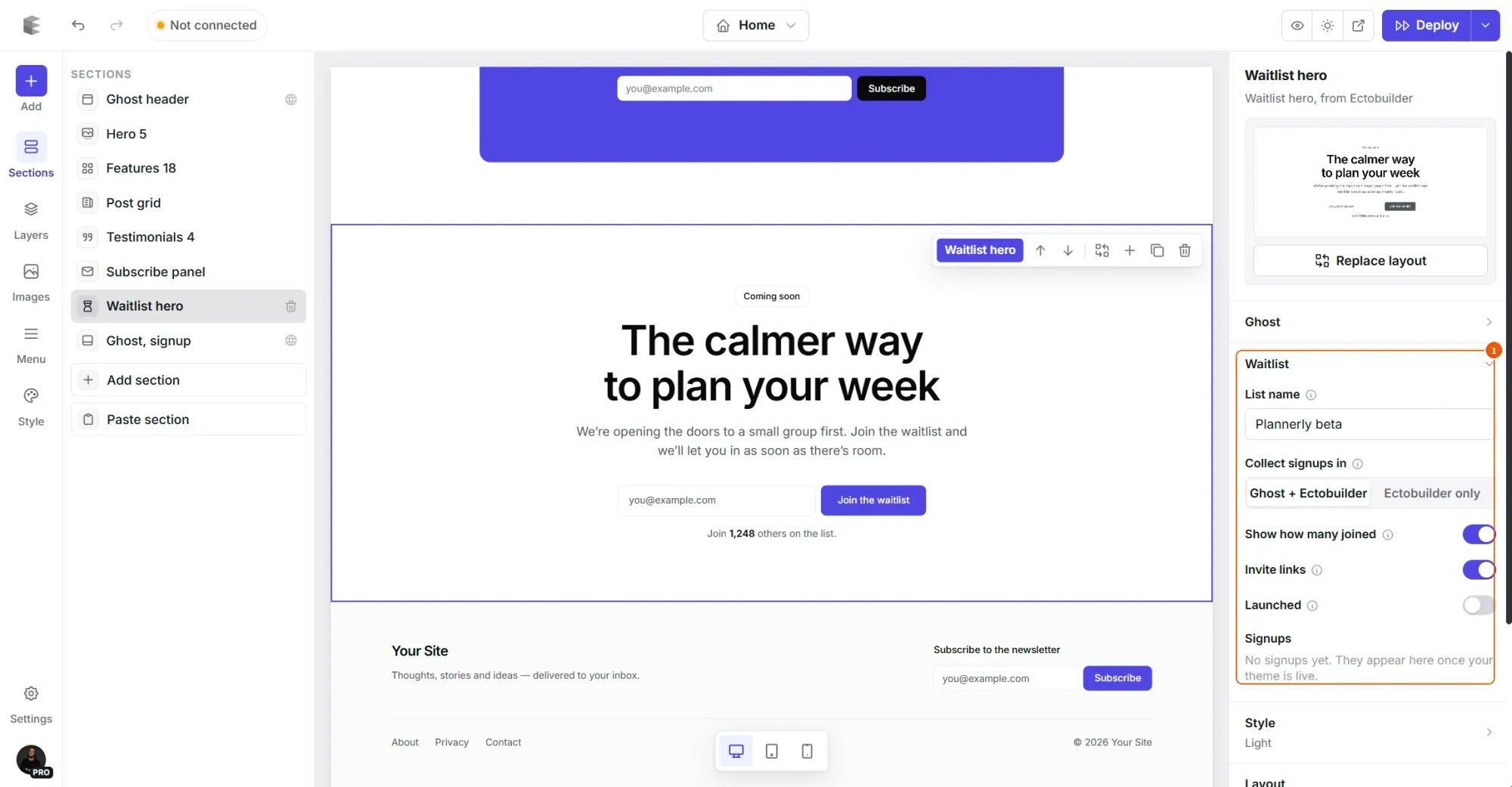
Select the section. Under Waitlist in the panel on the right, give the list a name, like "Plannerly beta". That name becomes the label on everyone who joins, so you can tell this list apart from your newsletter subscribers in Ghost.
3. Choose where signups go
- Ghost + Ectobuilder (the default): each person becomes a Ghost member and confirms by email, as with any Ghost signup. Ectobuilder keeps the count and the order of the line.
- Ectobuilder only: for sites that don't use Ghost's members. People join without an email from Ghost, and you download the list from the editor.
4. Turn on the extras
Switch on Show how many joined to show the count under the form, and Invite links to give everyone a link to share. Both are on by default.
5. Deploy
Deploy your theme to Ghost. The waitlist is live, and signups start appearing under Signups in the editor.

Start collecting early users today.
Add a waitlist to your Ghost site in a few clicks, with a live count, places in line and invite links.
How invite links work
After joining, each person sees their place in line and a personal link, like yoursite.com/?ref=k7m2qp, with a Copy button. When a friend opens that link and joins, the person who shared it moves 5 places up the line. The link is remembered, so it still counts if the friend comes back and joins a few days later.
That gives people a reason to share, and every share brings in someone who heard about your app from a friend. When you let people in, start from the top of the list.
On launch day
- In Ghost, go to Members and filter by your list's label. That's your waitlist.
- Send them a newsletter or an email with the link to your app. If you used Ectobuilder only, download the CSV from the editor and import it into your email tool.
- Back in Ectobuilder, select the waitlist section and switch on Launched. Set where the button goes, like your App Store page or your app's sign-up page, and deploy.
The page stays the same, so links people shared still work. They just land on a button instead of a form.
Tips
- Say what people get. "Early access", "a lower price for the first 100" or "a say in what we build" all give people a reason to join now rather than later.
- Show the count once it's worth showing. A number like 1,248 helps people decide. That's why the count stays hidden until 10 people have joined.
- Put a waitlist strip on your other pages. If you blog about what you're building, a slim strip above the footer catches readers who are already interested.
- Keep in touch. In Ghost + Ectobuilder mode, the people on your waitlist are members, so you can send them short updates while you build.
Related guides
- A pricing page for Ghost: tiers, a monthly and yearly switch, and custom checkout.
- How to build your Ghost theme visually: every step, from picking a theme to publishing it to Ghost.
FAQ
Do I need Ghost members switched on?
For Ghost + Ectobuilder, yes: people join as members, so Ghost needs to allow signups. If your site has members switched off, choose Ectobuilder only.
Do people have to confirm their email?
In Ghost + Ectobuilder mode, yes. Ghost sends its usual confirmation email, as it does for any signup. Their place in line is kept from the moment they join.
Where are the email addresses stored?
In Ghost + Ectobuilder mode, in Ghost as members, and Ectobuilder keeps a copy to work out the count, the order and invite links. In Ectobuilder only mode, only in Ectobuilder. Either way you can download the list from the editor.
Can I have more than one waitlist?
Yes. Give each section its own list name and each one keeps its own count, line and label in Ghost. Useful for a waitlist per product or per plan.
What happens to the waitlist after launch?
Switch on Launched and the form becomes a button to your app. The signups stay in Ghost and in the editor, so you can keep emailing the people who joined early.
Launch your app on Ghost.
Build the landing page, collect your waitlist and announce the launch, all on your own Ghost site.
Written by
Founder of Ectobuilder, the AI-powered visual theme editor for Ghost. Indie software builder in Wrocław and co-author of The AdTech Book. I write about Ghost themes, newsletters and building websites with AI.
Comments
Questions or thoughts? Share them below.
Keep reading
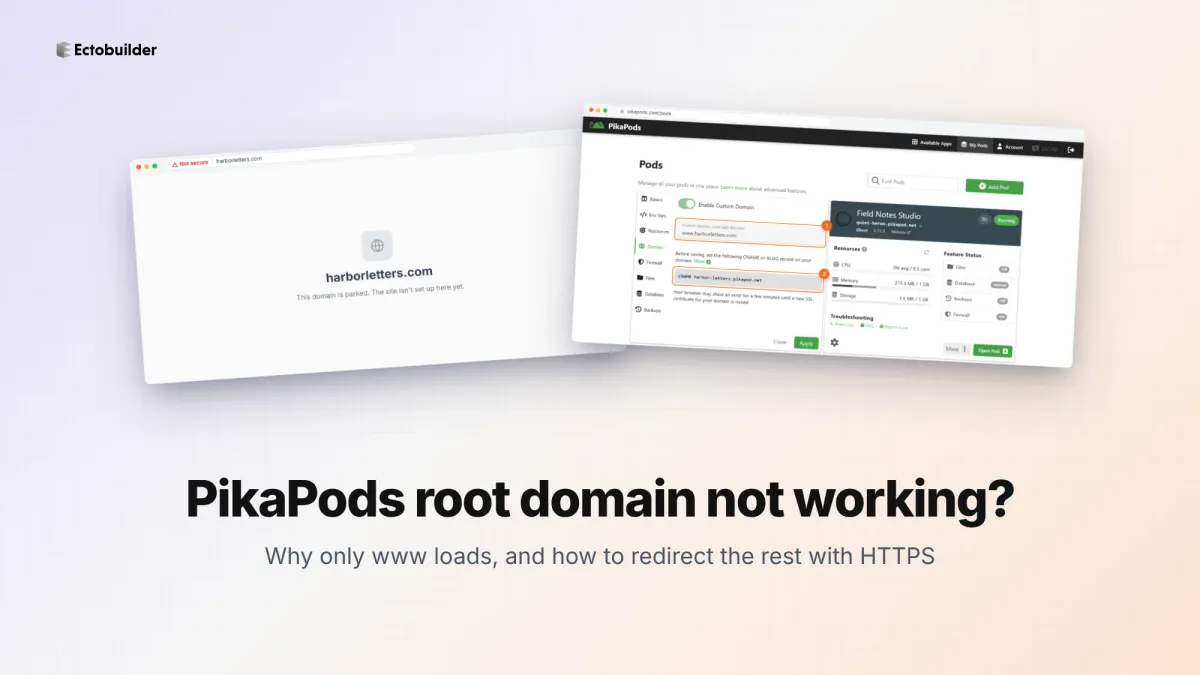
PikaPods Custom Domain: Why Only www Works (and How to Fix the Root Domain)
PikaPods maps one custom domain per pod, so yourdomain.com without www stays on a parked page with no SSL. Here's why, and three ways to redirect it to www over HTTPS without touching your email records.
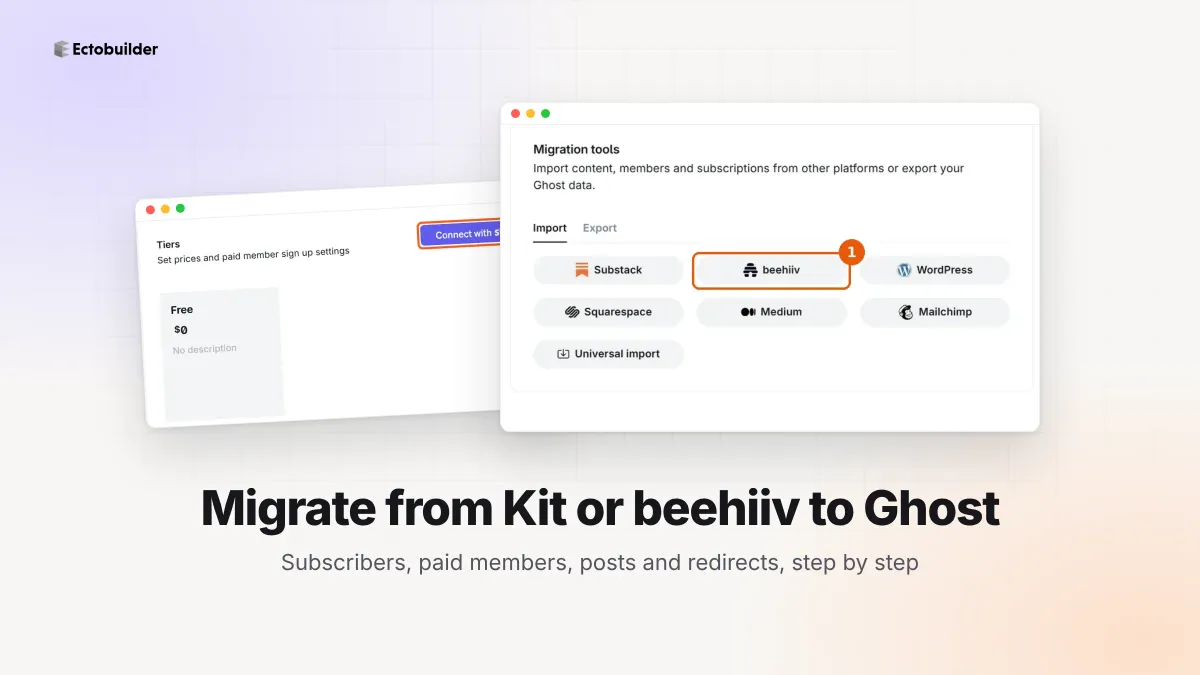
How to Migrate from Kit or beehiiv to Ghost (Subscribers, Paid Members, Posts and Redirects)
Move your newsletter from Kit (ConvertKit) or beehiiv to Ghost step by step: export and import subscribers, deal with paid members and Stripe, bring your posts across, set up redirects and your domain, warm up email sending, and make the new site look right.
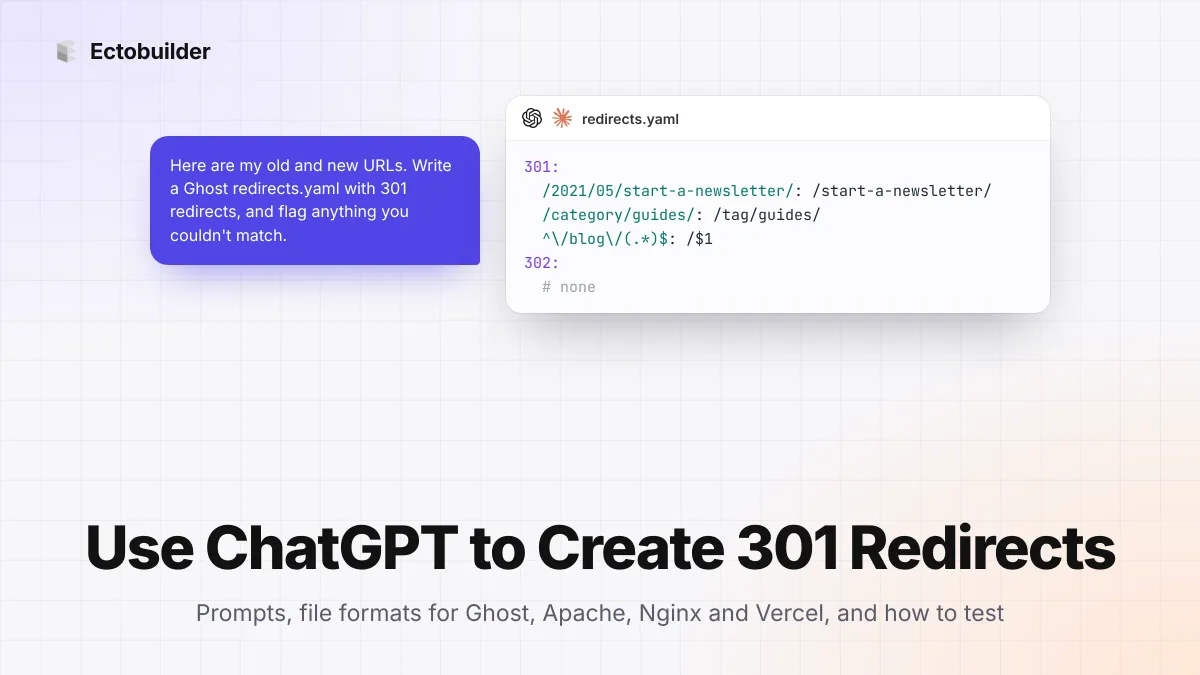
How to Use ChatGPT to Create 301 Redirects (Prompts, File Formats and Testing)
Let ChatGPT or Claude match your old URLs to new ones and write the redirect file for Ghost, Apache, Nginx, Netlify or Vercel. Prompts to copy, the mistakes to avoid, and how to test every redirect.