
How to Migrate from Copyfolio to Ghost (and Keep Your Links)
Move your Copyfolio portfolio to Ghost step by step: pages, projects, blog posts, the contact form and your domain, with the same web addresses and a lower hosting bill.

Michal Wlosik
· 11 min read
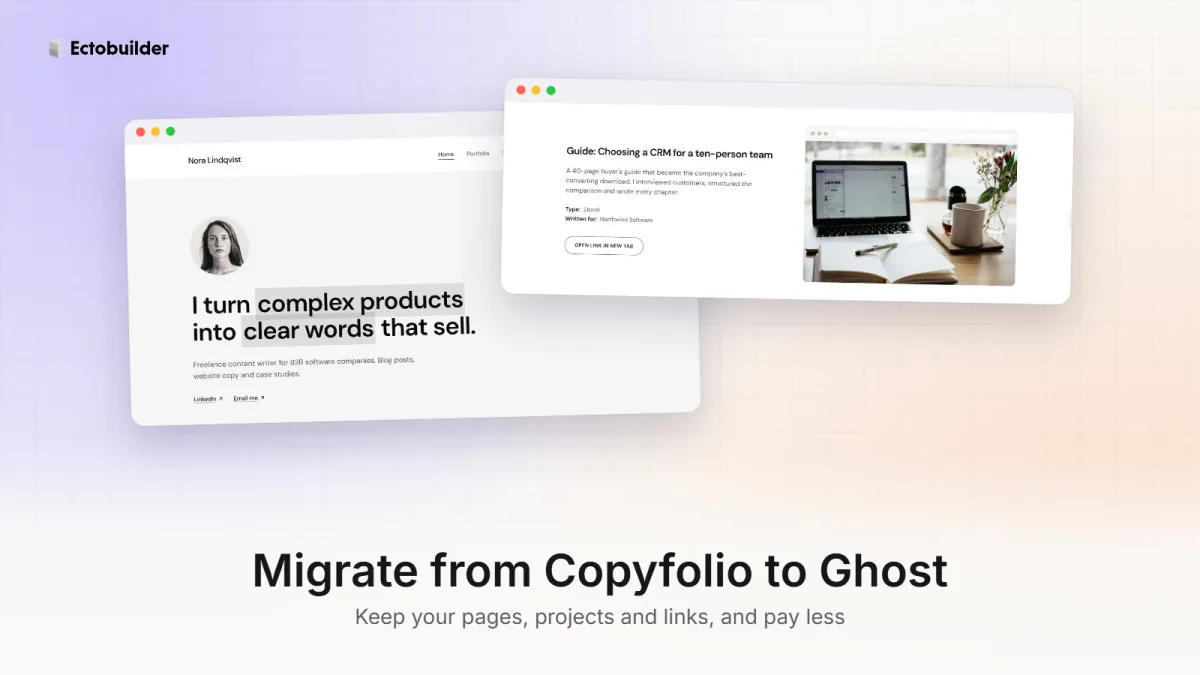
Copyfolio is a good place to start a writing portfolio. But some writers outgrow it: you want a real blog with a newsletter, a site you fully own, or simply a lower bill. Ghost does all of that, and it is open source. Still deciding where to move? Compare the main Copyfolio alternatives.
This guide moves a Copyfolio site to Ghost step by step: pages, projects, blog posts, the contact form, and your custom domain. The aim is a Ghost site that looks and works much like the one you have now, keeps the same web addresses, and costs less to run.
Plan for an afternoon if you have a handful of pages and projects. Most of the time goes on copying your text and images across.
Can you export your content from Copyfolio?
Not as a file. As of October 2026, Copyfolio's Settings panel has Domains, Privacy, SEO, Browser icon, Copyfolio banner, Google Analytics and Cookie banner, but no export or download option, and its help pages don't describe one. Ghost has no Copyfolio importer either.
That means the move is manual: you copy your text and download your images from your live Copyfolio site, then paste them into Ghost and Ectobuilder. It is less work than it sounds, because a portfolio is usually a few pages and a dozen projects. Do it while your Copyfolio site is still published, so everything is easy to see and copy.
What it costs: Copyfolio vs Ghost
Copyfolio Premium costs $15 a month, or $108 a year on the yearly plan. You need Premium to publish your site.
Ghost is free software. You pay for hosting, and you choose how much:
| Setup | Hosting per year | Notes |
|---|---|---|
| Copyfolio Premium (yearly) | $108 | $180 a year if you pay monthly |
| Ghost on PikaPods | about $30 | Cheapest. You get updates and HTTPS; newsletters need your own Mailgun account |
| Ghost on Magic Pages | €130 | Fully managed, 10,000 newsletter emails a month included |
| Ghost(Pro) Publisher | $348 | Ghost's own hosting. The $18 Starter plan doesn't allow custom themes |
Your domain costs the same wherever your site lives, usually $10 to $20 a year.
To publish the theme from this guide you need Ectobuilder Pro ($79 a year) or the Lifetime plan ($199 once). Building and previewing are free. So the first year on PikaPods costs about the same as Copyfolio ($30 + $79). After that it's about $30 a year for hosting, plus Pro only in the years you want to change your design. The theme keeps working on your site whether or not you renew.
Prices as of October 2026. Check each provider's pricing page before you sign up. For a deeper comparison of Ghost hosts, read Cheap Ghost hosting: 7 alternatives to Ghost(Pro).
If you’d rather not run a server, Ghost(Pro) is the easy option: the Ghost Foundation runs it for you, with updates, backups, a CDN, built-in analytics and newsletter sending included, and 0% taken from your paid subscriptions. Your subscription also funds Ghost’s development. Pick Publisher if you want a custom theme; Starter only runs Ghost’s official ones. There’s a 14-day free trial.
Before you start: make a list
Open your live Copyfolio site and write down:
- Every page and its address. On a custom domain they look like
yourname.com/portfolio,yourname.com/servicesandyourname.com/contact-me. Case study pages and blog posts sit at the same level, for exampleyourname.com/my-case-study. - Every project: title, description, type, client, link or PDF, and the images.
- Your blog posts, if you have any, with their publish dates.
- Your domain and where you bought it (Copyfolio or another registrar).
Save your images as you go: right-click each one on your live site and choose Save image as. Download any PDFs you uploaded too.
Step 1: Set up Ghost
Pick a host from the table above and create your Ghost site. On PikaPods it is a few clicks: choose Ghost from the app list, pick the smallest plan, and your site is running on a temporary address within minutes.
For a full walkthrough with screenshots, including email, read How to host Ghost on PikaPods.
Then open Ghost Admin (your address followed by /ghost), create your account, and set your site title in Settings → General. Use your name, as on Copyfolio; the theme shows it in the header and footer.
Leave your domain pointing at Copyfolio for now. You'll switch it at the end, once the new site is ready.
Step 2: Open the Writer Portfolio theme
- Sign in to Ectobuilder. It's free to build.
- Open the theme gallery and choose Writer Portfolio.
- Under Settings → Integrations → Ghost Admin API, connect your Ghost site so you can publish to it in one click.
The theme has a template for each page a writer's portfolio usually has. Open them from the page menu at the top of the editor:
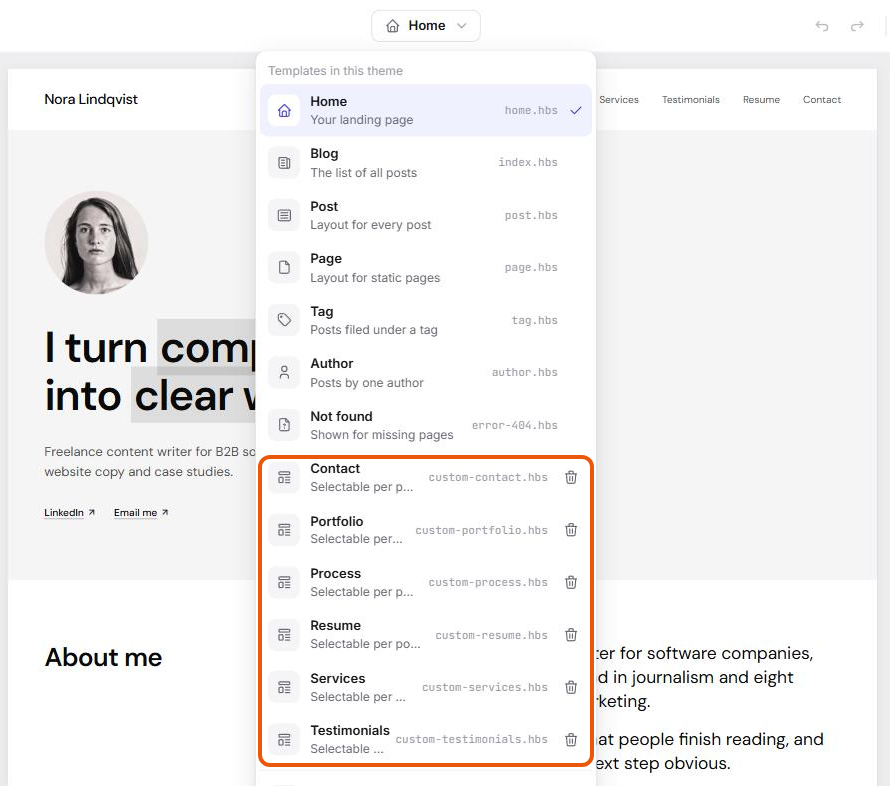

Skip the setup. The Writer Portfolio theme already has a statement homepage, services, projects, a resume and a contact form. Open it in Ectobuilder, swap in your words and photos, and only pay if you’re happy with the design.
Step 3: Rebuild your pages
Go through your Copyfolio pages one by one and fill in the matching template. Double-click any text on the canvas to change it, and click an image to replace it with one of yours. Here is how Copyfolio's usual sections map to the theme:
| On your Copyfolio site | In the Writer Portfolio theme |
|---|---|
| Intro with photo and a big headline | Home: Statement with highlighted words |
| Client logos | Add any section from Add → Logo clouds |
| "About me" and "Experience" next to text | Home: Label and text rows |
| Services with pictures | Home: Services with pictures, four columns |
| Numbered work categories ("01. Ebooks") | Portfolio: Numbered category intro |
| Projects with a screenshot | Portfolio: Project with sample in a browser frame |
| Numbered services ("01 — Blog posts") | Services: Numbered services in rows |
| Testimonials | Testimonials: Testimonials, zigzag |
| Resume: photo, experience, education, skills | Resume: Profile, Experience and education, Specialisms and formats |
| Process and FAQ | Process: Process with pictures, Questions in two columns |
| Contact form | Contact: Statement and form |
| "Want to work together?" button | Line, question and button, on every page |
Every section can be duplicated, moved and removed, and you'll find all of them under Add if you want to build a page from scratch. Under Style you can change fonts and colours for the whole site, so it can look like your current one.
Highlighted words
The homepage headline highlights a few words, like Copyfolio's intro. Double-click the headline, select the words, click the colour button in the text toolbar and choose Highlight. Choose None to remove it.
Step 4: Move your projects
You have two ways to show projects, and you can mix them.
Project rows on the page. Use these for work you link to elsewhere, such as a guest article or a PDF. Each row has a title, a description, the type, the client, a button, and a picture in a browser frame. Point the button at the article, or at a PDF you upload to Ghost (see below).
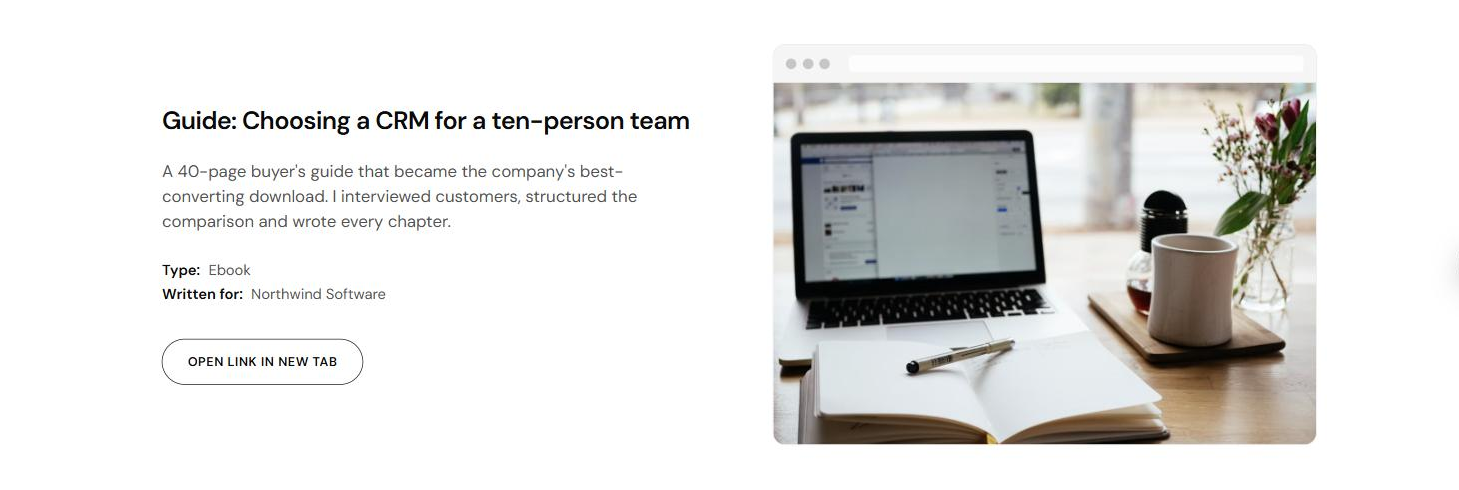
Case studies as Ghost posts. If a Copyfolio project has its own page (a case study), move it to a Ghost post instead:
- In Ghost Admin, create a new post and paste the case study text. Add the images and the feature image.
- In Post settings, set the Post URL to the same slug it had on Copyfolio, add the tag
Portfolio, and write a one-line excerpt. - Publish it without sending it as an email.
The Portfolio page's Portfolio projects from posts section lists every post tagged Portfolio automatically, newest first, with its feature image in a browser frame. Add the post's type (Ebook, Report) as its first tag if you want it shown above the title.
PDFs
Upload a PDF to any Ghost post or page with the File card (type /file in the editor). Copy the file's address and use it as the button link on your project row.
Step 5: Move your blog posts
For each Copyfolio blog post:
- Open the post on your live site, select the text and copy it.
- Create a new post in Ghost and paste. Headings, links, bold and lists come across; images need re-uploading.
- In Post settings, set the Post URL to the post's Copyfolio slug, set the Publish date to the original date, and add a feature image and excerpt.
- Publish without sending an email.
Your posts appear on the theme's Blog page. Add it to your menu in step 8 if you want it there.
Step 6: Turn on the contact form
Copyfolio's form emails you every message. The theme's form does the same through Web3Forms, which is free. Get a key at web3forms.com, then paste it in Ectobuilder under Settings → Integrations → Web3Forms.
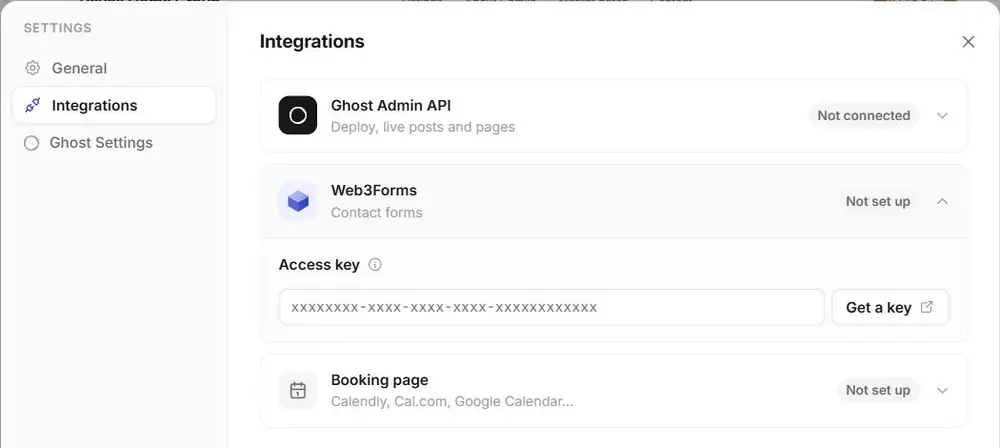
Full instructions, including testing and spam, are in How to add a contact form to your Ghost site.
Step 7: Publish the theme and create your pages
Click Deploy in Ectobuilder. The theme goes live on your Ghost site.
Ghost shows a custom template only on a page that uses it, so create one Ghost page for each template:
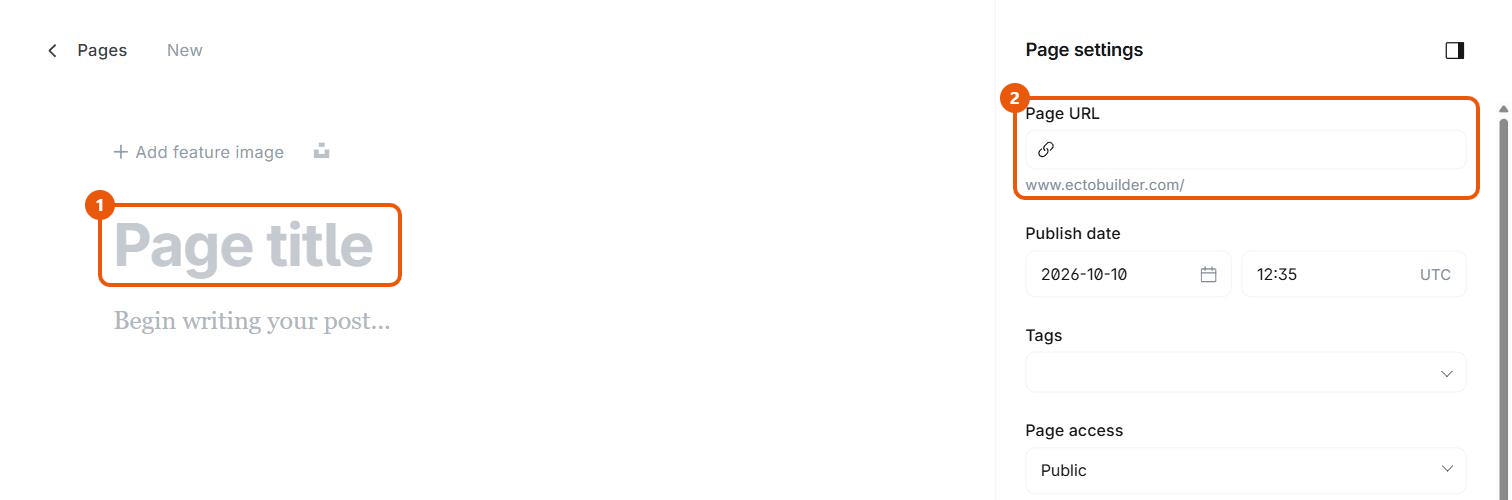
- In Ghost Admin, go to Pages → New page and give it a title, for example Portfolio. You can leave the body empty.
- Open Page settings (the panel icon at the top right) and set the Page URL to the exact slug from your Copyfolio site, for example
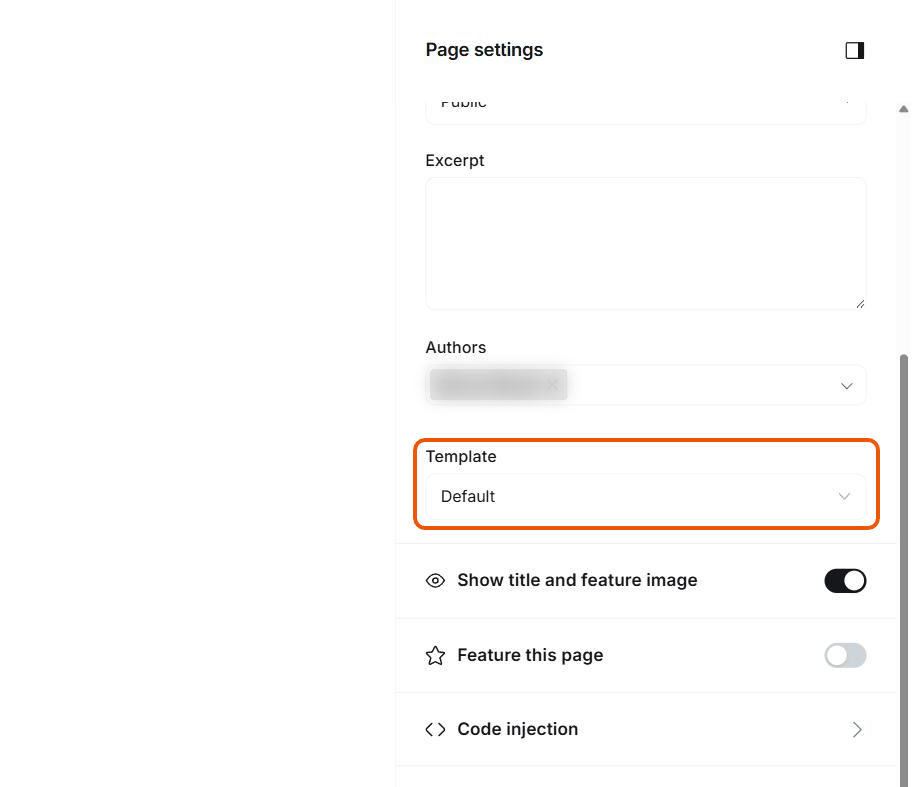
portfolioorcontact-me. - Under Template, choose the matching template, for example Portfolio.
- Publish the page.
Repeat for Services, Testimonials, Resume, Process and Contact. The homepage needs no page; it uses the Home template automatically.
Step 8: Set up the menu
The theme's header and footer show Ghost's navigation. In Ghost Admin, go to Settings → Navigation, click Customize, and add one item per page, with the same labels you used on Copyfolio.
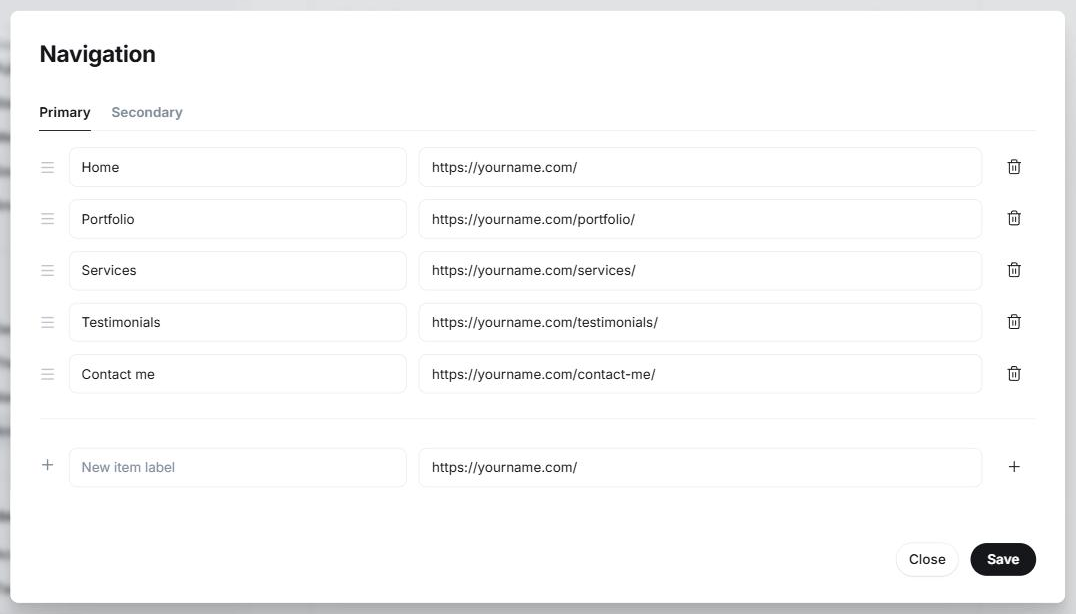
Use the Secondary tab for footer-only links, such as a privacy page.
Want several pages under one menu item, like your services? Start their labels with a dash, such as "- Weddings", and they show as a dropdown under the item above. See how to add dropdown menus to Ghost.
Step 9: Keep your links working
Your portfolio is linked from LinkedIn, job applications, client sites and search results. Keep those links working like this.
Use the same slugs
Copyfolio puts every page, case study and blog post at the top level of your domain: yourname.com/portfolio, yourname.com/my-case-study. Ghost does the same for pages. For posts, the Writer Portfolio theme is set to the same top-level addresses, with the list of all posts at /blog/. If you give each Ghost page and post the same slug, the addresses stay the same.
The only difference is the slash at the end. Ghost's addresses end with one (yourname.com/portfolio/), and Ghost automatically redirects the old form without it, so yourname.com/portfolio keeps working.
Ghost reads these post addresses from a routes.yaml file, which you upload once:
- In Ectobuilder, open Settings → Ghost Settings. Under Routes, Post addresses is already set to /post-name (portfolio builders). Click Download next to routes.yaml.
- In Ghost Admin, go to Settings → Labs, find Routes and click Upload routes file.
| Copyfolio address | Ghost address | What to do |
|---|---|---|
/ | / | Nothing; the Home template |
/portfolio | /portfolio/ | Page with slug portfolio |
/contact-me | /contact-me/ | Page with slug contact-me |
/my-case-study | /my-case-study/ | Post with slug my-case-study |
/blog | /blog/ | Nothing; the Blog template, once routes.yaml is uploaded |
Redirect anything you rename
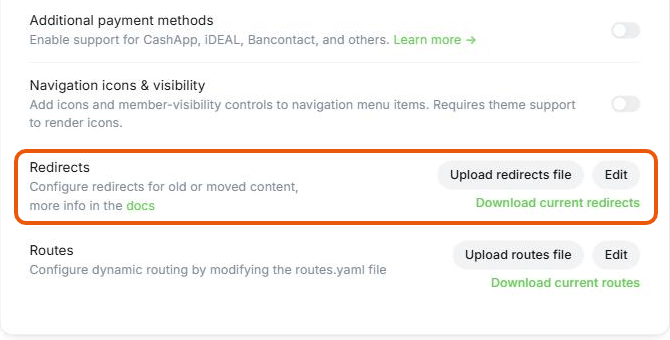
If you change a slug, add a redirect so the old address still works. In Ghost Admin, go to Settings → Labs, find Redirects, and either edit them there or upload a redirects.yaml file:
301:
  ^/contact-me/?$: /contact/
  ^/old-case-study/?$: /new-case-study/
Each line sends one old address to a new one. The /?$ ending matches the old address with or without the final slash.
Your blog page
On Copyfolio, the blog is a section on a page, often at /blog. With the routes file above, the theme's Blog template lists every post at /blog/, so that address keeps working too. If your blog section had a different address, for example /writing, add a redirect from it to /blog/.
If you used a copyfol.io address
If your site lived at copyfol.io/v/yourname rather than your own domain, those old links can't be redirected, because Copyfolio controls that address. Update the links you control: LinkedIn, your email signature, social profiles, and anywhere you've applied for work. It's a good moment to get your own domain.
Step 10: Move your domain
When the new site looks right on its temporary address:
- Add the domain to your Ghost host. On PikaPods, add it in your pod's settings; other hosts have a similar setting. Note the DNS record it asks for.
- Change your DNS. At your domain registrar, remove the records Copyfolio asked you to add and add the record your Ghost host gave you. If you bought the domain through Copyfolio, ask Copyfolio support to transfer it to you first.
- Update Ghost's address in your host's settings so Ghost knows its new domain.
- Test. Open your old links (from LinkedIn, Google, your CV) and check each one lands on the right page.
DNS changes can take a few hours to reach everyone. Keep your Copyfolio subscription until the new site has been live for a few days, then cancel it.
Ready to build yours? Everything in this guide works on your own copy of the Writer Portfolio theme. Start free, connect your Ghost site when you’re ready, and only pay if you like the result.
Frequently asked questions
Can I import my Copyfolio site automatically?
Not today. Copyfolio has no export, so the move is copy and paste. For a typical portfolio it takes an afternoon.
Will I lose my Google rankings?
Not if your addresses stay the same. Keep every slug, redirect anything you rename, and keep your page titles and descriptions; Ghost has SEO fields under Post settings → Meta data.
Can I keep the same look?
Very close. The Writer Portfolio theme uses the same kinds of sections, and under Style you can change the fonts and colours to match the ones you use now.
Do I need to know code?
No. You edit the theme on the canvas in Ectobuilder and write in Ghost's editor.
What do I gain by moving?
A real blog with a built-in newsletter (on PikaPods you add a Mailgun account to send it; managed hosts include email), full ownership of your content with Ghost's own JSON export, and hosting from about $30 a year.
Copyfolio is a trademark of its owner. Ectobuilder is not affiliated with Copyfolio. Prices were checked in October 2026 and may change.
Written by
Founder of Ectobuilder, the AI-powered visual theme editor for Ghost. Indie software builder in Wrocław and co-author of The AdTech Book. I write about Ghost themes, newsletters and building websites with AI.
Comments
Questions or thoughts? Share them below.
Keep reading
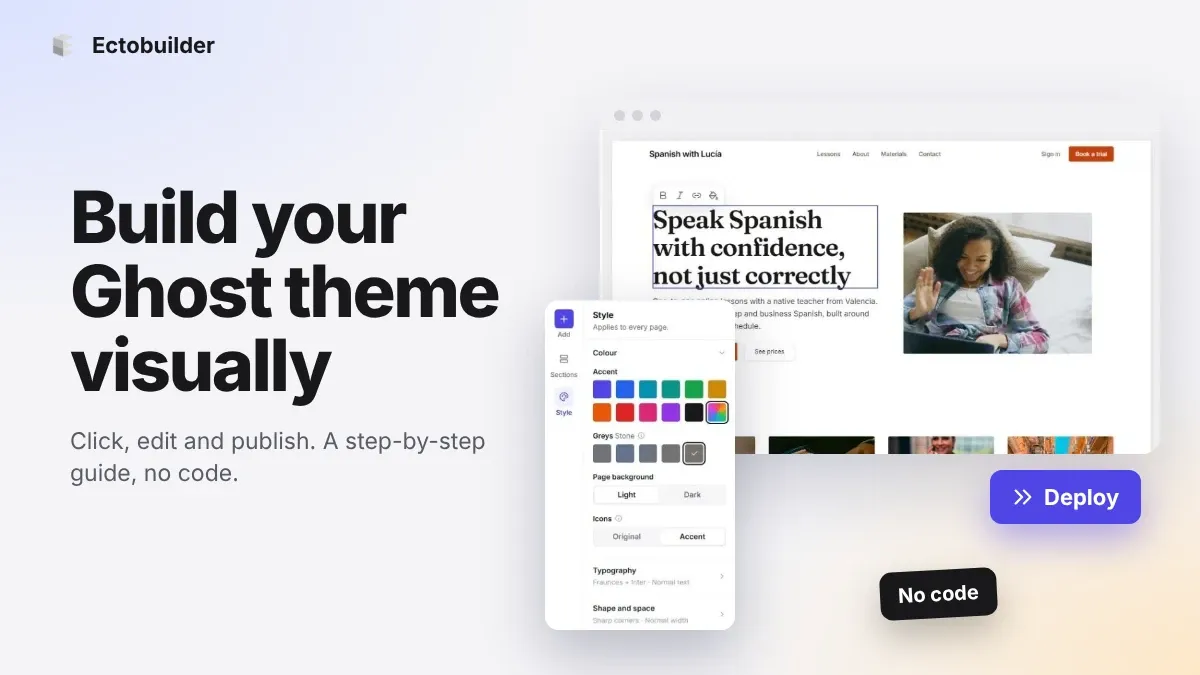
How to Build Your Ghost Theme Visually (Step-by-Step Guide, No Code)
Build a complete Ghost theme without touching code: start from a theme, edit text and pictures in place, add sections from a library of 270, set colours and fonts, design every page, and publish to Ghost in one click. Step by step, with screenshots.
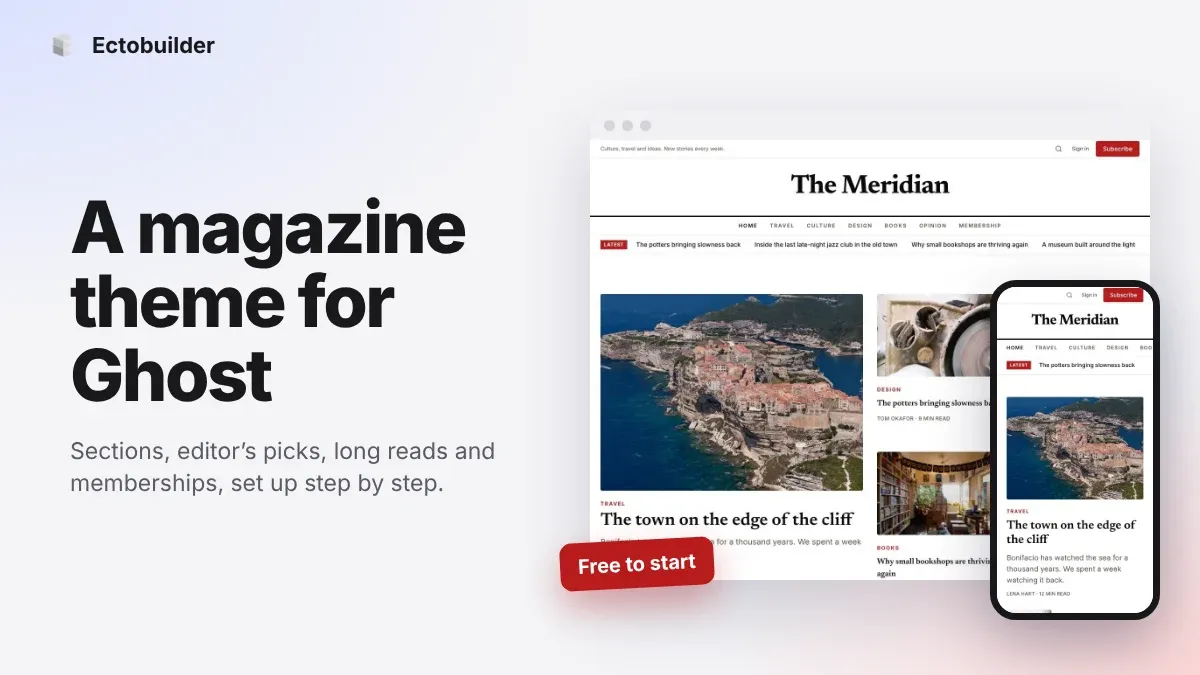
Magazine Theme for Ghost: Sections, Editor's Picks, Long Reads and Memberships
A step-by-step guide to the Magazine theme for Ghost: turn sections into tags, set up the navigation, fill the front page, editor's picks and section fronts, add your writers, sell memberships and send a weekly newsletter.
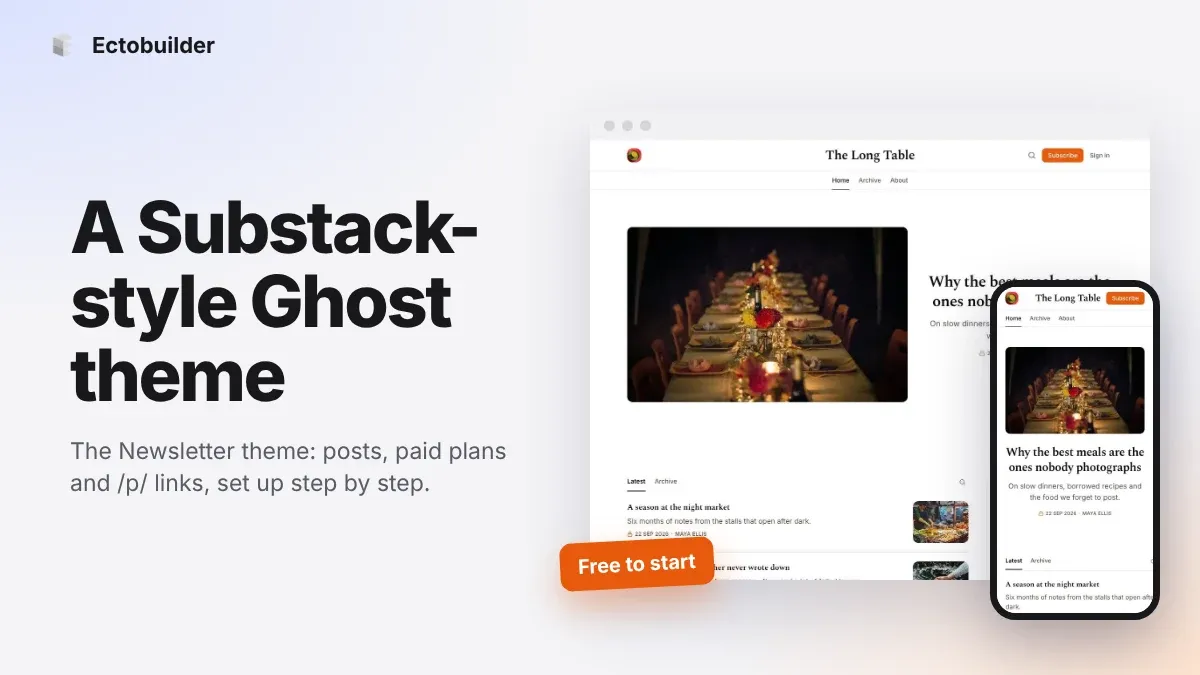
Newsletter Theme for Ghost: A Substack-Style Site With Paid Plans, /p/ Links and Comments
A step-by-step guide to the Newsletter theme for Ghost: a Substack-style homepage and reading page, then newsletters, paid plans, /p/ addresses, Plans, Welcome and About pages, comments and recommendations.