
How to Add Disqus Comments to Ghost (Step by Step, 2026)
Add Disqus comments to your Ghost site: create the Disqus site, find your shortname, add it to your theme with or without code, set up privacy and cookie consent, and fix the problems that stop Disqus from loading.

Michal Wlosik
· 7 min read
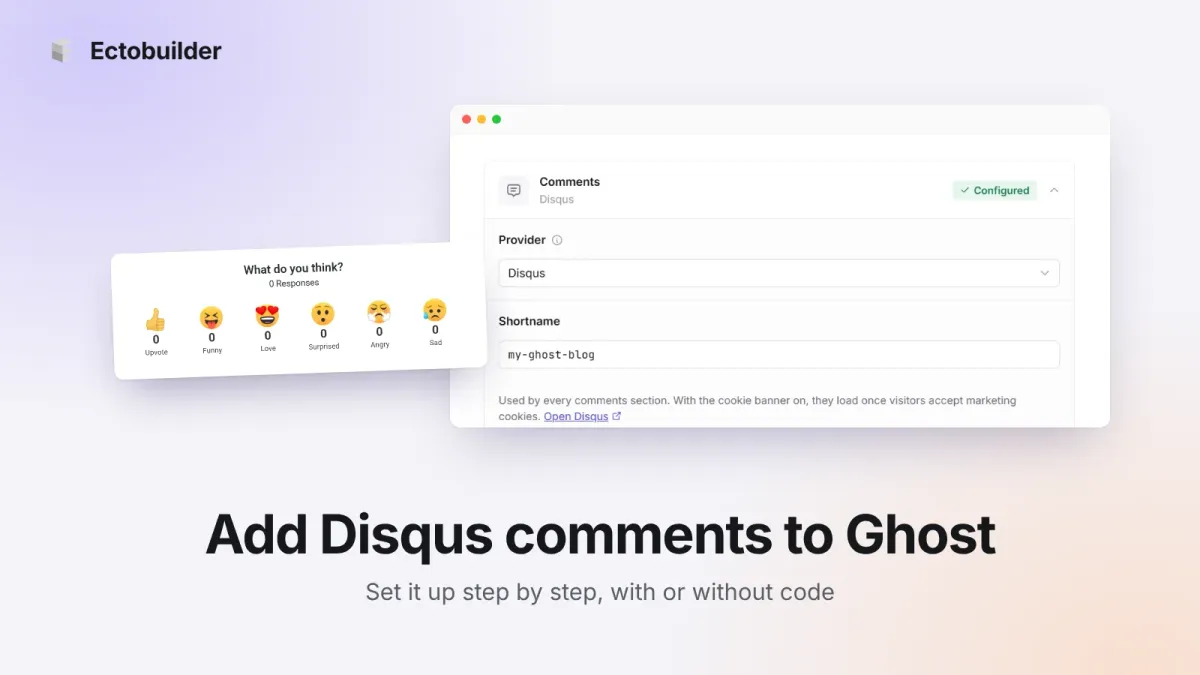
Disqus is the comment system many readers already have an account for. It brings voting, reactions, spam filtering and email notifications, and it works on any Ghost site, whether you host on Ghost(Pro), a managed host or your own server.
Ghost doesn't have a Disqus switch, though. Ghost's own Disqus integration page and Disqus's Ghost instructions both come down to the same thing: put the Disqus code in your theme. This guide shows the whole setup, step by step: the Disqus side, two ways to add it to your theme (with Ectobuilder, or by hand), the privacy settings worth changing, and the fixes for when Disqus doesn't load.
Not sure Disqus is the right choice? Our comparison of Ghost comment systems puts it next to Ghost's own comments, Giscus and Hyvor Talk.
What you need
- A Ghost site, on any host.
- A free Disqus account.
- Either an Ectobuilder theme, or access to your theme's files (to edit
post.hbs).
Time: about 10 minutes.
Step 1: Create your site in Disqus
- Sign in to Disqus and open disqus.com/admin/create.
- Pick your Organization (Disqus creates one for your account).
- Type your Website Name. Disqus turns it into your shortname and shows it underneath, for example
my-ghost-blog. Click Customize Your URL if you want a different one. - Choose a Category and click Create Site.
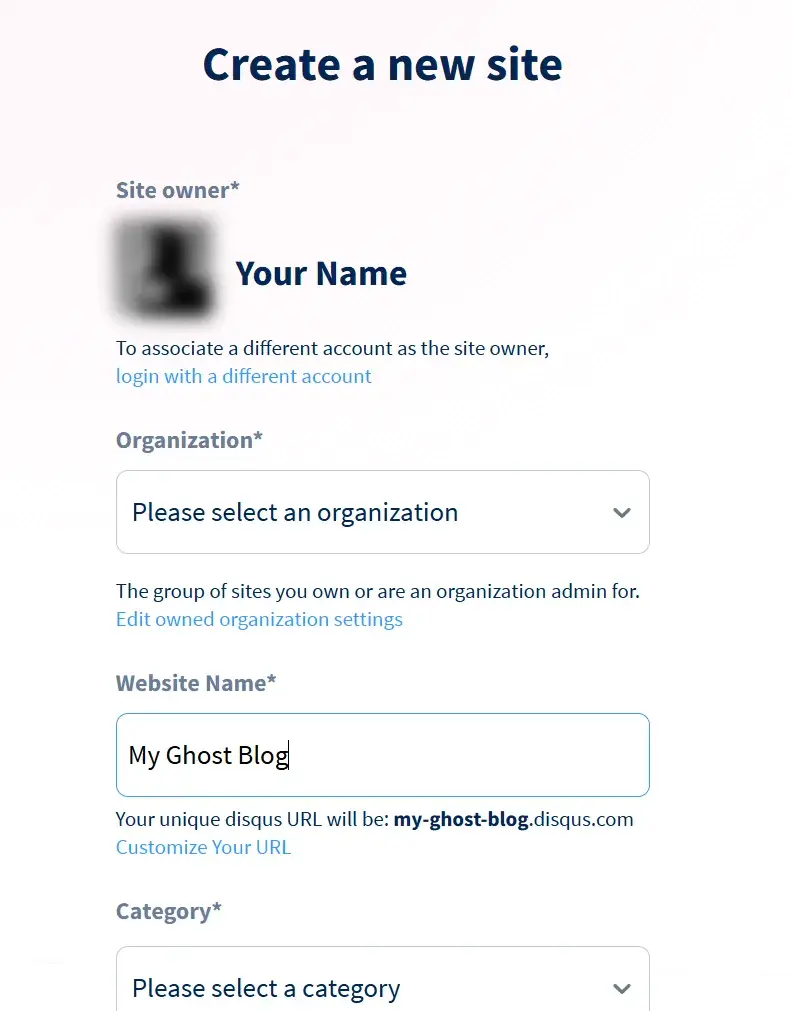
The shortname is the one thing your Ghost site needs from Disqus. It can't be changed later, so pick one that matches your site.
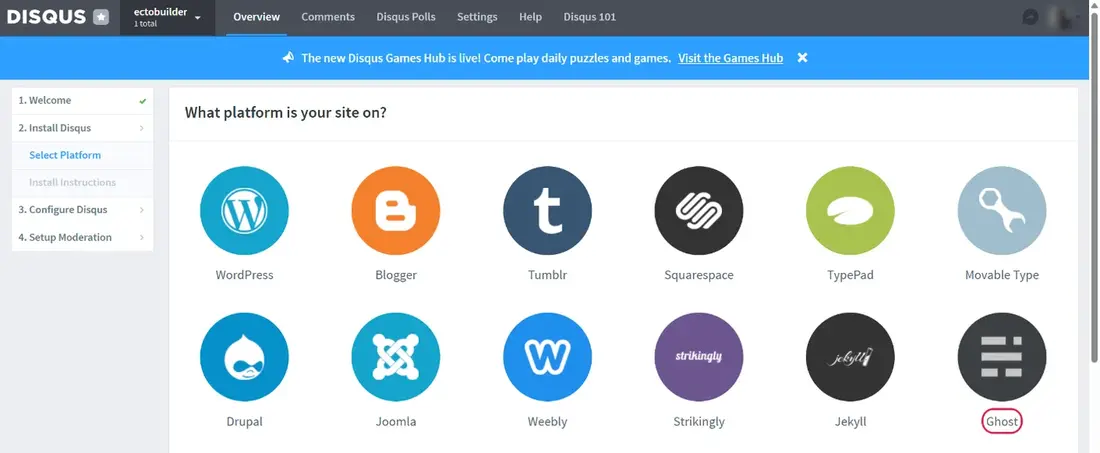
Disqus then asks which platform your site runs on. Choose Ghost. Disqus shows its Ghost instructions; you'll find the same code in Step 3, or skip it entirely with Ectobuilder.
Step 2: Find your shortname
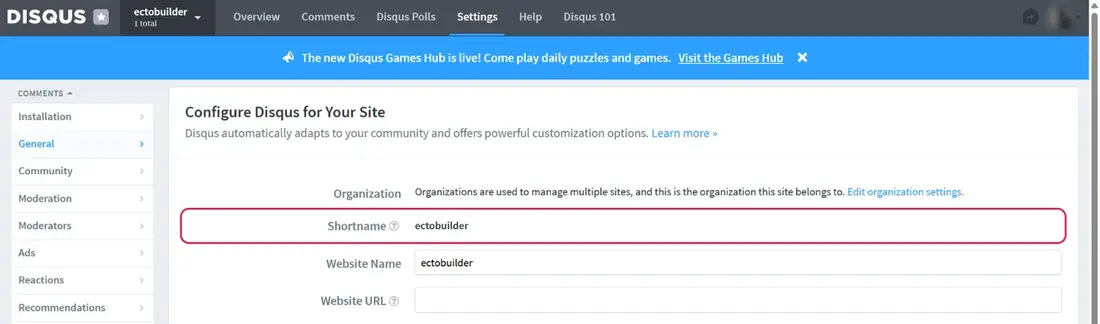
If you already have a Disqus site, or forgot the shortname, open Disqus Admin, choose your site in the menu at the top left, and go to Settings → General. The Shortname is near the top.
Step 3: Add Disqus to your Ghost theme
There are two ways. With Ectobuilder you paste the shortname and you're done. By hand, you edit your theme's post template and upload the theme again.
Option A: With Ectobuilder (no code)
- Open your theme in Ectobuilder and go to Settings → Integrations → Comments.
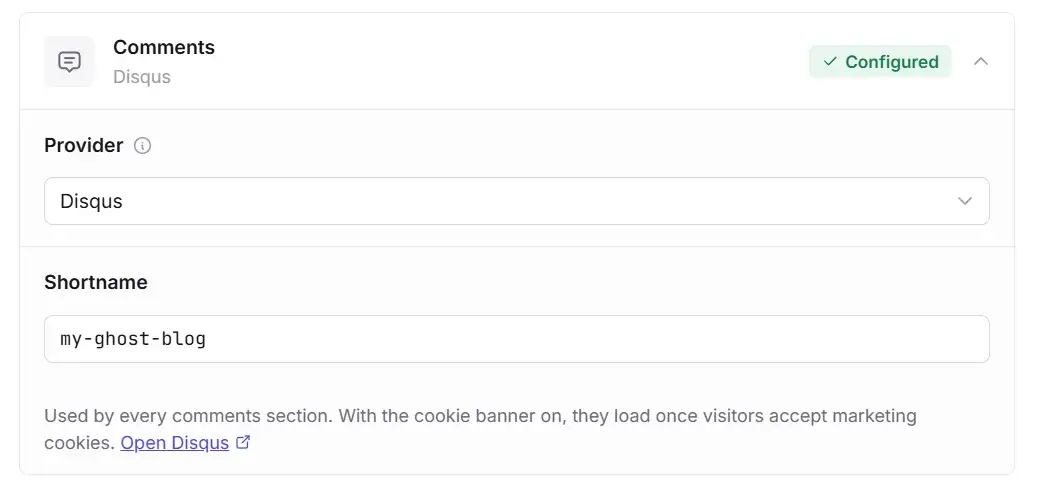
- Set Provider to Disqus and paste your Shortname. The badge changes to Configured.
- Go to your Post page, click Add section, open Comments and pick a design: Simple, Card, or Behind a button. If your theme already has a comments section, it switches to Disqus on its own.
- Click Deploy.
Ectobuilder writes the same code Disqus recommends for Ghost, including the ghost-{{comment_id}} thread label, so comments you collected with Disqus's own instructions show up under the right posts. It also handles two things the hand-made version doesn't: the theme's colours (see Troubleshooting) and cookie consent.

Skip the code. Build your Ghost theme in Ectobuilder, paste your Disqus shortname once, and every post gets comments, with cookie consent built in. Start free and only pay when you publish.
Option B: By hand, in post.hbs
This is what Disqus's Ghost instructions ask for.
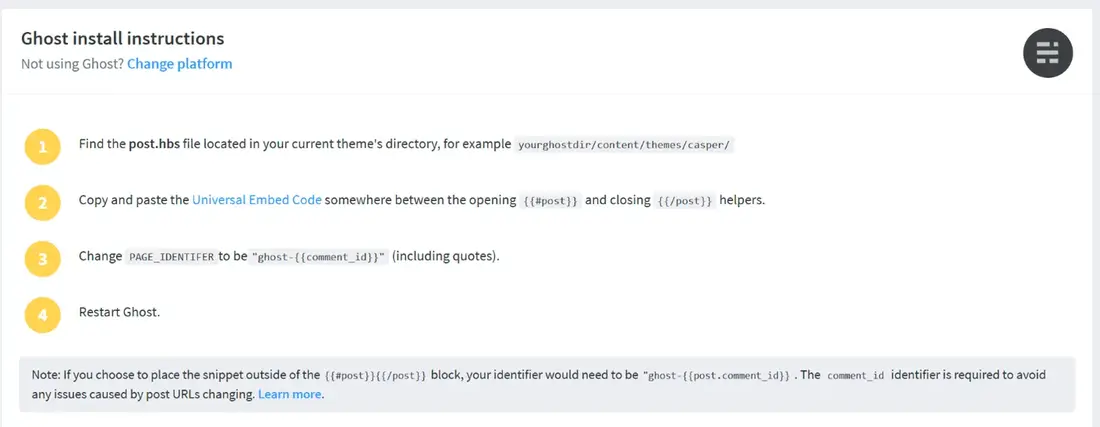
- Download your theme: Ghost Admin → Settings → Design → Change theme, then download the active theme from its menu. Unzip it.
- Open
post.hbs. If the theme shows Ghost's own comments, you'll find{{comments}}inside an{{#if comments}}block; remove that block. - Paste this where the comments should appear, between
{{#post}}and{{/post}}, and replaceYOUR-SHORTNAME:
<div id="disqus_thread"></div>
<script>
  var disqus_config = function () {
    this.page.url = "{{url absolute="true"}}";
    this.page.identifier = "ghost-{{comment_id}}";
  };
  (function () {
    var d = document, s = d.createElement('script');
    s.src = 'https://YOUR-SHORTNAME.disqus.com/embed.js';
    s.setAttribute('data-timestamp', +new Date());
    (d.head || d.body).appendChild(s);
  })();
</script>- Zip the theme folder again and upload it under Settings → Design → Change theme → Upload theme. Activate it.
Keep the identifier exactly as ghost-{{comment_id}}. It ties each thread to the post itself rather than its URL, so a changed slug or domain doesn't orphan its comments. On Ghost(Pro), uploading your own theme needs the Publisher plan or above.
Step 4: Change the privacy settings
Disqus turns on ad tracking and affiliate links by default. Both are worth a look before your first reader arrives. In Disqus Admin, go to Settings → Advanced:
- Tracking: untick "Enable anonymous cookie targeting" if you don't want Disqus targeting ads at your readers.
- Affiliate links: untick it if you don't want Disqus adding its merchant codes to product links on your site.
- Trusted Domains: add your domain, for example
yourblog.com. Disqus then only loads on your site, so nobody can borrow your shortname elsewhere.
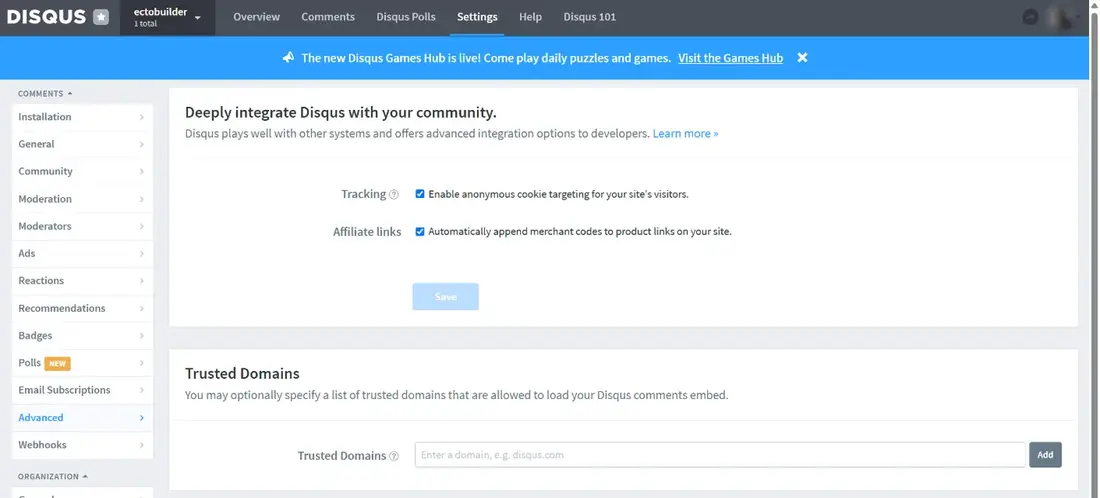
Click Save. While you're in the settings, Community sets who can comment (guests or only signed-in readers) and Moderation sets whether comments need approval. On the free plan Disqus shows ads in the comment section; removing them needs a paid plan.
Step 5: Ask for cookie consent
Disqus sets cookies, including advertising ones on the free plan, so visitors in the EU and UK should agree before it loads.
In Ectobuilder, open Settings → Privacy and turn on the cookie banner. Disqus then waits for the visitor to accept marketing cookies, and until then the comments area shows a short note with a Load comments button, so a reader who just wants the comments can open them for that page. Our guide to cookie consent on Ghost covers the banner in detail.
Added Disqus by hand? Your consent tool needs to hold back the Disqus script until the visitor agrees; check its documentation for how to block a script by category.
Step 6: Check it works
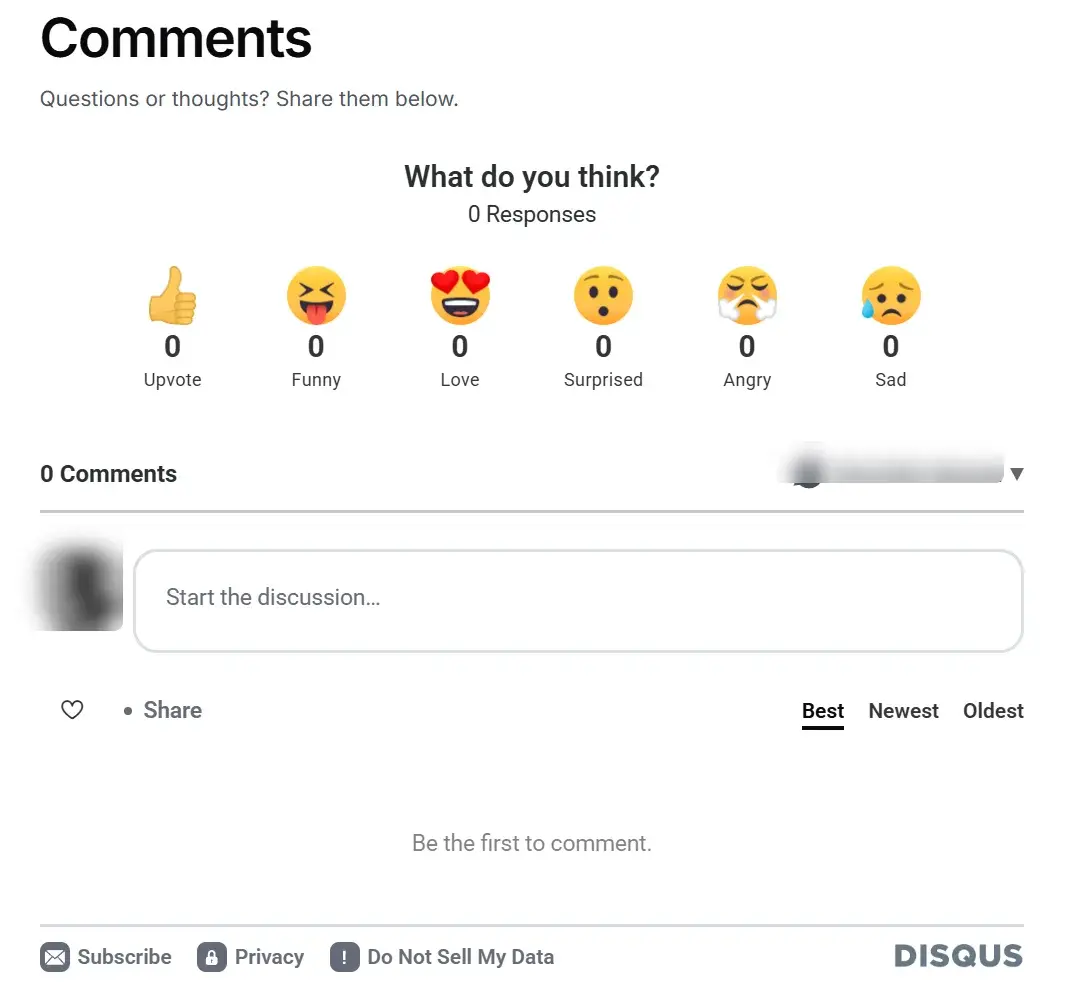
Open a published post and scroll to the end. Accept the cookie banner, or click Load comments. You should see the Disqus reactions and the comment box. Post a test comment, then delete it from Moderate Comments in Disqus Admin.
Troubleshooting
Nothing shows, and the browser console says "parseColor received unparseable color". Disqus reads your theme's text colour to choose a light or dark look, and it can't read the modern oklch() colours many new themes use, so it stops. Ectobuilder themes hand Disqus a plain RGB colour instead. In a hand-edited theme, give the thread an RGB text and link colour in your CSS, for example #disqus_thread { color: rgb(17,17,17); } and #disqus_thread a { color: rgb(37,99,235); }.
"We were unable to load Disqus." Check the shortname for typos. If you added Trusted Domains, make sure your site's domain is on the list, with and without www if you use both.
Comments appear under the wrong post, or old comments are missing. The thread label changed. Use ghost-{{comment_id}} as above; if you used a different label before, Disqus's URL mapper (Moderate Comments → Tools → Migrate Threads) can reattach old threads.
Disqus doesn't load in the editor. That's expected: editors, Ghost's included, don't run comment scripts. Check on the published site.
You moved to a new domain. Your comments are fine; the threads just point at old URLs. Use Disqus's domain migration tool under Migrate Threads, and add the new domain to Trusted Domains.

Want comments without ads or tracking? Hyvor Talk adds reactions, voting and moderation to Ghost, hosted in the EU and GDPR-compliant. Try it free for 14 days, no credit card needed.
FAQ
Does Ghost have a built-in Disqus integration?
No setting in Ghost Admin turns Disqus on. Ghost's integration page explains how to add the Disqus code to your theme, which is what this guide does.
Is Disqus free?
There's a free plan, which shows ads in your comment section. Paid plans remove the ads and add features; check Disqus's pricing page for the current plans.
Can I use Disqus and Ghost's own comments together?
You can, but readers would see two comment sections. Pick one. If you switch to Disqus, turn commenting off in Ghost Admin → Settings → Membership.
Does Disqus work on Ghost(Pro)?
Yes, on plans that allow custom themes (Publisher and above), since Disqus is part of the theme. On self-hosted Ghost and independent hosts it works on any plan.
Can I import my Disqus comments into Ghost?
No. Ghost has no importer for comments from other services. Disqus lets you export your comments as a file, but they stay in Disqus on your site.
Does Disqus slow my Ghost site down?
It loads a fair amount of code. Ectobuilder's "Behind a button" comments design loads Disqus only when a reader asks for the comments, so the post itself stays fast.
Disqus is a trademark of its owner. Ectobuilder is not affiliated with Disqus. Some links in this article are affiliate links: if you sign up through them, Ectobuilder may earn a commission at no extra cost to you.
Written by
Founder of Ectobuilder, the AI-powered visual theme editor for Ghost. Indie software builder in Wrocław and co-author of The AdTech Book. I write about Ghost themes, newsletters and building websites with AI.
Comments
Questions or thoughts? Share them below.
Keep reading
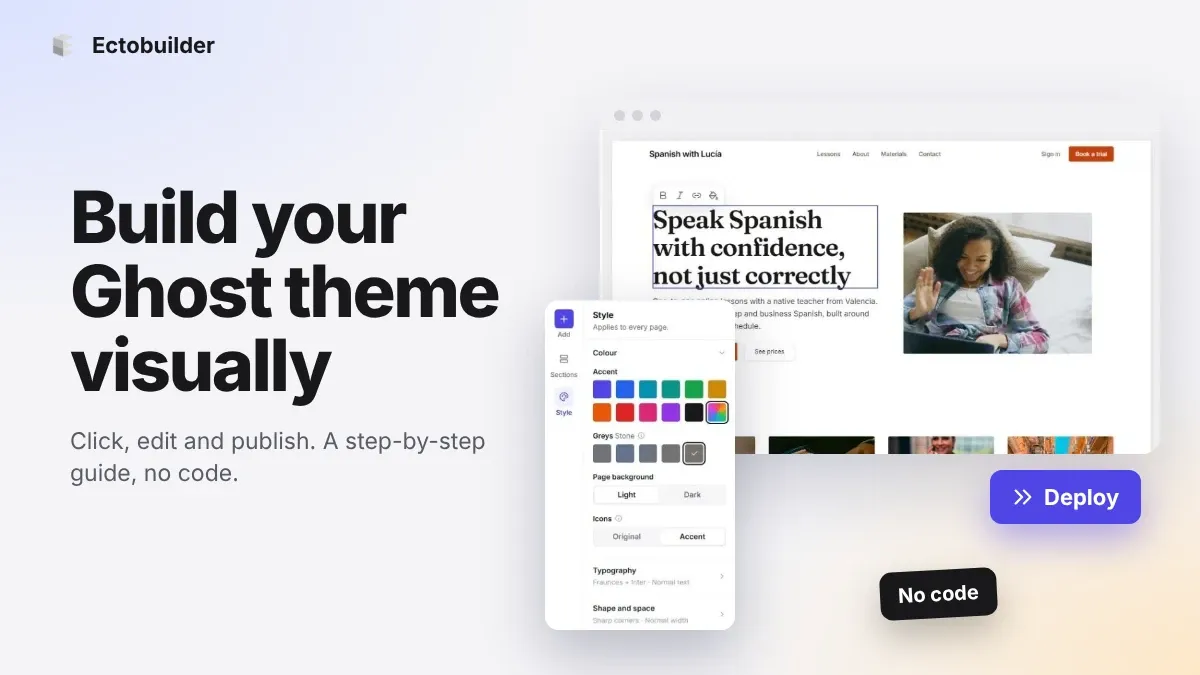
How to Build Your Ghost Theme Visually (Step-by-Step Guide, No Code)
Build a complete Ghost theme without touching code: start from a theme, edit text and pictures in place, add sections from a library of 270, set colours and fonts, design every page, and publish to Ghost in one click. Step by step, with screenshots.
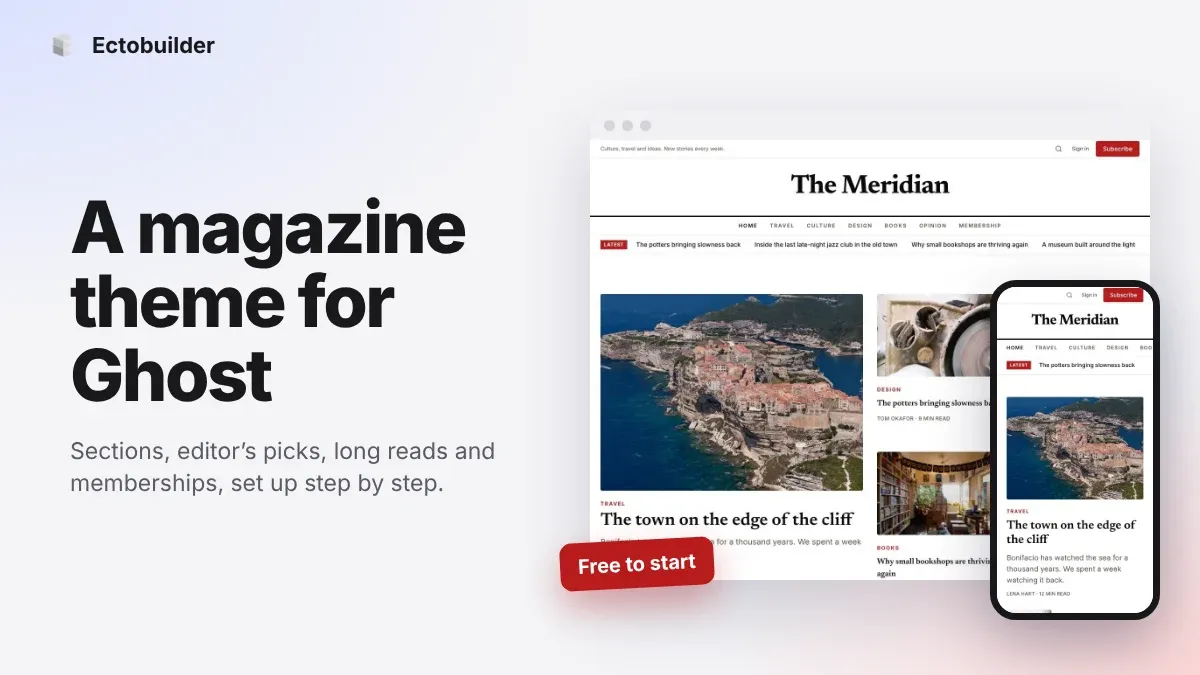
Magazine Theme for Ghost: Sections, Editor's Picks, Long Reads and Memberships
A step-by-step guide to the Magazine theme for Ghost: turn sections into tags, set up the navigation, fill the front page, editor's picks and section fronts, add your writers, sell memberships and send a weekly newsletter.
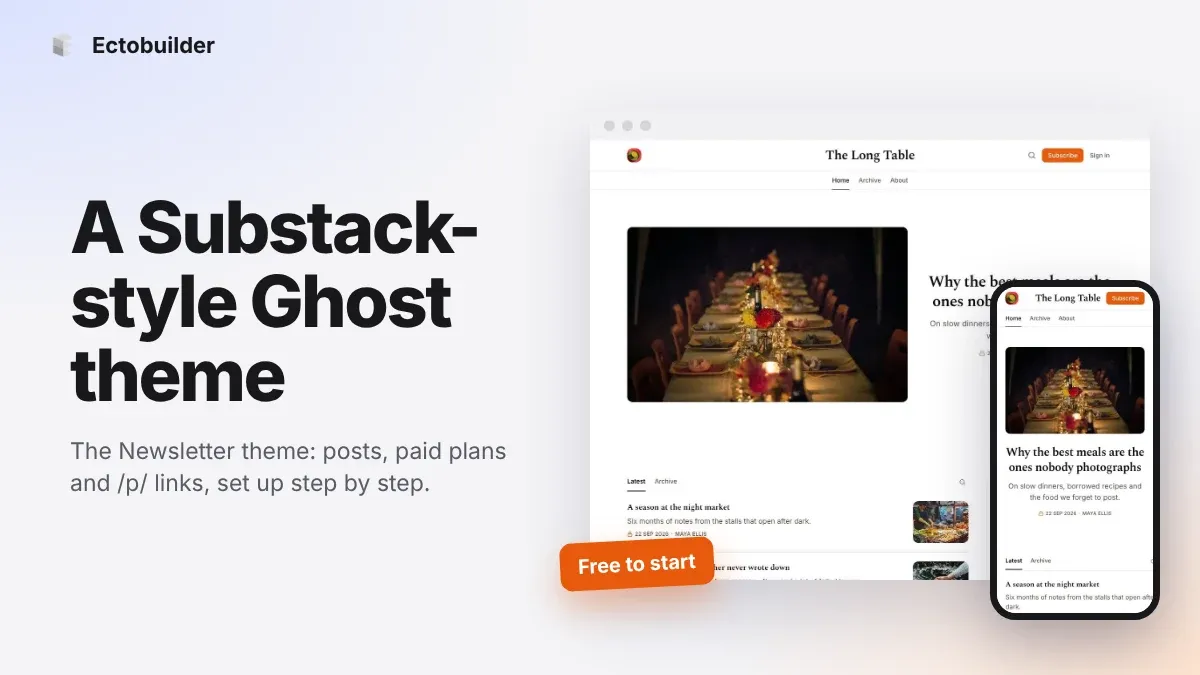
Newsletter Theme for Ghost: A Substack-Style Site With Paid Plans, /p/ Links and Comments
A step-by-step guide to the Newsletter theme for Ghost: a Substack-style homepage and reading page, then newsletters, paid plans, /p/ addresses, Plans, Welcome and About pages, comments and recommendations.